
ALTRIOS





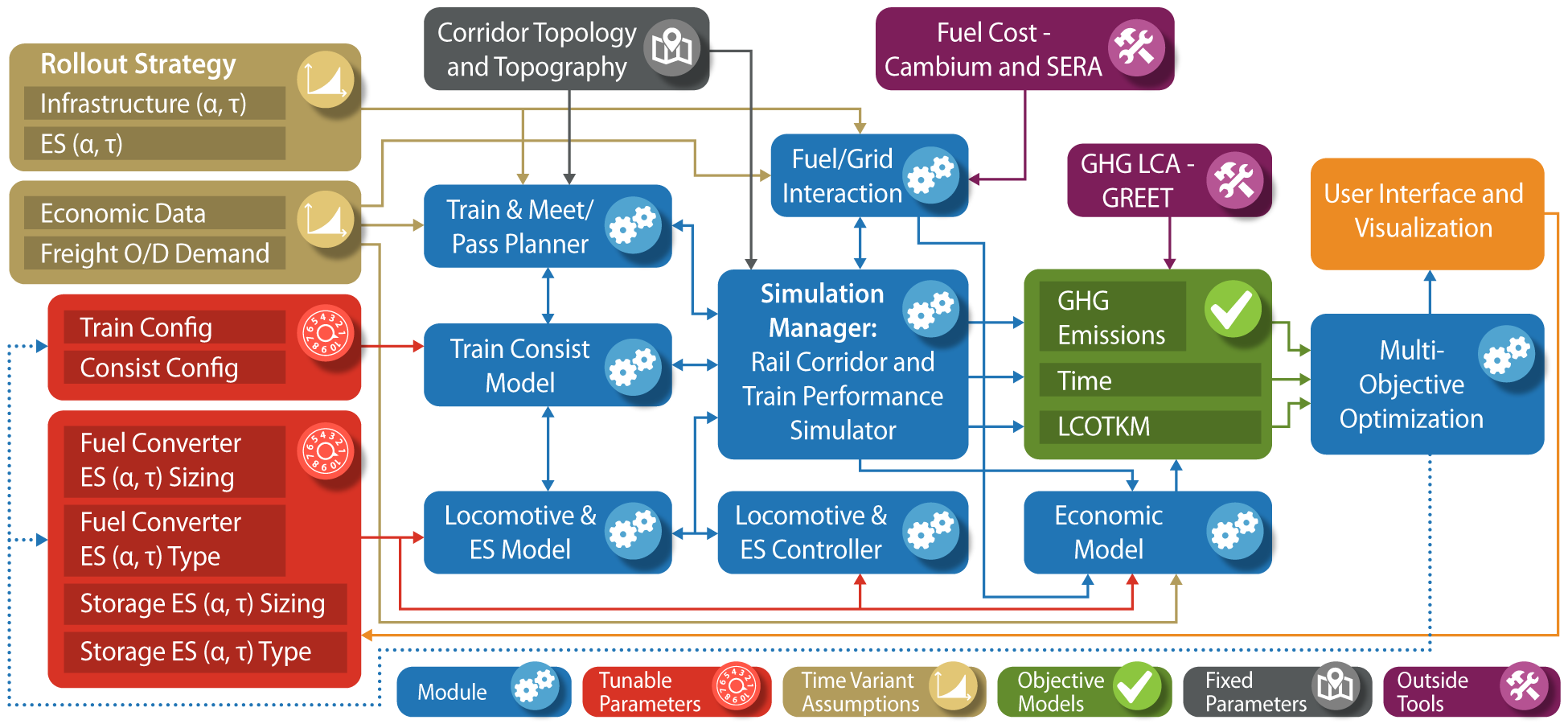
The Advanced Locomotive Technology and Rail Infrastructure Optimization System (ALTRIOS) is a unique, fully integrated, open-source software tool to evaluate strategies for deploying advanced locomotive technologies and associated infrastructure for cost-effective decarbonization. ALTRIOS simulates freight-demand driven train scheduling, mainline meet-pass planning, locomotive dynamics, train dynamics, energy conversion efficiencies, and energy storage dynamics of line-haul train operations. Because new locomotives represent a significant long-term capital investment and new technologies must be thoroughly demonstrated before deployment, this tool provides guidance on the risk/reward tradeoffs of different technology rollout strategies. An open, integrated simulation tool is invaluable for identifying future research needs and making decisions on technology development, routes, and train selection. ALTRIOS was developed as part of a collaborative effort by a team comprising The National Renewable Energy Laboratory (NREL), University of Illinois Urbana-Champaign (UIUC), Southwest Research Institute (SwRI), and BNSF Railway.
Installation
All Users
Python Setup
- Python installation options:
- Option 1 -- Python: https://www.python.org/downloads/. We recommend Python 3.10. Be sure to check the
Add to PATHoption during installation. - Option 2 -- Anaconda: we recommend https://docs.conda.io/en/latest/miniconda.html.
- Option 1 -- Python: https://www.python.org/downloads/. We recommend Python 3.10. Be sure to check the
- Setup a python environment. ALTRIOS can work with Python 3.8, 3.9, or 3.10, but we recommend 3.10 for better performance and user experience. Create a python environment for ALTRIOS with either of two methods:
- Option 1 -- Python Venv
- Navigate to the ALTRIOS folder you just cloned or any folder you'd like for using ALTRIOS. Remember the folder you use!
- Assuming you have Python 3.10 installed, run
python3.10 -m venv altrios-venvin your terminal enviroment (we recommend PowerShell in Windows, which comes pre-installed). This tells Python 3.10 to use thevenvmodule to create a virtual environment (which will be ignored by git if namedaltrios-venv) in theALTRIOS/altrios-venv/. - Activate the environment you just created to install packages or anytime you're running ALTRIOS:
- Mac and Linux:
source altrios-venv/bin/activate - Windows:
altrios-venv/Scripts/activate.batin a windows command prompt or power shell orsource ./altrios-venv/scripts/activatein git bash terminal - When the environment is activated, your terminal session will have a decorator that looks like
(altrios-venv).
- Mac and Linux:
- Option 2 -- Anaconda:
- Open an Anaconda prompt (in Windows, we recommend Anaconda Powershell Prompt) and run the command
conda create -n altrios python=3.10to create an Anaconda environment namedaltrios. - Activate the environment to install packages or anytime you're running ALTRIOS: run
conda activate altrios.
- Open an Anaconda prompt (in Windows, we recommend Anaconda Powershell Prompt) and run the command
- Option 1 -- Python Venv
ALTRIOS Setup
With your Python environment activated, run pip install altrios.
Congratulations, you've completed installation! Whenever you need to use ALTRIOS, be sure to activate your python environment created above.
Developers
Cloning the GitHub Repo
Clone the repository:
- Download and install git -- accept all defaults when installing.
- Create a parent directory in your preferred location to contain the repo -- e.g.
<USER_HOME>/Documents/altrios_project/. - Open git bash, and inside the directory you created, clone the ALTRIOS repository with e.g.
git clone https://github.com/NREL/ALTRIOS.git.
Installing the Python Package
Within the ALTRIOS folder, run pip install -e ".[dev]"
Using Pinned Package Versions
If you want to use pinned package versions to make sure you're environment is the same as the developers, you can do:
pip install -r requirements-dev.txt
Updating Pinned Package Versions
If you add a new package as a dependency, you should update the pinned requirements files.
To do this you can install pip tools: pip install pip-tools and then:
pip-compile && pip-compile requirements-dev.in
This will generate two files: requirements.txt and requirements-dev.txt which you can check into the repository.
Rust Installation
Install Rust: https://www.rust-lang.org/tools/install.
Automated Building and Testing
There is a shortcut for building and running all tests, assuming you've installed the python package with develop mode. In the root of the ALTRIOS/ folder, run the build_and_test.sh script. In Windows bash (e.g. git bash), run sh build_and_test.sh, or in Linux/Unix, run ./build_and_test.sh. This builds all the Rust code, runs Rust tests, builds the Python-exposed Rust code, and runs the Python tests.
Manually Building the Python API
Run maturin develop --release. Note that not including --release will cause a significant computational performance penalty.
Manually Testing
Whenever updating code, always run cargo test --release inside ALTRIOS/rust/ to ensure that all tests pass. Also, be sure to rebuild the Python API regularly to ensure that it is up to date. Python unit tests run with python -m unittest discover in the root folder of the git repository.
Releasing
To release the package, you can follow these steps:
- Create a new branch in the format
v<major>.<minor>.<patch>. For examplev0.2.1. - Update the version number in the
pyproject.tomlfile. - Open a pull request into the main branch and make sure all checks pass.
- Once the pull request is merged into the main branch, create a new GitHub release and create a tag that matches the branch name. Once the release is created, a GitHub action will be launched to build the wheels and publish them to PyPI.
How to run ALTRIOS
With your activated Python environment with ALTRIOS fully installed, you can run several scripts in ALTRIOS/applications/demos/.
You can run the Simulation Manager through a multi-week simulation of train operations with ALTRIOS/applications/demos/sim_manager_demo.py by running python sim_manager_demo.py in ALTRIOS/applications/demos/. This will create a plots subfolder in which the plots will be saved. To run interactively, fire up a Python IDE (e.g. VS Code, Spyder), and run the file. If you're in VS Code, you can run the file as a virtual jupyter notebook because of the "cells" that are marked with the # %% annotation. You can click on line 2, for example, and hit <Shift> + <Enter> to run the current cell in an interactive terminal (which will take several seconds to launch) and advance to the next cell. Alternatively, you can hit <Ctrl> + <Shift> + p to enable interactive commands and type "run current cell".
Acknowledgements
The ALTRIOS Team would like to thank ARPA-E for financially supporting the research through the LOCOMOTIVES program and Dr. Robert Ledoux for his vision and support. We would also like to thank the ARPA-E team for their support and guidance: Dr. Apoorv Agarwal, Mirjana Marden, Alexis Amos, and Catherine Good. We would also like to thank BNSF for their cost share financial support, guidance, and deep understanding of the rail industry’s needs. Additionally, we would like to thank Jinghu Hu for his contributions to the core ALTRIOS code. We would like to thank Chris Hennessy at SwRI for his support. Thank you to Michael Cleveland for his help with developing and kicking off this project.


Release files for altrios 0.1.1
For a detailed explanation of source distributions (sdists) and built distributions (wheels), please see the package formats documentation.
Built distributions (wheels)
Total release size: 75.4 MB
Release files / altrios-0.1.1-cp310-none-win_amd64.whl
| Download URL | altrios-0.1.1-cp310-none-win_amd64.whl |
|---|---|
| Size | 10.0 MB |
| Tags | CPython 3.10 Windows x86-64 |
|
SHA-256 checksum How to use checksums |
19aec1ef85d46cfc1e4207d0e70481f4bd7cf0f6e601e7e555840baadf48e30e
|
|
BLAKE2b-256 checksum How to use checksums |
24f2021eeae1c187b97d5013edb93a040efb5b6b5066c4f4b7eb90ada2e093db
|
| Upload date | |
|
Uploaded using Trusted Publishing? What is trusted publishing? |
No |
| Uploaded via |
twine/4.0.1 CPython/3.11.4
|
Release files / altrios-0.1.1-cp310-cp310-manylinux_2_17_x86_64.manylinux2014_x86_64.whl
| Download URL | altrios-0.1.1-cp310-cp310-manylinux_2_17_x86_64.manylinux2014_x86_64.whl |
|---|---|
| Size | 13.5 MB |
| Tags | CPython 3.10 Linux glibc 2.17+ x86-64 |
|
SHA-256 checksum How to use checksums |
4fde136f5e11ecc5e0908532e9f46b6070c5482646b4ad68ce08cd1c30011ce4
|
|
BLAKE2b-256 checksum How to use checksums |
2aedbc0eee6ca52f299dbf6c08dc059d863cfcee6aeb35cf056b1dabef0a6c70
|
| Upload date | |
|
Uploaded using Trusted Publishing? What is trusted publishing? |
No |
| Uploaded via |
twine/4.0.1 CPython/3.11.4
|
Release files / altrios-0.1.1-cp310-cp310-macosx_10_9_x86_64.macosx_11_0_arm64.macosx_10_9_universal2.whl
| Download URL | altrios-0.1.1-cp310-cp310-macosx_10_9_x86_64.macosx_11_0_arm64.macosx_10_9_universal2.whl |
|---|---|
| Size | 19.2 MB |
| Tags | CPython 3.10 macOS 10.9+ universal2 (ARM64, x86-64) macOS 10.9+ x86-64 macOS 11.0+ ARM64 |
|
SHA-256 checksum How to use checksums |
83d9f99f25f6da316acaeed4fc6de2bd8192dba64b9514ce628f7b56c812719c
|
|
BLAKE2b-256 checksum How to use checksums |
bb9e598f3eea319cbd3f617793771b57a27392e88718f5bed5c09c8f4e408932
|
| Upload date | |
|
Uploaded using Trusted Publishing? What is trusted publishing? |
No |
| Uploaded via |
twine/4.0.1 CPython/3.11.4
|
Release files / altrios-0.1.1-cp38-cp38-manylinux_2_17_x86_64.manylinux2014_x86_64.whl
| Download URL | altrios-0.1.1-cp38-cp38-manylinux_2_17_x86_64.manylinux2014_x86_64.whl |
|---|---|
| Size | 13.5 MB |
| Tags | CPython 3.8 Linux glibc 2.17+ x86-64 |
|
SHA-256 checksum How to use checksums |
aa27f8a6b3977ac5466e60a9d79055f878664d1819542b710bc59badfb5b92fa
|
|
BLAKE2b-256 checksum How to use checksums |
8f52707dd8024f1e853647478bdf92a6f72e2ef75c16d7602fdb2d03e385190d
|
| Upload date | |
|
Uploaded using Trusted Publishing? What is trusted publishing? |
No |
| Uploaded via |
twine/4.0.1 CPython/3.11.4
|
Release files / altrios-0.1.1-cp38-cp38-macosx_10_9_x86_64.macosx_11_0_arm64.macosx_10_9_universal2.whl
| Download URL | altrios-0.1.1-cp38-cp38-macosx_10_9_x86_64.macosx_11_0_arm64.macosx_10_9_universal2.whl |
|---|---|
| Size | 19.2 MB |
| Tags | CPython 3.8 macOS 10.9+ universal2 (ARM64, x86-64) macOS 10.9+ x86-64 macOS 11.0+ ARM64 |
|
SHA-256 checksum How to use checksums |
e7b6665508455790bb79ea83423cf64aac26f63570357f5b826931ef2f9b6491
|
|
BLAKE2b-256 checksum How to use checksums |
9ca946e4f2c0749e62699e741d8cea921168308f77aa692b16750e1b912d577d
|
| Upload date | |
|
Uploaded using Trusted Publishing? What is trusted publishing? |
No |
| Uploaded via |
twine/4.0.1 CPython/3.11.4
|
Security for altrios 0.1.1
Provenance
Provenance describes where a file came from. On PyPI, provenance is shared via attestations, which provide a verifiable record of the build or publishing details. View details, limitations and caveats.
No provenance found
None of the files in this release were uploaded with provenance metadata.
A note on package security
PyPI is a repository for distributing packages, not a service for auditing them. While third-party security researchers and our staff do their best to detect and remove malicious packages, PyPI cannot guarantee the quality, security or suitability of any given package.
To learn more about protecting yourself from malicious actors, visit our package security documentation.














