
Camera to Keyboard





⭐ Star it, make it visible, make it better!
Camera To Keyboard is a python desktop application that allows you to type without a keyboard and with just a camera, or at least that's the plan.
[!NOTE] Currently the accuracy leaves much to be desired, so it's a PoC and a long way from having optimal accuracy. But hopefully with your support it'll get there.
Some of its possible applications, if desirable accuracy is achieved include:
- In cell phones, just put your phone down in front of you and type
- in VR/AR
- Or print your own keyboard design on a big mouse mat!
Table of Content
- Installation
- Training
- App Guide
- Usage
- Contributing
- Roadmap
- Security
- License
- Authors & Contributors
- Support
Installation
[!IMPORTANT] To use GPU, you have to install compatible versions of CUDA and torch.
Check out Get Started Locally for more information.
Using PIP
Run the following command to install the package from PyPI:
python -m pip install --upgrade c2k
Run the project with:
python -m c2k
Using Git
- Clone the repository
git clone https://github.com/mnvoh/cameratokeyboard.git
- Create a virtualenv and install the requirements
cd cameratokeyboard
python -m venv .venv
source .venv/bin/activate
pip install -r requirements.txt
- Run the app. If you have more than one video input device, specify it:
python c2k.py -i 1 # or 0, or 2, or ...
Training
⭐ The model is trained using ultralytics and YOLOv8.
If you have added additional images to the dataset or just want to retrain the model with different parameters, here's how you do it. But before jumping in, I should mention 2 things:
First, all the modules in cameratokeyboard/model are deprecated. One of the very first
steps in the roadmap is to establish a descent pipeline (most probably Roboflow).
Secondly, here's how the training works:
- The images are picked up from
<ROOT>/raw_dataset. This directory has a flat 1-level structure containing all<name>.jpgimages and<name>.txtlabels. - The images are paritioned into
train,testandvalsplits. You can customize the ratios with arguments (See Usage) - The images in the train split are augmented. The augmentation strategies are defined
in
cameratokeyboard/config.py. You can mix and match the implemented augmenters.
Having said all that, here's how to train the model
- Train it:
python c2k.py train
That's it, no second steps. The newly trained model (best.pt) is moved to
cameratokeyboard/model.pt, replacing the existing one.
App Guide
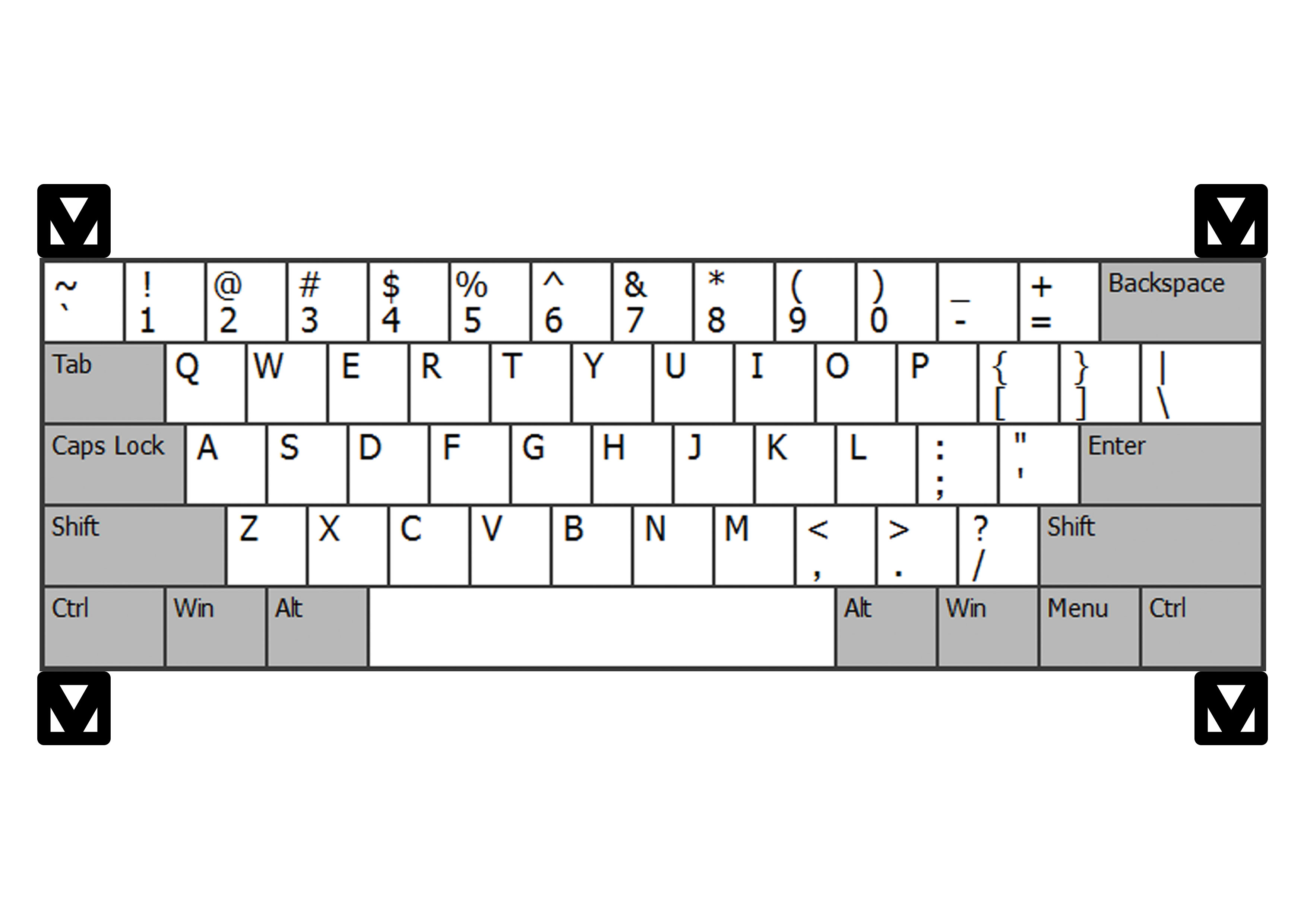
This app relies on 4 markers (aka control points) to determine the boundries of the keyboard. So first off, print the following image on paper. Print on an A4 paper, it's the same size as an actual keyboard.
[!TIP] The algorithm only needs the markers and everything else is irrelevant to it, you could even just draw the markers yoruself using a marker! (pun probably intended, undecided as of now). But you, as a user, are most probably gonna need to know where the keys are.
At the moment, the interface is really simple, just a text box and a preview of what's going on.
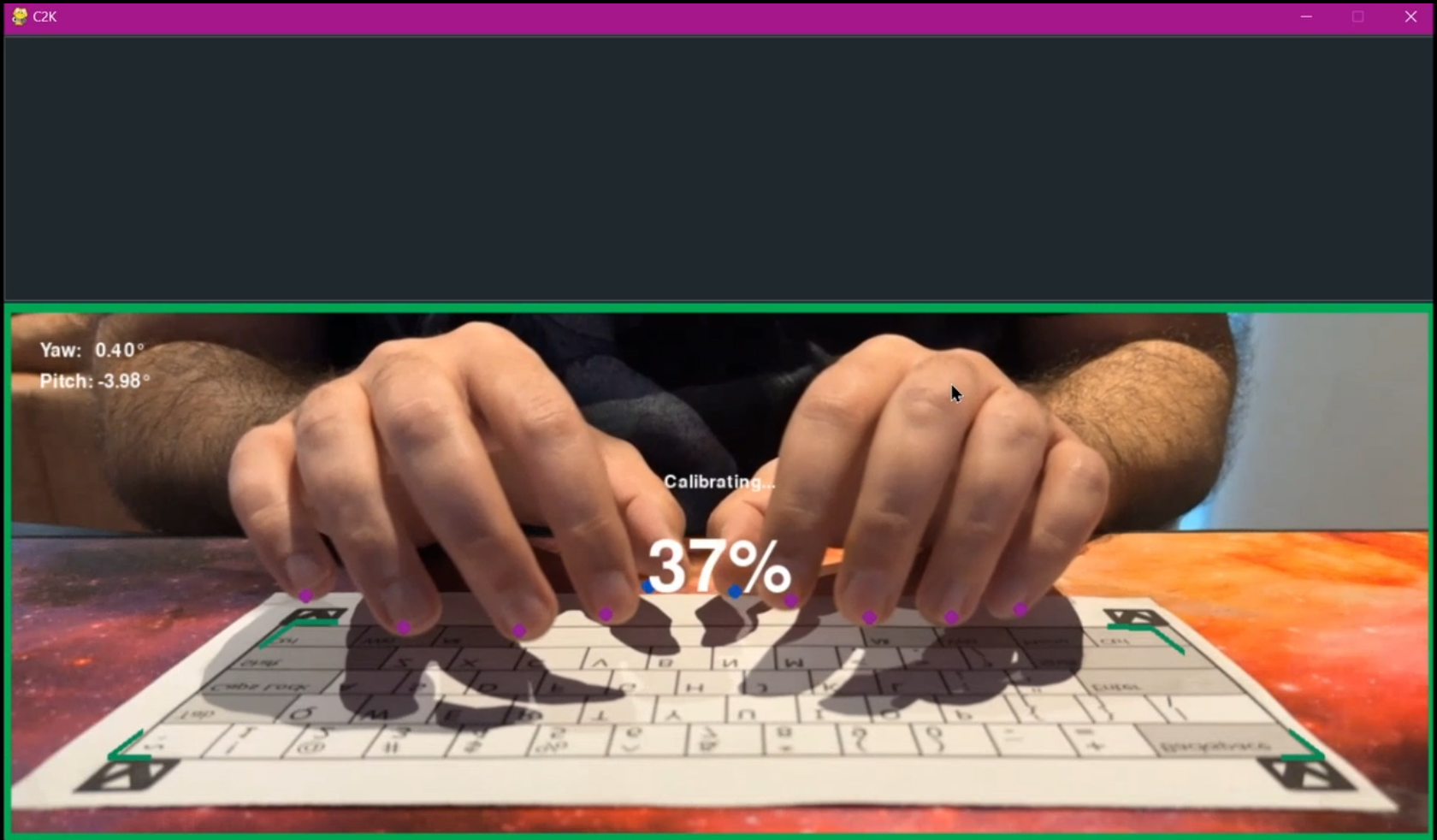
The Text Box
Whatever you type will show up here.
The Preview
Shows the current frame along with the detections made. Some important things to note:
-
At the top left corner you'll see your camera's yaw and pitch angles. Yaw is pretty accurate (or at least accurate enough), try to keep that as close to 0 as possible. Pitch however doesn't seem to be accurate at all (working on fixing this as well). So try to adjust your camera's pitch to get the best results.
-
There's a color coded border around the preview.
- Gray ⬛ (let's pretend this is gray): Initializing, most probably you'll never see this.
- Red 🟥: Some or all markers are missing.
- Orange 🟧: Some or all fingers are missing.
- Yellow 🟨: One or both thumbs are missing.
- Green 🟩: Everything's A-OK. All objects have been successfully detected.
- And finally the detected fingers and markers
Usage
[!IMPORTANT] If you are using WSL, you cannot access your webcam in that environment. A workaround is to use this Kernel but I have not used it and will not take responsibility for any consequences if you decide to use it. Just run the app in Powershell, ez pz.
usage: c2k.py [-h] [-e TRAINING_EPOCHS] [-ts WIDTH HEIGHT] [-b TRAINING_BATCH] [-rp RAW_DATASET_PATH]
              [-dp DATASET_PATH] [-sp TRAIN TEST VAL] [-sr TRAIN TEST VAL] [-ie IMAGE_EXTENSION] [-p MODEL_PATH]
              [-r WIDTH HEIGHT] [-f APP_FPS] [-i VIDEO_INPUT_DEVICE] [-d PROCESSING_DEVICE]
              [-mc MARKERS_MIN_CONFIDENCE] [-fc FINGERS_MIN_CONFIDENCE] [-tc THUMBS_MIN_CONFIDENCE]
              [-s KEY_DOWN_SENSITIVITY] [-rd REPEATING_KEYS_DELAY]
              [{train}]

Camera To Keyboard

positional arguments:
  {train}               Specify the command to execute. Omit to run the main app.

options:
  -h, --help            show this help message and exit
  -e TRAINING_EPOCHS, --training_epochs TRAINING_EPOCHS
                        Specify the number of training epochs. Default: 40
  -ts WIDTH HEIGHT, --training_image_size WIDTH HEIGHT
                        The dimensions of the training images. Default: 640 640
  -b TRAINING_BATCH, --training_batch TRAINING_BATCH
                        The batch size for training. Default: -1 (automatic)
  -rp RAW_DATASET_PATH, --raw_dataset_path RAW_DATASET_PATH
                        The path to the raw dataset. Default: raw_dataset
  -dp DATASET_PATH, --dataset_path DATASET_PATH
                        The path to the partitioned and augmented dataset. Default: ../datasets/c2k
  -sp TRAIN TEST VAL, --split_paths TRAIN TEST VAL
                        The paths to the train, test and validation datasets. Default: train test val
  -sr TRAIN TEST VAL, --split_ratios TRAIN TEST VAL
                        The ratios for the train, test and validation datasets. Default: 0.7 0.15 0.15
  -ie IMAGE_EXTENSION, --image_extension IMAGE_EXTENSION
                        The extension of the images in the dataset. Default: jpg
  -p MODEL_PATH, --model_path MODEL_PATH
                        The path to the model. Default: cameratokeyboard/model.pt
  -r WIDTH HEIGHT, --resolution WIDTH HEIGHT
                        The resolution of the images taken from the camera. Default: 1280 720
  -f APP_FPS, --app_fps APP_FPS
                        The refresh rate of the app. Default: 30
  -i VIDEO_INPUT_DEVICE, --video_input_device VIDEO_INPUT_DEVICE
                        The device number of the input camera. Default: 0
  -d PROCESSING_DEVICE, --processing_device PROCESSING_DEVICE
                        The device index to use for training and inference or enter 'cpu' to use CPU. Default: 0.
  -mc MARKERS_MIN_CONFIDENCE, --markers_min_confidence MARKERS_MIN_CONFIDENCE
                        The minimum confidence for the markers. Default: 0.3
  -fc FINGERS_MIN_CONFIDENCE, --fingers_min_confidence FINGERS_MIN_CONFIDENCE
                        The minimum confidence for the fingers. Default: 0.3
  -tc THUMBS_MIN_CONFIDENCE, --thumbs_min_confidence THUMBS_MIN_CONFIDENCE
                        The minimum confidence for the thumbs. Default: 0.3
  -s KEY_DOWN_SENSITIVITY, --key_down_sensitivity KEY_DOWN_SENSITIVITY
                        The sensitivity for the key down action. Default: 0.75
  -rd REPEATING_KEYS_DELAY, --repeating_keys_delay REPEATING_KEYS_DELAY
                        The delay for repeating keys. Default: 0.4
Contributing
Please visit CONTRIBUTING for more info.
Roadmap
- Improve the tests
- Establish an actual ML pipeline
- Improve the detection accuracy of down fingers
- Improve the dataset
- Implement the recognition of modifier key presses
- Train the model to recognize hand gestures for:
- Running calibration
- Resetting the marker positions
- Once a desirable accuracy has been obtained, implement a virtual keyboard driver or accessibility APIs (basically by any means necessary)
- Create a settings view/page to make app settings (currently
config.py) modifiable at runtime.
Security
Camera to Keyboard follows good security practices, but 100% security cannot be assured. Camera to Keyboard is provided "as is" without any warranty. Use at your own risk.
For more information and to report security issues, please refer to our security documentation.
License
This project's code is licensed under the GNU General Public License v3. See LICENSE for more information.
The dataset and its derivatives (such as the trained model) are licensed under CC BY-NC-SA 4.0. See LICENSE-dataset
Authors & contributors
The original setup of this repository is by mnvoh.
For a full list of all authors and contributors, see the contributors page.
Support
Please feel free to use any of these channels to ask for help or report bugs and security vulnerabilities:
- Github Issues to report issues, bugs, feature requests, etc
- Github Discussions to ask questions, troubleshoot your installation, ...
- Discord Server
1 maintainer

Metadata
1 maintainer
Release files for c2k 0.0.3
For a detailed explanation of source distributions (sdists) and built distributions (wheels), please see the package formats documentation.
Source distribution (sdist)
| File | Size | Uploaded | Provenance | Actions |
|---|---|---|---|---|
| c2k-0.0.3.tar.gz | 43.6 kB | Without provenance | Details for c2k-0.0.3.tar.gz |
Built distribution (wheel)
| File | Interpreter | ABI | Platform | Actions Reset |
|---|---|---|---|---|
| c2k-0.0.3-py3-none-any.whl | Python 3 | none | any | Details for c2k-0.0.3-py3-none-any.whl |
Total release size: 97.6 kB
Release files / c2k-0.0.3.tar.gz
| Download URL | c2k-0.0.3.tar.gz |
|---|---|
| Size | 43.6 kB |
| Tags | Source |
|
SHA-256 checksum How to use checksums |
1224251966aa8b411e3f61b70d3a287abd0d5ff53135a73d4468ff59426ba434
|
|
BLAKE2b-256 checksum How to use checksums |
34cb24a2fc9f2c9526e0229ad26140183354f1162eb953acb8ceab69b1e6ca80
|
| Upload date | |
|
Uploaded using Trusted Publishing? What is trusted publishing? |
Yes |
| Uploaded via |
twine/5.0.0 CPython/3.12.2
|
Release files / c2k-0.0.3-py3-none-any.whl
| Download URL | c2k-0.0.3-py3-none-any.whl |
|---|---|
| Size | 54.0 kB |
| Tags | Python 3 |
|
SHA-256 checksum How to use checksums |
459615da11e4ccf6a8557f025edb66c9b86ff9e795f450bd4cec21e3f73474e5
|
|
BLAKE2b-256 checksum How to use checksums |
ceb6e58f947327664a4da1fadad5d18447917fa842102708e5ab17944944fa6a
|
| Upload date | |
|
Uploaded using Trusted Publishing? What is trusted publishing? |
Yes |
| Uploaded via |
twine/5.0.0 CPython/3.12.2
|
Security for c2k 0.0.3
Provenance
Provenance describes where a file came from. On PyPI, provenance is shared via attestations, which provide a verifiable record of the build or publishing details. View details, limitations and caveats.
No provenance found
None of the files in this release were uploaded with provenance metadata.
A note on package security
PyPI is a repository for distributing packages, not a service for auditing them. While third-party security researchers and our staff do their best to detect and remove malicious packages, PyPI cannot guarantee the quality, security or suitability of any given package.
To learn more about protecting yourself from malicious actors, visit our package security documentation.














