
Dtags: Directory Tags for Lazy Programmers






Dtags is a command-line tool that lets you tag directories for faster filesystem navigation and command execution.
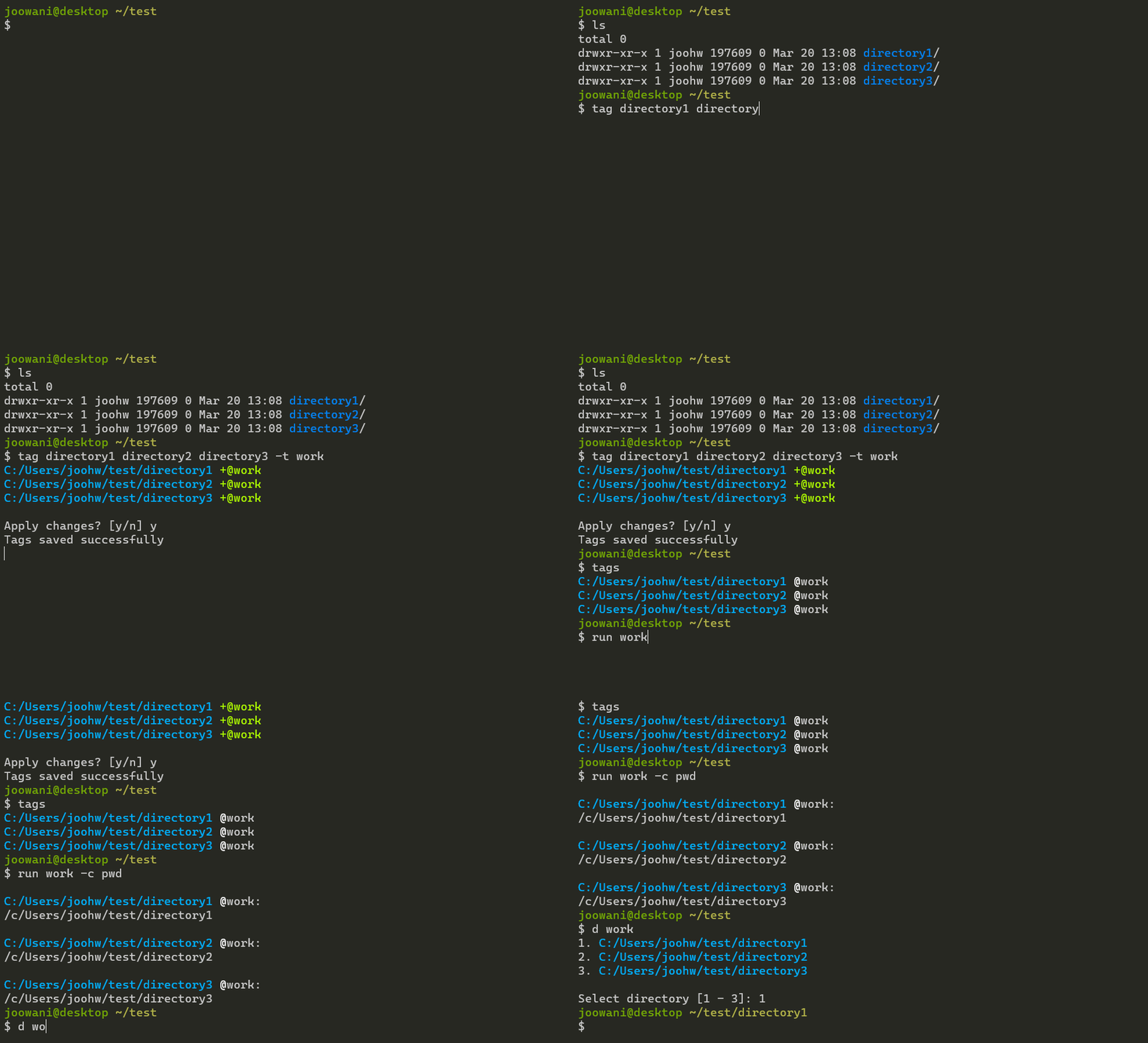
Requirements
- Recent versions of Bash, Zsh or Fish
- Python 3.6+
Installation
Install via pip:
pip install dtags
For Bash, add the following line in ~/.bashrc:
source <(dtags-activate)
For Zsh, add the following line in ~/.zshrc:
autoload -U +X compinit && compinit
autoload -U +X bashcompinit && bashcompinit

source <(dtags-activate)
For Fish, add the following line in ~/.config/fish/config.fish:
dtags-activate fish | source
For Git Bash on Windows, add the following lines
in ~/.bashrc:
export DTAGS_GIT_BASH=1
source <(dtags-activate)
Restart your shell. The following commands will be available after:
tag --help
untag --help
tags --help
d --help
run --help
Tab-completion should work out-of-the-box.
Usage
Tag directories with tag:
# Tag directory ~/foo with "work" (tags are indicated with the "@" prefix)
$ tag ~/foo -t work
/home/user/foo +@work

# If tag names are not specified, directory basenames are used instead
$ tag ~/foo
/home/user/foo +@foo

# Tag directories ~/bar and ~/baz with "app" and "work" (many-to-many)
$ tag ~/bar ~/baz -t app work
/home/user/bar +@app +@work
/home/user/baz +@app +@work
Execute commands in one or more directories with run:
# Run "git status" in all directories tagged "work"
$ run work -c git status

# Run "git status" in directories ~/foo and ~/bar
$ run ~/foo ~/bar -c git status

# Mix tags and directory paths
$ run work ~/foo -c git status
Change directories by path or tag with d:
# Go to directory tagged "work"
# If there are multiple directories, a selection prompt is displayed
$ d work

# Go to directory ~/foo (works just like cd)
$ d ~/foo

# Use -t/--tag to always assume the argument is a tag
$ d -t foo
Untag directories with untag:
# Remove tags "app" and "work" from directory ~/foo and ~/bar
$ untag ~/foo ~/bar -t app work

# Remove all tags from directory ~/foo
$ untag ~/foo

# Remove tag "app" from all directories
$ untag -t app
Manage tags with tags:
# List all tags
$ tags

# List all tags in JSON format
$ tags --json

# Clean invalid directories
$ tags --clean

# Remove all tags
$ tags --purge
Use --help to see more information on each command.
Technical Notes
- Tags are saved in
~/.dtagsdirectory (created when a dtags command is first run). - The files in
~/.dtagsare not meant to be edited manually. - By default, directory paths take precedence over tags when name collisions occur.
- Tag names are automatically slugified (e.g. "foo bar" to "foo-bar").
- Tag names are displayed with the "@" character prefix for easy identification.
- Directory paths and tag names are ordered alphabetically.
Uninstallation
Run the following commands to completely uninstall dtags:
$ pip uninstall dtags
$ rm -rf ~/.dtags
Then remove the dtags-activate line from your shell runtime configuration.
1 maintainer

Metadata
1 maintainer
Release files for dtags 4.0.4
For a detailed explanation of source distributions (sdists) and built distributions (wheels), please see the package formats documentation.
Source distribution (sdist)
| File | Size | Uploaded | |
|---|---|---|---|
| dtags-4.0.4.tar.gz | 340.2 kB | Details |
Built distribution (wheel)
| File | Interpreter | ABI | Platform | Reset |
|---|---|---|---|---|
| dtags-4.0.4-py3-none-any.whl | Python 3 | none | any | Details |
Total release size: 355.7 kB














