









 Gemini-API
A reverse-engineered asynchronous python wrapper for Google Gemini web app (formerly Bard).
Features
- Persistent Cookies - Automatically refreshes cookies in background. Optimized for always-on services.
- Image Generation - Natively supports generating and modifying images with natural language.
- Extension Support - Supports generating contents with Gemini extensions on, like YouTube and Gmail.
- Classified Outputs - Automatically categorizes texts, web images and AI generated images in the response.
- Official Flavor - Provides a simple and elegant interface inspired by Google Generative AI's official API.
- Asynchronous - Utilizes
asyncioto run generating tasks and return outputs efficiently.
Table of Contents
- Features
- Table of Contents
- Installation
- Authentication
- Usage
- Initialization
- Select language model
- Generate contents from text
- Generate contents with files
- Conversations across multiple turns
- Continue previous conversations
- Retrieve model's thought process
- Retrieve images in response
- Generate images with Imagen3
- Generate contents with Gemini extensions
- Check and switch to other reply candidates
- Logging Configuration
- References
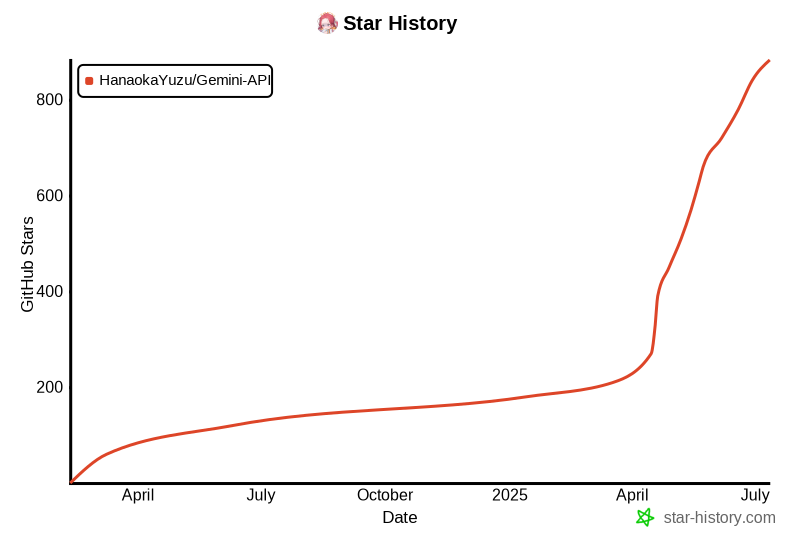
- Stargazers
Installation
[!NOTE]
This package requires Python 3.10 or higher.
Install/update the package with pip.
pip install -U gemini_webapi
Optionally, package offers a way to automatically import cookies from your local browser. To enable this feature, install browser-cookie3 as well. Supported platforms and browsers can be found here.
pip install -U browser-cookie3
Authentication
[!TIP]
If
browser-cookie3is installed, you can skip this step and go directly to usage section. Just make sure you have logged in to https://gemini.google.com in your browser.
- Go to https://gemini.google.com and login with your Google account
- Press F12 for web inspector, go to
Networktab and refresh the page - Click any request and copy cookie values of
__Secure-1PSIDand__Secure-1PSIDTS
[!NOTE]
If your application is deployed in a containerized environment (e.g. Docker), you may want to persist the cookies with a volume to avoid re-authentication every time the container rebuilds.
Here's part of a sample
docker-compose.ymlfile:
services:
    main:
        volumes:
            - ./gemini_cookies:/usr/local/lib/python3.12/site-packages/gemini_webapi/utils/temp
[!NOTE]
API's auto cookie refreshing feature doesn't require
browser-cookie3, and by default is enabled. It allows you to keep the API service running without worrying about cookie expiration.This feature may cause that you need to re-login to your Google account in the browser. This is an expected behavior and won't affect the API's functionality.
To avoid such result, it's recommended to get cookies from a separate browser session and close it as asap for best utilization (e.g. a fresh login in browser's private mode). More details can be found here.
Usage
Initialization
Import required packages and initialize a client with your cookies obtained from the previous step. After a successful initialization, the API will automatically refresh __Secure-1PSIDTS in background as long as the process is alive.
import asyncio
from gemini_webapi import GeminiClient

# Replace "COOKIE VALUE HERE" with your actual cookie values.
# Leave Secure_1PSIDTS empty if it's not available for your account.
Secure_1PSID = "COOKIE VALUE HERE"
Secure_1PSIDTS = "COOKIE VALUE HERE"

async def main():
    # If browser-cookie3 is installed, simply use `client = GeminiClient()`
    client = GeminiClient(Secure_1PSID, Secure_1PSIDTS, proxy=None)
    await client.init(timeout=30, auto_close=False, close_delay=300, auto_refresh=True)

asyncio.run(main())
[!TIP]
auto_closeandclose_delayare optional arguments for automatically closing the client after a certain period of inactivity. This feature is disabled by default. In an always-on service like chatbot, it's recommended to setauto_closetoTruecombined with reasonable seconds ofclose_delayfor better resource management.
Select language model
You can specify which language model to use by passing model argument to GeminiClient.generate_content or GeminiClient.start_chat. The default value is unspecified.
Currently available models (as of Feb 5, 2025):
unspecified- Default modelgemini-2.0-flash- Gemini 2.0 Flashgemini-2.0-flash-thinking- Gemini 2.0 Flash Thinking Experimentalgemini-2.5-flash- Gemini 2.5 Flashgemini-2.5-pro- Gemini 2.5 Pro (daily usage limit imposed)
Models pending update (may not work as expected):
gemini-2.5-exp-advanced- Gemini 2.5 Experimental Advanced (requires Gemini Advanced account)gemini-2.0-exp-advanced- Gemini 2.0 Experimental Advanced (requires Gemini Advanced account)
from gemini_webapi.constants import Model

async def main():
    response1 = await client.generate_content(
        "What's you language model version? Reply version number only.",
        model=Model.G_2_0_FLASH,
    )
    print(f"Model version ({Model.G_2_0_FLASH.model_name}): {response1.text}")

    chat = client.start_chat(model="gemini-2.0-flash-thinking")
    response2 = await chat.send_message("What's you language model version? Reply version number only.")
    print(f"Model version (gemini-2.0-flash-thinking): {response2.text}")

asyncio.run(main())
Generate contents from text
Ask a one-turn quick question by calling GeminiClient.generate_content.
async def main():
    response = await client.generate_content("Hello World!")
    print(response.text)

asyncio.run(main())
[!TIP]
Simply use
print(response)to get the same output if you just want to see the response text
Generate contents with files
Gemini supports file input, including images and documents. Optionally, you can pass files as a list of paths in str or pathlib.Path to GeminiClient.generate_content together with text prompt.
async def main():
    response = await client.generate_content(
            "Introduce the contents of these two files. Is there any connection between them?",
            files=["assets/sample.pdf", Path("assets/banner.png")],
        )
    print(response.text)

asyncio.run(main())
Conversations across multiple turns
If you want to keep conversation continuous, please use GeminiClient.start_chat to create a ChatSession object and send messages through it. The conversation history will be automatically handled and get updated after each turn.
async def main():
    chat = client.start_chat()
    response1 = await chat.send_message(
        "Introduce the contents of these two files. Is there any connection between them?",
        files=["assets/sample.pdf", Path("assets/banner.png")],
    )
    print(response1.text)
    response2 = await chat.send_message(
        "Use image generation tool to modify the banner with another font and design."
    )
    print(response2.text, response2.images, sep="\n\n----------------------------------\n\n")

asyncio.run(main())
[!TIP]
Same as
GeminiClient.generate_content,ChatSession.send_messagealso acceptsimageas an optional argument.
Continue previous conversations
To manually retrieve previous conversations, you can pass previous ChatSession's metadata to GeminiClient.start_chat when creating a new ChatSession. Alternatively, you can persist previous metadata to a file or db if you need to access them after the current Python process has exited.
async def main():
    # Start a new chat session
    chat = client.start_chat()
    response = await chat.send_message("Fine weather today")

    # Save chat's metadata
    previous_session = chat.metadata

    # Load the previous conversation
    previous_chat = client.start_chat(metadata=previous_session)
    response = await previous_chat.send_message("What was my previous message?")
    print(response)

asyncio.run(main())
Retrieve model's thought process
When using models with thinking capabilities, the model's thought process will be populated in ModelOutput.thoughts.
async def main():
    response = await client.generate_content(
            "What's 1+1?", model="gemini-2.0-flash-thinking"
        )
    print(response.thoughts)
    print(response.text)

asyncio.run(main())
Retrieve images in response
Images in the API's output are stored as a list of Image objects. You can access the image title, URL, and description by calling image.title, image.url and image.alt respectively.
async def main():
    response = await client.generate_content("Send me some pictures of cats")
    for image in response.images:
        print(image, "\n\n----------------------------------\n")

asyncio.run(main())
Generate images with Imagen3
You can ask Gemini to generate and modify images with Imagen3, Google's latest AI image generator, simply by natural language.
[!IMPORTANT]
Google has some limitations on the image generation feature in Gemini, so its availability could be different per region/account. Here's a summary copied from official documentation (as of March 19th, 2025):
This feature’s availability in any specific Gemini app is also limited to the supported languages and countries of that app.
For now, this feature isn’t available to users under 18.
To use this feature, you must be signed in to Gemini Apps.
You can save images returned from Gemini to local by calling Image.save(). Optionally, you can specify the file path and file name by passing path and filename arguments to the function and skip images with invalid file names by passing skip_invalid_filename=True. Works for both WebImage and GeneratedImage.
async def main():
    response = await client.generate_content("Generate some pictures of cats")
    for i, image in enumerate(response.images):
        await image.save(path="temp/", filename=f"cat_{i}.png", verbose=True)
        print(image, "\n\n----------------------------------\n")

asyncio.run(main())
[!NOTE]
by default, when asked to send images (like the previous example), Gemini will send images fetched from web instead of generating images with AI model, unless you specifically require to "generate" images in your prompt. In this package, web images and generated images are treated differently as
WebImageandGeneratedImage, and will be automatically categorized in the output.
Generate contents with Gemini extensions
[!IMPORTANT]
To access Gemini extensions in API, you must activate them on the Gemini website first. Same as image generation, Google also has limitations on the availability of Gemini extensions. Here's a summary copied from official documentation (as of March 19th, 2025):
To connect apps to Gemini, you must have Gemini Apps Activity on.
To use this feature, you must be signed in to Gemini Apps.
Important: If you’re under 18, Google Workspace and Maps apps currently only work with English prompts in Gemini.
After activating extensions for your account, you can access them in your prompts either by natural language or by starting your prompt with "@" followed by the extension keyword.
async def main():
    response1 = await client.generate_content("@Gmail What's the latest message in my mailbox?")
    print(response1, "\n\n----------------------------------\n")

    response2 = await client.generate_content("@Youtube What's the latest activity of Taylor Swift?")
    print(response2, "\n\n----------------------------------\n")

asyncio.run(main())
[!NOTE]
For the available regions limitation, it actually only requires your Google account's preferred language to be set to one of the three supported languages listed above. You can change your language settings here.
Check and switch to other reply candidates
A response from Gemini usually contains multiple reply candidates with different generated contents. You can check all candidates and choose one to continue the conversation. By default, the first candidate will be chosen automatically.
async def main():
    # Start a conversation and list all reply candidates
    chat = client.start_chat()
    response = await chat.send_message("Recommend a science fiction book for me.")
    for candidate in response.candidates:
        print(candidate, "\n\n----------------------------------\n")

    if len(response.candidates) > 1:
        # Control the ongoing conversation flow by choosing candidate manually
        new_candidate = chat.choose_candidate(index=1)  # Choose the second candidate here
        followup_response = await chat.send_message("Tell me more about it.")  # Will generate contents based on the chosen candidate
        print(new_candidate, followup_response, sep="\n\n----------------------------------\n\n")
    else:
        print("Only one candidate available.")

asyncio.run(main())
Logging Configuration
This package uses loguru for logging, and exposes a function set_log_level to control log level. You can set log level to one of the following values: DEBUG, INFO, WARNING, ERROR and CRITICAL. The default value is INFO.
from gemini_webapi import set_log_level

set_log_level("DEBUG")
[!NOTE]
Calling
set_log_levelfor the first time will globally remove all existing loguru handlers. You may want to configure logging directly with loguru to avoid this issue and have more advanced control over logging behaviors.
References
Stargazers
1 maintainer

Metadata
1 maintainer
Release files for gemini-webapi 1.13.0
For a detailed explanation of source distributions (sdists) and built distributions (wheels), please see the package formats documentation.
Source distribution (sdist)
| File | Size | Uploaded | Provenance | Actions |
|---|---|---|---|---|
| gemini_webapi-1.13.0.tar.gz | 250.7 kB | With provenance | Details for gemini_webapi-1.13.0.tar.gz |
Built distribution (wheel)
| File | Interpreter | ABI | Platform | Actions Reset |
|---|---|---|---|---|
| gemini_webapi-1.13.0-py3-none-any.whl | Python 3 | none | any | Details for gemini_webapi-1.13.0-py3-none-any.whl |
Total release size: 298.6 kB
Release files / gemini_webapi-1.13.0.tar.gz
| Download URL | gemini_webapi-1.13.0.tar.gz |
|---|---|
| Size | 250.7 kB |
| Tags | Source |
|
SHA-256 checksum How to use checksums |
b8c514799167847251747e00504b8c4ef8837f6bb7956f528eea911eb1a031bb
|
|
BLAKE2b-256 checksum How to use checksums |
d2b7d53cefdb49d9743f19224da7ef802449c1e21a42be8ce5e80bb8902a18d5
|
| Upload date | |
|
Uploaded using Trusted Publishing? What is trusted publishing? |
Yes |
| Uploaded via |
twine/6.1.0 CPython/3.12.8
|
Provenance
Provenance describes where a file came from. On PyPI, provenance is shared via attestations, which provide a verifiable record of the build or publishing details. View details, limitations and caveats.


PyPI Publish Attestation
PyPI verified that this artifact, at this checksum, originated from the publisher listed below.
Signed by GitHub Actions, verified by PyPI on May 26, 2025.
Transparency logRelease files / gemini_webapi-1.13.0-py3-none-any.whl
| Download URL | gemini_webapi-1.13.0-py3-none-any.whl |
|---|---|
| Size | 47.8 kB |
| Tags | Python 3 |
|
SHA-256 checksum How to use checksums |
d2343cac7d381bd271f0dc709f01edd487cb80c37e9a3b76694df0a6dce15918
|
|
BLAKE2b-256 checksum How to use checksums |
a29d52683ff3d6b9a37eca4d5224602d6259e71952afb80d1a2927695c964a5c
|
| Upload date | |
|
Uploaded using Trusted Publishing? What is trusted publishing? |
Yes |
| Uploaded via |
twine/6.1.0 CPython/3.12.8
|
Provenance
Provenance describes where a file came from. On PyPI, provenance is shared via attestations, which provide a verifiable record of the build or publishing details. View details, limitations and caveats.
PyPI Publish Attestation
PyPI verified that this artifact, at this checksum, originated from the publisher listed below.
Signed by GitHub Actions, verified by PyPI on May 26, 2025.
Transparency logSecurity for gemini-webapi 1.13.0
Provenance
Provenance describes where a file came from. On PyPI, provenance is shared via attestations, which provide a verifiable record of the build or publishing details. View details, limitations and caveats.
Full provenance
Both files in this release have been uploaded with provenance metadata.
Attestation for gemini_webapi-1.13.0.tar.gz
PyPI Publish Attestation
PyPI verified that this artifact, at this checksum, originated from the publisher listed below.
Signed by GitHub Actions, verified by PyPI on May 26, 2025.
Transparency logA note on package security
PyPI is a repository for distributing packages, not a service for auditing them. While third-party security researchers and our staff do their best to detect and remove malicious packages, PyPI cannot guarantee the quality, security or suitability of any given package.
To learn more about protecting yourself from malicious actors, visit our package security documentation.














