
A simple yet powerful Python client for interacting with Model Context Protocol (MCP) servers using Ollama, allowing local LLMs to use tools.
MCP Client for Ollama (ollmcp)





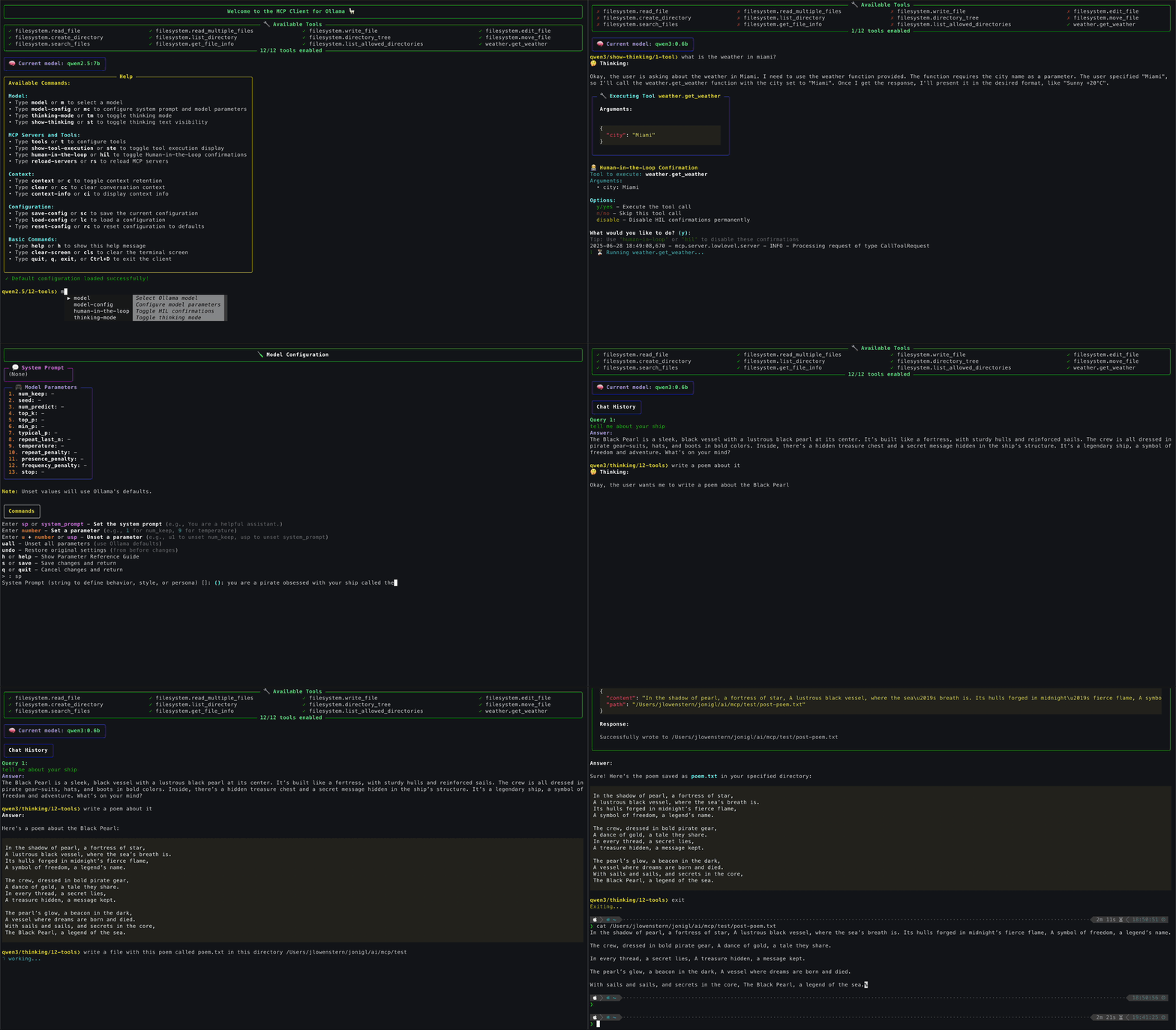
🎥 Watch this demo as an Asciinema recording
Table of Contents
- Overview
- Features
- Requirements
- Quick Start
- Usage
- Interactive Commands
- Autocomplete and Prompt Features
- Configuration Management
- Server Configuration Format
- Compatible Models
- Where Can I Find More MCP Servers?
- License
- Acknowledgments
Overview
MCP Client for Ollama (ollmcp) is a modern, interactive terminal application (TUI) for connecting local Ollama LLMs to one or more Model Context Protocol (MCP) servers, enabling advanced tool use and workflow automation. With a rich, user-friendly interface, it lets you manage tools, models, and server connections in real time—no coding required. Whether you're building, testing, or just exploring LLM tool use, this client streamlines your workflow with features like fuzzy autocomplete, advanced model configuration, MCP servers hot-reloading for development, and Human-in-the-Loop safety controls.
Features
- 🌐 Multi-Server Support: Connect to multiple MCP servers simultaneously
- 🚀 Multiple Transport Types: Supports STDIO, SSE, and Streamable HTTP server connections
- 🎨 Rich Terminal Interface: Interactive console UI
- 🌊 Streaming Responses: View model outputs in real-time as they're generated
- 🛠️ Tool Management: Enable/disable specific tools or entire servers during chat sessions
- 🧑💻 Human-in-the-Loop (HIL): Review and approve tool executions before they run for enhanced control and safety
- 🎮 Advanced Model Configuration: Fine-tune 10+ model parameters including temperature, sampling, repetition control, and more
- 💬 System Prompt Customization: Define and edit the system prompt to control model behavior and persona
- 🎨 Enhanced Tool Display: Beautiful, structured visualization of tool executions with JSON syntax highlighting
- 🧠 Context Management: Control conversation memory with configurable retention settings
- 🤔 Thinking Mode: Advanced reasoning capabilities with visible thought processes for supported models (deepseek-r1, qwen3)
- 🗣️ Cross-Language Support: Seamlessly work with both Python and JavaScript MCP servers
- 🔍 Auto-Discovery: Automatically find and use Claude's existing MCP server configurations
- 🔁 Dynamic Model Switching: Switch between any installed Ollama model without restarting
- 💾 Configuration Persistence: Save and load tool preferences between sessions
- 🔄 Server Reloading: Hot-reload MCP servers during development without restarting the client
- ✨ Fuzzy Autocomplete: Interactive, arrow-key command autocomplete with descriptions
- 🏷️ Dynamic Prompt: Shows current model, thinking mode, and enabled tools
- 📊 Usage Analytics: Track token consumption and conversation history metrics
- 🔌 Plug-and-Play: Works immediately with standard MCP-compliant tool servers
- 🔔 Update Notifications: Automatically detects when a new version is available
- 🖥️ Modern CLI with Typer: Grouped options, shell autocompletion, and improved help output
Requirements
- Python 3.10+ (Installation guide)
- Ollama running locally (Installation guide)
- UV package manager (Installation guide)
Quick Start
Option 1: Install with pip and run
pip install --upgrade ollmcp
ollmcp
Option 2: One-step install and run
uvx ollmcp
Option 3: Install from source and run using virtual environment
git clone https://github.com/jonigl/mcp-client-for-ollama.git
cd mcp-client-for-ollama
uv venv && source .venv/bin/activate
uv pip install .
uv run -m mcp_client_for_ollama
Usage
Run with default settings:
ollmcp
If you don't provide any options, the client will use
auto-discoverymode to find MCP servers from Claude's configuration.
Command-line Arguments
MCP Server Configuration:
--mcp-server,-s: Path to one or more MCP server scripts (.py or .js). Can be specified multiple times.--mcp-server-url,-u: URL to one or more SSE or Streamable HTTP MCP servers. Can be specified multiple times.--servers-json,-j: Path to a JSON file with server configurations.--auto-discovery,-a: Auto-discover servers from Claude's default config file (default behavior if no other options provided).
Ollama Configuration:
--model,-mMODEL: Ollama model to use. Default:qwen2.5:7b--host,-HHOST: Ollama host URL. Default:http://localhost:11434
General Options:
--version,-v: Show version and exit--help,-h: Show help message and exit--install-completion: Install shell autocompletion scripts for the client--show-completion: Show available shell completion options
Usage Examples
Simplest way to run the client:
ollmcp
Connect to a single server:
ollmcp --mcp-server /path/to/weather.py --model llama3.2:3b
# Or using short flags:
ollmcp -s /path/to/weather.py -m llama3.2:3b
Connect to multiple servers:
ollmcp --mcp-server /path/to/weather.py --mcp-server /path/to/filesystem.js
# Or using short flags:
ollmcp -s /path/to/weather.py -s /path/to/filesystem.js
[!TIP] If model is not specified, the default model
qwen2.5:7bwill be used or the model specified in your configuration file.
Use a JSON configuration file:
ollmcp --servers-json /path/to/servers.json --model llama3.2:1b
# Or using short flags:
ollmcp -j /path/to/servers.json -m llama3.2:1b
[!TIP] See the Server Configuration Format section for details on how to structure the JSON file.
Use a custom Ollama host:
ollmcp --host http://localhost:22545 --servers-json /path/to/servers.json --auto-discovery
# Or using short flags:
ollmcp -H http://localhost:22545 -j /path/to/servers.json -a
Connect to SSE or Streamable HTTP servers by URL:
ollmcp --mcp-server-url http://localhost:8000/sse --model qwen2.5:latest
# Or using short flags:
ollmcp -u http://localhost:8000/sse -m qwen2.5:latest
Connect to multiple URL servers:
ollmcp --mcp-server-url http://localhost:8000/sse --mcp-server-url http://localhost:9000/mcp
# Or using short flags:
ollmcp -u http://localhost:8000/sse -u http://localhost:9000/mcp
Mix local scripts and URL servers:
ollmcp --mcp-server /path/to/weather.py --mcp-server-url http://localhost:8000/mcp --model qwen3:1.7b
# Or using short flags:
ollmcp -s /path/to/weather.py -u http://localhost:8000/mcp -m qwen3:1.7b
Use auto-discovery with mixed server types:
ollmcp --mcp-server /path/to/weather.py --mcp-server-url http://localhost:8000/mcp --auto-discovery
# Or using short flags:
ollmcp -s /path/to/weather.py -u http://localhost:8000/mcp -a
Interactive Commands
During chat, use these commands:

| Command | Shortcut | Description |
|---|---|---|
help |
h |
Display help and available commands |
tools |
t |
Open the tool selection interface |
model |
m |
List and select a different Ollama model |
model-config |
mc |
Configure advanced model parameters and system prompt |
context |
c |
Toggle context retention |
thinking-mode |
tm |
Toggle thinking mode (deepseek-r1, qwen3 only) |
show-thinking |
st |
Toggle thinking text visibility |
show-tool-execution |
ste |
Toggle tool execution display visibility |
human-in-loop |
hil |
Toggle Human-in-the-Loop confirmations for tool execution |
clear |
cc |
Clear conversation history and context |
context-info |
ci |
Display context statistics |
cls |
clear-screen |
Clear the terminal screen |
save-config |
sc |
Save current tool and model configuration to a file |
load-config |
lc |
Load tool and model configuration from a file |
reset-config |
rc |
Reset configuration to defaults (all tools enabled) |
reload-servers |
rs |
Reload all MCP servers with current configuration |
quit, exit |
q or Ctrl+D |
Exit the client |
Tool and Server Selection
The tool and server selection interface allows you to enable or disable specific tools:

- Enter numbers separated by commas (e.g.
1,3,5) to toggle specific tools - Enter ranges of numbers (e.g.
5-8) to toggle multiple consecutive tools - Enter S + number (e.g.
S1) to toggle all tools in a specific server aorall- Enable all toolsnornone- Disable all toolsdordesc- Show/hide tool descriptionsjorjson- Show detailed tool JSON schemas on enabled tools for debugging purposessorsave- Save changes and return to chatqorquit- Cancel changes and return to chat
Model Selection
The model selection interface shows all available models in your Ollama installation:
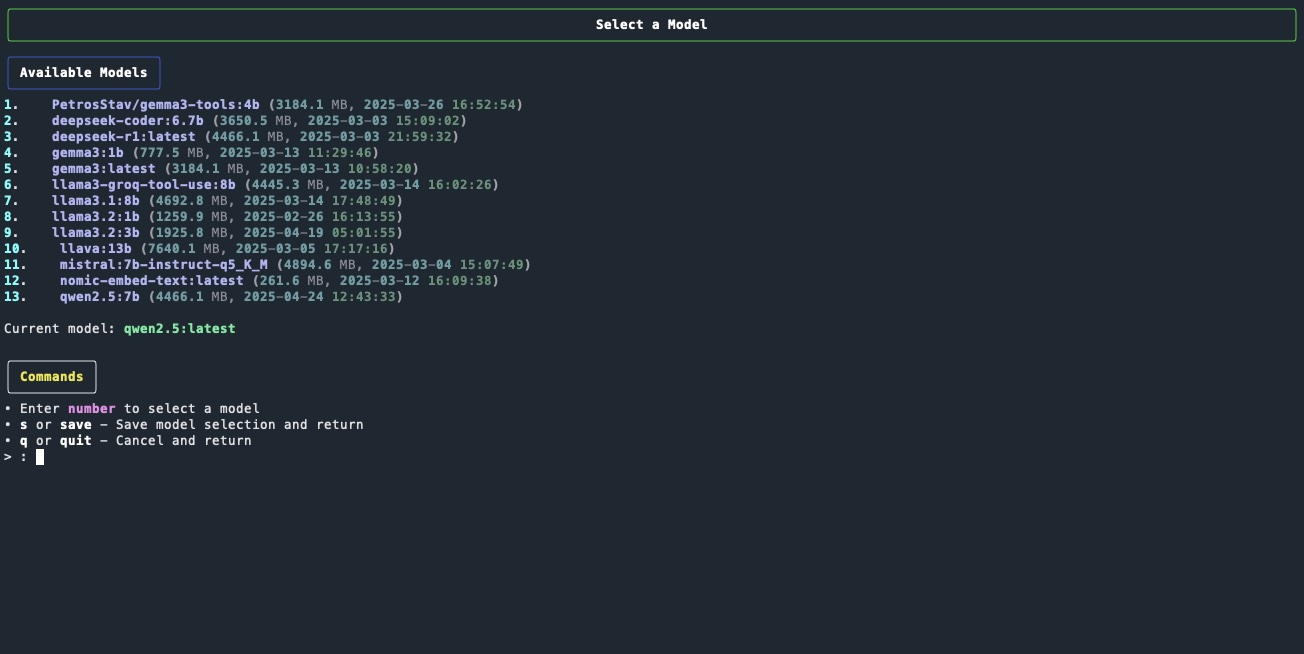
- Enter the number of the model you want to use
sorsave- Save the model selection and return to chatqorquit- Cancel the model selection and return to chat
Advanced Model Configuration
The model-config (mc) command opens the advanced model settings interface, allowing you to fine-tune how the model generates responses:
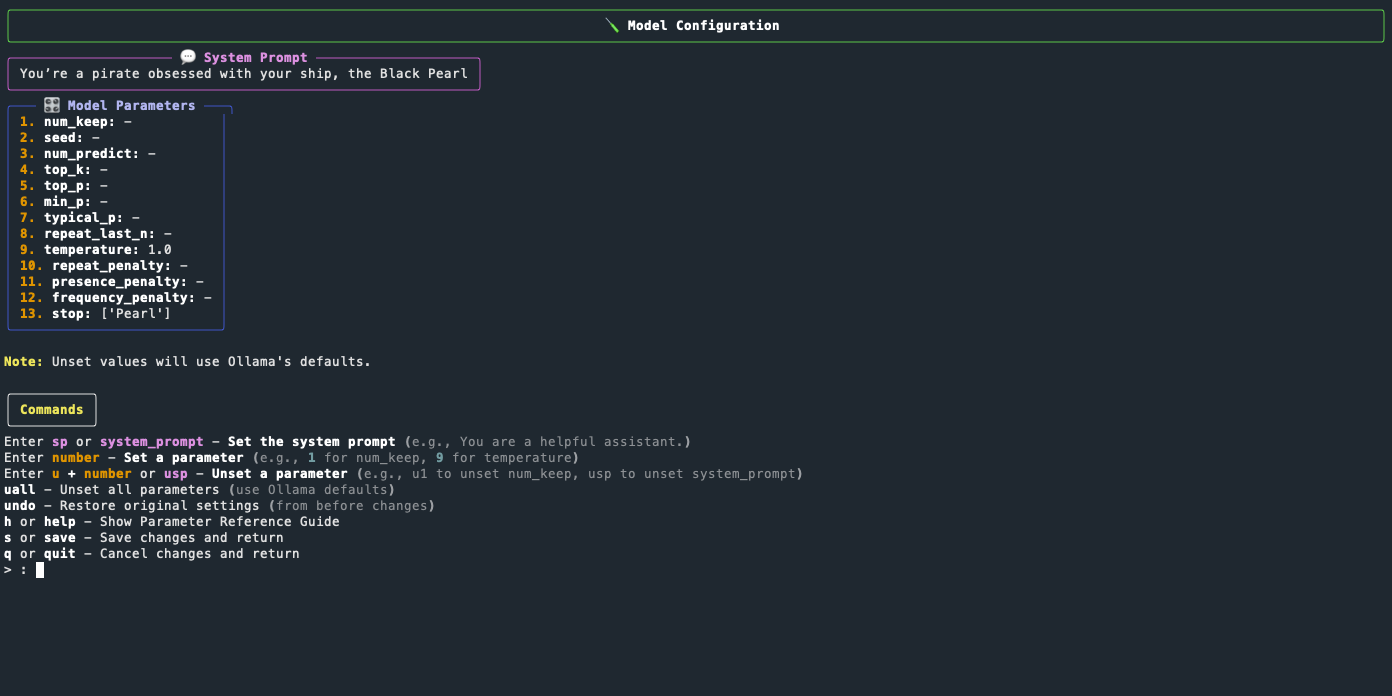
System Prompt
- System Prompt: Set the model's role and behavior to guide responses.
Key Parameters
- Keep Tokens: Prevent important tokens from being dropped
- Max Tokens: Limit response length (0 = auto)
- Seed: Make outputs reproducible (set to -1 for random)
- Temperature: Control randomness (0 = deterministic, higher = creative)
- Top K / Top P / Min P / Typical P: Sampling controls for diversity
- Repeat Last N / Repeat Penalty: Reduce repetition
- Presence/Frequency Penalty: Encourage new topics, reduce repeats
- Stop Sequences: Custom stopping points (up to 8)
Commands
- Enter parameter numbers
1-14to edit settings - Enter
spto edit the system prompt - Use
u1,u2, etc. to unset parameters, oruallto reset all h/help: Show parameter details and tipsundo: Revert changess/save: Apply changesq/quit: Cancel
Example Configurations
- Factual:
temperature: 0.0-0.3,top_p: 0.1-0.5,seed: 42 - Creative:
temperature: 1.0+,top_p: 0.95,presence_penalty: 0.2 - Reduce Repeats:
repeat_penalty: 1.1-1.3,presence_penalty: 0.2,frequency_penalty: 0.3 - Balanced:
temperature: 0.7,top_p: 0.9,typical_p: 0.7 - Reproducible:
seed: 42,temperature: 0.0
Server Reloading for Development
The reload-servers command (rs) is particularly useful during MCP server development. It allows you to reload all connected servers without restarting the entire client application.
Key Benefits:
- 🔄 Hot Reload: Instantly apply changes to your MCP server code
- 🛠️ Development Workflow: Perfect for iterative development and testing
- 📝 Configuration Updates: Automatically picks up changes in server JSON configs or Claude configs
- 🎯 State Preservation: Maintains your tool enabled/disabled preferences across reloads
- ⚡️ Time Saving: No need to restart the client and reconfigure everything
When to Use:
- After modifying your MCP server implementation
- When you've updated server configurations in JSON files
- After changing Claude's MCP configuration
- During debugging to ensure you're testing the latest server version
Simply type reload-servers or rs in the chat interface, and the client will:
- Disconnect from all current MCP servers
- Reconnect using the same parameters (server paths, config files, auto-discovery)
- Restore your previous tool enabled/disabled settings
- Display the updated server and tool status
This feature dramatically improves the development experience when building and testing MCP servers.
Human-in-the-Loop (HIL) Tool Execution
The Human-in-the-Loop feature provides an additional safety layer by allowing you to review and approve tool executions before they run. This is particularly useful for:
- 🛡️ Safety: Review potentially destructive operations before execution
- 🔍 Learning: Understand what tools the model wants to use and why
- 🎯 Control: Selective execution of only the tools you approve
- 🚫 Prevention: Stop unwanted tool calls from executing
HIL Confirmation Display
When HIL is enabled, you'll see a confirmation prompt before each tool execution:
Example:
🧑💻 Human-in-the-Loop Confirmation
Tool to execute: weather.get_weather
Arguments:
• city: Miami
Options:
y/yes - Execute the tool call
n/no - Skip this tool call
disable - Disable HIL confirmations permanently
What would you like to do? (y):
Human-in-the-Loop (HIL) Configuration
- Default State: HIL confirmations are enabled by default for safety
- Toggle Command: Use
human-in-looporhilto toggle on/off - Persistent Settings: HIL preference is saved with your configuration
- Quick Disable: Choose "disable" during any confirmation to turn off permanently
- Re-enable: Use the
hilcommand anytime to turn confirmations back on
Benefits:
- Enhanced Safety: Prevent accidental or unwanted tool executions
- Awareness: Understand what actions the model is attempting to perform
- Selective Control: Choose which operations to allow on a case-by-case basis
- Peace of Mind: Full visibility and control over automated actions
Autocomplete and Prompt Features
Typer Shell Autocompletion
- The CLI supports shell autocompletion for all options and arguments via Typer
- To enable, run
ollmcp --install-completionand follow the instructions for your shell - Enjoy tab-completion for all grouped and general options
FZF-style Autocomplete
- Fuzzy matching for commands as you type
- Arrow (
▶) highlights the best match - Command descriptions shown in the menu
- Case-insensitive matching for convenience
- Centralized command list for consistency
Contextual Prompt
The chat prompt now gives you clear, contextual information at a glance:
- Model: Shows the current Ollama model in use
- Thinking Mode: Indicates if "thinking mode" is active (for supported models)
- Tools: Displays the number of enabled tools
Example prompt:
qwen3/show-thinking/12-tools❯
qwen3Model name/show-thinkingThinking mode indicator (if enabled, otherwise/thinkingor omitted)/12-toolsNumber of tools enabled (or/1-toolfor singular)❯Prompt symbol
This makes it easy to see your current context before entering a query.
Configuration Management
The client supports saving and loading tool configurations between sessions:
- When using
save-config, you can provide a name for the configuration or use the default - Configurations are stored in
~/.config/ollmcp/directory - The default configuration is saved as
~/.config/ollmcp/config.json - Named configurations are saved as
~/.config/ollmcp/{name}.json
The configuration saves:
- Current model selection
- Advanced model parameters (system prompt, temperature, sampling settings, etc.)
- Enabled/disabled status of all tools
- Context retention settings
- Thinking mode settings
- Tool execution display preferences
- Human-in-the-Loop confirmation settings
Server Configuration Format
The JSON configuration file supports STDIO, SSE, and Streamable HTTP server types (MCP 1.10.1):
{
  "mcpServers": {
    "stdio-server": {
      "command": "command-to-run",
      "args": ["arg1", "arg2", "..."],
      "env": {
        "ENV_VAR1": "value1",
        "ENV_VAR2": "value2"
      },
      "disabled": false
    },
    "sse-server": {
      "type": "sse",
      "url": "http://localhost:8000/sse",
      "headers": {
        "Authorization": "Bearer your-token-here"
      },
      "disabled": false
    },
    "http-server": {
      "type": "streamable_http",
      "url": "http://localhost:8000/mcp",
      "headers": {
        "X-API-Key": "your-api-key-here"
      },
      "disabled": false
    }
  }
}
Compatible Models
The following Ollama models work well with tool use:
- qwen2.5
- qwen3
- llama3.1
- llama3.2
- mistral
For a complete list of Ollama models with tool use capabilities, visit the official Ollama models page.
How Tool Calls Work
- The client sends your query to Ollama with a list of available tools
- If Ollama decides to use a tool, the client:
- Displays the tool execution with formatted arguments and syntax highlighting
- NEW: Shows a Human-in-the-Loop confirmation prompt (if enabled) allowing you to review and approve the tool call
- Extracts the tool name and arguments from the model response
- Calls the appropriate MCP server with these arguments (only if approved or HIL is disabled)
- Shows the tool response in a structured, easy-to-read format
- Sends the tool result back to Ollama for final processing
- Displays the model's final response incorporating the tool results
Where Can I Find More MCP Servers?
You can explore a collection of MCP servers in the official MCP Servers repository.
This repository contains reference implementations for the Model Context Protocol, community-built servers, and additional resources to enhance your LLM tool capabilities.
License
This project is licensed under the MIT License - see the LICENSE file for details.
Acknowledgments
- Ollama for the local LLM runtime
- Model Context Protocol for the specification and examples
- Rich for the terminal user interface
- Typer for the modern CLI experience
- Prompt Toolkit for the interactive command line interface
- UV for the lightning-fast Python package manager and virtual environment management
- Asciinema for the demo recording
Made with ❤️ by jonigl
1 maintainer

Metadata
1 maintainer
Release files for mcp-client-for-ollama 0.15.1
For a detailed explanation of source distributions (sdists) and built distributions (wheels), please see the package formats documentation.
Source distribution (sdist)
| File | Size | Uploaded | Provenance | Actions |
|---|---|---|---|---|
| mcp_client_for_ollama-0.15.1.tar.gz | 54.4 kB | Without provenance | Details for mcp_client_for_ollama-0.15.1.tar.gz |
Built distribution (wheel)
| File | Interpreter | ABI | Platform | Actions Reset |
|---|---|---|---|---|
| mcp_client_for_ollama-0.15.1-py3-none-any.whl | Python 3 | none | any | Details for mcp_client_for_ollama-0.15.1-py3-none-any.whl |
Total release size: 107.9 kB
Release files / mcp_client_for_ollama-0.15.1.tar.gz
| Download URL | mcp_client_for_ollama-0.15.1.tar.gz |
|---|---|
| Size | 54.4 kB |
| Tags | Source |
|
SHA-256 checksum How to use checksums |
7e06cb795e5822198e4282e66bc3233e746de7a3a98ed0af9b73611356a313b0
|
|
BLAKE2b-256 checksum How to use checksums |
c0108813f76f16d9547510341bfd8a294733f87cfe8c2ce320924ba2b78b2daf
|
| Upload date | |
|
Uploaded using Trusted Publishing? What is trusted publishing? |
No |
| Uploaded via |
twine/6.1.0 CPython/3.12.9
|
Release files / mcp_client_for_ollama-0.15.1-py3-none-any.whl
| Download URL | mcp_client_for_ollama-0.15.1-py3-none-any.whl |
|---|---|
| Size | 53.5 kB |
| Tags | Python 3 |
|
SHA-256 checksum How to use checksums |
876ffae23c1024f779ab60e2c3096dca8b38dad7fa74d13fd504ea3fc683ba1f
|
|
BLAKE2b-256 checksum How to use checksums |
8bd2759f0304bff5c931de6b14c70d4bfcbf1f5e851b74db73d24ee8d3ac64aa
|
| Upload date | |
|
Uploaded using Trusted Publishing? What is trusted publishing? |
No |
| Uploaded via |
twine/6.1.0 CPython/3.12.9
|
Security for mcp-client-for-ollama 0.15.1
Provenance
Provenance describes where a file came from. On PyPI, provenance is shared via attestations, which provide a verifiable record of the build or publishing details. View details, limitations and caveats.
No provenance found
None of the files in this release were uploaded with provenance metadata.
A note on package security
PyPI is a repository for distributing packages, not a service for auditing them. While third-party security researchers and our staff do their best to detect and remove malicious packages, PyPI cannot guarantee the quality, security or suitability of any given package.
To learn more about protecting yourself from malicious actors, visit our package security documentation.














