
The RNR File Manager (RNR's Not Ranger)
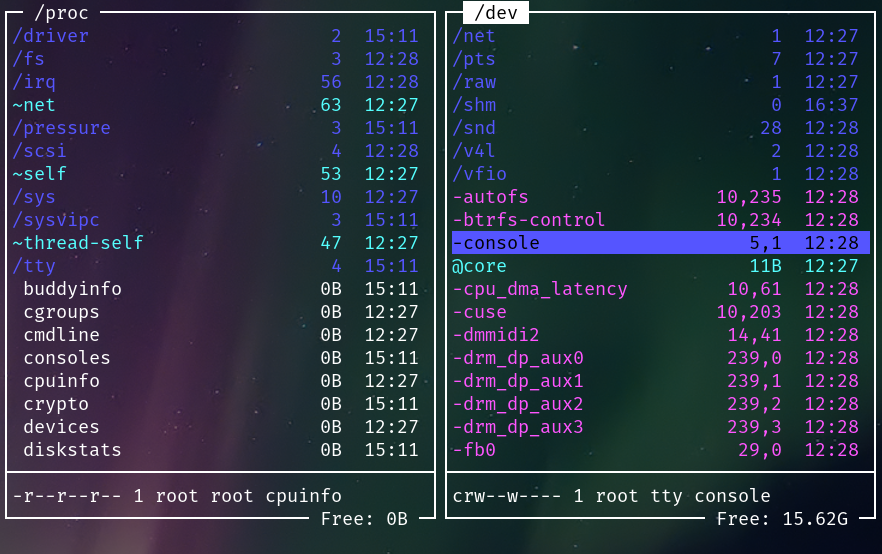
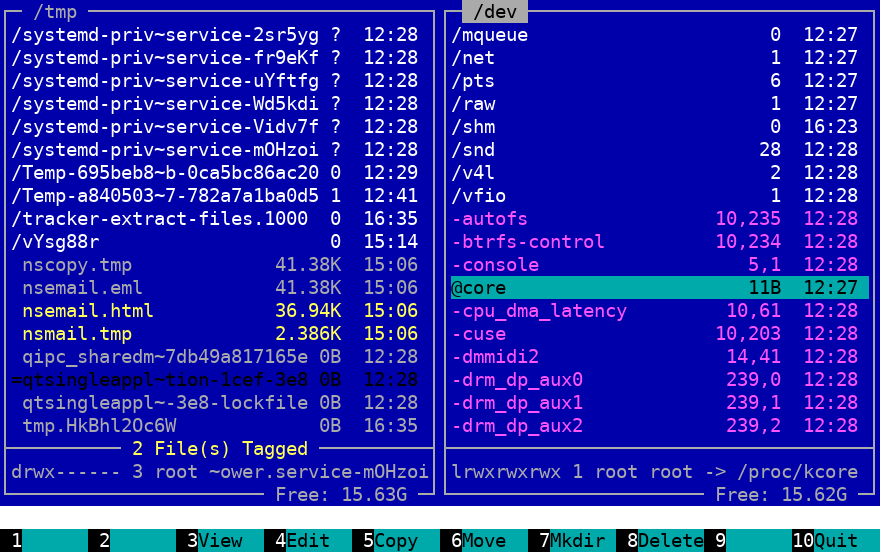
The RNR File Manager (RNR's Not Ranger) is a text based file manager that combines the best features of Midnight Commander and Ranger.
Its main goal is to be the most robust file copier in existence.
Features
- Very fast file and directory browser with Vim-style keys and powerful fuzzy filter
- Explore compressed archives as normal read-only directories (requires archivefs or archivemount)
- Fast directory jumping with bookmarks
- Many file rename options
- Robust file copy engine with minimal user interaction. Great for copying large amounts of data reliably.
- Text and binary file viewer with line numbers and syntax highlighting for text, and masked data for binary, with optional hex display mode for both formats
- Optional file and directory preview in the other panel
- If the internal file viewer is not used, view files with the selected pager (default: less)
- Edit files with the selected editor (default: vi)
- Open files with the selected opener (default: xdg-open)
- Execute shell commands, with macro substitutions to easily manipulate the tagged files
- cd to the last visited directory on exit (compatible with bash and fish)
Screenshots
Video Tutorials
https://www.youtube.com/watch?v=dHh-7hX6dRY
https://www.youtube.com/watch?v=17-K43Z2XcU (Italian)
System requirements
- Linux (a POSIX-compatible OS like macOS, FreeBSD or Cygwin may work, but it's not officially supported)
- Python 3.6 or greater
For compressed archive support
- archivefs (Recommended), or archivemount (Much slower and somewhat buggier than archivefs)
Installation and running
# To install or upgrade
pip3 install --user --upgrade rnr

# To run
rnr
CD on exit (bash)
If you're using bash and you want to change directory on exit, you have to add
a line like this in your ~/.bashrc:
source ~/.local/share/rnr/rnr.sh
CD on exit (fish)
If you're using fish, then simply copy (or, better, symlink) the file
~/.local/share/rnr/rnr.fish to ~/.config/fish/functions/ (create the
directory if it does not exist).
Note that this script requires at least fish version 3.1.0
Fix key combinations in terminal
In order to enable the CTRL-Q and CTRL-S key combinations, put the following
line in your ~/.bashrc or ~/.config/fish/config.fish:
stty -ixon
Documentation
The rnr man page can be invoked with the command:
man rnr
Here is a text version of the man page
Robust file copy
File copying looks like a simple operation, but there are many cases where it could go wrong.
To better understand the situation, let me tell you a couple of stories:
You have several big, multi-gigabyte files that you need to copy from one hard drive to another. This operation is very time consuming, so you start the copy process in the evening, and let it run overnight.
The next day, you wake up, and see that the copy process is stuck at 10% and you see a window prompting you what to do, as there already is a file with the same name in the destination directory (or an error has occurred during the copy, and the program is asking you if you want to continue or abort).
Result: you wasted almost the whole night, as the copy process was waiting for your input.
Now imagine instead that you wake up and see that your computer shows an empty desktop because the power went down in the night.
Result: The copy process has been interrupted and you have no idea which files have been copied and which files not.
There must be a better way! - Raymond Hettinger
So rnr addresses these problems in 2 ways:
- The copy operation is completely non-interactive, the action to be done in case of conflict is decided before the copy process starts. Once the copy process starts, all the conflicts are handled automatically, and all the errors are skipped. At the end of the process, you will see a report window that shows all the actions taken by the copy engine (for example renaming/overwriting a file, or skipping a file due to an error). The report can be saved to a text file, and analized as required.
- Every file operation is logged to a on-disk database, so when the power goes off (and it will...), you will know where the copy process was at, and resume from that.
Now, let's address the elephant in the room: The on-disk database slows down operations considerably in the case of many small files.
While rnr defaults to using a database file, it is in fact optional, and can be disabled by a command line switch, or by the "No DB" button.
Of course, everything said about the file copy is applied to the file move operation as well.
Non-Goals
- Transfer Speed: In the speed/reliability tradeoff it will choose reliability first.
- Portability: It is intended for use in Linux, and, although it may work on other POSIX-compatible operating systems, errors on non-Linux systems are not considered bugs.
- Configurability: Apart from choosing the pager, opener and editor, a colour scheme and custom bookmarks, it is not intended to be configurable, so no custom commands or keybindings. This has the advantage that rnr will work the same everywhere it is installed.
Note for packagers
If you're packaging rnr for your distribution, consider copying (or symlinking)
the rnr.sh file to the /etc/profile.d directory, and the rnr.fish file to
the /etc/fish/functions directory, so that rnr automatically changes directory
on exit, without needing manual configuration.
1 maintainer

Metadata
1 maintainer
Release files for rnr 1.0.10
For a detailed explanation of source distributions (sdists) and built distributions (wheels), please see the package formats documentation.
Source distribution (sdist)
| File | Size | Uploaded | Provenance | |
|---|---|---|---|---|
| rnr-1.0.10.tar.gz | 60.8 kB | Without provenance | Details |
Built distribution (wheel)
| File | Interpreter | ABI | Platform | Reset |
|---|---|---|---|---|
| rnr-1.0.10-py3-none-any.whl | Python 3 | none | any | Details |
Total release size: 144.2 kB
Release files / rnr-1.0.10.tar.gz
| Download URL | rnr-1.0.10.tar.gz |
|---|---|
| Size | 60.8 kB |
| Tags | Source |
|
SHA-256 checksum How to use checksums |
2ef36e40290ddf1cce5cb6fda356a47ca11b9c1a692ff61b08af62279d22c9db
|
|
BLAKE2b-256 checksum How to use checksums |
d1c4cf3144ef73c83e4a87f1c78a8ff8960a2ec983a227ea832cfa8e71706f34
|
| Upload date | |
|
Uploaded using Trusted Publishing? What is trusted publishing? |
No |
| Uploaded via |
twine/3.7.1 importlib_metadata/4.10.0 pkginfo/1.8.2 requests/2.27.1 requests-toolbelt/0.9.1 tqdm/4.62.3 CPython/3.10.7
|
Release files / rnr-1.0.10-py3-none-any.whl
| Download URL | rnr-1.0.10-py3-none-any.whl |
|---|---|
| Size | 83.5 kB |
| Tags | Python 3 |
|
SHA-256 checksum How to use checksums |
bdc64d9fe64ff34cf83fe9fb19961e21097388dcadbfee1c4c39141536b0e638
|
|
BLAKE2b-256 checksum How to use checksums |
6d85043b16e2416a1895e5651571a29569cfd047f99af757093de83a4ba5c057
|
| Upload date | |
|
Uploaded using Trusted Publishing? What is trusted publishing? |
No |
| Uploaded via |
twine/3.7.1 importlib_metadata/4.10.0 pkginfo/1.8.2 requests/2.27.1 requests-toolbelt/0.9.1 tqdm/4.62.3 CPython/3.10.7
|
Security for rnr 1.0.10
Provenance
Provenance describes where a file came from. On PyPI, provenance is shared via attestations, which provide a verifiable record of the build or publishing details. View details, limitations and caveats.
No provenance found
None of the files in this release were uploaded with provenance metadata.
A note on package security
PyPI is a repository for distributing packages, not a service for auditing them. While third-party security researchers and our staff do their best to detect and remove malicious packages, PyPI cannot guarantee the quality, security or suitability of any given package.
To learn more about protecting yourself from malicious actors, visit our package security documentation.














