
start_jupyter_cm





Description
Add entries to start the Jupyter Notebook, Jupyter QtConsole or JupyterLab from the file manager context menu. This offers a convenient way of starting Jupyter in a folder. Currently it only supports Microsoft Windows, GNOME (and its many derivatives), and macOS. Contributions to support other OSs/desktop environments are highly welcome.
WinPython and Anaconda/ Miniconda/ Miniforge/ Mambaforge distributions are supported. If run from a conda environment other than root, the name of the environment will be specified in brackets in the context menu name.
Microsoft Windows
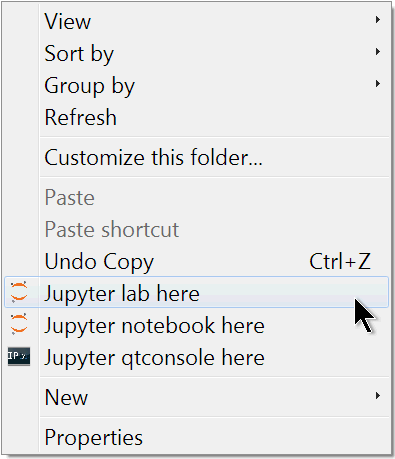
Jupyter context menu entries in windows.
In addition to starting the QtConsole, the Jupyter Notebook or the Jupyter Lab, and launching the default browser, in Microsoft Windows the process runs from a terminal. Closing the terminal closes the QtConsole or the Jupyter server. Single and all users installations are supported, see installation instructions below.
Linux
On linux, the supported file managers are: Nautilus (GNOME), Caja (MATE), Dolphin (KDE) and Nemo (Cinnamon). With Nautilus and Caja, the shortcut will appear in the Scripts menu and with Dolphin, it will appear in the Actions menu.
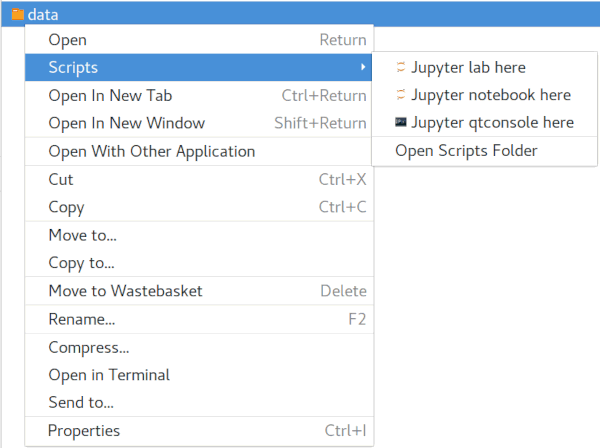
Jupyter context menu entries on Linux (Nautilus).
When selecting multiple folders, one instance of Jupyter QtConsole/notebook/lab opens in each of the selected folders. Selecting a file starts Jupyter in the file directory.
Note that on Linux the processes run in the background: to stop the jupyter notebook or lab, don’t forget to exit using the quit button - only closing the tab will not stop the jupyter server. Alternatively, nbmanager can discover all running servers and shut them down using via an UI.
macOS
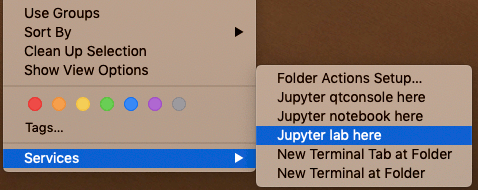
Jupyter context menu entries on macOS.
The context menu is only available when an object (folder or file) is selected in Finder. The Jupyter options will be available from the “Services” section of the menu. If a folder is selected then an instance of Jupyter QTConsole/notebook/lab opens in the selected folder. If a file is selected then Jupyter is started in the file directory. If the file is a jupyter notebook (*.ipynb), then selecting Jupyter notebook/lab will open the file in that program; Jupyter QtConsole will still only open in the file directory.
As the processes are opened through a shell script in Automator, a spinning cog will be visible in the menu bar when the processes are running. Once you have finished with the server then manually kill the process via the drop-down menu from this spinning cog.
The launchers have been tested on macOS Mojave (10.14) to Sonoma (14).
Installation instructions
Install from pypi using pip:
$ pip install start_jupyter_cmOr install from conda-forge channel using conda (in a Anaconda/Miniconda distribution):
$ conda install -c conda-forge start_jupyter_cmUsage
Optional arguments
On Linux, several file manager can be installed, to create or remove the context menu shortcut(s) for a specific file manager, use the --file_manager (-f) option:
$ start_jupyter_cm -f nautilusHelp
Use the command line help for more information:
$ start_jupyter_cm -hMore information
Linux
On linux, the context menu shortcuts are created by adding scripts or configuration files for each file manager. The location of these files are:
Nautilus: ~/.local/share/nautilus/scripts
Caja: ~/.config/caja/scripts
Dolphin: ~/.local/share/kservices5/ServiceMenus
Nemo: ~/.local/share/nemo/actions
2 maintainers


Metadata
2 maintainers
Release files for start-jupyter-cm 2.3.2
For a detailed explanation of source distributions (sdists) and built distributions (wheels), please see the package formats documentation.
Source distribution (sdist)
| File | Size | Uploaded | Provenance | |
|---|---|---|---|---|
| start_jupyter_cm-2.3.2.tar.gz | 59.6 kB | Without provenance | Details |
Built distribution (wheel)
| File | Interpreter | ABI | Platform | Reset |
|---|---|---|---|---|
| start_jupyter_cm-2.3.2-py3-none-any.whl | Python 3 | none | any | Details |
Total release size: 117.7 kB
Release files / start_jupyter_cm-2.3.2.tar.gz
| Download URL | start_jupyter_cm-2.3.2.tar.gz |
|---|---|
| Size | 59.6 kB |
| Tags | Source |
|
SHA-256 checksum How to use checksums |
d9f9107e1af763fd2eb227fc39cd7bd61da216f5dada7aa1161c3a2059559c90
|
|
BLAKE2b-256 checksum How to use checksums |
0e99518d62aa7edfcf76f9a7e100368e1634f055a393a81ac3684b4d0b1c7192
|
| Upload date | |
|
Uploaded using Trusted Publishing? What is trusted publishing? |
Yes |
| Uploaded via |
twine/5.0.0 CPython/3.12.3
|
Release files / start_jupyter_cm-2.3.2-py3-none-any.whl
| Download URL | start_jupyter_cm-2.3.2-py3-none-any.whl |
|---|---|
| Size | 58.1 kB |
| Tags | Python 3 |
|
SHA-256 checksum How to use checksums |
3e49129a6d8e97fc225533d0055a2258df954f0461d626b9672f7a5d0eabf0a0
|
|
BLAKE2b-256 checksum How to use checksums |
676ccd7812a7781d9f853a129964b22ad37c874f01aa49066327948e6ba1b374
|
| Upload date | |
|
Uploaded using Trusted Publishing? What is trusted publishing? |
Yes |
| Uploaded via |
twine/5.0.0 CPython/3.12.3
|
Security for start-jupyter-cm 2.3.2
Provenance
Provenance describes where a file came from. On PyPI, provenance is shared via attestations, which provide a verifiable record of the build or publishing details. View details, limitations and caveats.
No provenance found
None of the files in this release were uploaded with provenance metadata.
A note on package security
PyPI is a repository for distributing packages, not a service for auditing them. While third-party security researchers and our staff do their best to detect and remove malicious packages, PyPI cannot guarantee the quality, security or suitability of any given package.














