

FAIR-Cells
FAIR-Cells is a Jupyter Notebook extension that allows the user to interactively create a Docker image from a Jupyter Notebook. Our tool can be used to generate Docker images from single cells of a Jupyter Notebook. The generated image will run a web service that will output the specified cell. This includes image outputs like plots. Code introspection for Python enables the services to change cell output at service run-time.
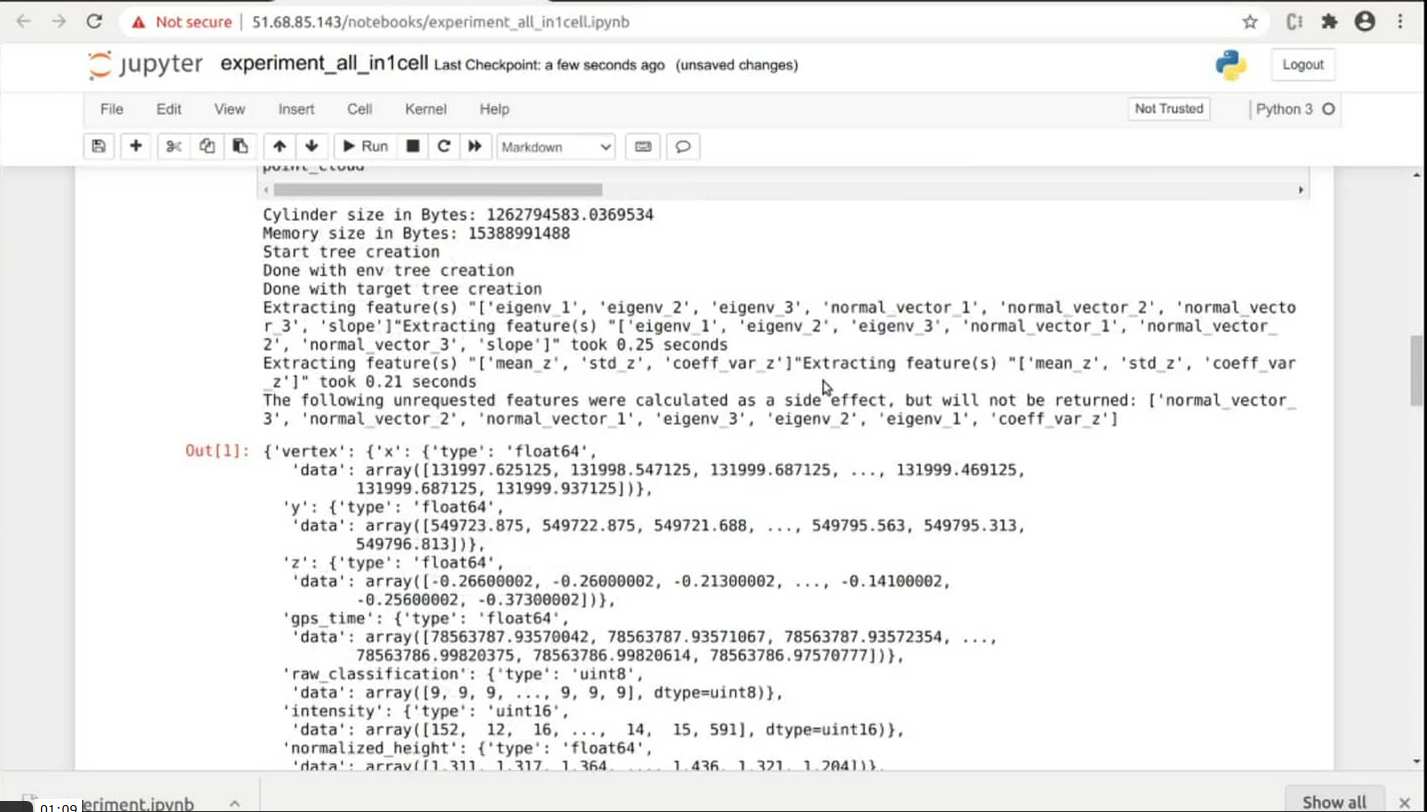
Among other things, FAIR-Cells is useful for reusing notebook components in workflows that support web services.
... More information to follow ...
Installation
FAIR-Cells can be downloaded using pip. It then needs to be enabled using three Jupyter commands. Docker is required for the extension to have any effect.
Optionally, you may want to set up a virtual python environment:
$ python3 -m venv venv
$ source ./venv/bin/activate
$ pip install jupyter matplotlib docker fair-cells
$ jupyter serverextension enable --py fair-cells
$ jupyter nbextension install --py fair-cells --user
$ jupyter nbextension enable fair-cells --user --py
Start jupyter notebook with:
$ jupyter notebook
You can now open http://localhost:8888
Run with Docker
docker run -it -p 8888:8888 -e GEN_CERT=yes -v /var/run/docker.sock:/var/run/docker.sock qcdis/fair-cells
or with mounting X11
docker run --privileged -e "DISPLAY=unix:0.0" -v="/tmp/.X11-unix:/tmp/.X11-unix:rw" -it -p 8888:8888 -v /var/run/docker.sock:/var/run/docker.sock qcdis/fair-cells
WARNING!! Do not use this in a production environment. This will expose the machine running Jupyter and allow anyone to execute code on the hosting machine https://jupyter-notebook.readthedocs.io/en/stable/security.html#the-problem
Development
To keep your system clean it is recommended to develop using Docker. The following command will run a Jupyter Notebook server with FAIR-Cells enabled at http://localhost:8888. Autoreload is enabled for Python files, you will need to reload your browser to see changes in the front-end.
$ docker-compose up --build main
To test the helper server that runs inside the container run the following command. This uses a dummy notebook that
can be found in docker/helper_dummy. The notebook will be available at http://localhost:10000
$ docker-compose up --build helper
Tutorial
Prerequisites
Make sure you have Docker installed. To verify you may run:
$ [sudo] docker run hello-world
To be able to publish images to dockerhub you will need to create an account at https://registry.hub.docker.com/signup As soon as you have created you account create an Access Token that you will use to publish images. To create an Access Token in dockerhub you may follow these instructions: https://docs.docker.com/docker-hub/access-tokens/
Start FAIR-Cells
Start the docker container with jupyter and FAIR-Cells enabled:
[sudo] docker run -it -p 8888:8888 -v /var/run/docker.sock:/var/run/docker.sock qcdis/fair-cells:release-1.0.13-winter-school-20
With your browser (preferably chrome or chromium) open http://127.0.0.1:8888/. The 'work' folder of the Jupyter server should contain a notebook named 'classifiers.ipynb'

Execute Notebook
Open the notebook. The first cell provides a description of the notebook. Execute all the cells you should see the
results of each classifier's accuracy.

You may experiment with different values for 'n_samples', 'n_features' and 'train_samples'. You may notice that as you increase the values of 'n_samples', 'n_features' and 'train_samples' the cell execution is taking longer. Also, it would take a long time to manually adjust all values to find the optimal combination.
Dockerize Cell
We need 'dockerize' the 3rd cell, so we can use it as an independent service. To do that start FAIR-Cells by
clicking on the last icon on the second row.

Fill in the fields of FAIR-Cells as shown in the images bellow. Make sure that the in 'Image name' field has the form: 'REPO/NAME', where 'REPO' you should put your dockerhub username. In the 'NAME' you may add any name you like.


Next you may press 'Build' to 'dockerize' the selected cell. This process should take approximately 5 minutes.

When the process is done you will see the log message on the text area next to the build button:

Test Dockerized Cell
As soon as the cell has been 'dockerized' you may start it as a service by selecting the 'Run' tab:

Press the 'Run' button and as soon as the state changes to create open a new tab and fill in the address: http://localhost:10000/. This will call the cell with the 'n_samples', 'n_features' and 'train_samples' set to their default. If you want to change these values set the address to http://localhost:10000/?train_samples=1000&n_samples=100000&n_features=10 or any other integers.
Go back to Jupyter and stop the service by pressing 'stop'
Publish Dockerized Cell
Open the 'Publish' tab and fill in your username and Access Token and press 'Login'.
If the login was successful you can press 'Publish'


1 maintainer

Metadata
1 maintainer
Release files for FAIR-Cells 1.0.20
For a detailed explanation of source distributions (sdists) and built distributions (wheels), please see the package formats documentation.
Source distribution (sdist)
| File | Size | Uploaded | |
|---|---|---|---|
| FAIR-Cells-1.0.20.tar.gz | 26.2 kB | Details |
Built distribution (wheel)
| File | Interpreter | ABI | Platform | Reset |
|---|---|---|---|---|
| FAIR_Cells-1.0.20-py3-none-any.whl | Python 3 | none | any | Details |
Total release size: 58.6 kB
Release files / FAIR-Cells-1.0.20.tar.gz
| Download URL | FAIR-Cells-1.0.20.tar.gz |
|---|---|
| Size | 26.2 kB |
| Tags | Source |
|
SHA-256 checksum How to use checksums |
89ab69b6ae3c756e6cae817f9ed92031e911fa36692cfc3bad37815788ea6772
|
|
BLAKE2b-256 checksum How to use checksums |
0dce80ca826509fb7fe69f9c9e3343c7a125f1a20b5270fed2122d23b2ba8ae8
|
| Upload date | |
|
Uploaded using Trusted Publishing? What is trusted publishing? |
No |
| Uploaded via |
twine/3.4.1 importlib_metadata/4.4.0 pkginfo/1.7.0 requests/2.25.1 requests-toolbelt/0.9.1 tqdm/4.61.0 CPython/3.9.5
|
Release files / FAIR_Cells-1.0.20-py3-none-any.whl
| Download URL | FAIR_Cells-1.0.20-py3-none-any.whl |
|---|---|
| Size | 32.4 kB |
| Tags | Python 3 |
|
SHA-256 checksum How to use checksums |
9a9f88ccbcdc25da86fa88004562eb0d91c74c52a0def376e3b15024d5741155
|
|
BLAKE2b-256 checksum How to use checksums |
0826029d867ecf7a4f007d3c1fdf59694e73dd8c95a68819852d2fff5ea680a4
|
| Upload date | |
|
Uploaded using Trusted Publishing? What is trusted publishing? |
No |
| Uploaded via |
twine/3.4.1 importlib_metadata/4.4.0 pkginfo/1.7.0 requests/2.25.1 requests-toolbelt/0.9.1 tqdm/4.61.0 CPython/3.9.5
|














