
Chronicle MCP: Local AI Chat History Search & Memory
Private, offline memory for your AI coding agents. Chronicle MCP (chronicle-mcp-server) is a local stdio MCP server that indexes your Cursor, Claude, ChatGPT and Cline chat transcripts on your own machine and serves BM25 search over them, so agents can recall past conversations without re-pasting them, using up to 40% fewer context tokens. Your archive and index stay on disk: no cloud service, account, or API key.





Why · CLI Mechanics · Setup Wizard · Tool Catalog · Installation · Auto-Save · Tests · Comparison · FAQ · License
Chronicle is a Model Context Protocol (MCP) server that syncs, cleans, formats, and indexes AI chat transcripts entirely on your machine. By bridging the gap between local editor history and large language model contexts, Chronicle allows agents to search, compare, retrieve, and reference past conversation logs. It features optimized token-saving heuristics that compress code blocks and limit message lengths, reducing context window utilization by up to 40 percent.
What's new in 1.6.2
- Fixes fresh installs. Earlier releases let pip install mcp 2.x, which the server cannot run on. The dependency is now
mcp>=1.22,<2. - Rewritten tool definitions. Every tool has a title, a description of what it does and when to use it, side effects and return value, and annotations (
readOnlyHint,destructiveHint, ...). Every parameter is documented and every operation selector is an enum. - Real error results. Failures now come back with
isError: true, and unknown operation names are rejected instead of silently running a different operation. - New ways to run it:
uvx chronicle-mcp-server,chronicle serve,chronicle --versionand a Dockerfile. - Server instructions, a
recall_past_workprompt, and two resources:chronicle://capabilitiesandchronicle://chats.
What's new in 1.6.1
- CI on Python 3.10 to 3.13, plus build and
twine checkon every push and pull request. - Accurate tool catalog: 8 tools plus the
start_sessionprompt, whichmaintain_storage(op_type="capabilities")now reports too. - Richer PyPI metadata (project links, keywords, classifiers) and a cleaner repository with no committed build artifacts.
See the full CHANGELOG for earlier releases.
Key Architectural Capabilities
Format Normalization Engine
AI providers and editor clients save conversation logs in diverse formats. Chronicle normalizes these structures into a standard role-and-content message format:
- ChatGPT Exports: ChatGPT exports conversation histories in recursive mapping node structures. Chronicle traverses and flattens these maps, sorts messages chronologically by creation timestamp, and extracts the plain-text message threads.
- Claude Exports: Claude structures messages as flat lists nested under the chat_messages field. Chronicle parses these lists, maps custom sender roles (such as human and assistant) to standard roles, and cleans the text strings.
- Generic and Markdown Formats: Chronicle includes parsers for flat JSON message lists (such as Cline or Continue) and structured Markdown logs (mapping headers like User and Assistant to message boundaries).
Context Token Optimization
Large chat logs can quickly exhaust context windows and increase API costs. Chronicle implements proactive token-saving mechanisms:
- Code Block Summarization: Automatically replaces verbose code blocks with metadata summaries indicating the programming language and line count. This behavior can be disabled on demand to read full code snippets.
- Length Limiting: Truncates extremely long individual messages at a configurable character threshold, appending a notice that the user can re-run the tool with expanded limits if necessary.
Context Window Token Savings Graph
To verify these savings, we executed multi-turn conversation benchmarks. The graph below displays total token usage over a sequence of message turns:
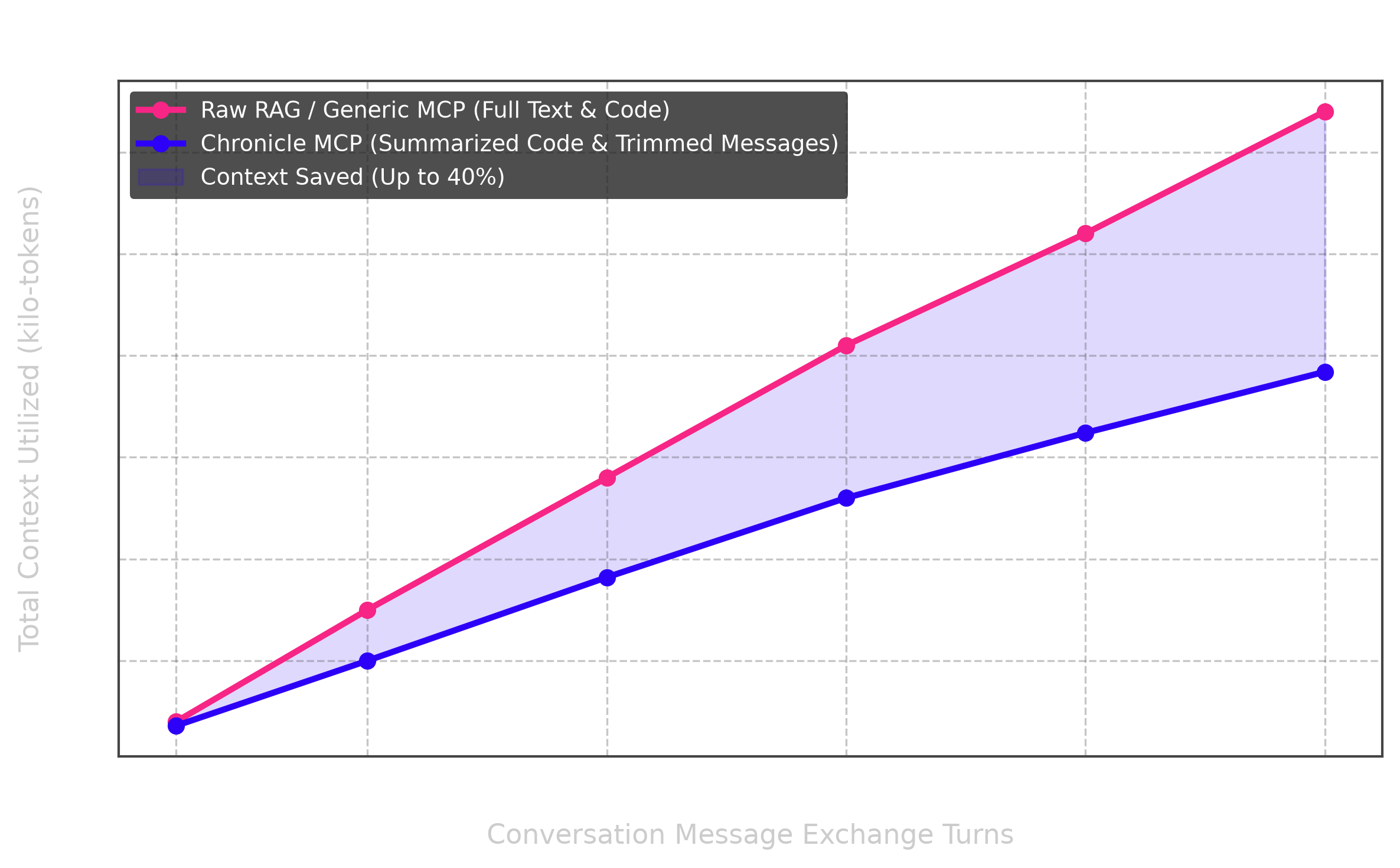
By condensing repetitive syntax and large raw code snippets, Chronicle achieves up to 40 percent token savings, directly lowering API usage costs and preventing context-window exhaustion.
Hybrid Splitting & BM25 Scoring Search Engine
To make workspace searches extremely sharp and retrieve context-aware answers, Chronicle incorporates a state-of-the-art retrieval pipeline:
- Hybrid Document Splitting: Slices long conversations into logical parts at indexing time. Splits are triggered temporally if a gap of more than 1800 seconds (30 minutes) occurs between consecutive messages, or lexically if the Jaccard similarity of vocabulary sliding groups of 4 messages drops below 0.12. Each split is stored and queried as a virtual document (
filename__chunk_idx). - Okapi BM25 Scorer: Replaces naive keyword matching and raw TF-IDF with Okapi BM25 scoring (
k1 = 1.5andb = 0.85). The parameterb = 0.85enforces an aggressive length penalty, which ensures long, rambling chat logs do not overshadow short, precise bug fixes. - Handoff Receipts Prioritization: Integrates a direct tool to save compact agent state files documenting modified paths, commitments, skipped tests, and next actions. Active handoff receipts are automatically prioritized and bubbled to the very top of search results.
Command Line Interface Mechanics
The cli.py file serves as the system's entry point, registering a unified chronicle command on the system path via the pyproject.toml configuration (chronicle = "cli:main").
1. Interactive Setup Wizard
Chronicle features an interactive, zero-dependency TTY setup wizard. Running chronicle setup or executing chronicle without arguments in an interactive terminal starts the setup flow:
Keyboard Navigation & Controls
Use the following controls when interacting with the select menu:
| Command / Action | Key Control | Description |
|---|---|---|
| Move Highlight | ▲ Up / ▼ Down Arrow Keys |
Navigates the interactive list focus |
| Toggle Checkbox | Spacebar |
Selects or deselects the highlighted app |
| Enter Custom IDE | Navigate to Other & type | Type custom app directory directly inline |
| Erase Character | Backspace |
Removes characters inside the custom entry |
| Confirm & Inject | Enter |
Validates target existence and runs config injection |
| Cancel Setup | Ctrl + C or Escape |
Aborts setup process cleanly |
Wizard Phases & Actions
The wizard guides you through the following phases:
| Step | Phase Name | What You Do | Result & Behavior |
|---|---|---|---|
| Step 1 | Monolithic Split Engine | Input JSON file path (or press Enter to skip) |
Automatically partitions unified chat history exports |
| Step 2 | Storage Directory Configuration | Specify directory path (or press Enter for default) |
Creates local storage folder for transcripts |
| Step 3 | Interactive IDE Selection | Toggle checkboxes, navigate submenus, type custom targets | Performs TTY selection and checks path validation |
| Step 4 | Config Injection & Live Dashboard | Review final summary configuration | Injects server configs into target IDE settings |
Click to expand step-by-step Setup Walkthrough
Step 1: Launch the Setup Wizard
Run the setup command:
chronicle setup
Step 2: The Monolithic Split Engine
The wizard asks if you want to partition any monolithic chat logs (such as the single conversations.json from ChatGPT/Claude exports) into separate files in your new storage folder:
── Chronicle Archive Setup ─────────────────────────────────────
Do you want to split a single conversations.json file?
Enter path to export file (or press ENTER to skip):
Step 3: Configure Storage Path
Define the folder path where Chronicle will clean and store all conversation history:
Enter path to folder containing your conversations [Default: ~/universal-chats]:
✓ Using existing storage directory: /Users/username/universal-chats
Successfully set chats directory to: /Users/username/universal-chats
Step 4: Interactive IDE Selector
An interactive selection menu with a premium purple theme. Navigate with the arrow keys, toggle checkboxes with the Spacebar, edit custom inputs inline, and press Enter to confirm:
Please select the applications/IDEs where you want to install Chronicle MCP:
  (Use arrow keys to navigate, Space to toggle, Enter to confirm)
    [✓] Cursor
    [ ] VS Code (Cline / Roo Code)
    [ ] Trae IDE
    [ ] Claude Code
    [ ] Windsurf
    [ ] Claude Desktop
    [ ] ChatGPT Desktop
❯   [✓] Antigravity
        [✓] Antigravity IDE
        [ ] Antigravity 2.0
        [ ] Antigravity CLI
    Other (Enter custom entry):
Step 5: Inject Configs & Live Environment Dashboard
Once selections are confirmed, Chronicle automatically resolves uvx paths on your system, writes the MCP server configuration into each selected app, and presents a live environment dashboard summary:
── Chronicle Environment Live ──────────────────────────────────
 ✓ Storage Folder : /Users/username/universal-chats
 ✓ Auto-Saved Configs for: [Cursor, Antigravity IDE]

  How to run the server manually:
  $ uvx --from chronicle-mcp-server chronicle

  recalled in <1ms · 100% local · zero cloud
────────────────────────────────────────────────────────────────
2. Unified Chronicle Global Command
When run without subcommands, the chronicle command behaves contextually:
- Interactive TTY Terminal: Launches the interactive setup wizard.
- Non-TTY/Subprocesses: Launches the stdio transport server for MCP clients.
It accepts options like --chats-folder to configure custom storage directories, and exposes the subcommands add and split.
3. Cross-Platform Path Resolution Rules
The CLI implements path resolution logic using Python's sys.platform and pathlib.Path to match standard OS conventions for user directories:
Click to expand OS Path specifications
- macOS (Darwin): Resolves configurations to the user's home Library folder, typically under
~/Library/Application Support/. - Windows (Win32): Leverages the
%APPDATA%environment variable, falling back to~/AppData/Roaming/if the variable is not set. - Linux: Follows the XDG base directory specification, resolving to
~/.config/.
4. Native IDE Integration and Fallback Engine
The CLI wrapper provides out-of-the-box support for leading AI-assisted development tools and editors:
Click to expand supported environments and fallback logic
- Cursor: Reads and writes configurations to
~/.cursor/mcp.json. - Claude Code: Integrates with
~/.claude.json. - VS Code (Cline/RooCode/Continue): Standardizes pathing across platforms:
- macOS:
~/Library/Application Support/Code/User/globalStorage/saoudrizwan.claude-dev/settings/cline_mcp_settings.json - Windows:
%APPDATA%/Code/User/globalStorage/saoudrizwan.claude-dev/settings/cline_mcp_settings.json - Linux:
~/.config/Code/User/globalStorage/saoudrizwan.claude-dev/settings/cline_mcp_settings.json
- macOS:
- Trae: Resolves configuration to:
- macOS:
~/Library/Application Support/Trae/mcp.json - Windows:
%APPDATA%/Trae/mcp.json - Linux:
~/.config/Trae/mcp.json
- macOS:
- Dynamic Fallback Engine: For emerging platforms (such as Kiro, MiniMax, Qwen Code, Grok Build, or Antigravity), the CLI employs a fallback search pattern. It first checks for a user home dot-directory configuration (such as
~/.<app_name>/mcp.json). If that directory is missing, it creates the app-specific configuration in the standard application support folder for the respective platform (e.g.~/Library/Application Support/<app_name>/mcp.jsonon macOS).
5. Prevent ENOENT Errors with shutil.which
Host clients (like Claude Desktop or Cline) spawn MCP servers within isolated subprocesses that often do not inherit the user's login shell environment variables (such as custom paths defined in .bashrc or .zshrc).
Click to expand details
To solve this, the chronicle add utility uses Python's shutil.which("uvx") to scan the host machine path during configuration. It resolves the absolute system path of uvx (such as /opt/homebrew/bin/uvx or /usr/local/bin/uvx) and writes this absolute path directly to the IDE's JSON configuration file.
6. Structural Split Engine Subcommand
Users downloading conversational archives from ChatGPT or Claude are often provided with a single monolithic JSON file (such as conversations.json) containing hundreds of distinct threads.
The chronicle split subcommand parses these large payloads and splits them into individual JSON files:
Click to expand split options and execution
- Automatically detects the schema format (nested conversation trees or flat lists).
- Identifies thread titles using key fallback fields (checking
title,name, andchat_title). - Sanitizes file names to remove platform-forbidden characters (such as
/,\,*,?,:,",<,>, and|) and limits length. - Resolves filename collisions by appending incremental numeric suffixes.
chronicle split /path/to/conversations.json --out /path/to/output_directory
7. Global Chats Folder Configuration
By default, Chronicle stores processed archives in ~/.chronicle/chats. You can configure a custom global storage folder using the --chats-folder parameter:
chronicle --chats-folder /path/to/custom/chats
This saves the target path to a local settings file (~/.chronicle_settings.json), allowing you to centralize your archives across multiple development environments.
Tool Reference Catalog
Chronicle consolidates its behaviors into 8 parameterized tools (six core tools plus two handoff tools), two prompts and two resources. This design avoids cognitive overhead for client AI models while preserving the server's complete feature set. Everything runs locally: no tool contacts the network (openWorldHint: false).
| Tool | Title | Read-only | Destructive | Idempotent |
|---|---|---|---|---|
search_history |
Search Chat History | yes | no | yes |
get_chat_logs |
Read Chat Logs | yes | no | yes |
get_handoff_status |
Get Handoff Status | yes | no | yes |
sync_workspace_data |
Import Chats | no | no | no |
compile_project_insights |
Compile Project Insights | no | no | yes |
save_handoff_receipt |
Save Handoff Receipt | no | no | no |
maintain_storage |
Maintain Storage | no | yes (deduplicate with dry_run=false) |
yes |
manage_session_state |
Manage Session State | no | yes (delete with confirm=true) |
no |
Validation and errors. The operation selectors (method, view_type, source_type, insight_type, op_type, action) are enums, and counts such as limit, top_k, page and per_page must be at least 1. Invalid values are rejected before the tool runs. Execution failures, such as a missing chat file, an invalid date or a missing required argument for the chosen operation, are returned as MCP results with isError: true and a message explaining what to fix.
1. search_history
- Description: Unified search and filter interface for local chat transcripts. Supports keyword, Okapi BM25 semantic, date range, and related chat lookups.
- Parameters:
query(str, default: ""): The search query string or keywords list.method(str, default: "semantic"): Search methodology. Supported options:semantic: Standard semantic retrieval using Okapi BM25 scoring with exponential temporal decay.keyword: Exact string matching against terms in files.date_range: Filters files modified within a date interval (requiresstart_dateandend_date).related: Finds archives semantically close to a reference file.
keywords(list of strings, optional): Optional list of keywords for keyword search.start_date(str, optional): Start date string (YYYY-MM-DD) for date range filtering.end_date(str, optional): End date string (YYYY-MM-DD) for date range filtering.limit(int ≥ 1, default: 50): Maximum result count for keyword or date range searches.top_k(int ≥ 1, default: 10): Maximum matches for semantic or related chat searches.client(str, default: "default"): Subfolder client identifier.file_name(str, optional): Reference chat filename for related search.
2. get_chat_logs
- Description: Unified read interface for stored transcripts. Fetches paginated file lists, summaries, file metadata, or message ranges with token-saving options.
- Parameters:
chat_id(str, optional): Filename of the target chat. If omitted, lists all available files.view_type(str, default: "content"): The type of information to retrieve. Supported options:content: Message text slice within specified index ranges.metadata: File statistics including message counts and modification dates.summary: Structural summary highlighting the opener and closer context.
start_msg(int ≥ 1, default: 1): Message slice start index (1-indexed).end_msg(int ≥ 1, default: 20): Message slice end index.max_msg_len(int, default: 1000): Character limit for messages to prevent token inflation. Set to 0 for unlimited.summarize_code(bool, default: True): Summarizes markdown code blocks into metadata headers.page(int ≥ 1, default: 1): Page index for folder listing (used whenchat_idis omitted).per_page(int ≥ 1, default: 50): Page result limit for folder listing.client(str, default: "default"): Subfolder client identifier.
3. sync_workspace_data
- Description: Ingests, imports, and syncs external conversation transcripts or workspace logs from various tools and formats.
- Parameters:
source_type(str): Source type identifier. Supported options:raw_content: Direct JSON import from text buffers or clipboard paste.local_path: Copies a JSON file from a local path on disk.agent_transcripts: Syncs transcripts (JSON, JSONL, MD) from configured third-party client folders.cursor_agent_transcripts: Deprecated. Scans Cursor workspace project transcript folders.
payload(str, dict, or list, optional): Input data payload (raw JSON text, file path on disk, or folder path).title(str, optional): Target file name or title for imports.source_dir(str, optional): Override folder directory for scanning transcripts.limit(int ≥ 1, default: 50): Maximum files to synchronize.client(str, default: "default"): Subfolder client identifier.
4. compile_project_insights
- Description: Aggregates and compiles insights from chat logs, including action item extraction, index indexing, chat comparisons, and brief generation.
- Parameters:
insight_type(str): Compilation format. Supported options:action_items: Extract todos, checkboxes, and task lists.knowledge_index: Rebuild or list the topic-categorized index of files.compare_chats: Analyze and detail shared and unique terms across two files.project_brief: Synthesize summaries and action items from multiple chats into one markdown document.
target_chats(list of strings, optional): List of target chat filenames for briefs or comparisons.file_name(str, optional): Target chat filename for action item extraction.file_name_a(str, optional): First chat filename for comparison.file_name_b(str, optional): Second chat filename for comparison.brief_title(str, default: "Project Brief"): Title header for compiled briefs.rebuild(bool, default: False): Re-scans all files to update the knowledge index.summary_only(bool, default: False): Returns topic file counts instead of full file lists in index lookup.client(str, default: "default"): Subfolder client identifier.
5. maintain_storage
- Description: Performs server operations, storage cleanups, settings configuration, and capabilities lookup.
- Parameters:
op_type(str): Maintenance operation name. Supported options:compress: Compresses historical archives older than a set age using Gzip.deduplicate: Content-hash based search and deletion of duplicate logs.configure: Updates auto-save message limits, paths, and transcripts.capabilities: Returns server meta-capabilities and client configurations.
settings(dict, optional): Settings payload dict (for configure).days_old(int ≥ 1, optional): Cutoff threshold age in days for compression (default 30).dry_run(bool, default: True): Lists duplicates without performing deletions.client(str, default: "default"): Subfolder client identifier.
6. manage_session_state
- Description: Manages active session caching, folder monitoring, file merges, markdown exports, and file deletions.
- Parameters:
action(str): Operation to perform. Supported options:save: Commits active messages list to storage.register_auto_save: Registers the session for auto-saving on connection termination.trigger_auto_save: Instantly flushes pending sessions to disk.watch_folder: Reports file changes since the last execution.merge: Appends new messages to an existing chat archive.export_markdown: Converts a JSON transcript to a Markdown document.delete: Permanently deletes an archive file (requires confirm=True).
conversation_name(str, optional): Active conversation name.messages(list of dicts, optional): Message list payload.force_save(bool, default: False): Saves the chat session even if below message limit thresholds.file_name(str, optional): Target file name.confirm(bool, default: False): Confirms deletion.new_messages(list of dicts, optional): Message list to merge.client(str, default: "default"): Subfolder client identifier.
7. save_handoff_receipt
- Description: Saves a structured handoff receipt that documents the current run's state (obligations, work state, evidence, and the conditions that invalidate it) so the next agent can continue safely. Receipts form a chain through
supersedes, are indexed, and active receipts are bubbled to the top of search results. - Parameters:
obligations(dict): Open promises and commitments left for the next agent.work_state(dict): Current state of the work, such as touched files and progress.evidence(dict): Supporting evidence, such as checks that ran or were skipped.invalidation(dict): Conditions that make the receipt stale (for example, monitored files) and thenext_safe_actionto take.status(str, default: "open"): Receipt status.supersedes(str, optional): ID of the earlier receipt this one replaces.closure(dict, optional): Closure details (closed_by,closed_at,closure_basis,closure_evidence) when closing a receipt.receipt_id(str, optional): Explicit receipt ID. If omitted, one is generated.
- Returns: the saved file name and its
receipt_id, which a later receipt passes assupersedes.client(str, default: "default"): Subfolder client identifier.
8. get_handoff_status
- Description: Returns the current workspace handoff state: the active chain of receipts, whether the workspace is blocked (for example, by files modified after the receipt was written), and the next safe action.
- Parameters:
client(str, default: "default"): Subfolder client identifier.
Prompt: start_session
- Title: Start a Chronicle Session
- Description: Returns system instructions that tell the agent to register the conversation with
manage_session_state(action="register_auto_save") at the start of a chat, so the session is saved automatically.
Prompt: recall_past_work
- Title: Recall Past Work
- Arguments:
topic(str): what to look up, such as "the auth refactor". - Description: Walks the agent through checking
get_handoff_status, searching withsearch_history, and reading the best hits withget_chat_logsusing small message ranges.
Resources
chronicle://capabilities(JSON): the same server capabilities report asmaintain_storage(op_type="capabilities").chronicle://chats(text): the first page of archived chat files, asget_chat_logslists them.
Installation and Configuration
Quick Setup (Recommended)
Install the package directly from PyPI and run the interactive setup wizard to configure your storage paths and editor integrations automatically:
pip install chronicle-mcp-server
chronicle setup
System Prerequisites
- Python 3.10 or higher.
- Python package
mcp1.22 or later, below 2.0 (the Model Context Protocol SDK; installed automatically). - Python
setuptools(for installation as a package).
Run the Server Directly
MCP clients start Chronicle over stdio. Any of these commands works as the server command in a client config:
uvx chronicle-mcp-server          # no install needed
chronicle-mcp-server              # after pip install chronicle-mcp-server
chronicle serve                   # same server, through the main CLI
chronicle --version
Environment variables (all optional):
| Variable | Purpose |
|---|---|
CHRONICLE_BASE_DIR |
Archive folder (default ~/.chronicle). Takes precedence over the folder saved by chronicle setup. |
TRANSCRIPTS_DIR |
Extra transcript folder for sync_workspace_data(source_type="agent_transcripts"). |
CHRONICLE_LOG_LEVEL |
stderr log level (default WARNING). |
CHRONICLE_AUTO_CONFIGURE_RULES |
Set to 1 to write the session-registration rule into workspace rule files on startup. |
Docker
The image runs the same stdio server, with the archive in a /data volume:
docker build -t chronicle-mcp .
docker run -i --rm -v "$HOME/.chronicle:/data" chronicle-mcp
Always pass -i, because MCP traffic goes over stdin and stdout. In a client config, use docker as the command and ["run", "-i", "--rm", "-v", "/path/to/archive:/data", "chronicle-mcp"] as the arguments. Inside a container Chronicle can only see the folders you mount, so importing editor transcripts also needs those folders mounted (and TRANSCRIPTS_DIR pointed at them).
Manual Installation
- Clone the repository:
git clone https://github.com/Leviathan0x0/Chronicle-MCP.git
cd Chronicle-MCP
- Set up a Python virtual environment:
python3 -m venv venv
source venv/bin/activate
- Install dependencies and the package in editable mode:
pip install -e .
Automatic Session Saving in Cursor and VS Code
Since editors (like Cursor or VS Code) do not notify MCP servers when a chat window or tab is closed, Chronicle implements a multi-step solution to ensure your conversation history is saved automatically:
1. Process Exit Handler (Automatic Flush)
The Chronicle server includes an exit handler registered via Python's atexit module. When you close a chat tab or close the editor, the editor terminates the stdio connection, shutting down the Chronicle process. Upon receiving this shutdown trigger, the server automatically flushes the registered pending session to the local chats folder.
2. Workspace Rules Generation (Opt-in)
For this flush to succeed, the active chat session must be registered during the conversation. There are two ways to tell the agent to do that:
- Use the
start_sessionprompt, or rely on the server instructions, which MCP clients pass to the model. - Opt in to rule files by setting
CHRONICLE_AUTO_CONFIGURE_RULES=1in the server environment. On startup Chronicle then creates or appends the rule in the active workspace's rule files (such as.cursorrules,.clinerules,.windsurfrulesand.clauderules). This is off by default, so the server never writes into your projects unless you ask it to.
The rule states:
At the beginning of the chat session, you must call the "manage_session_state" tool with action="register_auto_save" to register this conversation. Provide a descriptive title based on the user's initial prompt. As the conversation progresses, periodically update the registration payload to keep it current.
This ensures that the chat history is registered dynamically, and Chronicle will write the complete history to your storage folder as soon as the editor terminates the connection.
Running Verification and Tests
Chronicle contains unit and integration tests to verify platform path resolution, parsing logic, and tool compatibility:
1. Run Unit Tests
To execute the suite of unit tests verifying core business logic:
python3 -m unittest discover -p "test_*.py"
2. Run Integration Tests
To exercise all 8 tools end to end (point CHRONICLE_BASE_DIR at a scratch folder so your real archive is untouched):
CHRONICLE_BASE_DIR="$(mktemp -d)" python3 test_all_tools.py
3. MCP Introspection and Live Smoke Test
test_mcp_introspection.py runs as part of the unit tests. It starts the server over stdio and fails if any tool, parameter, prompt or resource loses its description, title or annotations, if errors stop setting isError, or if version numbers drift apart. smoke_test_live.py runs read-only checks against your real archive, or against any server command:
python3 smoke_test_live.py
python3 smoke_test_live.py --command docker run -i --rm -v "$HOME/.chronicle:/data" chronicle-mcp
All of these run in CI on Python 3.10 to 3.13, plus a run against the minimum supported mcp release (1.22), a python -m build and twine check packaging job, and a Docker job. The Docker job builds the image and checks initialize and tools/list over stdio.
Market Comparison Matrix
| Features | Chronicle MCP | Mem0 | Raw RAG / Naive VecDB |
|---|---|---|---|
| Cloud Dependency | Local first (Zero Cloud dependencies) | Cloud-reliant | Cloud or complex local setup |
| Token Savings | Up to 40% reduction (Smart code folding and pruning) | None (transfers full history) | None |
| Setup Complexity | 1-click CLI installer (chronicle add) |
Requires API keys and database configs | High (VecDB setups and loaders) |
| Auto-Save Support | Native via workspace rules and exit hooks | Requires manual application integration | None |
| Local Resources | Minimal CPU and RAM (lightweight local BM25 index) | Heavy | High (vector indexing overhead) |
Contributing
We welcome community contributions. To get started:
- Fork the repository and create a new branch.
- Write unit tests for new behavior inside
test_chat_connector.py. - Verify all code changes by running the test suite locally:
python3 -m unittest discover -p "test_*.py"
CHRONICLE_BASE_DIR="$(mktemp -d)" python3 test_all_tools.py
- Ensure code formatting is clean and all imports are properly sorted.
- Submit a pull request detailing your changes and test coverage.
Releasing
Bump the version in pyproject.toml and server.json, add a CHANGELOG.md entry, then publish a GitHub release tagged v<version>. The publish workflow builds the package and uploads it to PyPI through trusted publishing.
Public Roadmap
Planned future features and enhancements for Chronicle:
- Local Embeddings: Add optional local vector retrieval using lightweight ONNX models.
- Database Auditing: Automatic cache cleanups and data integrity audits for historical logs.
- Dynamic Tailoring: Specific prompt formats optimized for different LLM host architectures (Claude, GPT, Gemini).
- Extended IDE Support: Out-of-the-box config injection scripts for additional emerging developer environments.
Frequently Asked Questions (FAQ)
General & Setup Inquiries
Q: What is the benefit of the new Interactive Setup Wizard?
A: It completely automates the configuration process. In less than 10 seconds, it configures your storage directory, partitions raw monolithic conversation logs, checks system environments, validates custom paths, and injects configurations into all target applications.
Q: Why does the setup wizard use a purple theme?
A: Chronicle is designed to feel premium and state of the art. The setup wizard uses a vibrant, highly readable purple/magenta theme (
\033[1;35m) with custom cursor pointers (❯) and status checks ([✓]) for an optimized terminal experience.
Q: What happens if a custom app directory is not found on my system?
A: The interactive selector prevents invalid configurations. If you type a custom name under "Other" whose configuration directory cannot be resolved, an alert appears inline at the bottom:
⚠ App/IDE "<name>" was not found on your system.. You can easily backspace and edit the input without losing other selections.
Q: How does the Automatic Session Saving work?
A: Chronicle generates workspace rule files (e.g.
.cursorrules,.clinerules) instructing your AI agent to register the session at startup. On tab or editor shutdown, the server's process exit hooks trigger an automatic flush to write the transcripts to your storage folder.
License
This project is licensed under the MIT License. See the LICENSE file for details.
1 maintainer

Metadata
1 maintainer
Release files for chronicle-mcp-server 1.6.2
For a detailed explanation of source distributions (sdists) and built distributions (wheels), please see the package formats documentation.
Source distribution (sdist)
| File | Size | Uploaded | Provenance | |
|---|---|---|---|---|
| chronicle_mcp_server-1.6.2.tar.gz | 87.8 kB | With provenance | Details |
Built distribution (wheel)
| File | Interpreter | ABI | Platform | Reset |
|---|---|---|---|---|
| chronicle_mcp_server-1.6.2-py3-none-any.whl | Python 3 | none | any | Details |
Total release size: 150.3 kB
Release files / chronicle_mcp_server-1.6.2.tar.gz
| Download URL | chronicle_mcp_server-1.6.2.tar.gz |
|---|---|
| Size | 87.8 kB |
| Tags | Source |
|
SHA-256 checksum How to use checksums |
0bb21bea99f34c3db5058d3df185d483282b5d70eb484a7a2aec8916d68b553c
|
|
BLAKE2b-256 checksum How to use checksums |
2e44c69de947e3d0a2c8bfc553d5b36d0cd3705d57ceead013e6256a86a026aa
|
| Upload date | |
|
Uploaded using Trusted Publishing? What is trusted publishing? |
Yes |
| Uploaded via |
twine/7.0.0 CPython/3.13.14
|
Provenance
Provenance describes where a file came from. On PyPI, provenance is shared via attestations, which provide a verifiable record of the build or publishing details. View details, limitations and caveats.


PyPI Publish Attestation
PyPI verified that this artifact, at this checksum, originated from the publisher listed below.
Signed by GitHub Actions, verified by PyPI on Oct 20, 2026.
Transparency logRelease files / chronicle_mcp_server-1.6.2-py3-none-any.whl
| Download URL | chronicle_mcp_server-1.6.2-py3-none-any.whl |
|---|---|
| Size | 62.5 kB |
| Tags | Python 3 |
|
SHA-256 checksum How to use checksums |
4c030813dcc6df03e8d60604b5984941358f5f244815c905cfefd96689c88c77
|
|
BLAKE2b-256 checksum How to use checksums |
921b61dcb8cd0c839c8e747cdcb34b225138c1178a6532f080443527bc712bea
|
| Upload date | |
|
Uploaded using Trusted Publishing? What is trusted publishing? |
Yes |
| Uploaded via |
twine/7.0.0 CPython/3.13.14
|
Provenance
Provenance describes where a file came from. On PyPI, provenance is shared via attestations, which provide a verifiable record of the build or publishing details. View details, limitations and caveats.
PyPI Publish Attestation
PyPI verified that this artifact, at this checksum, originated from the publisher listed below.
Signed by GitHub Actions, verified by PyPI on Oct 20, 2026.
Transparency logSecurity for chronicle-mcp-server 1.6.2
Provenance
Provenance describes where a file came from. On PyPI, provenance is shared via attestations, which provide a verifiable record of the build or publishing details. View details, limitations and caveats.
Full provenance
All 2 files in this release have been uploaded with provenance metadata.
Attestation for chronicle_mcp_server-1.6.2.tar.gz
PyPI Publish Attestation
PyPI verified that this artifact, at this checksum, originated from the publisher listed below.
Signed by GitHub Actions, verified by PyPI on Oct 20, 2026.
Transparency logA note on package security
PyPI is a repository for distributing packages, not a service for auditing them. While third-party security researchers and our staff do their best to detect and remove malicious packages, PyPI cannot guarantee the quality, security or suitability of any given package.
To learn more about protecting yourself from malicious actors, visit our package security documentation.














