
Converter CSV
Converter CSV by LimberDuck (pronounced ˈlɪm.bɚ dʌk) is a GUI tool which lets you convert multiple large csv files to xlsx files keeping your operational memory usage at a low level. You can run it on your operating system no matter if it is Windows, MacOS or Linux. It's free and open source tool. The reason this tool was created is to speed-up your tasks.










[!NOTE] Visit LimberDuck.org to find out more!
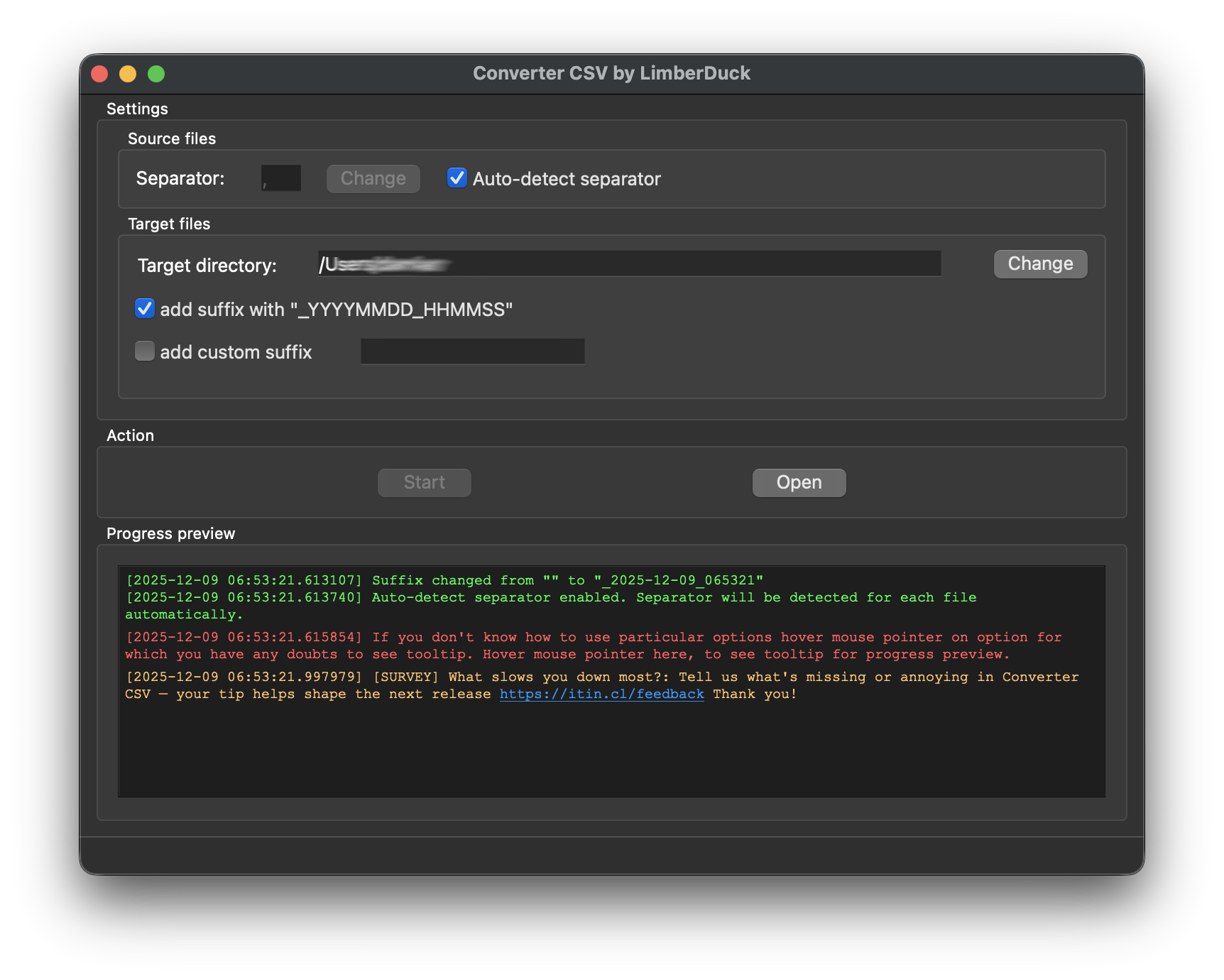
Main features
- select one or more csv files at once
- select directory to get all csv files from it and from all it's subdirectories
- automatically detect separator or change it to desired char,
- change target directory for output files to desired one, or leave it default (the same as source files)
- automatically set filters and freeze first row in generated spreadsheet to make it easier to analyze the data
Usage
- To open csv files:
- Open Converter CSV by LimberDuck, go to Menu "File" and choose:
- "Open file\-s" if you want to open one or more csv files at once.
- "Open directory" if you want to open all csv files from selected directory and its subdirectories.
- On OS level select one or more csv files:
- Click RMB (Right Mouse Button) on them and choose from contextual menu option "Open with..."
- Choose Converter CSV by LimberDuck to open selected files.
- On OS level select one or more csv files or directories containing csv files:
- drag and drop selected file\-s on Converter CSV by LimberDuck window.
- drag and drop selected directory or directories on Converter CSV by LimberDuck window.
- Open Converter CSV by LimberDuck, go to Menu "File" and choose:
- Click
Startbutton to initiate conversion of all selected files.
Options
- Keep
Auto-detect separatorcheckbox selected to automatically detected separators such as,,;,tab,|and:based on the first 5 lines. - Disable
Auto-detect separatoroption and clickChangebutton (next to separator filed) to change separator to desired by you eg. ";". - Click
Changebutton (next to directory field) to change target directory and use it for all output files. - Mark checkbox
add suffix with "_YYYYMMDD_HHMMSS"to add into each file name suffix with current time with given format. - Key-in custom suffix and mark checkbox
add custom suffixto add into each file name suffix with given text. - Click
Openbutton to open current working directory.
Installation
[!TIP] You don’t need to install Python, install Converter CSV, or build it yourself. Just go to GitHub Releases and download the latest version of Converter CSV, ready to run on Windows, macOS, and Linux.
[!NOTE] It's advisable to use python virtual environment for below instructions. Read more about python virtual environment in The Hitchhiker’s Guide to Python!
Read about virtualenvwrapper in The Hitchhiker’s Guide to Python!: virtualenvwrapper provides a set of commands which makes working with virtual environments much more pleasant.
-
Install Converter CSV
pip install converter-csvTo upgrade to newer version run:
pip install -U converter-csv -
Run Converter CSV
converter-csvOptionally for Linux and macOS:
converter-csv&Run with
&at the end to start the process in the background. -
Make a shortcut for Converter CSV
Windows:
- Run in cmd
where converter-csv.exe - Copy returned path.
- Go to e.g. to Desktop.
- Right click on Desktop and choose
New > Shortcut. - Paste returned path.
- Click
Next,Finish.
Linux (Ubuntu) / macOS
- Run in Terminal
which converter-csv - Run in Terminal
ln -s path_returned_in_previous_command ~/Desktop/
macOS
- Run in Terminal
which converter-csv - Open
binfolder whereconverter-csvis located. - Right click on
converter-csvand chooseMake alias. - Move your alias e.g. to Desktop.
- Run in cmd
Additional steps
Click to see additional steps for Linux (Ubuntu)
Linux (Ubuntu)
If you installed without python virtual environment, and you see below error:
~$ converter-csv
converter-csv: command not found
Add below to ~/.bashrc
# set PATH so it includes user's private ~/.local/bin if it exists
if [ -d "$HOME/.local/bin" ] ; then
    PATH="$HOME/.local/bin:$PATH"
fi
If you see below error:
~$ converter-csv
qt.qpa.plugin: Could not load the Qt platform plugin "xcb" in "" even though it was found.
This application failed to start because no Qt platform plugin could be initialized. Reinstalling the application may fix this problem.

Available platform plugins are: eglfs, linuxfb, minimal, minimalegl, offscreen, vnc, wayland-egl, wayland, wayland-xcomposite-egl, wayland-xcomposite-glx, webgl, xcb.

Aborted (core dumped)
Run below to fix the error:
sudo apt-get install --reinstall libxcb-xinerama0
Build executable file
Click to see instruction for Windows
Windows
-
Clone Converter CSV repository using below command
git clone https://github.com/LimberDuck/converter-csv.git -
Install requirements using below command
pip install -r requirements.txt -
Run Converter CSV using below command
python -m converter_csv -
Upgrade setuptools using below command
pip install --upgrade setuptools -
Install PyInstaller
pip install PyInstaller -
Build your own executable file using below command
pyinstaller --onefile --windowed --icon=.\icons\LimberDuck-Converter-CSV.ico --name converter-csv converter_csv\__main__.py -
Go to
distcatalog to find executable fileconverter-csv.exe
Click to see instruction for Linux (Ubuntu)
Linux (Ubuntu)
-
Clone Converter CSV repository using below command
git clone https://github.com/LimberDuck/converter-csv.git -
Install requirements using below command
pip install -r requirements.txt -
Run Converter CSV using below command
python -m converter_csv -
Upgrade setuptools using below command
pip install --upgrade setuptools -
Install PyInstaller
pip install PyInstaller -
Build your own executable file using below command
pyinstaller --onefile --windowed --icon=./icons/LimberDuck-Converter-CSV.ico --name converter-csv converter_csv/__main__.py -
Go to
distcatalog to find executable fileconverter-csv.
Click to see instruction for macOS
macOS
-
Clone Converter CSV repository using below command
git clone https://github.com/LimberDuck/converter-csv.git -
Install requirements using below command
pip install -r requirements.txt -
Run Converter CSV using below command
python -m converter_csv -
Upgrade setuptools using below command
pip install --upgrade setuptools -
Install PyInstaller
pip install PyInstaller -
Build your own executable file using below command
pyinstaller --onefile --windowed --icon=./icons/LimberDuck-Converter-CSV.ico --name converter-csv converter_csv/__main__.py -
Go to
distcatalog to find executable fileconverter-csv.
Meta
Change log
See CHANGELOG.
Licence
GNU GPLv3: LICENSE.
Authors
Damian Krawczyk created Converter CSV by LimberDuck.
1 maintainer

Release files for converter-csv 0.6.2
For a detailed explanation of source distributions (sdists) and built distributions (wheels), please see the package formats documentation.
Source distribution (sdist)
| File | Size | Uploaded | |
|---|---|---|---|
| converter_csv-0.6.2.tar.gz | 59.5 kB | Details |
Built distribution (wheel)
| File | Interpreter | ABI | Platform | Reset |
|---|---|---|---|---|
| converter_csv-0.6.2-py3-none-any.whl | Python 3 | none | any | Details |
Total release size: 121.3 kB
Release files / converter_csv-0.6.2.tar.gz
| Download URL | converter_csv-0.6.2.tar.gz |
|---|---|
| Size | 59.5 kB |
| Tags | Source |
|
SHA-256 checksum How to use checksums |
b859fa0011f90314b5743ae85493f04a34c3dd418200e2278c2d2f66011b7694
|
|
BLAKE2b-256 checksum How to use checksums |
c7a328b06c71031d89b40a1400e474f59f244dfa44101c02726a39286690e736
|
| Upload date | |
|
Uploaded using Trusted Publishing? What is trusted publishing? |
No |
| Uploaded via |
twine/6.2.0 CPython/3.9.25
|
Release files / converter_csv-0.6.2-py3-none-any.whl
| Download URL | converter_csv-0.6.2-py3-none-any.whl |
|---|---|
| Size | 61.8 kB |
| Tags | Python 3 |
|
SHA-256 checksum How to use checksums |
c6c6d8710fdd4b298aa283ba6caaf545d27a9d57b169007f559bd03835424f4d
|
|
BLAKE2b-256 checksum How to use checksums |
85552fece6aa024386e0df61f4aa633a2376faf9c190e4ec3dda41738f2b2a40
|
| Upload date | |
|
Uploaded using Trusted Publishing? What is trusted publishing? |
No |
| Uploaded via |
twine/6.2.0 CPython/3.9.25
|














