
Welcome to FTUI
Freqtrade Textual User Interface (FTUI) is a text-based interface for the Freqtrade bot.
FTUI is developed using the awesome Textual and Rich frameworks.
- Original concept and development: @froggleston
- Github : https://github.com/freqtrade/ftui
FTUI is in an alpha state so there will be bugs and missing features
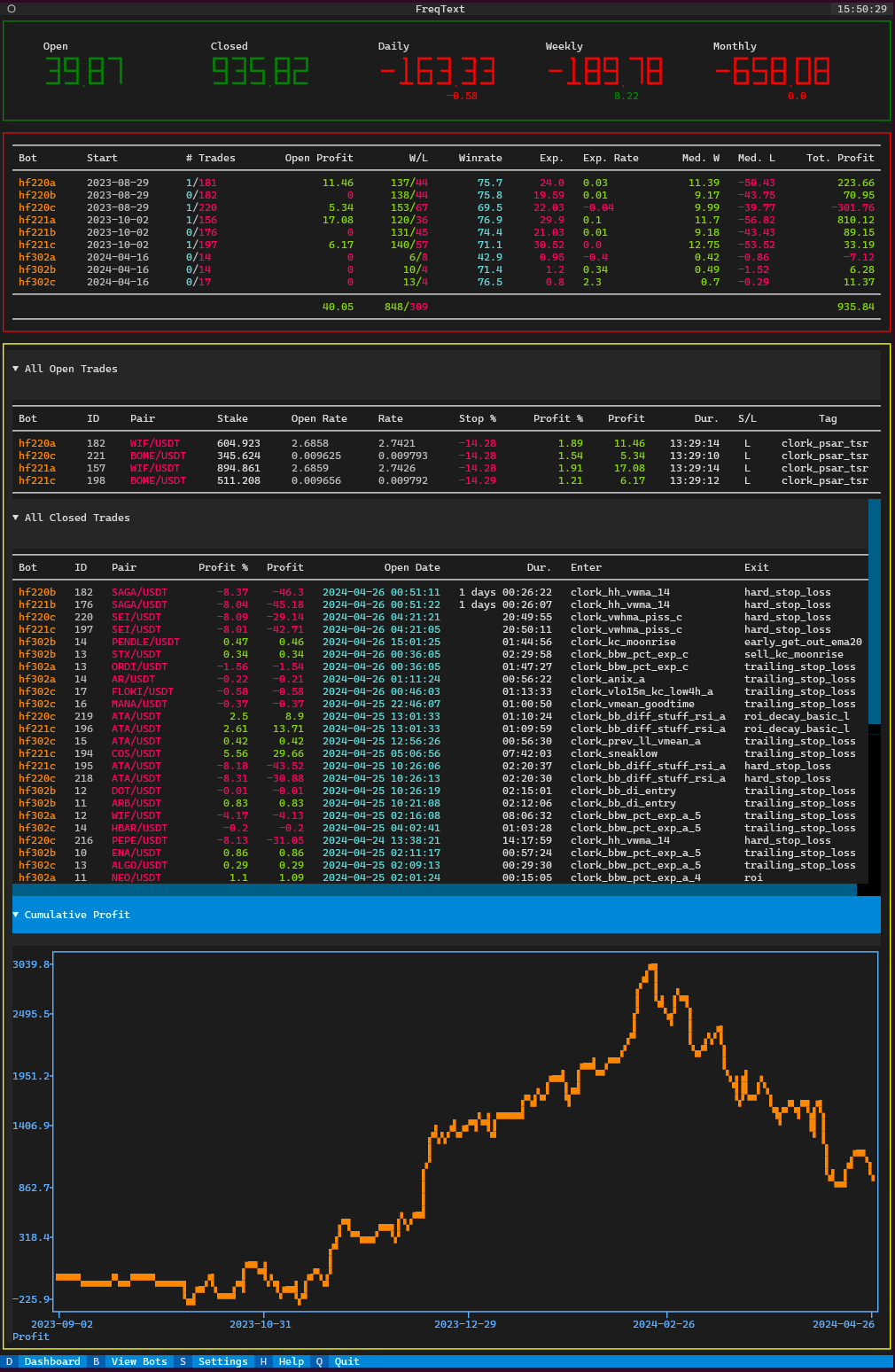
Getting Started
FTUI is designed to mimic the FreqUI interface as much as possible, but the main difference is that FTUI does not currenty support controlling a running bot. Rather FTUI acts as a lightweight passive monitoring system for running Freqtrade bots.
Installation
Currently, FTUI is only supported on Linux systems. We hope to provide a Docker container in future.
The easiest way to install FTUI is via pip: pip install ftui
Linux
FTUI can be installed into an existing venv (e.g. a existing freqtrade venv) or in a
new directory, e.g. ~/ftui, and venv as follows:
$ mkdir ~/ftui
$ cd ftui
$ python3 -m venv .venv
$ source .venv/bin/activate
$ pip3 install -r requirements.txt
$ pip3 install -e .
Once installed, a config.yaml needs to be provided to FTUI, so create it in your new
ftui/ directory and edit it with a cli text editor like nano:
$ touch config.yaml
$ nano config.yaml
Configuration
FTUI is configured using a config.yaml file, where a list of running Freqtrade bots needs
to be provided. An example has been provided to get you started as below:
---
servers:
    - name        : "botA"
      username    : "you"
      password    : "your_password"
      ip          : 1.2.3.4
      port        : 8080
    - name        : "botB"
      username    : "you"
      password    : "your_password"
      ip          : 1.2.3.4
      port        : 8081

    - name        : "botC"
      username    : "you"
      password    : "your_password"
      ip          : 5.6.7.8
      port        : 8080

colours:
    pair_col: "purple"
    bot_col: "yellow"
    bot_start_col: "white"
    trade_id_col: "white"
    open_rate_col: "white"
    current_rate_col: "white"
    open_date_col: "cyan"
    winrate_col: "cyan"
    open_trade_num_col: "cyan"
    closed_trade_num_col: "purple"
    profit_chart_col: "orange"
    link_col: "yellow"
    candlestick_trade_text_col: "orange"
    candlestick_trade_open_col: "blue"
    candlestick_trade_close_col: "purple"

debug: False
show_fear: True
Add a corresponding servers block into your own config.yaml, making note of the
indentation.
You can monitor bots across multiple servers easily in one FTUI interface. FTUI uses the freqtrade-client REST API client, so you do not need to wrestle with any CORS setup as you have to do in FreqUI to access multiple bots.
You can also set custom colours for some of the UI elements as per the example above.
The supported list of colour names can be found
here. You can
leave the colours option out of the configuration and defaults will be used.
In future, the Settings screen will allow configuration of the config.yaml from inside the
FTUI interface.
Running FTUI
Once you have saved your config.yaml file, make sure you are in your ftui directory with your
venv activated, and run FTUI as below. FTUI will load each bot client, and preload trade data
into memory:
$ ftui -y config.yaml

███████╗████████╗██╗   ██╗██╗
██╔════╝╚══██╔══╝██║   ██║██║
█████╗     ██║   ██║   ██║██║
██╔══╝     ██║   ██║   ██║██║
██║        ██║   ╚██████╔╝██║
╚═╝        ╚═╝    ╚═════╝ ╚═╝

Freqtrade Textual User Interface (FTUI)

Run with:

    ftui -y config.yaml

Setting up botA version 2024.1-dev-1b70e9b07 at http://1.2.3.4:8080: SampleStrategy running dry_run 5m
Setting up botB version 2024.1-dev-1b70e9b07 at http://1.2.3.4:8081: SampleStrategy running dry_run 5m
Setting up botC version 2024.1-dev-1b70e9b07 at http://5.6.7.8:8080: SampleStrategy running dry_run 5m

Starting FTUI - preloading all dataframes.......
Screens
Dashboard
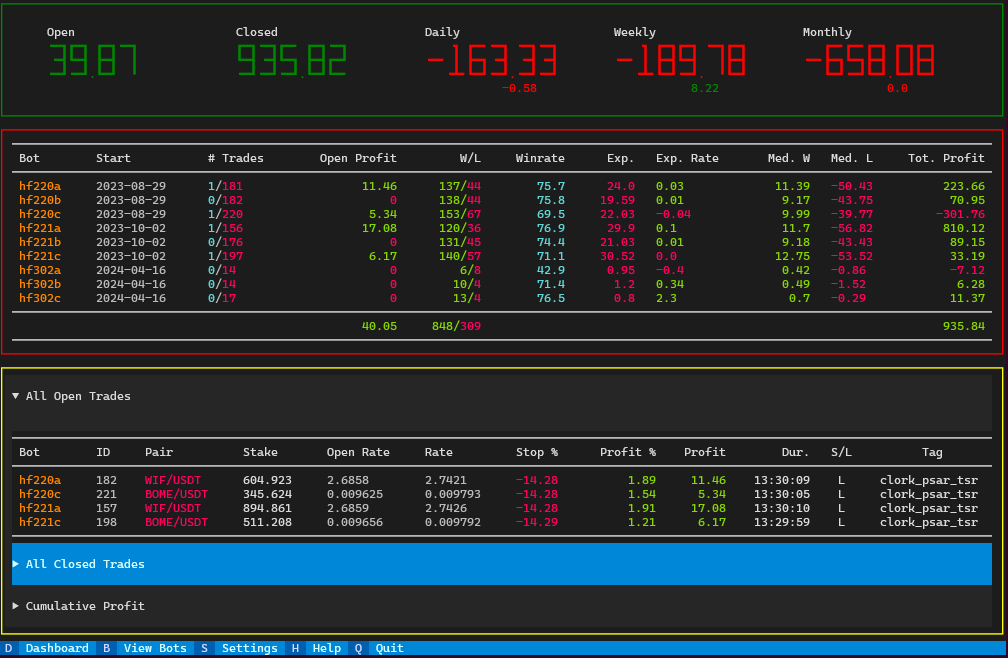
The main dashboard shows summary statistics from all bots. You can access the dashboard by
clicking the Dashboard button in the bottom left, or hitting the D key.
View Bots
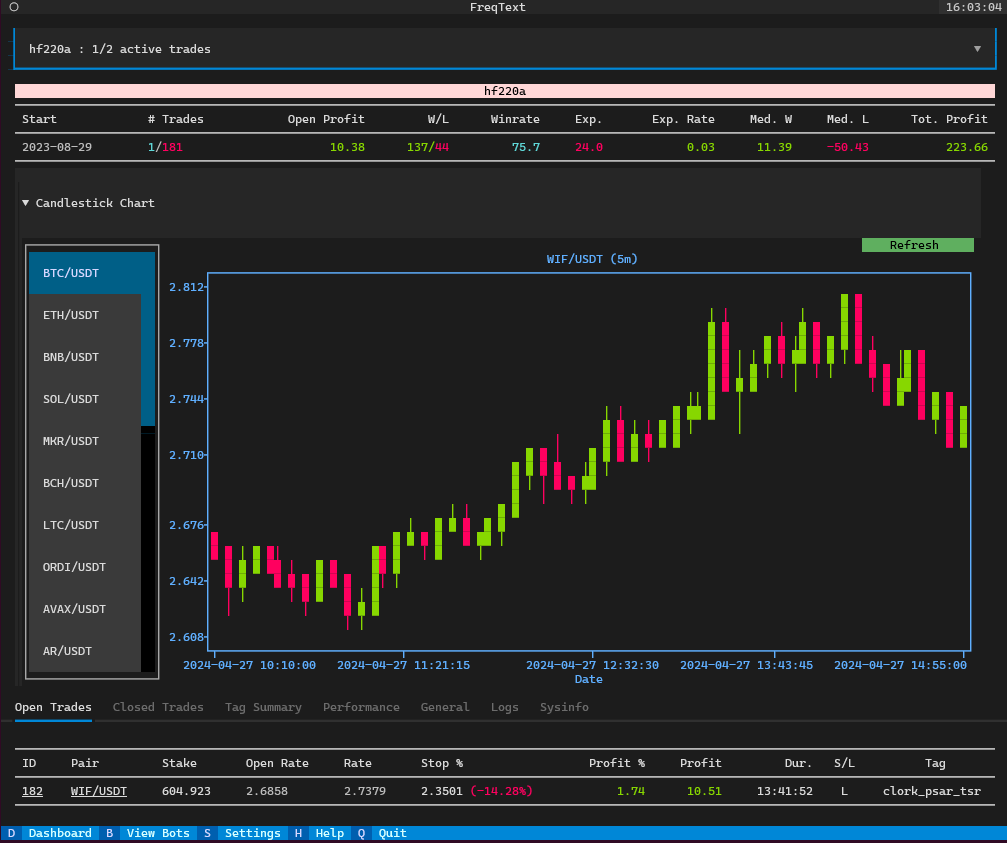
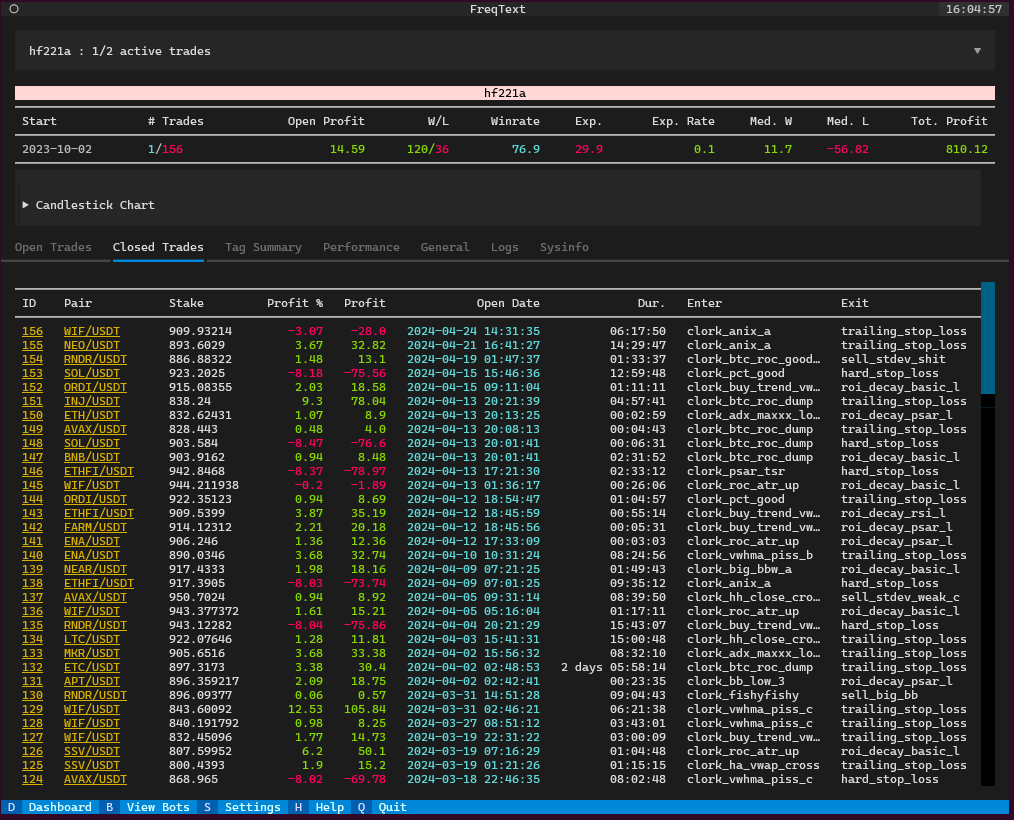
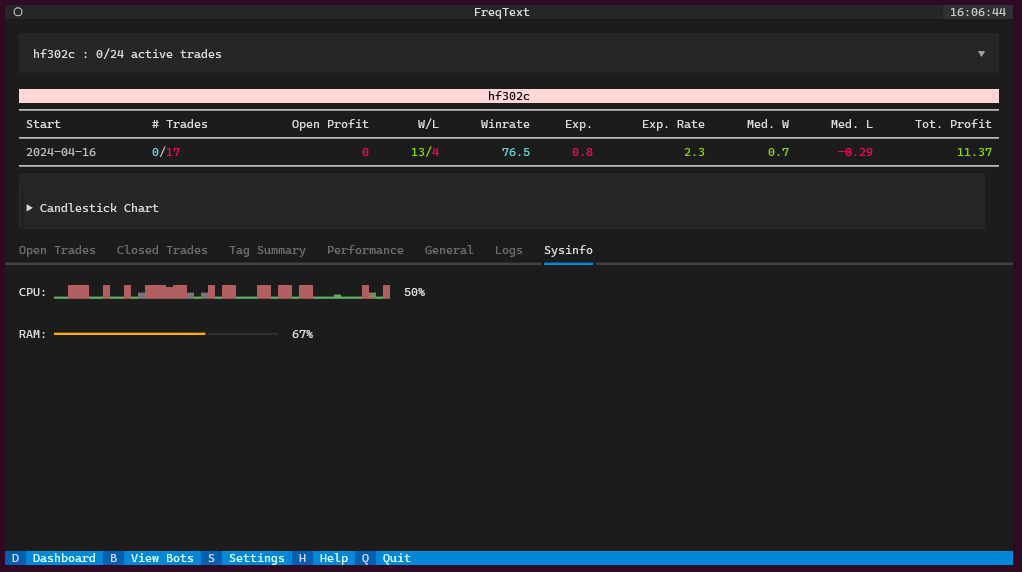
The bot view allows selection of a running bot from the dropdown at the top of the screen.
Once selected, various information about the bot will be shown in the tabs in the bottom half
of the screen. You can access the View Bots screen by clicking the button in the bottom left,
or hitting the B key.
Open trades:
Closed trades:
Tag summary:
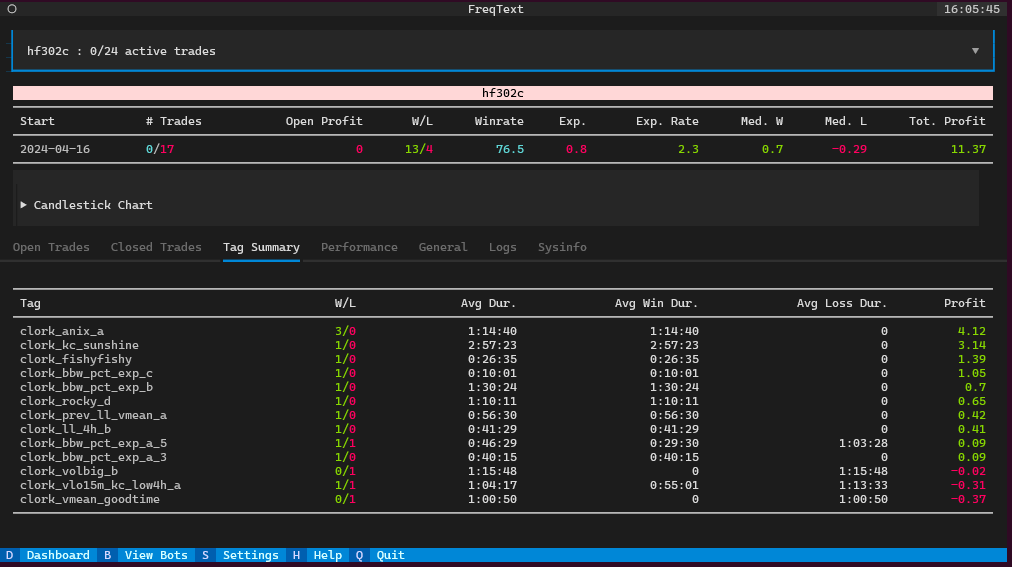
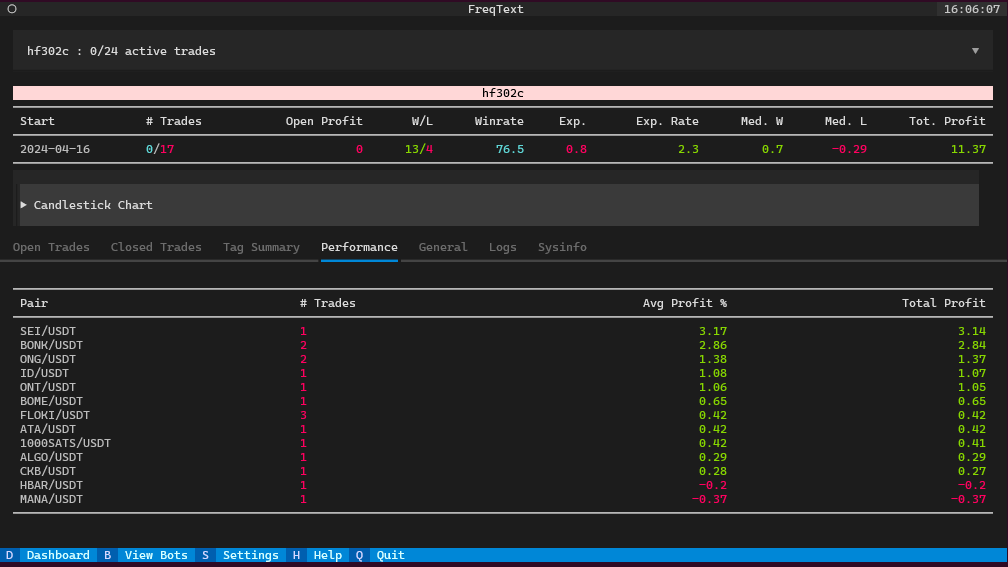
Performance:
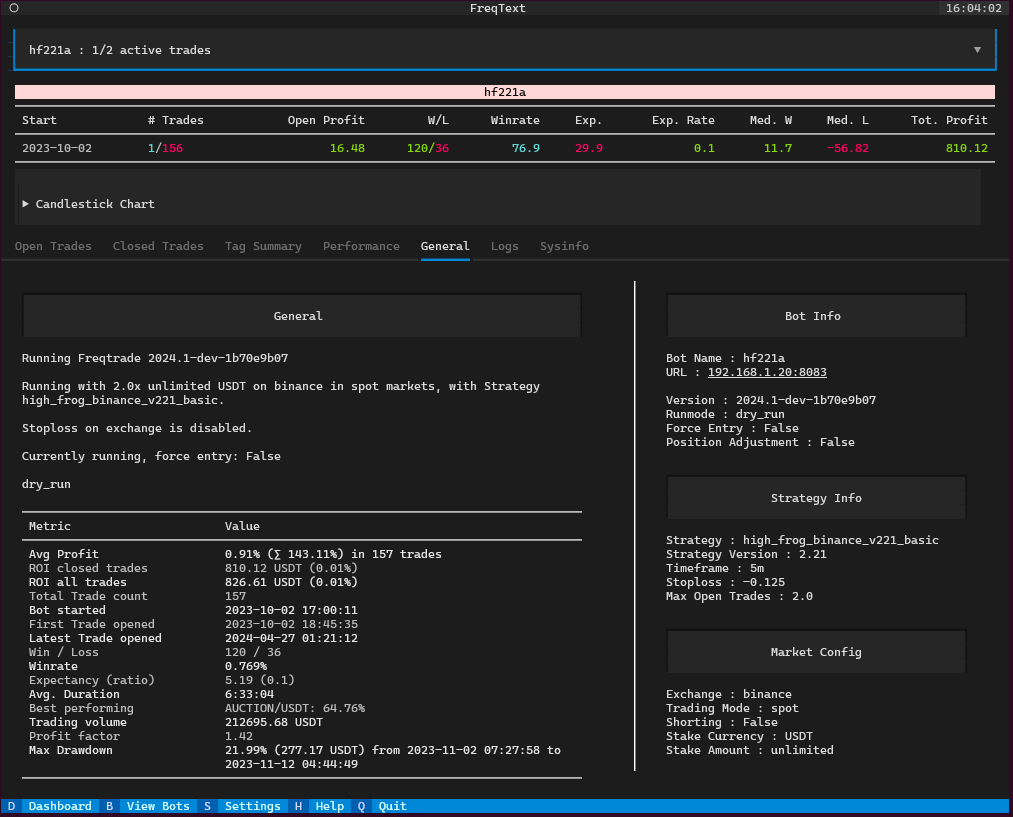
General bot information:
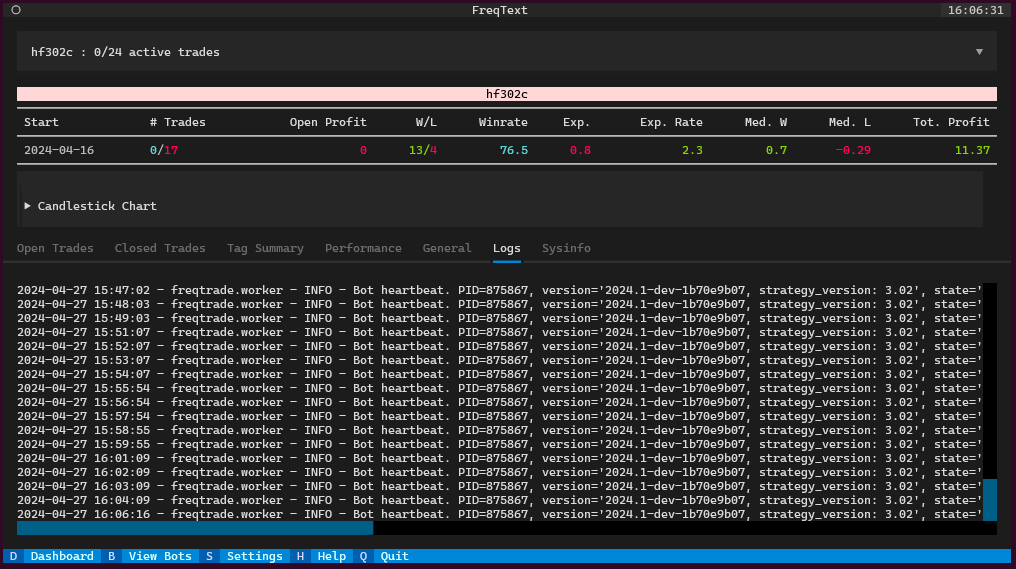
Logs:
Sysinfo:
Settings
The Settings screen shows the list of configured bots on the left hand side of the screen.
Other configuration options are shown on the right. You can access the Settings
screen by clicking the button in the bottom left, or hitting the S key.
In future, you will be able to show and hide bots in FTUI by selecting/deselecting them in the bot list, as well as changing other configuration options. Currently this feature is disabled in this alpha release.
Help
This README!
Known Issues
General
- When the bot is been running and you put your PC to sleep, the async worker will bug out and intermittently crash the UI.
- The Settings screen save functionality is currently disabled.
urllib pool connection errors
When running a larger number of bots within one FTUI instance, you may see urllib/requests warnings about the pool connections being exhausted:
connection pool is full, discarding connection: 127.0.0.1. Connection pools size: 10
Raising the pool size limits can help avoid these warnings.
There are two command line/yaml config options that can be adjusted:
CLI
ftui -c config.json --pool_connections 20 --pool_maxsize 15
YAML config
pool_connections: 20
pool_maxsize: 15
2 maintainers


Metadata
2 maintainers
Release files for ftui 0.1.13
For a detailed explanation of source distributions (sdists) and built distributions (wheels), please see the package formats documentation.
Source distribution (sdist)
| File | Size | Uploaded | Provenance | |
|---|---|---|---|---|
| ftui-0.1.13.tar.gz | 30.2 kB | With provenance | Details |
Built distribution (wheel)
| File | Interpreter | ABI | Platform | Reset |
|---|---|---|---|---|
| ftui-0.1.13-py3-none-any.whl | Python 3 | none | any | Details |
Total release size: 64.8 kB
Release files / ftui-0.1.13.tar.gz
| Download URL | ftui-0.1.13.tar.gz |
|---|---|
| Size | 30.2 kB |
| Tags | Source |
|
SHA-256 checksum How to use checksums |
5690b8706d3a08b63d5b12d717f32b4846bbb125a627cf5438199f8ae55dc049
|
|
BLAKE2b-256 checksum How to use checksums |
89645a6c5770ce698f9e7f3c530d826239c28b4b4bece6343588cc83fe53ed37
|
| Upload date | |
|
Uploaded using Trusted Publishing? What is trusted publishing? |
Yes |
| Uploaded via |
twine/6.1.0 CPython/3.13.7
|
Provenance
Provenance describes where a file came from. On PyPI, provenance is shared via attestations, which provide a verifiable record of the build or publishing details. View details, limitations and caveats.


PyPI Publish Attestation
PyPI verified that this artifact, at this checksum, originated from the publisher listed below.
Signed by GitHub Actions, verified by PyPI on Feb 9, 2026.
Transparency logRelease files / ftui-0.1.13-py3-none-any.whl
| Download URL | ftui-0.1.13-py3-none-any.whl |
|---|---|
| Size | 34.6 kB |
| Tags | Python 3 |
|
SHA-256 checksum How to use checksums |
33778345c1bde3860dd44d55861625c93df7c342a68f83ee2ad24e5ea56d6f5e
|
|
BLAKE2b-256 checksum How to use checksums |
c0178eaf864705c5a7a4584f7795cf3a49b2f8e7a606cbaeec549fcabad98cab
|
| Upload date | |
|
Uploaded using Trusted Publishing? What is trusted publishing? |
Yes |
| Uploaded via |
twine/6.1.0 CPython/3.13.7
|
Provenance
Provenance describes where a file came from. On PyPI, provenance is shared via attestations, which provide a verifiable record of the build or publishing details. View details, limitations and caveats.
PyPI Publish Attestation
PyPI verified that this artifact, at this checksum, originated from the publisher listed below.
Signed by GitHub Actions, verified by PyPI on Feb 9, 2026.
Transparency logSecurity for ftui 0.1.13
Provenance
Provenance describes where a file came from. On PyPI, provenance is shared via attestations, which provide a verifiable record of the build or publishing details. View details, limitations and caveats.
Full provenance
All 2 files in this release have been uploaded with provenance metadata.
Attestation for ftui-0.1.13.tar.gz
PyPI Publish Attestation
PyPI verified that this artifact, at this checksum, originated from the publisher listed below.
Signed by GitHub Actions, verified by PyPI on Feb 9, 2026.
Transparency logA note on package security
PyPI is a repository for distributing packages, not a service for auditing them. While third-party security researchers and our staff do their best to detect and remove malicious packages, PyPI cannot guarantee the quality, security or suitability of any given package.
To learn more about protecting yourself from malicious actors, visit our package security documentation.














