
Mind Map MCP Server | 思维导图MCP服务器
🌟 Mind Map MCP Server
A powerful MCP (Model Context Protocol) server that converts Markdown text into beautiful mind map PNG images.
👨💻 Author
sawyer-shi
📦 Repository
Source Code: https://github.com/sawyer-shi/mind-map-mcp-server.git
✨ Features
- 📝 Markdown Input Support - Convert any Markdown text to mind maps
- 🖼️ High-Quality PNG Output - Generate crisp, clear mind map images (watermark-free)
- 🐳 Docker Ready (HIGHLY RECOMMENDED) - One-command deployment with Docker
- 🔌 Full MCP Protocol - Standard MCP compliance with optimized responses
- ⚡ Fast Generation - Quick conversion and processing with advanced validation
- 🌐 Multiple Access Methods - HTTP and stdio transport support
- ☁️ Multi-Cloud Storage - Support for local, Aliyun OSS, Huawei OceanStor, MinIO, Amazon S3, Azure Blob, and Google Cloud Storage
- 🔗 Direct Access URLs - Get shareable links to your generated mind maps
- 🔍 Smart Image Listing - Query images by date and fuzzy name matching
- ✅ Advanced Validation - Comprehensive image validation and error handling
🎯 Core Functions
1. list_images
- Purpose: List generated mind map images by date with optional name filtering
- Parameters:
date(string, optional): Date in YYYY-MM-DD format (defaults to current date)name_filter(string, optional): Fuzzy name matching filter
- Returns: List of matching mind map images with URLs and metadata
2. create_mind_map
- Purpose: Generate high-quality, watermark-free mind map PNG from Markdown content with intelligent viewport sizing
- Parameters:
markdown_content(string): Markdown formatted text with hierarchical structure supporttitle(string, optional): Mind map title (used as filename)quality(string, optional): Image quality level - 'low', 'medium', 'high', 'ultra' (defaults to 'high')
- Returns: Mind map image URL, storage information, and validation status
- Features:
- 🧠 Smart Content Analysis: Automatically analyzes content complexity and adjusts viewport size
- 📐 Dynamic Viewport: Viewport size scales from 800x600 to 2400x1600 based on content
- 🎯 High-DPI Rendering: Supports 1x to 3x scale factors for crisp images on any display
- ✨ Quality Levels: Choose from 4 quality presets for different use cases
🚀 Quick Start
🚨 CRITICAL DEPLOYMENT CONFIGURATION | 关键部署配置
⚠️ MUST READ BEFORE DEPLOYMENT | 部署前必读
🎯 When deploying as a service, you MUST modify the
LOCAL_HOSTconfiguration!🎯 当作为服务部署时,必须修改
LOCAL_HOST配置!# 1. Copy environment template | 复制环境模板 cp env.template .env # 2. ⚠️ CRITICAL: Change LOCAL_HOST from 127.0.0.1 to your server's IP # ⚠️ 关键:将 LOCAL_HOST 从 127.0.0.1 改为您服务器的IP地址 LOCAL_HOST=YOUR_SERVER_IP_ADDRESS # Examples | 示例: # LOCAL_HOST=192.168.1.100 # Local network | 局域网 # LOCAL_HOST=10.10.228.155 # Internal network | 内网 # LOCAL_HOST=209.0.113.1 # Public IP | 公网IP🔥 Why This Matters | 为什么这很重要
✅ Correct:
http://YOUR_SERVER_IP:8090/output/file.png- Accessible from anywhere❌ Wrong:
http://127.0.0.1:8090/output/file.png- Only works on the server itself✅ 正确:
http://您的服务器IP:8090/output/file.png- 任何地方都可访问❌ 错误:
http://127.0.0.1:8090/output/file.png- 只能在服务器本机访问🐳 RECOMMENDED: Use Docker Deployment | 推荐:使用Docker部署
Method 1: Docker Deployment (🔥Recommended🔥)
- Start the service:
docker-compose up -d
-
Access URLs【🔥Change the follow localhost to your server's or hosts IP🔥】:
- HTTP MCP Endpoint:
http://localhost:8091/mcp - Service Status:
http://localhost:8091
- HTTP MCP Endpoint:
-
Check service status:
docker-compose logs -f
- Stop service:
docker-compose down
Method 2: uvx Deployment (Recommended for Python environments)
- Install uvx (if not already installed):
# Install uvx using pip
pip install uvx

# Or install using pipx
pipx install uvx
- Run with uvx (from local project):
# Navigate to project directory first
cd mind-map-mcp-server

# For stdio mode (MCP client integration)
uvx --from . python main.py stdio

# For streamable HTTP mode
uvx --from . python main.py streamable-http --host 0.0.0.0 --port 8091
- Access URLs (HTTP mode):
- HTTP MCP Endpoint:
http://localhost:8091/mcp - Service Status:
http://localhost:8091
- HTTP MCP Endpoint:
Method 3: Local Installation
- Auto-install and start:
python start_server.py
- Manual installation:
pip install -r requirements.txt
npm install -g markmap-cli
playwright install chromium
python main.py
🔧 Technical Architecture
- Markdown Parsing - Process user input text
- HTML Conversion - Use markmap-cli to create interactive HTML mind maps
- PNG Generation - Use Playwright to capture HTML as PNG images
- Multi-Cloud Storage - Support for various storage providers with unified interface
- MCP Protocol - Standard MCP server implementation
☁️ Storage Configuration
The server supports multiple storage providers. Configure your preferred storage in the .env file:
Local Storage (Default)
STORAGE_TYPE=local
LOCAL_STORAGE_URL_PREFIX=http://localhost:8091/output
Aliyun OSS
STORAGE_TYPE=aliyun_oss
ALIYUN_OSS_ACCESS_KEY_ID=your_access_key_id
ALIYUN_OSS_ACCESS_KEY_SECRET=your_access_key_secret
ALIYUN_OSS_ENDPOINT=oss-cn-hangzhou.aliyuncs.com
ALIYUN_OSS_BUCKET_NAME=your_bucket_name
ALIYUN_OSS_URL_PREFIX=https://your_bucket_name.oss-cn-hangzhou.aliyuncs.com
Huawei OceanStor
STORAGE_TYPE=huawei_oceanstor
HUAWEI_ACCESS_KEY_ID=your_access_key_id
HUAWEI_SECRET_ACCESS_KEY=your_secret_access_key
HUAWEI_ENDPOINT=https://obs.cn-north-4.myhuaweicloud.com
HUAWEI_BUCKET_NAME=your_bucket_name
HUAWEI_URL_PREFIX=https://your_bucket_name.obs.cn-north-4.myhuaweicloud.com
MinIO
STORAGE_TYPE=minio
MINIO_ENDPOINT=localhost:9000
MINIO_ACCESS_KEY=your_access_key
MINIO_SECRET_KEY=your_secret_key
MINIO_BUCKET_NAME=mindmaps
MINIO_SECURE=false
MINIO_URL_PREFIX=http://localhost:9000/mindmaps
Amazon S3
STORAGE_TYPE=amazon_s3
AWS_ACCESS_KEY_ID=your_access_key_id
AWS_SECRET_ACCESS_KEY=your_secret_access_key
AWS_DEFAULT_REGION=us-east-1
AWS_S3_BUCKET_NAME=your_bucket_name
AWS_S3_URL_PREFIX=https://your_bucket_name.s3.amazonaws.com
Azure Blob Storage
STORAGE_TYPE=azure_blob
AZURE_STORAGE_ACCOUNT_NAME=your_storage_account
AZURE_STORAGE_ACCOUNT_KEY=your_storage_key
AZURE_STORAGE_CONTAINER_NAME=mindmaps
AZURE_STORAGE_URL_PREFIX=https://your_storage_account.blob.core.windows.net/mindmaps
Google Cloud Storage
STORAGE_TYPE=google_cloud_storage
GCS_PROJECT_ID=your_project_id
GCS_BUCKET_NAME=your_bucket_name
# Option 1: Use service account key file
GCS_CREDENTIALS_FILE=path/to/your/service-account-key.json
# Option 2: Use service account key as JSON string
# GCS_CREDENTIALS_JSON={"type":"service_account","project_id":"..."}
GCS_URL_PREFIX=https://storage.googleapis.com/your_bucket_name
📦 Storage Dependencies
Install additional packages based on your storage choice:
# For Aliyun OSS
pip install oss2>=2.17.0

# For Huawei OceanStor
pip install esdk-obs-python>=3.23.0

# For MinIO
pip install minio>=7.2.0

# For Amazon S3
pip install boto3>=1.34.0

# For Azure Blob Storage
pip install azure-storage-blob>=12.19.0

# For Google Cloud Storage
pip install google-cloud-storage>=2.10.0
📁 Project Structure
mind-map-mcp-server/
├── README.md                 # 📖 Project documentation | 项目文档
├── main.py                  # 🧠 Main entry point (modular) | 主入口点(模块化)
├── src/                     # 📁 Source code modules | 源代码模块
│   ├── __init__.py         # 📦 Package initialization | 包初始化
│   ├── config.py           # ⚙️ Configuration management | 配置管理
│   ├── server.py           # 🖥️ Main server class | 主服务器类
│   ├── mind_map_generator.py # 🎨 Mind map generation logic | 思维导图生成逻辑
│   ├── storage_manager.py  # ☁️ Multi-cloud storage manager | 多云存储管理器
│   ├── mcp_tools.py        # 🔧 MCP tool definitions | MCP工具定义
│   └── utils.py            # 🛠️ Utility functions | 工具函数
├── start_server.py          # ⚙️ Auto-install startup script | 自动安装启动脚本
├── quick_start.py           # 🚀 User-friendly startup interface | 用户友好启动界面
├── ARCHITECTURE.md          # 📋 Architecture documentation | 架构文档
├── requirements.txt         # 🐍 Python dependencies | Python依赖
├── package.json            # 📦 Node.js dependencies | Node.js依赖
├── Dockerfile              # 🐳 Docker build file | Docker构建文件
├── docker-compose.yml      # 🚢 Docker orchestration | Docker编排
├── env.template            # ⚙️ Environment configuration template | 环境配置模板
├── temp/                   # 📂 Temporary files | 临时文件
├── output/                 # 🖼️ Generated images | 生成的图片
├── logs/                   # 📝 Log files | 日志文件
└── examples/               # 📋 Usage examples | 使用示例
🎬 Usage Example
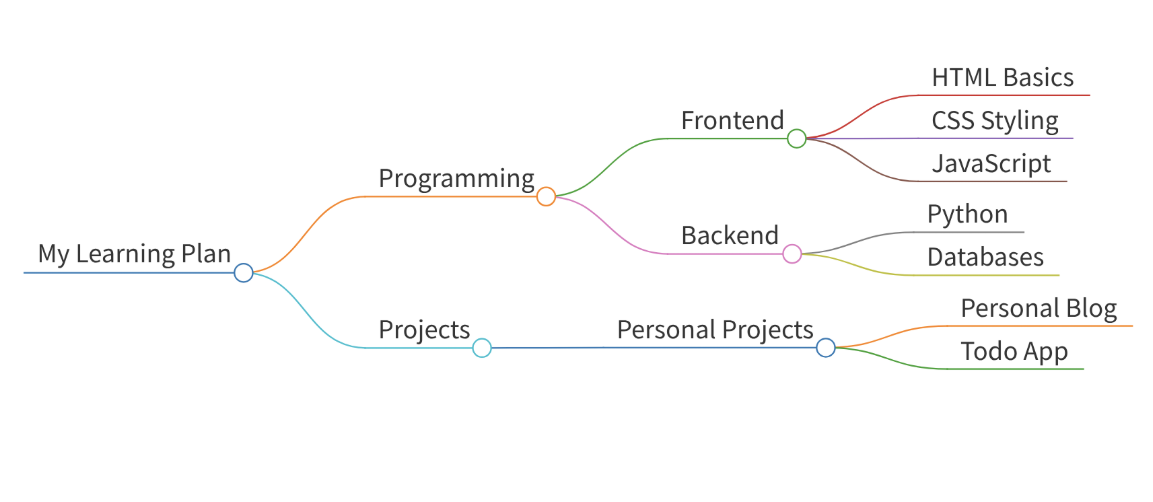
Input (Markdown):
# My Learning Plan

## Programming
### Frontend
- HTML Basics
- CSS Styling
- JavaScript

### Backend
- Python
- Databases

## Projects
### Personal Projects
- Personal Blog
- Todo App
Output: Beautiful PNG mind map visualizing the complete learning structure!
❓ FAQ
🚀 Getting Started | 入门问题
Q: Can non-programmers use this? A: Absolutely! We provide multiple easy-to-use options:
- Simplest: Run
python start_server.pyand follow the prompts - Docker:
docker-compose up -dfor one-command deployment - uvx:
uvx --from . python main.py streamable-httpfor modern Python environments
Q: What are the different deployment methods? A: We offer 3 main deployment methods:
- Docker (🔥Recommended):
docker-compose up -d- Production-ready with automatic restarts - uvx: Modern Python tool execution - great for development
- Local Installation: Traditional pip install method - full control
Q: Which ports does the service use? A: Default ports are:
- 8091: Main MCP service (streamable HTTP)
- 8090: Static file server (for image access)
- 8000: Internal FastMCP port (Docker only)
- All ports are configurable via
.envfile
🖼️ Features & Functionality | 功能相关
Q: Why PNG instead of HTML? A: PNG images offer several advantages:
- Easy insertion into documents and presentations
- Universal compatibility across all platforms
- No dependency on JavaScript or web browsers for viewing
- Perfect for sharing and archiving
Q: What image quality options are available? A: Four quality levels:
- low: 800x600 viewport, 1x scale - fast generation
- medium: 1000x700 viewport, 1.5x scale - balanced
- high: 1200x800 viewport, 2x scale - recommended default
- ultra: 2400x1600 viewport, 3x scale - maximum quality
Q: Does it support non-English languages? A: Yes! Full Unicode support including:
- Chinese (中文) - with proper font rendering
- Japanese (日本語)
- Arabic (العربية)
- All other Unicode languages
- Automatic font injection ensures proper display
☁️ Storage & Configuration | 存储配置
Q: What storage options are supported? A: Multiple storage providers:
- Local: Default option, files saved locally
- Aliyun OSS: Chinese cloud storage
- Huawei OceanStor: Enterprise cloud storage
- MinIO: Self-hosted S3-compatible storage
- Amazon S3: AWS cloud storage
- Azure Blob: Microsoft cloud storage
- Google Cloud Storage: Google cloud platform
Q: How do I configure cloud storage? A:
- Copy
env.templateto.env - Set
STORAGE_TYPEto your preferred provider - Configure the provider-specific credentials
- Install the required package:
pip install [provider-package]
Q: Can I access generated images directly? A: Yes! The service provides:
- Direct URLs: Each image gets a shareable URL
- Date-based organization: Images organized by YYYY/MM/DD structure
- Static file server: Built-in HTTP server for image access
- list_images tool: Query images by date and name filter
🔧 Technical Questions | 技术问题
Q: What dependencies are required? A: Core dependencies:
- Python 3.8+: Main runtime
- Node.js 16+: For markmap-cli
- Playwright: Browser automation for PNG generation
- FastAPI: HTTP transport
- MCP Protocol: Core functionality
Q: How does the mind map generation work? A: The process involves 4 steps:
- Markdown Parsing: Analyze input structure
- HTML Generation: Use markmap-cli to create interactive HTML
- Browser Rendering: Playwright captures HTML in headless browser
- PNG Output: High-quality image with intelligent viewport sizing
Q: Can I customize the generated mind maps? A: Yes, through several options:
- Quality levels: Choose from low to ultra quality
- Viewport sizing: Automatic adjustment based on content complexity
- Title customization: Set custom titles for your mind maps
- Storage location: Choose where to save your images
🐳 Docker & Deployment | Docker部署
Q: Why is Docker recommended? A: Docker provides:
- One-command setup: No complex dependency management
- Consistent environment: Same behavior across all systems
- Production-ready: Built-in health checks and auto-restart
- Multi-service: Separate containers for MCP and static files
Q: How do I configure Docker deployment? A:
- Copy configuration:
cp env.template .env - Critical: Change
LOCAL_HOSTfrom127.0.0.1to your server IP - Start services:
docker-compose up -d - Access at:
http://YOUR_SERVER_IP:8091/mcp
Q: What Docker services are included? A: Three services:
- mind-map-streamable: Main MCP HTTP service
- mind-map-static: Static file server for images
- mind-map-stdio: Interactive command-line mode (optional)
🛠️ Troubleshooting | 故障排除
Q: Images show as broken links?
A: This usually means LOCAL_HOST is incorrectly configured:
- ❌ Wrong:
LOCAL_HOST=127.0.0.1(only works locally) - ✅ Correct:
LOCAL_HOST=YOUR_SERVER_IP(accessible remotely)
Q: Mind map shows only one dot? A: Check your API parameters:
- Use
markdown_content(notcontent) as the parameter name - Ensure your Markdown has proper hierarchical structure with
#headers
Q: Getting "Unexpected content type" errors? A: This was fixed in v1.0.1 - make sure you're using the latest version. All responses now return proper JSON format.
Q: Chinese characters appear as garbled text?
A: This was resolved in v1.0.1 with Chinese font support. If you're still seeing issues, try rebuilding your Docker image: docker-compose up --build -d
🌟 思维导图MCP服务器
一个强大的MCP(模型上下文协议)服务器,可将Markdown文本转换为美观的思维导图PNG图片。
👨💻 作者
sawyer-shi
📦 代码仓库
源码地址: https://github.com/sawyer-shi/mind-map-mcp-server.git
✨ 功能特性
- 📝 Markdown输入支持 - 将任何Markdown文本转换为思维导图
- 🖼️ 高质量PNG输出 - 生成清晰、美观的思维导图图片(无水印)
- 🐳 Docker就绪(强烈推荐) - 一键Docker部署
- 🔌 完整MCP协议 - 标准MCP合规,优化响应性能
- ⚡ 快速生成 - 快速转换和处理,高级验证机制
- 🌐 多种访问方式 - 支持HTTP和stdio传输
- ☁️ 多云存储支持 - 支持本地、阿里云OSS、华为OceanStor、MinIO、Amazon S3、Azure Blob和Google Cloud存储
- 🔗 直接访问链接 - 获取生成的思维导图的可分享链接
- 🔍 智能图片列表 - 按日期查询图片,支持模糊名称匹配
- ✅ 高级验证 - 全面的图片验证和错误处理机制
🎯 核心功能
1. list_images
- 用途:按日期列出生成的思维导图图像,支持可选的名称过滤
- 参数:
date(字符串,可选): YYYY-MM-DD格式的日期(默认为当前日期)name_filter(字符串,可选): 模糊名称匹配过滤器
- 返回:匹配的思维导图图像列表,包含URL和元数据
2. create_mind_map
- 用途:根据Markdown内容生成高质量、无水印思维导图PNG,支持智能视口调整
- 参数:
markdown_content(字符串): 支持分层结构的Markdown格式文本title(字符串,可选): 思维导图标题(用作文件名)quality(字符串,可选): 图像质量级别 - 'low'、'medium'、'high'、'ultra'(默认'high')
- 返回:思维导图图像URL、存储信息和验证状态
- 特色功能:
- 🧠 智能内容分析:自动分析内容复杂度并调整视口尺寸
- 📐 动态视口:视口尺寸根据内容从800x600扩展到2400x1600
- 🎯 高DPI渲染:支持1倍到3倍缩放因子,在任何显示器上都清晰
- ✨ 质量级别:提供4个质量预设适应不同使用场景
🚀 快速开始
🚨 关键部署配置 | CRITICAL DEPLOYMENT CONFIGURATION
⚠️ 部署前必读 | MUST READ BEFORE DEPLOYMENT
🎯 当作为服务部署时,必须修改
LOCAL_HOST配置!🎯 When deploying as a service, you MUST modify the
LOCAL_HOSTconfiguration!# 1. 复制环境模板 | Copy environment template cp env.template .env # 2. ⚠️ 关键:将 LOCAL_HOST 从 127.0.0.1 改为您服务器的IP地址 # ⚠️ CRITICAL: Change LOCAL_HOST from 127.0.0.1 to your server's IP LOCAL_HOST=您的服务器IP地址 # 示例 | Examples: # LOCAL_HOST=192.168.1.100 # 局域网 | Local network # LOCAL_HOST=10.10.228.155 # 内网 | Internal network # LOCAL_HOST=207.0.113.1 # 公网IP | Public IP🔥 为什么这很重要 | Why This Matters
✅ 正确:
http://您的服务器IP:8090/output/file.png- 任何地方都可访问❌ 错误:
http://127.0.0.1:8090/output/file.png- 只能在服务器本机访问✅ Correct:
http://YOUR_SERVER_IP:8090/output/file.png- Accessible from anywhere❌ Wrong:
http://127.0.0.1:8090/output/file.png- Only works on the server itself🐳 推荐:使用Docker部署 | RECOMMENDED: Use Docker Deployment
方式1:Docker部署(🔥推荐🔥)
- 启动服务:
docker-compose up -d
-
访问地址【🔥将下面的localhost改为你宿主机服务器或者主机的IP地址🔥】:
- HTTP MCP端点:
http://localhost:8091/mcp - 服务状态:
http://localhost:8091
- HTTP MCP端点:
-
查看服务状态:
docker-compose logs -f
- 停止服务:
docker-compose down
方式2:uvx部署(推荐用于Python环境)
- 安装uvx(如果尚未安装):
# 使用pip安装uvx
pip install uvx

# 或使用pipx安装
pipx install uvx
- 使用uvx运行(从本地项目):
# 首先导航到项目目录
cd mind-map-mcp-server

# stdio模式(MCP客户端集成)
uvx --from . python main.py stdio

# 流式HTTP模式
uvx --from . python main.py streamable-http --host 0.0.0.0 --port 8091
- 访问地址(HTTP模式):
- HTTP MCP端点:
http://localhost:8091/mcp - 服务状态:
http://localhost:8091
- HTTP MCP端点:
方式3:本地安装
- 自动安装启动:
python start_server.py
- 手动安装:
pip install -r requirements.txt
npm install -g markmap-cli
playwright install chromium
python main.py
🔧 技术架构
- Markdown解析 - 处理用户输入文本
- HTML转换 - 使用markmap-cli创建交互式HTML思维导图
- PNG生成 - 使用Playwright将HTML捕获为PNG图片
- 多云存储 - 支持各种存储提供者的统一接口
- MCP协议 - 标准MCP服务器实现
☁️ 存储配置说明
服务器支持多种存储提供者,在.env文件中配置您首选的存储:
本地存储(默认)
STORAGE_TYPE=local
LOCAL_STORAGE_URL_PREFIX=http://localhost:8091/output
阿里云OSS
STORAGE_TYPE=aliyun_oss
ALIYUN_OSS_ACCESS_KEY_ID=your_access_key_id
ALIYUN_OSS_ACCESS_KEY_SECRET=your_access_key_secret
ALIYUN_OSS_ENDPOINT=oss-cn-hangzhou.aliyuncs.com
ALIYUN_OSS_BUCKET_NAME=your_bucket_name
ALIYUN_OSS_URL_PREFIX=https://your_bucket_name.oss-cn-hangzhou.aliyuncs.com
华为OceanStor
STORAGE_TYPE=huawei_oceanstor
HUAWEI_ACCESS_KEY_ID=your_access_key_id
HUAWEI_SECRET_ACCESS_KEY=your_secret_access_key
HUAWEI_ENDPOINT=https://obs.cn-north-4.myhuaweicloud.com
HUAWEI_BUCKET_NAME=your_bucket_name
HUAWEI_URL_PREFIX=https://your_bucket_name.obs.cn-north-4.myhuaweicloud.com
MinIO
STORAGE_TYPE=minio
MINIO_ENDPOINT=localhost:9000
MINIO_ACCESS_KEY=your_access_key
MINIO_SECRET_KEY=your_secret_key
MINIO_BUCKET_NAME=mindmaps
MINIO_SECURE=false
MINIO_URL_PREFIX=http://localhost:9000/mindmaps
Amazon S3
STORAGE_TYPE=amazon_s3
AWS_ACCESS_KEY_ID=your_access_key_id
AWS_SECRET_ACCESS_KEY=your_secret_access_key
AWS_DEFAULT_REGION=us-east-1
AWS_S3_BUCKET_NAME=your_bucket_name
AWS_S3_URL_PREFIX=https://your_bucket_name.s3.amazonaws.com
Azure Blob存储
STORAGE_TYPE=azure_blob
AZURE_STORAGE_ACCOUNT_NAME=your_storage_account
AZURE_STORAGE_ACCOUNT_KEY=your_storage_key
AZURE_STORAGE_CONTAINER_NAME=mindmaps
AZURE_STORAGE_URL_PREFIX=https://your_storage_account.blob.core.windows.net/mindmaps
Google Cloud存储
STORAGE_TYPE=google_cloud_storage
GCS_PROJECT_ID=your_project_id
GCS_BUCKET_NAME=your_bucket_name
# 选项1:使用服务账户密钥文件
GCS_CREDENTIALS_FILE=path/to/your/service-account-key.json
# 选项2:使用服务账户密钥作为JSON字符串
# GCS_CREDENTIALS_JSON={"type":"service_account","project_id":"..."}
GCS_URL_PREFIX=https://storage.googleapis.com/your_bucket_name
📦 存储依赖包
根据您选择的存储安装额外的包:
# 阿里云OSS
pip install oss2>=2.17.0

# 华为OceanStor
pip install esdk-obs-python>=3.23.0

# MinIO
pip install minio>=7.2.0

# Amazon S3
pip install boto3>=1.34.0

# Azure Blob存储
pip install azure-storage-blob>=12.19.0

# Google Cloud存储
pip install google-cloud-storage>=2.10.0
📁 项目结构
mind-map-mcp-server/
├── README.md                 # 📖 项目文档 | Project documentation
├── main.py                  # 🧠 主入口点(模块化)| Main entry point (modular)
├── src/                     # 📁 源代码模块 | Source code modules
│   ├── __init__.py         # 📦 包初始化 | Package initialization
│   ├── config.py           # ⚙️ 配置管理 | Configuration management
│   ├── server.py           # 🖥️ 主服务器类 | Main server class
│   ├── mind_map_generator.py # 🎨 思维导图生成逻辑 | Mind map generation logic
│   ├── storage_manager.py  # ☁️ 多云存储管理器 | Multi-cloud storage manager
│   ├── mcp_tools.py        # 🔧 MCP工具定义 | MCP tool definitions
│   └── utils.py            # 🛠️ 工具函数 | Utility functions
├── start_server.py          # ⚙️ 自动安装启动脚本 | Auto-install startup script
├── quick_start.py           # 🚀 用户友好启动界面 | User-friendly startup interface
├── ARCHITECTURE.md          # 📋 架构文档 | Architecture documentation
├── requirements.txt         # 🐍 Python依赖 | Python dependencies
├── package.json            # 📦 Node.js依赖 | Node.js dependencies
├── Dockerfile              # 🐳 Docker构建文件 | Docker build file
├── docker-compose.yml      # 🚢 Docker编排 | Docker orchestration
├── env.template            # ⚙️ 环境配置模板 | Environment configuration template
├── temp/                   # 📂 临时文件 | Temporary files
├── output/                 # 🖼️ 生成的图片 | Generated images
├── logs/                   # 📝 日志文件 | Log files
└── examples/               # 📋 使用示例 | Usage examples
🎬 使用示例
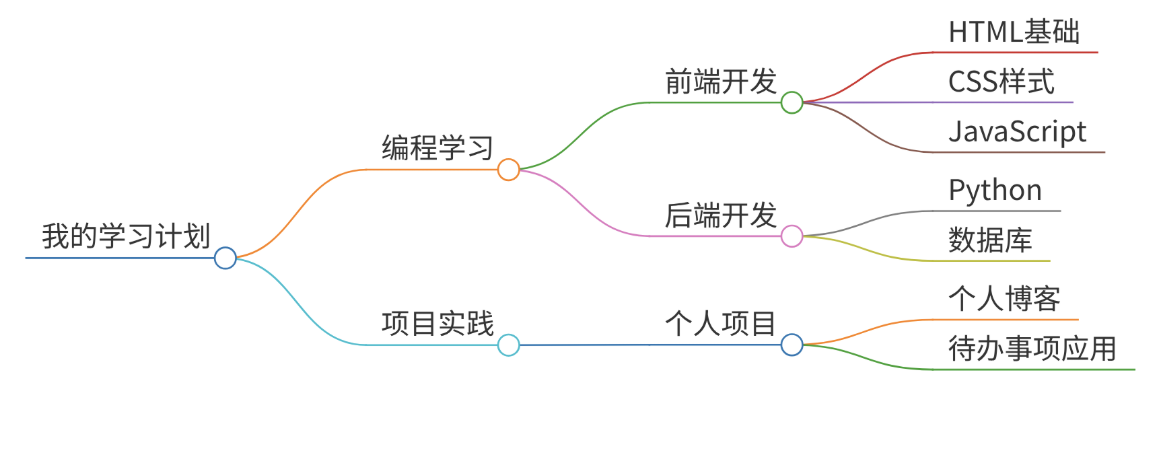
输入(Markdown):
# 我的学习计划

## 编程学习
### 前端开发
- HTML基础
- CSS样式
- JavaScript

### 后端开发
- Python
- 数据库

## 项目实践
### 个人项目
- 个人博客
- 待办事项应用
输出:生成一张美观的PNG思维导图,展示完整的学习计划结构!
❓ 常见问题
🚀 入门问题 | Getting Started
Q: 不懂编程的人能用吗? A: 当然可以!我们提供多种简单易用的选择:
- 最简单: 运行
python start_server.py并按提示操作 - Docker:
docker-compose up -d一键部署 - uvx:
uvx --from . python main.py streamable-http适用于现代Python环境
Q: 有哪些部署方式? A: 我们提供3种主要部署方法:
- Docker(🔥推荐):
docker-compose up -d- 生产就绪,自动重启 - uvx: 现代Python工具执行 - 适合开发环境
- 本地安装: 传统pip安装方法 - 完全控制
Q: 服务使用哪些端口? A: 默认端口:
- 8091: 主MCP服务(流式HTTP)
- 8090: 静态文件服务器(图片访问)
- 8000: 内部FastMCP端口(仅Docker)
- 所有端口都可通过
.env文件配置
🖼️ 功能特性 | Features & Functionality
Q: 为什么输出PNG而不是HTML? A: PNG图片有几个优势:
- 易于插入文档和演示文稿
- 跨所有平台的通用兼容性
- 查看时不依赖JavaScript或网页浏览器
- 完美适合分享和归档
Q: 有哪些图片质量选项? A: 四个质量级别:
- low(低): 800x600视口,1倍缩放 - 快速生成
- medium(中): 1000x700视口,1.5倍缩放 - 平衡选择
- high(高): 1200x800视口,2倍缩放 - 推荐默认
- ultra(超高): 2400x1600视口,3倍缩放 - 最高质量
Q: 支持中文和其他语言吗? A: 完全支持!包括全面的Unicode支持:
- 中文 - 带正确字体渲染
- 日文(日本語)
- 阿拉伯语(العربية)
- 所有其他Unicode语言
- 自动字体注入确保正确显示
☁️ 存储配置 | Storage & Configuration
Q: 支持哪些存储选项? A: 多种存储提供者:
- 本地: 默认选项,文件保存在本地
- 阿里云OSS: 中国云存储
- 华为OceanStor: 企业云存储
- MinIO: 自托管S3兼容存储
- Amazon S3: AWS云存储
- Azure Blob: 微软云存储
- Google Cloud存储: Google云平台
Q: 如何配置云存储? A:
- 复制
env.template到.env - 设置
STORAGE_TYPE为您的首选提供者 - 配置提供者特定的凭据
- 安装所需包:
pip install [提供者包名]
Q: 可以直接访问生成的图片吗? A: 可以!服务提供:
- 直接URL: 每个图片都有可分享的URL
- 按日期组织: 图片按YYYY/MM/DD结构组织
- 静态文件服务器: 内置HTTP服务器用于图片访问
- list_images工具: 按日期和名称过滤器查询图片
🔧 技术问题 | Technical Questions
Q: 需要哪些依赖? A: 核心依赖:
- Python 3.8+: 主要运行时
- Node.js 16+: 用于markmap-cli
- Playwright: 用于PNG生成的浏览器自动化
- FastAPI: HTTP传输
- MCP协议: 核心功能
Q: 思维导图生成是如何工作的? A: 过程包含4个步骤:
- Markdown解析: 分析输入结构
- HTML生成: 使用markmap-cli创建交互式HTML
- 浏览器渲染: Playwright在无头浏览器中捕获HTML
- PNG输出: 高质量图片,智能视口调整
Q: 可以自定义生成的思维导图吗? A: 可以,通过多个选项:
- 质量级别: 从低到超高质量选择
- 视口调整: 根据内容复杂度自动调整
- 标题自定义: 为思维导图设置自定义标题
- 存储位置: 选择保存图片的位置
🐳 Docker部署 | Docker & Deployment
Q: 为什么推荐Docker? A: Docker提供:
- 一键设置: 无需复杂的依赖管理
- 一致环境: 在所有系统上行为相同
- 生产就绪: 内置健康检查和自动重启
- 多服务: MCP和静态文件的独立容器
Q: 如何配置Docker部署? A:
- 复制配置:
cp env.template .env - 关键: 将
LOCAL_HOST从127.0.0.1改为您的服务器IP - 启动服务:
docker-compose up -d - 访问地址:
http://您的服务器IP:8091/mcp
Q: 包含哪些Docker服务? A: 三个服务:
- mind-map-streamable: 主MCP HTTP服务
- mind-map-static: 图片静态文件服务器
- mind-map-stdio: 交互式命令行模式(可选)
🛠️ 故障排除 | Troubleshooting
Q: 图片显示为损坏链接?
A: 这通常意味着LOCAL_HOST配置不正确:
- ❌ 错误:
LOCAL_HOST=127.0.0.1(只能本地访问) - ✅ 正确:
LOCAL_HOST=您的服务器IP(可远程访问)
Q: 思维导图只显示一个点? A: 检查您的API参数:
- 使用
markdown_content(不是content)作为参数名 - 确保您的Markdown具有带
#标题的正确层次结构
Q: 出现"Unexpected content type"错误? A: 这在v1.0.1版本中已修复 - 确保您使用的是最新版本。所有响应现在都返回正确的JSON格式。
Q: 中文字符显示为乱码?
A: 这在v1.0.1版本中已解决,添加了中文字体支持。如果仍有问题,请尝试重建Docker镜像:docker-compose up --build -d
⚠️ 注意事项 | Notes
- 🌐 需要网络连接(下载依赖时)| Network required for dependency downloads
- 💾 PNG图片保存在output目录 | PNG images saved in output directory
- 🧹 临时文件自动清理 | Temporary files auto-cleaned
- 🖥️ 支持Windows、Mac、Linux | Cross-platform support
- 🚪 默认端口:8091 | Default port: 8091
📄 License | 许可证
MIT License - see LICENSE for details.
Created with ❤️ by sawyer-shi
🔄 Update History | 更新历史
Latest Updates | 最新更新
- ✅ Cleaned up temporary and test files | 清理了临时文件和测试文件
- ✅ Optimized project structure | 优化了项目结构
- ✅ Updated dependencies | 更新了依赖项
- ✅ Enhanced documentation | 增强了文档
- ✅ Improved Docker configuration | 改进了Docker配置
File Structure | 文件结构
mind-map-mcp-server/
├── README.md                 # 📖 Project documentation | 项目文档
├── main.py                  # 🧠 Main entry point (modular) | 主入口点(模块化)
├── mind_map_server.py        # 🧠 Legacy MCP server (deprecated) | 旧版MCP服务器(已弃用)
├── src/                     # 📁 Source code modules | 源代码模块
│   ├── __init__.py         # 📦 Package initialization | 包初始化
│   ├── config.py           # ⚙️ Configuration management | 配置管理
│   ├── server.py           # 🖥️ Main server class | 主服务器类
│   ├── mind_map_generator.py # 🎨 Mind map generation logic | 思维导图生成逻辑
│   ├── mcp_tools.py        # 🔧 MCP tool definitions | MCP工具定义
│   └── utils.py            # 🛠️ Utility functions | 工具函数
├── start_server.py          # ⚙️ Auto-install startup script | 自动安装启动脚本
├── quick_start.py           # 🚀 User-friendly startup interface | 用户友好的启动界面
├── ARCHITECTURE.md          # 📋 Architecture documentation | 架构说明文档
├── requirements.txt         # 🐍 Python dependencies | Python依赖
├── package.json            # 📦 Node.js dependencies | Node.js依赖
├── Dockerfile              # 🐳 Docker build file | Docker构建文件
├── docker-compose.yml      # 🚢 Docker orchestration | Docker编排
├── env.template            # ⚙️ Environment configuration template | 环境配置模板
├── temp/                   # 📂 Temporary files (cleaned) | 临时文件(已清理)
├── output/                 # 🖼️ Generated images | 生成的图片
├── logs/                   # 📝 Log files | 日志文件
└── examples/               # 📋 Usage examples | 使用示例
1 maintainer

Metadata
1 maintainer
Release files for iflow-mcp_sawyer-shi-mind-map-mcp-server 1.0.0
For a detailed explanation of source distributions (sdists) and built distributions (wheels), please see the package formats documentation.
Source distribution (sdist)
| File | Size | Uploaded | |
|---|---|---|---|
| iflow_mcp_sawyer_shi_mind_map_mcp_server-1.0.0.tar.gz | 52.4 kB | Details |
Built distribution (wheel)
| File | Interpreter | ABI | Platform | Reset |
|---|---|---|---|---|
| iflow_mcp_sawyer_shi_mind_map_mcp_server-1.0.0-py3-none-any.whl | Python 3 | none | any | Details |
Total release size: 91.1 kB
Release files / iflow_mcp_sawyer_shi_mind_map_mcp_server-1.0.0.tar.gz
| Download URL | iflow_mcp_sawyer_shi_mind_map_mcp_server-1.0.0.tar.gz |
|---|---|
| Size | 52.4 kB |
| Tags | Source |
|
SHA-256 checksum How to use checksums |
396fc4bfaccb66830151374e1b14b67e6bcab2d9d36bc4630aeee472a68fbdae
|
|
BLAKE2b-256 checksum How to use checksums |
6c8eec23c0fc8cd0bc07cadb46c52be851eae93e76329b04adf362235e164dc1
|
| Upload date | |
|
Uploaded using Trusted Publishing? What is trusted publishing? |
No |
| Uploaded via |
uv/0.10.2 {"installer":{"name":"uv","version":"0.10.2","subcommand":["publish"]},"python":null,"implementation":{"name":null,"version":null},"distro":{"name":"Debian GNU/Linux","version":"13","id":"trixie","libc":null},"system":{"name":null,"release":null},"cpu":null,"openssl_version":null,"setuptools_version":null,"rustc_version":null,"ci":null}
|
Release files / iflow_mcp_sawyer_shi_mind_map_mcp_server-1.0.0-py3-none-any.whl
| Download URL | iflow_mcp_sawyer_shi_mind_map_mcp_server-1.0.0-py3-none-any.whl |
|---|---|
| Size | 38.7 kB |
| Tags | Python 3 |
|
SHA-256 checksum How to use checksums |
e0b9339b55c5d7a3e381b4222fde7caba7f0579441f641500319d95a5465eefe
|
|
BLAKE2b-256 checksum How to use checksums |
705f7aabfc1e57fab7b2a9de504c21ecb1e5ed786fd6a0ed5a1599e2b7e655a5
|
| Upload date | |
|
Uploaded using Trusted Publishing? What is trusted publishing? |
No |
| Uploaded via |
uv/0.10.2 {"installer":{"name":"uv","version":"0.10.2","subcommand":["publish"]},"python":null,"implementation":{"name":null,"version":null},"distro":{"name":"Debian GNU/Linux","version":"13","id":"trixie","libc":null},"system":{"name":null,"release":null},"cpu":null,"openssl_version":null,"setuptools_version":null,"rustc_version":null,"ci":null}
|













