
A Python library for astrological calculations, including natal charts, houses, planetary aspects, and SVG chart generation.

Project description
Kerykeion







⭐ Like this project? Star it on GitHub and help it grow! ⭐
Kerykeion is a Python library for astrology. It computes planetary and house positions, detects aspects, and generates SVG charts — including birth, synastry, transit, and composite charts. You can also customize which planets to include in your calculations.
The main goal of this project is to offer a clean, data-driven approach to astrology, making it accessible and programmable.
Kerykeion also integrates seamlessly with LLM and AI applications.
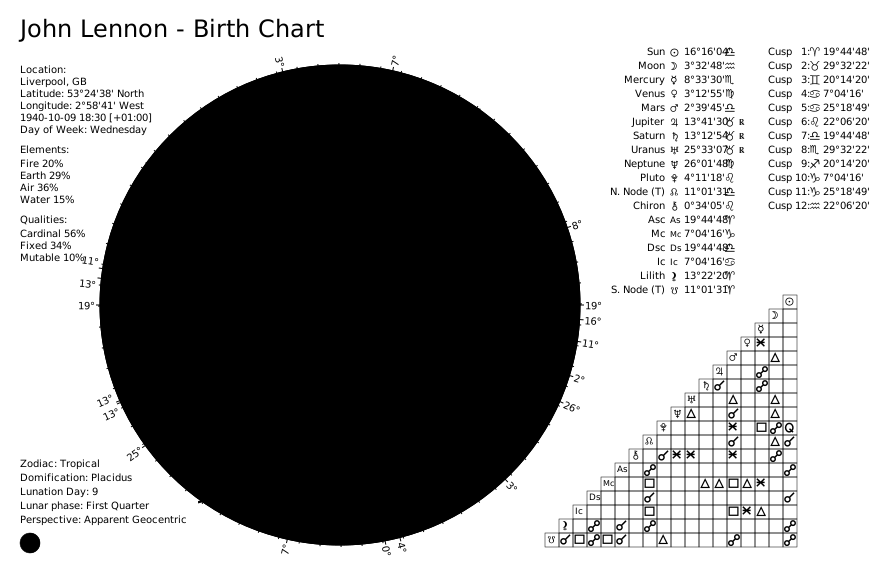
Here is an example of a birthchart:
Web API
If you want to use Kerykeion in a web application or for commercial or closed-source purposes, you can try the dedicated web API:
It is open source and directly supports this project.
Table of Contents
- Commercial Web API
- Table of Contents
- Installation
- Quick Start
- Basic Usage
- Generate a SVG Chart
- Wheel Only Charts
- Report Generator
- AI Context Serializer
- Example: Retrieving Aspects
- Relationship Score
- Element & Quality Distribution Strategies
- Ayanamsa (Sidereal Modes)
- House Systems
- Perspective Type
- Themes
- Alternative Initialization
- Lunar Nodes (Rahu & Ketu)
- JSON Support
- Documentation
- Projects built with Kerykeion
- Development
- Integrating Kerykeion into Your Project
- License
- Contributing
- Citations
Installation
Kerykeion requires Python 3.9 or higher.
pip3 install kerykeion
For more installation options and environment setup, see the Getting Started guide.
Quick Start
from pathlib import Path
from kerykeion import AstrologicalSubjectFactory
from kerykeion.chart_data_factory import ChartDataFactory
from kerykeion.charts.chart_drawer import ChartDrawer

subject = AstrologicalSubjectFactory.from_birth_data(
    name="Example Person",
    year=1990, month=7, day=15,
    hour=10, minute=30,
    lng=12.4964,
    lat=41.9028,
    tz_str="Europe/Rome",
    online=False,
)

chart_data = ChartDataFactory.create_natal_chart_data(subject)
chart_drawer = ChartDrawer(chart_data=chart_data)

output_dir = Path("charts_output")
output_dir.mkdir(exist_ok=True)

chart_drawer.save_svg(output_path=output_dir, filename="example-natal")
print("Chart saved to", (output_dir / "example-natal.svg").resolve())
This script shows the recommended workflow:
- Create an
AstrologicalSubjectwith explicit coordinates and timezone (offline mode). - Build a
ChartDataModelthroughChartDataFactory. - Render the SVG via
ChartDrawer, saving it to a controlled folder (charts_output).
Use the same pattern for synastry, composite, transit, or return charts by swapping the factory method.
📖 More examples: kerykeion.net/examples
Basic Usage
Below is a simple example illustrating the creation of an astrological subject and retrieving astrological details:
from kerykeion import AstrologicalSubjectFactory

# Create an instance of the AstrologicalSubjectFactory class.
# Arguments: Name, year, month, day, hour, minutes, city, nation
john = AstrologicalSubjectFactory.from_birth_data(
    "John Lennon", 1940, 10, 9, 18, 30,
    lng=-2.9833,
    lat=53.4,
    tz_str="Europe/London",
    online=False,
)

# Retrieve information about the Sun:
print(john.sun.model_dump_json())
# > {"name":"Sun","quality":"Cardinal","element":"Air","sign":"Lib","sign_num":6,"position":16.26789199474399,"abs_pos":196.267891994744,"emoji":"♎️","point_type":"AstrologicalPoint","house":"Sixth_House","retrograde":false}

# Retrieve information about the first house:
print(john.first_house.model_dump_json())
# > {"name":"First_House","quality":"Cardinal","element":"Fire","sign":"Ari","sign_num":0,"position":19.74676624176799,"abs_pos":19.74676624176799,"emoji":"♈️","point_type":"House","house":null,"retrograde":null}

# Retrieve the element of the Moon sign:
print(john.moon.element)
# > 'Air'
Working offline: pass
online=Falseand specifylng,lat, andtz_stras shown above.
Working online: setonline=Trueand providecity,nation, and a valid GeoNames username. Register for free at geonames.org. You can set the username via theKERYKEION_GEONAMES_USERNAMEenvironment variable or thegeonames_usernameparameter.
📖 Full factory documentation: AstrologicalSubjectFactory
To avoid GeoNames, provide longitude, latitude, and timezone and set online=False:
john = AstrologicalSubjectFactory.from_birth_data(
    "John Lennon", 1940, 10, 9, 18, 30,
    city="Liverpool",
    nation="GB",
    lng=-2.9833,  # Longitude for Liverpool
    lat=53.4000,  # Latitude for Liverpool
    tz_str="Europe/London",  # Timezone for Liverpool
    online=False,
)
Generate a SVG Chart
All chart-rendering examples below create a local charts_output/ folder so the tests can write without touching your home directory. Feel free to change the path when integrating into your own projects.
To generate a chart, use the ChartDataFactory to pre-compute chart data, then ChartDrawer to create the visualization. This two-step process ensures clean separation between astrological calculations and chart rendering.
📖 Chart generation docs: Charts Documentation
Tip:
The optimized way to open the generated SVG files is with a web browser (e.g., Chrome, Firefox).
To improve compatibility across different applications, you can use the remove_css_variables parameter when generating the SVG. This will inline all styles and eliminate CSS variables, resulting in an SVG that is more broadly supported.
Birth Chart
from pathlib import Path
from kerykeion import AstrologicalSubjectFactory
from kerykeion.chart_data_factory import ChartDataFactory
from kerykeion.charts.chart_drawer import ChartDrawer

# Step 1: Create subject
john = AstrologicalSubjectFactory.from_birth_data(
    "John Lennon", 1940, 10, 9, 18, 30,
    lng=-2.9833,
    lat=53.4,
    tz_str="Europe/London",
    online=False,
)

# Step 2: Pre-compute chart data
chart_data = ChartDataFactory.create_natal_chart_data(john)

# Step 3: Create visualization
birth_chart_svg = ChartDrawer(chart_data=chart_data)

output_dir = Path("charts_output")
output_dir.mkdir(exist_ok=True)
birth_chart_svg.save_svg(output_path=output_dir, filename="john-lennon-natal")
The SVG file is saved under charts_output/john-lennon-natal.svg.
📖 More birth chart examples: Birth Chart Guide
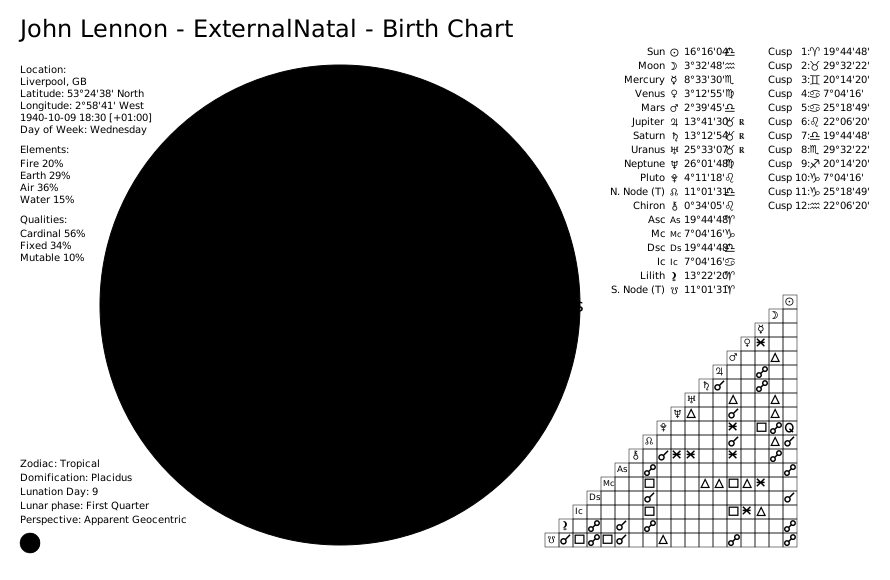
External Birth Chart
An "external" birth chart places the zodiac wheel on the outer ring, offering an alternative visualization style:
from pathlib import Path
from kerykeion import AstrologicalSubjectFactory
from kerykeion.chart_data_factory import ChartDataFactory
from kerykeion.charts.chart_drawer import ChartDrawer

# Step 1: Create subject
birth_chart = AstrologicalSubjectFactory.from_birth_data(
    "John Lennon", 1940, 10, 9, 18, 30,
    lng=-2.9833,
    lat=53.4,
    tz_str="Europe/London",
    online=False,
)

# Step 2: Pre-compute chart data for external natal chart
chart_data = ChartDataFactory.create_natal_chart_data(birth_chart)

# Step 3: Create visualization with external_view=True
birth_chart_svg = ChartDrawer(chart_data=chart_data, external_view=True)

output_dir = Path("charts_output")
output_dir.mkdir(exist_ok=True)
birth_chart_svg.save_svg(output_path=output_dir, filename="john-lennon-natal-external")
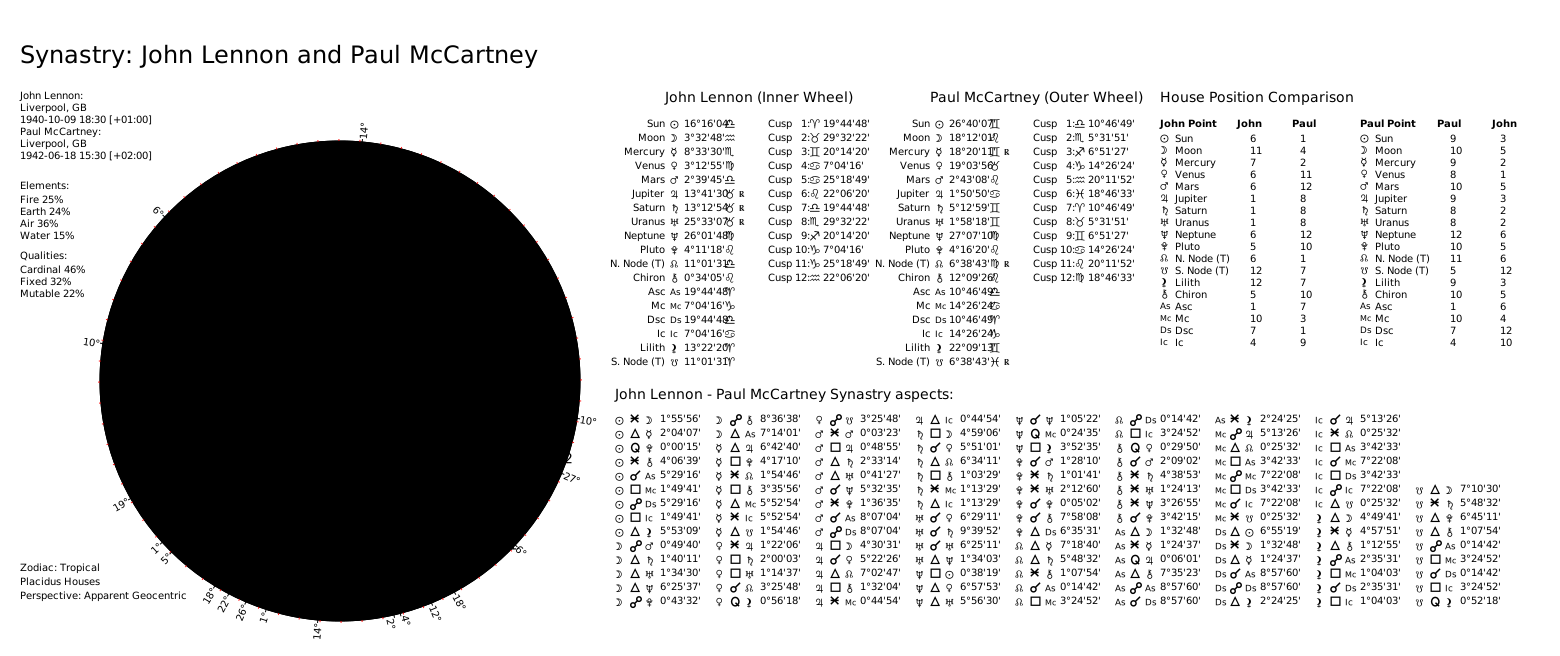
Synastry Chart
Synastry charts overlay two individuals' planetary positions to analyze relationship compatibility:
from pathlib import Path
from kerykeion import AstrologicalSubjectFactory
from kerykeion.chart_data_factory import ChartDataFactory
from kerykeion.charts.chart_drawer import ChartDrawer

# Step 1: Create subjects
first = AstrologicalSubjectFactory.from_birth_data(
    "John Lennon", 1940, 10, 9, 18, 30,
    lng=-2.9833,
    lat=53.4,
    tz_str="Europe/London",
    online=False,
)
second = AstrologicalSubjectFactory.from_birth_data(
    "Paul McCartney", 1942, 6, 18, 15, 30,
    lng=-2.9833,
    lat=53.4,
    tz_str="Europe/London",
    online=False,
)

# Step 2: Pre-compute synastry chart data
chart_data = ChartDataFactory.create_synastry_chart_data(first, second)

# Step 3: Create visualization
synastry_chart = ChartDrawer(chart_data=chart_data)

output_dir = Path("charts_output")
output_dir.mkdir(exist_ok=True)
synastry_chart.save_svg(output_path=output_dir, filename="lennon-mccartney-synastry")
📖 Synastry chart guide: Synastry Chart Examples
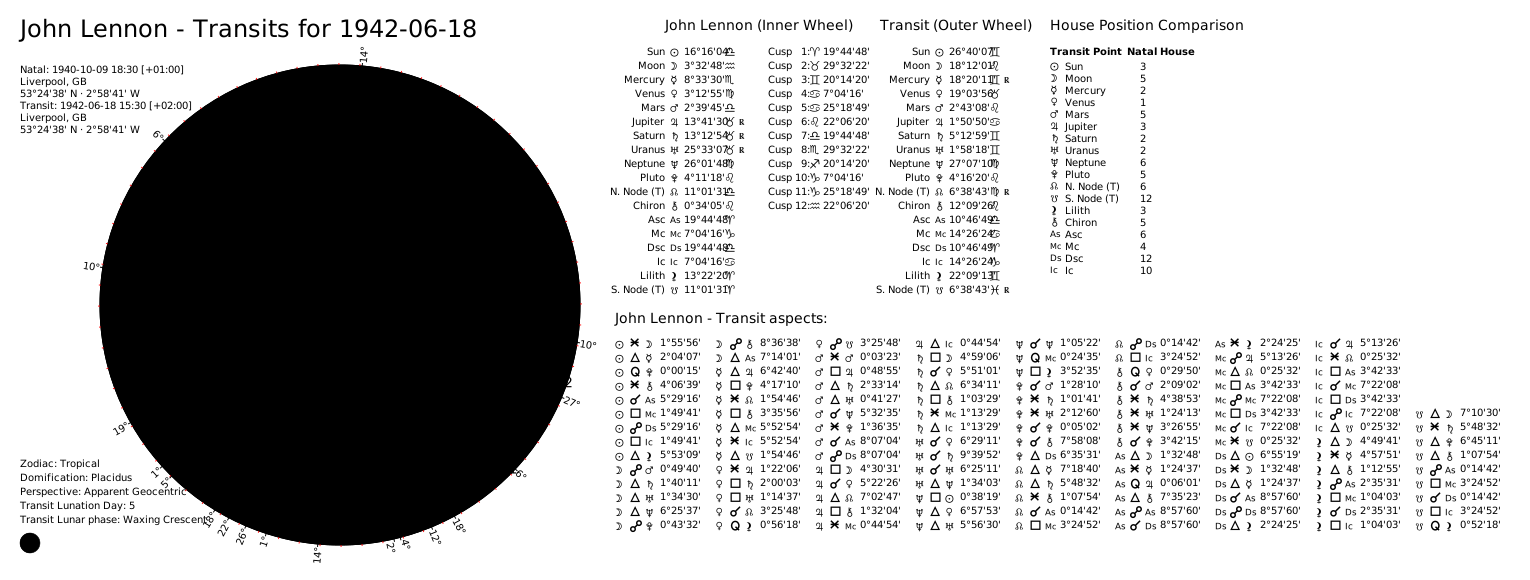
Transit Chart
Transit charts compare current planetary positions against a natal chart:
from pathlib import Path
from kerykeion import AstrologicalSubjectFactory
from kerykeion.chart_data_factory import ChartDataFactory
from kerykeion.charts.chart_drawer import ChartDrawer

# Step 1: Create subjects
transit = AstrologicalSubjectFactory.from_birth_data(
    "Transit", 2025, 6, 8, 8, 45,
    lng=-84.3880,
    lat=33.7490,
    tz_str="America/New_York",
    online=False,
)
subject = AstrologicalSubjectFactory.from_birth_data(
    "John Lennon", 1940, 10, 9, 18, 30,
    lng=-2.9833,
    lat=53.4,
    tz_str="Europe/London",
    online=False,
)

# Step 2: Pre-compute transit chart data
chart_data = ChartDataFactory.create_transit_chart_data(subject, transit)

# Step 3: Create visualization
transit_chart = ChartDrawer(chart_data=chart_data)

output_dir = Path("charts_output")
output_dir.mkdir(exist_ok=True)
transit_chart.save_svg(output_path=output_dir, filename="john-lennon-transit")
📖 Transit chart guide: Transit Chart Examples
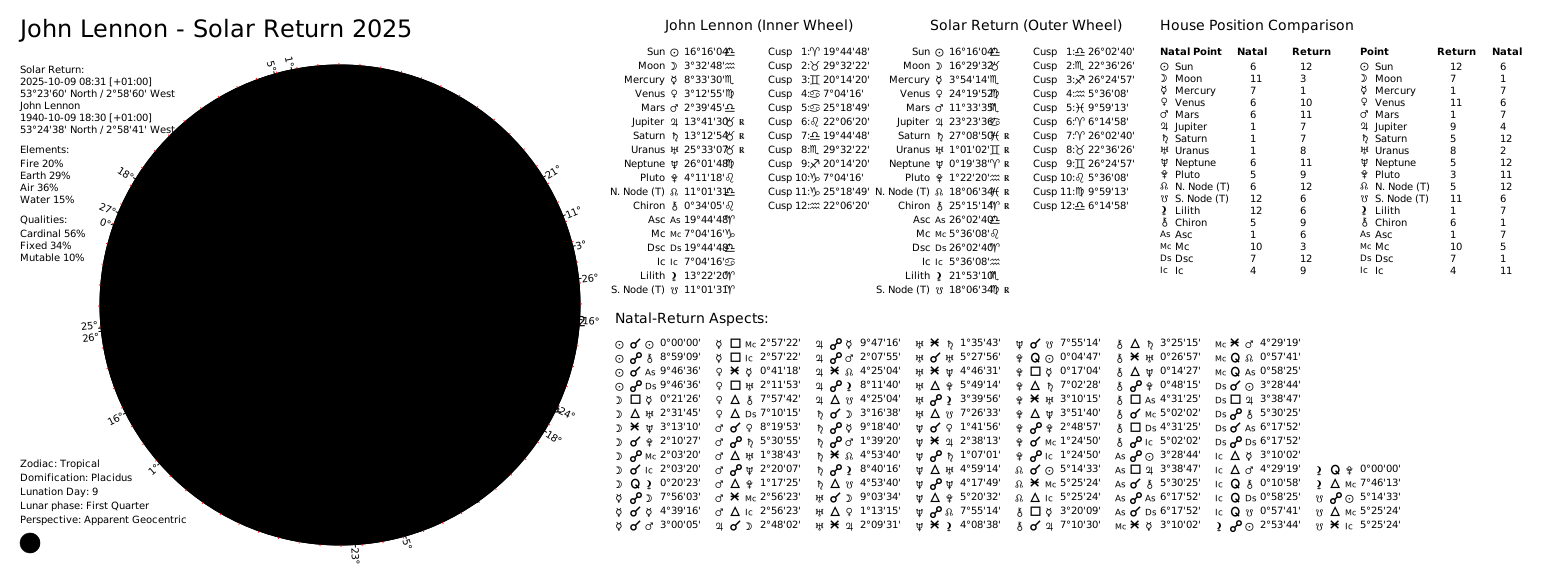
Solar Return Chart (Dual Wheel)
Solar returns calculate the exact moment the Sun returns to its natal position each year:
from pathlib import Path
from kerykeion import AstrologicalSubjectFactory
from kerykeion.planetary_return_factory import PlanetaryReturnFactory
from kerykeion.chart_data_factory import ChartDataFactory
from kerykeion.charts.chart_drawer import ChartDrawer

# Step 1: Create natal subject
john = AstrologicalSubjectFactory.from_birth_data(
    "John Lennon", 1940, 10, 9, 18, 30,
    lng=-2.9833,
    lat=53.4,
    tz_str="Europe/London",
    online=False,
)

# Step 2: Calculate Solar Return subject (offline example with manual coordinates)
return_factory = PlanetaryReturnFactory(
    john,
    lng=-2.9833,
    lat=53.4000,
    tz_str="Europe/London",
    online=False
)
solar_return_subject = return_factory.next_return_from_date(1964, 10, 1, return_type="Solar")

# Step 3: Pre-compute return chart data (dual wheel: natal + solar return)
chart_data = ChartDataFactory.create_return_chart_data(john, solar_return_subject)

# Step 4: Create visualization
solar_return_chart = ChartDrawer(chart_data=chart_data)

output_dir = Path("charts_output")
output_dir.mkdir(exist_ok=True)
solar_return_chart.save_svg(output_path=output_dir, filename="john-lennon-solar-return-dual")
📖 Return chart guide: Dual Return Chart Examples
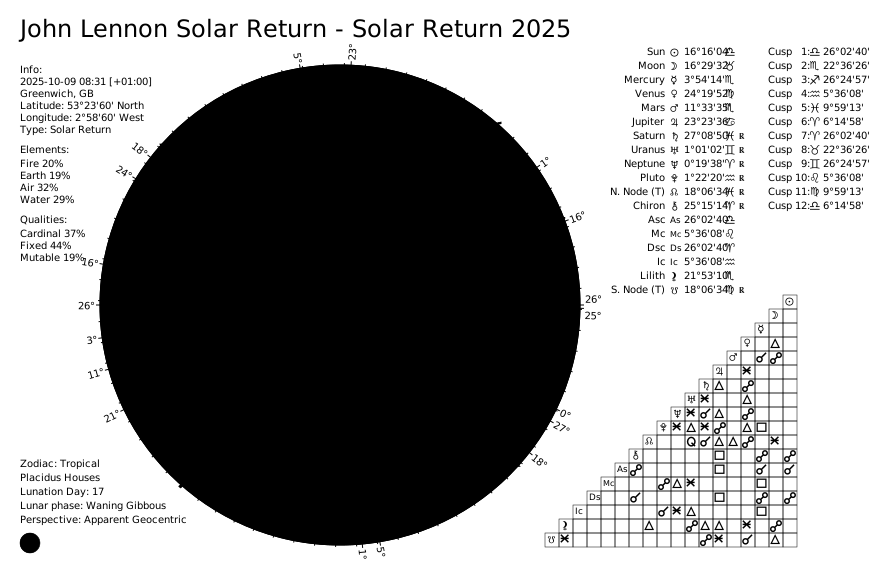
Solar Return Chart (Single Wheel)
from pathlib import Path
from kerykeion import AstrologicalSubjectFactory
from kerykeion.planetary_return_factory import PlanetaryReturnFactory
from kerykeion.chart_data_factory import ChartDataFactory
from kerykeion.charts.chart_drawer import ChartDrawer

# Step 1: Create natal subject
john = AstrologicalSubjectFactory.from_birth_data(
    "John Lennon", 1940, 10, 9, 18, 30,
    lng=-2.9833,
    lat=53.4,
    tz_str="Europe/London",
    online=False,
)

# Step 2: Calculate Solar Return subject (offline example with manual coordinates)
return_factory = PlanetaryReturnFactory(
    john,
    lng=-2.9833,
    lat=53.4000,
    tz_str="Europe/London",
    online=False
)
solar_return_subject = return_factory.next_return_from_date(1964, 10, 1, return_type="Solar")

# Step 3: Build a single-wheel return chart
chart_data = ChartDataFactory.create_single_wheel_return_chart_data(solar_return_subject)

# Step 4: Create visualization
single_wheel_chart = ChartDrawer(chart_data=chart_data)

output_dir = Path("charts_output")
output_dir.mkdir(exist_ok=True)
single_wheel_chart.save_svg(output_path=output_dir, filename="john-lennon-solar-return-single")
📖 Planetary return factory docs: PlanetaryReturnFactory
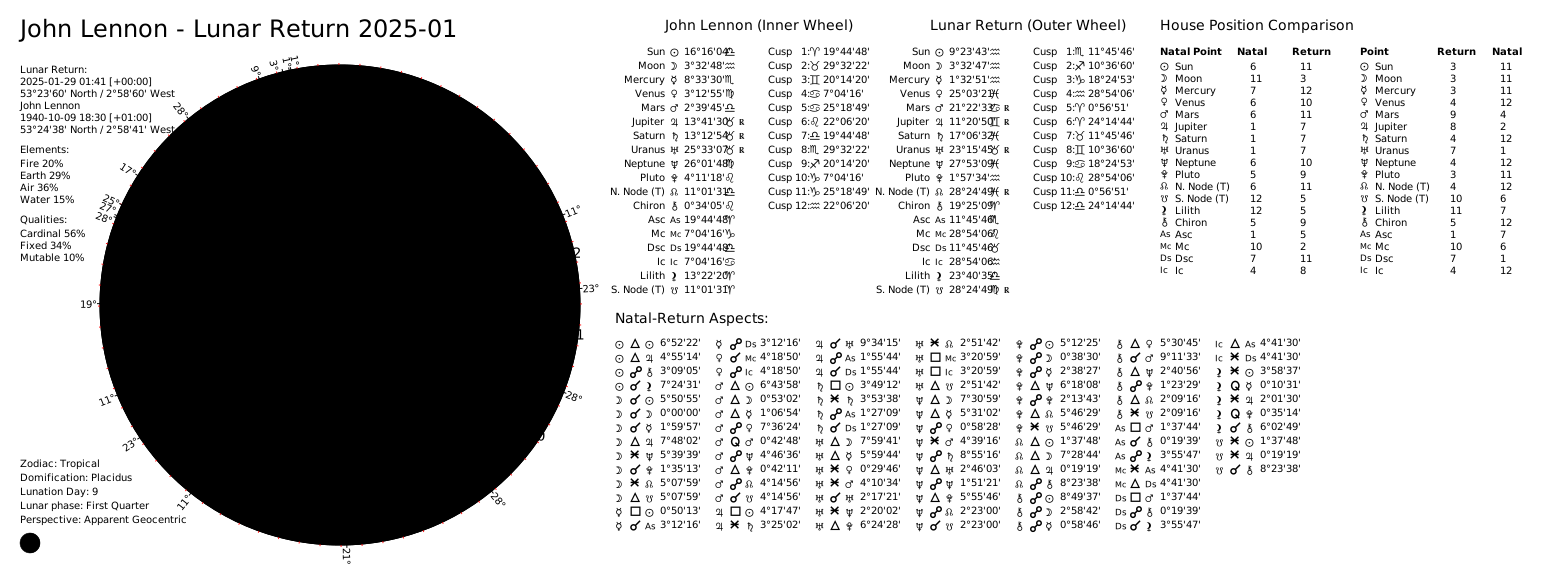
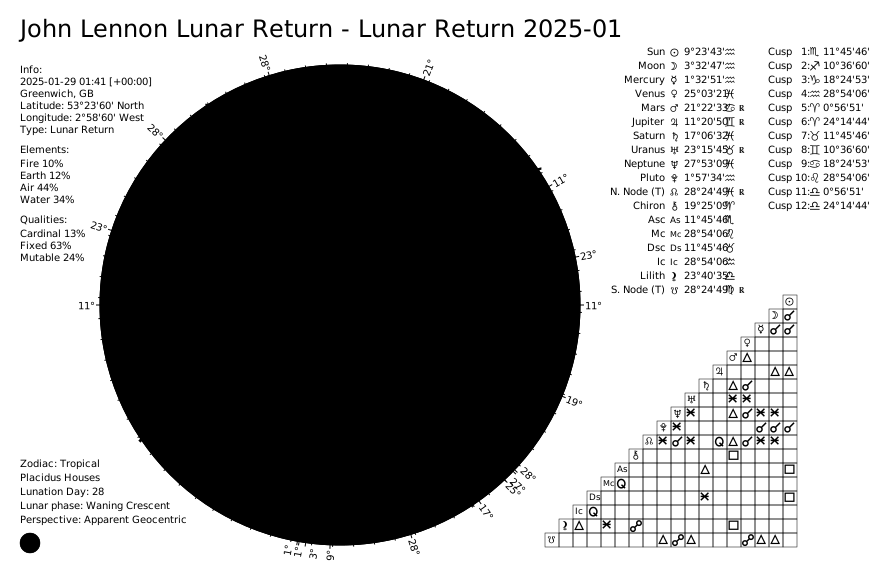
Lunar Return Chart
Lunar returns calculate when the Moon returns to its natal position (approximately monthly):
from pathlib import Path
from kerykeion import AstrologicalSubjectFactory
from kerykeion.planetary_return_factory import PlanetaryReturnFactory
from kerykeion.chart_data_factory import ChartDataFactory
from kerykeion.charts.chart_drawer import ChartDrawer

# Step 1: Create natal subject
john = AstrologicalSubjectFactory.from_birth_data(
    "John Lennon", 1940, 10, 9, 18, 30,
    lng=-2.9833,
    lat=53.4,
    tz_str="Europe/London",
    online=False,
)

# Step 2: Calculate Lunar Return subject
return_factory = PlanetaryReturnFactory(
    john,
    lng=-2.9833,
    lat=53.4000,
    tz_str="Europe/London",
    online=False
)
lunar_return_subject = return_factory.next_return_from_date(1964, 1, 1, return_type="Lunar")

# Step 3: Build a dual wheel (natal + lunar return)
lunar_return_chart_data = ChartDataFactory.create_return_chart_data(john, lunar_return_subject)
dual_wheel_chart = ChartDrawer(chart_data=lunar_return_chart_data)

output_dir = Path("charts_output")
output_dir.mkdir(exist_ok=True)
dual_wheel_chart.save_svg(output_path=output_dir, filename="john-lennon-lunar-return-dual")

# Optional: create a single-wheel lunar return
single_wheel_data = ChartDataFactory.create_single_wheel_return_chart_data(lunar_return_subject)
single_wheel_chart = ChartDrawer(chart_data=single_wheel_data)
single_wheel_chart.save_svg(output_path=output_dir, filename="john-lennon-lunar-return-single")
Composite Chart
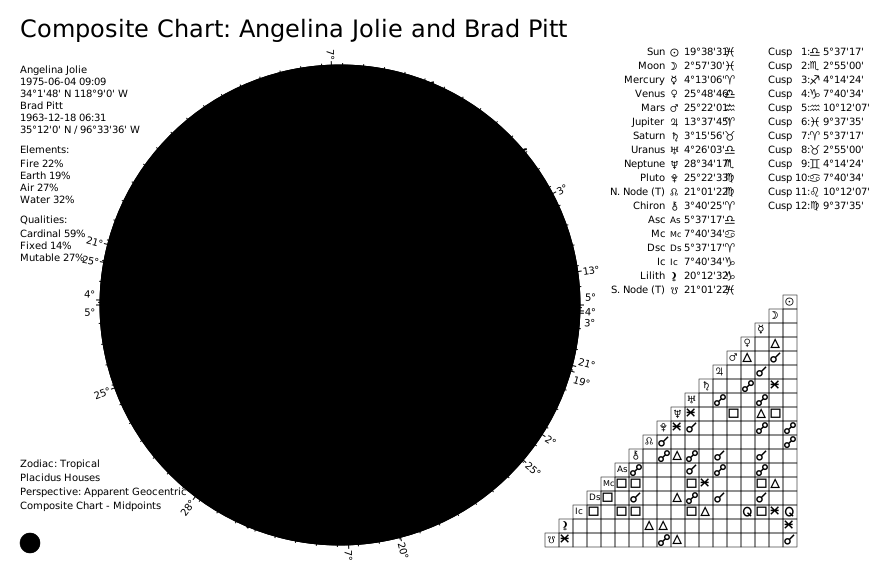
Composite charts create a single chart from two individuals' midpoints to represent the relationship entity:
from pathlib import Path
from kerykeion import CompositeSubjectFactory, AstrologicalSubjectFactory
from kerykeion.chart_data_factory import ChartDataFactory
from kerykeion.charts.chart_drawer import ChartDrawer

# Step 1: Create subjects (offline configuration)
angelina = AstrologicalSubjectFactory.from_birth_data(
    "Angelina Jolie", 1975, 6, 4, 9, 9,
    lng=-118.2437,
    lat=34.0522,
    tz_str="America/Los_Angeles",
    online=False,
)

brad = AstrologicalSubjectFactory.from_birth_data(
    "Brad Pitt", 1963, 12, 18, 6, 31,
    lng=-96.7069,
    lat=35.3273,
    tz_str="America/Chicago",
    online=False,
)

# Step 2: Create composite subject
factory = CompositeSubjectFactory(angelina, brad)
composite_model = factory.get_midpoint_composite_subject_model()

# Step 3: Pre-compute composite chart data
chart_data = ChartDataFactory.create_composite_chart_data(composite_model)

# Step 4: Create visualization
composite_chart = ChartDrawer(chart_data=chart_data)

output_dir = Path("charts_output")
output_dir.mkdir(exist_ok=True)
composite_chart.save_svg(output_path=output_dir, filename="jolie-pitt-composite")
📖 Composite factory docs: CompositeSubjectFactory
Wheel Only Charts
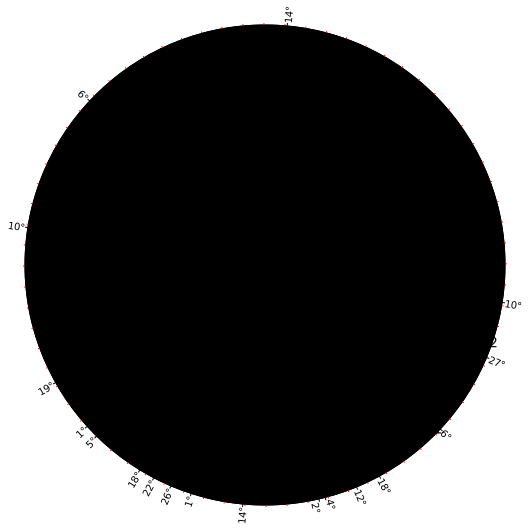
For all the charts, you can generate a wheel-only chart by using the method save_wheel_only_svg_file():
📖 Minimalist charts guide: Wheel Only & Aspect Grid Charts
Birth Chart
from pathlib import Path
from kerykeion import AstrologicalSubjectFactory
from kerykeion.chart_data_factory import ChartDataFactory
from kerykeion.charts.chart_drawer import ChartDrawer

# Step 1: Create subject
birth_chart = AstrologicalSubjectFactory.from_birth_data(
    "John Lennon", 1940, 10, 9, 18, 30,
    lng=-2.9833,
    lat=53.4,
    tz_str="Europe/London",
    online=False,
)

# Step 2: Pre-compute chart data
chart_data = ChartDataFactory.create_natal_chart_data(birth_chart)

# Step 3: Create visualization
birth_chart_svg = ChartDrawer(chart_data=chart_data)

output_dir = Path("charts_output")
output_dir.mkdir(exist_ok=True)
birth_chart_svg.save_wheel_only_svg_file(output_path=output_dir, filename="john-lennon-natal-wheel")
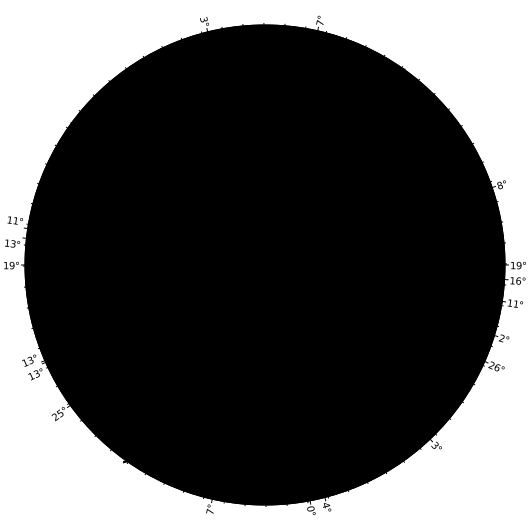
Wheel Only Birth Chart (External)
from pathlib import Path
from kerykeion import AstrologicalSubjectFactory
from kerykeion.chart_data_factory import ChartDataFactory
from kerykeion.charts.chart_drawer import ChartDrawer

# Step 1: Create subject
birth_chart = AstrologicalSubjectFactory.from_birth_data(
    "John Lennon", 1940, 10, 9, 18, 30,
    lng=-2.9833,
    lat=53.4,
    tz_str="Europe/London",
    online=False,
)

# Step 2: Pre-compute external natal chart data
chart_data = ChartDataFactory.create_natal_chart_data(birth_chart)

# Step 3: Create visualization (external wheel view)
birth_chart_svg = ChartDrawer(chart_data=chart_data, external_view=True)

output_dir = Path("charts_output")
output_dir.mkdir(exist_ok=True)
birth_chart_svg.save_wheel_only_svg_file(output_path=output_dir, filename="john-lennon-natal-wheel-external")

Synastry Chart
from pathlib import Path
from kerykeion import AstrologicalSubjectFactory
from kerykeion.chart_data_factory import ChartDataFactory
from kerykeion.charts.chart_drawer import ChartDrawer

# Step 1: Create subjects
first = AstrologicalSubjectFactory.from_birth_data(
    "John Lennon", 1940, 10, 9, 18, 30,
    lng=-2.9833,
    lat=53.4,
    tz_str="Europe/London",
    online=False,
)
second = AstrologicalSubjectFactory.from_birth_data(
    "Paul McCartney", 1942, 6, 18, 15, 30,
    lng=-2.9833,
    lat=53.4,
    tz_str="Europe/London",
    online=False,
)

# Step 2: Pre-compute synastry chart data
chart_data = ChartDataFactory.create_synastry_chart_data(first, second)

# Step 3: Create visualization
synastry_chart = ChartDrawer(chart_data=chart_data)

output_dir = Path("charts_output")
output_dir.mkdir(exist_ok=True)
synastry_chart.save_wheel_only_svg_file(output_path=output_dir, filename="lennon-mccartney-synastry-wheel")
Change the Output Directory
To save the SVG file in a custom location, specify the output_path parameter in save_svg():
from pathlib import Path
from kerykeion import AstrologicalSubjectFactory
from kerykeion.chart_data_factory import ChartDataFactory
from kerykeion.charts.chart_drawer import ChartDrawer

# Step 1: Create subjects
first = AstrologicalSubjectFactory.from_birth_data(
    "John Lennon", 1940, 10, 9, 18, 30,
    lng=-2.9833,
    lat=53.4,
    tz_str="Europe/London",
    online=False,
)
second = AstrologicalSubjectFactory.from_birth_data(
    "Paul McCartney", 1942, 6, 18, 15, 30,
    lng=-2.9833,
    lat=53.4,
    tz_str="Europe/London",
    online=False,
)

# Step 2: Pre-compute synastry chart data
chart_data = ChartDataFactory.create_synastry_chart_data(first, second)

# Step 3: Create visualization with custom output directory
synastry_chart = ChartDrawer(chart_data=chart_data)

output_dir = Path("charts_output")
output_dir.mkdir(exist_ok=True)
synastry_chart.save_svg(output_path=output_dir)
print("Saved to", (output_dir / f"{synastry_chart.first_obj.name} - Synastry Chart.svg").resolve())
Change Language
You can switch chart language by passing chart_language to the ChartDrawer class:
from pathlib import Path
from kerykeion import AstrologicalSubjectFactory
from kerykeion.chart_data_factory import ChartDataFactory
from kerykeion.charts.chart_drawer import ChartDrawer

# Step 1: Create subject
birth_chart = AstrologicalSubjectFactory.from_birth_data(
    "John Lennon", 1940, 10, 9, 18, 30,
    lng=-2.9833,
    lat=53.4,
    tz_str="Europe/London",
    online=False,
)

# Step 2: Pre-compute chart data
chart_data = ChartDataFactory.create_natal_chart_data(birth_chart)

# Step 3: Create visualization with Italian language
birth_chart_svg = ChartDrawer(
    chart_data=chart_data,
    chart_language="IT"  # Change to Italian
)

output_dir = Path("charts_output")
output_dir.mkdir(exist_ok=True)
birth_chart_svg.save_svg(output_path=output_dir, filename="john-lennon-natal-it")
You can also provide custom labels (or introduce a brand-new language) by passing
a dictionary to language_pack. Only the keys you supply are merged on top of the
built-in strings:
from pathlib import Path
from kerykeion import AstrologicalSubjectFactory
from kerykeion.chart_data_factory import ChartDataFactory
from kerykeion.charts.chart_drawer import ChartDrawer

birth_chart = AstrologicalSubjectFactory.from_birth_data(
    "John Lennon", 1940, 10, 9, 18, 30,
    lng=-2.9833,
    lat=53.4,
    tz_str="Europe/London",
    online=False,
)
chart_data = ChartDataFactory.create_natal_chart_data(birth_chart)

custom_labels = {
    "PT": {
        "info": "Informações",
        "celestial_points": {"Sun": "Sol", "Moon": "Lua"},
    }
}

custom_chart = ChartDrawer(
    chart_data=chart_data,
    chart_language="PT",
    language_pack=custom_labels["PT"],
)

output_dir = Path("charts_output")
output_dir.mkdir(exist_ok=True)
custom_chart.save_svg(output_path=output_dir, filename="john-lennon-natal-pt")
📖 Language configuration guide: Chart Language Settings
The available languages are:
- EN (English)
- FR (French)
- PT (Portuguese)
- ES (Spanish)
- TR (Turkish)
- RU (Russian)
- IT (Italian)
- CN (Chinese)
- DE (German)
Minified SVG
To generate a minified SVG, set minify=True in the save_svg() method:
from pathlib import Path
from kerykeion import AstrologicalSubjectFactory
from kerykeion.chart_data_factory import ChartDataFactory
from kerykeion.charts.chart_drawer import ChartDrawer

# Step 1: Create subject
birth_chart = AstrologicalSubjectFactory.from_birth_data(
    "John Lennon", 1940, 10, 9, 18, 30,
    lng=-2.9833,
    lat=53.4,
    tz_str="Europe/London",
    online=False,
)

# Step 2: Pre-compute chart data
chart_data = ChartDataFactory.create_natal_chart_data(birth_chart)

# Step 3: Create visualization
birth_chart_svg = ChartDrawer(chart_data=chart_data)

output_dir = Path("charts_output")
output_dir.mkdir(exist_ok=True)
birth_chart_svg.save_svg(
    output_path=output_dir,
    filename="john-lennon-natal-minified",
    minify=True,
)
SVG without CSS Variables
To generate an SVG without CSS variables, set remove_css_variables=True in the save_svg() method:
from pathlib import Path
from kerykeion import AstrologicalSubjectFactory
from kerykeion.chart_data_factory import ChartDataFactory
from kerykeion.charts.chart_drawer import ChartDrawer

# Step 1: Create subject
birth_chart = AstrologicalSubjectFactory.from_birth_data(
    "John Lennon", 1940, 10, 9, 18, 30,
    lng=-2.9833,
    lat=53.4,
    tz_str="Europe/London",
    online=False,
)

# Step 2: Pre-compute chart data
chart_data = ChartDataFactory.create_natal_chart_data(birth_chart)

# Step 3: Create visualization
birth_chart_svg = ChartDrawer(chart_data=chart_data)

output_dir = Path("charts_output")
output_dir.mkdir(exist_ok=True)
birth_chart_svg.save_svg(
    output_path=output_dir,
    filename="john-lennon-natal-no-css-variables",
    remove_css_variables=True,
)
This will inline all styles and eliminate CSS variables, resulting in an SVG that is more broadly supported.
Grid Only SVG
It's possible to generate a grid-only SVG, useful for creating a custom layout. To do this, use the save_aspect_grid_only_svg_file() method:
from pathlib import Path
from kerykeion import AstrologicalSubjectFactory
from kerykeion.chart_data_factory import ChartDataFactory
from kerykeion.charts.chart_drawer import ChartDrawer

# Step 1: Create subjects
birth_chart = AstrologicalSubjectFactory.from_birth_data(
    "John Lennon", 1940, 10, 9, 18, 30,
    lng=-2.9833,
    lat=53.4,
    tz_str="Europe/London",
    online=False,
)
second = AstrologicalSubjectFactory.from_birth_data(
    "Paul McCartney", 1942, 6, 18, 15, 30,
    lng=-2.9833,
    lat=53.4,
    tz_str="Europe/London",
    online=False,
)

# Step 2: Pre-compute synastry chart data
chart_data = ChartDataFactory.create_synastry_chart_data(birth_chart, second)

# Step 3: Create visualization with dark theme
aspect_grid_chart = ChartDrawer(chart_data=chart_data, theme="dark")

output_dir = Path("charts_output")
output_dir.mkdir(exist_ok=True)
aspect_grid_chart.save_aspect_grid_only_svg_file(output_path=output_dir, filename="lennon-mccartney-aspect-grid")
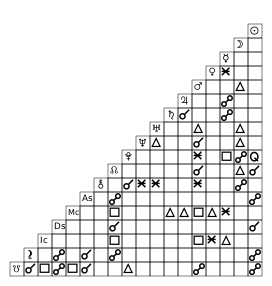
Report Generator
ReportGenerator mirrors the chart-type dispatch of ChartDrawer. It accepts raw AstrologicalSubjectModel instances as well as any ChartDataModel produced by ChartDataFactory—including natal, composite, synastry, transit, and planetary return charts—and renders the appropriate textual report automatically.
📖 Full report documentation: Report Generator Guide
Quick Examples
from kerykeion import ReportGenerator, AstrologicalSubjectFactory, ChartDataFactory

# Subject-only report
subject = AstrologicalSubjectFactory.from_birth_data(
    "Sample Natal", 1990, 7, 21, 14, 45,
    lng=12.4964,
    lat=41.9028,
    tz_str="Europe/Rome",
    online=False,
)
ReportGenerator(subject).print_report(include_aspects=False)

# Single-chart data (elements, qualities, aspects enabled)
natal_data = ChartDataFactory.create_natal_chart_data(subject)
ReportGenerator(natal_data).print_report(max_aspects=10)

# Dual-chart data (synastry, transit, dual return, …)
partner = AstrologicalSubjectFactory.from_birth_data(
    "Sample Partner", 1992, 11, 5, 9, 30,
    lng=12.4964,
    lat=41.9028,
    tz_str="Europe/Rome",
    online=False,
)
synastry_data = ChartDataFactory.create_synastry_chart_data(subject, partner)
ReportGenerator(synastry_data).print_report(max_aspects=12)
Each report contains:
- A chart-aware title summarising the subject(s) and chart type
- Birth/event metadata and configuration settings
- Celestial points with sign, position, daily motion, declination, retrograde flag, and house
- House cusp tables for every subject involved
- Lunar phase details when available
- Element/quality distributions and active configuration summaries (for chart data)
- Aspect listings tailored for single or dual charts, with symbols for type and movement
- Dual-chart extras such as house comparisons and relationship scores (when provided by the data)
Section Access
All section helpers remain available for targeted output:
from kerykeion import ReportGenerator, AstrologicalSubjectFactory, ChartDataFactory

subject = AstrologicalSubjectFactory.from_birth_data(
    "Sample Natal", 1990, 7, 21, 14, 45,
    lng=12.4964,
    lat=41.9028,
    tz_str="Europe/Rome",
    online=False,
)
natal_data = ChartDataFactory.create_natal_chart_data(subject)

report = ReportGenerator(natal_data)
sections = report.generate_report(max_aspects=5).split("\n\n")
for section in sections[:3]:
    print(section)
📖 Report examples: Report Examples
AI Context Serializer
The context_serializer module transforms Kerykeion data models into precise, non-qualitative text optimized for LLM consumption. It provides the essential "ground truth" data needed for AI agents to generate accurate astrological interpretations.
📖 Full context serializer docs: Context Serializer Guide
Quick Example
from kerykeion import AstrologicalSubjectFactory, to_context

# Create a subject
subject = AstrologicalSubjectFactory.from_birth_data(
    "John Doe", 1990, 1, 1, 12, 0,
    city="London",
    nation="GB",
    lng=-0.1278,
    lat=51.5074,
    tz_str="Europe/London",
    online=False,
)

# Generate AI-ready context
context = to_context(subject)
print(context)
Output:
Chart for John Doe
 Birth data: 1990-01-01 12:00, London, GB
...
Celestial Points:
  - Sun at 10.81° in Capricorn in Tenth House, quality: Cardinal, element: Earth...
  - Moon at 25.60° in Aquarius in Eleventh House, quality: Fixed, element: Air...
Key Features:
- Standardized Output: Consistent format for Natal, Synastry, Composite, and Return charts.
- Non-Qualitative: Provides raw data (positions, aspects) without interpretive bias.
- Prompt-Ready: Designed to be injected directly into system prompts.
Example: Retrieving Aspects
Kerykeion provides a unified AspectsFactory class for calculating astrological aspects within single charts or between two charts:
from kerykeion import AspectsFactory, AstrologicalSubjectFactory

# Create astrological subjects
jack = AstrologicalSubjectFactory.from_birth_data(
    "Jack", 1990, 6, 15, 15, 15,
    lng=12.4964,
    lat=41.9028,
    tz_str="Europe/Rome",
    online=False,
)
jane = AstrologicalSubjectFactory.from_birth_data(
    "Jane", 1991, 10, 25, 21, 0,
    lng=12.4964,
    lat=41.9028,
    tz_str="Europe/Rome",
    online=False,
)

# For single chart aspects (natal, return, composite, etc.)
single_chart_result = AspectsFactory.single_chart_aspects(jack)
print(f"Found {len(single_chart_result.aspects)} aspects in Jack's chart")
print(single_chart_result.aspects[0])

# For dual chart aspects (synastry, transits, comparisons, etc.)
dual_chart_result = AspectsFactory.dual_chart_aspects(jack, jane)
print(f"Found {len(dual_chart_result.aspects)} aspects between Jack and Jane's charts")
print(dual_chart_result.aspects[0])

# Each AspectModel includes:
# - p1_name, p2_name: Planet/point names
# - aspect: Aspect type (conjunction, trine, square, etc.)
# - orbit: Orb tolerance in degrees
# - aspect_degrees: Exact degrees for the aspect (0, 60, 90, 120, 180, etc.)
# - color: Hex color code for visualization
📖 Aspects documentation: Aspects Factory Guide
Advanced Usage with Custom Settings:
# You can also customize aspect calculations with custom orb settings
from kerykeion.settings.config_constants import DEFAULT_ACTIVE_ASPECTS

# Modify aspect settings if needed
custom_aspects = DEFAULT_ACTIVE_ASPECTS.copy()
# ... modify as needed

# The factory automatically uses the configured settings for orb calculations
# and filters aspects based on relevance and orb thresholds
📖 Configuration options: Settings Documentation
Relationship Score
Kerykeion can calculate a relationship compatibility score based on synastry aspects, using the method of the Italian astrologer Ciro Discepolo:
from kerykeion import AstrologicalSubjectFactory
from kerykeion.relationship_score_factory import RelationshipScoreFactory

# Create two subjects
person1 = AstrologicalSubjectFactory.from_birth_data(
    "Alice", 1990, 3, 15, 14, 30,
    lng=12.4964,
    lat=41.9028,
    tz_str="Europe/Rome",
    online=False,
)
person2 = AstrologicalSubjectFactory.from_birth_data(
    "Bob", 1988, 7, 22, 9, 0,
    lng=12.4964,
    lat=41.9028,
    tz_str="Europe/Rome",
    online=False,
)

# Calculate relationship score
score_factory = RelationshipScoreFactory(person1, person2)
result = score_factory.get_score()

print(f"Compatibility Score: {result.score}")
print(f"Description: {result.description}")
📖 Relationship score guide: Relationship Score Examples
📖 Factory documentation: RelationshipScoreFactory
Element & Quality Distribution Strategies
ChartDataFactory now offers two strategies for calculating element and modality totals. The default "weighted" mode leans on a curated map that emphasises core factors (for example sun, moon, and ascendant weight 2.0, angles such as medium_coeli 1.5, personal planets 1.5, social planets 1.0, outers 0.5, and minor bodies 0.3–0.8). Provide distribution_method="pure_count" when you want every active point to contribute equally.
You can refine the weighting without rebuilding the dictionary: pass lowercase point names to custom_distribution_weights and use "__default__" to override the fallback value applied to entries that are not listed explicitly.
from kerykeion import AstrologicalSubjectFactory, ChartDataFactory

subject = AstrologicalSubjectFactory.from_birth_data(
    "Sample", 1986, 4, 12, 8, 45,
    lng=11.3426,
    lat=44.4949,
    tz_str="Europe/Rome",
    online=False,
)

# Equal weighting: every active point counts once
pure_data = ChartDataFactory.create_natal_chart_data(
    subject,
    distribution_method="pure_count",
)

# Custom emphasis: boost the Sun, soften everything else
weighted_data = ChartDataFactory.create_natal_chart_data(
    subject,
    distribution_method="weighted",
    custom_distribution_weights={
        "sun": 3.0,
        "__default__": 0.75,
    },
)

print(pure_data.element_distribution.fire)
print(weighted_data.element_distribution.fire)
All convenience helpers (create_synastry_chart_data, create_transit_chart_data, returns, and composites) forward the same keyword-only parameters, so you can keep a consistent weighting scheme across every chart type.
📖 Element/quality distribution guide: Distribution Documentation
Ayanamsa (Sidereal Modes)
By default, the zodiac type is Tropical. To use Sidereal, specify the sidereal mode:
johnny = AstrologicalSubjectFactory.from_birth_data(
    "Johnny Depp", 1963, 6, 9, 0, 0,
    lng=-87.1112,
    lat=37.7719,
    tz_str="America/Chicago",
    online=False,
    zodiac_type="Sidereal",
    sidereal_mode="LAHIRI"
)
📖 Sidereal mode examples: Sidereal Modes Guide
📖 Full list of supported sidereal modes: SiderealMode Schema
House Systems
By default, houses are calculated using Placidus. Configure a different house system as follows:
johnny = AstrologicalSubjectFactory.from_birth_data(
    "Johnny Depp", 1963, 6, 9, 0, 0,
    lng=-87.1112,
    lat=37.7719,
    tz_str="America/Chicago",
    online=False,
    houses_system_identifier="M"
)
📖 House system examples: House Systems Guide
📖 Full list of supported house systems: HouseSystemIdentifier Schema
So far all the available houses system in the Swiss Ephemeris are supported but the Gauquelin Sectors.
Perspective Type
By default, Kerykeion uses the Apparent Geocentric perspective (the most standard in astrology). Other perspectives (e.g., Heliocentric) can be set this way:
johnny = AstrologicalSubjectFactory.from_birth_data(
    "Johnny Depp", 1963, 6, 9, 0, 0,
    lng=-87.1112,
    lat=37.7719,
    tz_str="America/Chicago",
    online=False,
    perspective_type="Heliocentric"
)
📖 Perspective type examples: Perspective Type Guide
📖 Full list of supported perspective types: PerspectiveType Schema
Themes
Kerykeion provides several chart themes:
- Classic (default)
- Dark
- Dark High Contrast
- Light
- Strawberry
- Black & White (optimized for monochrome printing)
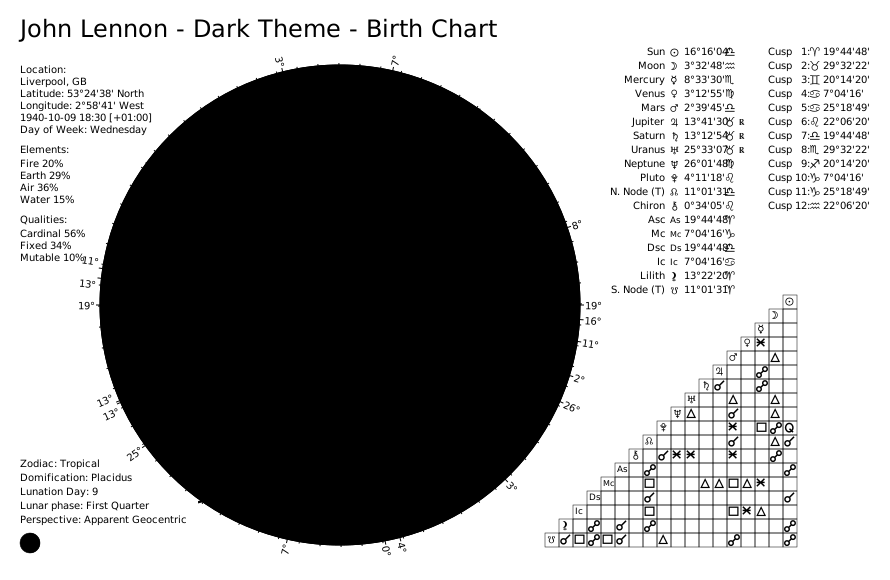
Each theme offers a distinct visual style, allowing you to choose the one that best suits your preferences or presentation needs. If you prefer more control over the appearance, you can opt not to set any theme, making it easier to customize the chart by overriding the default CSS variables.
📖 Theming guide with all examples: Theming Documentation
The Black & White theme renders glyphs, rings, and aspects in solid black on light backgrounds, designed for crisp B/W prints (PDF or paper) without sacrificing legibility.
Here's an example of how to set the theme:
from pathlib import Path
from kerykeion import AstrologicalSubjectFactory
from kerykeion.chart_data_factory import ChartDataFactory
from kerykeion.charts.chart_drawer import ChartDrawer

# Step 1: Create subject
dark_theme_subject = AstrologicalSubjectFactory.from_birth_data(
    "John Lennon - Dark Theme", 1940, 10, 9, 18, 30,
    lng=-2.9833,
    lat=53.4,
    tz_str="Europe/London",
    online=False,
)

# Step 2: Pre-compute chart data
chart_data = ChartDataFactory.create_natal_chart_data(dark_theme_subject)

# Step 3: Create visualization with dark high contrast theme
dark_theme_natal_chart = ChartDrawer(chart_data=chart_data, theme="dark-high-contrast")

output_dir = Path("charts_output")
output_dir.mkdir(exist_ok=True)
dark_theme_natal_chart.save_svg(output_path=output_dir, filename="john-lennon-natal-dark-high-contrast")

Alternative Initialization
Create an AstrologicalSubjectModel from a UTC ISO 8601 string:
from kerykeion import AstrologicalSubjectFactory

subject = AstrologicalSubjectFactory.from_iso_utc_time(
    name="Johnny Depp",
    iso_utc_time="1963-06-09T05:00:00Z",
    city="Owensboro",
    nation="US",
    lng=-87.1112,
    lat=37.7719,
    tz_str="America/Chicago",
    online=False,
)

print(subject.iso_formatted_local_datetime)
If you prefer automatic geocoding, set online=True and provide your GeoNames credentials via geonames_username.
📖 All initialization options: AstrologicalSubjectFactory Documentation
Lunar Nodes (Rahu & Ketu)
Kerykeion supports both True and Mean Lunar Nodes:
- True North Lunar Node:
"True_North_Lunar_Node" - True South Lunar Node:
"True_South_Lunar_Node" - Mean North Lunar Node:
"Mean_North_Lunar_Node" - Mean South Lunar Node:
"Mean_South_Lunar_Node"
By default, only the True nodes are active in charts and aspect calculations. To include the Mean nodes (or customize which nodes appear), pass the active_points parameter to the ChartDataFactory methods.
📖 ChartDataFactory documentation: ChartDataFactory Guide
Example:
from pathlib import Path
from kerykeion import AstrologicalSubjectFactory
from kerykeion.chart_data_factory import ChartDataFactory
from kerykeion.charts.chart_drawer import ChartDrawer

# Step 1: Create subject
subject = AstrologicalSubjectFactory.from_birth_data(
    "John Lennon", 1940, 10, 9, 18, 30,
    lng=-2.9833,
    lat=53.4,
    tz_str="Europe/London",
    online=False,
)

# Step 2: Pre-compute chart data with custom active points including true nodes
chart_data = ChartDataFactory.create_natal_chart_data(
    subject,
    active_points=[
        "Sun",
        "Moon",
        "Mercury",
        "Venus",
        "Mars",
        "Jupiter",
        "Saturn",
        "Uranus",
        "Neptune",
        "Pluto",
        "Mean_North_Lunar_Node",
        "Mean_South_Lunar_Node",
        "True_North_Lunar_Node",
        "True_South_Lunar_Node",
        "Ascendant",
        "Medium_Coeli",
        "Descendant",
        "Imum_Coeli"
    ]
)

# Step 3: Create visualization
chart = ChartDrawer(chart_data=chart_data)

output_dir = Path("charts_output")
output_dir.mkdir(exist_ok=True)
chart.save_svg(output_path=output_dir, filename="johnny-depp-custom-points")
JSON Support
You can serialize the astrological subject (the base data used throughout the library) to JSON:
from kerykeion import AstrologicalSubjectFactory

johnny = AstrologicalSubjectFactory.from_birth_data(
    "Johnny Depp", 1963, 6, 9, 0, 0,
    lng=-87.1112,
    lat=37.7719,
    tz_str="America/Chicago",
    online=False,
)

print(johnny.model_dump_json(indent=2))
📖 Data models and schemas: Schemas Documentation
Documentation
- Main Website: kerykeion.net
- Getting Started: kerykeion.net/docs
- Examples Gallery: kerykeion.net/examples
- API Reference: kerykeion.net/pydocs
- Astrologer API Docs: kerykeion.net/astrologer-api
Projects built with Kerykeion
AstrologerStudio is a cloud-based astrology app built on top of Kerykeion.
Development
Clone the repository or download the ZIP via the GitHub interface.
git clone https://github.com/g-battaglia/kerykeion.git
cd kerykeion
pip install -e ".[dev]"
Integrating Kerykeion into Your Project
If you would like to incorporate Kerykeion's astrological features into your application, please reach out via email. Whether you need custom features, support, or specialized consulting, I am happy to discuss potential collaborations.
For commercial or closed-source applications, consider using the paid Astrologer API (RapidAPI plans & pricing) which provides REST endpoints for all Kerykeion functionality.
License
This project is covered under the AGPL-3.0 License. For detailed information, please see the LICENSE file. If you have questions, feel free to contact me at kerykeion.astrology@gmail.com.
As a rule of thumb, if you use this library in a project, you should open-source that project under a compatible license. Alternatively, if you wish to keep your source closed, consider using the paid Astrologer API, which is AGPL-3.0 compliant and also helps support the project.
Since the Astrologer API is an external third-party service, using it does not require your code to be open-source.
Contributing
Contributions are welcome! Feel free to submit pull requests or report issues.
By submitting a contribution, you agree to assign the copyright of that contribution to the maintainer. The project stays openly available under the AGPL for everyone, while the re-licensing option helps sustain future development. Your authorship remains acknowledged in the commit history and release notes.
Citations
If using Kerykeion in published or academic work, please cite as follows:
Battaglia, G. (2025). Kerykeion: A Python Library for Astrological Calculations and Chart Generation.
https://github.com/g-battaglia/kerykeion
Release history Release notifications | RSS feed


Download files
Download the file for your platform. If you're not sure which to choose, learn more about installing packages.
Source Distribution
Built Distribution
Filter files by name, interpreter, ABI, and platform.
If you're not sure about the file name format, learn more about wheel file names.
Copy a direct link to the current filters
File details
Details for the file kerykeion-5.7.2.tar.gz.
File metadata
- Download URL: kerykeion-5.7.2.tar.gz
- Upload date:
- Size: 661.7 kB
- Tags: Source
- Uploaded using Trusted Publishing? No
- Uploaded via: uv/0.9.27 {"installer":{"name":"uv","version":"0.9.27","subcommand":["publish"]},"python":null,"implementation":{"name":null,"version":null},"distro":{"name":"macOS","version":null,"id":null,"libc":null},"system":{"name":null,"release":null},"cpu":null,"openssl_version":null,"setuptools_version":null,"rustc_version":null,"ci":null}
File hashes
| Algorithm | Hash digest | |
|---|---|---|
| SHA256 |
b1eb938e2c892095bbffe1a2af574175fd7891b00188187e47e4228046dc9972
|
|
| MD5 |
9936f8752a469bcee760b58ffcbfe581
|
|
| BLAKE2b-256 |
6b34644bf46b5c7319662f32286efe1602a265dfbe422a04424f2c637bd394ba
|
File details
Details for the file kerykeion-5.7.2-py3-none-any.whl.
File metadata
- Download URL: kerykeion-5.7.2-py3-none-any.whl
- Upload date:
- Size: 679.3 kB
- Tags: Python 3
- Uploaded using Trusted Publishing? No
- Uploaded via: uv/0.9.27 {"installer":{"name":"uv","version":"0.9.27","subcommand":["publish"]},"python":null,"implementation":{"name":null,"version":null},"distro":{"name":"macOS","version":null,"id":null,"libc":null},"system":{"name":null,"release":null},"cpu":null,"openssl_version":null,"setuptools_version":null,"rustc_version":null,"ci":null}
File hashes
| Algorithm | Hash digest | |
|---|---|---|
| SHA256 |
0199dea2a065399242c6a679cd6dc43cfdc0d7238ccb139632ca6e60cebd36fc
|
|
| MD5 |
d4a652acda5771e0c1be42c1f2bdc17d
|
|
| BLAKE2b-256 |
f4f1aa83079f2af12f4aca7ae525e3b5b7e9755c6c2d62e4bfc39754331ae7d5
|






