

MangaBinder
Download manga chapters, convert them to PDF, bind them into volumes and export CBZ,
from a friendly browser interface or a single command.




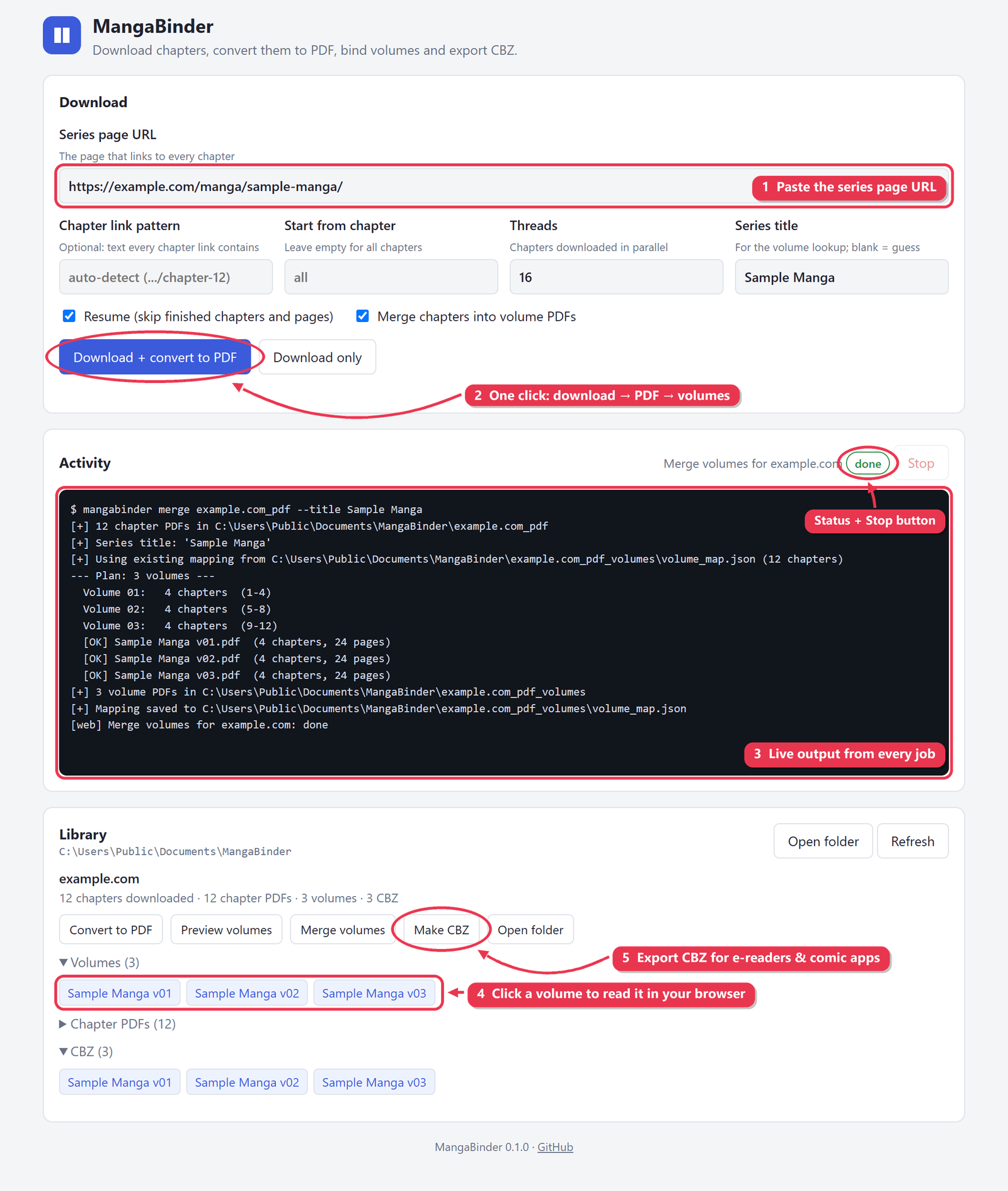
Features
- Parallel downloads. Finds every chapter on a series page and downloads many chapters at once.
- Resume anywhere. Progress is saved, so an interrupted download picks up where it stopped.
- Chapter PDFs. Each chapter becomes one PDF. Re-runs only rebuild chapters that changed.
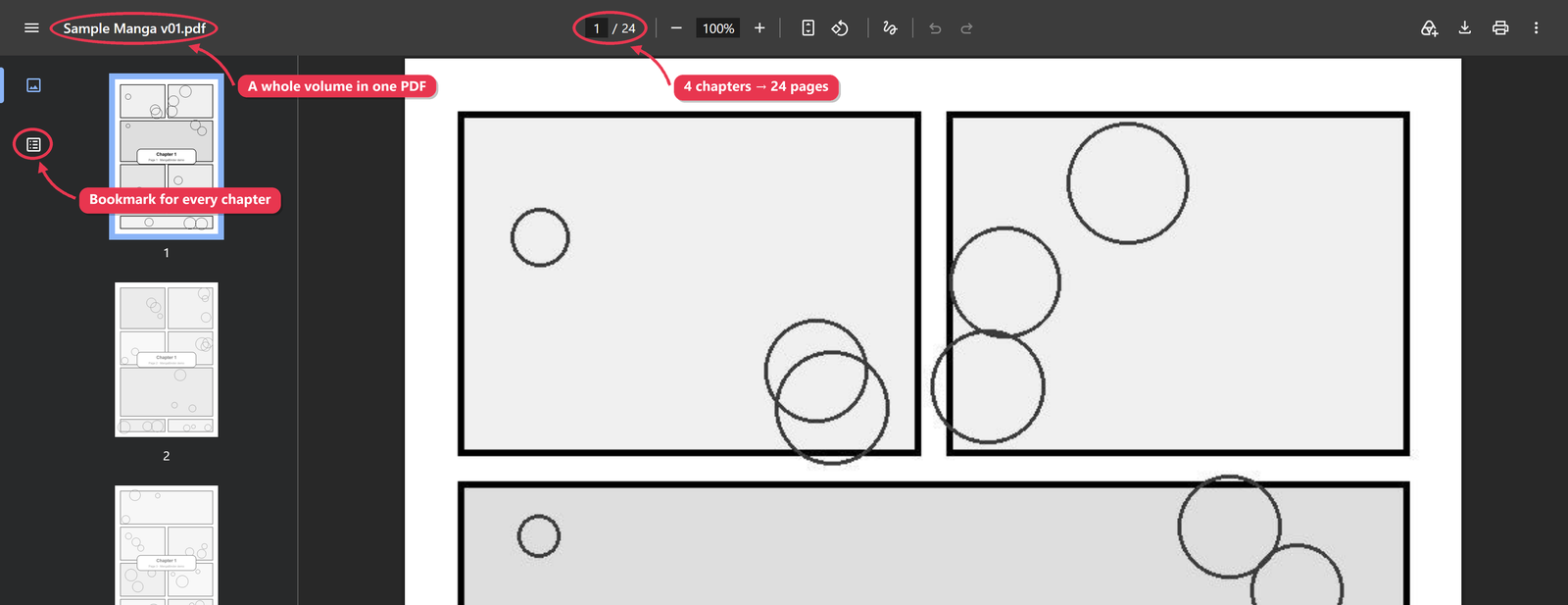
- Volume PDFs. Chapters are bound into volumes using real volume data from MangaDex / AniList, with a bookmark for every chapter.
- CBZ export. For e-readers and comic apps. Two-page spreads are split in right-to-left order.
- Browser interface. Run everything, watch live progress, and read your volumes in the browser.
- Nothing extra to install. A standalone Windows
.exe, orpip installon Windows, macOS and Linux. No Poppler, no Ghostscript.
Install
Windows app (web interface)
- Download
mangabinder.exefrom the latest release. - Double-click it. The web interface opens in your browser, and your downloads go to
Documents\MangaBinder.
Windows SmartScreen may warn about an unrecognised app because the
.exeisn't code-signed. Click More info → Run anyway.
Command line (any OS, from PyPI)
Requires Python 3.9 or newer.
pipx install mangabinder        # recommended: isolated install, adds the command to PATH
# or
pip install mangabinder
Then use the command line. mangabinder web opens the same browser interface as the .exe.
Using the web interface
mangabinder web                          # opens http://127.0.0.1:8765
mangabinder web --library D:\Manga       # keep downloads somewhere else
mangabinder web --host 0.0.0.0           # also reachable from other devices (no login!)
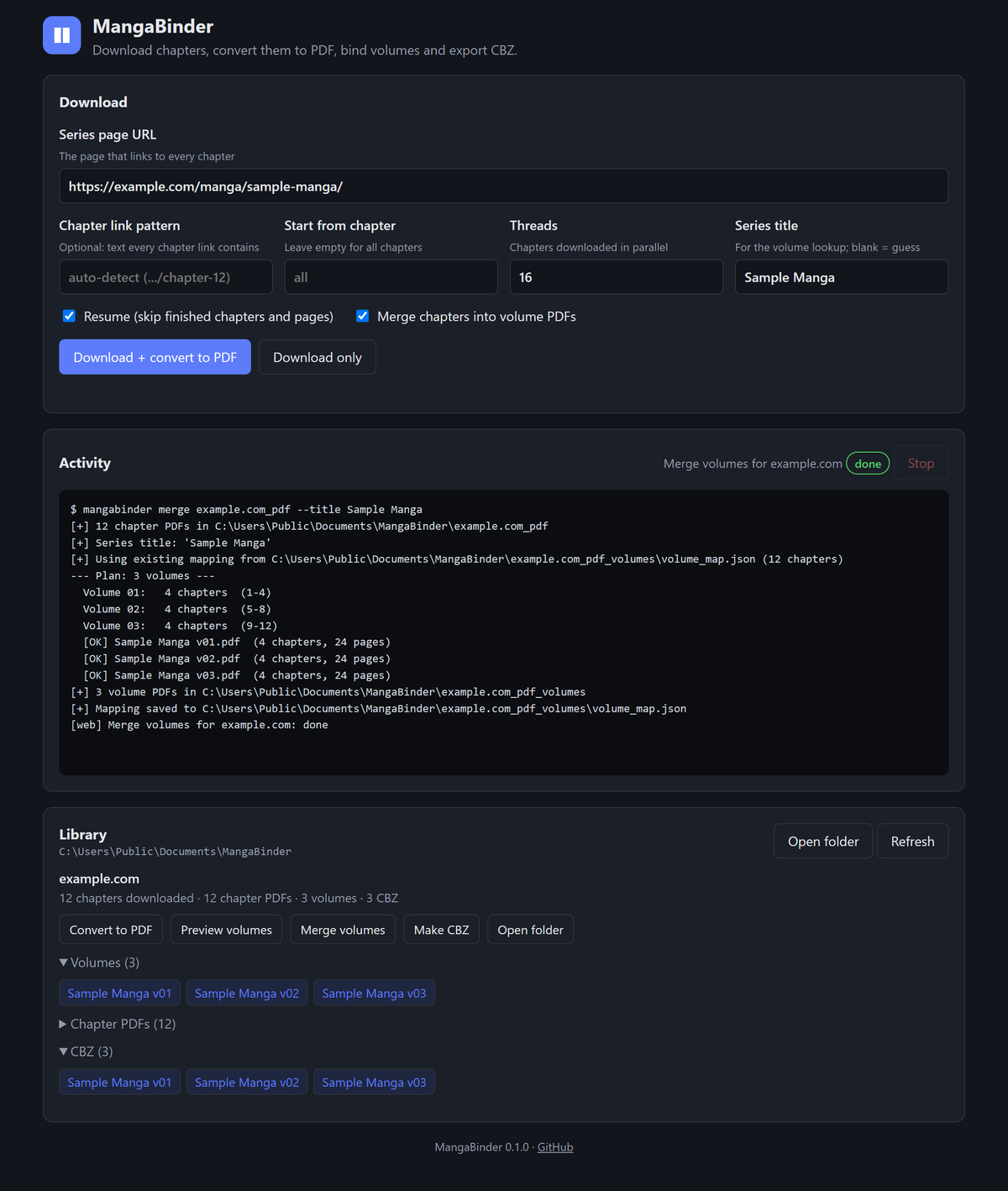
1. Download
Paste the series page, the page on the site that links to every chapter. Then press Download + convert to PDF.
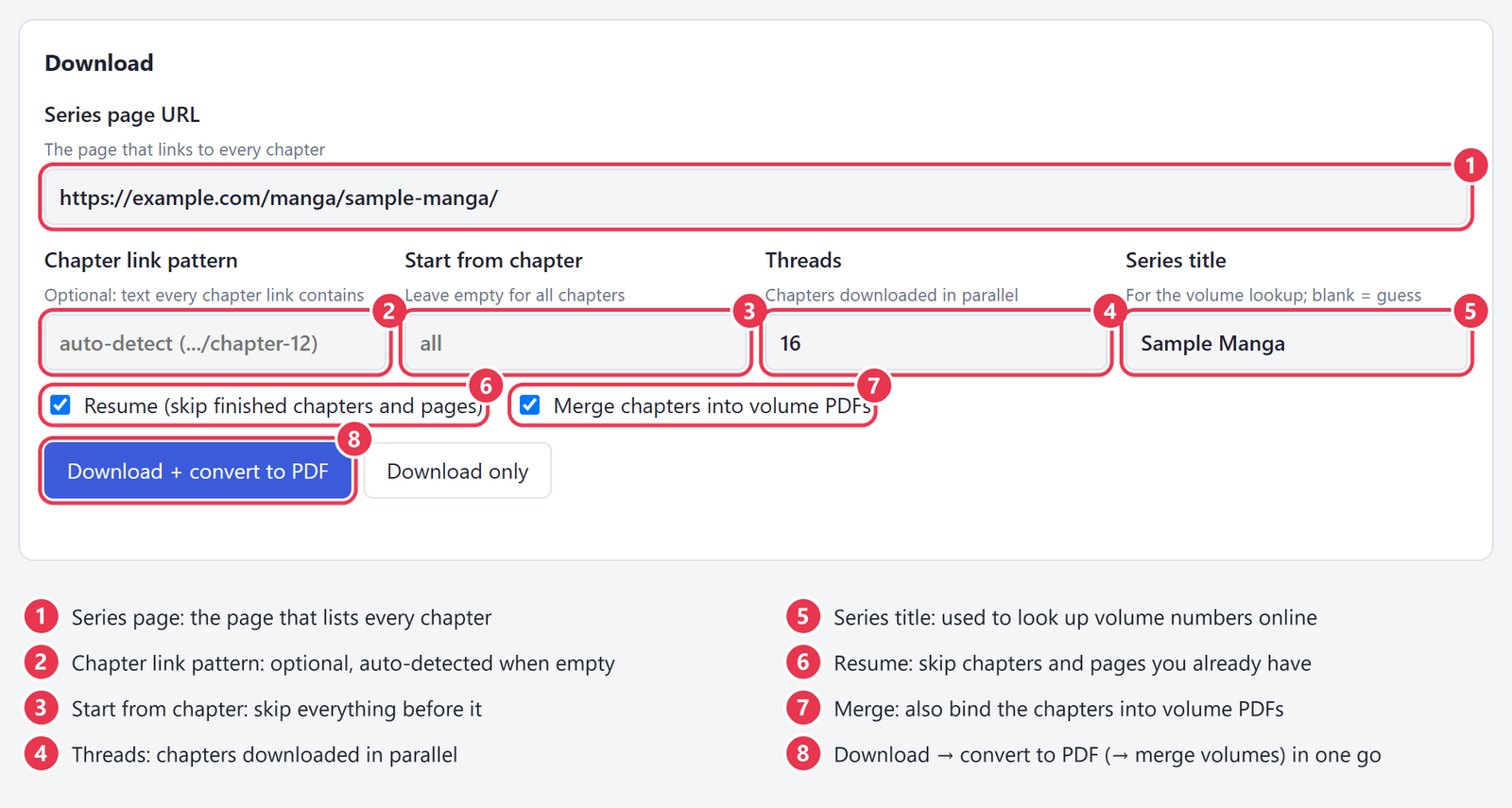
Chapter links like …/chapter-12 are detected automatically. Fill in Chapter link pattern only if a site names its chapters differently (see Supported sites).
2. Watch it run
The Activity panel streams the output of every job live. Stop cancels the current job. Resume is on by default, so pressing the button again later continues from where it stopped.
3. Read, merge and export
Everything you've downloaded appears in the Library:
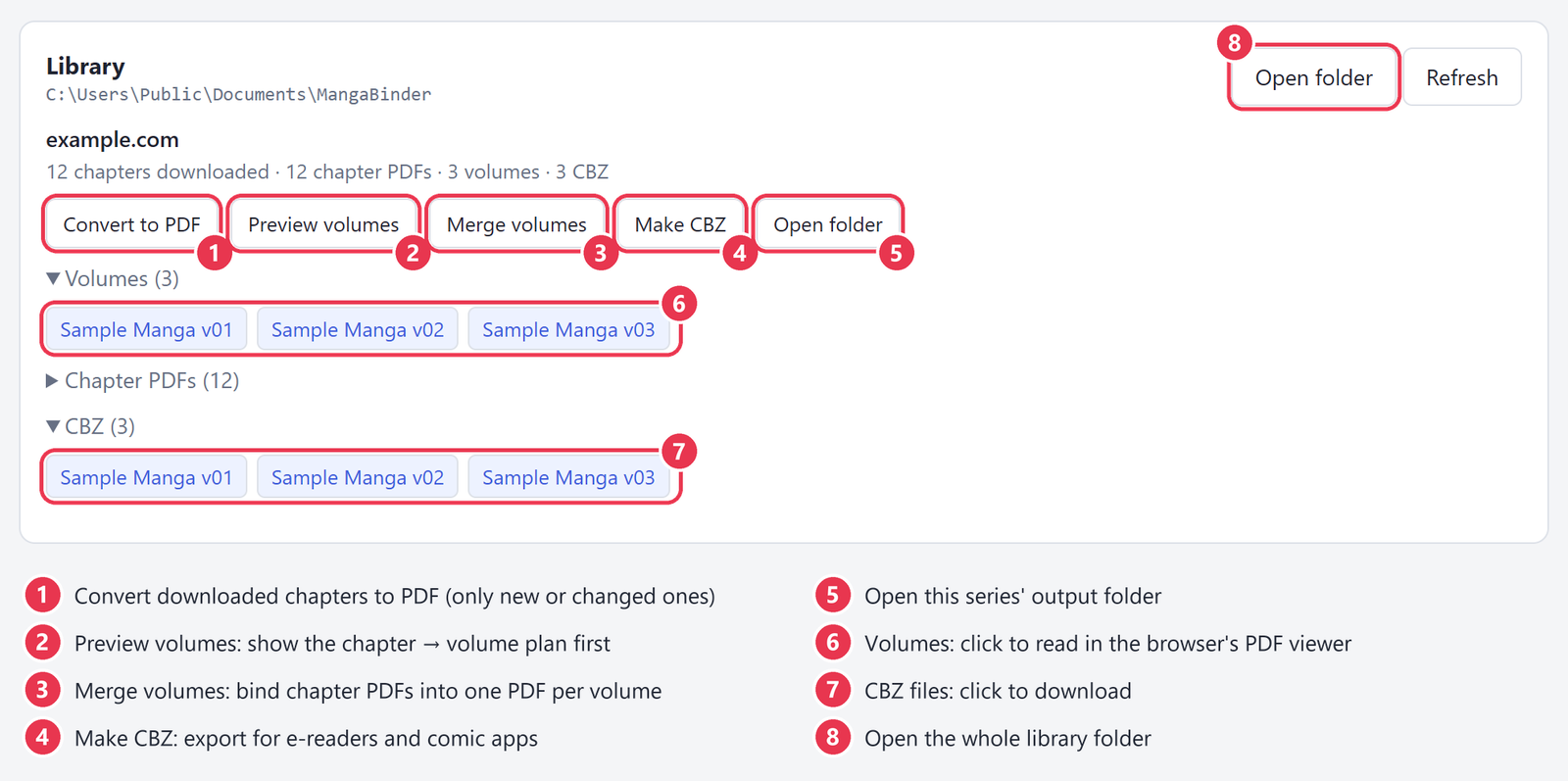
Click a volume to read it in your browser's PDF viewer. Each chapter is bookmarked:
Dark mode follows your system setting
Command line
One command runs the whole pipeline: download, then chapter PDFs, then volumes.
mangabinder download https://example.com/manga/series-name/ --volumes
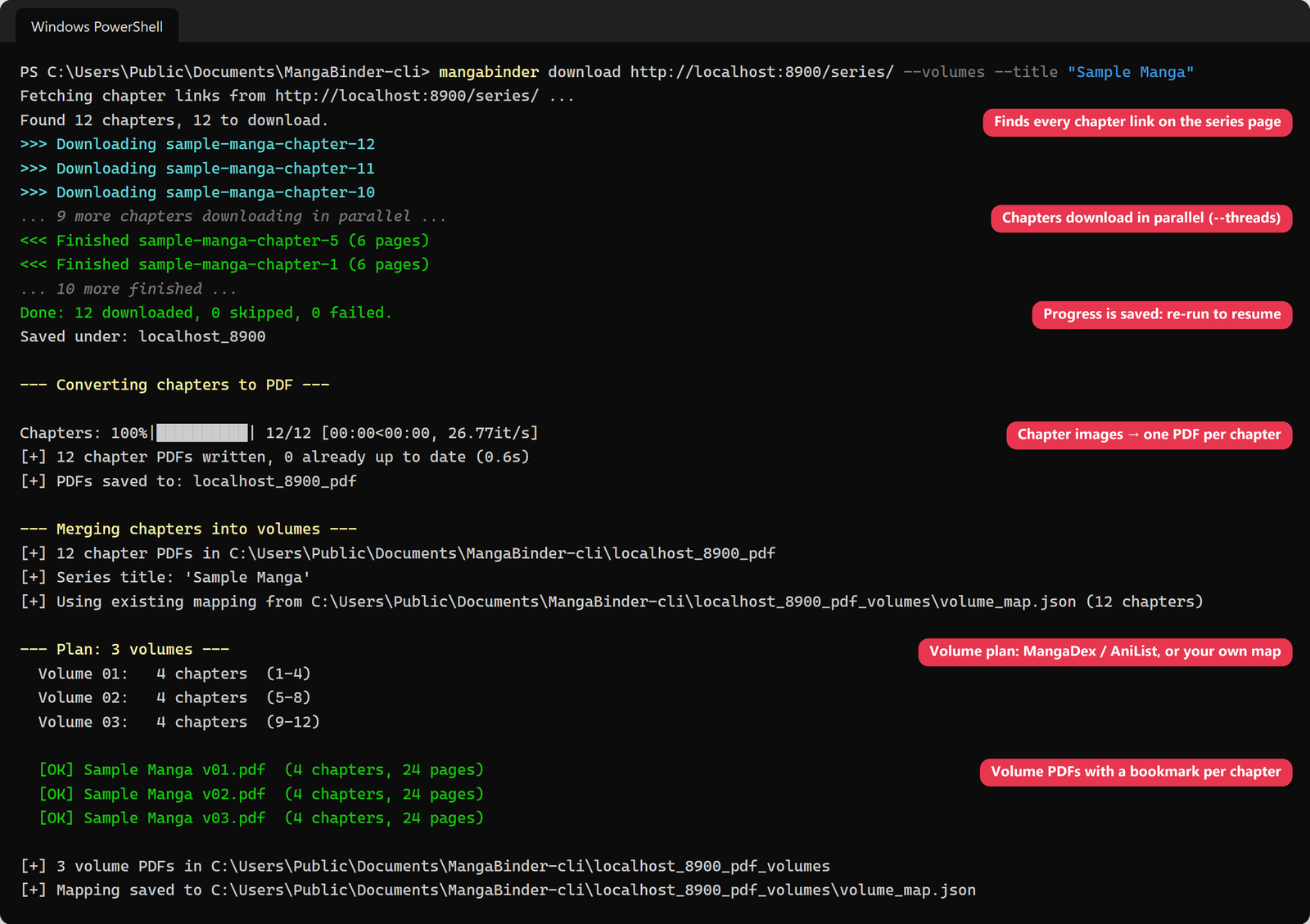
Or run each step on its own:
| Command | What it does |
|---|---|
mangabinder download URL |
Download every chapter into ./<site>/<chapter>/ |
mangabinder convert FOLDER |
Build FOLDER_pdf/<chapter>.pdf from the chapter images |
mangabinder merge FOLDER_pdf |
Bind chapter PDFs into FOLDER_pdf_volumes/<Title> v01.pdf, … |
mangabinder cbz PDF_FOLDER |
Convert PDFs (chapters or volumes) to CBZ in PDF_FOLDER_cbz/ |
mangabinder web |
Open the browser interface |
mangabinder gui |
Small desktop window for PDF → CBZ |
Useful options (run mangabinder <command> --help for all of them):
# download
mangabinder download URL --pattern title-chapter-   # only follow links containing this text
mangabinder download URL --start 120                # skip chapters before 120
mangabinder download URL --threads 8                # gentler on the site (default 16)
mangabinder download URL --fresh                    # ignore saved progress
mangabinder download URL --convert                  # also make chapter PDFs

# volumes
mangabinder merge example.com_pdf --dry-run         # print the volume plan only
mangabinder merge example.com_pdf --title "Monster"  # when the guessed title is wrong
mangabinder merge example.com_pdf --series-id <id> --source mangadex

# cbz
mangabinder cbz example.com_pdf_volumes --dpi 200 --no-split
How it works
Output layout
Documents/MangaBinder/                 (or the folder you ran the command in)
├── example.com/                       downloaded images, one folder per chapter
│   ├── series-chapter-1/1.jpg, 2.jpg, …
│   └── download_state.txt             finished chapters, used to resume
├── example.com_pdf/                   one PDF per chapter
├── example.com_pdf_volumes/           one PDF per volume + volume_map.json
└── example.com_pdf_volumes_cbz/       CBZ files
Supported sites
MangaBinder works with the common "online reader" layout:
- The series page links to each chapter with a normal link (
<a href="…/chapter-12/">). - Each chapter page shows its pages as images (
<img src>, or lazy-loadeddata-src).
If no chapters are found, open any chapter, look at its address, and pass the part every chapter link shares as the pattern. For example, for https://site.com/manga/monster-chapter-162/ use --pattern monster-chapter-. Sites that load pages with JavaScript only, or that need a login, aren't supported.
Git Bash users: a pattern starting with
/gets rewritten into a Windows path by Git Bash. Leave off the leading slash (monster-chapter-) or run the command from PowerShell / cmd.
Volume mapping
The series title is guessed from the chapter names (monster-chapter-1 → Monster) and looked up on MangaDex and AniList. No API key is needed.
- MangaDex per-chapter volume data is used when it covers at least 70% of the chapters. This is the accurate path.
- Even split across the published volume count is the fallback when no per-chapter data exists. This is approximate, and the run prints a warning.
Each run writes volume_map.json into the volumes folder. Edit the mapping (chapter → volume) and re-run. A map file always wins over a new lookup, so your corrections stick. Lookups are cached in your user cache folder.
Troubleshooting
| Problem | Fix |
|---|---|
| "No chapters found" | Pass --pattern (see Supported sites), and check the URL is the series page, not a chapter |
| Some chapters failed | Run the same command again. Finished chapters and pages are skipped |
| Wrong series picked for volumes | --title "Exact Name", or --series-id with the MangaDex id |
| Volume boundaries slightly off | Edit volume_map.json in the volumes folder and run merge --overwrite |
| Port 8765 already in use | mangabinder web --port 9000 (it also tries the next 9 ports automatically) |
Development
git clone https://github.com/Preygle/manga-downloader.git
cd manga-downloader
python -m venv .venv && .venv/Scripts/activate      # macOS/Linux: source .venv/bin/activate
pip install -e ".[dev]"
pytest
Build the Windows executable locally:
pip install pyinstaller
pyinstaller --onefile --console --name mangabinder --icon packaging/icon.ico \
  --collect-all pypdfium2 --collect-all pypdfium2_raw packaging/entry.py
Releasing
- Bump
__version__insrc/mangabinder/__init__.pyand merge tomaster. gh release create vX.Y.Z --generate-notes
Publishing the release runs release.yml, which builds the wheel, sdist and
mangabinder.exe, attaches them to the release, and uploads the wheel and sdist to PyPI with
trusted publishing, so no API token is stored.
Responsible use
MangaBinder is a general-purpose tool. Only download content you have the right to download, respect each site's terms of service, and support the creators by buying official releases where they're available.
License
MIT © Mohammad Owais
1 maintainer

Metadata
1 maintainer
Release files for mangabinder 0.1.2
For a detailed explanation of source distributions (sdists) and built distributions (wheels), please see the package formats documentation.
Source distribution (sdist)
| File | Size | Uploaded | |
|---|---|---|---|
| mangabinder-0.1.2.tar.gz | 34.4 kB | Details |
Built distribution (wheel)
| File | Interpreter | ABI | Platform | Reset |
|---|---|---|---|---|
| mangabinder-0.1.2-py3-none-any.whl | Python 3 | none | any | Details |
Total release size: 71.4 kB
Release files / mangabinder-0.1.2.tar.gz
| Download URL | mangabinder-0.1.2.tar.gz |
|---|---|
| Size | 34.4 kB |
| Tags | Source |
|
SHA-256 checksum How to use checksums |
07e36c347b672b8519b523c8792944fe1dc4d8dbfa06ac411193e21ffbabd5c6
|
|
BLAKE2b-256 checksum How to use checksums |
72ad2a0a4610e90c76ef5053d5d84f64f60413963408b9338c4a819a21f086ca
|
| Upload date | |
|
Uploaded using Trusted Publishing? What is trusted publishing? |
Yes |
| Uploaded via |
twine/7.0.0 CPython/3.13.14
|
Provenance
Provenance describes where a file came from. On PyPI, provenance is shared via attestations, which provide a verifiable record of the build or publishing details. View details, limitations and caveats.


PyPI Publish Attestation
PyPI verified that this artifact, at this checksum, originated from the publisher listed below.
Signed by GitHub Actions, verified by PyPI on Oct 9, 2026.
Transparency logRelease files / mangabinder-0.1.2-py3-none-any.whl
| Download URL | mangabinder-0.1.2-py3-none-any.whl |
|---|---|
| Size | 37.0 kB |
| Tags | Python 3 |
|
SHA-256 checksum How to use checksums |
711648b2446579d2c5eca4368678138d8f8325c94dd2c9206e75ca1f63730cec
|
|
BLAKE2b-256 checksum How to use checksums |
0861d116ce126a879d7b6be2583506f6d5e9a56da565fc14bff209cac44b8051
|
| Upload date | |
|
Uploaded using Trusted Publishing? What is trusted publishing? |
Yes |
| Uploaded via |
twine/7.0.0 CPython/3.13.14
|
Provenance
Provenance describes where a file came from. On PyPI, provenance is shared via attestations, which provide a verifiable record of the build or publishing details. View details, limitations and caveats.
PyPI Publish Attestation
PyPI verified that this artifact, at this checksum, originated from the publisher listed below.
Signed by GitHub Actions, verified by PyPI on Oct 9, 2026.
Transparency log













