
My DataViewer package overview
My DataViewer : A Lightweight Real-Time Interactive Data Viewer IDE for Python
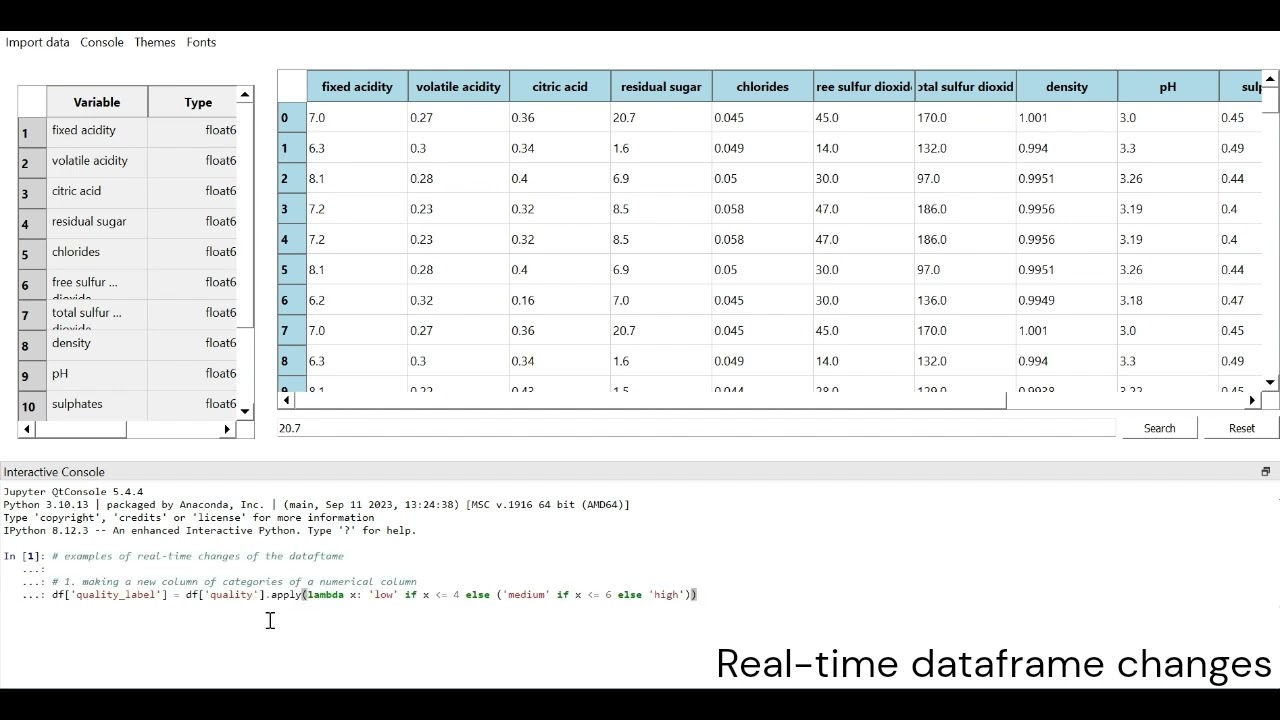
Inspired by the Stata browser,My DataViewer is a lightweight, interactive data viewer IDE for Pyhton built with PyQt5, designed for real-time manipulation and exploration of pandas DataFrames. Featuring real-time reflection of changes to your datasets, My DataViewer offers a lightweight, intuitive way to explore and analyze full dataframes.
Integrated features:
- Real-time dataset updates: Automatically reflects changes in the DataFrame as you manipulate it.
- Embedded
IPython console: Execute Python code and interact with your data directly within the viewer. - Search and filter dataframe: Easily search and filter your data, with results reflected in real time.
- Check and scroll through the whole dataframe: Allows the user to inspect the whole dataframe ensuring the changes are correctly executed.
- Custom themes and fonts: Switch between selected themes and fonts for a personalized experience.
- Split-view layout: Includes a variable table and the main data view, allowing for easy navigation of variables and their types.
1. My DataViewer package installation
Install from PyPI using pip
!pip install mydataviewer-GUI
2. Package dependencies
- Python 3.6 or newer
- Pandas
- PyQt5
- qtconsole
- ipykernel
- jupyter_client
3. How to start My DataViewer
A. Running the Package from the Terminal using viewdata a command
After installing the package using pip install mydataviewer, you can launch the My DataViewer directly from the terminal using the command-line interface (CLI).
Steps:
- Open a terminal window.
- Activate the environment in which
My DataVieweris installed,conda activate my_env. - Run the following command to start the
My DataViewer:
viewdata
B. Running My DataViewer from the terminal using a python file
You can also launch the My DataViewer directly from the terminal by running a custom python file.
Steps:
- Create a python file, for example: 'my_file.py' or any name the user chooses.
- In the file type these lines:
from mydataviewer.view_dataframe import view_dataframe
view_dataframe()
- In a terminal window, navigate to the directory of 'my_file.py'.
- Type 'python my_file.py', and the package will start.
C. Running My DataViewer from VS Code
You can also run the package from VS Code using the terminal.
- Open your project in VS Code.
- Open the integrated terminal by going to View > Terminal.
- Type the
viewdataand pressEnter:
This will start the My DataViewer like in a regular terminal.
D. Running My DataViewer from an .exe file
You can also run the package by navigating to Scripts inside the environment in which My DataViewer is insalled.
- Navigate to directory
C:\Users\USER_NAME\Anaconda3\envs\ENV_NAME\Scripts - You will find
viewdata.exefile, open it.
This will directly start the My DataViewer. The user can also copy the viewdata.exe file to desktop or anyother directory to access it easily.
4. Interacting with the My DataViewer
After running the viewdata command, a data import box will open allowing the user to locate and open the dataframe from Import Dataframe menu. After choosing the dataframe, the My DataViewer GUI window will open, displaying the DataFrame. The window includes:
- Table View: Displays the DataFrame in a table format.
- Sidebar: Shows variable names and data types.
- Search Bar: Allows you to search within the DataFrame.
- Interactive Console: An embedded IPython console at the bottom, enabling you to manipulate the DataFrame and reflect the changes in real-time.
5. Customizing My DataViewer
Themes and Fonts
- The
My DataViewerincludesthemesandfontsmenu options for changing fonts and themes. Access these from the menu bar at the top of the DataViewer window.
Themes
- Light Theme (Default)
- Dark Theme
- Solarized Dark Theme
- Solarized Light Theme
- Monokai Theme
- Shades of Purple Theme
- Vue Theme
Fonts
- Arial
- Courier New
- Times New Roman
- Georgia
- Verdana
- Consolas
6. Working with Jupyter QtConsole
- As stated in its documentation "The Qt console is a very lightweight application that largely feels like a terminal, but provides a number of enhancements only possible in a GUI, such as inline figures, proper multi-line editing with syntax highlighting, graphical calltips, and much more."
- The embedded IPython console provides an interactive environment to manipulate your DataFrame. You can perform operations such as filtering rows, applying transformations, or generating statistics directly from within the console. Any changes made in the console are immediately reflected in the table view, ensuring real-time feedback
- The user can activate the desired environment using
conda activate. - By default the loaded dataframe is named
df. - See the documentaion here: https://qtconsole.readthedocs.io/en/stable/
7. Additional Resources
- PyQt5 Documentation: https://www.riverbankcomputing.com/static/Docs/PyQt5/
- qtconsole Documentation: https://qtconsole.readthedocs.io/en/latest/
Watch My Dataviewer video demo:
License
Released under the MIT License: Copyright (C) 2024 mydataviewer-GUI
Developed by: Mohsen Askar ceaser198511@gmail.com
1 maintainer

Download files
Download the file for your platform. If you're not sure which to choose, learn more about installing packages.
Source Distribution
Built Distribution
Filter files by name, interpreter, ABI, and platform.
If you're not sure about the file name format, learn more about wheel file names.
Copy a direct link to the current filters
File details
Details for the file mydataviewer_gui-0.2.tar.gz.
File metadata
- Download URL: mydataviewer_gui-0.2.tar.gz
- Upload date:
- Size: 178.8 kB
- Tags: Source
- Uploaded using Trusted Publishing? No
- Uploaded via:
twine/4.0.2 CPython/3.10.13
File hashes
| Algorithm | Hash digest | |
|---|---|---|
| SHA256 |
ed5f8a1b704b12a7ceee5781b8e4eaed679fa16ba655aa5059504d5719c89589
|
|
| MD5 |
cb5995f84ea391878e77c6d951738de0
|
|
| BLAKE2b-256 |
00e3abfec2c1266556a9782e7183549c5f1d9bcb432fa02366c8cee7acf6c8b7
|
File details
Details for the file mydataviewer_GUI-0.2-py3-none-any.whl.
File metadata
- Download URL: mydataviewer_GUI-0.2-py3-none-any.whl
- Upload date:
- Size: 176.1 kB
- Tags: Python 3
- Uploaded using Trusted Publishing? No
- Uploaded via:
twine/4.0.2 CPython/3.10.13
File hashes
| Algorithm | Hash digest | |
|---|---|---|
| SHA256 |
e299ce7682d22639ac3d461a5d095b49ee16092525b826734acc23c7dc406973
|
|
| MD5 |
abad48ca784f8c551990a41b229f8917
|
|
| BLAKE2b-256 |
4d86977396b79d74814fe61db7ad396af6c26e8e2248728d4122aceefaf116cb
|














