
Python CAN Viewer
Developed by Kristian Lauszus, 2018
The code is released under the GNU General Public License.



A simple CAN viewer terminal application written in Python. Python 2, Python 3, pypy and pypy3 are supported.
Usage
The program can be installed via pip:
pip install python_can_viewer
To run the script simply execute:
python -m python_can_viewer
A screenshot of the application can be seen below:
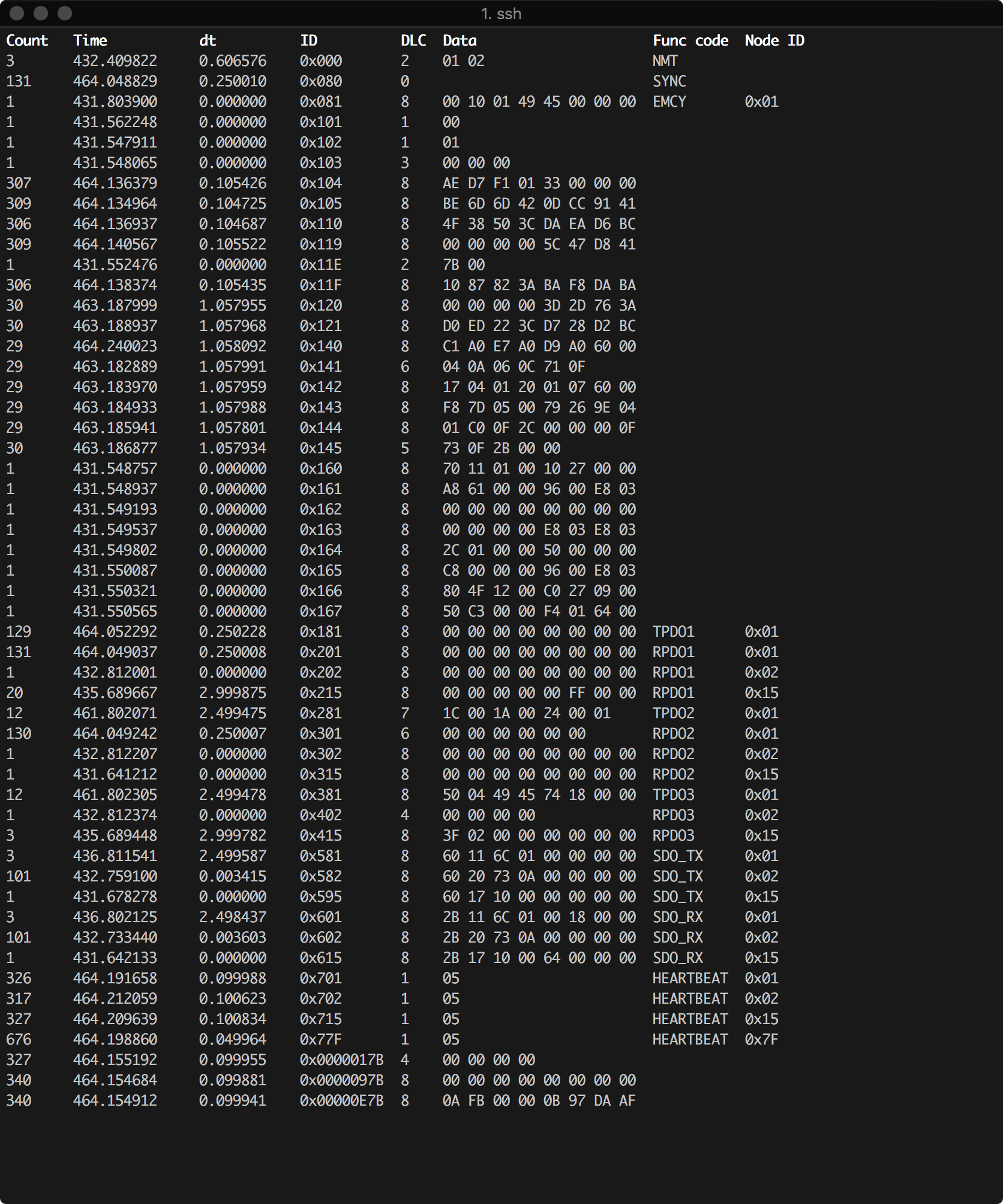
The first column is the number of times a frame with the particular ID has been received, next is the timestamp of the frame relative to the first received message. The third column is the time between the current frame relative to the previous one. Next is the length of the frame and then the data.
The last two columns are the decoded CANopen function code and node ID. If CANopen is not used, then they can simply be ignored.
Command line arguments
By default it will be using the socketcan interface. All interfaces supported by python-can are supported and can be specified using the -i argument.
The full usage page can be seen below:
Usage: python -m python_can_viewer [-h] [--version] [-b BITRATE] [-c CHANNEL]
                                   [-d {<id>:<format>,<id>:<format>:<scaling1>:...:<scalingN>,file.txt}]
                                   [-f {<can_id>:<can_mask>,<can_id>~<can_mask>}]
                                   [-i {iscan,ixxat,kvaser,neovi,nican,pcan,serial,slcan,socketcan,socketcan_ctypes,socketcan_native,usb2can,vector,virtual}]
                                   [--ignore-canopen]

A simple CAN viewer terminal application written in Python

Optional arguments:
  -h, --help            Show this help message and exit
  --version             Show program's version number and exit
  -b, --bitrate BITRATE
                        Bitrate to use for the given CAN interface
  -c, --channel CHANNEL
                        Most backend interfaces require some sort of channel.
                        for example with the serial interface the channel
                        might be a rfcomm device: "/dev/rfcomm0" with the
                        socketcan interfaces valid channel examples include:
                        "can0", "vcan0". (default: use default for the
                        specified interface)
  -d, --decode {<id>:<format>,<id>:<format>:<scaling1>:...:<scalingN>,file.txt}
                        Specify how to convert the raw bytes into real values.
                        The ID of the frame is given as the first argument and the format as the second.
                        The Python struct package is used to unpack the received data
                        where the format characters have the following meaning:
                              < = little-endian, > = big-endian
                              x = pad byte
                              c = char
                              ? = bool
                              b = int8_t, B = uint8_t
                              h = int16, H = uint16
                              l = int32_t, L = uint32_t
                              q = int64_t, Q = uint64_t
                              f = float (32-bits), d = double (64-bits)
                        Fx to convert six bytes with ID 0x100 into uint8_t, uint16 and uint32_t:
                          $ python -m python_can_viewer -d "100:<BHL"
                        Note that the IDs are always interpreted as hex values.
                        An optional conversion from integers to real units can be given
                        as additional arguments. In order to convert from raw integer
                        values the values are multiplied with the corresponding scaling value,
                        similarly the values are divided by the scaling value in order
                        to convert from real units to raw integer values.
                        Fx lets say the uint8_t needs no conversion, but the uint16 and the uint32_t
                        needs to be divided by 10 and 100 respectively:
                          $ python -m python_can_viewer -d "101:<BHL:1:10.0:100.0"
                        Be aware that integer division is performed if the scaling value is an integer.
                        Multiple arguments are separated by spaces:
                          $ python -m python_can_viewer -d "100:<BHL" "101:<BHL:1:10.0:100.0"
                        Alternatively a file containing the conversion strings separated by new lines
                        can be given as input:
                          $ cat file.txt
                              100:<BHL
                              101:<BHL:1:10.0:100.0
                          $ python -m python_can_viewer -d file.txt
  -f, --filter {<can_id>:<can_mask>,<can_id>~<can_mask>}
                        Comma separated CAN filters for the given CAN interface:
                              <can_id>:<can_mask> (matches when <received_can_id> & mask == can_id & mask)
                              <can_id>~<can_mask> (matches when <received_can_id> & mask != can_id & mask)
                        Fx to show only frames with ID 0x100 to 0x103:
                              python -m python_can_viewer -f 100:7FC
                        Note that the ID and mask are alway interpreted as hex values
  -i, --interface {iscan,ixxat,kvaser,neovi,nican,pcan,serial,slcan,socketcan,socketcan_ctypes,socketcan_native,usb2can,vector,virtual}
                        Specify the backend CAN interface to use. (default: "socketcan")
  --ignore-canopen      Do not print CANopen information
Shortcuts
| Key | Description |
|---|---|
| ESC/q | Exit the viewer |
| c | Clear the stored frames |
| SPACE | Pause the viewer |
| UP/DOWN | Scroll the viewer |
Misc
I would recommend the following board for testing on a Raspberry Pi: http://skpang.co.uk/catalog/pican2-canbus-board-for-raspberry-pi-23-p-1475.html.
The CAN interface can be setup like so:
sudo apt-get -y install can-utils
sudo raspi-config nonint do_spi 0
sudo sh -c 'echo "dtoverlay=mcp2515-can0,oscillator=16000000,interrupt=25" >> /boot/config.txt'
sudo sh -c 'echo "dtoverlay=spi0-hw-cs" >> /boot/config.txt'
For more information send me an email at lauszus@gmail.com.
1 maintainer

Metadata
1 maintainer
Release files for Python-CAN-Viewer 0.2.0
For a detailed explanation of source distributions (sdists) and built distributions (wheels), please see the package formats documentation.
Source distribution (sdist)
| File | Size | Uploaded | |
|---|---|---|---|
| Python CAN Viewer-0.2.0.tar.gz | 17.8 kB | Details |
Built distribution (wheel)
| File | Interpreter | ABI | Platform | Reset |
|---|---|---|---|---|
| Python_CAN_Viewer-0.2.0-py3-none-any.whl | Python 3 | none | any | Details |
Total release size: 30.0 kB
Release files / Python CAN Viewer-0.2.0.tar.gz
| Download URL | Python CAN Viewer-0.2.0.tar.gz |
|---|---|
| Size | 17.8 kB |
| Tags | Source |
|
SHA-256 checksum How to use checksums |
7b198c22475c4d116f1882bd8c7391e43061dcbc98b30c2baab9bbfabaa98e6b
|
|
BLAKE2b-256 checksum How to use checksums |
e56445adc0db555bc15ffc72c83ca5a3575661742064f6f9875e5174138407cf
|
| Upload date | |
|
Uploaded using Trusted Publishing? What is trusted publishing? |
No |
| Uploaded via |
twine/1.11.0 pkginfo/1.4.2 requests/2.19.1 setuptools/40.0.0 requests-toolbelt/0.8.0 tqdm/4.24.0 CPython/3.7.0
|
Release files / Python_CAN_Viewer-0.2.0-py3-none-any.whl
| Download URL | Python_CAN_Viewer-0.2.0-py3-none-any.whl |
|---|---|
| Size | 12.2 kB |
| Tags | Python 3 |
|
SHA-256 checksum How to use checksums |
6dadee2cc045be13c49de95e165568e8483da6f95434fdbc64c5b86847ffae48
|
|
BLAKE2b-256 checksum How to use checksums |
39c3ce11ca45d6713a9658a262905bfddc98fa8e914db7a6418cc7c03159206e
|
| Upload date | |
|
Uploaded using Trusted Publishing? What is trusted publishing? |
No |
| Uploaded via |
twine/1.11.0 pkginfo/1.4.2 requests/2.19.1 setuptools/40.0.0 requests-toolbelt/0.8.0 tqdm/4.24.0 CPython/3.7.0
|














