
studip-router — Stud.IP files, sorted into your folders
Terms · Quick start · Usage · Configuration · Commands · FAQ · Troubleshooting





Course files in, your folder structure out. Most Stud.IP downloaders mirror
the course's folder tree. studip-router files every document into the folders
you already use — whatever you call them (Exercises, Übungen, Hausaufgaben,
Slides, Skript, Exams/Past papers, …) — with per-course rules, because every
lecturer organises their course differently:
studip
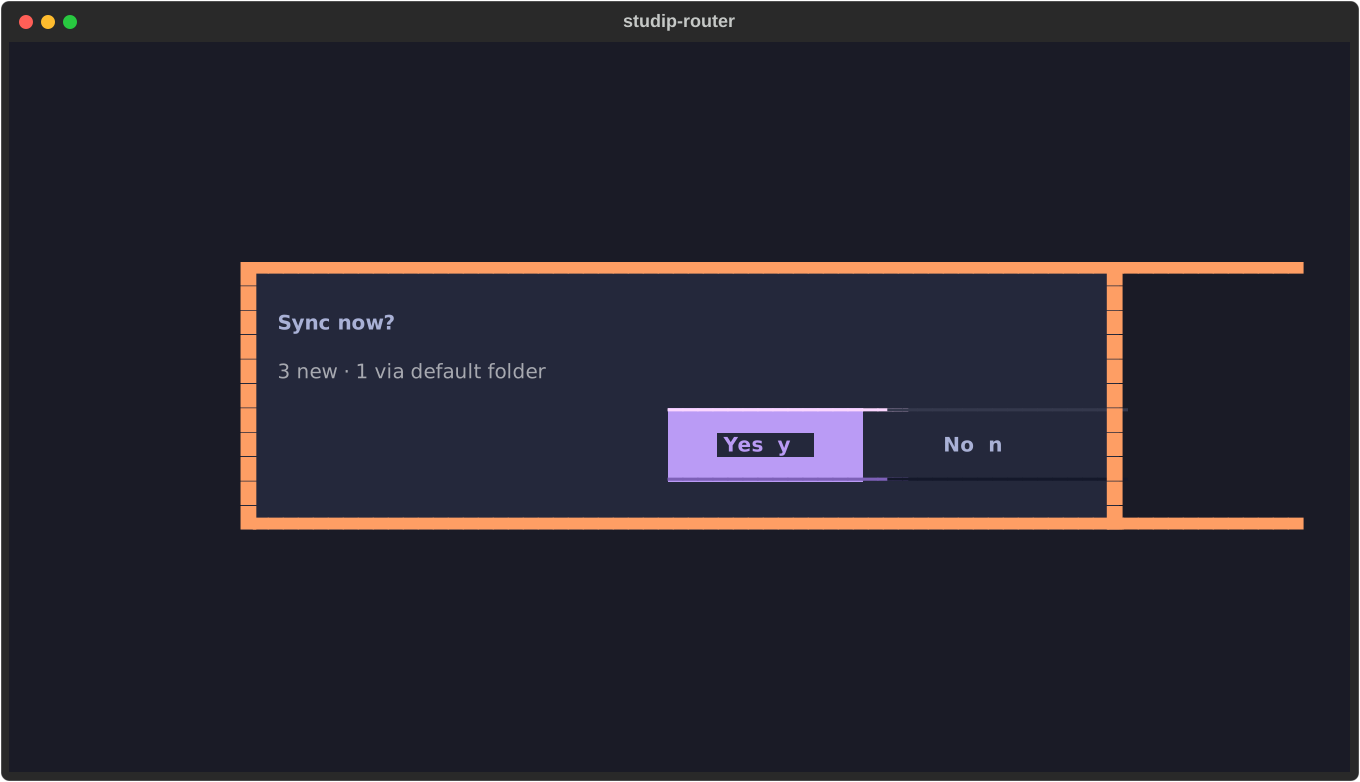
Press s, confirm the one-line summary, done. A second run downloads nothing
unless something changed on Stud.IP.
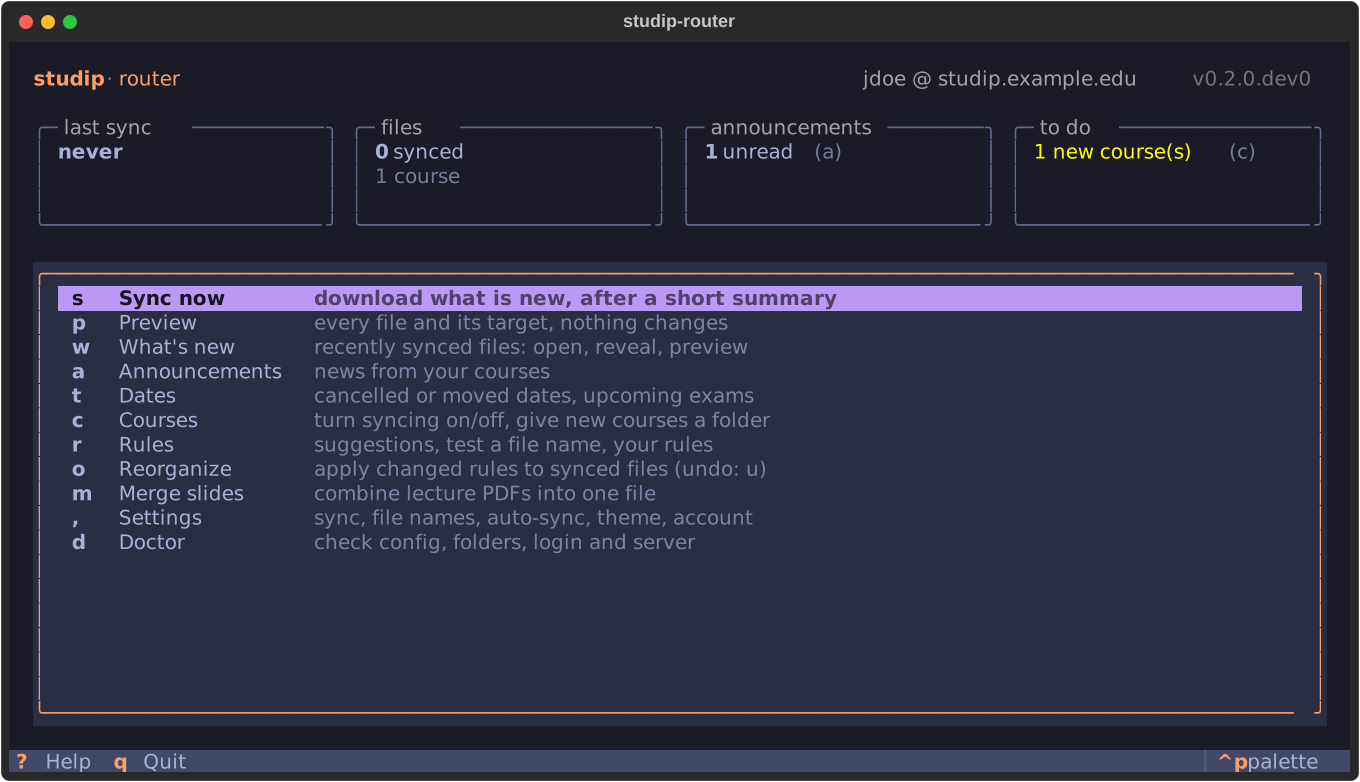
The home screen: status cards on top, every common action on one key. All course names in the screenshots are made up.
Contents
- Terms in one sentence
- Features
- Quick start · Defaults
- Requirements · Installation
- Usage
- Where files go · Configuration
- Command reference
- How it stays safe
- Tricky files
- FAQ
- Troubleshooting
- Development · Use of AI · Credits · License
Terms in one sentence
| Term | Meaning |
|---|---|
| Root | The folder that contains your course folders, e.g. ~/Uni/Semester 5 (sync.root). |
| Target | Where a course or a rule puts its files, relative to the root or the course folder. |
| Rule | A per-course if this file looks like X, put it into folder Y and name it Z. First match wins. |
| Auto-route | No rule matches, but the Stud.IP folder name is clear (Übungen, Slides, …): the file goes to your matching folder. |
| Default folder | Where files go that no rule matches (sync.default_target, e.g. Sonstiges). |
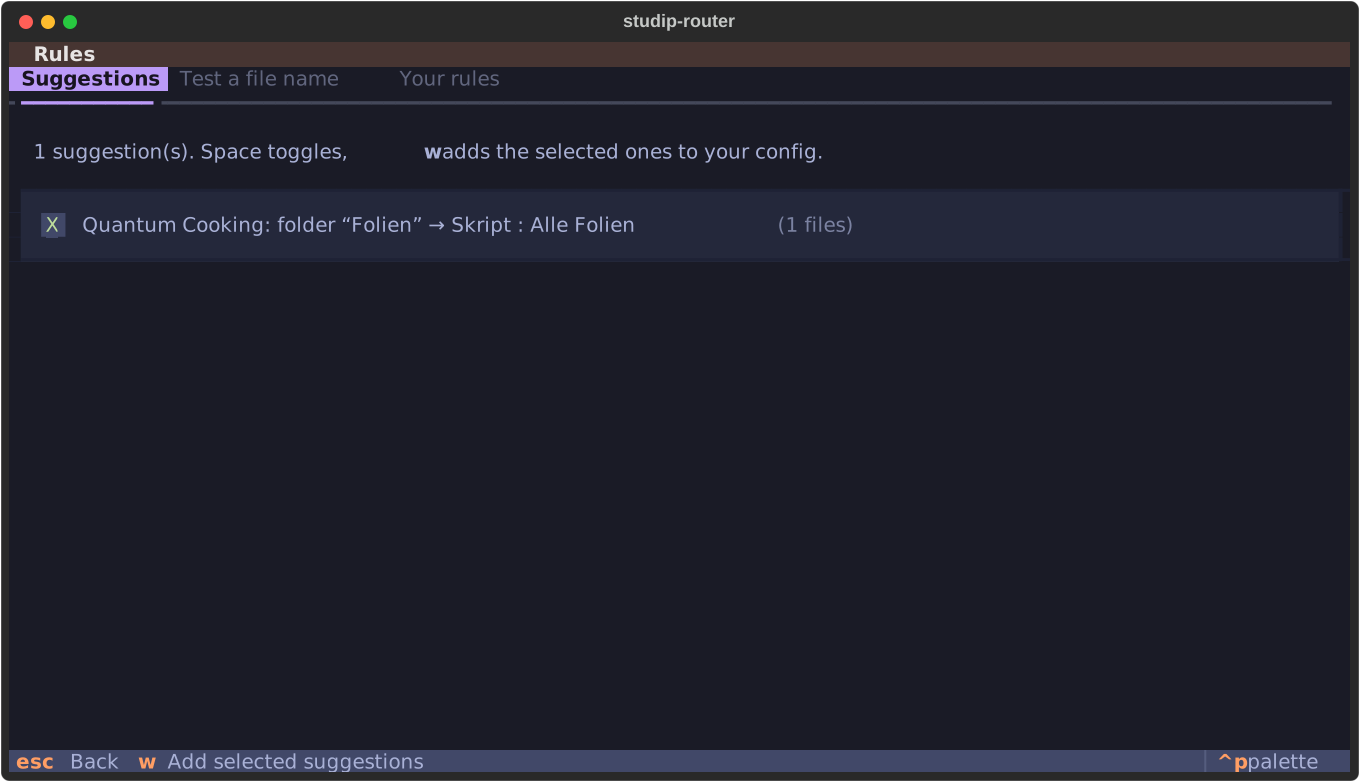
| Suggestion | A rule the tool proposes by comparing Stud.IP folder names with your local folder names (German and English). |
| Adopt | A file you already downloaded by hand is recorded instead of downloaded a second time. |
| Version | A file that changed on Stud.IP is saved as name_v2.pdf next to the old one; nothing is replaced. |
| Dry run | Shows exactly what a sync would do without touching any of your files — it uses the same planner as the real run. |
| Profile | A separate config and state, e.g. for a second university (--profile NAME). |
Features
| One key to sync | run studip, press s, confirm the summary. |
| Incremental | only new or changed files are downloaded; a second run does nothing. |
| Rule-based routing | per course, first match wins: Stud.IP folder, folder type, file name (glob/regex), extension, MIME type, size, date, description. |
| Automatic routing | a file no rule matches still lands in the right folder when its Stud.IP folder says what it is (Übungen, Tutorium, Notebooks, Folien, Slides, Vorlesung, …) — also for folders created mid-semester. |
| Rule suggestions | understand German and English folder names on both sides (Übungsblätter, Homework, Tutorium … → your Exercises/Übungen/… folder) — including courses with one folder per session. |
| Renaming | templates with regex groups (Blatt (\d+) → Exercise_{1:02}{ext}), zero padding, umlauts, spaces, prefixes. |
| Settings screen | every option on one page, change with ←/→ (or h/l), saved immediately — comments in your config file are kept. |
| Knows your existing files | hand-downloaded files are recognised (even as Name_with_underscores.pdf); a file you moved within the course folder is followed. |
| Updates become versions | a changed file becomes name_v2.pdf (configurable). Renames, moves and re-uploads of the same content never create copies. |
| Robust | a failing course is reported while all others still sync; messy names, interrupted transfers, HTML error pages, broken ZIPs and iCloud are handled — see tricky files. |
| Background sync | with desktop notifications, also about problems; a failed login pauses it so a changed password cannot lock your account. |
| Changed dates | after each sync: cancelled, moved and re-roomed course dates and new exam dates — in the summary and as a notification; studip dates lists upcoming exams. |
| Locked PDFs | one shared PDF password per course (keychain) — PDFs locked with it are stored without it; see FAQ. |
| Extras | Courseware files (opt-in), announcements, ZIP extraction, merged slide PDFs, never-download list, --json output, profiles. |
Quick start
uv tool install studip-router
studip
The first start opens a setup in three steps. Every field is prefilled with a good guess, so usually you only press Enter:
| Step | Asks for | Prefilled with |
|---|---|---|
| 1/3 | Stud.IP address, username, password | — (the password goes to the OS keychain) |
| 2/3 | where your course folders live | the folder that already contains most of your courses — searched in iCloud Drive, Documents, Desktop, Dropbox, OneDrive, Google Drive, Nextcloud. Nothing found: a new iCloud Drive/Uni/WiSe 2026-27 (without iCloud: ~/Documents/Uni/…) |
| 3/3 | which courses to sync, the subfolders of new course folders, the default folder | the courses that already have a folder (all of them when starting fresh); the subfolders your existing course folders share — otherwise Folien, Übungen, Klausur, Sonstiges |
Missing folders are created after one confirmation, each course folder with the same subfolders. Because their names say what they hold, files land in the right one from the first sync on — no rules needed.
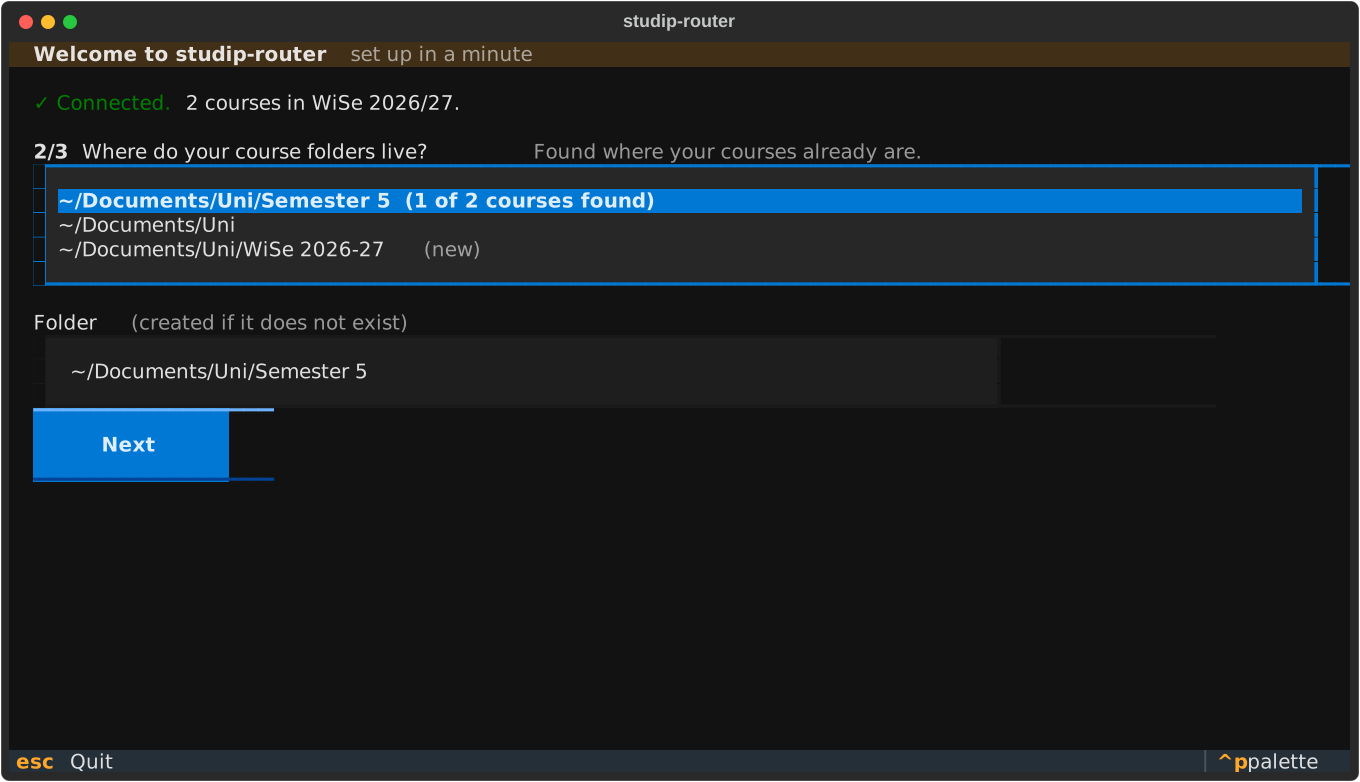
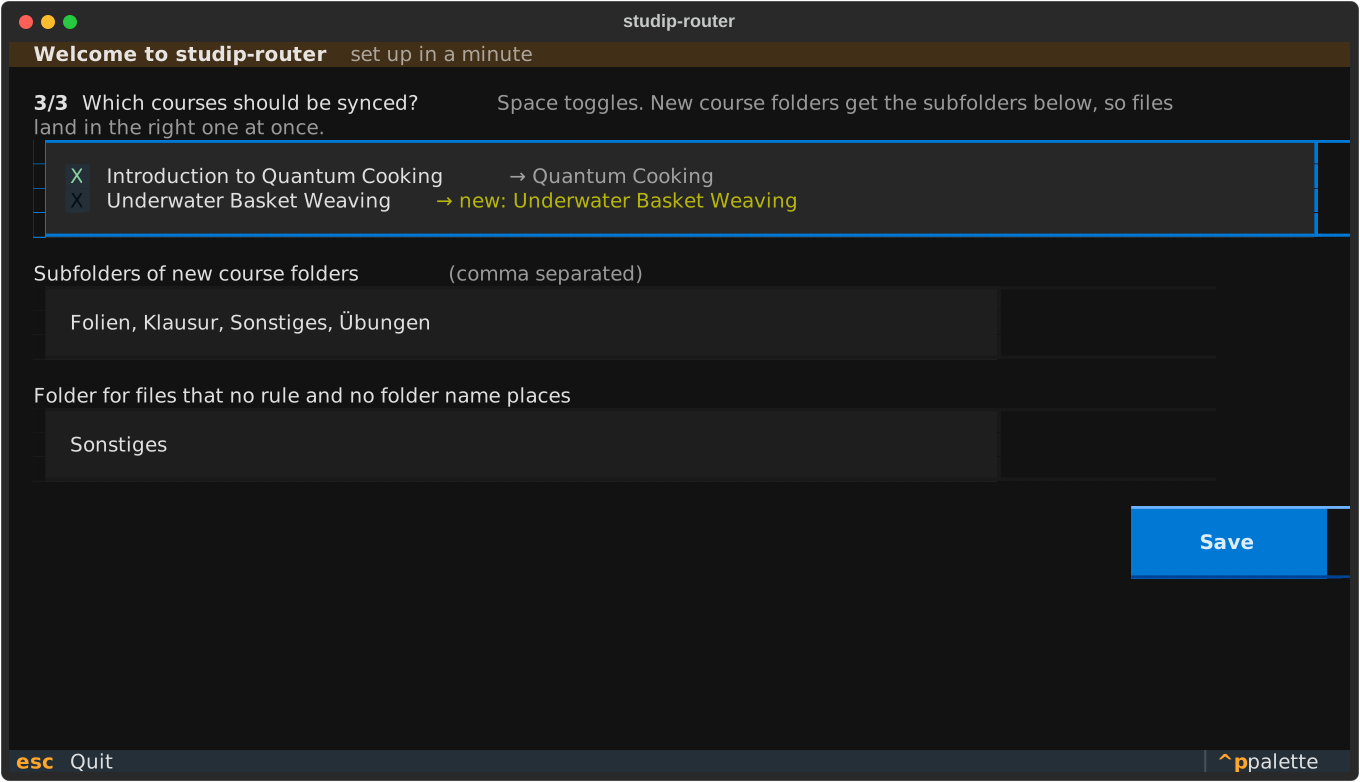
Then: p shows where every file would go, s syncs. studip init is the
same setup in the terminal.
One block, one command: the copy icon takes exactly one call.
Requirements
- Python 3.11+, macOS or Linux. Windows is not supported (not tested; background sync and notifications do not exist there).
- An OS keychain: macOS Keychain, or a Secret Service keyring on Linux (GNOME
Keyring, KWallet). On servers, WSL or containers without one, set
STUDIP_ROUTER_PASSWORDinstead (see Headless use); the password is never stored in a file. - A Stud.IP instance with the JSON:API enabled and username/password login
(local or LDAP accounts). Check:
https://<your-studip>/jsonapi.php/v1/discoverymust open in a browser. - SSO-only accounts (Shibboleth/OIDC without a Stud.IP password) and two-factor authentication are not supported yet — contributions welcome, see docs/DESIGN.md.
Installation
| Tool | Install | Update |
|---|---|---|
| uv | uv tool install studip-router |
uv tool upgrade studip-router |
| pipx | pipx install studip-router |
pipx upgrade studip-router |
Releases come from PyPI, built and
uploaded by this repository's GitHub Actions (changes). A specific
version: uv tool install studip-router==0.2.1. No uv yet? See its
installation (one command;
it brings its own Python). The unreleased state of main:
uv tool install git+https://github.com/nbomers/studip-router.
Shell integration (fish)
cp shell/fish/completions/studip.fish ~/.config/fish/completions/
Completes subcommands, flags and your course folders.
shell/fish/functions/studip.fish is an optional wrapper for running from a
source checkout.
Usage
The terminal UI
| Key | Key | ||
|---|---|---|---|
s |
Sync now (summary → confirm) | r |
Rules: suggestions, test a file name |
p |
Preview every file and its target | o |
Reorganize synced files (u undo) |
w |
What's new: open / reveal / preview | m |
Merge slides into one PDF |
a |
Announcements | t |
Dates: changes and exams |
c |
Courses: sync on/off, choose folders | , |
Settings |
d |
Doctor: check the setup | ? |
all keys |
i |
in preview / what's new: never download this file |
j/k and arrow keys move, Enter opens, Esc goes back.
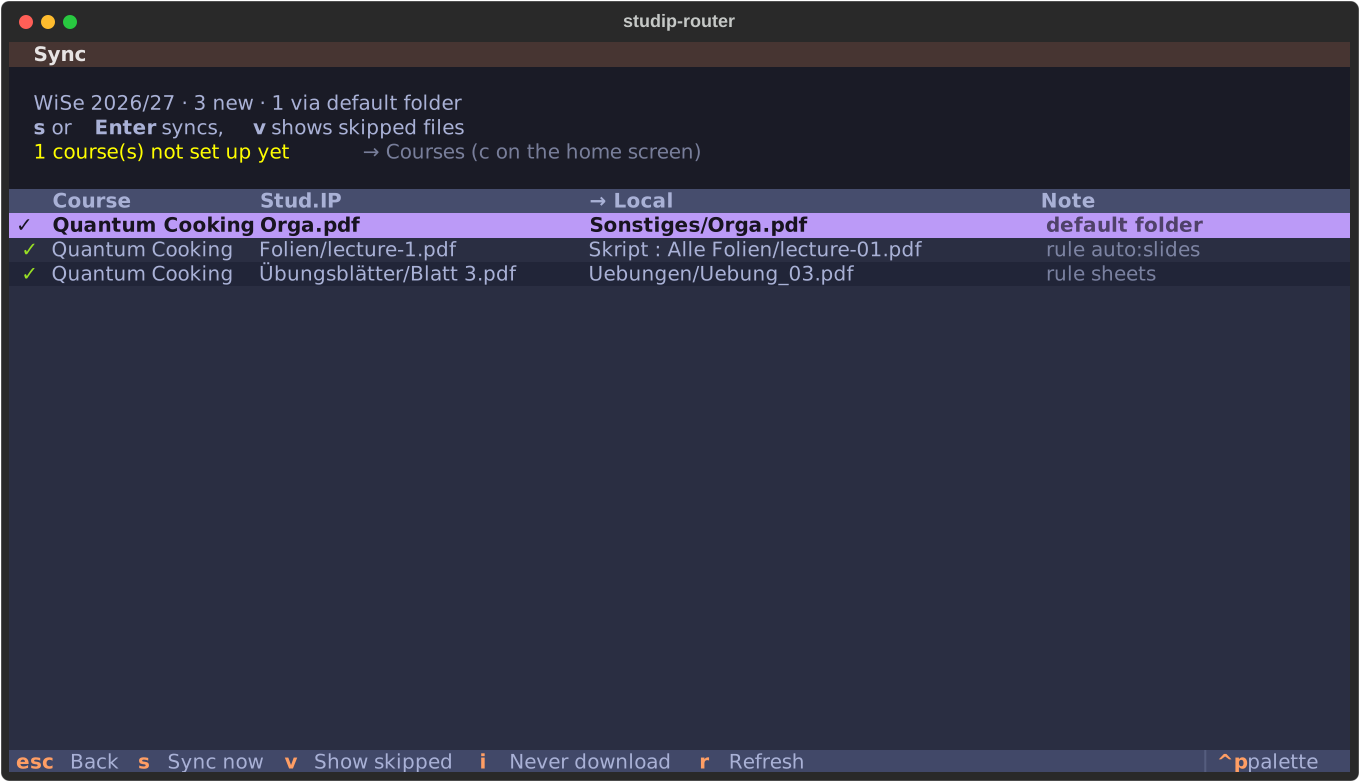
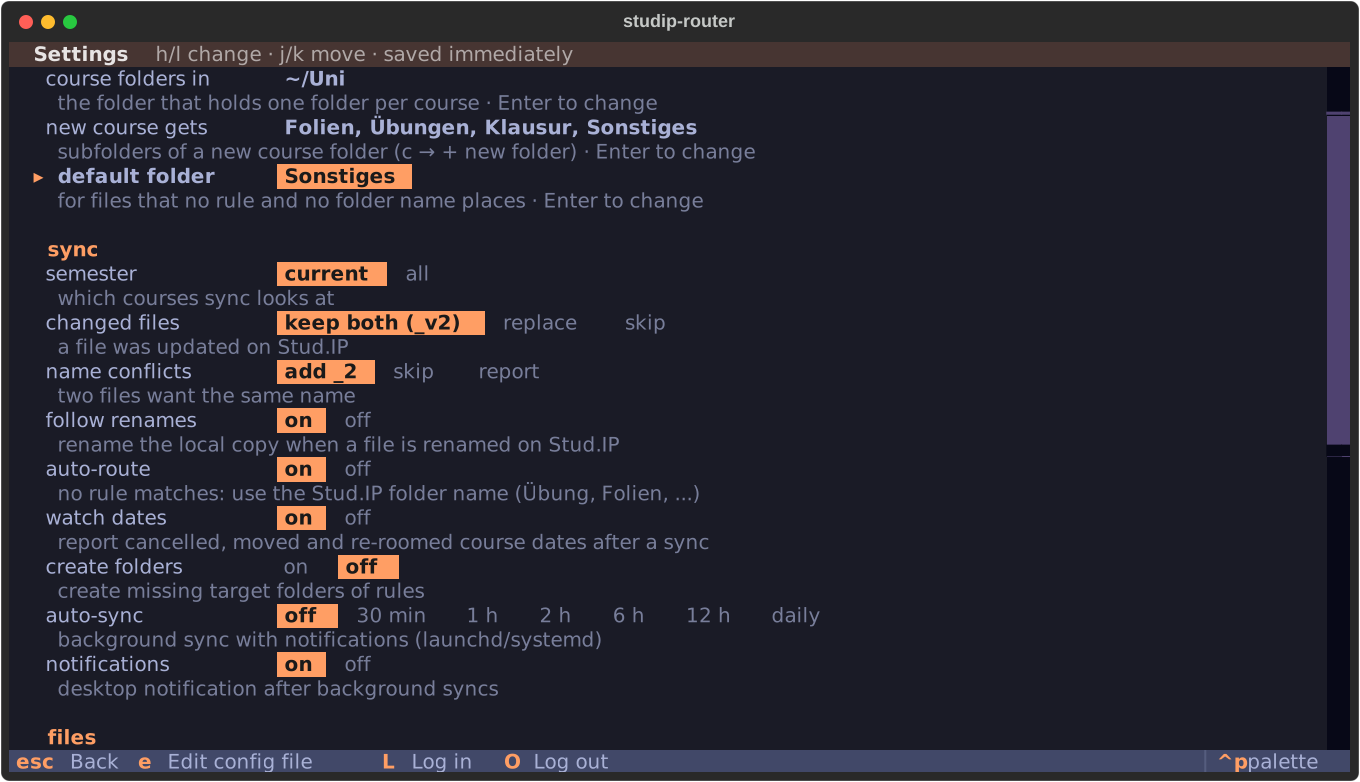
Left the preview — every file, its target and the rule that placed it. Right the settings — saved immediately, comments in the config file are kept.
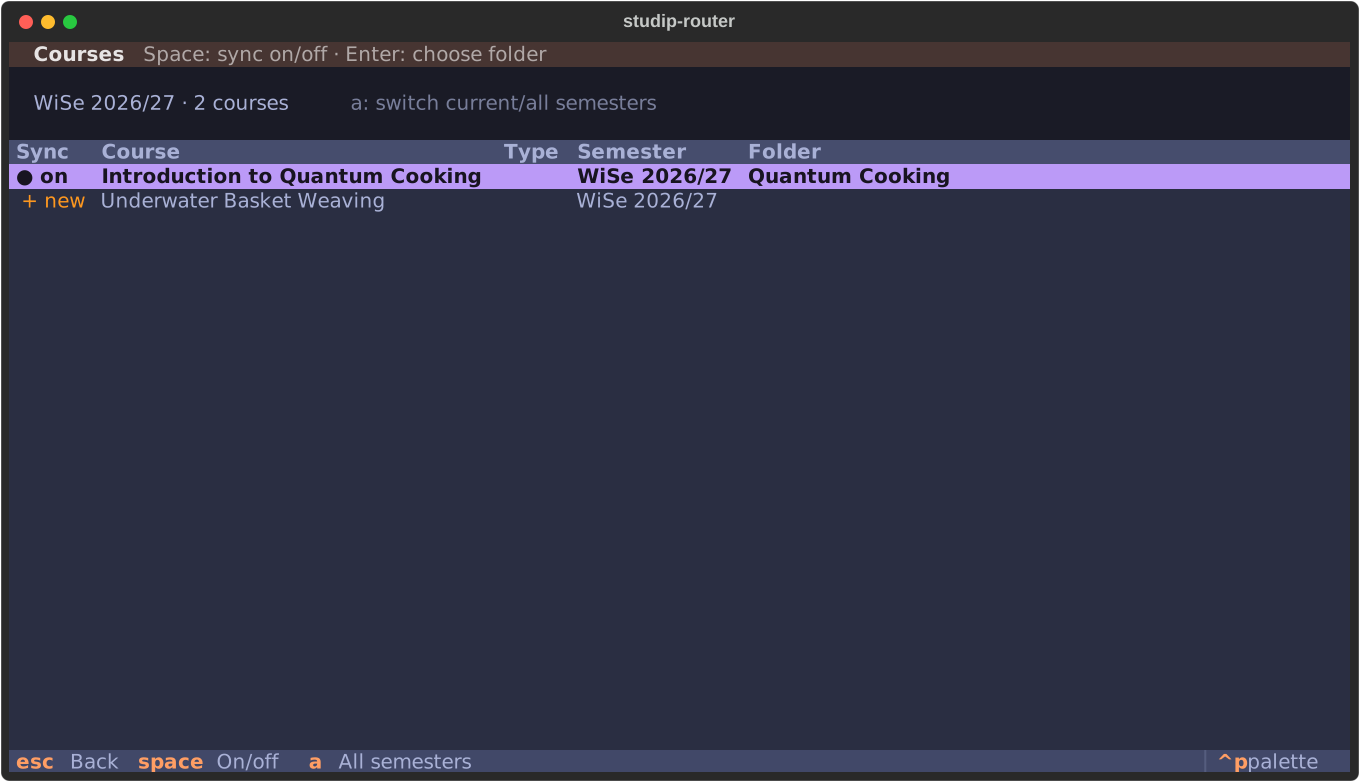
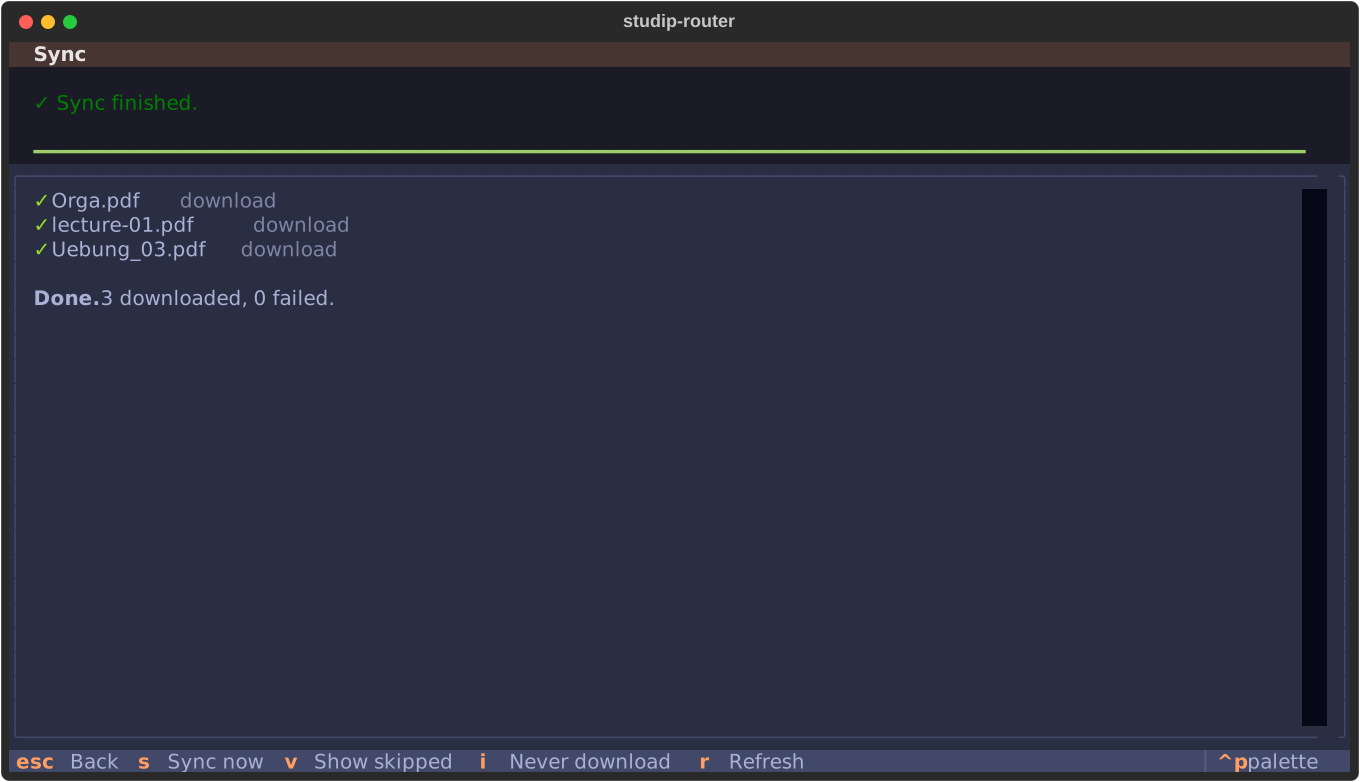
More screenshots: rule suggestions, courses, sync
The command line
Everything works without the UI:
studip init
studip rules suggest --write
studip sync --dry-run
studip sync
Setup, add the suggested rules, see exactly what would happen, do it.
Defaults and how to change them
| What | Default | Change it |
|---|---|---|
| Folder with your course folders | found by the setup | settings (,) → course folders in · sync.root |
| Subfolders of a new course folder | your existing structure, else Folien, Übungen, Klausur, Sonstiges |
settings → new course gets · sync.course_folders |
| Files nothing places | Sonstiges (created when needed) |
settings → default folder · sync.default_target |
Sorting by Stud.IP folder name (Übungen → your exercise folder, …) |
on | settings → auto-route · sync.auto_route |
| Your own routing and renaming | none needed | r (suggestions, test a name) · [[courses.<id>.rules]] |
| New course mid-semester | listed as new | c → pick a folder or + new folder |
| Videos, files > 200 MB, Courseware import images | skipped | settings → skip videos, size limit · sync.exclude |
| Changed file on Stud.IP | kept next to the old one as _v2 |
settings → changed files · sync.on_update |
| File names | as on Stud.IP, numbers padded (1 → 01) |
settings → names · [rename] |
| Reports changed course dates | on | settings → watch dates · sync.watch_dates |
| Background sync | off | settings → auto-sync · studip schedule install |
In the settings screen h/l switches options and Enter edits a text value;
every change is saved at once. The config file (e in the settings,
studip config edit) has the same keys, with comments kept.
Where files go
~/Uni/Semester 5/                  sync.root — you pick it in the setup
├── Quantum Cooking/               one folder per course (its target)
│   ├── Exercises/                 by a rule, or automatically from a Stud.IP
│   ├── Slides/                    folder name like "Übungen" or "Folien"
│   └── Sonstiges/                 everything else (sync.default_target)
└── Underwater Basket Weaving/
| Folder | Where it comes from | Created automatically? |
|---|---|---|
Root (sync.root) |
asked in the setup; files go into the course folders inside it (unless you give a course an absolute target). /, your home folder itself and system folders are refused |
the setup in the UI expects an existing folder; studip init creates it together with the course folders |
| Course folder | the setup matches each course to an existing folder in the root | the setup (UI and studip init) offers to create missing ones; for a new course choose + new folder under c. A course folder that disappears later is an error (renamed or moved?), never silently recreated |
Default folder (Sonstiges) |
files that no rule and no folder name places | yes, the first time a file needs it |
| Rule targets | target of your rules |
no: a missing one is an error, so a typo never creates folders. sync.create_missing_dirs = true creates them |
| Automatic targets | your existing folders whose names match (Übungen, Folien, …) |
never needed: only existing folders are used |
Courses you never set up are not synced, unless you set
sync.only_configured_courses = false: then each gets a folder named like the
course, created automatically.
Config, state and log stay outside your course folders (also on macOS):
~/.config/studip-router/config.toml and ~/.local/state/studip-router/.
Configuration
The config lives at ~/.config/studip-router/config.toml (studip config path).
Most options are in the settings screen; rules are written in the file. The fully
commented reference is config.example.toml.
[server]
base_url = "https://studip.example.edu"
username = "jdoe"                         # password: OS keychain only

[sync]
root = "~/Uni/Semester 5"
default_target = "Misc"                   # where files go that no rule matches

[courses.0123456789abcdef0123456789abcdef]   # Stud.IP course ID (`studip courses`)
name = "Quantum Cooking"
target = "Quantum Cooking"

[[courses.0123456789abcdef0123456789abcdef.rules]]
id = "sheets"
match = { folder = "Übungsblätter*", name_regex = '(?:blatt|sheet)[ _]?(\d+)' }
target = "Exercises"
rename = "Exercise_{1:02}{ext}"
Test a rule without downloading anything (also in the UI under r):
studip rules test quantum "Blatt 7.pdf" --folder "Übungsblätter"
Rule sheets
  → ~/Uni/Semester 5/Quantum Cooking/Exercises/Exercise_07.pdf
Settings reference
| Key | Default | Meaning |
|---|---|---|
sync.semester |
"current" |
"current", "all" or a title like "WiSe 2026/27" |
sync.on_update |
"version" |
changed remote file: version (_v2), overwrite, skip |
sync.on_conflict |
"suffix" |
two files, same name: suffix (_2), skip, error |
sync.default_target |
"Sonstiges" |
folder for files no rule matches (init detects yours) |
sync.course_folders |
your structure / Folien, Übungen, Klausur, Sonstiges |
subfolders of every course folder the setup or c creates |
sync.create_missing_dirs |
false |
create rule target folders that do not exist (the default folder is always created) |
sync.unzip |
false |
extract .zip downloads next to the archive |
sync.notify |
true |
notification after background syncs |
sync.auto_route |
true |
no rule matches: use the Stud.IP folder name (Übung, Folien, …) before the default folder |
sync.watch_dates |
true |
report cancelled, moved and re-roomed dates after a sync |
sync.follow_renames |
true |
rename the local copy when a file is renamed on Stud.IP |
sync.courseware |
false |
also sync files from Courseware pages (per course: courses.<id>.courseware) |
sync.only_configured_courses |
true |
false: sync every course into a folder named like it |
sync.exclude |
videos, > 200 MB, CoursewareImport* folders |
globs, mime, max_size_mb (0 = no limit), folders |
rename.pad_numbers |
2 |
lecture-1 → lecture-01; 0 disables |
rename.spaces / umlauts / lowercase |
keep | _ or - / transliterate / true |
rename.portable |
true |
replace : * ? " < > | (Windows, OneDrive, iCloud) |
rename.strip_prefixes |
[] |
e.g. ["Vorlesung_"] |
ui.theme |
"tokyo-night" |
terminal UI colours |
courses.<id>.exclude |
false |
never touch this course |
courses.<id>.merge |
– | { source = "Slides", output = "All slides.pdf" } |
From scripts: studip config set sync.on_update skip.
Command reference
| Command | |
|---|---|
studip |
terminal UI |
studip sync [--dry-run] [--course X] [--semester S] [--include-large] |
sync |
studip courses |
courses with status active / excluded / new |
studip status |
new courses, files only placed by the default folder |
studip rules list / test / suggest [--write] |
inspect and create rules |
studip reorganize / studip undo |
apply changed rules to synced files / revert |
studip history / studip news |
recently synced files / unread announcements |
studip dates [--offline] [--days 14] |
changed course dates and upcoming exams |
studip merge |
merge slide PDFs |
studip schedule install --every 120 / run-now / uninstall |
background sync (opt-in) |
studip ignore add / list / remove |
files you never want |
studip pdf-password set / list / remove COURSE |
unlock a course's password-protected PDFs |
studip doctor [--test-notification] |
check config, folders, keychain, server, scheduler |
studip auth login / status / logout |
password in the OS keychain |
studip config path / validate / edit / set |
config file |
Global options: --profile NAME (separate config + state, e.g. a second
university), --json (machine-readable output for scripts, Raycast, Alfred, …).
How it stays safe
| Promise | How |
|---|---|
| Nothing is ever deleted | files removed on Stud.IP are only reported. |
| Nothing is overwritten unnoticed | name clashes get a suffix, updates become _v2; overwrite mode never replaces a file you edited (size/mtime/hash check against the state, repeated right before the file is replaced, so an edit made while the preview is open is kept too). |
| Dry run == real run | both use the same planner; the real run only executes the plan and re-checks every file before it writes. A dry run touches none of your files (it only creates the state database and log). |
| Downloads are atomic | name.part, fsync, rename, fsync of the folder. Ctrl-C leaves no partial files. |
| Your password stays put | only in the OS keychain (or STUDIP_ROUTER_PASSWORD) — never in the config, state, logs or output; crash reports of the UI show no variable values. A rejected login stops at the first attempt and pauses auto-sync, so a wrong password cannot lock your account. |
| Config edits are checked | settings screen and rule suggestions validate before writing; the first change keeps a config.toml.bak. |
| Private files | state database and log (course names, paths) are readable only by you (0600, folder 0700). |
| Stays on your machine | the only server contacted is your server.base_url; no telemetry, no update checks. |
Found a security problem? See SECURITY.md.
Tricky files
What happens with odd names, broken downloads, iCloud & co.
| Situation | What happens |
|---|---|
: * ? " < > | in names |
replaced (Kapitel 1: Intro → Kapitel 1 - Intro), so the folder also syncs to Windows/OneDrive/iCloud for Windows (rename.portable) |
| names longer than 255 bytes (umlauts count twice) | shortened, extension kept, room left for _v2 |
/, control and bidi characters, leading dot, trailing dots/spaces, CON/NUL… |
made safe (Lösung\u202Efdp.exe cannot pose as a PDF) |
& & co. in Stud.IP names |
decoded |
| file without extension | added from the MIME type (Blatt 1 + PDF → Blatt 1.pdf) |
upper/lower case, NFC/NFD (ü vs u + ¨) |
treated as the same name; no duplicates |
| two files want the same name | name_2.pdf (or skip/report) |
hand-downloaded Homework_1.pdf vs Homework 1.pdf on Stud.IP |
recognised as the same file |
| interrupted download, wrong size | retried; never leaves half files |
| Stud.IP sends a login/error page instead of the file | rejected and reported, retried next time |
| Stud.IP reports a slightly wrong size | accepted once two downloads agree; a file far bigger than announced (or than the size limit) is stopped while downloading |
[b], [link=…] in titles, file names or announcements |
shown as text, never as formatting or a clickable link |
| a server that pages endlessly or repeats pages | stopped; every record is used once |
| one file fails | the others continue; the failed one is retried next sync |
files only in iCloud (also old .name.icloud placeholders) |
never downloaded just to compare |
| ZIPs with garbled umlaut names, ZIP-slip, ZIP bombs | names repaired and made safe, unsafe archives refused (more than 1 GiB, 20 000 entries or a compression ratio above 200:1) |
H2O, Python3, IPv6, A4, 2x2 |
left alone by number padding (only standalone numbers are padded) |
| renamed / moved / re-uploaded on Stud.IP | followed; identical content is never stored twice |
| two syncs at once (auto-sync + manual) | the second one stops with a message instead of racing |
| crash or power loss mid-download | leftover temp files are cleaned up after a day |
| university CA or TLS-inspecting proxy | the operating system's certificate store is used |
| link to an external site redirects elsewhere | your credentials are never sent to the other host; redirects to plain http:// are refused |
FAQ
My folders have different names than in the examples.
That's the point: targets are whatever folders you have. studip init, the rule
suggestions and automatic routing detect them (German and English, with or
without umlauts) and never pick archive folders like old or Archiv. Files
whose Stud.IP folder says nothing clear (Tag 1, Material) go to the default
folder; add a rule for those.
I already downloaded files by hand. Will they be downloaded twice?
No. A file with the same name (spaces, _, - treated alike) and size anywhere
in the course folder is recorded instead. A same-named file with different
content that you fetched this semester is treated as an older version: the new
one goes next to it as _v2.
Limit: a hand-downloaded file with the same name and the same size is not compared byte by byte (that would mean downloading it). If you keep an unrelated file under exactly the remote name, rename it before the first sync.
I deleted a file locally. Will it come back?
Yes, the next sync downloads it again. Files you never want: press i on them
(preview or what's new), studip ignore add NAME, a rule with skip = true, or
sync.exclude.
The lecturer renamed or re-uploaded a file. Do I get duplicates?
No. A rename or move on Stud.IP renames your local copy (unless you edited it).
A re-upload under the same name becomes name_v2.pdf — or nothing at all if the
content is identical.
What happens at the end of the semester?
Courses you set up keep syncing (retake exams, late solutions) until you switch
them off under c. Courses of the next semester show up as "new" a few weeks
before it starts. For a new semester folder, point sync.root to it
(studip config set sync.root "~/Uni/Semester 6") or give courses absolute
targets (they may lie outside the root; studip doctor lists them). Older semesters: studip sync --semester "SoSe 2026", --semester all,
or a in the courses screen.
Does it get the files inside Courseware?
Turn on courseware in the settings (or per course in the config).
studip doctor tells you which of your courses use Courseware. Videos are
skipped by default (skip videos).
Which date changes are reported?
After every sync the course dates are compared with the last check: cancelled (and taking place again), moved (new day or time), room changed, removed, and new exam dates (category Klausur / Prüfung). Only dates that are still ahead count. The first check of a course only remembers its dates, so a new semester starts quietly; a room filled in for the first time is no news either.
Background syncs send one notification for all changes. studip dates (or t)
shows the changes of the last two weeks and your upcoming exams. Turn it off with
watch dates in the settings.
A course protects every PDF with the same password.
studip pdf-password set "Quantum Cooking"
The password goes into the OS keychain. PDFs of the course synced so far are unlocked right away, every new one during the sync — the date stays the Stud.IP date, and an identical re-upload still creates no copy.
Left untouched, byte for byte: other files, PDFs without a password, PDFs that
open without one (print/copy restrictions only), and PDFs locked with a
different password. If the password fits none of them, the course probably
uses one password per file; then unlocking does not help —
studip pdf-password remove COURSE.
iCloud: evicted files, two Macs, Skript / Alle Folien
- Files "optimised" away are fine: evicted files are never downloaded for comparison. Keep the state outside synced folders (the default).
- Two Macs with the same iCloud folder: run auto-sync on one of them only; two machines downloading the same file at the same time make iCloud create "Name 2.pdf" conflict copies.
- A folder is called
Skript / Alle Folienin Finder but the tool says it does not exist: macOS shows:as/in Finder. On disk it isSkript : Alle Folien— use that in the config.studip doctorpoints this out.
Troubleshooting
| Problem | Fix |
|---|---|
authentication failed (HTTP 401) |
studip auth login (or L in settings); your account needs a Stud.IP password, not SSO-only |
JSON:API not available (HTTP 404) |
the JSON:API is disabled at your university; ask the Stud.IP admins |
target folder does not exist |
a rule points to a folder that is missing: create it, fix the rule target, or turn on create folders in the settings |
course folder does not exist |
the course folder was renamed or moved: point target to it (c in the UI) or create it |
received an HTML page instead of the file |
log in to Stud.IP in the browser and check the file is accessible |
another studip-router run is in progress |
auto-sync is running right now; try again in a minute |
auto-sync paused after a failed login |
studip auth login (or L in the settings) resumes it |
| no notifications | studip doctor --test-notification; allow notifications for "Script Editor" in System Settings |
| background sync cannot read the password | studip schedule run-now and choose Always Allow when macOS asks for keychain access (again after uv tool upgrade) |
| a course is listed under "could not be read" | usually a temporary Stud.IP problem; the other courses were synced, the log has details |
| config errors | studip config validate names the exact key, e.g. courses.<id>.rules[2].match.name_regex |
keychain not accessible |
no OS keychain (server, WSL, container): install and unlock a Secret Service keyring, or set STUDIP_ROUTER_PASSWORD for headless use (never put it in a file others can read) |
Stud.IP sent text/html instead of JSON |
your university logs in via SSO, shows a maintenance page, or has the JSON:API disabled |
state … is damaged |
rename the state file as the message says and sync again; files on disk are recognised, nothing is downloaded twice |
| anything else | studip doctor, then the log at ~/.local/state/studip-router/studip-router.log |
Exit codes and JSON
For scripts: 0 success, 1 some files or courses failed, 2 invalid config or
arguments, 3 login or keychain problem, 4 damaged state database, 75 another
run is in progress, 130 interrupted. With --json, errors are printed as
{"error": "..."}; the other fields of --json output may still grow, but existing
ones are kept.
Uninstall
studip schedule uninstall          # background job (per profile: --profile NAME)
studip auth logout                 # Stud.IP password from the keychain
studip pdf-password list           # then `studip pdf-password remove COURSE` for each
uv tool uninstall studip-router    # or: pipx uninstall studip-router
rm -r ~/.config/studip-router ~/.local/state/studip-router
Your course folders and downloaded files are never touched.
Terms of use
The tool logs in with your own account and only reads what you can see in the browser. Check whether your university's terms of use allow automated access; keep the background interval reasonable (at least 15 minutes is enforced, 2 hours is the default). Licensed course material stays licensed after it is downloaded or unlocked.
Development
uv sync
uv run pytest
uv run ruff check . && uv run ruff format --check .
Ground rules, layout and conventions: CONTRIBUTING.md. Invariants, architecture and the Stud.IP API calls: docs/DESIGN.md. Changes: CHANGELOG.md.
Use of AI
The code was written with Claude (Anthropic) via
Claude Code; the commits say so in their
Co-Authored-By lines. What for:
- Writing code — modules, the terminal UI and the tests; run and checked
with
pytestandruffbefore being adopted. - Review and debugging — e.g. file names with decomposed umlauts (NFD) on Linux.
- Documentation — this README, the design notes and the changelog.
Tests run against a fake Stud.IP (tests/fake_studip.py); no real course data,
IDs or accounts are in the repository.
Credits
| License | Use | |
|---|---|---|
| Stud.IP JSON:API | — | the data source |
| HTTPX | BSD-3-Clause | HTTP client |
| Typer | MIT | command line |
| Textual | MIT | terminal UI |
| keyring | MIT | password in the OS keychain |
| tomlkit | MIT | config edits that keep comments |
| pypdf | BSD-3-Clause | merged slide PDFs, unlocking PDFs |
| cryptography | Apache-2.0 / BSD-3-Clause | AES for locked PDFs |
| platformdirs | MIT | config, state and log paths |
| truststore | MIT | the operating system's certificates |
License
The code is under the MIT license.
Not affiliated with the Stud.IP e.V. or any university.
1 maintainer

Metadata
1 maintainer
Release files for studip-router 0.2.3
For a detailed explanation of source distributions (sdists) and built distributions (wheels), please see the package formats documentation.
Source distribution (sdist)
| File | Size | Uploaded | |
|---|---|---|---|
| studip_router-0.2.3.tar.gz | 255.8 kB | Details |
Built distribution (wheel)
| File | Interpreter | ABI | Platform | Reset |
|---|---|---|---|---|
| studip_router-0.2.3-py3-none-any.whl | Python 3 | none | any | Details |
Total release size: 388.0 kB
Release files / studip_router-0.2.3.tar.gz
| Download URL | studip_router-0.2.3.tar.gz |
|---|---|
| Size | 255.8 kB |
| Tags | Source |
|
SHA-256 checksum How to use checksums |
f6d2cd4d662c5c40d32e0b6d53055312679aef5e93aff7ebeca2d9a44065f2d9
|
|
BLAKE2b-256 checksum How to use checksums |
7a3e10e42239615ea80ef782f186fbb1e8e9c586bf8f0d48d0e07998c9df9ba2
|
| Upload date | |
|
Uploaded using Trusted Publishing? What is trusted publishing? |
Yes |
| Uploaded via |
twine/7.0.0 CPython/3.13.14
|
Provenance
Provenance describes where a file came from. On PyPI, provenance is shared via attestations, which provide a verifiable record of the build or publishing details. View details, limitations and caveats.


PyPI Publish Attestation
PyPI verified that this artifact, at this checksum, originated from the publisher listed below.
Signed by GitHub Actions, verified by PyPI on Oct 15, 2026.
Transparency logRelease files / studip_router-0.2.3-py3-none-any.whl
| Download URL | studip_router-0.2.3-py3-none-any.whl |
|---|---|
| Size | 132.2 kB |
| Tags | Python 3 |
|
SHA-256 checksum How to use checksums |
7c3692ea8a701aa60215575c16096d6fadb130e7c504db6a084943df24922f8c
|
|
BLAKE2b-256 checksum How to use checksums |
b949e849f3957f8bacb421776ce56731e45b2c486ba5016f4bbd8d88ea50bd78
|
| Upload date | |
|
Uploaded using Trusted Publishing? What is trusted publishing? |
Yes |
| Uploaded via |
twine/7.0.0 CPython/3.13.14
|
Provenance
Provenance describes where a file came from. On PyPI, provenance is shared via attestations, which provide a verifiable record of the build or publishing details. View details, limitations and caveats.
PyPI Publish Attestation
PyPI verified that this artifact, at this checksum, originated from the publisher listed below.
Signed by GitHub Actions, verified by PyPI on Oct 15, 2026.
Transparency log













