
Sustainability Scanner (SusScanner)

Validate AWS CloudFormation templates against AWS Well-Architected Sustainability Pillar best practices.
Sustainability scanner is an open source tool that helps you create a more sustainable infrastructure on AWS. It takes in your Cloudformation template as input, evaluates it against a set of sustainability best practices and generates a report with a sustainability score and suggested improvements to apply to your template.
SusScanner comes with a set of rule implementations aligned to the AWS Well-Architected Pillar for Sustainability. However, this is not an exhaustive list and new rules will come out as the tool evolves. Furthermore, you can extend these rules (located in the susscanner/rules dir) in accordance with your company-specific sustainability policies.
Sustainability Scanner in action
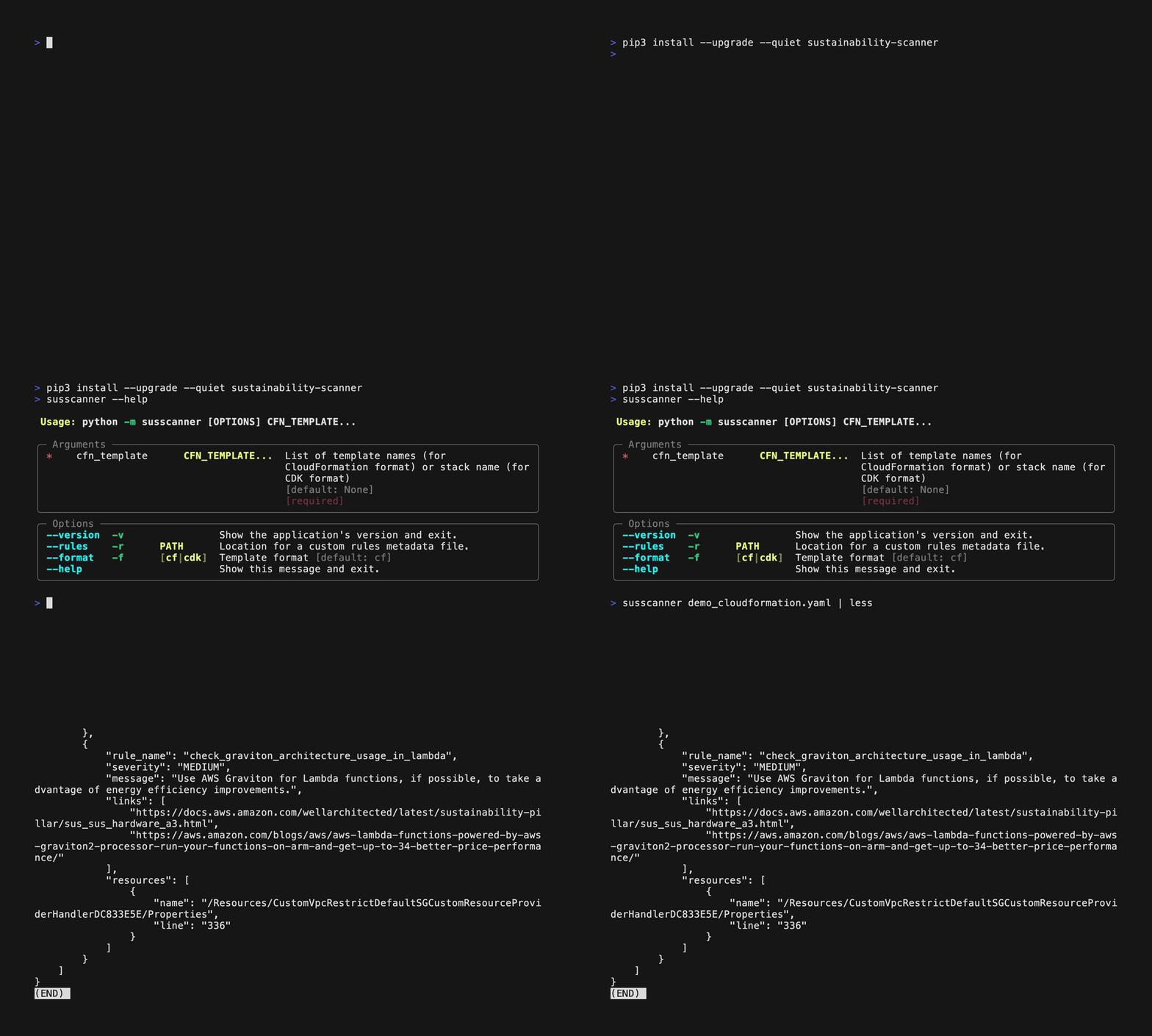
Scroll down to the getting started section to get detailed examples on how to use the tool.
Table of Contents
- Installation
- Prerequisites
- Getting Started
- Install via pip
- Install from source
- Sustainability Score
- Rule Set
- Disabling Rules
- Extending the rule set
- FAQs
- Security
- License
Installation
To install Sustainability Scanner please follow the following instructions.
Prerequisites
- AWS CloudFormation Guard
- an open-source general-purpose policy-as-code evaluation tool which SusScanner builds on top of
- Python 3.6 or later
- check version with
python3 -V
- check version with
- [AWS CDK] (https://docs.aws.amazon.com/cdk/v2/guide/home.html), if you use CDK to define your AWS infrastructure.
Getting Started
There are two options to install the tool:
1. Install via pip
To install the project via pip, you simply have to call
pip3 install sustainability-scanner
Scanning an AWS CloudFormation Template
Run susscanner --help to get a list of options and arguments for the tool.
You should see an output like below:
susscanner --help
 Usage: susscanner [OPTIONS] CFN_TEMPLATE...

╭─ Arguments ──────────────────────────────────────────────────────────────────────────────────────────────────────────────────────────────────────────────╮
│ *    cfn_template      CFN_TEMPLATE...  List of template names (for CloudFormation format) or stack name (for CDK format) [default: None] [required]     │
╰──────────────────────────────────────────────────────────────────────────────────────────────────────────────────────────────────────────────────────────╯
╭─ Options ────────────────────────────────────────────────────────────────────────────────────────────────────────────────────────────────────────────────╮
│ --version  -v                Show the application's version and exit.                                                                                    │
│ --rules    -r      PATH      Location for a custom rules metadata file.                                                                                  │
│ --format   -f      [cf|cdk]  Template format [default: cf]                                                                                               │
│ --help                       Show this message and exit.                                                                                                 │
╰──────────────────────────────────────────────────────────────────────────────────────────────────────────────────────────────────────────────────────────╯
You can scan a template by using the command:
susscanner [path/to/cloudformation/template_or_templates]
Or you can scan a CDK stack by using the command, NB! you have to run this command in your CDK application root directory:
susscanner -f cdk <STACK_NAME>
You should see an output like below;
susscanner test.yaml
{
    "title": "Sustainability Scanner Report",
    "file": "test.yaml",
    "version": "1.3.0",
    "sustainability_score": 8,
    "failed_rules": [
        {
            "rule_name": "rest_api_compression_max",
            "severity": "MEDIUM",
            "message": "Consider configuring the payload compression with MinimumCompressionSize. Compressing the payload will in general reduce the network traffic.",
            "links": [
                "https://docs.aws.amazon.com/apigateway/latest/developerguide/api-gateway-gzip-compression-decompression.html",
                "https://docs.aws.amazon.com/wellarchitected/latest/sustainability-pillar/sus_sus_data_a8.html"
            ],
            "resources": [
                {
                    "name": "/Resources/API-GW-2/Properties/MinimumCompressionSize",
                    "line": "15"
                }
            ]
        }
    ]
}
If you want to use your own rules_metadata file you can specify one using the -r or --rules options.
2. Install from source
Clone this project
git clone https://github.com/awslabs/sustainability-scanner.git
Move into the project directory
cd sustainability-scanner
Create and activate virtual environment (optional)
# from the root directory of the project
python3 -m venv .venv
source .venv/bin/activate
Install dependencies
python3 -m pip install -r requirements.txt
That's it! You're ready to use Sustainability Scanner.
Scanning an AWS CloudFormation Template
You can scan a template by using the command;
#from the root directory of the project
python3 -m susscanner [path/to/cloudformation/template_or_templates]
Sustainability Score
After you've scanned your AWS CloudFormation template, as part of the report, you will get a Sustainability Score. It follows inverted scoring and increases your score for each best practice you can improve; the lower the score the better. Higher severity rules have a greater scope for improvement e.g. Failing a HIGH SEV rule will increase your score more than a LOW SEV rule. If you are following all the best practices or none of the rules apply to your infrastructure this score will be 0. Find the scoring by severity in the table below
| SEVERITY | SCORE |
|---|---|
| LOW | 1 |
| MEDIUM | 2 |
| HIGH | 3 |
Rule set
SusScanner comes with a set of best practices/rules that align with best practices for sustainability in the cloud. You can find the list of best practices, the service they apply to and their improvement actions in the rules_metadata.json file.
Disabling rules
As mentioned before, the tool comes with a pre-defined set of rules, all of which are enabled by default. However, you can disable a rule if it is not applicable to your setup.
In the susscanner directory you can find a file called rules_metadata.json. This configuration file can be used to specify which rules to include. The structure of this file is as follows:
01:{
02:    "all_rules":
03:    {
04:        "rule_on_service_level": {
05:            "enabled": true,
06:            "rules": [
07:            {
08:                "rule_name": "name_of_the_rule",
09:                "severity": "MEDIUM",
10:                "message": "message_of_the_rule",
11:                "enabled": true,
12:                "links": [
13:                    "link_1",
14:                    "link_2"
15:                ]
16:            }
17:        }
18:    }
19:}
Rules can be enabled or disabled on both a service level and rule level. If you want to disable the checks for a service, for example Amazon Elastic Compute Cloud (EC2), you can set enabled to false on line 5 of the example above. Since a service can have multiple rules you can opt to disable rules on a per rule base. This can be done by setting enabled to false, in the example shown on line 11.
Extending the rule set
If you wish to extend the pre-existing set of rules you can define your own by adding AWS CloudFormation Guard rules to the susscanner/rules directory. For each rule that you add, don't forget to add test cases to validate it. You can validate a rule by running:
cfn-guard test --rules-file ./susscanner/rules/<RULE_FILE> --test-data ./susscanner/rules/test_cases/<TEST_FILE>
AWS CloudFormation Guard uses a domain-specific language (DSL) to define the rules. More information can be found at the AWS CloudFormation Guard documentation page. When defining a new rule there are 2 requirements to ensure compatibility with the Sustainability Scanner project.
- Rules
FAILwhen the resulting state is not desirable in terms of sustainability andPASSwhen the outcome is sustainable. - Add the rule created in the
susscanner/rulesdirectory to therules_metadata.jsonfile. Define the name of the rule in therule_namevariable.
FAQs
Are all the recommendations mandatory to implement?
No, the recommendations are not mandatory to implement, if you categorize a best practice as not applicable or prefer the status quo given your workload, you can choose to either ignore the failed rule or disable it.
What happens if there are no suggested improvements?
You will get a Sustainability Scanner Report without failed rules. This looks as follows:
{
    "title": "Sustainability Scanner Report",
    "file": "cloudformation.yaml",
    "version": "1.3.0",
    "sustainability_score": 0,
    "failed_rules": []
}
Can I use it as part of a Github workflow?
Yes, a Github Action to run the scanner is available on the marketplace.
Security
See CONTRIBUTING for more information.
License
This project is licensed under the MIT-0 License.
1 maintainer

Metadata
1 maintainer
Release files for sustainability-scanner 1.3.0
For a detailed explanation of source distributions (sdists) and built distributions (wheels), please see the package formats documentation.
Source distribution (sdist)
| File | Size | Uploaded | Provenance | Actions |
|---|---|---|---|---|
| sustainability-scanner-1.3.0.tar.gz | 23.4 kB | Without provenance | Details for sustainability-scanner-1.3.0.tar.gz |
Release files / sustainability-scanner-1.3.0.tar.gz
| Download URL | sustainability-scanner-1.3.0.tar.gz |
|---|---|
| Size | 23.4 kB |
| Tags | Source |
|
SHA-256 checksum How to use checksums |
3c9fe101431942c6437bf5e763cd8ce17e596698732fc069fd6acde7a46c16c4
|
|
BLAKE2b-256 checksum How to use checksums |
ac0e4ea4354506459668a288db268ed5d1a2ba9a341be66a9c095f4262ae2e2b
|
| Upload date | |
|
Uploaded using Trusted Publishing? What is trusted publishing? |
No |
| Uploaded via |
twine/4.0.2 CPython/3.11.3
|
Security for sustainability-scanner 1.3.0
Provenance
Provenance describes where a file came from. On PyPI, provenance is shared via attestations, which provide a verifiable record of the build or publishing details. View details, limitations and caveats.
No provenance found
None of the files in this release were uploaded with provenance metadata.
A note on package security
PyPI is a repository for distributing packages, not a service for auditing them. While third-party security researchers and our staff do their best to detect and remove malicious packages, PyPI cannot guarantee the quality, security or suitability of any given package.
To learn more about protecting yourself from malicious actors, visit our package security documentation.














