
tag-keeper
Tag, search and tidy your existing file trees from the outside — without moving a file.
Status: pre-alpha. What works today: the inventory (scanning, content hashing, a hygiene report), cleaning up with plans you approve (with undo), a file browser with tags and version history from btrfs snapshots, and name and folder suggestions for your inbox folders from a local model. Search and the rest of tagging come next. See Roadmap.
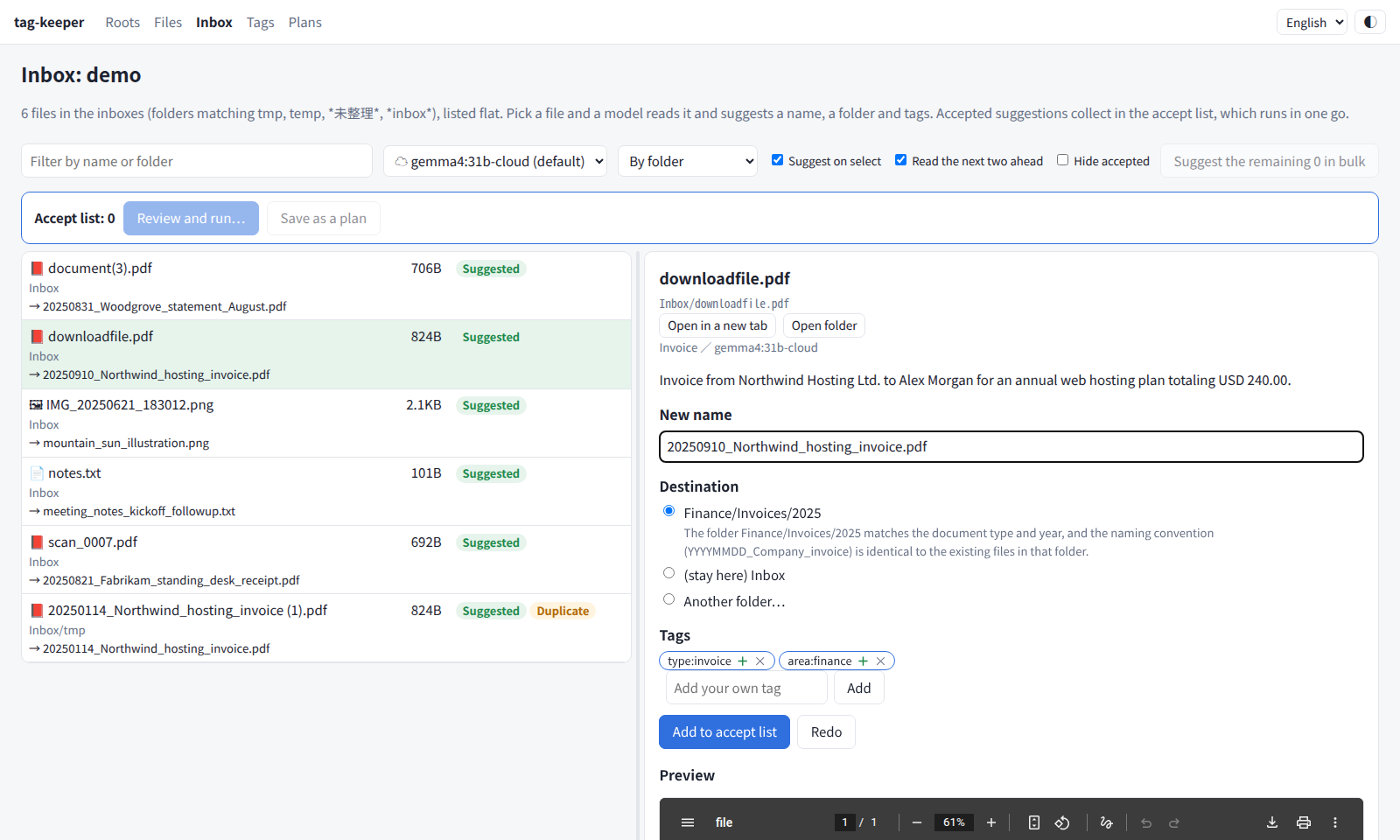
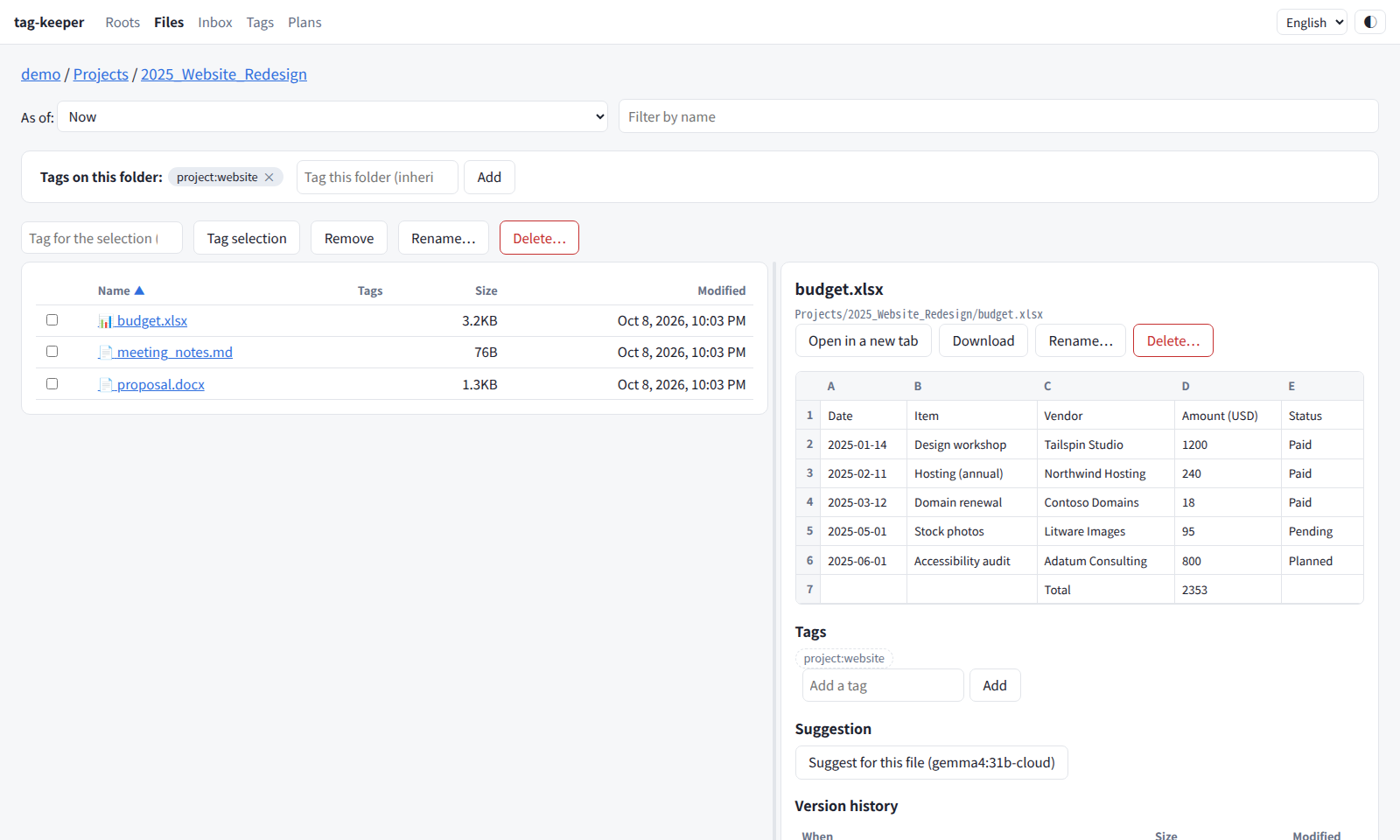
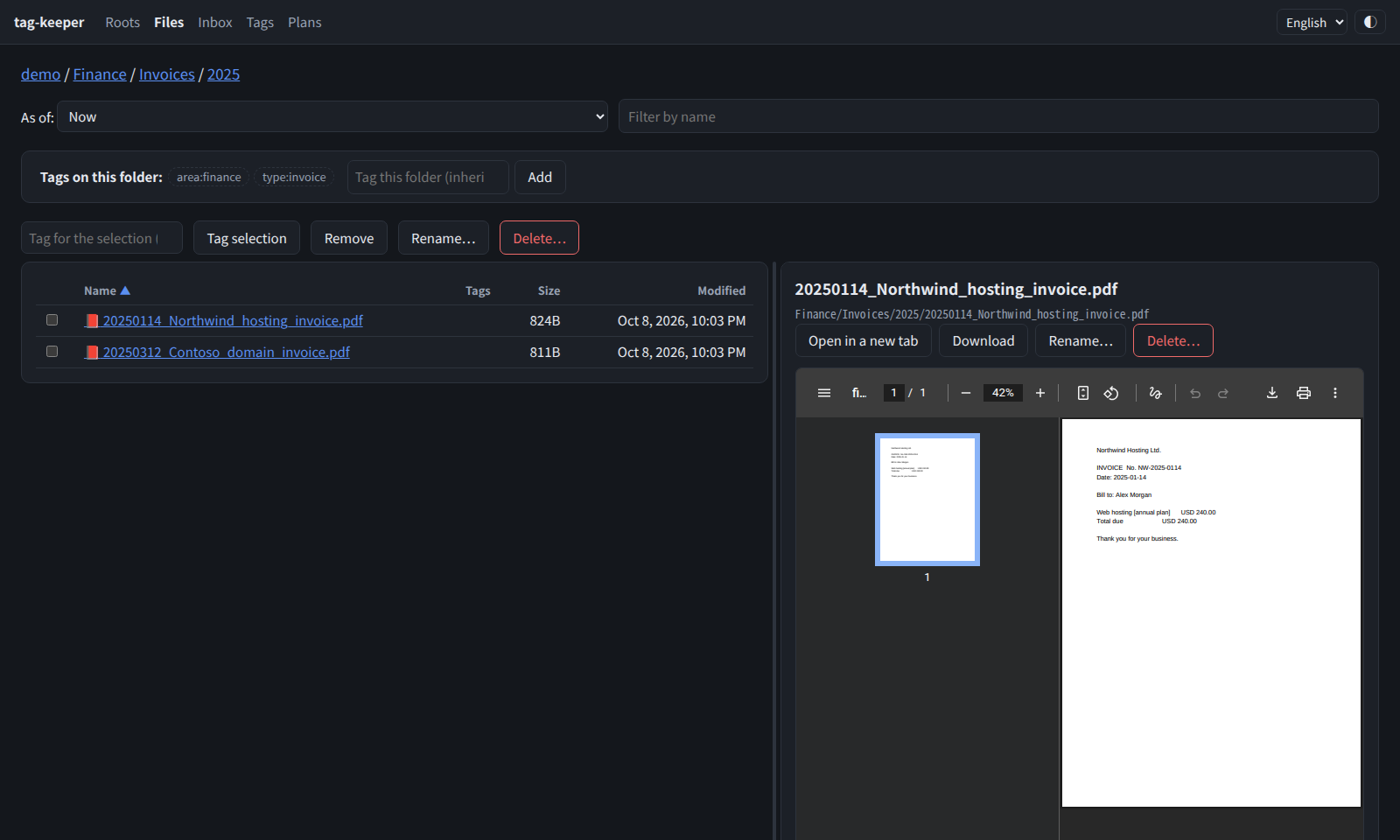
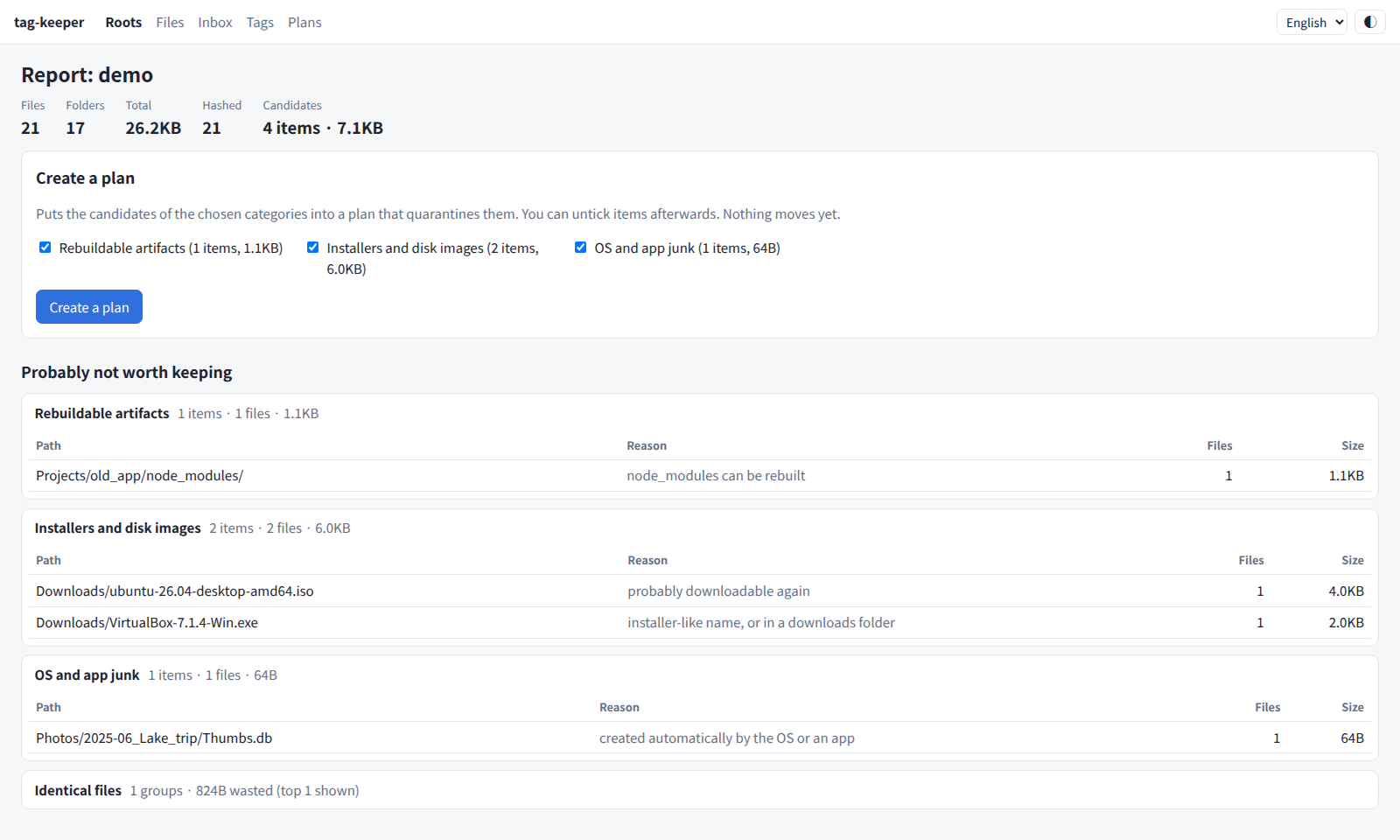
| File browser with Office preview | Dark mode | Hygiene report |
|---|---|---|
 |
 |
 |
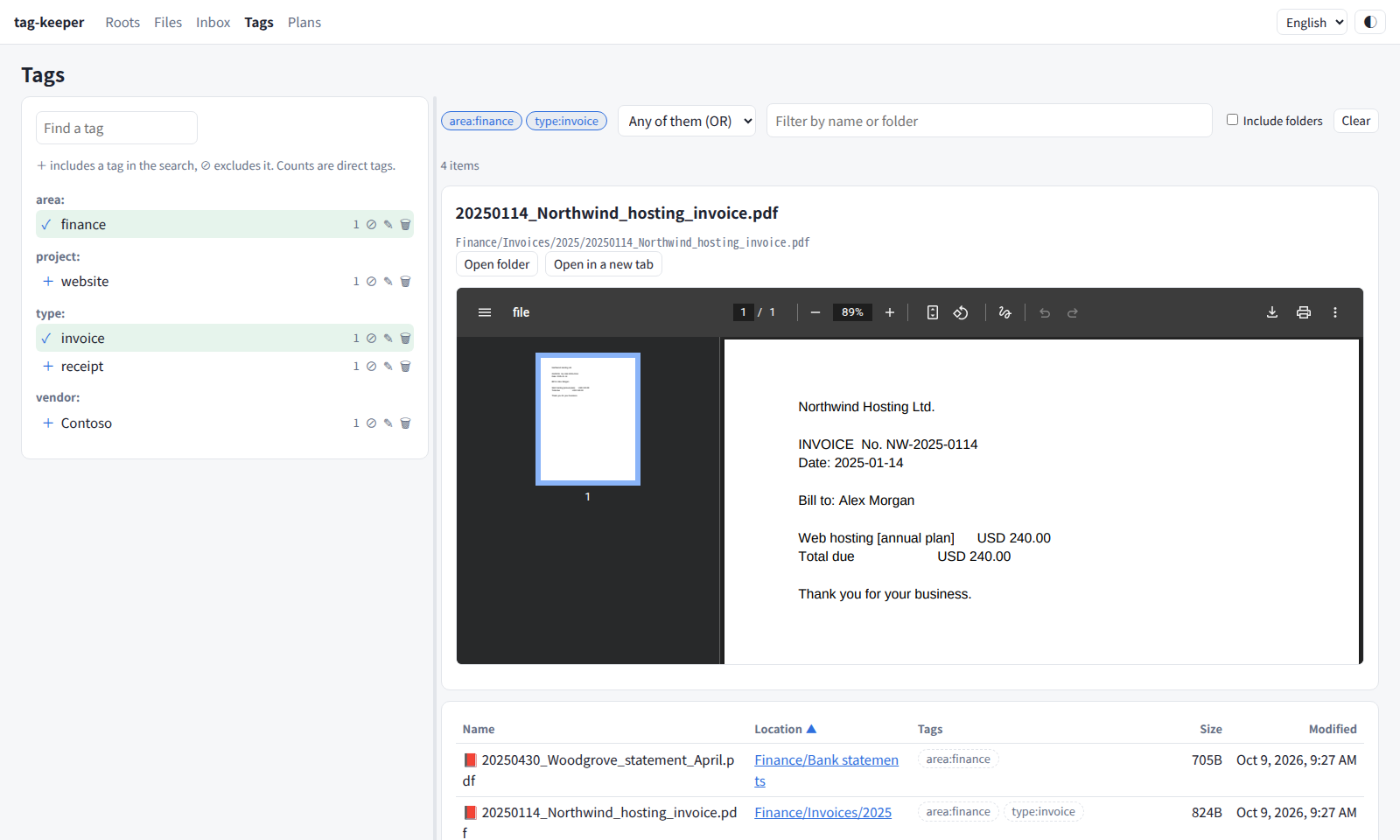
Screenshots use made-up demo data (scripts/make_demo.py).
Why
Most document managers take ownership of your files: they ingest them into their own storage and lay them out flat. That is the opposite of how a cloud drive is actually used. Its folders already mean something — a numbered project folder, a source code repository with its own layout, a year/month archive — and that meaning lives in each folder, not in one global category tree.
tag-keeper leaves the tree alone. It keeps its own catalog next to the tree, and from there it helps you keep the tree clean:
- It never takes ownership. No copying, renaming or converting. You keep using your file manager and shell as before.
- It follows what you do outside it. Files you move or rename keep their records.
- Changes are proposals. Anything that would move a file is written down as a plan, shown first, and only runs once you approve it. Nothing is ever deleted: files go to a quarantine folder, and every plan can be undone.
What it does today
$ tag-keeper scan ~/CloudSync/OneDrive     # read-only walk; updates the catalog
$ tag-keeper hash ~/CloudSync/OneDrive     # SHA-256 of files that changed since last time
$ tag-keeper report ~/CloudSync/OneDrive   # what is probably not worth keeping in the cloud
- scan records path, size, mtime and inode of every file and folder. Renames and
moves are tracked by inode, so a moved file keeps its row (and its hash).
- Safety valve: if a large share of files vanishes at once — an unmounted drive, a
sync client accident — the deletions are held, not recorded. They are recorded only
if they are still missing on the next scan (or with
--accept-missing). - A root that is missing or empty aborts the scan instead of looking like "everything was deleted". Folders that cannot be read are not treated as gone either.
- Safety valve: if a large share of files vanishes at once — an unmounted drive, a
sync client accident — the deletions are held, not recorded. They are recorded only
if they are still missing on the next scan (or with
- hash computes SHA-256 only for files that are new or changed, with a progress bar and ETA. A file that changes while being hashed is skipped.
- report lists candidates by category, with sizes and examples:
- application data that slipped into a synced folder (game data, caches) — reported once per folder, at the deepest folder that matches, so it never swallows your own documents next to it
- rebuildable artifacts (
node_modules,__pycache__, …), VM disk images, installers and disk images, temporary files and Office lock files - sync conflict copies (OneDrive for Linux
-safeBackup-, pCloud[conflicted], rclone bisync.conflict1, device-name suffixes,(1)copies) — only when the original sits next to it, since a lone "copy" may be the only version. Copies whose content differs from the original are marked as needing review - empty files and folders
- exact duplicates, confirmed by hash (never guessed from size)
The catalog is an SQLite file outside the tree (~/.local/share/tag-keeper/catalog.db by
default). None of these commands writes into the tree.
Cleaning up with a plan
$ tag-keeper plan onedrive                  # write the report's candidates to a plan file
$ $EDITOR ~/.local/share/tag-keeper/plans/<plan-id>.toml   # delete the lines you want to keep
$ tag-keeper apply <plan file>              # preview only
$ tag-keeper apply <plan file> --yes        # move them to the quarantine folder
$ tag-keeper undo <plan-id> --yes           # put everything back
- plan writes one line per item, grouped by category.
--categorylimits it to some categories (app-data,vm-image,conflict, …). Candidates that need review stay out unless you pass--include-review. - apply previews by default. With
--yesit moves each item, by rename, to<quarantine_dir>/<plan-id>/under its original relative path. Right before each move it checks that the item has not changed since the plan was written (inode, size, modification time, and for folders the file count and total size); changed items are skipped and reported. - With
snapper_configset, a snapper pre snapshot is taken before the run and a post snapshot after it. If the pre snapshot fails, nothing is moved. - Every move is appended to a journal (
~/.local/share/tag-keeper/journal/<plan-id>.jsonl). undo reads the journal and moves items back; it never overwrites something that has appeared at the original path since. - The catalog is updated as items move, so the next scan does not mistake a large quarantine for a mass disappearance.
- Items leave the cloud when the sync client notices they are gone, but they stay on this disk until you empty the quarantine folder yourself.
Big deletions without stopping your sync client
The OneDrive client for Linux treats the local
removal of a folder with many children (classify_as_big_delete, 1000 by default) as an
accident: it refuses to sync and exits. Run under systemd, it keeps exiting on every
restart, so syncing silently stops. When you approve a big deletion, tag-keeper
coordinates with the client instead (set sync_client = "onedrive" on the root):
- stop the resident sync (
systemctl --user stop onedrive.service), - quarantine the items,
- run one
onedrive --syncwith the threshold raised just above the largest folder in this plan — not--force, which would also let unrelated accidents through, - start the resident sync again.
If step 3 fails, the resident sync is left stopped (restarting it would only exit again),
the failure is journaled, and the web UI and tag-keeper sync <plan-id> --retry offer to
try again. Small plans are left to the running client as usual.
Web UI
$ tag-keeper serve # http://127.0.0.1:8090/
Everything above can be done in the browser: refresh a root (scan and hash), read the report, create a plan, untick what you want to keep, check it, run it and undo it. Long operations run in the background, and a panel at the bottom shows each step, a progress bar, speed, time remaining and the latest log lines. It works on a phone too. The top bar switches the language (Japanese or English; the browser's language by default) and the theme (system, light or dark).
- Only loopback is served by default. To listen elsewhere (for example on a Tailscale
address), give credentials for HTTP Basic auth with
--auth-file(one line,user:password) orTAG_KEEPER_AUTH; without them a non-loopback address is refused unless you pass--allow-no-auth. Basic auth is not encrypted: use it over a VPN such as Tailscale, or behind TLS. - Writes require a same-origin request, and without auth the
Hostheader must name the bound address (against DNS rebinding). - One job runs at a time. Each job also writes its own log under
~/.local/share/tag-keeper/logs/jobs/.
Files, tags and history
- Browse a root folder by folder, preview PDFs, images, audio, video and text in the page, and download anything. Columns sort by clicking the header, and the divider between the list and the preview can be dragged; both are remembered in the browser.
- Office documents preview without extra tools: Excel as tables with sheet tabs, Word as headings, paragraphs, tables and images, PowerPoint as slides. With LibreOffice installed they can also be shown as laid out, converted to PDF.
- Videos the browser cannot play (FLV, MKV, AVI, WMV, MPEG-TS, HEVC in MP4 and so on) are turned into an MP4 for playback with ffmpeg — only the container changes when the video is already H.264 — and cached, so seeking works.
- Open in the cloud. For a root synced by the OneDrive client for Linux, files and folders link to OneDrive on the web, and Office documents to Office for the web. Only types that cannot run scripts open in the page; HTML and SVG are shown as plain text, everything else downloads. Paths never leave the root, symlinks included.
- Create folders, move, rename and delete from the browser. Move ticked items by typing a destination or by dragging them onto a folder or the breadcrumbs. Type any name or take the suggested one; deleting moves items to the quarantine folder. Both run as one-off plans, with snapshots and undo, and a renamed folder keeps its tags.
- Tag files and folders from the browser. A folder's tags are inherited by everything
under it. Tags live in append-only JSONL logs, one file per machine
(
~/.local/share/tag-keeper/tags/<host>.jsonl), so they stay readable without the tool and never conflict when synced. When a tagged item is moved — by you or by a plan — the log records the move and the tags follow. - Find and manage tags on the Tags page: filter the tag list, search with several tags (all of them or any of them, minus excluded ones, narrowed by name) — tags on a folder count for everything inside — and rename a tag everywhere (renaming onto an existing tag merges the two) or delete it. Results show a preview of the picked file.
- Version history comes from btrfs snapshots through btrfs-timeline: the versions of a file, a folder as it was at any snapshot (including what has since been deleted), and restoring an old version next to the current file under a dated name (never overwriting). tag-keeper records renames and moves it sees, so a file's history continues across them.
Inbox suggestions
Folders whose name matches inbox_patterns (by default tmp, temp, *未整理*,
*inbox*) are treated as inboxes. The 整理 page lists every file in them flat, without
the folder hierarchy. Pick a file and a model served by ollama reads
it — text from PDFs and Office files, the image itself for photos and scanned PDFs — and
suggests, usually within seconds:
- a name, by default
YYYYMMDD_title, following past decisions and the date style of the destination folder, and keeping a meaningful existing name; - up to three destination folders among the folders you already have: candidates are narrowed by character-bigram TF-IDF over each folder's path and file names, then the model picks. Year and month folders are moved to the document's date;
- tags, preferring the ones you already use; new ones are marked as such.
Clicked files jump the queue and the next two are read ahead. Accepted suggestions go to an accept list, which you run as one plan of renames and moves — with snapshots and undo — or save to review on the plan page. Files outside the inboxes get a suggestion only when you ask for one from the file browser.
Learning from your decisions. What you accept (suggested versus final name, folder and
tags), the suggested tags you add or reject, and plans you undo are appended to a log, one
JSONL file per machine (~/.local/share/tag-keeper/decisions/). Files you move out of an
inbox yourself count too. When suggesting, the closest past decisions are added to the prompt
as examples and their folders join the candidates; tags you keep rejecting are avoided. The
log pairs each suggestion with your decision, so it can be exported as training data.
Models. The default is a local model. Any ollama model can be chosen on the page or in
the config, including ollama's cloud models (…:cloud, …-cloud) — then the file's content
is sent to ollama's cloud; the page marks those models with ☁. Suggestions are stored by
content hash and model, so a file is read once per model.
Install
Requires Python 3.11+ and Linux. The web UI is in Japanese and English (it follows the browser and can be switched in the top bar); command-line messages are in Japanese.
$ pipx install tag-keeper        # or: uv tool install tag-keeper
$ tag-keeper --help
Optional tools, each used only by the feature that needs it:
| Tool | Used for |
|---|---|
poppler-utils (pdftotext, pdftoppm) |
reading PDFs for inbox suggestions |
| ollama | inbox suggestions |
| btrfs and snapper | version history, and snapshots around plans |
| OneDrive client for Linux | coordinating big deletions with the sync, links to OneDrive on the web |
| LibreOffice | Office previews as laid out (PDF) |
| ffmpeg | playing FLV, MKV, AVI and other videos the browser cannot play |
From source:
$ git clone https://github.com/akivajp/tag-keeper.git
$ cd tag-keeper
$ uv run tag-keeper --help
$ uv run --extra dev pytest
Configuration
Optional. ~/.config/tag-keeper/config.toml:
[[roots]]
name = "onedrive"
path = "~/CloudSync/OneDrive"
exclude = ["*.partial"]              # never scanned (glob on the path relative to the root)

[hygiene]
allow = ["archive/**"]               # never reported ("I decided to keep these")
device_names = ["zefat", "hermon"]   # suffixes your sync client adds to conflict copies
app_data_names = ["MyLauncher"]      # extra folder names to treat as application data

[safety]
mass_missing_ratio = 0.2             # hold deletions when more than this share vanishes
mass_missing_min = 100

[plan]
quarantine_dir = "~/.local/share/tag-keeper/quarantine"  # must be on the root's filesystem
snapper_config = "home"              # snapper config for pre/post snapshots ("" = none)
Per root, for coordinating with a sync client:
[[roots]]
name = "onedrive"
path = "~/CloudSync/OneDrive"
sync_client = "onedrive"             # "" (default) = no coordination
sync_service = "onedrive.service"    # the systemd --user unit running `onedrive --monitor`
sync_guard = "auto"                  # "auto": only for big deletions / "always": every run
Tags and inbox suggestions:
[tags]
dir = "~/.local/share/tag-keeper/tags"   # where the per-machine tag logs live

[organize]
inbox_patterns = ["tmp", "temp", "*未整理*", "*inbox*"]  # case-insensitive globs on folder names
ollama_url = "http://127.0.0.1:11434"
model = "gemma3:12b"                     # e.g. "gemma4:31b-cloud" (content is sent to ollama's cloud)
vision_model = ""                        # model for images when `model` cannot read them
model_choices = ["gemma4:31b-cloud"]     # extra models offered on the page
think = ""                               # "true" / "false" for thinking models; "" = model default
use_images = true
max_chars = 4000                         # text passed to the model
candidates = 15                          # destination folders the model chooses from
With roots configured, tag-keeper scan (no arguments) scans all of them.
Every command accepts --log-file PATH to keep a timestamped log.
Roadmap
- Inventory and hygiene report, and tidy-up plans that quarantine what you approve, with snapper snapshots and undo. (done)
- Tags and search — partly done: tags inherited from folders in append-only logs, a file browser, version history across moves. Next: aliases and parents, typed fields, search by tag, name and content.
- Content extraction — partly done: text from PDF and Office files, images through a local model, for inbox suggestions. Next: OCR and transcripts for full-text search.
- Placement and structure — partly done: name and folder suggestions for inbox files. Next: directory cards, structure review.
License
MIT
1 maintainer

Metadata
1 maintainer
Release files for tag-keeper 0.7.0
For a detailed explanation of source distributions (sdists) and built distributions (wheels), please see the package formats documentation.
Source distribution (sdist)
| File | Size | Uploaded | |
|---|---|---|---|
| tag_keeper-0.7.0.tar.gz | 187.5 kB | Details |
Built distribution (wheel)
| File | Interpreter | ABI | Platform | Reset |
|---|---|---|---|---|
| tag_keeper-0.7.0-py3-none-any.whl | Python 3 | none | any | Details |
Total release size: 358.5 kB
Release files / tag_keeper-0.7.0.tar.gz
| Download URL | tag_keeper-0.7.0.tar.gz |
|---|---|
| Size | 187.5 kB |
| Tags | Source |
|
SHA-256 checksum How to use checksums |
804d8b603e45c465768a1c988ac442c4b09cd1d0d1be3d844a1aad53ca400280
|
|
BLAKE2b-256 checksum How to use checksums |
5a64cecc2901eb758a86a7a69473e30af6ab1f96f82018e45eeeaf57dcd3a06f
|
| Upload date | |
|
Uploaded using Trusted Publishing? What is trusted publishing? |
Yes |
| Uploaded via |
twine/7.0.0 CPython/3.13.14
|
Provenance
Provenance describes where a file came from. On PyPI, provenance is shared via attestations, which provide a verifiable record of the build or publishing details. View details, limitations and caveats.


PyPI Publish Attestation
PyPI verified that this artifact, at this checksum, originated from the publisher listed below.
Signed by GitHub Actions, verified by PyPI on Oct 9, 2026.
Transparency logRelease files / tag_keeper-0.7.0-py3-none-any.whl
| Download URL | tag_keeper-0.7.0-py3-none-any.whl |
|---|---|
| Size | 171.1 kB |
| Tags | Python 3 |
|
SHA-256 checksum How to use checksums |
89e858d1c6d21f0f70cd00311a08cbb58460428bd0cf6c05214dd4395481e40c
|
|
BLAKE2b-256 checksum How to use checksums |
3837961e444faecaf08025e821dcf20a574836cde81828a7c6316e44fb5f5fb4
|
| Upload date | |
|
Uploaded using Trusted Publishing? What is trusted publishing? |
Yes |
| Uploaded via |
twine/7.0.0 CPython/3.13.14
|
Provenance
Provenance describes where a file came from. On PyPI, provenance is shared via attestations, which provide a verifiable record of the build or publishing details. View details, limitations and caveats.
PyPI Publish Attestation
PyPI verified that this artifact, at this checksum, originated from the publisher listed below.
Signed by GitHub Actions, verified by PyPI on Oct 9, 2026.
Transparency log













