
A web-based remote desktop for Termux and PRoot X11 environments

Project description
TermuxDesk


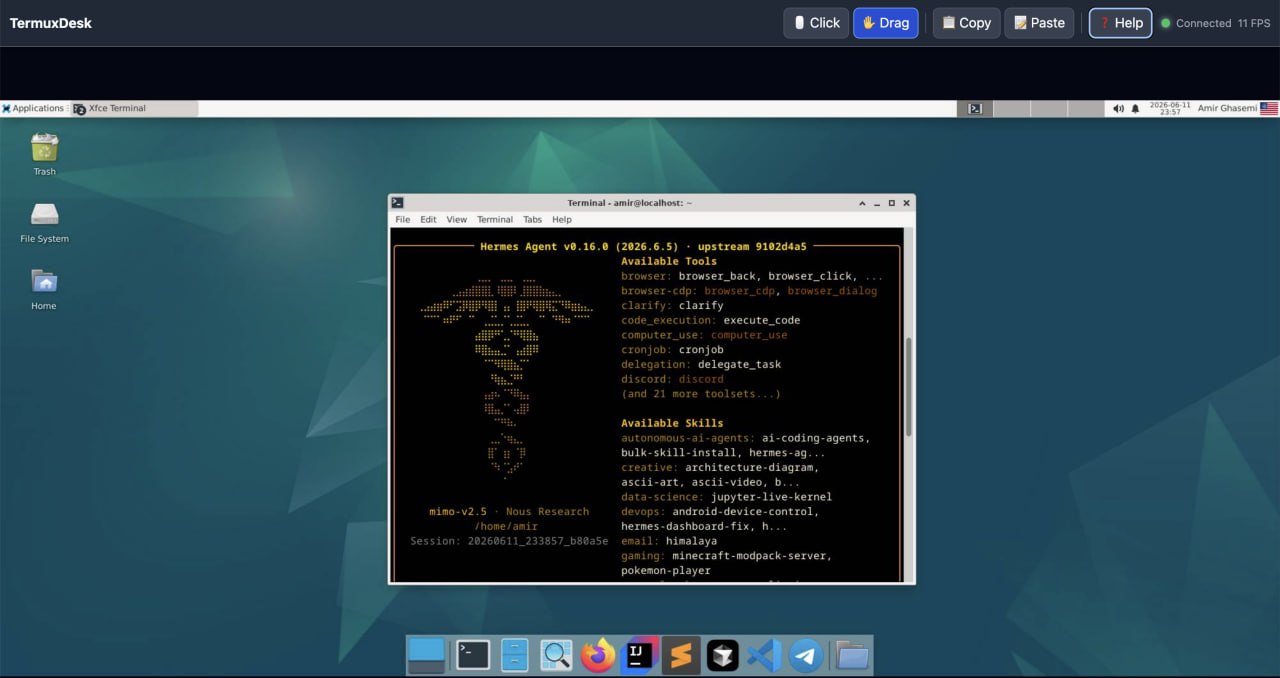
A lightweight, web-based remote desktop for Termux and PRoot X11 environments.
TermuxDesk captures an existing X11 display with Pillow, streams JPEG frames
through an aiohttp WebSocket, and injects mouse and keyboard events with the
XTest extension through python-xlib. It does not need root or sudo.
Project status:
0.1.3is an alpha release. Test it with your desktop and window manager before relying on it.
Screenshot
Requirements
- Python 3.9 or newer
- A running X11 server with the XTest extension
DISPLAYset to that server, such as:0cloudflaredonly when using--tunnel
TermuxDesk provides the remote viewer; it does not start Termux:X11, Xvfb, a desktop environment, or a window manager.
Install
Termux (Native)
If you're in the main Termux app (not proot-distro):
pkg install python cloudflared
pip install termux-desk
If Pillow fails to build:
pkg install python clang make pkg-config libjpeg-turbo libpng
pip install termux-desk
One-liner:
curl -fsSL https://raw.githubusercontent.com/amirghm/termux-desk/main/install.sh | bash
PRoot (Debian/Ubuntu)
If you're inside a proot-distro (Ubuntu, Debian, Arch, etc.):
python3 -m venv ~/venv
source ~/venv/bin/activate
pip install termux-desk
Then every time you want to run it:
source ~/venv/bin/activate
termux-desk start --tunnel
Note:
cloudflaredmust be installed in Termux (not proot). The tunnel command callscloudflaredfrom your system PATH. If it's not found, install it in the Termux shell withpkg install cloudflared.
Quick Start
Start your X11 environment, identify its display, and run:
export DISPLAY=:0
termux-desk start
Open http://127.0.0.1:8765 in a browser on the same device.
To listen on the LAN:
termux-desk start --host 0.0.0.0
To create a temporary HTTPS URL:
termux-desk start --tunnel
Security warning: TermuxDesk 0.1.3 has no built-in authentication. Anyone
who can reach the URL can view and control the X11 session. A Cloudflare Quick
Tunnel URL is public. Share it only with trusted people, stop it after use, and
prefer Cloudflare Access or another authenticated proxy for ongoing access.
Browser Controls
- Click mode sends primary clicks immediately on press and detects quick second presses as double-clicks.
- Drag mode holds the primary button while the pointer moves.
- Mouse movement, double-click, wheel, and horizontal scroll are supported.
- Copy reads the X11 clipboard into the browser clipboard; Paste and
browser paste events send text to the X11 clipboard. Install
xcliporxselin the environment running TermuxDesk to enable clipboard support. - Keyboard events are sent while the viewer page has focus.
- The Help button shows the controls in the viewer.
Browser and operating-system reserved shortcuts may not reach the remote desktop.
CLI Reference
termux-desk start [--host HOST] [--port PORT] [--display DISPLAY]
                  [--fps FPS] [--quality 1..95] [--tunnel]
| Option | Default | Description |
|---|---|---|
--host |
127.0.0.1 |
HTTP listen address |
--port |
8765 |
HTTP listen port |
--display |
$DISPLAY |
X11 display name |
--fps |
12 |
Maximum capture rate |
--quality |
70 |
JPEG quality from 1 to 95 |
--tunnel |
off | Start a Cloudflare Quick Tunnel |
Use termux-desk --version to print the installed version and Ctrl+C to stop
the server and tunnel.
Python API
The public API has no third-party import side effects. Runtime dependencies and the X11 connection are loaded when the server starts.
from termux_desk import TermuxDeskServer

server = TermuxDeskServer(
    host="127.0.0.1",
    port=8765,
    display=":0",       # defaults to the DISPLAY environment variable
    fps=12,
    quality=70,
)
server.run()
For an existing asyncio application:
server = TermuxDeskServer()
await server.start()
print(server.local_url)
# ... application work ...
await server.stop()
termux_desk.run_server(**options) is a blocking convenience function.
TermuxDeskError is raised for missing dependencies, an unset or unreachable
display, missing XTest support, and tunnel startup failures.
Troubleshooting
externally-managed-environment (PEP 668)
You're inside a proot-distro. Use a virtual environment:
python3 -m venv ~/venv
source ~/venv/bin/activate
pip install termux-desk
Or force install (not recommended):
pip install termux-desk --break-system-packages
DISPLAY is not set
Set it to the display used by your X11 session:
export DISPLAY=:0
Could not connect to X11 display
Verify the server is running, the display number is correct, and the process
has permission to connect. From a PRoot environment, preserve or explicitly
set DISPLAY.
cloudflared was not found
Install it in the Termux shell (not proot):
pkg install cloudflared
Pillow fails to install in Termux
Install its native build dependencies, then retry:
pkg install python clang make pkg-config libjpeg-turbo libpng
python -m pip install Pillow
Architecture
The root page serves a viewer embedded directly in termux_desk.server; there
is no runtime template or static-file lookup. Each WebSocket client receives
JPEG frames and sends small JSON input messages. Pointer coordinates are
normalized in the browser, validated by the server, and scaled to the current
X11 screen dimensions before XTest injection.
Contributing
- Fork and clone the repository.
- Create a virtual environment and run
python -m pip install -e '.[dev]'. - Make a focused change and add tests.
- Run
pytestandpython -m build. - Open a pull request describing behavior changes and the X11 environment used for manual testing.
Bug reports should include Python version, Termux/PRoot distribution, X server, window manager, browser, and the exact command used.
License
MIT © 2026 TermuxDesk contributors.


Download files
Download the file for your platform. If you're not sure which to choose, learn more about installing packages.
Source Distribution
Built Distribution
Filter files by name, interpreter, ABI, and platform.
If you're not sure about the file name format, learn more about wheel file names.
Copy a direct link to the current filters
File details
Details for the file termux_desk-0.1.5.tar.gz.
File metadata
- Download URL: termux_desk-0.1.5.tar.gz
- Upload date:
- Size: 23.2 kB
- Tags: Source
- Uploaded using Trusted Publishing? No
- Uploaded via: twine/6.2.0 CPython/3.11.2
File hashes
| Algorithm | Hash digest | |
|---|---|---|
| SHA256 |
11c09bf148f3e06e97ae2da54816c562c2cb080428bea9442df75c1194031215
|
|
| MD5 |
c5051cc4f443f7fbcd2823bf6351cc08
|
|
| BLAKE2b-256 |
7381aab6b510a86f7a30ef74fac5319b7403d62c69ce00d396fa84341535e9ec
|
File details
Details for the file termux_desk-0.1.5-py3-none-any.whl.
File metadata
- Download URL: termux_desk-0.1.5-py3-none-any.whl
- Upload date:
- Size: 20.9 kB
- Tags: Python 3
- Uploaded using Trusted Publishing? No
- Uploaded via: twine/6.2.0 CPython/3.11.2
File hashes
| Algorithm | Hash digest | |
|---|---|---|
| SHA256 |
1bdee490b1780aef8fb17446458d5310f9e2d78f414450c1c083812ed05dc57a
|
|
| MD5 |
0f0e1abb6670913652a0afa9be9539f3
|
|
| BLAKE2b-256 |
453ae96b8dc28ac3c191da819403a9e1feb1d7a87002beca9491e38a9981cfe8
|






