Unofficial CLI for 'Too Good To Go' to monitor and check out items as they become available.

Project description

PyPI Python CI License: MIT

TooGoodToGo-CLI

Unofficial CLI for 'Too Good To Go' to monitor and check out items as they become available.

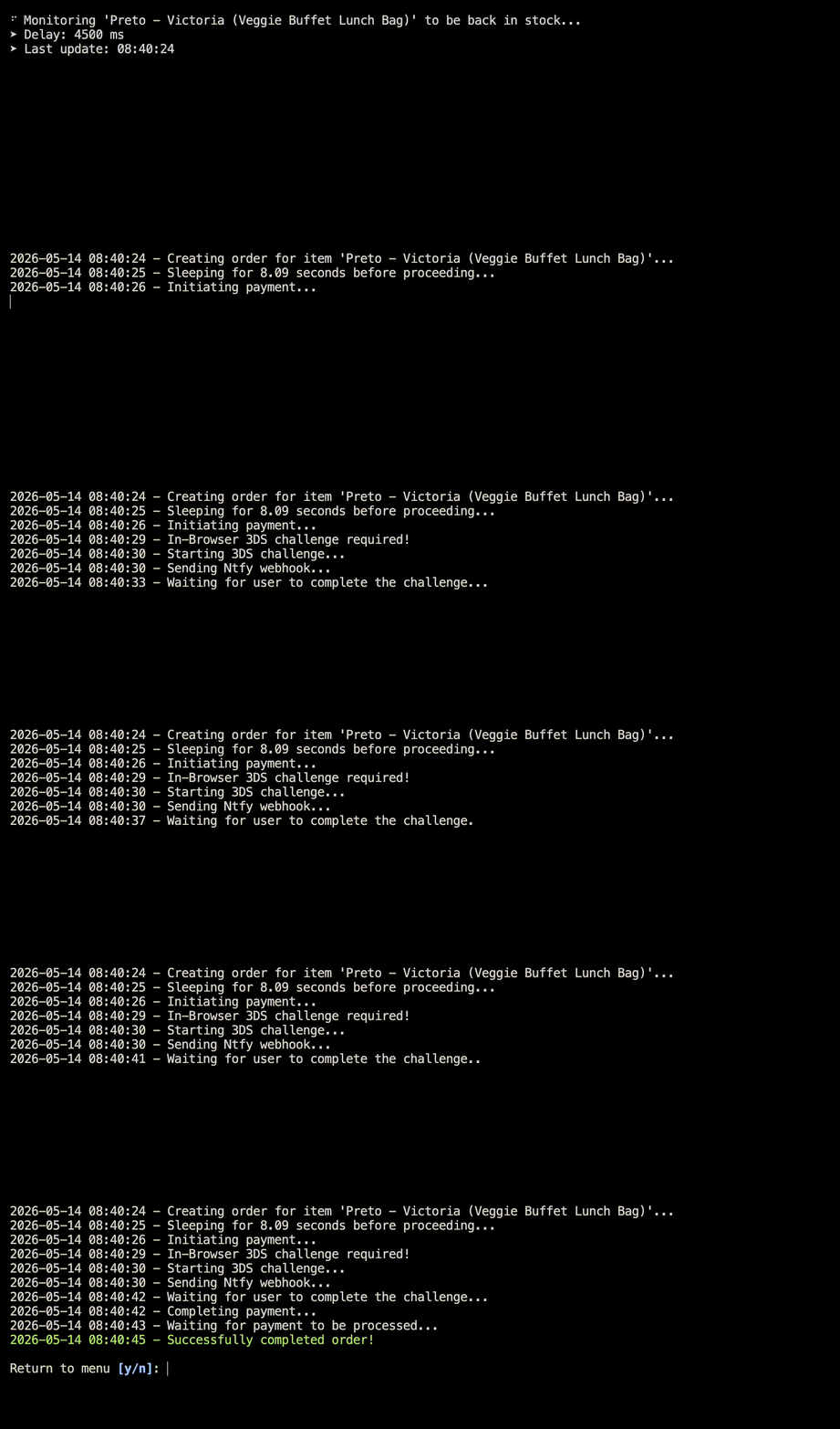
Demo

Table of Contents

Features

  • Interactive Menu — guided flow, easy to navigate.
  • Account Login — email-based passwordless login; persistent session.
  • Monitor Items — watch any item in your area and wait for it to become available.
  • Mobile & Desktop Notifications — get notified via the Ntfy app or website when monitored items become available.
  • Automatic Checkout — handles the full checkout flow including any 3DS challenges, completing purchases in no time.
  • Easy Configuration — all settings in a single file, editable in your default editor.

Installation

You can install the app globally with uv:

uv tool install tgtg-cli

or with pipx:

pipx install tgtg-cli

If you only want to install the CLI inside a virtual environment:

pip install tgtg-cli

or with uv:

uv add tgtg-cli

Quick Start

  1. Start the CLI:

    tgtg
    

    Note: You can also start the CLI with tgtg-cli, toogoodtogo and toogoodtogo-cli.

  2. Select Settings from the menu. This opens up the settings file in your default editor.

  3. Fill the settings file as described in the Configuration section.

  4. Restart the CLI:

    tgtg
    
  5. Select Login from the menu and enter the 6-digit code sent to your email.

  6. Once logged in, choose Monitor and select the item you want to watch.

[!TIP] For best results when using the automated checkout, a free virtual card from Bunq is recommended. See Credit cards for more details.

Configuration

The configuration of the CLI can be changed in the settings.ini. This file is generated automatically on the first start and opened in your default editor. If you are making any changes to it, you always need to restart the CLI.

[!NOTE] If you ever need a fresh settings.ini you can simply delete or rename the file and restart the CLI.

File Location

The path follows the platform-specific config directory:

OS Path
macOS ~/Library/Application Support/TGTG-CLI/settings.ini
Linux ~/.config/TGTG-CLI/settings.ini (or $XDG_CONFIG_HOME/TGTG-CLI/settings.ini)
Windows %APPDATA%\TGTG-CLI\settings.ini

You can re-open the file at any time via Settings in the menu. This will also show you the path of the file.

Settings Reference

The settings file is split into five sections. All keys are required to be present, but optional values can be left empty when the parameter is not used.

[ACCOUNT]

All settings regarding your Too Good To Go account and the geographic area to scan.

Key Type Description
EMAIL string Email of your Too Good To Go account. Example: johnsmith@email.com.
LATITUDE decimal Latitude of the area to monitor. Example: 55.713.
LONGITUDE decimal Longitude of the area to monitor. Example: 12.569982.

Note: You can get the coordinates (latitude,longitude) by right-clicking any location on Google Maps. Make sure the decimal numbers are using a . and not a ,.
RADIUS integer Search radius in full kilometers. Example: 5.
PROXY string Optional proxy in the format username:password@hostname:port. Required when CAPSOLVER_API_KEY is set.

Note: Using a proxy is only recommended if you have problems bypassing Cloudflare.

[APPLICATION]

Feature switches to configure the behaviour of the CLI.

Key Type Description
ENABLE_LOGGING bool Write logs to disk. Set to True or False. Default: False. This creates a log file in the cache directory.

Note: This is mainly for debugging purposes. It is recommended to turn off logging unless you are having issues.
ENABLE_CHECKOUT bool If True, the CLI will attempt to complete the purchase automatically. Requires all [PAYMENT] fields to be filled. Default: False. If set to False, the CLI will only notify the user when an item becomes available and not try to buy it.

[PAYMENT]

Card details used for automatic checkout. Only required when ENABLE_CHECKOUT = True.

Key Type Description
CARD_NUMBER string Card number, digits only. Validated via Luhn checksum. Example: 4242424242424242.
CARD_EXPIRY_MONTH integer Month of expiry (112). Example 6.
CARD_EXPIRY_YEAR integer Year of expiry, four digits. Example 2028.
CARD_SECURITY_CODE string CVC / CVV (3 or 4 digits). Example 034.

[MONITOR]

Behavior of the CLI when monitoring an item.

Key Type Description
DELAY_IN_MILLISECONDS integer Delay between polls in milliseconds. Default: 4500. Please note that lower delays may trigger rate limiting.
NTFY_TOPIC string Topic name for Ntfy.sh push notifications. Subscribe to the same topic in the ntfy app to receive alerts.
You can find the Ntfy setup guide here.

Note: Make sure you pick a unique string to prevent other users receiving your notifications. This could be a random UUID or a random password.

[SOLVER]

Configuration of the captcha solver via CapSolver. This is only needed for edge cases if you are having trouble logging into your account. CapSolver will only be used to solve the captcha upon login and retrieving the session tokens.

Key Type Description
CAPSOLVER_API_KEY string Your CapSolver API key. Leave empty to disable. A proxy in [ACCOUNT] is mandatory when this key is set.

Example

[ACCOUNT]
EMAIL = johnsmith@email.com
LATITUDE = 55.713
LONGITUDE = 12.569982
RADIUS = 3
PROXY =

[APPLICATION]
ENABLE_LOGGING = False
ENABLE_CHECKOUT = True

[PAYMENT]
CARD_NUMBER = 4242424242424242
CARD_EXPIRY_MONTH = 6
CARD_EXPIRY_YEAR = 2028
CARD_SECURITY_CODE = 034

[MONITOR]
DELAY_IN_MILLISECONDS = 4500
NTFY_TOPIC = 1f143bad-cb9d-4528-961f-5fd61354ec9e

[SOLVER]
CAPSOLVER_API_KEY =

Do not remove any keys or sections! Leave any optional parameters empty if you don't need them.

Credit cards

In general, any credit card that works in the Too Good To Go app should also work here. Some exceptions might be credit cards that require an SMS code or have a special authorization flow.

[!WARNING] Your card details are stored on your local disk. It is highly recommended to use a dedicated virtual card with a custom spending limit.

Bunq is one of the recommended providers as it provides the necessary features and has been tested already. Opening an account is free, virtual cards can be created at no extra cost and you can set spending limits for each card. You can delete and re-create a new card at any time.

You can find more information about the different authorization flows and a list of fully supported providers down below.


There are three different authorization flows:

Flow Explanation Implementation
3DS2 As far as my testing goes, this seems to be the most common flow. It should be the same one you encounter when manually buying an item in the Too Good To Go app. The CLI handles the authorization flow. The user receives a notification asking them to confirm the 3DS challenge.
Redirect (supported provider) This appears to be the legacy 3DS1 flow. However, it seems to occur randomly even for cards that usually use the 3DS2 flow. Same as 3DS2, but only for supported providers. Each provider requires a different implementation. See the list down below for a list of providers that are confirmed to work.
Redirect (unsupported provider) Same flow as above. The CLI sends a notification with the challenge URL. The user needs to open the URL, complete all required steps and confirm the challenge.

Supported providers for redirect challenges:

Providers
Bunq
DKB

[!NOTE] Please open an issue if you think that your provider is well-known and should be added to this list.

FAQ

Do I need a credit card to use the CLI?

No. Monitoring and notifications work without payment details. Set ENABLE_CHECKOUT = False in settings.ini and leave the [PAYMENT] fields empty. You'll receive a notification whenever a monitored item becomes available and can then check out manually in the Too Good To Go app.

My card is rejected during checkout. What's wrong?

A few possible causes:

  • Your bank requires an SMS code or another authorization flow not supported by the CLI.
  • Your card has insufficient funds or a spending limit below the item price.

Try to use Bunq as described in Credit cards if possible. If you keep getting errors, open an issue.

How long am I blocked after being rate limited?

Soft bans seem to last one hour. After the cooldown, the CLI works as normal — no extra action needed. To reduce the chance of being rate-limited again, keep the polling delay at 4500ms or higher.

If you don't want to wait for an hour you can change your IP, e.g. by using a proxy.

Where are my credentials and tokens stored?

Session tokens, the random device profile, and logs live in the OS-native cache directory:

OS Path
macOS ~/Library/Caches/TGTG-CLI/
Linux ~/.cache/TGTG-CLI/ (or $XDG_CACHE_HOME/TGTG-CLI/)
Windows %LOCALAPPDATA%\TGTG-CLI\Cache\

Card details are read from settings.ini (see File Location).

Why do I keep getting logged out?

The session tokens are stored in your local cache directory (see Where are my credentials and tokens stored?). Cleanup tools might clear that directory, which means that you will have to log in again. Add the TGTG-CLI/ folder to the tool's exclude list to prevent this.

How do I reset the CLI?

Select Logout in the menu to clear the session, or delete the config and cache directories above for a full reset. On the next start, both files will be recreated.

Will using this tool get my account banned?

This tool may violate the Too Good To Go Terms of Service. Use at your own risk. See the Disclaimer for details. To reduce exposure, keep the polling delay at the default (4500ms) or even higher.

Disclaimer

This project is an unofficial, independent third-party tool and is not affiliated with, endorsed by, sponsored by, or in any way officially connected to Too Good To Go ApS or any of its subsidiaries or affiliates.

"Too Good To Go" and "TGTG" are trademarks of Too Good To Go ApS, used here only nominatively to identify the service this software interacts with.

This software is provided "as is" without warranty of any kind. Use of this tool may violate the Too Good To Go Terms of Service and could result in account termination. The authors accept no liability for any consequences arising from its use.

Project details


Download files

Download the file for your platform. If you're not sure which to choose, learn more about installing packages.

Source Distribution

tgtg_cli-0.1.0.tar.gz (1.7 MB view details)

Uploaded Source

Built Distribution

If you're not sure about the file name format, learn more about wheel file names.

tgtg_cli-0.1.0-py3-none-any.whl (72.5 kB view details)

Uploaded Python 3

File details

Details for the file tgtg_cli-0.1.0.tar.gz.

File metadata

  • Download URL: tgtg_cli-0.1.0.tar.gz
  • Upload date:
  • Size: 1.7 MB
  • Tags: Source
  • Uploaded using Trusted Publishing? Yes
  • Uploaded via: twine/6.1.0 CPython/3.13.12

File hashes

Hashes for tgtg_cli-0.1.0.tar.gz
Algorithm Hash digest
SHA256 a1d72c358b95c8a5e255230a180e31a1d1a9a2cdae89313eb67f07440bc44d38
MD5 7c0ae812cdedc2e466d4008f73bbe0bd
BLAKE2b-256 d0f5a47affebe3be722d8fcee194df0af905942500e02984fa59d7e15a5ab7bf

See more details on using hashes here.

Provenance

The following attestation bundles were made for tgtg_cli-0.1.0.tar.gz:

Publisher: release.yml on peterschwps/TooGoodToGo-CLI

Attestations: Values shown here reflect the state when the release was signed and may no longer be current.

File details

Details for the file tgtg_cli-0.1.0-py3-none-any.whl.

File metadata

  • Download URL: tgtg_cli-0.1.0-py3-none-any.whl
  • Upload date:
  • Size: 72.5 kB
  • Tags: Python 3
  • Uploaded using Trusted Publishing? Yes
  • Uploaded via: twine/6.1.0 CPython/3.13.12

File hashes

Hashes for tgtg_cli-0.1.0-py3-none-any.whl
Algorithm Hash digest
SHA256 9829d0348298871f3c31d0183f6402bd7dd47cc4bb686ef6e8991032c2de0880
MD5 578fc93ca38476584414fc19373e7f38
BLAKE2b-256 fbab33ff2bb065a5d0c82e59ca3825ded194d7f21b7a209f78636e14cbc6efab

See more details on using hashes here.

Provenance

The following attestation bundles were made for tgtg_cli-0.1.0-py3-none-any.whl:

Publisher: release.yml on peterschwps/TooGoodToGo-CLI

Attestations: Values shown here reflect the state when the release was signed and may no longer be current.

Supported by

AWS Cloud computing and Security Sponsor Datadog Monitoring Depot Continuous Integration Fastly CDN Google Download Analytics Pingdom Monitoring Sentry Error logging StatusPage Status page