
tkVFD
Overview
The tkVFD module allows for easy inclusion of customizable segmented alpha-numeric displays into any Tkinter application and supports both 16-segment and 7-segment geometries.
The displays generated by tkVFD are styled after "Vacuum Fluorescent Displays" or VFDs, a beautiful cathodoluminescent predecessor to the modern LCD digital/alpha-numeric displays (though the tkVFD package can also simulate the look of backlit LCD displays by not displaying the distinctive "mesh control grid" unique to VFDs). See Background section for more.
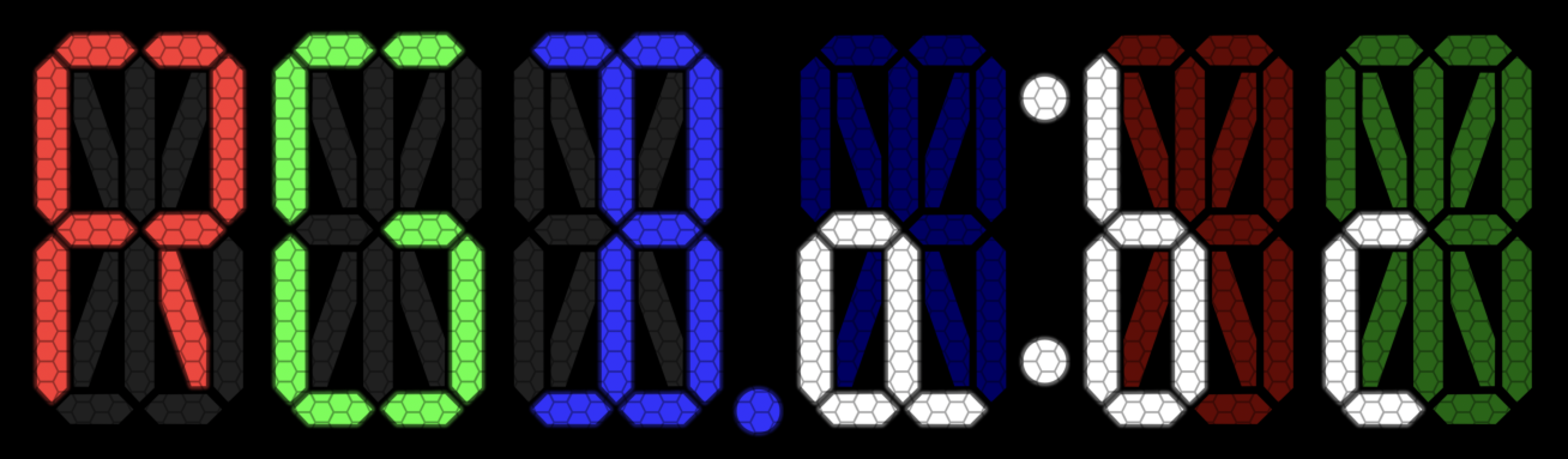
16-Segment Display Example
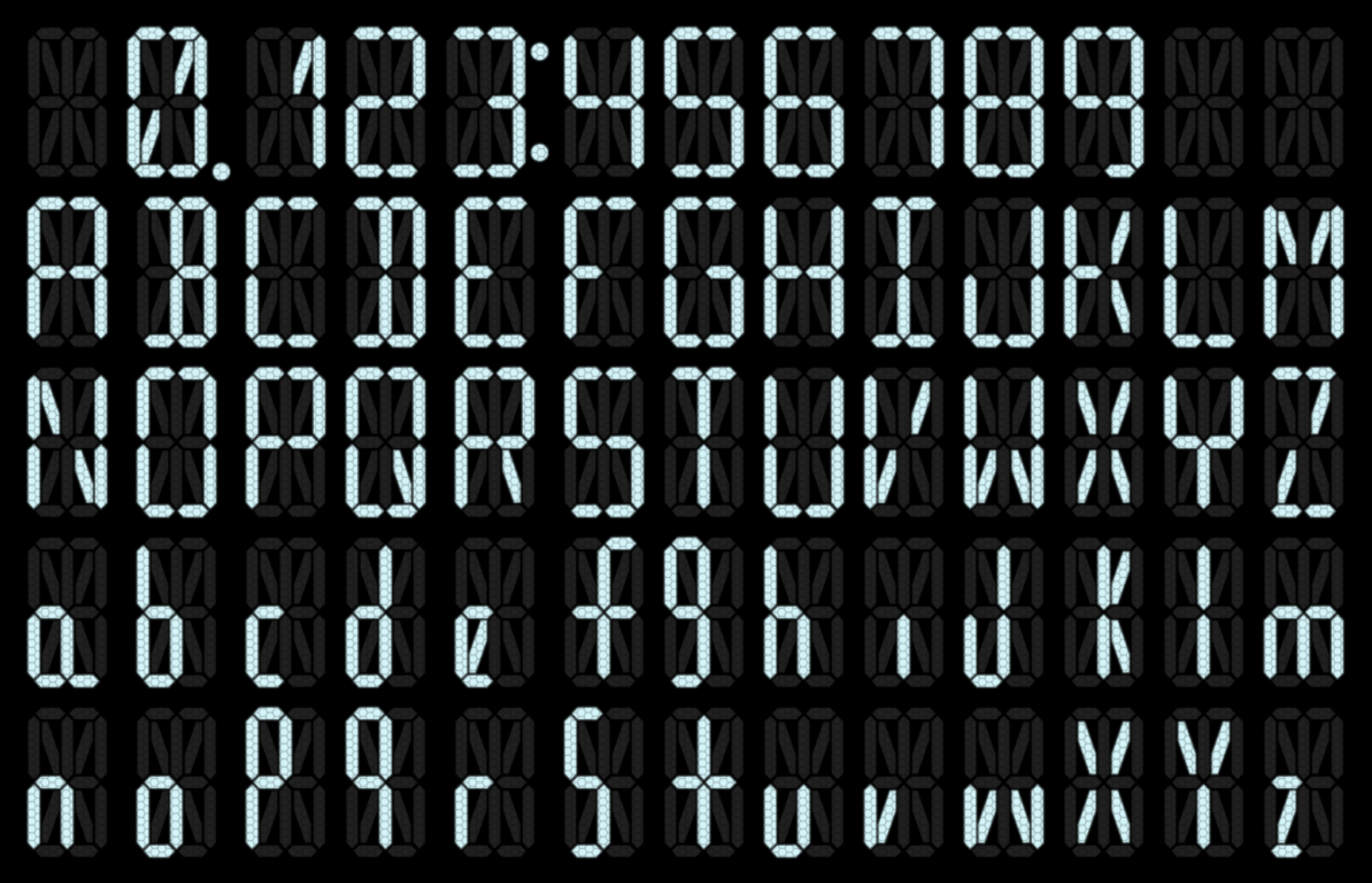
Common 16-segment ASCII Characters
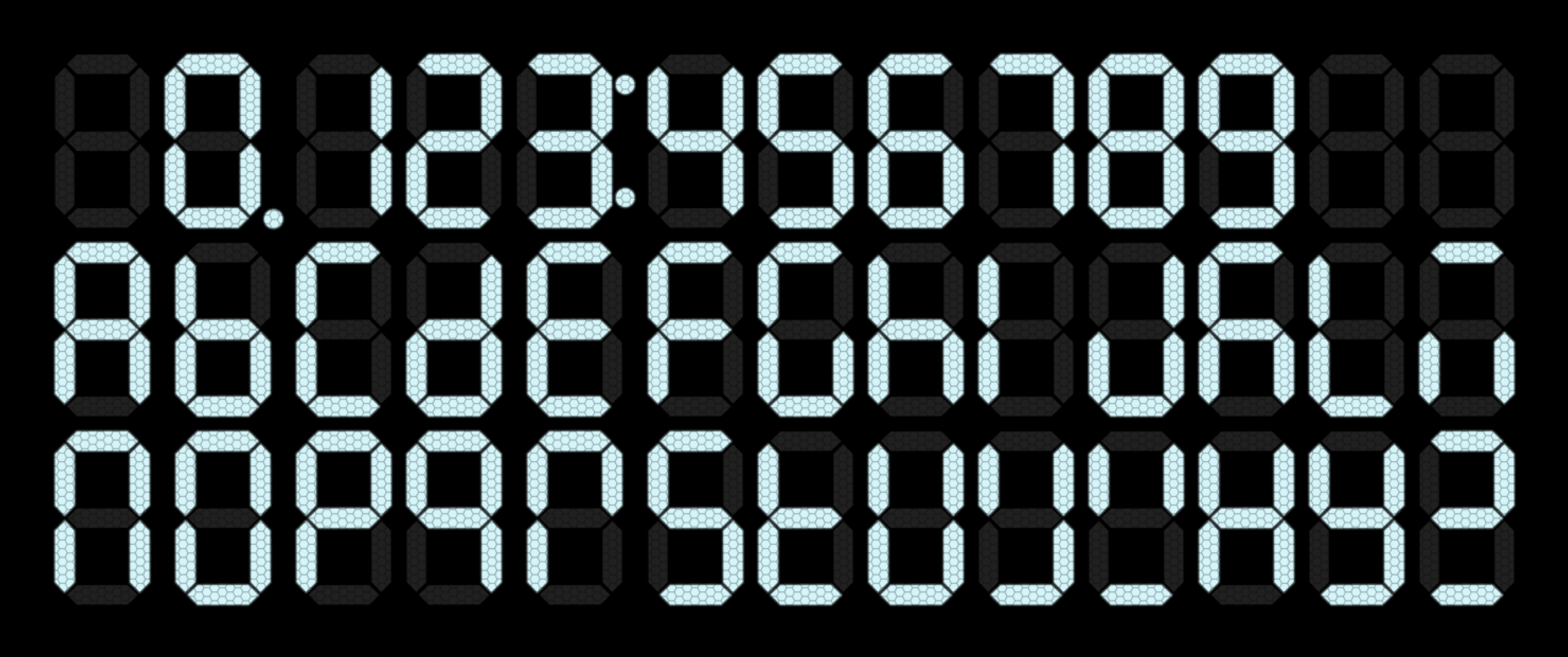
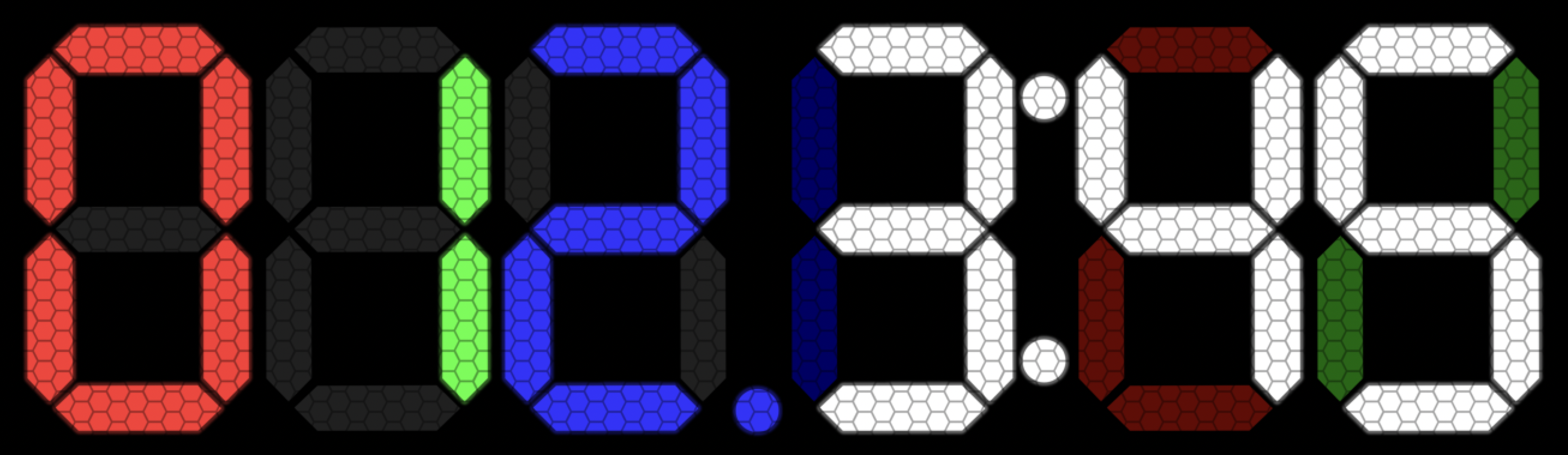
7-Segment Display Example
Installation
Install tkVFD with pip:
python3 -m pip install --upgrade pip
python3 -m pip install tkVFD
Usage
16-Segment Displays
class tkVFD.seg16(parent, *option=value):
Tkitner-compatible 16-segment "VFD/LCD like" display that can be used everywhere Tkinter expects a canvas object.
OPTIONS:
parent - Parent Tkinter object.
width - Display width in pixels. Note: If only one display dimension parameter is passed (i.e. width but not height or vice versa) the unspecified dimension parameter is adjusted automatically to preserve default aspect ratio.
height - Display height in pixels. Note: If only one display dimension parameter is passed (i.e. height but not width or vice versa) the unspecified dimension parameter is adjusted automatically to preserve default aspect ratio.
on_color - The color of the display segments which are "switched on" as expressed as an RGB row vector i.e [red, green, blue] where each color is represented as a number between 0 and 255 (default: on_color=[204, 246, 250]).
off_color - The color of the display segments which are "switched off" as expressed as an RGB row vector i.e. [red, green, blue] where each color is represented as a number between 0 and 255 (default: off_color=[32, 32, 32]).
bg - Background color of the display canvas, accepts all standard Tkinter color inputs, including standard color names and 4/8/12 bit hexadecimal RGB color formats (default: bg='black').
use_DP - If True the display will include a decimal point segment (default: use_DP=False).
use_CC - If True the display will include colon segments (default: use_CC=False).
use_Grid - If False the display will not include a visual "grid" making the display look more "LCD like" (default: use_Grid=True).
method .control(switches, *option=value)
This method is used to directly control which segments of the display are "switched on" or "off".
[!IMPORTANT] If neither this method or the
.char()method are used the display will exist internally, but it will not be visible in the Tkinter application as the state (i.e. on or off) of the display's segment will be indeterminate.
OPTIONS:
switches - A row vector with 16 elements, each describing the binary state (i.e. 1=on, 0=off) of the corresponding segment of the display in alphabetical order from A-M (and applicable sub-segments) according to the diagram below. Note: Control over decimal point and/or colon segments is handled separately via the options below.
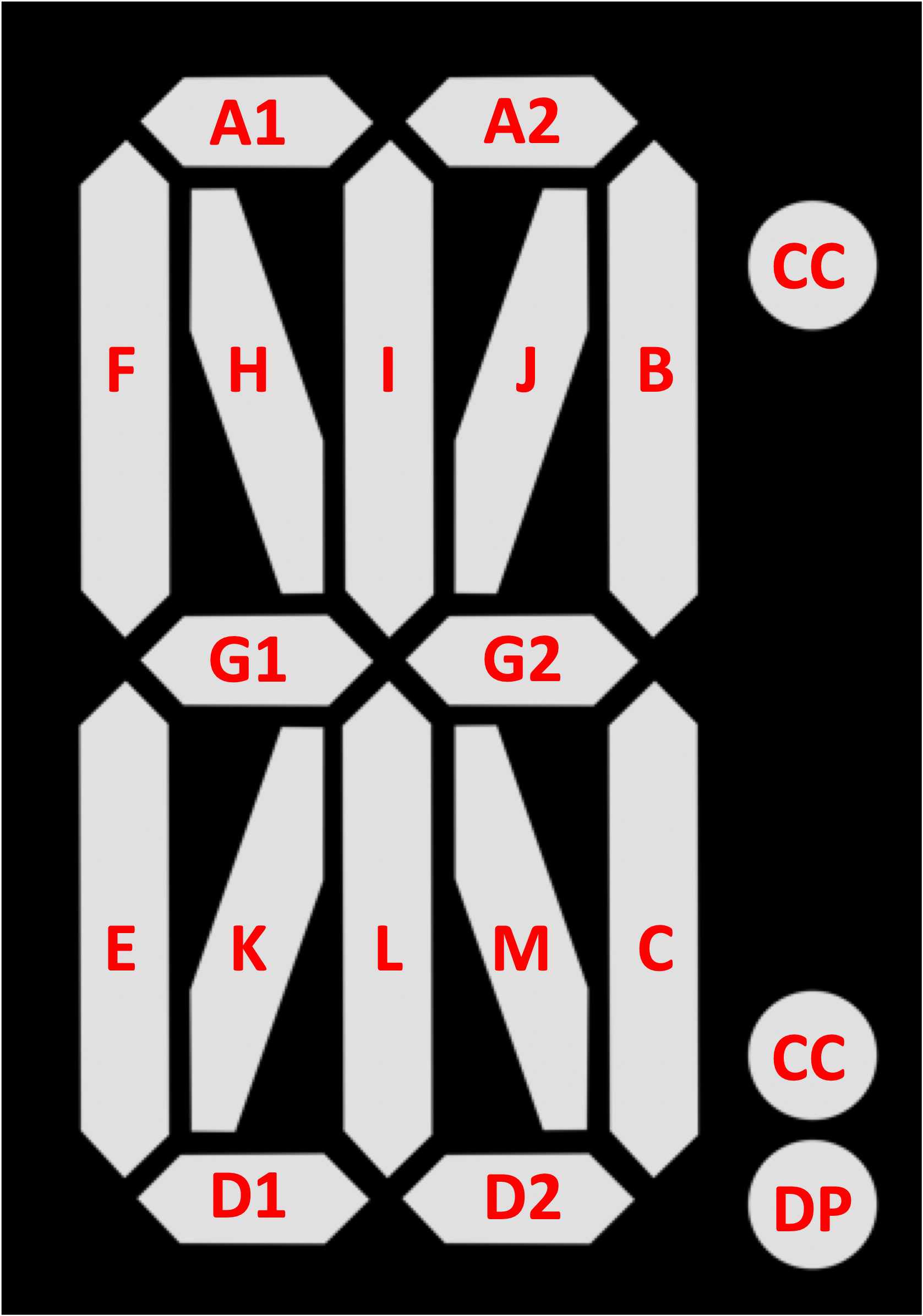
DP - Sets the binary state (i.e. 1=on, 0=off) of the decimal point segment, assuming the decimal point segment was enabled when the display was initialized (i.e. tkVFD.seg16(parent, use_DP=True)).
CC - Sets the binary state (i.e. 1=on, 0=off) of the colon segments, assuming the colon segments were enabled when the display was initialized (i.e. tkVFD.seg16(parent, use_CC=True).
method .char(char, option=value)
This method is used to automatically display alpha-numeric characters. Alpha-numeric characters supported by .seg16() are A-Z (capital and lower-case) and 0-9 (see Background section for more).
[!IMPORTANT] If neither this method or the
.control()method are used the display will exist internally, but it will not be visible in the Tkinter application as the state (i.e. on or off) of the display's segment will be indeterminate.
OPTIONS:
char - A single alpha-numeric string character (i.e. 'A' or '9'), see above for supported characters.
DP - Sets the binary state (i.e. 1=on, 0=off) of the decimal point segment, assuming the decimal point segment was enabled when the display was initialized (i.e. tkVFD.seg16(parent, use_DP=True)).
CC - Sets the binary state (i.e. 1=on, 0=off) of the colon segments, assuming the colon segments were enabled when the display was initialized (i.e. tkVFD.seg16(parent, use_CC=True).
method .clear()
This method resets the state of the display after being set and must be called before either .control() or .char() can used again on an existing display.
[!IMPORTANT] In order to update an existing display the
.clear()method must be called before either.control()or.char()can used again.
Example:
import tkinter as tk
import tkVFD
import time

def change2nine():
	'''example function for resetting and updating tkVFD displays'''

	# reset display states so they can be updated
	left_disp.clear()
	right_disp.clear()

	# update the displays, via both methods, to show the number "9"
	left_disp.control([1,1,1,1,0,1,1], DP=0, CC=None).pack(side=tk.LEFT)
	right_disp.char('9', DP=None, CC=0).pack(side=tk.LEFT)

root=tk.Tk()
root.title('7-Segment Display Example')

# initialize an example displays
left_disp = tkVFD.seg7(root, height=200, use_DP=True)

right_disp = tkVFD.seg7(root, height=200, use_CC=True)

# disp the number "3" via direct control & using .pack layout management method
left_disp.control([1,1,1,1,0,0,1], DP=1, CC=None)
left_disp.pack(side=tk.LEFT)

# disp the number "3" via 'char' shortcut
right_disp.char('3', DP=None, CC=1)
right_disp.pack(side=tk.LEFT)

# after 5 seconds, call function to change display to "9"s
root.after(5000, change2nine)

root.mainloop()
7-Segment Displays
class tkVFD.seg7(parent, option=value):
Tkitner-compatible 7-segment "VFD/LCD like" display that can be used everywhere Tkinter expects a canvas object.
OPTIONS:
parent - Parent Tkinter object.
width - Display width in pixels. Note: If only one display dimension parameter is passed (i.e. width but not height or vice versa) the unspecified dimension parameter is adjusted automatically to preserve default aspect ratio.
height - Display height in pixels. Note: If only one display dimension parameter is passed (i.e. height but not width or vice versa) the unspecified dimension parameter is adjusted automatically to preserve default aspect ratio.
on_color - The color of the display segments which are "switched on" as expressed as an RGB row vector i.e [red, green, blue] where each color is represented as a number between 0 and 255 (default: on_color=[204, 246, 250]).
off_color - The color of the display segments which are "switched off" as expressed as an RGB row vector i.e. [red, green, blue] where each color is represented as a number between 0 and 255 (default: off_color=[32, 32, 32]).
bg - Background color of display canvas, accepts all standard Tkinter color inputs, including standard color names and 4/8/12 bit hexadecimal RGB color formats (default: bg='black').
use_DP - If True the display will include a decimal point segment (default: use_DP=False).
use_CC - If True the display will include colon segments (default: use_CC=False).
use_Grid - If False the display will not include a visual "grid" making the display look more "LCD like" (default: use_Grid=True).
method .control(switches, option=value)
This method is used to directly control which segments of the display are "switched on" or "off".
[!IMPORTANT] If neither this method or the
.char()method are used the display will exist internally, but it will not be visible in the Tkinter application as the state (i.e. on or off) of the display's segment will be indeterminate.
OPTIONS:
switches - A row vector with 7 elements, each describing the binary state (i.e. 1=on, 0=off) of the corresponding segment of the display in alphabetical order from A-G according to the diagram below. Note: Control over decimal point and/or colon segments is handled separately via the options below.
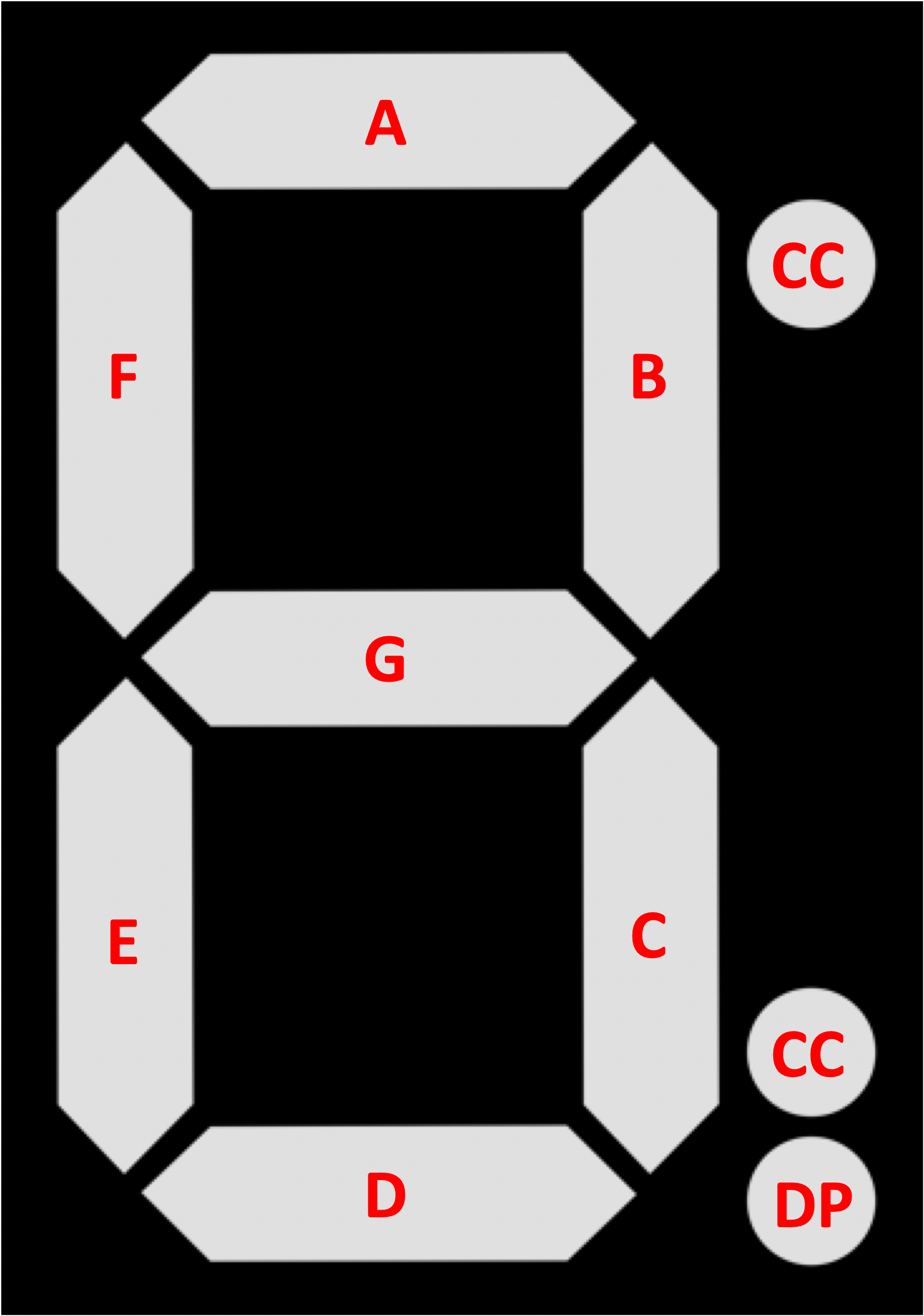
DP< - Sets the binary state (i.e. 1=on, 0=off) of the decimal point segment, assuming the decimal point segment was enabled when the display was initialized (i.e. tkVFD.seg7(parent, use_DP=True)).
CC - Sets the binary state (i.e. 1=on, 0=off) of the colon segments, assuming the colon segments were enabled when the display was initialized (i.e. tkVFD.seg7(parent, use_CC=True).
method .char(char, option=value)
This method is used to automatically display common alpha-numeric characters. Alpha-numeric characters supported by .seg7() are capital A-Z and 0-9. Note: 7-Segment displays are best suited for numeral-only displays. For displays required to represent alphabetical characters, 16-Segment display are recommended. (see Background section for more)
[!IMPORTANT] If neither this method or the
.control()method are used the display will exist internally, but it will not be visible in the Tkinter application as the state (i.e. on or off) of the display's segment will be indeterminate.
OPTIONS:
char - A single alpha-numeric string character (i.e. 'A' or '9'), see above for supported characters.
DP - Sets the binary state (i.e. 1=on, 0=off) of the decimal point segment, assuming the decimal point segment was enabled when the display was initialized (i.e. tkVFD.seg7(parent, use_DP=True).
CC - Sets the binary state (i.e. 1=on, 0=off) of the colon segments, assuming the colon segments were enabled when the display was initialized (i.e. tkVFD.seg7(parent, use_CC=True).
method .clear()
This method resets the state of the display after being set and must be called before either .control() or .char() can used again on an existing display.
[!IMPORTANT] In order to update an existing display the
.clear()method must be called before either.control()or.char()can used again.
Example:
import tkinter as tk
import tkVFD
import time

def change2h():
	'''example function for resetting and updating tkVFD displays'''

	# reset display states so they can be updated
	left_disp.clear()
	right_disp.clear()

	# update the displays, via both methods, to show the letter "H" and "h", respectively
	left_disp.control([0,0,1,1,0,0,1,1,1,1,0,0,0,0,0,0], DP=0, CC=None).pack(side=tk.LEFT)
	right_disp.char('h', DP=None, CC=0).pack(side=tk.LEFT)

root=tk.Tk()
root.title('7-Segment Display Example')

# initialize an example displays
left_disp = tkVFD.seg16(root, height=200, use_DP=True)

right_disp = tkVFD.seg16(root, height=200, use_CC=True)

# disp the letter "G" via direct control & using .pack layout management method
left_disp.control([1,1,0,1,1,1,1,1,0,1,0,0,0,0,0,0], DP=1, CC=None)
left_disp.pack(side=tk.LEFT)

# disp the letter "g" via 'char' shortcut
right_disp.char('g', DP=None, CC=1)
right_disp.pack(side=tk.LEFT)

# after 5 seconds, call function to change display to "H" and "h", respectively
root.after(5000, change2h)

root.mainloop()
Background
A Vacuum Fluorescent Display (VFD) is a analog-digital display device once commonly used in consumer electronics.
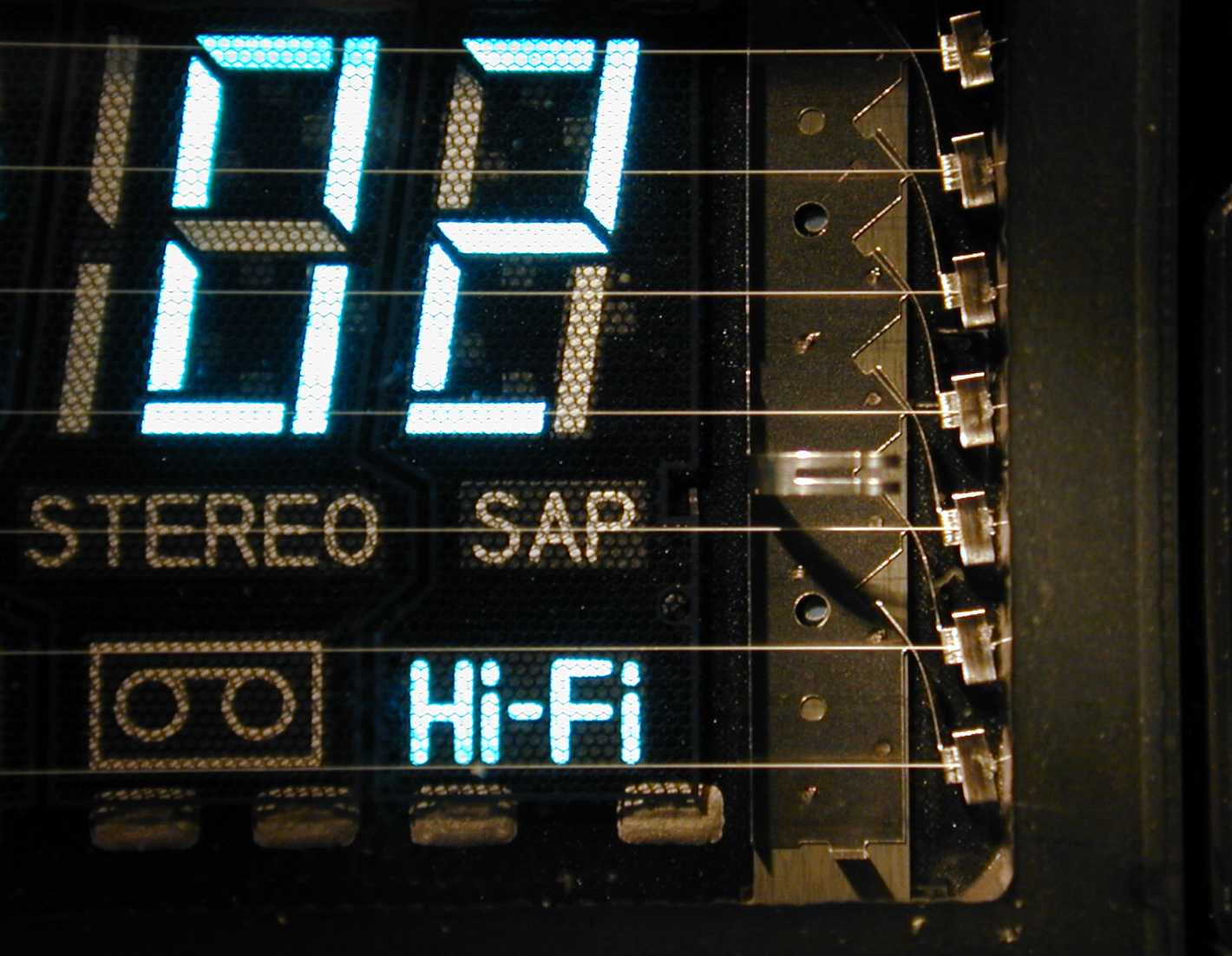
Example of a VFD in a Hi-Fi Sterio System
VFDs function in a similar fashion to the Liquid Crystal Display (LCD) but operate on a very different principle; cathodoluminescense. Each tube in a VFD has a mesh control grid and phosphor-coated carbon anode that is bombarded by electrons emitted from a cathode filament. This allows VFDs to natively emit a very bright light with high contrast and can support displays with multiple elements of various colors, which LCDs can not (hence, most must come equipped with a backlight).[1]
VFDs, like LCDs, come in many configurations, however, the two most common are:
-
seven-segment (7-segment) displays; As the name suggests, displays of this type are made up of seven independent segments and are best suited for numeral only displays (such as a digital clock). It is possible for these displays to represent alphabetical characters but the clarity/unambiguity is generally poor as a result of limited available segment geometries (for example the letter "Y"). Furthermore, it is not generally possible to differentiate between capitol/lower case characters. For applications where these limitations are problematic, 16-Segment displays offer a solution. [2]
-
sixteen-segment (16-segment) displays; As the name suggests, displays of this type are made up of 16 independent segments. 16-segment displays expand on the functionality of 7-segment displays by splitting all horizontal segments in half, adding two central-vertical segments, and four diagonal segments. These additional segments allow for significantly more clear representation of alpha-numeric characters/symbols, including capitol/lower-case letters. [3]
7-segment Geometry (left), 16-segment Geometry (right)
References
[1] https://en.wikipedia.org/wiki/Vacuum_fluorescent_display
[2] https://en.wikipedia.org/wiki/Seven-segment_display
[3] https://en.wikipedia.org/wiki/Sixteen-segment_display
1 maintainer

Metadata
1 maintainer
Release files for tkVFD 1.1.0
For a detailed explanation of source distributions (sdists) and built distributions (wheels), please see the package formats documentation.
Source distribution (sdist)
| File | Size | Uploaded | |
|---|---|---|---|
| tkVFD-1.1.0.tar.gz | 1.9 MB | Details |
Built distribution (wheel)
| File | Interpreter | ABI | Platform | Reset |
|---|---|---|---|---|
| tkVFD-1.1.0-py3-none-any.whl | Python 3 | none | any | Details |
Total release size: 3.7 MB
Release files / tkVFD-1.1.0.tar.gz
| Download URL | tkVFD-1.1.0.tar.gz |
|---|---|
| Size | 1.9 MB |
| Tags | Source |
|
SHA-256 checksum How to use checksums |
c18e09b00a487201b628b8f11a152470909c8f8a8c205af3a0f44ba09e91dcc4
|
|
BLAKE2b-256 checksum How to use checksums |
74b42f0af697978327bf9cf4a2f3ca59573b007a0c828c3e1f324135fe4d6ff8
|
| Upload date | |
|
Uploaded using Trusted Publishing? What is trusted publishing? |
No |
| Uploaded via |
twine/4.0.2 CPython/3.11.6
|
Release files / tkVFD-1.1.0-py3-none-any.whl
| Download URL | tkVFD-1.1.0-py3-none-any.whl |
|---|---|
| Size | 1.9 MB |
| Tags | Python 3 |
|
SHA-256 checksum How to use checksums |
a737b2c323e7b03c754b48ae411c2983478ecfbc9fe321062556c7425a13af39
|
|
BLAKE2b-256 checksum How to use checksums |
76a25f6e27de5b4db5d95d7e81ce6d01b3559719c4381f0223f40cb39ab6cda2
|
| Upload date | |
|
Uploaded using Trusted Publishing? What is trusted publishing? |
No |
| Uploaded via |
twine/4.0.2 CPython/3.11.6
|














