
VideoSpeed - Cut, speed, and boomerang MP4 clips from the CLI


VideoSpeed cuts a time range from an MP4, changes that clip’s length (percent), and can append a reverse pass (boomerang). On a terminal, no arguments opens a text menu (edit, language, system-log, self-management, Exit). Choosing edit walks through the prompts. Scripts pass --file / --start / --end. Encoding uses FFmpeg; duration probing uses OpenCV. The menu screen uses the default text-menu style: aligned number, verb, and note, and a rounded box along the bottom.
| You | The other role | Not this |
|---|---|---|
| Editor at a terminal or a script | FFmpeg on PATH (does the encode) |
A website, installer, or root/sudo tool |
Package version SSOT: src/VideoSpeed/__init__.py (MAJOR_VERSION, MINOR_VERSION, PATCH_VERSION → 1.0.13). pyproject.toml copies that string. Console entrypoint: video-speed.
Features
- Recursive MP4 discovery under a chosen folder
- Interactive cut (start/end seconds) with invalid-range re-prompt
- Length/speed change (20–200%) with A/V tempo kept in sync
- Optional boomerang (forward then reverse)
- USB-safe intermediate files (staged next to the output) and final publish via
shutil.move - Text menu on a terminal (
edit,language,system-log,self-management,Exit): the first row keepsPathand the current directory on the left, andCurrentplus this login on the right when the row has room. Columns line up, and a three-row rounded input box sits on the bottom with a status line under it. The product name and version stay on that status line. 8 self-management opens version, about, and the pip lifecycle rows - Product verbs
help,version,about,edit,list-mp4,self-install,version-check,self-update, andself-uninstall.helpprints the same usage as--help.versionprints the installed version.aboutprints a page and does not ask for a folder or a file.editon a terminal asks for the folder, then the file.list-mp4lists MP4 files and does not encode.version-checkrunspython -m pip index versions VideoSpeed.self-updaterunspython -m pip install --upgrade VideoSpeed.self-installrunspython -m pip install VideoSpeed.self-uninstallrunspython -m pip uninstall -y VideoSpeedand needs--forceon the command line.Exitstays on the menu../build.shverbs such assetupare notvideo-speedverbs --help/--version; no arguments in a terminal opens that menu- Non-interactive job:
--file,--start,--end, optional--percent/--boomerang, with or withoutedit. Any of those selectors with no product verb skips the menu - Fail-closed when FFmpeg is missing from
PATH, when prompts are needed without a terminal, or when--percentor--boomerangis passed without a job
Advantages
Dual-mode interface
You set a length as a percent from 20 to 200, and boomerang as yes or no. You do not write an FFmpeg filter graph (setpts, atempo, or a reverse-and-concat graph).
With no arguments on a terminal, the text menu opens. The first row keeps the path and a local clock. A rounded input box sits on the bottom. Edit walks the folder, the file, the cut, the percent, and boomerang, and asks again when a range is invalid.
A script passes --file, --start, --end, and optional --percent and --boomerang. --json prints one object and keeps the menu closed. With no terminal and no job, the program exits with an error instead of waiting on a prompt.
Built-in languages
Row 4 lists thirteen languages: English, Simplified Chinese, Traditional Chinese, Spanish, Arabic, French, Portuguese, Russian, German, Japanese, Korean, Dutch, and Greek. The choice is saved for the next run.
USB-safe staging
Intermediate files are written beside the output when that folder can be written, including on a removable drive. The finished file is published with shutil.move. When that folder cannot be written, the stage uses the system temporary directory.
Lifecycle and diagnostics
version-check, self-update, self-install, and self-uninstall are menu rows and commands. self-uninstall on the command line needs --force. They call pip. They do not use root.
system-log (6) views a log, clears a log after a yes/no question, and shows the log folder. about (83) prints the host check in English: Python, the C library, conda and pyenv locations, and whether the process is inside Docker.
Comparison
| Feature | Raw FFmpeg CLI | Typical Python wrappers (moviepy) | VideoSpeed |
|---|---|---|---|
| Learning curve | Filter graph (setpts, atempo, reverse and concat) |
A Python script | Text menu, or a percent and yes/no |
| Non-interactive / CI | Native command line | A custom script | --file, --start, --end, --percent, --boomerang, and --json. Fail closed with no terminal |
| Menu languages | None | None | Thirteen, kept for the next run |
| Temporary files | You choose the paths | Often the system temporary directory | Beside the output when that folder can be written. Publish with shutil.move |
| Self-management | The system package manager | pip from outside the tool | Built-in version-check, self-update, self-install, and self-uninstall |
| Diagnostics and logs | The encode stream | A logging setup in the script | system-log menu and the about host check |
Quick Installation
Prerequisites (system)
- FFmpeg on
PATH(ffmpeg -version) - A supported Python environment (see
requires-pythoninpyproject.toml)
From PyPI (registry channel)
Package name SSOT: VideoSpeed (pyproject.toml [project].name). Maintainer verbs are on ./build.sh: help, version, setup, clean, build, test, test-install, upload, git, tag, release (all is the same chain as release). test runs tests/run.sh. test-install reads [project].name, removes that pip install when present, and installs this checkout. Empty ./build.sh prints help and does not upload.
pip install VideoSpeed
If the index is behind a local release, install from a checkout or wheel instead (below). Live index version is shown by the PyPI badge above.
From a git checkout (development)
git clone git@github.com:Wilgat/VideoSpeed.git
cd VideoSpeed
pip install -e .
This installs the console script video-speed and pulls Python deps (opencv-python-headless>=5.0.0.93, ChronicleLogger>=1.3.1).
Local pyenv install (testing)
./setup.sh
pyenv shell 3.14
video-speed --version
setup.sh runs pyenv shell 3.14 and installs this checkout with pip into that interpreter. Install CPython 3.14 first when it is missing (pyenv install 3.14). Run ./setup.sh again after source changes. In the shell where you want the command:
pyenv shell 3.14
video-speed --help
The console script is installed on the pyenv 3.14 prefix. ./setup.sh changes that interpreter only. It does not install FFmpeg and it does not use root.
From a local wheel / sdist
# after: python -m build   (or ./build.sh build)
pip install dist/videospeed-1.0.13-py3-none-any.whl
# or
pip install dist/videospeed-1.0.13.tar.gz
Verify
video-speed --version
# or
python -m VideoSpeed --version
Usage
Text menu (no arguments, in a terminal):
video-speed
# or
python -m VideoSpeed
The screen shows a numbered menu and a rounded input box along the bottom, as wide as the terminal, with one line to type on and a status line under the box. The first row keeps Path: and the folder on the left, and a local clock (HH:MM:SS) on the right when the row has room. The clock is drawn again each second. The product name and version stay on the status line. edit continues the prompts. language (4) opens the thirteen menu languages. The choice is kept for the next run. system-log (6) opens view-log, clear-log, and log-folder. view-log (61) lists the log files and shows the one you pick. clear-log (62) empties the file you pick after Clear <name>? (y/n). log-folder (63) shows the log folder. self-management (8) opens version, about, version-check, self-update, self-uninstall, and self-install. Exit leaves.
The same actions are verbs. edit starts at the folder question. list-mp4 asks for the folder when it is omitted, prints the numbered list, and stops. version prints the installed version and does not call pip. version-check and self-update call pip.
video-speed help
video-speed version
video-speed about
video-speed edit
video-speed edit --folder ./clips
video-speed edit --file clip.mp4 --start 1 --end 5 --percent 100
video-speed list-mp4
video-speed list-mp4 --folder ./clips
video-speed version-check
video-speed self-update
video-speed self-install
video-speed self-uninstall --force
- Folder containing MP4s (Enter = current directory)
- Choose a video by number
- Cut start/end seconds
- New length percent (default 100; allowed 20–200)
- Optional boomerang (y/n)
- Output is written next to the source with a descriptive name
Non-interactive job (scripts / CI):
video-speed --file clip.mp4 --start 1 --end 5 --percent 100
video-speed --file clip.mp4 --start 1 --end 5 --percent 50 --boomerang
Other:
video-speed --help
video-speed --version
Without a terminal and without a job, the program exits with an error instead of hanging on prompts. --percent or --boomerang alone does the same and names --file, --start, and --end. --folder checks the directory. It does not pick a file.
--json keeps that same choice, closes the text menu, and prints one JSON object on standard output. On a terminal with no job flags, the questions are written to the error stream. Progress is not mixed into the object.
Screenshots
Each heading is the file name. The paragraph is what that picture shows: the words on the screen, the characters in the input box, or the scene in the still.
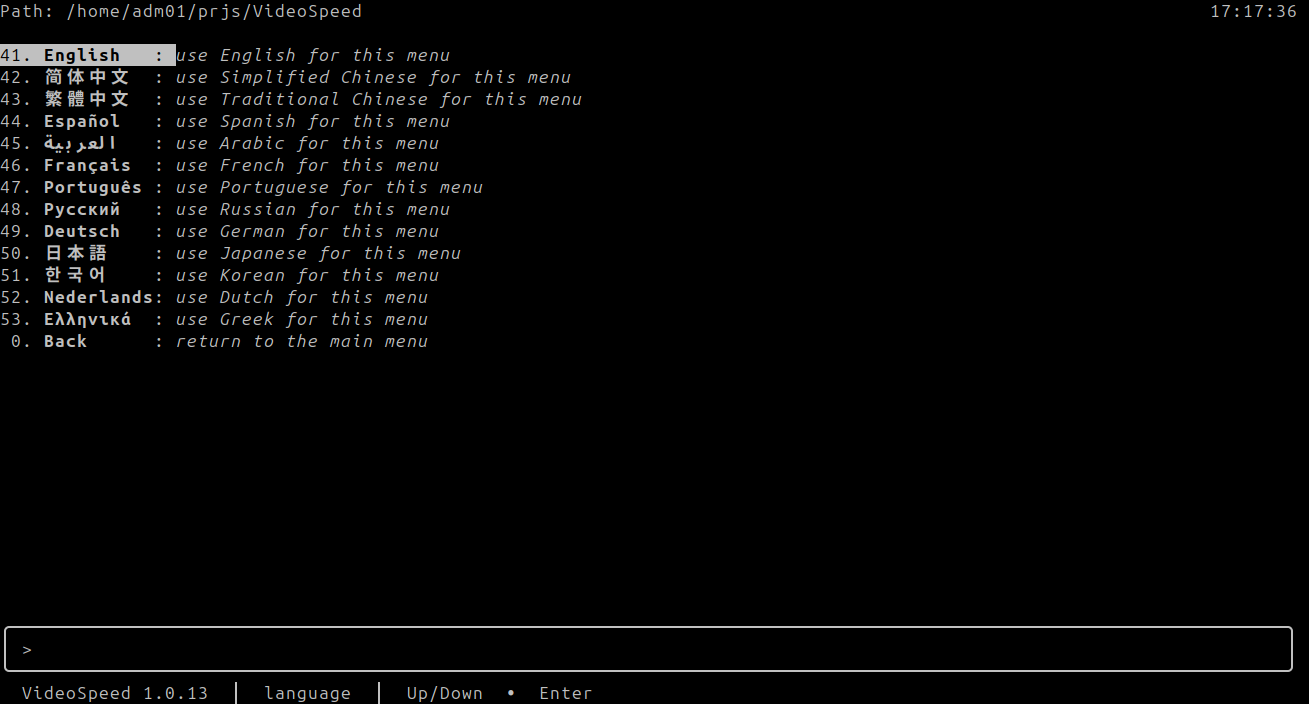
language-menu.png
Row 4 has opened the language list. 41 English is highlighted, with the note “use English for this menu.” The other rows are 42 简体中文, 43 繁體中文, 44 Español, 45 العربية, 46 Français, 47 Português, 48 Русский, 49 Deutsch, 50 日本語, 51 한국어, 52 Nederlands, and 53 Ελληνικά. Each note says to use that language for this menu. 0 Back says “return to the main menu.” The path label is Path, the clock is on the right, and the status line says language. VideoSpeed 1.0.13.
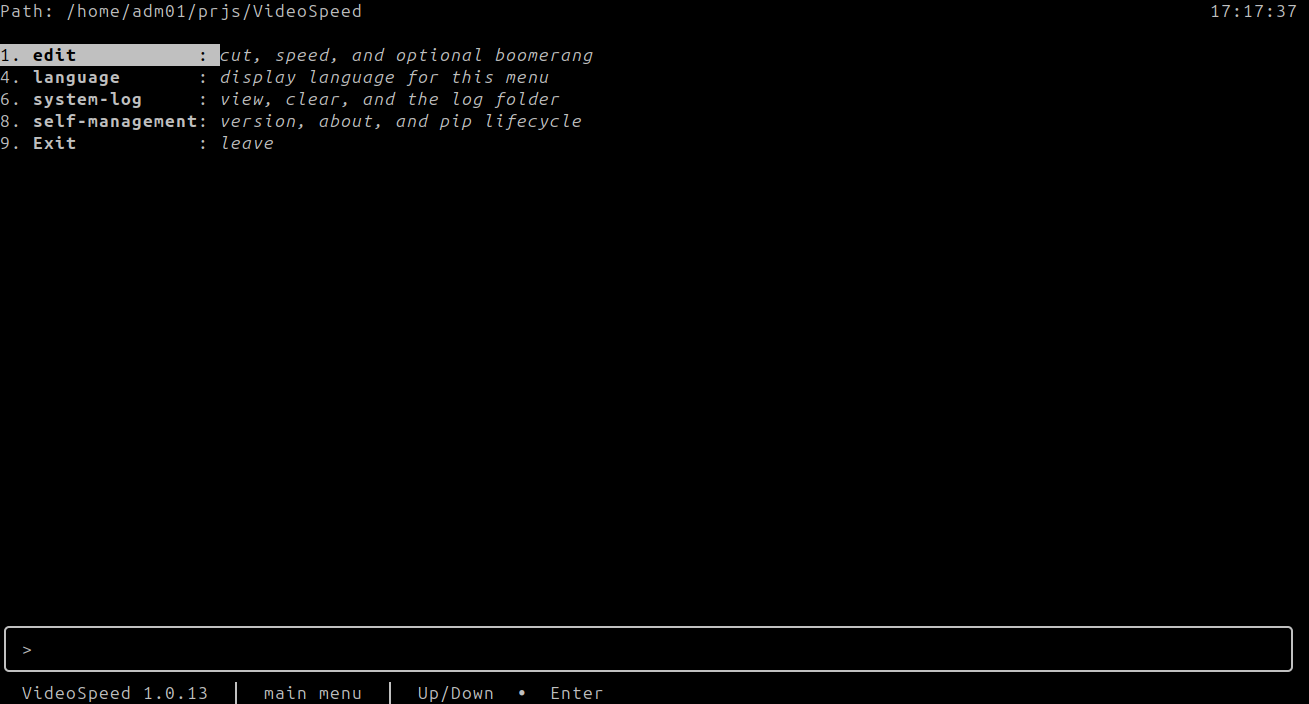
main-menu-en.png
English main menu. There is no saved-language line above the box. The path label is Path. The rows are 1 edit “cut, speed, and optional boomerang”, 4 language “display language for this menu”, 6 system-log “view, clear, and the log folder”, 8 self-management “version, about, and pip lifecycle”, and 9 Exit “leave.” The status line says main menu.
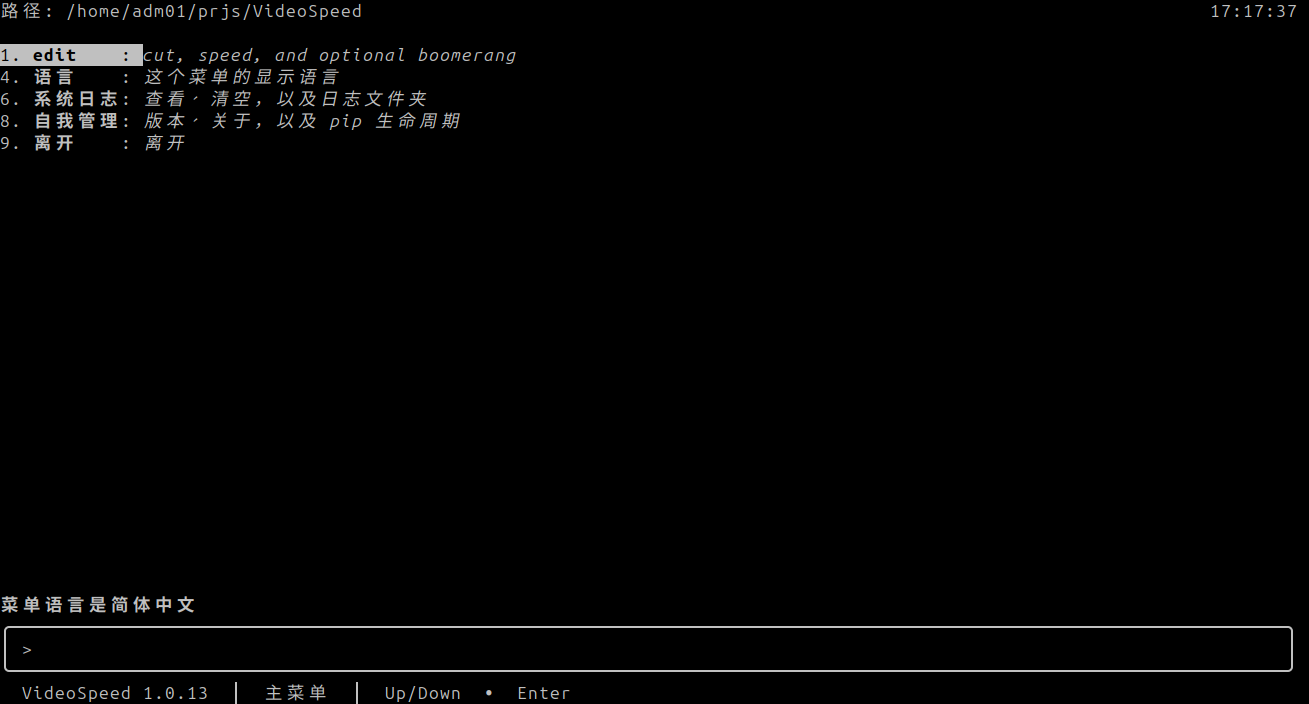
main-menu-zh-hans.png
Simplified Chinese main menu. The line above the box says 菜单语言是简体中文. The path label is 路径. The clock is on the right. Row 1 stays edit. Row 4 is 语言, row 6 is 系统日志, row 8 is 自我管理, and row 9 is 离开. The status line says 主菜单.
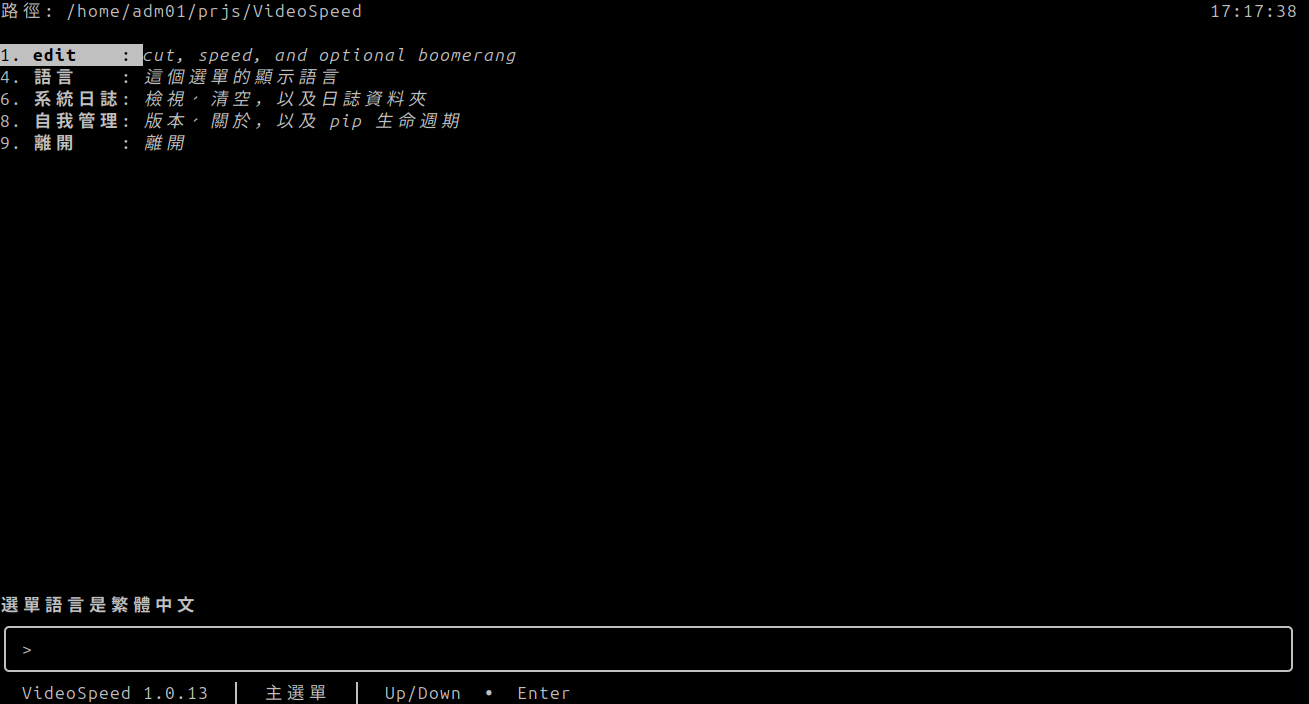
main-menu-zh-hant.png
Traditional Chinese main menu. The line above the box says 選單語言是繁體中文. The path label is 路徑. The clock is on the right. Row 1 stays edit. Row 4 is 語言, row 6 is 系統日誌, row 8 is 自我管理, and row 9 is 離開. The status line says 主選單.
main-menu-es.png
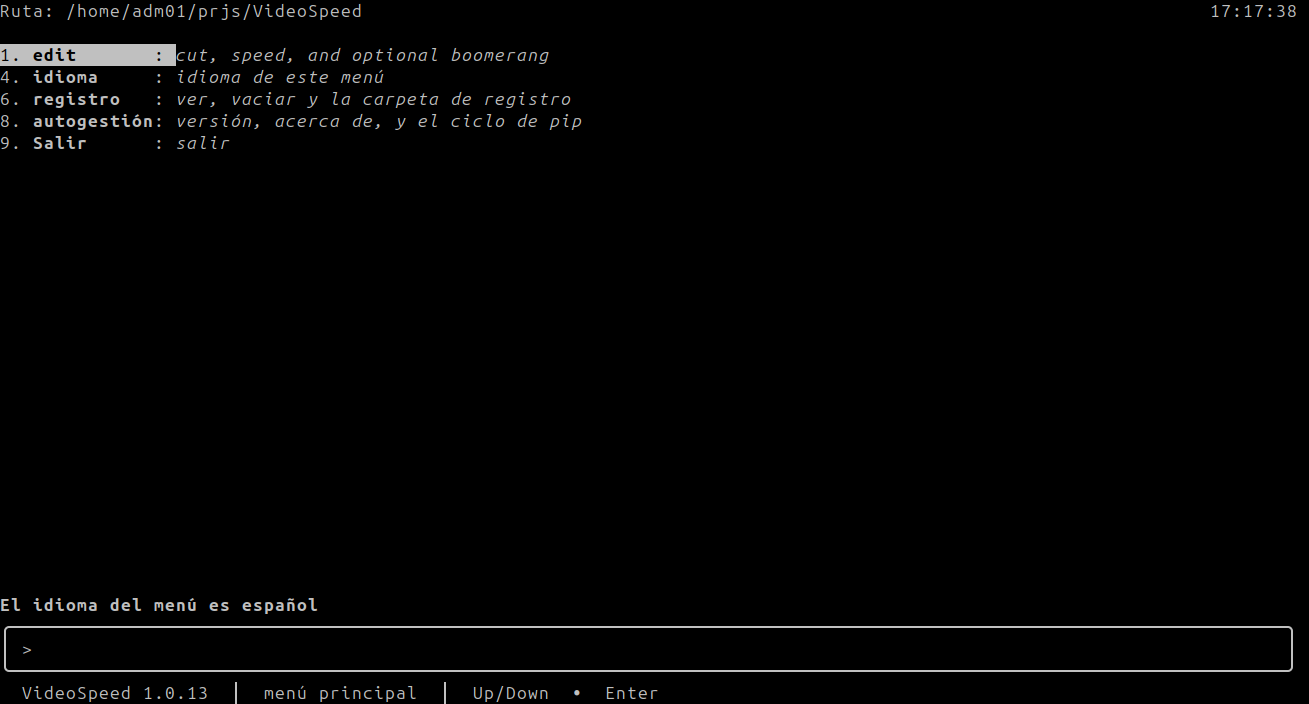
Spanish main menu. The line above the box says El idioma del menú es español. The path label is Ruta. Row 1 stays edit. Row 4 is idioma, row 6 is registro, row 8 is autogestión, and row 9 is Salir. The status line says menú principal.
main-menu-ar.png
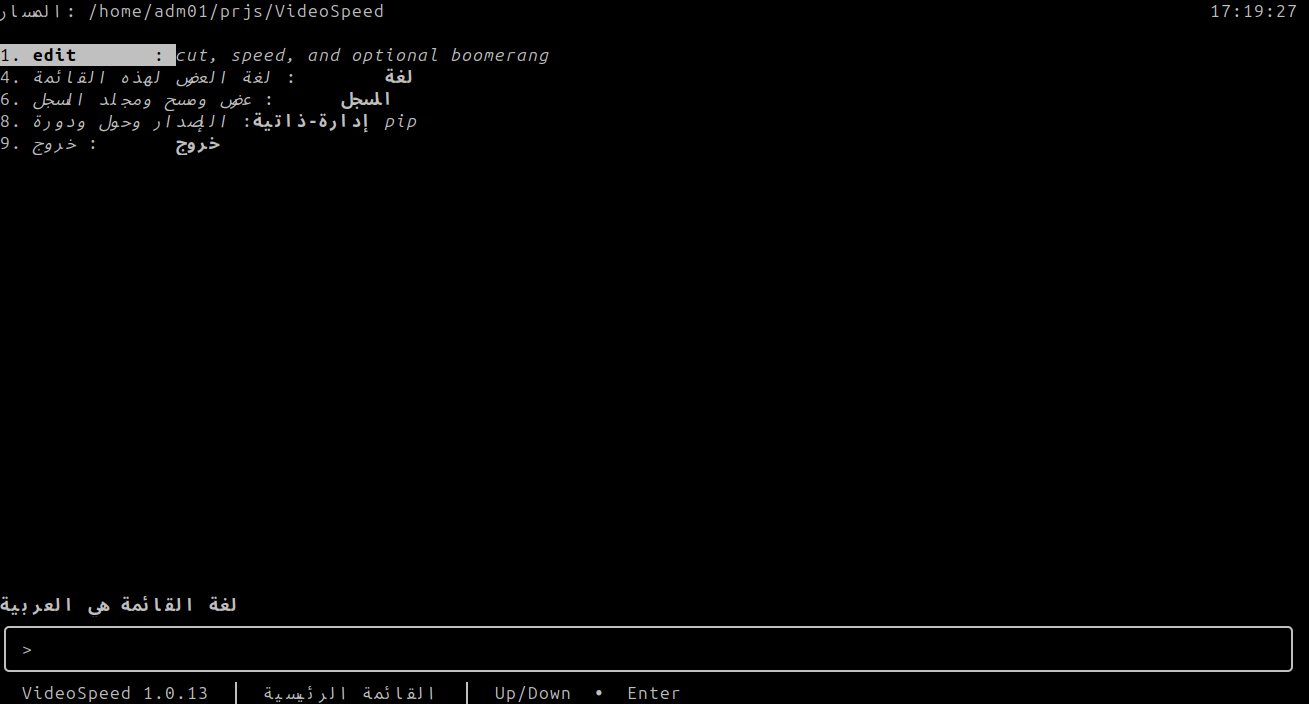
Arabic main menu. The line above the box says لغة القائمة هي العربية. The path label is المسار. The clock is on the right. Row 1 stays edit. Row 4 is لغة, row 6 is السجل, row 8 is إدارة-ذاتية, and row 9 is خروج. The status line says القائمة الرئيسية.
main-menu-fr.png
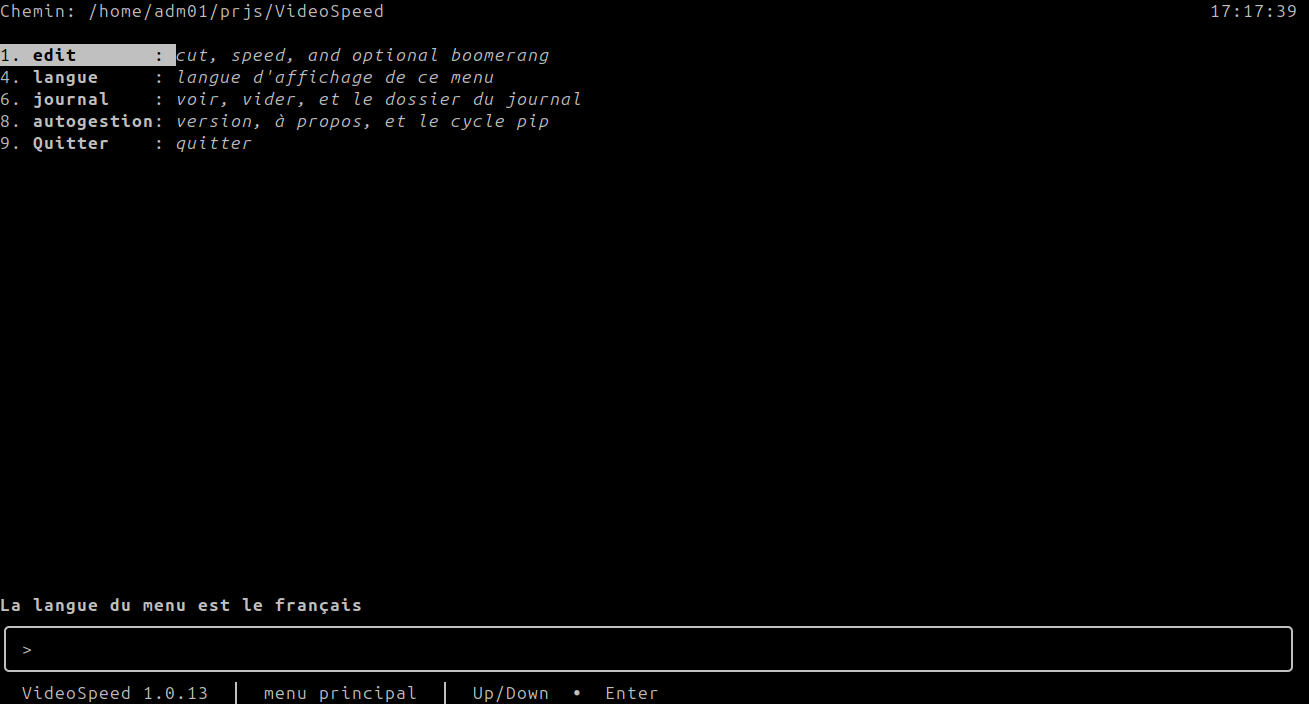
French main menu. The line above the box says La langue du menu est le français. The path label is Chemin. Row 1 stays edit. Row 4 is langue, row 6 is journal, row 8 is autogestion, and row 9 is Quitter. The status line says menu principal.
main-menu-pt.png
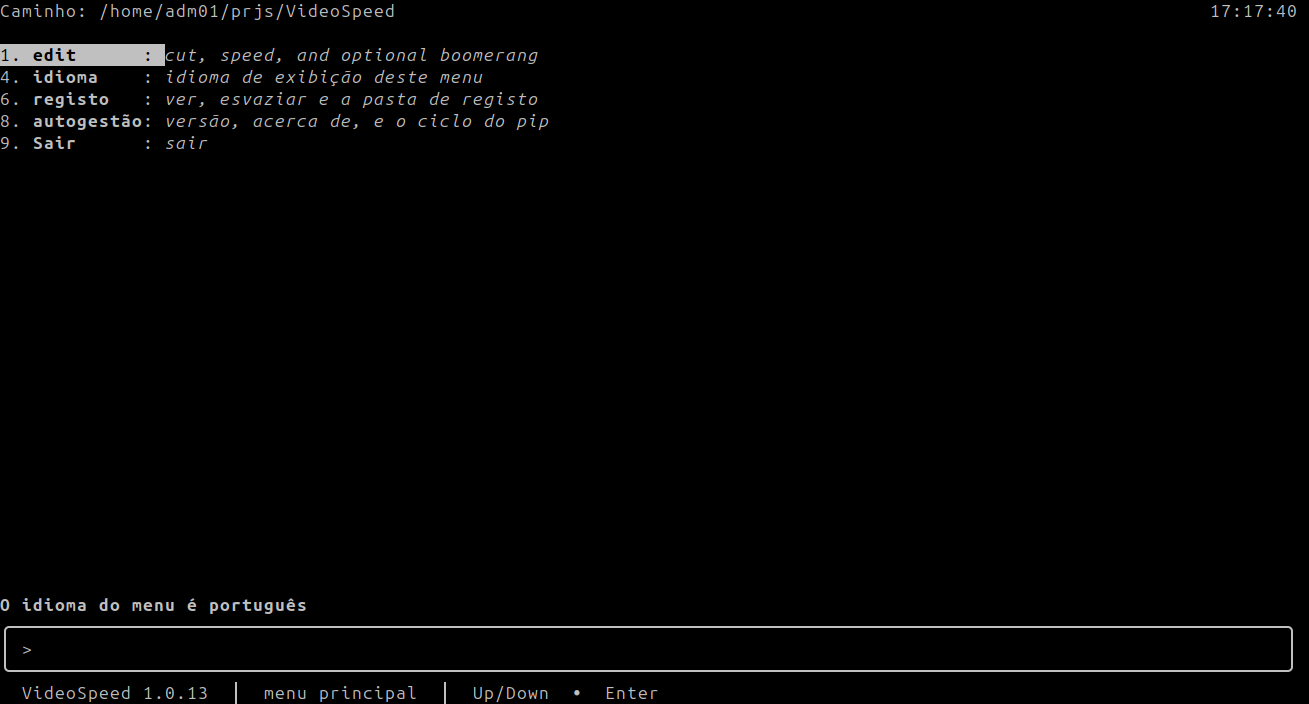
Portuguese main menu. The line above the box says O idioma do menu é português. The path label is Caminho. Row 1 stays edit. Row 4 is idioma, row 6 is registo, row 8 is autogestão, and row 9 is Sair. The status line says menu principal.
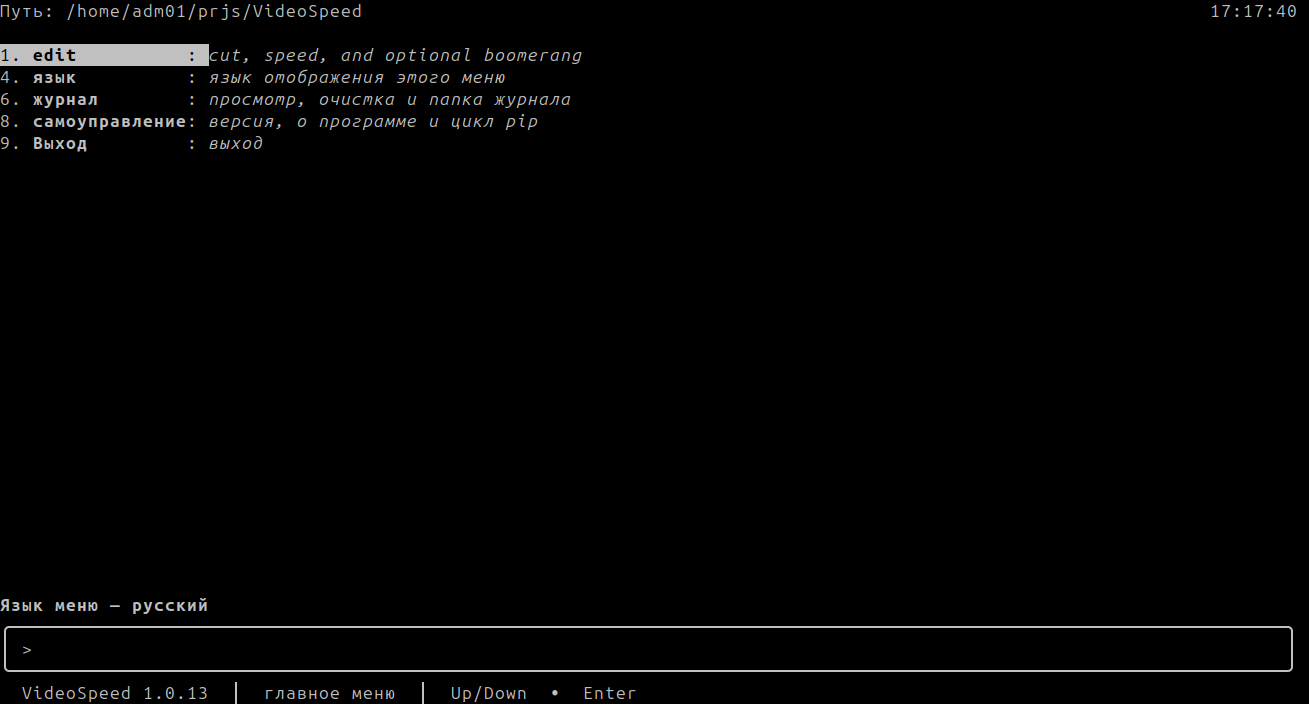
main-menu-ru.png
Russian main menu. The line above the box says Язык меню — русский. The path label is Путь. Row 1 stays edit. Row 4 is язык, row 6 is журнал, row 8 is самоуправление, and row 9 is Выход. The status line says главное меню.
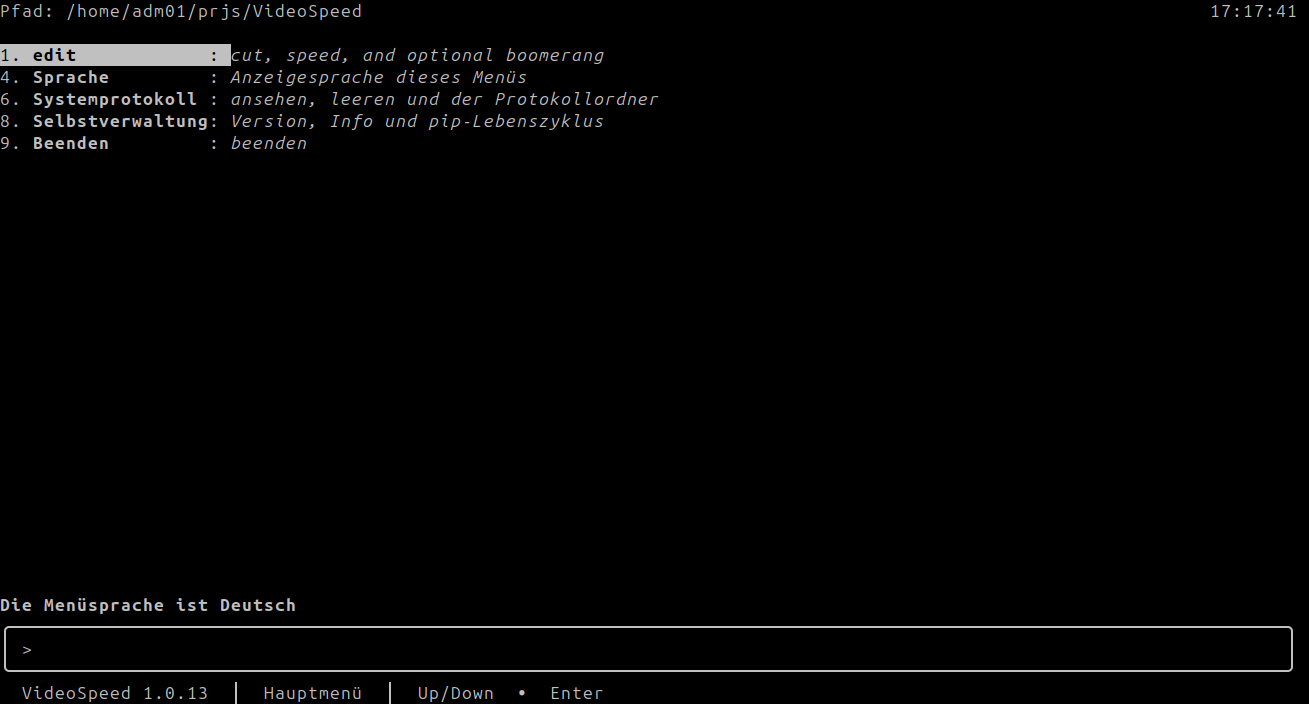
main-menu-de.png
German main menu. The line above the box says Die Menüsprache ist Deutsch. The path label is Pfad. Row 1 stays edit. Row 4 is Sprache, row 6 is Systemprotokoll, row 8 is Selbstverwaltung, and row 9 is Beenden. The status line says Hauptmenü.
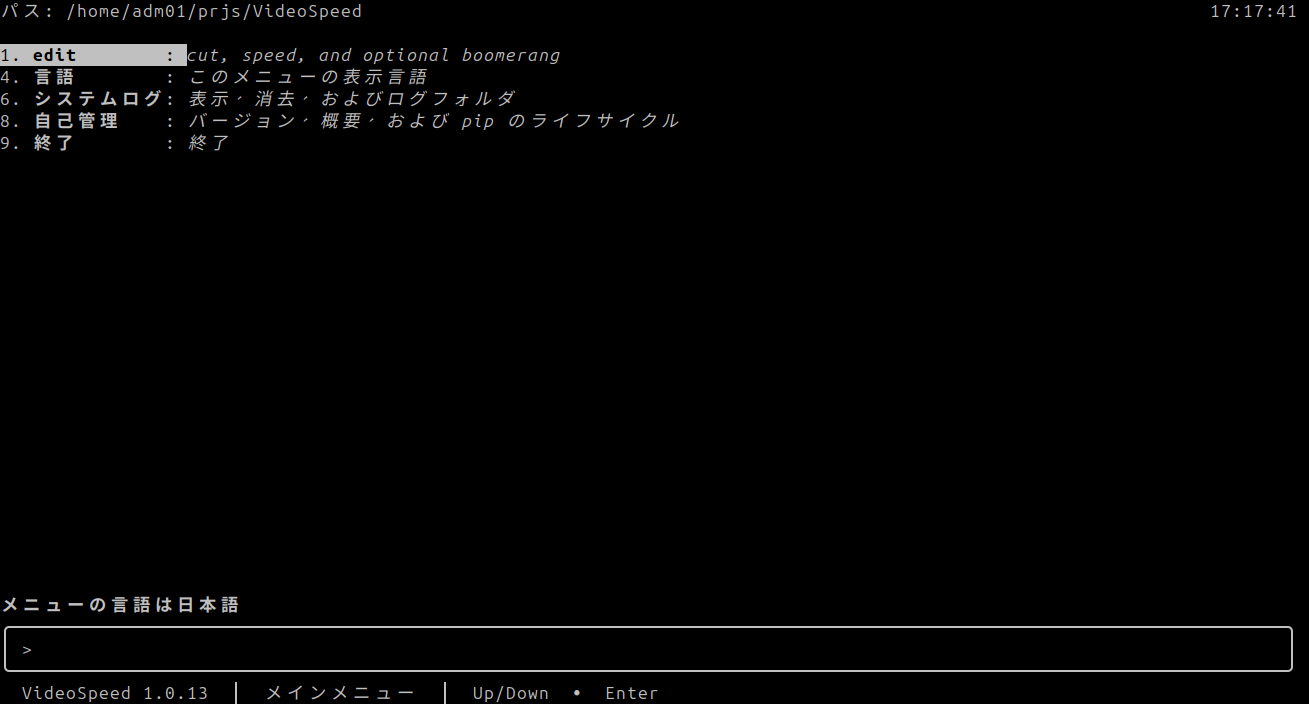
main-menu-ja.png
Japanese main menu. The line above the box says メニューの言語は日本語. The path label is パス. The clock is on the right. Row 1 stays edit. Row 4 is 言語, row 6 is システムログ, row 8 is 自己管理, and row 9 is 終了. The status line says メインメニュー.
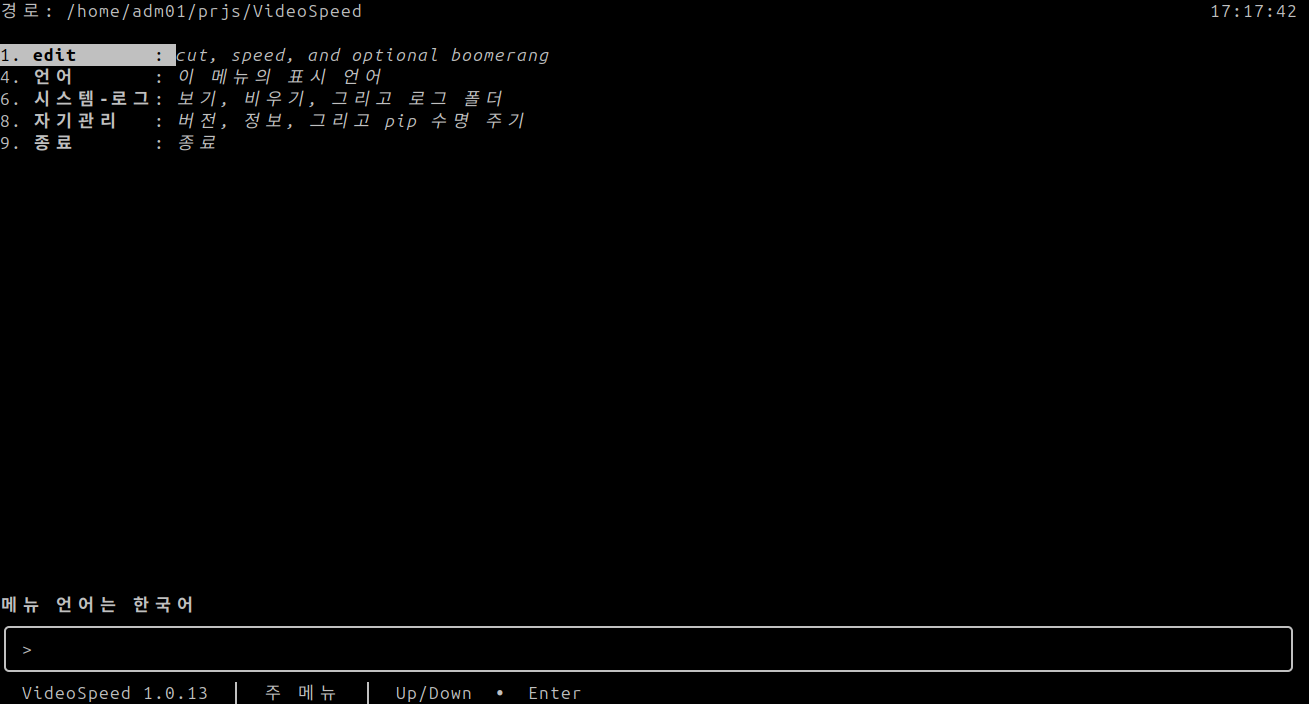
main-menu-ko.png
Korean main menu. The line above the box says 메뉴 언어는 한국어. The path label is 경로. The clock is on the right. Row 1 stays edit. Row 4 is 언어, row 6 is 시스템-로그, row 8 is 자기관리, and row 9 is 종료. The status line says 주 메뉴.
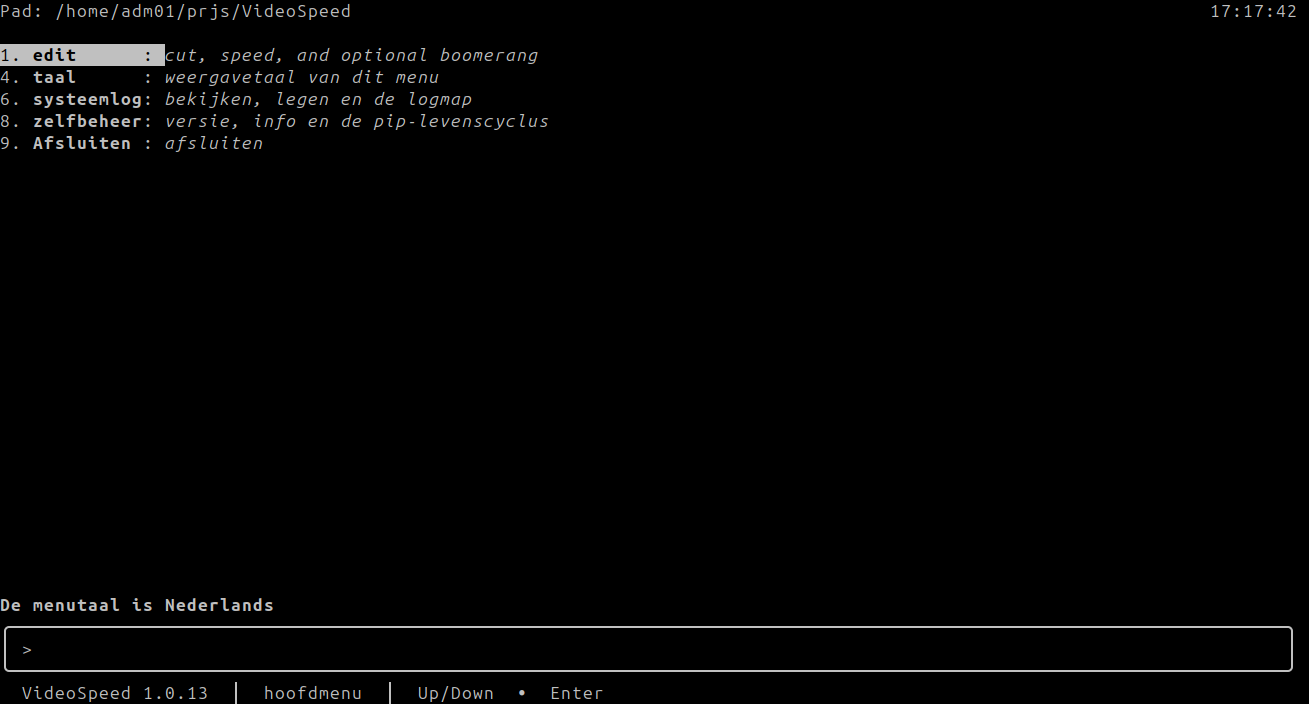
main-menu-nl.png
Dutch main menu. The line above the box says De menutaal is Nederlands. The path label is Pad. Row 1 stays edit. Row 4 is taal, row 6 is systeemlog, row 8 is zelfbeheer, and row 9 is Afsluiten. The status line says hoofdmenu.
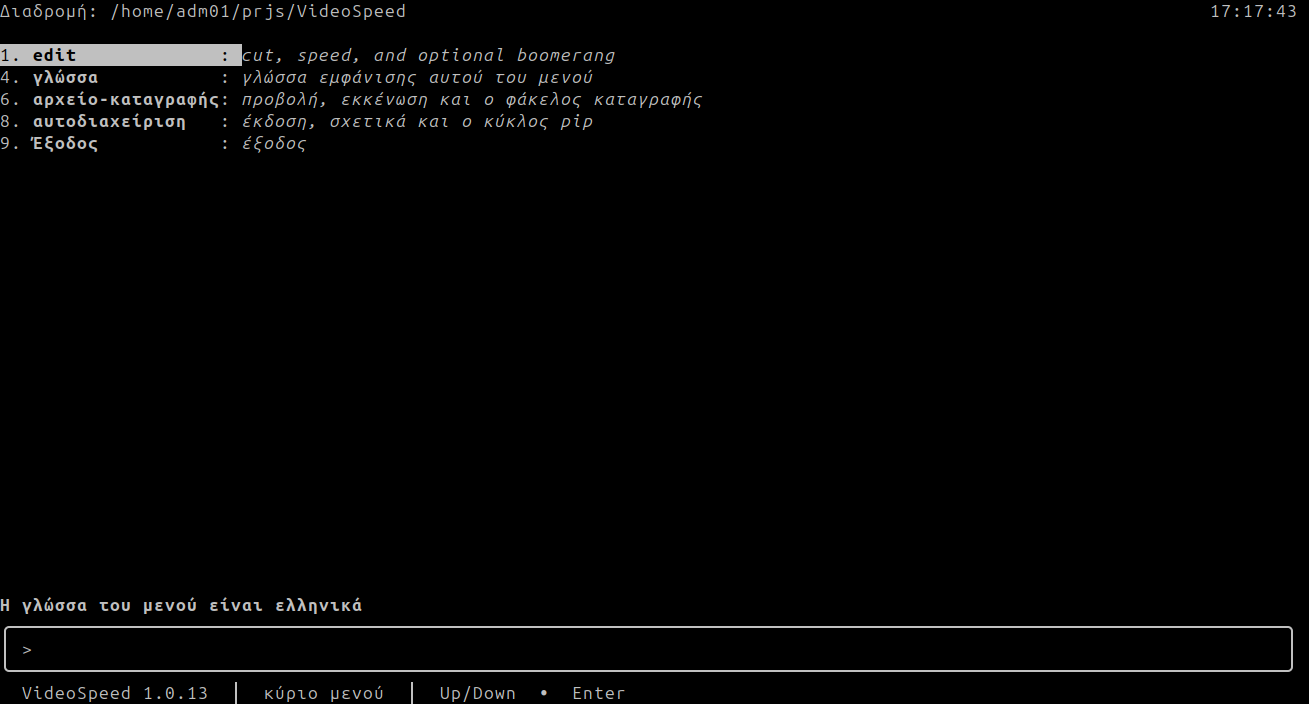
main-menu-el.png
Greek main menu. The line above the box says Η γλώσσα του μενού είναι ελληνικά. The path label is Διαδρομή. Row 1 stays edit. Row 4 is γλώσσα, row 6 is αρχείο-καταγραφής, row 8 is αυτοδιαχείριση, and row 9 is Έξοδος. The status line says κύριο μενού.
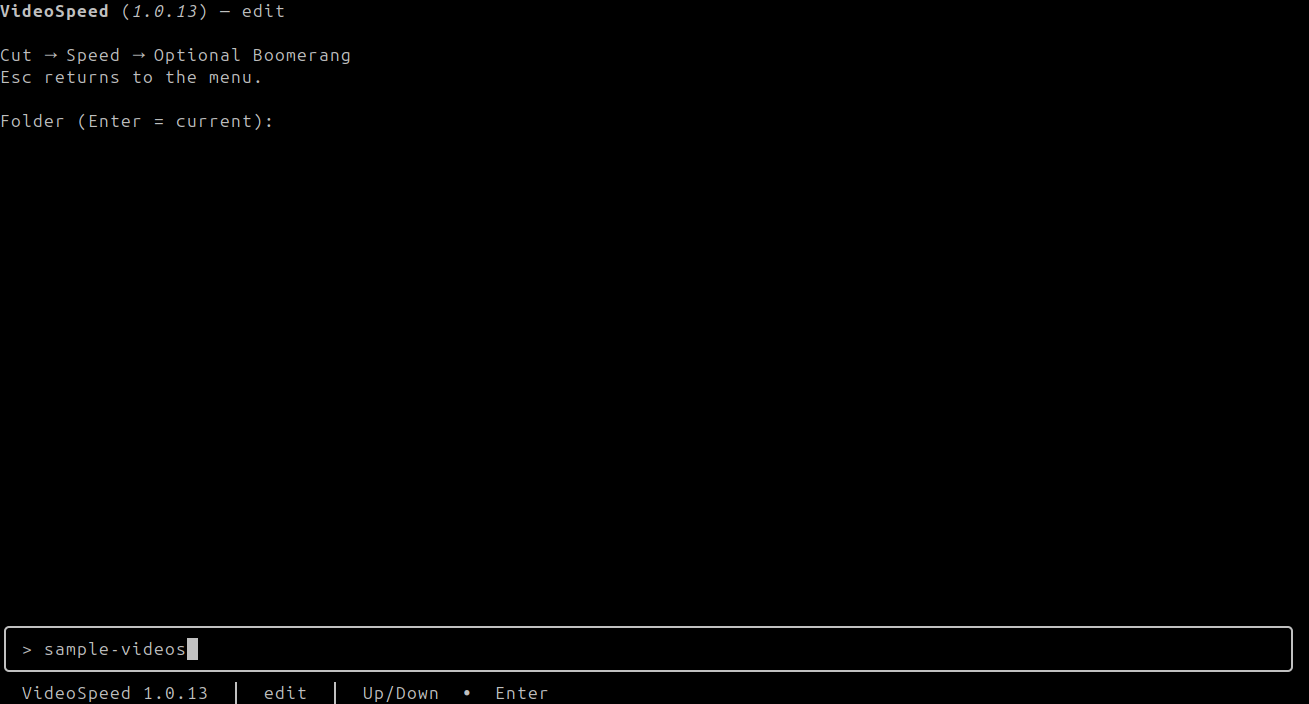
folder-menu.png
Edit, first question. The title is VideoSpeed (1.0.13) — edit. The page says Cut → Speed → Optional Boomerang and Esc returns to the menu. The prompt is Folder (Enter = current):. The input box contains sample-videos. The status line says edit.
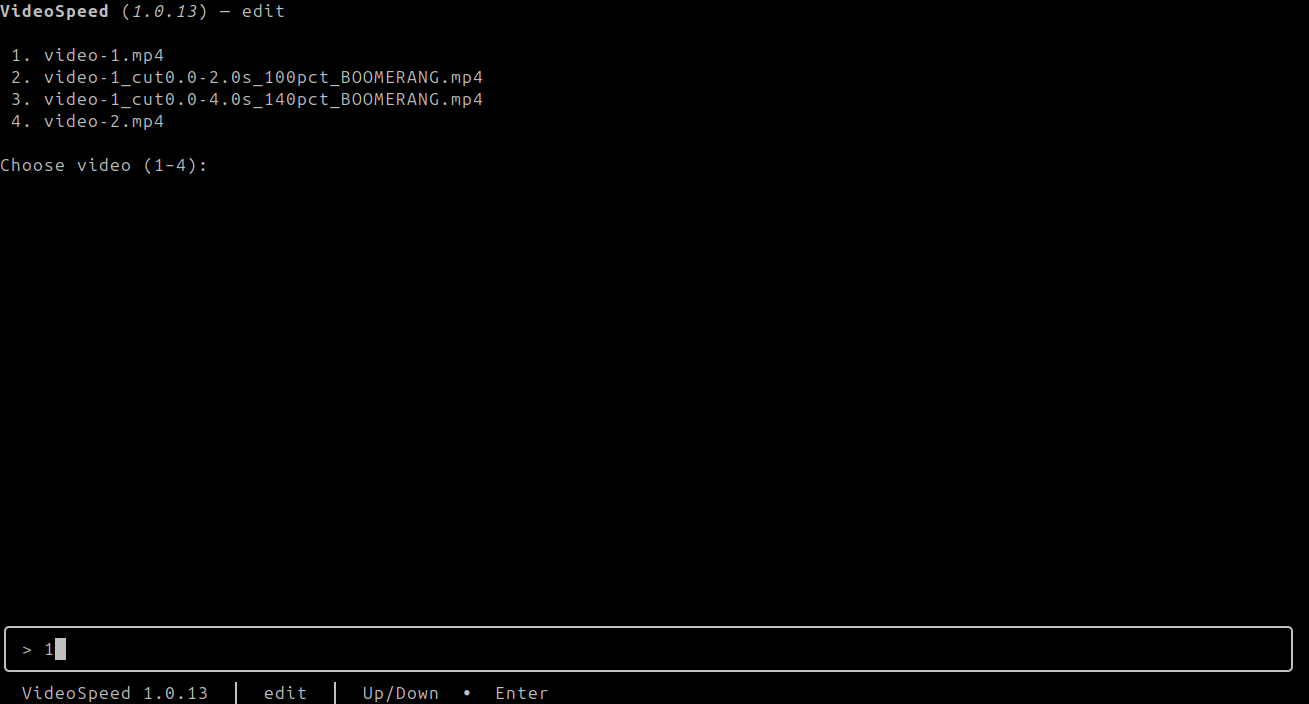
file-menu.png
The folder listing inside edit. The page lists 1. video-1.mp4, 2. video-1_cut0.0-2.0s_100pct_BOOMERANG.mp4, 3. video-1_cut0.0-4.0s_140pct_BOOMERANG.mp4, and 4. video-2.mp4, then Choose video (1–4):. The input box contains 1.
tui-input-star.png
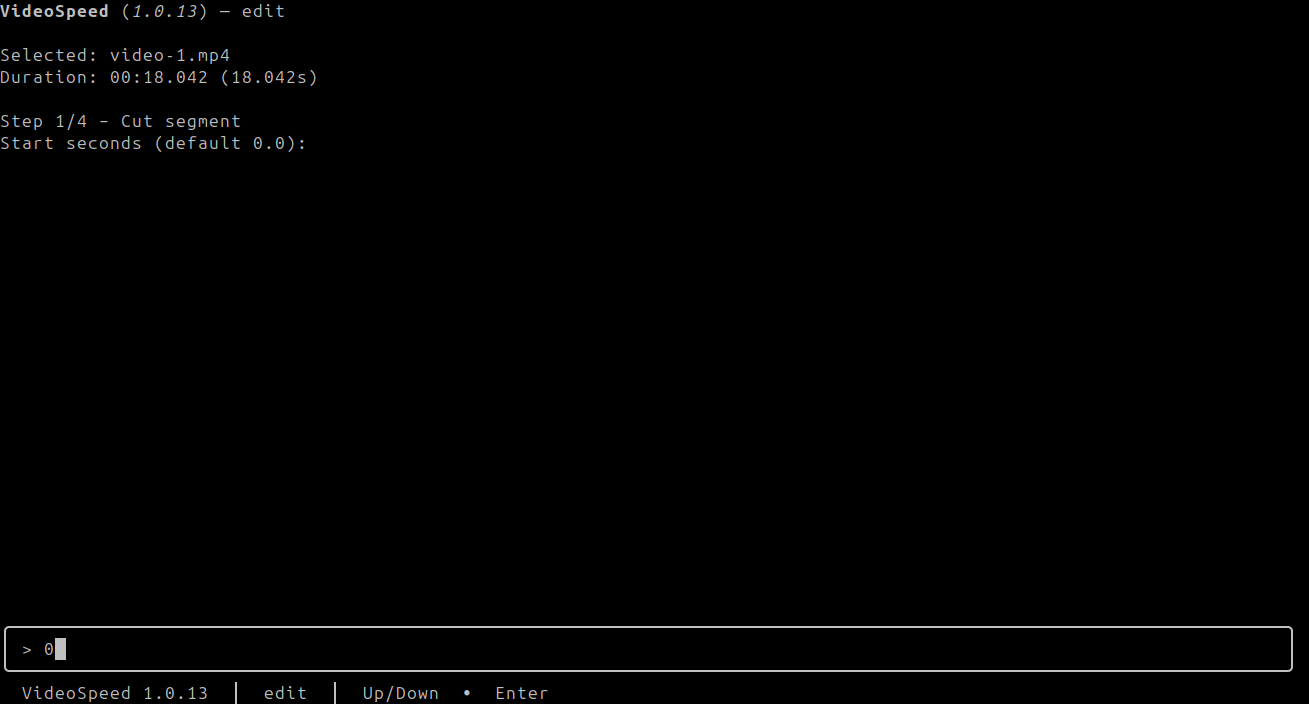
The file name is the start question (star for start). The page says Selected: video-1.mp4 and Duration: 00:18.042 (18.042s), then Step 1/4 – Cut segment and Start seconds (default 0.0):. The input box contains 0.
tui-input-end.png
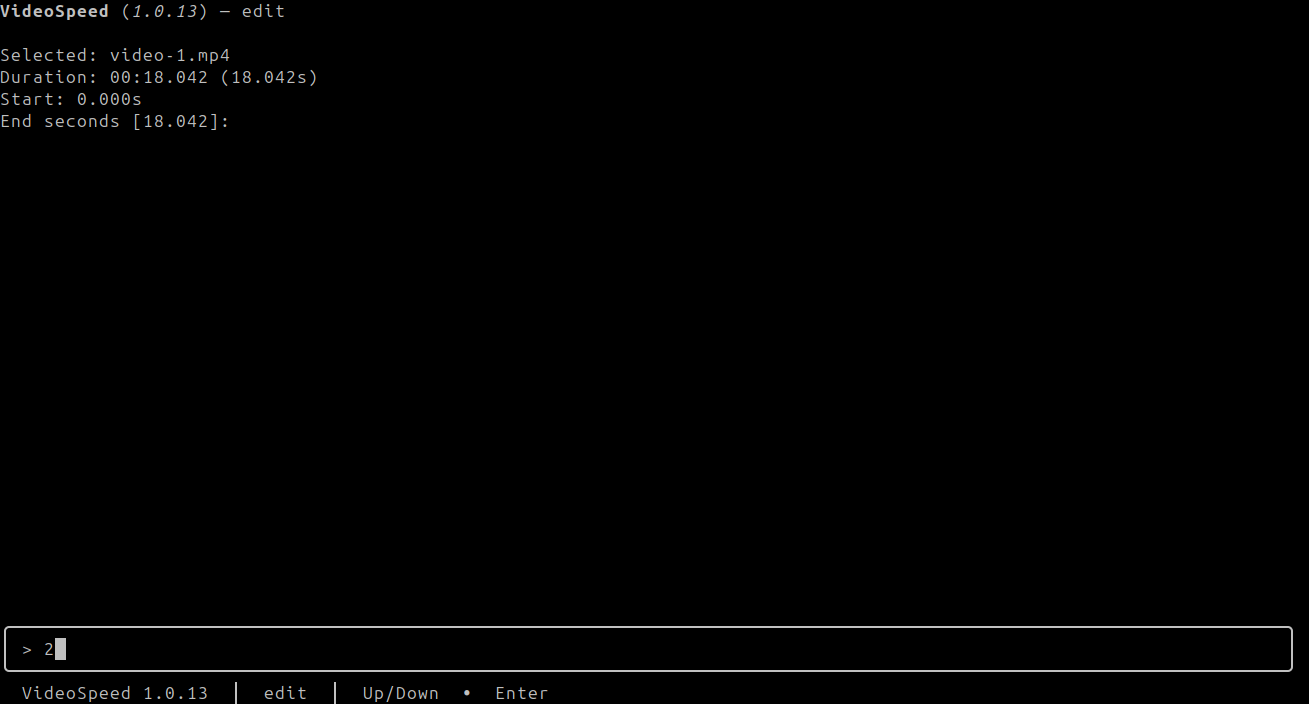
End of the cut. The page still shows Selected: video-1.mp4 and Duration: 00:18.042 (18.042s), then Start: 0.000s and End seconds [18.042]:. The input box contains 2.
tui-length.png
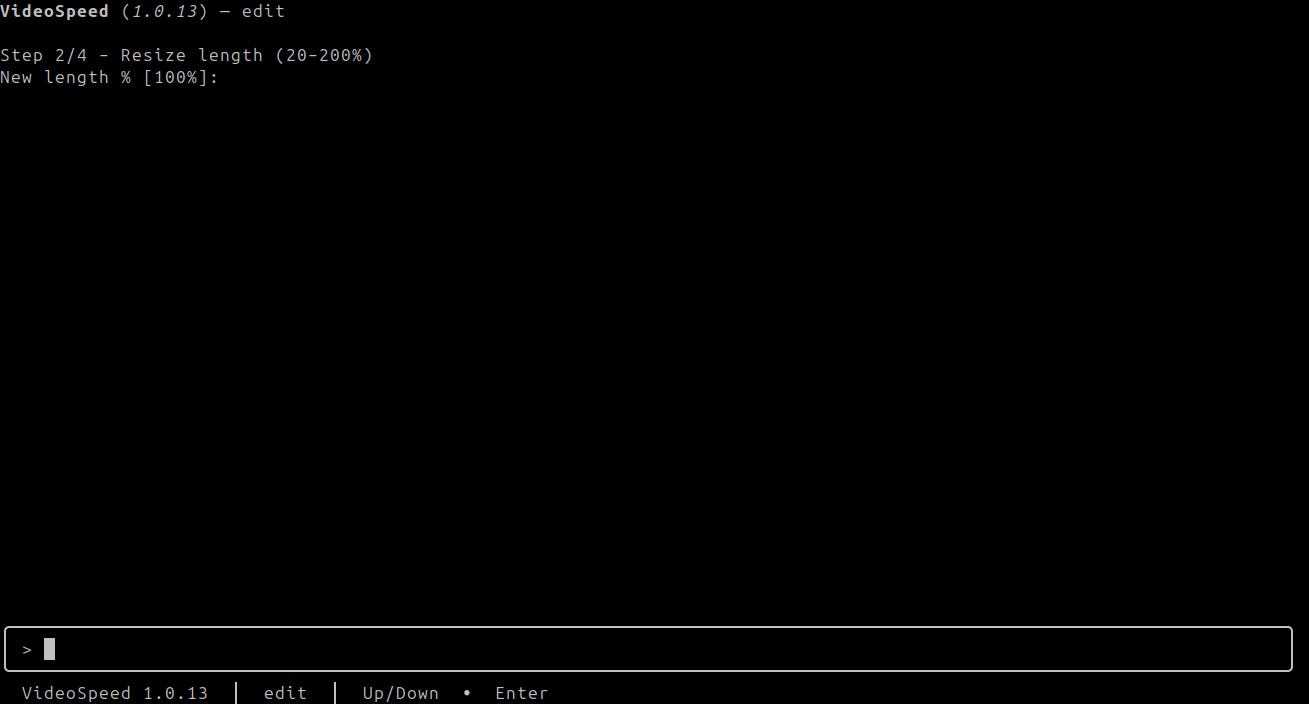
Length question. The page says Step 2/4 – Resize length (20–200%) and New length % [100%]:. The input box is empty, so the bracketed default 100% stands. The status line says edit.
tui-boomerang-choice.png
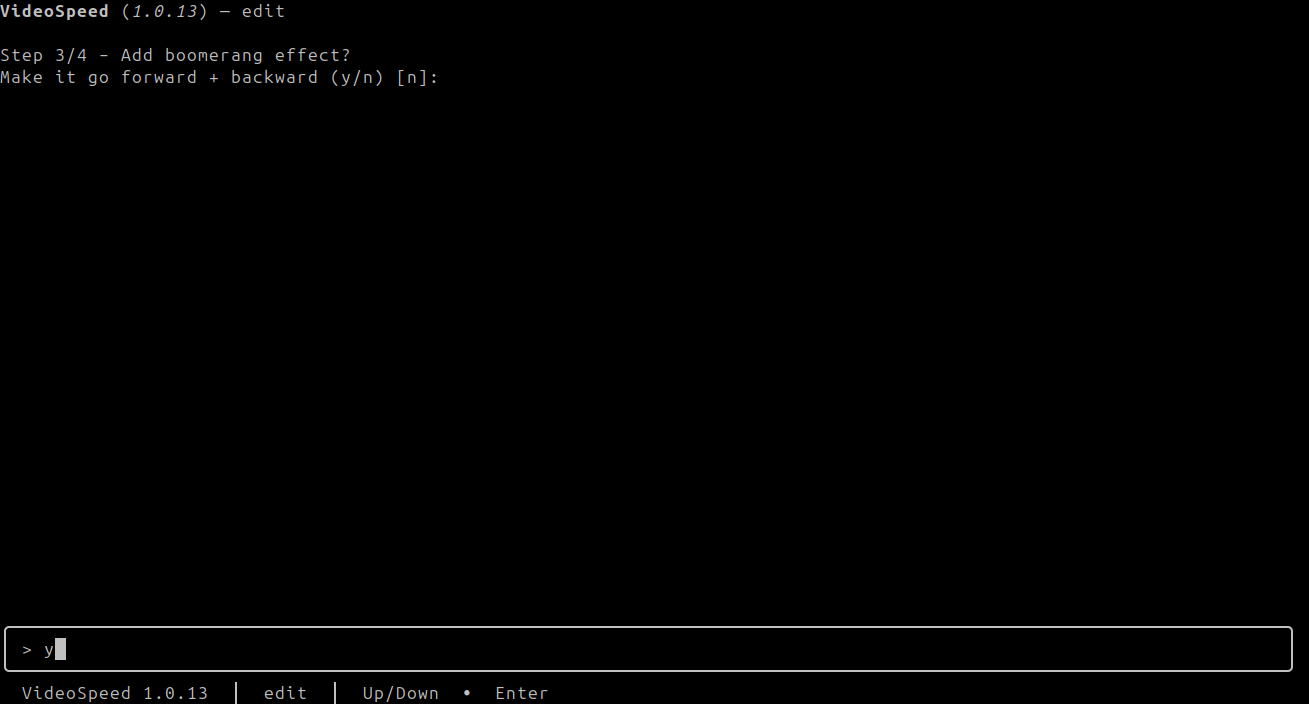
Boomerang question. The page says Step 3/4 – Add boomerang effect? and Make it go forward + backward (y/n) [n]:. The input box contains y.
tui-please-wait.png
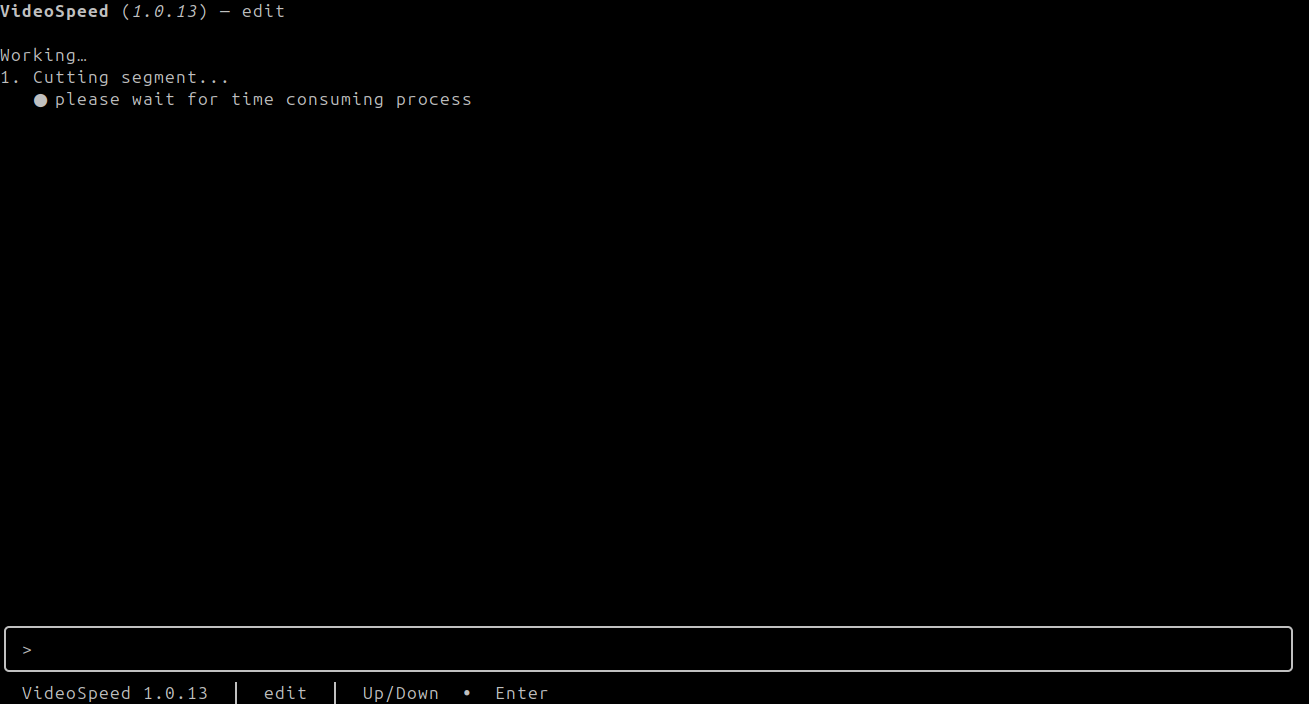
While FFmpeg runs, the edit page keeps Working… and 1. Cutting segment..., then one line: three spaces, a filled bullet ●, a space, and please wait for time consuming process. This still shows the filled bullet. The bullet alternates with ○ every half second. The title is VideoSpeed (1.0.13) — edit. The input box is empty. The status line says edit.
tui-video-done.png
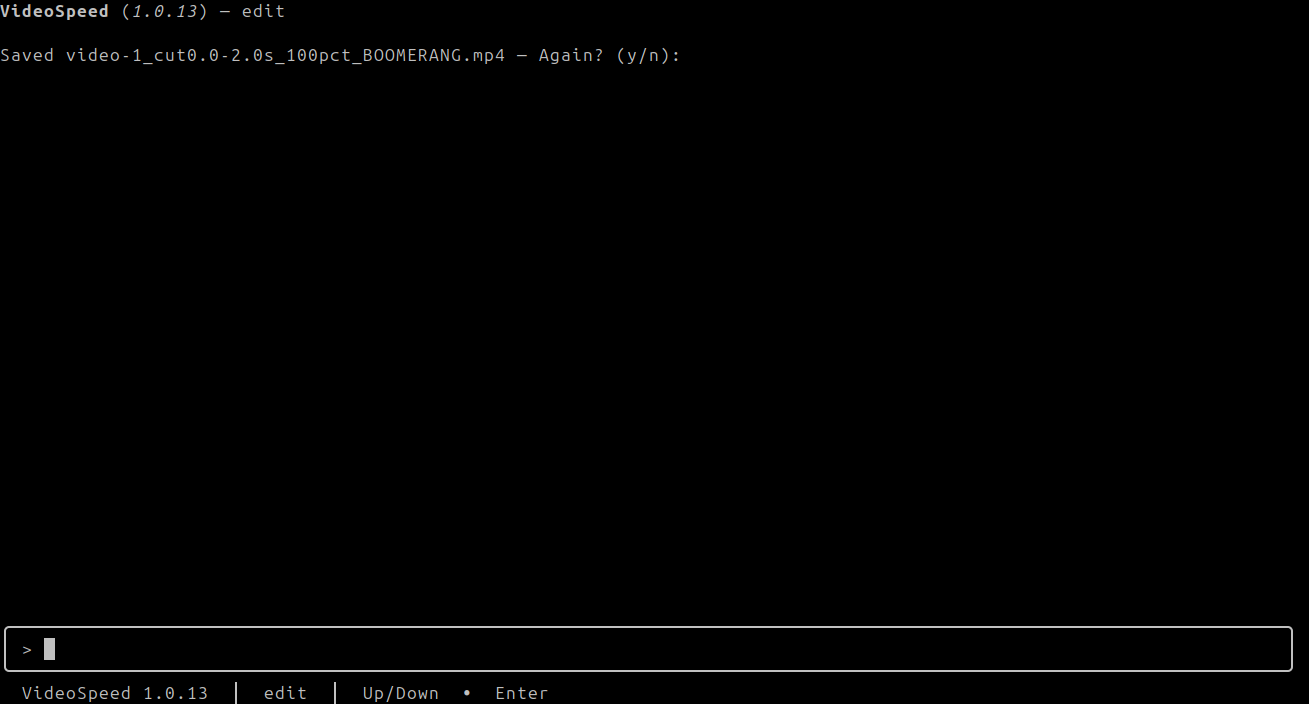
The encode has finished. The page says Saved video-1_cut0.0-2.0s_100pct_BOOMERANG.mp4 — Again? (y/n):. The input box is empty.
self-management.png
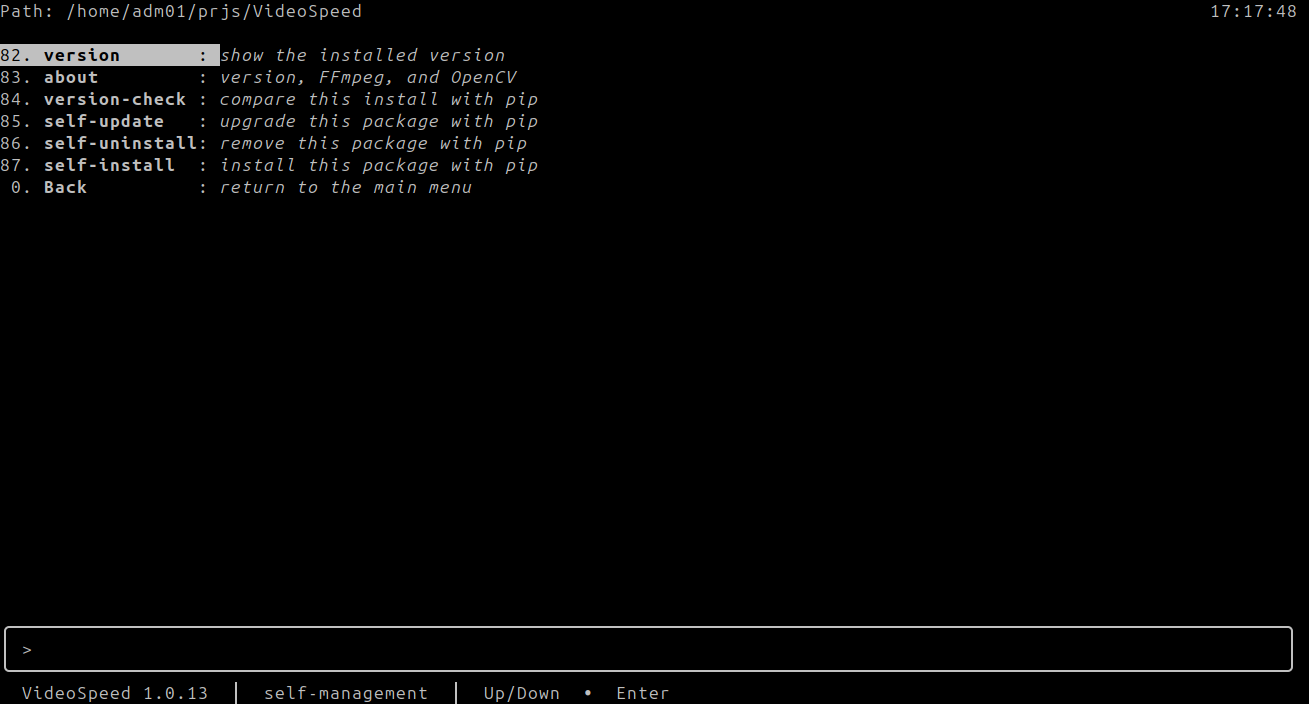
Row 8 has opened self-management. 82 version is highlighted: “show the installed version.” Then 83 about “version, FFmpeg, and OpenCV”, 84 version-check “compare this install with pip”, 85 self-update “upgrade this package with pip”, 86 self-uninstall “remove this package with pip”, 87 self-install “install this package with pip”, and 0 Back “return to the main menu.” The path label is Path, and the status line says self-management.
tui-about.png
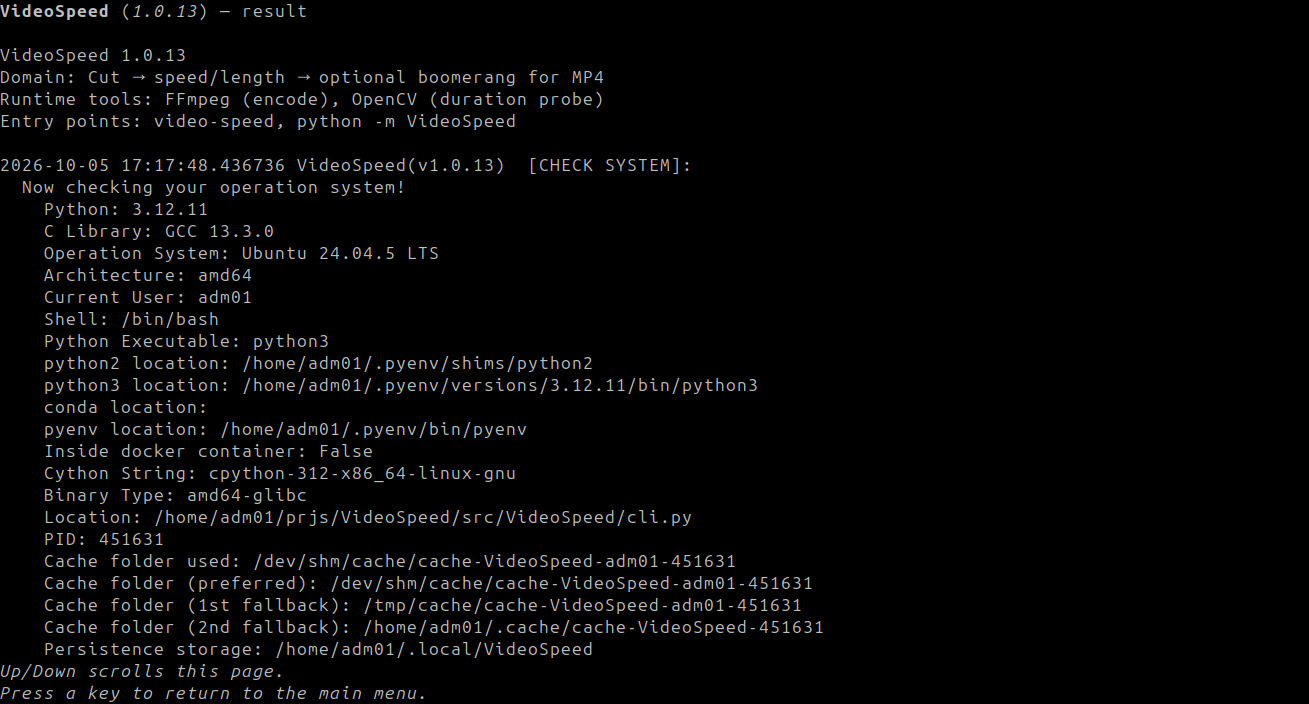
about (83) on the result page. The title is VideoSpeed (1.0.13) — result. The page prints VideoSpeed 1.0.13, Domain: Cut → speed/length → optional boomerang for MP4, Runtime tools: FFmpeg (encode), OpenCV (duration probe), and Entry points: video-speed, python -m VideoSpeed. The host check is stamped 2026-10-05 17:17:48.436736 and headed [CHECK SYSTEM]:. Visible lines include Python 3.12.11, C Library GCC 13.3.0, Ubuntu 24.04.5 LTS, amd64, the current user, the shell, the Python executable, python2 location, python3 location, conda location, pyenv location, Inside docker container: False, the Cython string, the binary type, the location, the PID, the cache folders, and persistence storage. The footer says Up/Down scrolls this page. and Press a key to return to the main menu. The page stays in English.
video.png
A still picture. A woman with long brown hair, in a grey shirt with a small blue mark, sits at a round wooden table and holds a white cup. An open book with a worn cover and a metal clasp lies on the table. Behind her are a beige sofa, a wide window onto trees, a potted plant, and a wooden floor in daylight.

Examples
# Install editable, then run interactive session in a folder of clips
cd /path/to/videos
video-speed

# Check identity without starting prompts
video-speed --version

# One-shot job (no prompts)
video-speed --file clip.mp4 --start 1.0 --end 5.0 --percent 100
Example output name shape:
clip_cut1.0-5.0s_100pct.mp4
clip_cut1.0-5.0s_50pct_BOOMERANG.mp4
Platform Compatibility
| Platform | Status |
|---|---|
| Linux | Primary (tested in development) |
| macOS / Windows | Expected to work when Python, FFmpeg, and OpenCV are available |
| Filesystems | Local disk and removable/USB volumes supported for output (temps staged beside final path) |
Related Projects
- VideoSpeed on GitHub — this program’s source
- VideoSpeed on PyPI — this program on PyPI
- AnimeDlp — command-line downloader for anime video sites
- ChronicleLogger — status logger this program depends on (
ChronicleLogger>=1.3.1) - VideoJoin — joins two local videos with FFmpeg
- CIAO — defensive programming principles: Caution, Intentional, Anti-fragile, Over-engineered
- CIAO-Lite — short agent contract: Simplicity but Safety
- safe-rm — guarded
rmthat refuses a login home,/home, and/usr/bin
Contributing
Fork the repository, use a checkout install (pip install -e . or ./setup.sh), and open a pull request. Prefer small, tested changes. Do not strip defensive temp/publish behavior (cross-filesystem shutil.move) without an explicit redesign.
License
MIT License — see LICENSE.md.
Last Update
2026-10-05 — 1.0.13: while FFmpeg runs, one line flashes a bullet and please wait for time consuming process. The bullet alternates every half second. --json stays silent. The text-menu screenshots show this package string.
1 maintainer

Metadata
1 maintainer
Release files for VideoSpeed 1.0.13
For a detailed explanation of source distributions (sdists) and built distributions (wheels), please see the package formats documentation.
Source distribution (sdist)
| File | Size | Uploaded | Provenance | Actions |
|---|---|---|---|---|
| videospeed-1.0.13.tar.gz | 101.4 kB | Without provenance | Details for videospeed-1.0.13.tar.gz |
Built distribution (wheel)
| File | Interpreter | ABI | Platform | Actions Reset |
|---|---|---|---|---|
| videospeed-1.0.13-py3-none-any.whl | Python 3 | none | any | Details for videospeed-1.0.13-py3-none-any.whl |
Total release size: 163.6 kB
Release files / videospeed-1.0.13.tar.gz
| Download URL | videospeed-1.0.13.tar.gz |
|---|---|
| Size | 101.4 kB |
| Tags | Source |
|
SHA-256 checksum How to use checksums |
f8e69142464597bd500f7191465559770f461c3636485521861b917f691513ed
|
|
BLAKE2b-256 checksum How to use checksums |
efa4746fea5a8a16c9d53112b8301ff5ace0cad067e13dcff266163f34239cf8
|
| Upload date | |
|
Uploaded using Trusted Publishing? What is trusted publishing? |
No |
| Uploaded via |
twine/6.2.0 CPython/3.12.11
|
Release files / videospeed-1.0.13-py3-none-any.whl
| Download URL | videospeed-1.0.13-py3-none-any.whl |
|---|---|
| Size | 62.2 kB |
| Tags | Python 3 |
|
SHA-256 checksum How to use checksums |
0cf97864c98c6e31cc55889bbf32a0baaffd36455bb6643de362afa62810e1ff
|
|
BLAKE2b-256 checksum How to use checksums |
2d32e589fb697cabe07daea9c2e499d9a430f4951aee8544d135392d3ec4d5e4
|
| Upload date | |
|
Uploaded using Trusted Publishing? What is trusted publishing? |
No |
| Uploaded via |
twine/6.2.0 CPython/3.12.11
|
Security for VideoSpeed 1.0.13
Provenance
Provenance describes where a file came from. On PyPI, provenance is shared via attestations, which provide a verifiable record of the build or publishing details. View details, limitations and caveats.
No provenance found
None of the files in this release were uploaded with provenance metadata.
A note on package security
PyPI is a repository for distributing packages, not a service for auditing them. While third-party security researchers and our staff do their best to detect and remove malicious packages, PyPI cannot guarantee the quality, security or suitability of any given package.
To learn more about protecting yourself from malicious actors, visit our package security documentation.














