
🗲 Ride the Lightning!🗲



Virt-Lightning can quickly deploy a bunch of new VM. It also prepares the Ansible inventory file!
This is handy to quickly validate a new Ansible playbook, or a role on a large number of environments.
example: test an Ansible command on a new env in ONE minute ⚡
In a nutshell:
echo "- distro: centos-7" > virt-lightning.yaml
vl up
vl ansible_inventory
ansible all -m ping -i inventory
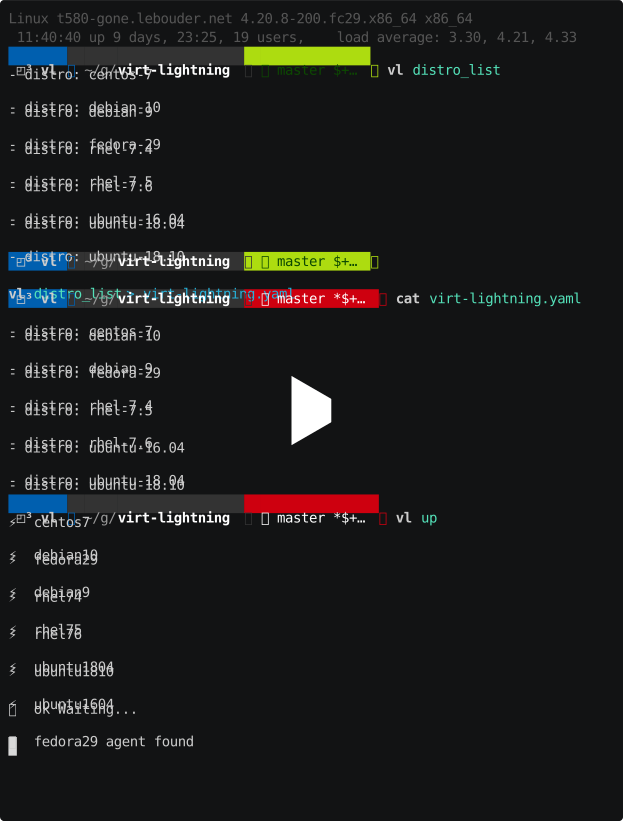
In the video below, we:
- use the list of distribution to generate a virt-lightning.yaml file.
- we then create a environment based on this file
- once the environment is ready, we generate an Ansible inventory file
- and we use it to call Ansible's ping module on all the host.
Pre-requirements
Debian
First you need to install libvirt and guestfs:
sudo apt install -f libvirt-daemon libvirt-daemon-system python3 python3-libvirt python3-pip python3-urwid
sudo systemctl start --now libvirtd
The second step is to grant to your user the ability to use libvirt:
sudo usermod -a -G kvm,libvirt,libvirt-qemu $USER
Fedora-29 and after
First you need to install libvirt and guestfs:
sudo dnf install -f libselinux-python libvirt libvirt-daemon python3 python3-libvirt python3-pip python3-urwid
sudo systemctl start --now libvirtd
The second step is to grant to your user the ability to use libvirt:
sudo usermod -a -G qemu,libvirt $USER
Ubuntu-16.04
First you need to install libvirt and guestfs:
sudo apt install -f libvirt-bin libvirt-daemon python3 python3-libvirt python3-pip python3-urwid
sudo systemctl start --now libvirtd
The second step is to grant to your user the ability to use libvirt:
sudo usermod -a -G kvm,libvirtd $USER
Ubuntu-18.04
First you need to install libvirt and guestfs:
sudo apt install -f libvirt-bin libvirt-daemon python3 python3-libvirt python3-pip python3-urwid
sudo systemctl start --now libvirtd
The second step is to grant to your user the ability to use libvirt:
sudo usermod -a -G kvm,libvirt $USER
Ubuntu-18.10 and after
First you need to install libvirt and guestfs:
sudo apt install -f libvirt-daemon libvirt-daemon-system python3 python3-libvirt python3-pip python3-urwid
sudo systemctl start --now libvirtd
The second step is to grant to your user the ability to use libvirt:
sudo usermod -a -G kvm,libvirt $USER
RHEL-8
First you need to install libvirt and guestfs:
sudo apt install -f python3-libvirt libvirt qemu-kvm libvirt-daemon-kvm genisoimage
sudo systemctl start --now libvirtd
The second step is to grant to your user the ability to use libvirt:
sudo usermod -a -G libvirt $USER
Installation
pip3 install --user git+https://github.com/virt-lightning/virt-lightning
If you use Ubuntu, you will need the --no-deps argument (See: https://github.com/pypa/pip/issues/4222).
virt-lightning will be installed in ~/.local/bin/. Add it in your $PATH if
it's not already the case. For instance if you use:
echo "export PATH=$PATH:~/.local/bin/" >> ~/.bashrc
source ~/.bashrc
Fetch some images
Before you start your first VM, you need to fetch the images. To do so,
you just use the vm fetch command:
$ vl fetch fedora-30
Build your images
If you prefer to build your own images,
$ git clone https://github.com/virt-lightning/virt-lightning
$ cd virt-lightning/images
$ ./image centos-7 build
$ ./image debian-9 build
(…)
Ubuntu requires the use sudo to build or prepare images.
You can also use your own images as soon as they embed cloud-init, just copy them in the QCOW2 format in /var/lib/virt-lightning/pool/upstream/. It's also a good idea to include qemu-guest-agent, virt-lightning uses it to set the root password and it offers some other benefits.
Actions
vl is an alias for virt-lightning, you can us both. In the rest of the document
we use the shortest version.
vl distro_list
List the distro images that can be used. Its output is compatible with vl up. You can initialize a new configuration with: vl distro > virt-lightning.yaml.
vl up
virt-lightning will read the virt-lightning.yaml file from the current directory and prepare the associated VM.
vl down
Destroy all the VM managed by Virt-Lightning.
vl start
Start a specific VM, without reading the virt-lightning.yaml file.
vl stop
Stop just one VM.
vl status
List the VM, their IP and if they are reachable.
vl ansible_inventory
Export an inventory in the Ansible format.
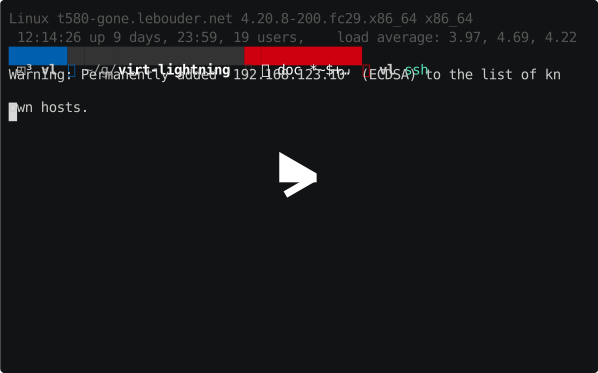
vl ssh
Show up a menu to select a host and open a ssh connection.
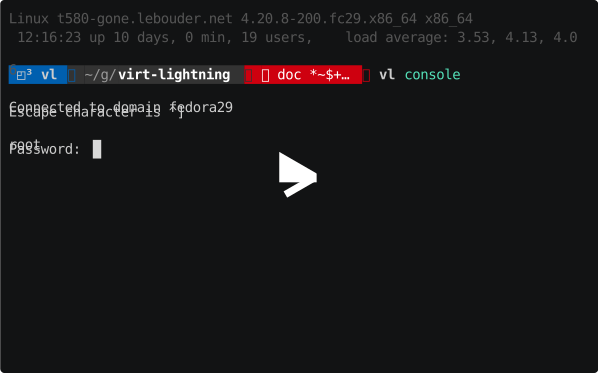
vl console
Like vl ssh but with the serial console of the VM.
vl fetch
Fetch a VM image. You can find here a list of the available images.
Configuration
Global configuration
If ~/.config/virt-lightning/config.ini exists, Virt-Lightning will read
its configuration there.
[main]
network_name = virt-lightning
root_password = root
storage_pool = virt-lightning
network_name: if you want to use an alternative libvirt network root_password: the root password storage_pool: if you want to use an alternative libvirt storage pool
VM configuration keys
A VM can be tunned at two different places with the following keys:
distro: the name of the base distro image to use, it's the only mandatory parameter.name: the VM namememory: the amount of memory to dedicate to the VMroot_disk_size: the size of the root disk in GBvcpus: the number of vcpu to dedicate to the VMroot_password: the root password in clear textgroups: this list of groups will be used if you generate an Ansible inventory.networks: a list of network to attach to the VM. The default is: one virtio interface attached tovirt-lightningnetwork.network: the name of the network. Default isvirt-lightningipv4: a static IPv4, this key is only accepted for the first network. Default is a dynamic IPv4 address.nic_model: the libvirt driver to use. Default isvirtio
Example: a virt-lightning.yaml file:
- name: esxi-vcenter
  distro: esxi-6.7
  memory: 12000
  root_disk_size: 30
  vcpus: 2
  root_password: '!234AaAa56'
  groups: ['all_esxi']
- name: esxi1
  distro: esxi-6.7
  memory: 4096
  vcpus: 1
  root_password: '!234AaAa56'
  groups: ['all_esxi', 'esxi_lab']
- name: esxi2
  distro: esxi-6.7
  memory: 4096
  vcpus: 1
  root_password: '!234AaAa56'
  groups: ['all_esxi', 'esxi_lab']
- name: centos-7
  distro: centos-7
  networks:
    - network: default
      ipv4: 192.168.122.50
You can also associate some parameters to the distro image itself
cat /var/lib/virt-lightning/pool/upstream/esxi-6.7.yaml
username: root
python_interpreter: /bin/python
memory: 4096
networks:
  - network: virt-lightning
    nic_model: virtio
  - network: default
    nic_model: e1000
1 maintainer

Metadata
1 maintainer
Release files for virt-lightning 1.1.0
For a detailed explanation of source distributions (sdists) and built distributions (wheels), please see the package formats documentation.
Source distribution (sdist)
| File | Size | Uploaded | |
|---|---|---|---|
| virt-lightning-1.1.0.tar.gz | 70.9 kB | Details |
Built distribution (wheel)
| File | Interpreter | ABI | Platform | Reset |
|---|---|---|---|---|
| virt_lightning-1.1.0-py3-none-any.whl | Python 3 | none | any | Details |
Total release size: 95.7 kB
Release files / virt-lightning-1.1.0.tar.gz
| Download URL | virt-lightning-1.1.0.tar.gz |
|---|---|
| Size | 70.9 kB |
| Tags | Source |
|
SHA-256 checksum How to use checksums |
53c8a2826316668e5cd973c8497c0c8ac34ea8bcee035b036c754895a2107978
|
|
BLAKE2b-256 checksum How to use checksums |
b0716db4a1bbf8ad0423a00dd24d0194a773b782b7e204cc7d6d1104d7cd5f8b
|
| Upload date | |
|
Uploaded using Trusted Publishing? What is trusted publishing? |
No |
| Uploaded via |
twine/3.1.1 pkginfo/1.5.0.1 requests/2.22.0 setuptools/42.0.2 requests-toolbelt/0.9.1 tqdm/4.40.0 CPython/3.7.5
|
Release files / virt_lightning-1.1.0-py3-none-any.whl
| Download URL | virt_lightning-1.1.0-py3-none-any.whl |
|---|---|
| Size | 24.8 kB |
| Tags | Python 3 |
|
SHA-256 checksum How to use checksums |
2204e4cf85a1e5afbe2f9494bcda17f2f1804d13c18a8dfe4be8586d9ffc8639
|
|
BLAKE2b-256 checksum How to use checksums |
5dba901fec5a4f63cdceab71aca04eb0550d22f3429c0435a929b8fed6788b3b
|
| Upload date | |
|
Uploaded using Trusted Publishing? What is trusted publishing? |
No |
| Uploaded via |
twine/3.1.1 pkginfo/1.5.0.1 requests/2.22.0 setuptools/42.0.2 requests-toolbelt/0.9.1 tqdm/4.40.0 CPython/3.7.5
|














