

VirtScreen
Make your iPad/tablet/computer as a secondary monitor on Linux.
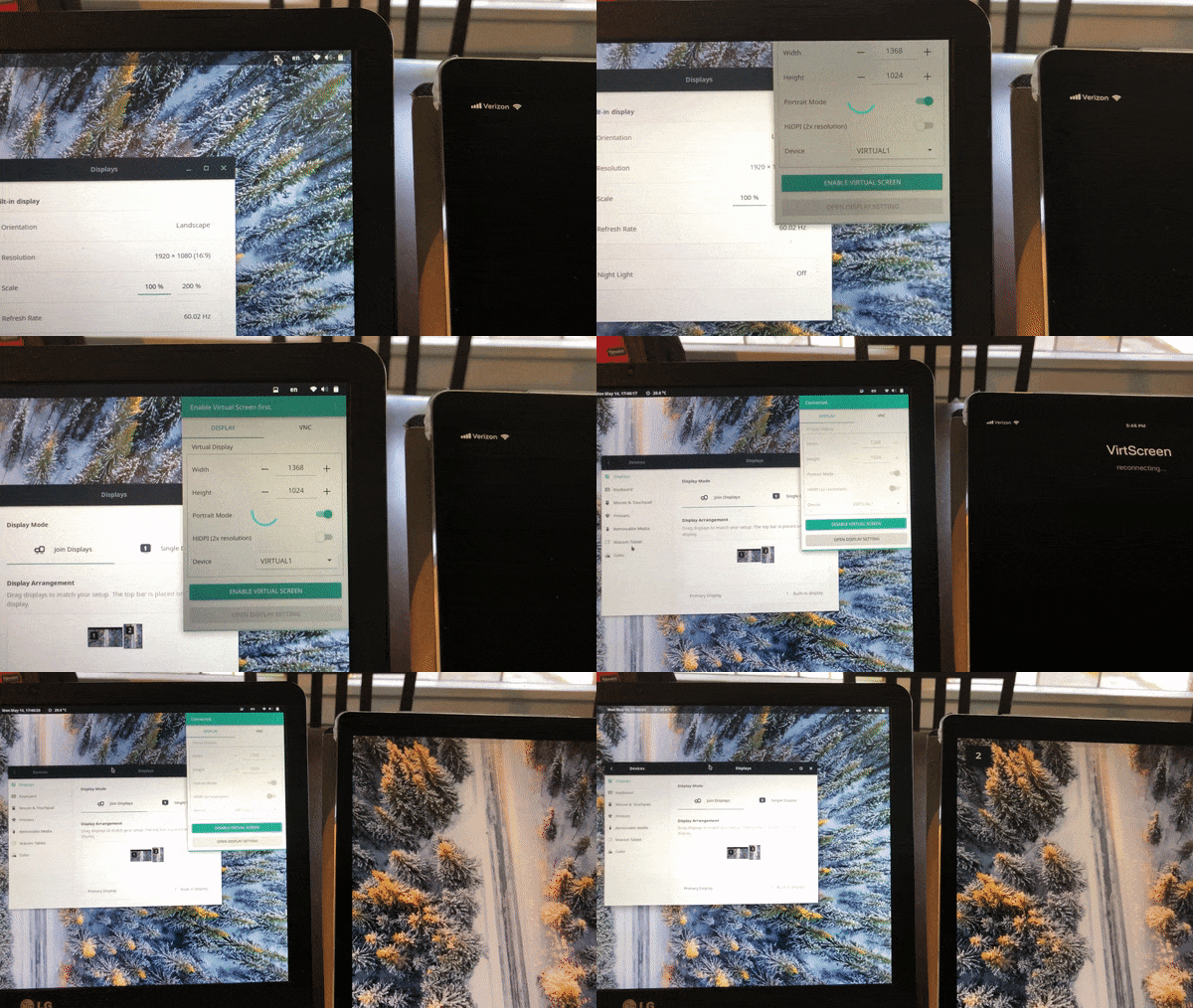
Description
VirtScreen is an easy-to-use Linux GUI app that creates a virtual secondary screen and shares it through VNC.
VirtScreen is based on PyQt5 and asyncio in Python side and uses x11vnc and XRandR.
Features
- No more typing commands - create a second VNC screen with a few clicks from the GUI.
- ...But there is also command-line only options for CLI lovers.
- Highly configurable - resolutions, portrait mode, and HiDPI mode.
- Works on any Linux Distro with Xorg
- Lightweight
- System Tray Icon
How to use
- Run the app.
- Set options (resolution etc.) and enable the virtual screen.
- Go to VNC tab and then start the VNC server.
- Run your favorite VNC client app on your second device and connect it to the IP address appeared on the app.
CLI-only option
You can run VirtScreen with virtscreen (or ./VirtScreen.AppImage if you use the AppImage package) with additional arguments.
usage: virtscreen [-h] [--auto] [--left] [--right] [--above] [--below]
                  [--portrait] [--hidpi]

Make your iPad/tablet/computer as a secondary monitor on Linux.

You can start VirtScreen in the following two modes:

 - GUI mode: A system tray icon will appear when no argument passed.
          You need to use this first to configure a virtual screen.
 - CLI mode: After configured the virtual screen, you can start VirtScreen
          in CLI mode if you do not want a GUI, by passing any arguments

optional arguments:
  -h, --help       show this help message and exit
  --auto           create a virtual screen automatically using previous
                   settings (from both GUI mode and CLI mode)
  --left           a virtual screen will be created left to the primary
                   monitor
  --right          right to the primary monitor
  --above, --up    above the primary monitor
  --below, --down  below the primary monitor
  --portrait       Portrait mode. Width and height of the screen are swapped
  --hidpi          HiDPI mode. Width and height are doubled

example:
virtscreen  # GUI mode. You need to use this first
            # to configure the screen
virtscreen --auto       # CLI mode. Scrren will be created using previous
                        #   settings (from both GUI mode and CLI mode)
virtscreen --left    # CLI mode. On the left to the primary monitor
virtscreen --below   # CLI mode. Below the primary monitor.
virtscreen --below --portrait           # Below, and portrait mode.
virtscreen --below --portrait  --hipdi  # Below, portrait, HiDPI mode.
Installation
Universal package (AppImage)
Download a .AppImage package from releases page. Then make it executable:
chmod a+x VirtScreen.AppImage
Then you can run it by double click the file or ./VirtScreen.AppImage in terminal.
Debian (Ubuntu)
Download a .deb package from releases page. Then install it:
sudo apt-get update
sudo apt-get install x11vnc
sudo dpkg -i virtscreen.deb
rm virtscreen.deb
Arch Linux (AUR)
There is virtscreen AUR package available. Though there are many ways to install the AUR package, one of the easiest way is to use yaourt AUR helper:
yaourt virtscreen
Python pip
Although not recommended, you may install it using pip. In this case, you need to install the dependancy (xrandr and x11vnc) manually.
sudo pip install virtscreen
1 maintainer

Metadata
1 maintainer
Release files for virtscreen 0.3.1
For a detailed explanation of source distributions (sdists) and built distributions (wheels), please see the package formats documentation.
Built distribution (wheel)
| File | Interpreter | ABI | Platform | Reset |
|---|---|---|---|---|
| virtscreen-0.3.1-py3-none-any.whl | Python 3 | none | any | Details |
Release files / virtscreen-0.3.1-py3-none-any.whl
| Download URL | virtscreen-0.3.1-py3-none-any.whl |
|---|---|
| Size | 143.3 kB |
| Tags | Python 3 |
|
SHA-256 checksum How to use checksums |
4d010d3e9f35121c7ddd52692bb7250c1f98454fe45796784edc7717edbcb7a8
|
|
BLAKE2b-256 checksum How to use checksums |
42c4b721a4c1e4c60889f7e21cd4731693d13a37186dab7c8f32e54c13858120
|
| Upload date | |
|
Uploaded using Trusted Publishing? What is trusted publishing? |
No |
| Uploaded via |
twine/1.12.1 pkginfo/1.4.2 requests/2.20.1 setuptools/40.5.0 requests-toolbelt/0.8.0 tqdm/4.28.1 CPython/3.6.3
|
Security for virtscreen 0.3.1
Provenance
Provenance describes where a file came from. On PyPI, provenance is shared via attestations, which provide a verifiable record of the build or publishing details. View details, limitations and caveats.
No provenance found
None of the files in this release were uploaded with provenance metadata.
A note on package security
PyPI is a repository for distributing packages, not a service for auditing them. While third-party security researchers and our staff do their best to detect and remove malicious packages, PyPI cannot guarantee the quality, security or suitability of any given package.
To learn more about protecting yourself from malicious actors, visit our package security documentation.














