
autotui



This uses type hints to convert NamedTuple's (short struct-like classes) to JSON/YAML, and back to python objects.
It also wraps prompt_toolkit to prompt the user and validate the input for common types, and is extendible to whatever types you want.
Supported Types
This has built-ins to prompt, validate and serialize:
intfloatboolstrdatetimeEnumDecimal<type> | None(Unions)list[<type>]set[<type>]- other
NamedTuples (recursively)
I wrote this so that I don't have to repeatedly write boilerplate-y python code to validate/serialize/deserialize data. As a more extensive example of its usage, you can see my ttally repo, which I use to track things like calories/water etc...
Install
This requires python3.10+; To install with pip, run:
pip install autotui
Usage
As an example, if I want to log whenever I drink water to a file:
from datetime import datetime
from typing import NamedTuple

from autotui.shortcuts import load_prompt_and_writeback

class Water(NamedTuple):
    at: datetime
    glass_count: float

if __name__ == "__main__":
    load_prompt_and_writeback(Water, "~/.local/share/water.json")
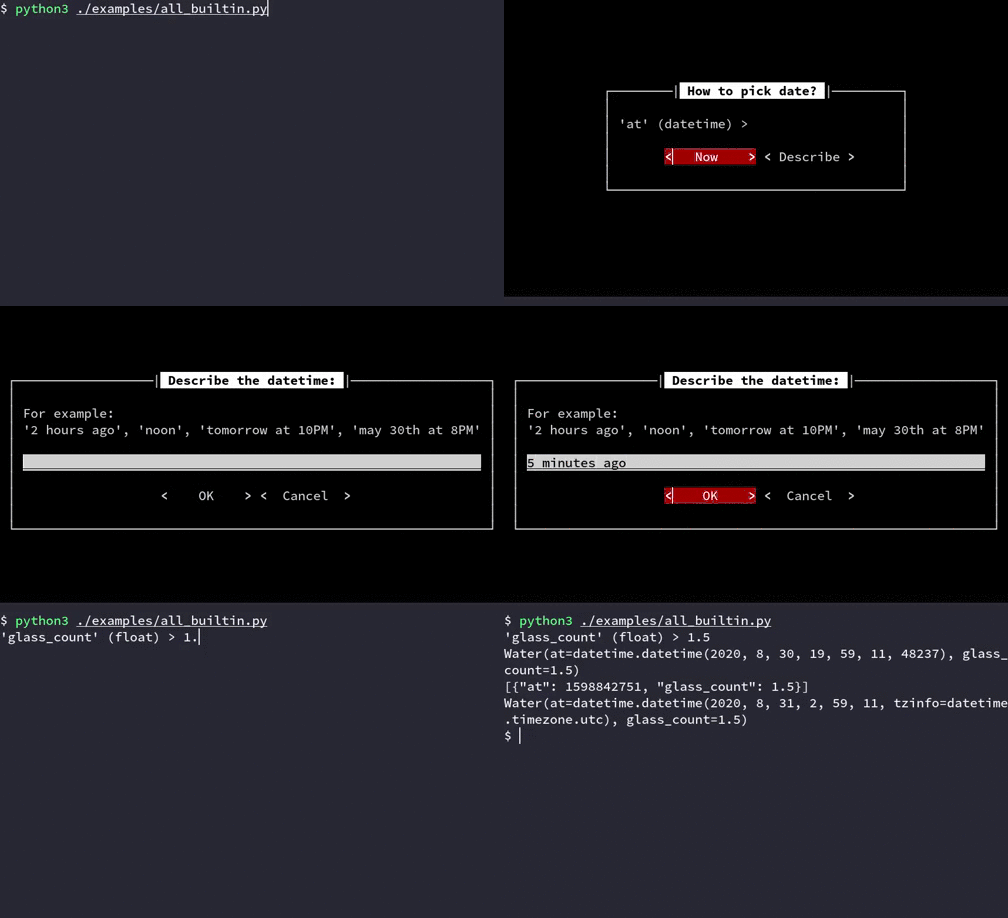
Which, after running a few times, would create:
~/.local/share/water.json
[
  {
    "at": 1598856786,
    "glass_count": 2.0
  },
  {
    "at": 1598856800,
    "glass_count": 1.0
  }
]
(datetimes are serialized into epoch time)
If I want to load the values back into python, its just:
from autotui.shortcuts import load_from

class Water(NamedTuple):
    #... (same as above)

if __name__ == "__main__":
    print(load_from(Water, "~/.local/share/water.json"))

#[Water(at=datetime.datetime(2020, 8, 31, 6, 53, 6, tzinfo=datetime.timezone.utc), glass_count=2.0),
# Water(at=datetime.datetime(2020, 8, 31, 6, 53, 20, tzinfo=datetime.timezone.utc), glass_count=1.0)]
A lot of my usage of this only ever uses 3 functions in the autotui.shortcuts module; dump_to to dump a sequence of my NamedTuples to a file, load_from to do the opposite, and load_prompt_and_writeback, to load values in, prompt me, and write back to the file.
Enabling Options
Some options/features can be enabled using global environment variables, or by using a contextmanager to temporarily enable certain prompts/features.
As an example, there are two versions of the datetime prompt
- The one you see above using a dialog
- A live version which displays the parsed datetime while typing. Since that can cause some lag, it can be enabled by setting the
LIVE_DATETIMEoption.
You can enable that by:
- setting the
AUTOTUI_LIVE_DATETIME(prefix the name of the option withAUTOTUI_) environment variable, e.g., addexport AUTOTUI_LIVE_DATETIME=1to your.bashrc/.zshrc - using the
optionscontextmanager:
import autotui

with autotui.options("LIVE_DATETIME"):
    autotui.prompt_namedtuple(...)
Options:
LIVE_DATETIME: Enables the live datetime promptCONVERT_UNKNOWN_ENUM_TO_NONE: If an enum value is not found on the enumeration (e.g. you remove some enum value), convert it toNoneinstead of raising aValueErrorENUM_FZF: Usefzfto prompt for enumsCLICK_PROMPT- Where possible, useclickto prompt for values instead ofprompt_toolkit
Partial prompts
If you want to prompt for only a few fields, you can supply the attr_use_values or type_use_values to supply default values:
# water-now script -- set any datetime values to now
from datetime import datetime
from typing import NamedTuple

from autotui import prompt_namedtuple
from autotui.shortcuts import load_prompt_and_writeback

class Water(NamedTuple):
    at: datetime
    glass_count: float

load_prompt_and_writeback(Water, "./water.json", type_use_values={datetime: datetime.now()})
# or specify it with a function (don't call datetime.now, just pass the function)
# so its called when its needed
val = prompt_namedtuple(Water, attr_use_values={"at": datetime.now})
Since you can specify a function to either of those arguments -- you're free to write a completely custom prompt function to prompt/grab data for that field however you want
For example, to prompt for strings by opening vim instead:
from datetime import datetime
from typing import NamedTuple, Optional

from autotui.shortcuts import load_prompt_and_writeback

import click


def edit_in_vim() -> str:
    m = click.edit(text=None, editor="vim")
    return "" if m is None else m.strip()


class JournalEntry(NamedTuple):
    creation_date: datetime
    tags: Optional[list[str]]  # one or more tags to tag this journal entry with
    content: str


if __name__ == "__main__":
    load_prompt_and_writeback(
        JournalEntry,
        "~/Documents/journal.json",
        attr_use_values={"content": edit_in_vim},
    )
Can also define those as a staticmethod on the class, so you don't have to pass around the extra state:
class JournalEntry(NamedTuple):
    ...

    @staticmethod
    def attr_use_values() -> Dict:
        return {"content": edit_in_vim}


# pulls attr_use_values from the function
prompt_namedtuple(JournalEntry, "~/Documents/journal.json")
Yaml
Since YAML is a superset of JSON, this can also be used with YAML files. autotui.shortcuts will automatically decode/write to YAML files based on the file extension.
# using the water example above
if __name__ == "__main__":
    load_prompt_and_writeback(Water, "~/.local/share/water.yaml")
Results in:
- at: 1645840523
  glass_count: 1.0
- at: 1645839340
  glass_count: 1.0
You can also pass format="yaml" to the namedtuple_sequence_dumps/namedtuple_sequence_loads functions (shown below)
Picking
This has a basic fzf picker using pyfzf-iter, which lets you pick one item from a list/iterator:
from autotui import pick_namedtuple
from autotui.shortcuts import load_from

picked = pick_namedtuple(load_from(Water, "~/.local/share/water.json"))
print(picked)
To install the required dependencies, install fzf and pip install 'autotui[pick]'
Editing
This also provides a basic editor, which lets you edit a single field of a NamedTuple.
$ python3 ./examples/edit.py
Water(at=datetime.datetime(2023, 3, 5, 18, 55, 59, 519320), glass_count=1)
Which field to edit:

	1. at
	2. glass_count

'glass_count' (float) > 30
Water(at=datetime.datetime(2023, 3, 5, 18, 55, 59, 519320), glass_count=30.0)
In python:
from autotui.edit import edit_namedtuple

water = edit_namedtuple(water, print_namedtuple=True)
# can also 'loop', to edit multiple fields
water = edit_namedtuple(water, print_namedtuple=True, loop=True)
Any additional arguments to edit_namedtuple are passed to prompt_namedtuple, so you can specify type_validators to attr_validators to prompt in some custom way
To install, pip install 'autotui[edit]' or pip install click
Custom Types
If you want to support custom types, or specify a special way to serialize another NamedTuple recursively, you can specify type_validators, and type_[de]serializer to handle the validation, serialization, deserialization for that type/attribute name.
As a more complicated example, heres a validator for timedelta (duration of time), being entered as MM:SS, and the corresponding serializers.
# see examples/timedelta_serializer.py for imports

# handle validating the user input interactively
# can throw a ValueError
def _timedelta(user_input: str) -> timedelta:
    if len(user_input.strip()) == 0:
        raise ValueError("Not enough input!")
    minutes, _, seconds = user_input.partition(":")
    # could throw ValueError
    return timedelta(minutes=float(minutes), seconds=float(seconds))


# serializer for timedelta, converts to JSON-compatible integer
def to_seconds(t: timedelta) -> int:
    return int(t.total_seconds())


# deserializer from integer to timedelta
def from_seconds(seconds: int) -> timedelta:
    return timedelta(seconds=seconds)


# The data we want to persist to the file
class Action(NamedTuple):
    name: str
    duration: timedelta


# AutoHandler describes what function to use to validate
# user input, and which errors to wrap while validating
timedelta_handler = AutoHandler(
    func=_timedelta,  # accepts the string the user is typing as input
    catch_errors=[ValueError],
)

# Note: validators are of type
# Dict[Type, AutoHandler]
# serializer/deserializers are
# Dict[Type, Callable]
# the Callable accepts one argument,
# which is either the python value being serialized
# or the JSON value being deserialized

# use the validator to prompt the user for the NamedTuple data
# name: str automatically uses a generic string prompt
# duration: timedelta gets handled by the type_validator
a = prompt_namedtuple(
    Action,
    type_validators={
        timedelta: timedelta_handler,
    },
)


# Note: this specifies timedelta as the type,
# not int. It uses what the NamedTuple
# specifies as the type for that field, not
# the type of the value that's loaded from JSON

# dump to JSON
a_str: str = namedtuple_sequence_dumps(
    [a],
    type_serializers={
        timedelta: to_seconds,
    },
    indent=None,
)

# load from JSON
a_load = namedtuple_sequence_loads(
    a_str,
    to=Action,
    type_deserializers={
        timedelta: from_seconds,
    },
)[0]

# can also specify with attributes instead of types
a_load2 = namedtuple_sequence_loads(
    a_str,
    to=Action,
    attr_deserializers={
        "duration": from_seconds,
    },
)[0]

print(a)
print(a_str)
print(a_load)
print(a_load2)
Output:
$ python3 ./examples/timedelta_serializer.py
'name' (str) > on the bus
'duration' (_timedelta) > 30:00
Action(name='on the bus', duration=datetime.timedelta(seconds=1800))
[{"name": "on the bus", "duration": 1800}]
Action(name='on the bus', duration=datetime.timedelta(seconds=1800))
Action(name='on the bus', duration=datetime.timedelta(seconds=1800))
The general philosophy I've taken for serialization and deserialization is send a warning if the types aren't what the NamedTuple expects, but load the values anyways. If serialization can't serialize something, it warns, and if json.dump doesn't have a way to handle it, it throws an error. When deserializing, all values are loaded from their JSON primitives, and then converted into their corresponding python equivalents; If the value doesn't exist, it warns and sets it to None, if there's a deserializer supplied, it uses that. This is meant to help facilitate quick TUIs, I don't want to have to fight with it.
(If you know what you're doing and want to ignore those warnings, you can set the AUTOTUI_DISABLE_WARNINGS=1 environment variable)
There are lots of examples on how this is handled/edge-cases in the tests.
You can also take a look at the examples
Testing
git clone https://github.com/purarue/autotui
cd ./autotui
pip install '.[testing]'
mypy ./autotui
pytest
1 maintainer

Metadata
1 maintainer
Release files for autotui 0.4.8
For a detailed explanation of source distributions (sdists) and built distributions (wheels), please see the package formats documentation.
Source distribution (sdist)
| File | Size | Uploaded | Provenance | |
|---|---|---|---|---|
| autotui-0.4.8.tar.gz | 33.3 kB | Without provenance | Details |
Built distribution (wheel)
| File | Interpreter | ABI | Platform | Reset |
|---|---|---|---|---|
| autotui-0.4.8-py3-none-any.whl | Python 3 | none | any | Details |
Total release size: 61.1 kB
Release files / autotui-0.4.8.tar.gz
| Download URL | autotui-0.4.8.tar.gz |
|---|---|
| Size | 33.3 kB |
| Tags | Source |
|
SHA-256 checksum How to use checksums |
d5d795adcb84e7eb8c38182dbaf45c696b5c25718c4be55d5507fc8fb0c1e555
|
|
BLAKE2b-256 checksum How to use checksums |
325e8c0f9eb4941ec7807ffd039b40995a784463d351b9b846af6827b0b2cc83
|
| Upload date | |
|
Uploaded using Trusted Publishing? What is trusted publishing? |
No |
| Uploaded via |
twine/6.1.0 CPython/3.13.7
|
Release files / autotui-0.4.8-py3-none-any.whl
| Download URL | autotui-0.4.8-py3-none-any.whl |
|---|---|
| Size | 27.8 kB |
| Tags | Python 3 |
|
SHA-256 checksum How to use checksums |
faa3ff8c4d9f8366e2f3be9ad870c89fe18a687efdf79e0587ed7cbbb476c024
|
|
BLAKE2b-256 checksum How to use checksums |
5f780521b507e159a6171008d7744c9aed9bbbedb308cda359a7d2960a4edd93
|
| Upload date | |
|
Uploaded using Trusted Publishing? What is trusted publishing? |
No |
| Uploaded via |
twine/6.1.0 CPython/3.13.7
|
Security for autotui 0.4.8
Provenance
Provenance describes where a file came from. On PyPI, provenance is shared via attestations, which provide a verifiable record of the build or publishing details. View details, limitations and caveats.
No provenance found
None of the files in this release were uploaded with provenance metadata.
A note on package security
PyPI is a repository for distributing packages, not a service for auditing them. While third-party security researchers and our staff do their best to detect and remove malicious packages, PyPI cannot guarantee the quality, security or suitability of any given package.














