


Maximo GUI Connector for Python
A small package that uses Selenium to automate the most basic operations you could do on IBM Maximo Asset Management
Installation
- Install the package by typing
pip install maximo-gui-connector - Download the chromedriver (see this note) matching your browser version and put it into PATH
You can import the package into your script and use it like this:
import maximo_gui_connector as MGC

YOUR_USERNAME = ""
YOUR_PASSWORD = ""
YOUR_GROUP = ""

if __name__ == "__main__":
	try:
		maximo = MGC.MaximoAutomation({ "debug": False, "headless": False })
		maximo.login(YOUR_USERNAME, YOUR_PASSWORD)

		maximo.goto_section("changes")
		maximo.setFilters({ "status": "!=REVIEW", "owner group": YOUR_GROUP })

		data = maximo.getAllRecordsFromTable()
		print(data)

		maximo.logout()

	except Exception as e:
		print(e)

	finally:
		print()
		input("Press any key to stop the script and close chrome")

		"""
		So that if the error occurs before the `maximo` object is initialized,
		`maximo.close()` doesn't throw a `NameError` exception
		"""
		try:
			maximo.close()
		except NameError as e:
			pass
(In)complete Reference
This section is still work in progress, so some properties/methods could miss.
| Name | Description | ||||||||
|---|---|---|---|---|---|---|---|---|---|
MaximoAutomation(CONFIG) |
Instantiates the Maximo object. Takes a dictionary as an argument. Possible configuration:
|
||||||||
login(USERNAME, PASSWORD) |
Performs the login using the given credentials | ||||||||
logout() |
Performs the logout | ||||||||
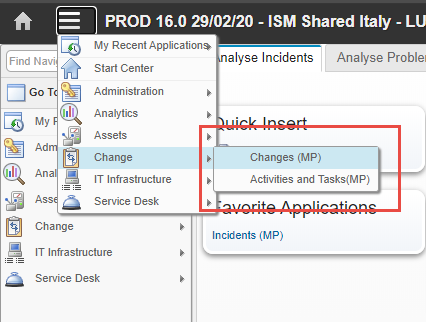
goto_section(SECTION_NAME) |
Uses the Goto button to change section. It needs to be the text without the "(MP)" part...
|
||||||||
close() |
Closes the browser. Make sure to always call it after logout() to avoid running out of available sessions in Maximo after a while |
||||||||
waitUntilReady() |
Pauses the script until Maximo has finished loading.
For example you can use it after changing section or clicking on an element to wait until Maximo has finished rendering or retrieving the data |
||||||||
setFilters(FILTERS) |
Sets the filters of a table in the form of a dictionary where the key is the filter name (ex. Summary, in red) and the value is the filter value (ex. "Hostname not reachable", in blue)
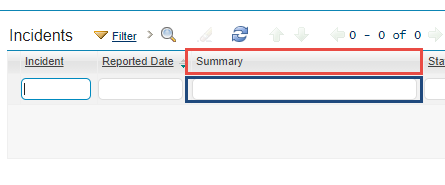
To set multiple filters just add more key/value pairs. Ex: |
||||||||
getBrowserInstance() |
Returns the selenium.webdriver instance of the browser so you can have more control or implement custom actions (like clicking on a particular element, inserting text somewhere and more...)
|
||||||||
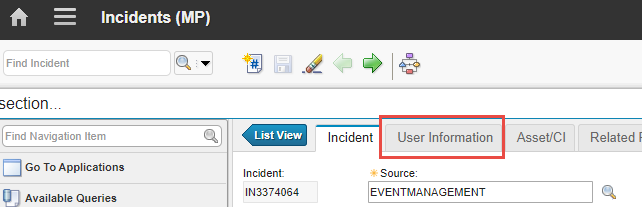
goto_tab(TAB_NAME) |
Clicks on the specified tab when inside a record detail (ex. inside an Incident/Change, ecc...)
|
||||||||
getAllRecordsFromTable() |
Returns a dictionary containing all the details of all the records of a list table (ex. when inside Changes open owned by my groups).
|
||||||||
waitForInputEditable() |
|||||||||
setNamedInput(TARGETS) |
Takes a dictionary as argument and searches inputs labelled by the string given as key; if presen, its value is set to the value of the corresponding pair in the dictionary
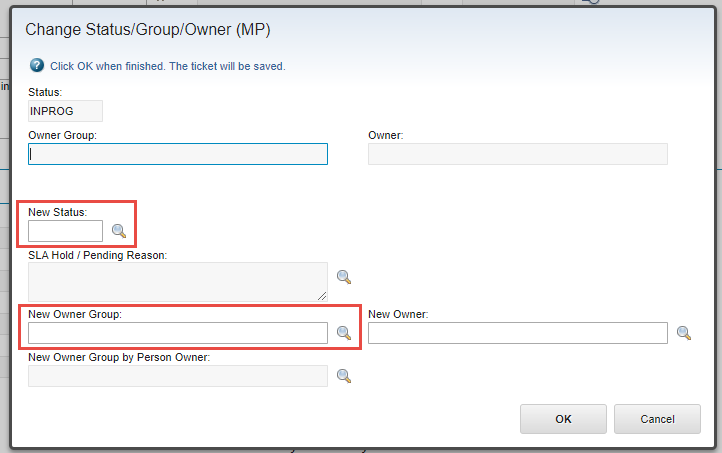
To set the highlighted fields of the image you would have to call the method like this: |
||||||||
| To be continued... | |||||||||
Known Limitations
By default it uses Chrome
To use another browser, or to set custom flags, you can create your own webdriver instance and pass it to MaximoAutomation to use it. For example:
from selenium.webdriver import Firefox
from selenium.webdriver.firefox.options import Options

import maximo_gui_connector as MGC

opts = Options()
opts.set_headless()

assert opts.headless  # Operating in headless mode

my_webdriver_instance = webdriver.Firefox(options=opts)

maximo = MGC.MaximoAutomation({ "driver": my_webdriver_instance })
This method, however, introduces a new problem:
The Webdriver MUST be in the PATH when using custom Webdriver
To prevent having to download manually the right Webdriver the first time and every time the browser update, you can make use of the webdriver-manager package.
What it does is essentially keep a cached version of the Webdriver check every time if the Webdriver version is the same as the installed browser. If not it downloads it.
To use it:
from selenium import webdriver

# Webdriver Manager
from webdriver_manager.firefox import GeckoDriverManager

import maximo_gui_connector as MGC

# If not 'installed' it will download an updated version of the driver
my_webdriver_instance = webdriver.Firefox(executable_path=GeckoDriverManager().install())

maximo = MGC.MaximoAutomation({ "driver": my_webdriver_instance })
1 maintainer

Metadata
1 maintainer
Release files for maximo-gui-connector 0.7.10
For a detailed explanation of source distributions (sdists) and built distributions (wheels), please see the package formats documentation.
Source distribution (sdist)
| File | Size | Uploaded | Provenance | |
|---|---|---|---|---|
| maximo-gui-connector-0.7.10.tar.gz | 22.0 kB | Without provenance | Details |
Built distribution (wheel)
| File | Interpreter | ABI | Platform | Reset |
|---|---|---|---|---|
| maximo_gui_connector-0.7.10-py2.py3-none-any.whl | Python 3, Python 2 | none | any | Details |
Total release size: 46.4 kB
Release files / maximo-gui-connector-0.7.10.tar.gz
| Download URL | maximo-gui-connector-0.7.10.tar.gz |
|---|---|
| Size | 22.0 kB |
| Tags | Source |
|
SHA-256 checksum How to use checksums |
c70330e91cd6eb026fa382a32a18d26cc889b35312e697dd816abc707012f434
|
|
BLAKE2b-256 checksum How to use checksums |
efb415bf0f9e8b070cb242b1bd360cfc91936cdab99aff6fe6643f4533cdcd81
|
| Upload date | |
|
Uploaded using Trusted Publishing? What is trusted publishing? |
No |
| Uploaded via |
twine/3.2.0 pkginfo/1.5.0.1 requests/2.24.0 setuptools/52.0.0 requests-toolbelt/0.9.1 tqdm/4.48.0 CPython/3.8.3
|
Release files / maximo_gui_connector-0.7.10-py2.py3-none-any.whl
| Download URL | maximo_gui_connector-0.7.10-py2.py3-none-any.whl |
|---|---|
| Size | 24.4 kB |
| Tags | Python 2 Python 3 |
|
SHA-256 checksum How to use checksums |
2458d83d0efbd0b9d6f59b2cb6954fa224e03f8f438bdb2f49064d6082b472ee
|
|
BLAKE2b-256 checksum How to use checksums |
13a2a0391c1316a599bbf3f0ffb97cf0afde1deb810e43a77ae0e3b86a9a9512
|
| Upload date | |
|
Uploaded using Trusted Publishing? What is trusted publishing? |
No |
| Uploaded via |
twine/3.2.0 pkginfo/1.5.0.1 requests/2.24.0 setuptools/52.0.0 requests-toolbelt/0.9.1 tqdm/4.48.0 CPython/3.8.3
|
Security for maximo-gui-connector 0.7.10
Provenance
Provenance describes where a file came from. On PyPI, provenance is shared via attestations, which provide a verifiable record of the build or publishing details. View details, limitations and caveats.
No provenance found
None of the files in this release were uploaded with provenance metadata.
A note on package security
PyPI is a repository for distributing packages, not a service for auditing them. While third-party security researchers and our staff do their best to detect and remove malicious packages, PyPI cannot guarantee the quality, security or suitability of any given package.
To learn more about protecting yourself from malicious actors, visit our package security documentation.














