
JupyterChatbook


"JupyterChatbook" is a Python package of a Jupyter extension that facilitates the interaction with Large Language Models (LLMs).
The Chatbook extension provides the cell magics:
%%chatgpt(and the synonym%%openai)%%gemini%%xai%%xai_images%%ollama%%openai_images%%chat%%chat_meta
The provider cells are for "shallow" access of the corresponding LLM services.
The %%chat cell is the most important -- it allows contextual, multi-cell interactions with LLMs.
The %%chat_meta cell manages the chat objects created in a notebook session.
Remark: The chatbook LLM cells use the packages "openai", [OAIp2], and "google-genai", [GAIp1].
Remark: The results of the LLM cells are automatically copied to the clipboard using the package "pyperclip", [ASp1].
Remark: The API keys for the LLM cells can be specified in the magic lines. If not specified then the API keys are taken
from the Operating System (OS) environmental variables OPENAI_API_KEY, GEMINI_API_KEY, OLLAMA_API_KEY, and XAI_API_KEY.
(See below the setup section for LLM services access.)
Remark: The Ollama magic cells also uses the environmental variables OLLAMA_HOST and OLLAMA_MODEL.
Of course, if Ollama is run locally then OLLAMA_API_KEY is not needed.
Here is a couple of movies [AAv2, AAv3] that provide quick introductions to the features:
- "Jupyter Chatbook LLM cells demo (Python)", (4.8 min)
- "Jupyter Chatbook multi cell LLM chats teaser (Python)", (4.5 min)
Installation
Install from GitHub
pip install -e git+https://github.com/antononcube/Python-JupyterChatbook.git#egg=Python-JupyterChatbook
From PyPi
pip install JupyterChatbook
Setup LLM services access
The API keys for the LLM cells can be specified in the magic lines. If not specified then the API keys are taken f
rom the Operating System (OS) environmental variablesOPENAI_API_KEY, GEMINI_API_KEY, OLLAMA_API_KEY, and XAI_API_KEY.
(For example, set in the "~/.zshrc" file in macOS.)
One way to set those environmental variables in a notebook session is to use the %env line magic. For example:
%env OPENAI_API_KEY = <YOUR API KEY>
Another way is to use Python code. For example:
import os
os.environ['OPENAI_API_KEY'] = '<YOUR OPENAI API KEY>'
os.environ['GEMINI_API_KEY'] = '<YOUR GEMINI API KEY>'
os.environ['OLLAMA_API_KEY'] = '<YOUR OLLAMA API KEY>'
os.environ['XAI_API_KEY']    = '<YOUR XAI API KEY>'
Demonstration notebooks (chatbooks)
| Notebook | Description |
|---|---|
| Chatbooks-cells-demo.ipynb | How to do multi-cell (notebook-wide) chats? |
| Chatbook-LLM-cells.ipynb | How to "directly message" LLMs services? |
| DALL-E-cells-demo.ipynb | How to generate images with DALL-E? |
| Echoed-chats.ipynb | How to see the LLM interaction execution steps? |
Notebook-wide chats
Chatbooks have the ability to maintain LLM conversations over multiple notebook cells. A chatbook can have more than one LLM conversations. "Under the hood" each chatbook maintains a database of chat objects. Chat cells are used to give messages to those chat objects.
For example, here is a chat cell with which a new "Email writer" chat object is made, and that new chat object has the identifier "em12":
%%chat --chat_id em12, --prompt "Given a topic, write emails in a concise, professional manner"
Write a vacation email.
Here is a chat cell in which another message is given to the chat object with identifier "em12":
%%chat --chat_id em12
Rewrite with manager's name being Jane Doe, and start- and end dates being 8/20 and 9/5.
In this chat cell a new chat object is created:
%%chat -i snowman, --prompt "Pretend you are a friendly snowman. Stay in character for every response you give me. Keep your responses short."
Hi!
And here is a chat cell that sends another message to the "snowman" chat object:
%%chat -i snowman
Who build you? Where?
Remark: Specifying a chat object identifier is not required. I.e. only the magic spec %%chat can be used.
The "default" chat object ID identifier is "NONE".
For more examples see the notebook "Chatbook-cells-demo.ipynb".
Here is a flowchart that summarizes the way chatbooks create and utilize LLM chat objects:
flowchart LR
    OpenAI{{OpenAI}}
    Gemini{{Gemini}}
    Ollama{{Ollama}}
    LLMFunc[[LLMFunctions]]
    LLMProm[[LLMPrompts]]
    CODB[(Chat objects)]
    PDB[(Prompts)]
    CCell[/Chat cell/]
    CRCell[/Chat result cell/]
    CIDQ{Chat ID<br/>specified?}
    CIDEQ{Chat ID<br/>exists in DB?}
    RECO[Retrieve existing<br/>chat object]
    COEval[Message<br/>evaluation]
    PromParse[Prompt<br/>DSL spec parsing]
    KPFQ{Known<br/>prompts<br/>found?}
    PromExp[Prompt<br/>expansion]
    CNCO[Create new<br/>chat object]
    CIDNone["Assume chat ID<br/>is 'NONE'"]
    subgraph Chatbook frontend
        CCell
        CRCell
    end
    subgraph Chatbook backend
        CIDQ
        CIDEQ
        CIDNone
        RECO
        CNCO
        CODB
    end
    subgraph Prompt processing
        PDB
        LLMProm
        PromParse
        KPFQ
        PromExp
    end
    subgraph LLM interaction
      COEval
      LLMFunc
      OpenAI
      Gemini
      Ollama
    end
    CCell --> CIDQ
    CIDQ --> |yes| CIDEQ
    CIDEQ --> |yes| RECO
    RECO --> PromParse
    COEval --> CRCell
    CIDEQ -.- CODB
    CIDEQ --> |no| CNCO
    LLMFunc -.- CNCO -.- CODB
    CNCO --> PromParse --> KPFQ
    KPFQ --> |yes| PromExp
    KPFQ --> |no| COEval
    PromParse -.- LLMProm
    PromExp -.- LLMProm
    PromExp --> COEval
    LLMProm -.- PDB
    CIDQ --> |no| CIDNone
    CIDNone --> CIDEQ
    COEval -.- LLMFunc
    LLMFunc <-.-> OpenAI
    LLMFunc <-.-> Gemini
    LLMFunc <-.-> Ollama
Chat meta cells
Each chatbook session has a dictionary of chat objects. Chatbooks can have chat meta cells that allow the access of the chat object "database" as whole, or its individual objects.
Here is an example of a chat meta cell (that applies the method print to the chat object with ID "snowman"):
%%chat_meta -i snowman
print
Here is an example of chat meta cell that creates a new chat chat object with the LLM prompt specified in the cell ("Guess the word"):
%%chat_meta -i WordGuesser --prompt
We're playing a game. I'm thinking of a word, and I need to get you to guess that word.
But I can't say the word itself.
I'll give you clues, and you'll respond with a guess.
Your guess should be a single word only.
Here is another chat object creation cell using a prompt from the package "LLMPrompts", [AAp2]:
%%chat_meta -i yoda1 --prompt
@Yoda
Here is a table with examples of magic specs for chat meta cells and their interpretation:
| cell magic line | cell content | interpretation |
|---|---|---|
| chat_meta -i ew12 | Give the "print out" of the chat object with ID "ew12" | |
| chat_meta --chat_id ew12 | messages | Give the messages of the chat object with ID "ew12" |
| chat_meta -i sn22 --prompt | You pretend to be a melting snowman. | Create a chat object with ID "sn22" with the prompt in the cell |
| chat_meta --all | keys | Show the keys of the session chat objects DB |
| chat_meta --all | Print the repr forms of the session chat objects |
Here is a flowchart that summarizes the chat meta cell processing:
flowchart LR
    LLMFunc[[LLMFunctionObjects]]
    CODB[(Chat objects)]
    CCell[/Chat meta cell/]
    CRCell[/Chat meta cell result/]
    CIDQ{Chat ID<br/>specified?}
    KCOMQ{Known<br/>chat object<br/>method?}
    AKWQ{Option '--all'<br/>specified?}
    KCODBMQ{Known<br/>chat objects<br/>DB method?}
    CIDEQ{Chat ID<br/>exists in DB?}
    RECO[Retrieve existing<br/>chat object]
    COEval[Chat object<br/>method<br/>invocation]
    CODBEval[Chat objects DB<br/>method<br/>invocation]
    CNCO[Create new<br/>chat object]
    CIDNone["Assume chat ID<br/>is 'NONE'"]
    NoCOM[/Cannot find<br/>chat object<br/>message/]
    CntCmd[/Cannot interpret<br/>command<br/>message/]
    subgraph Chatbook
        CCell
        NoCOM
        CntCmd
        CRCell
    end
    CCell --> CIDQ
    CIDQ --> |yes| CIDEQ
    CIDEQ --> |yes| RECO
    RECO --> KCOMQ
    KCOMQ --> |yes| COEval --> CRCell
    KCOMQ --> |no| CntCmd
    CIDEQ -.- CODB
    CIDEQ --> |no| NoCOM
    LLMFunc -.- CNCO -.- CODB
    CNCO --> COEval
    CIDQ --> |no| AKWQ
    AKWQ --> |yes| KCODBMQ
    KCODBMQ --> |yes| CODBEval
    KCODBMQ --> |no| CntCmd
    CODBEval -.- CODB
    CODBEval --> CRCell
    AKWQ --> |no| CIDNone
    CIDNone --> CIDEQ
    COEval -.- LLMFunc
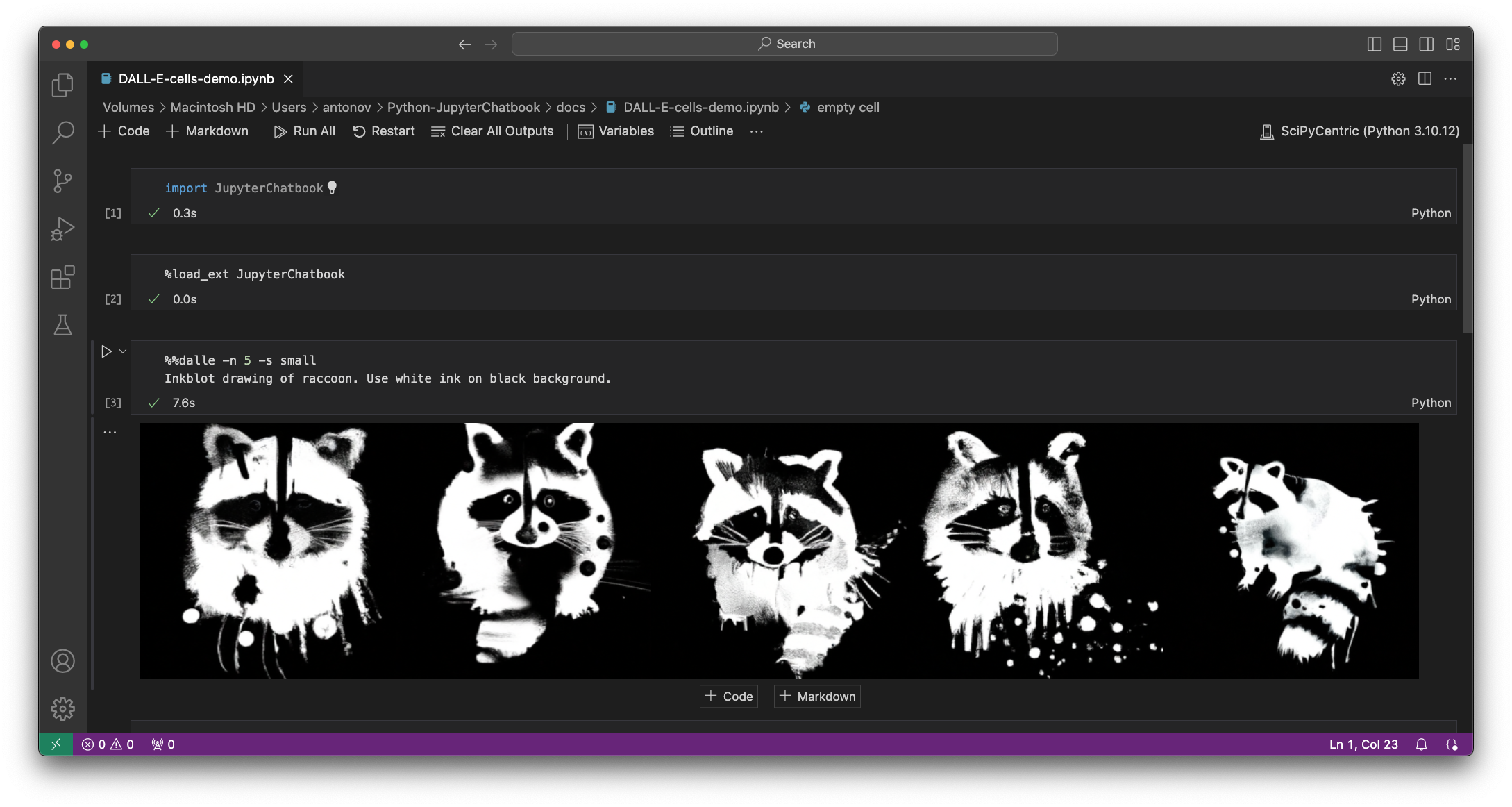
DALL-E access
See the notebook "DALL-E-cells-demo.ipynb"
Here is a screenshot:
Automatic initialization
Both initialization Python code and LLM personas can be automatically run and loaded respectively.
Init code
The initialization Python code can be specified with the OS environmental variable PYTHON_CHATBOOK_INIT_FILE.
If that variable is not set, the existence of the following files is verified in this order:
- "~/.config/python-chatbook/init.py"
- "~/.config/init.py"
If an initialization file is found, an attempt is made to evaluate it. If the evaluation is successful, then the content of file is used to initialize the Jupyter session. (In addition to the code that is always used for initialization.)
For example, see the file "./resources/init.py".
LLM personas
The Jupyter session can have pre-loaded LLM personas (i.e. chat objects.)
The LLM personas JSON file can be specified with the OS environmental variable PYTHON_CHATBOOK_LLM_PERSONAS_CONF.
If that variable is not set, the existence of the following files is verified in this order:
- "~/.config/python-chatbook/llm-personas.json"
- "~/.config/llm-personas.json"
Prompts from "LLMPrompts", [AAp2], can be used in that file.
For example, see the file "./resources/llm-personas.json".
The pre-loaded LLM personas (chat objects) can be verified with the magic cell:
%%chat_meta --all
print
Implementation details
The design of this package -- and corresponding envisioned workflows with it -- follow those of the Raku package "Jupyter::Chatbook", [AAp3].
TODO
- TODO Implementation
- DONE PaLM chat cell
- Obsoleted by Google
- DONE Gemini magic cell
- Replacing the PaLM cell
- DONE Ollama magic cell
- TODO Using "pyperclip"
- DONE Basic
-
%%chatgpt -
%%openai_images -
%%palm -
%%chat -
%%gemini -
%%xai
-
- TODO Switching on/off copying to the clipboard
- DONE Per cell
- Controlled with the argument
--no_clipboard.
- Controlled with the argument
- TODO Global
- Can be done via the chat meta cell, but maybe a more elegant, bureaucratic solution exists.
- DONE Per cell
- DONE Basic
- DONE Formatted output: asis, html, markdown
- General lexer code?
- Includes LaTeX.
-
%%chatgpt -
%%palm -
%%chat -
%%gemini -
%%ollama -
%%xai -
%%chat_meta?
- General lexer code?
- DONE DALL-E image variations cell
- Combined image variations and edits with
%%openai_images.
- Combined image variations and edits with
- DONE Initialization code with "init.py"
- DONE Pre-load of LLM-personas with "llm-personas.json"
- TODO Mermaid-JS cell
- TODO ProdGDT cell
- MAYBE DeepL cell
- See "deepl-python"
- TODO Lower level access to chat objects.
- Like:
- Getting the 3rd message
- Removing messages after 2 second one
- etc.
- Like:
- TODO Using LLM commands to manipulate chat objects
- Like:
- "Remove the messages after the second for chat profSynapse3."
- "Show the third messages of each chat object."
- Like:
- DONE PaLM chat cell
- TODO Documentation
- DONE Multi-cell LLM chats movie (teaser)
- See [AAv2].
- TODO LLM service cells movie (short)
- TODO Multi-cell LLM chats movie (comprehensive)
- TODO Code generation
- DONE Multi-cell LLM chats movie (teaser)
References
Packages
[AAp1] Anton Antonov, LLMFunctionObjects Python package, (2023), Python-packages at GitHub/antononcube.
[AAp2] Anton Antonov, LLMPrompts Python package, (2023), Python-packages at GitHub/antononcube.
[AAp3] Anton Antonov, Jupyter::Chatbook Raku package, (2023), GitHub/antononcube.
[ASp1] Al Sweigart, pyperclip (Python package), (2013-2021), PyPI.org/AlSweigart.
[GAIp1] Google AI, google-genai (Google Gen AI Python SDK), (2023), PyPI.org/google-ai.
[OAIp1] OpenAI, openai (OpenAI Python Library), (2020-2023), PyPI.org.
Videos
[AAv1] Anton Antonov, "Jupyter Chatbook multi cell LLM chats teaser (Raku)", (2023), YouTube/@AAA4Prediction.
[AAv2] Anton Antonov, "Jupyter Chatbook LLM cells demo (Python)", (2023), YouTube/@AAA4Prediction.
[AAv3] Anton Antonov, "Jupyter Chatbook multi cell LLM chats teaser (Python)", (2023), YouTube/@AAA4Prediction.
1 maintainer

Metadata
1 maintainer
Release files for JupyterChatbook 0.1.6
For a detailed explanation of source distributions (sdists) and built distributions (wheels), please see the package formats documentation.
Source distribution (sdist)
| File | Size | Uploaded | |
|---|---|---|---|
| jupyterchatbook-0.1.6.tar.gz | 17.9 kB | Details |
Built distribution (wheel)
| File | Interpreter | ABI | Platform | Reset |
|---|---|---|---|---|
| jupyterchatbook-0.1.6-py3-none-any.whl | Python 3 | none | any | Details |
Total release size: 35.7 kB
Release files / jupyterchatbook-0.1.6.tar.gz
| Download URL | jupyterchatbook-0.1.6.tar.gz |
|---|---|
| Size | 17.9 kB |
| Tags | Source |
|
SHA-256 checksum How to use checksums |
a61de0e7afd8b834cddfa10fd886672eb8dcc27d29f000883d1012069fef7b48
|
|
BLAKE2b-256 checksum How to use checksums |
3fcbca7182c80b7d830a92ca356642eb05b6ba6657229aefbd9c936226b6425c
|
| Upload date | |
|
Uploaded using Trusted Publishing? What is trusted publishing? |
No |
| Uploaded via |
twine/7.0.0 CPython/3.14.3
|
Release files / jupyterchatbook-0.1.6-py3-none-any.whl
| Download URL | jupyterchatbook-0.1.6-py3-none-any.whl |
|---|---|
| Size | 17.8 kB |
| Tags | Python 3 |
|
SHA-256 checksum How to use checksums |
c55a7db607834137c8425ab9302457a0b90408de98e89c473be0f308be08ca56
|
|
BLAKE2b-256 checksum How to use checksums |
91827ea3654aee1acfb9ff5615600b870c7824c03139f1659a410372fcd9f90a
|
| Upload date | |
|
Uploaded using Trusted Publishing? What is trusted publishing? |
No |
| Uploaded via |
twine/7.0.0 CPython/3.14.3
|














