LabelCraft - A modern graphical image annotation tool based on labelImg

Project description

LabelCraft - Intelligent Image Annotation Tool

Version 2.1.4 - A modern image annotation tool with project management and cross-platform support, developed based on labelImg

License Python Version PySide6 Version Downloads PyPI

中文文档 | English

LabelCraft is a professional graphical image annotation tool with advanced project management capabilities. It's designed for efficient data preparation in deep learning tasks such as object detection and image classification.

This project is a major evolution of the open-source project labelImg, adding project-based workflow, multi-format support, and intelligent annotation features. Special thanks to the original author TzuTa Lin for his pioneering work.

✨ Key Features

🎯 Core Annotation

  • Rectangle bounding box annotation
  • Polygon annotation (coming soon)
  • Real-time preview and editing
  • Undo/Redo support

📁 Project Management (v2.0 New!)

  • Create and manage annotation projects
  • Project configuration persistence (.labelcraft files)
  • Recent projects quick access
  • Automatic annotation directory management
  • Project metadata tracking

🔄 Multi-Format Support

Support 5 major annotation formats with seamless conversion:

  • PASCAL VOC (XML) - Traditional format for Faster R-CNN, SSD, etc.
  • YOLO (TXT) - For YOLO series models (v5, v8, v10)
  • CreateML (JSON) - For Apple CreateML framework
  • COCO (JSON) - Microsoft COCO dataset standard
  • CSV (CSV) - Universal format for data analysis

🌐 Advanced Internationalization

Dynamic language switching without restart:

  • English
  • 简体中文 (Simplified Chinese)
  • 繁體中文 (Traditional Chinese)
  • 日本語 (Japanese)
  • Deutsch (German)
  • Français (French)

⚡ Smart Workflow

  • Pending annotation queue management
  • Completed annotations list
  • Auto-save mode
  • Default label for batch annotation
  • Verification mode for quality control
  • Copy previous frame annotations
  • Import external annotations (v2.0.4+) - Import from YOLO, VOC, COCO, CreateML datasets
  • Smart label mapping - Automatically maps imported labels to project definitions

🛠️ Developer Tools

  • Built-in format converter (all 5 formats)
  • Command-line interface
  • Python API for integration
  • Customizable shortcuts
  • Brightness adjustment
  • Cross-Platform Dark Mode (v2.1.2+)
    • Windows 10/11: Automatic registry detection
    • Linux (GNOME/KDE/Ubuntu): dconf/gsettings support
    • macOS: System appearance detection
    • Fusion style for consistent cross-platform rendering
  • Unified Build System (v2.1.2+)
    • PyInstaller-based builds for all platforms
    • Consistent distribution packages
    • GitHub Actions CI/CD automation

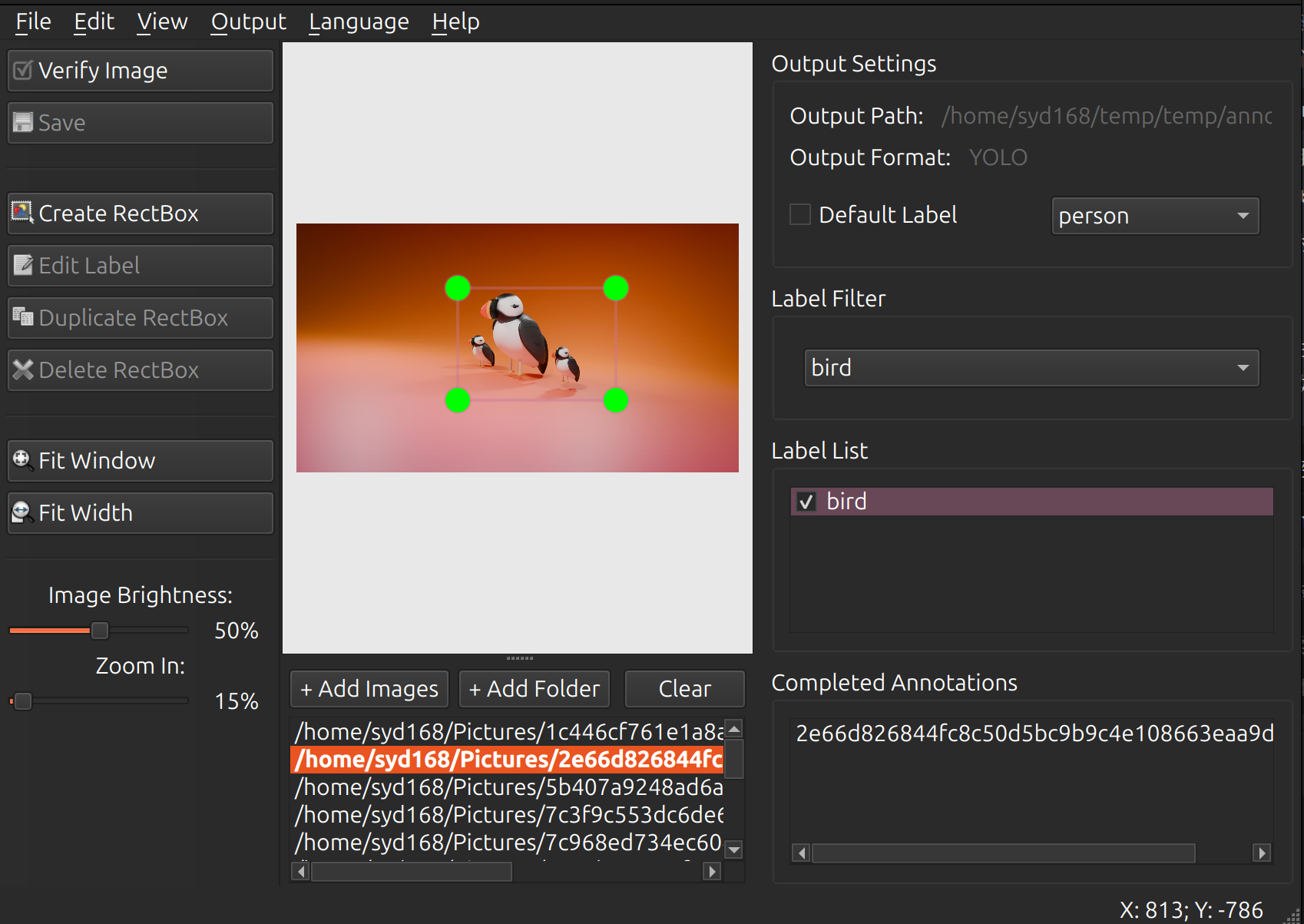
📸 Screenshot

LabelCraft Interface

🚀 Quick Start

Installation via pip (Recommended)

pip install labelcraft

Launch from command line:

labelcraft

Or specify an image directory:

labelcraft /path/to/images

One-Click Launch (From Source)

Linux/macOS:

chmod +x start.sh
./start.sh

Windows:

start.bat

The script will automatically:

  1. Check Python environment
  2. Create virtual environment
  3. Install dependencies
  4. Compile resources
  5. Launch application

Manual Installation

# Clone repository
git clone https://github.com/syd168/LabelCraft.git
cd LabelCraft

# Create virtual environment
python3 -m venv venv
source venv/bin/activate  # Linux/macOS
# or
venv\Scripts\activate     # Windows

# Install dependencies
pip install -r requirements.txt

# Compile resources (Linux/macOS)
make pyside6
# or Windows
pyside6-rcc -o libs/resources.py resources.qrc

# Run
python main.py

📖 Usage Guide

Standard Workflow (Project-Based)

Step 1: Create a New Project

  1. Menu: File → New Project or press Ctrl+N
  2. Fill in project information:
    • Project Name: Your project name
    • Project Location: Directory to store project files
    • Output Format: Choose annotation format (VOC/YOLO/CreateML/COCO/CSV)
    • Labels: Add your object categories
  3. Click "Create Project"

The system will automatically create:

  • Project file: {project_name}.labelcraft
  • Annotations directory: {project_dir}/annotations/

Step 2: Add Images to Project

  1. Menu: File → Open Dir or press Ctrl+U
  2. Select the directory containing your images
  3. Images will be loaded into the pending queue

You can also:

  • Drag and drop images directly
  • Use File → Add Images to add specific files

Step 3: Annotate Images

  1. Click "Create RectBox" button or press W
  2. Draw bounding box on the object
  3. Enter label name (or use default label)
  4. Press Enter to confirm
  5. Save with Ctrl+S or enable auto-save

Tips:

  • Use arrow keys to fine-tune box position
  • Hold Ctrl while drawing for perfect squares
  • Right-click box to edit properties
  • Use verification mode (Space) to mark completed images

Step 4: Manage Annotations

View Status:

  • Left panel: Pending images queue
  • Right panel: Current image annotations
  • Window title shows progress: (5/100)

Navigation:

  • Next image: D or
  • Previous image: A or
  • Jump to specific image from file list

Step 5: Export & Convert

Export Annotations:

  • Menu: File → Export Annotations
  • Choose export location and format

Convert Formats: Use the built-in converter programmatically:

from libs.annotation_converter import AnnotationConverter

converter = AnnotationConverter()

# Convert entire project from VOC to YOLO
converter.convert(
    input_dir='path/to/voc_annotations',
    input_format='voc',
    output_format='yolo',
    output_dir='path/to/yolo_output'
)

Or via command line:

python -m libs.annotation_converter \
    --input /path/to/input \
    --input_format voc \
    --output_format yolo \
    --output /path/to/output

Legacy Mode (Quick Annotation)

For simple tasks without project management:

# Open single image
python main.py image.jpg

# Open directory directly
python main.py /path/to/images

# With predefined labels
python main.py /path/to/images data/predefined_classes.txt

⌨️ Keyboard Shortcuts

File Operations

Shortcut Action
Ctrl+N New Project
Ctrl+O Open Project
Ctrl+U Open Directory
Ctrl+S Save Annotation
Ctrl+E Edit Project
Ctrl+Shift+C Close Project

Annotation

Shortcut Action
W Create RectBox
Ctrl+J Edit Mode
Delete Delete Selected Box
Ctrl+D Duplicate Box
Ctrl+V Copy Previous Frame
Space Verify Image

Navigation

Shortcut Action
D / Next Image
A / Previous Image
Ctrl++ Zoom In
Ctrl+- Zoom Out
Ctrl+F Fit Window
Ctrl+Shift+F Fit Width

View

Shortcut Action
Ctrl+T Toggle Toolbar
Ctrl+H Hide All Boxes
Ctrl+A Show All Boxes
Ctrl+Shift++ Increase Brightness
Ctrl+Shift+- Decrease Brightness
Ctrl+Shift+= Reset Brightness

🔧 Advanced Configuration

Predefined Labels

Create a text file with one label per line:

person
car
dog
cat
bicycle

Load at startup:

python main.py data/predefined_classes.txt

Or at runtime: File → Load Predefined Classes (Ctrl+Shift+L)

Custom Settings

Settings are automatically saved to system config:

  • Recently used directories
  • Window size and position
  • Default annotation format
  • Brush colors
  • Language preference

Command Line Arguments

python main.py [IMAGE_PATH] [PREDEFINED_CLASSES] [SAVE_DIR]

Examples:

# Open specific image
python main.py images/test.jpg

# With predefined classes
python main.py images/ data/classes.txt

# Specify save directory
python main.py images/ classes.txt annotations/

🏗️ Project Structure

LabelCraft/
├── main.py                 # Application entry point
├── labelcraft_ui.py        # Main UI implementation
├── libs/                   # Core libraries
│   ├── project.py          # Project management
│   ├── canvas.py           # Drawing canvas
│   ├── shape.py            # Shape classes
│   ├── annotation_converter.py  # Format converter
│   ├── i18n_engine.py      # Internationalization
│   ├── pascal_voc_io.py    # VOC format I/O
│   ├── yolo_io.py          # YOLO format I/O
│   ├── create_ml_io.py     # CreateML I/O
│   ├── coco_io.py          # COCO I/O
│   └── csv_io.py           # CSV I/O
├── locales/                # Translation files
│   ├── en.json
│   ├── zh-CN.json
│   ├── zh-TW.json
│   ├── ja-JP.json
│   ├── de-DE.json
│   └── fr-FR.json
├── resources/              # Icons and assets
├── doc/                    # Documentation
│   ├── tutorial.md
│   ├── tutorial_zh-CN.md
│   └── TRANSLATION_GUIDE.md
└── build-tools/            # Build scripts

🌍 Adding New Language

  1. Create new file in locales/ (e.g., es-ES.json)
  2. Copy existing JSON as template
  3. Translate all values (keep keys unchanged)
  4. Restart application - new language auto-detected

See TRANSLATION_GUIDE.md for details.

❓ FAQ

Q: What's the difference between v1.x and v2.1?

A: Version 2.1 introduces:

  • ✅ Project-based workflow (vs. file-based in v1.x)
  • ✅ Support for COCO and CSV formats
  • ✅ Built-in format converter
  • ✅ Dynamic language switching (6 languages)
  • ✅ Enhanced UI with better organization
  • ✅ Improved annotation management
  • ✅ Cross-platform dark mode detection
  • ✅ Unified PyInstaller build system
  • ✅ PyPI package distribution

Q: Can I still use it without creating a project?

A: Yes! You can use legacy mode by opening directories directly. However, projects provide better organization and persistence.

Q: How do I convert my existing annotations?

A: Use the built-in converter:

from libs.annotation_converter import AnnotationConverter

converter = AnnotationConverter()
converter.convert('old_annotations/', 'voc', 'yolo', 'new_annotations/')

Q: Where are my annotations saved?

A:

  • With Project: In {project_dir}/annotations/
  • Without Project: Same directory as images
  • Filename matches image with appropriate extension (.xml, .txt, .json, .csv)

Q: Can I change the output format mid-project?

A: Yes! Edit project (Ctrl+E) and change the format. Existing annotations will be migrated if needed.

Q: How do I backup my project?

A: Simply copy the entire project directory including:

  • .labelcraft project file
  • annotations/ directory
  • Your images (if stored in project)

Q: Is there an API for programmatic use?

A: Yes! You can integrate LabelCraft into your Python code:

from libs.project import Project
from libs.annotation_converter import AnnotationConverter

# Create project
project = Project(name="MyProject", project_dir="/path/to/project")
project.save("/path/to/project/myproject.labelcraft")

# Convert formats
converter = AnnotationConverter()
converter.convert("input/", "voc", "yolo", "output/")

🤝 Contributing

Contributions are welcome! Please follow these steps:

  1. Fork the repository
  2. Create feature branch: git checkout -b feature/amazing-feature
  3. Commit changes: git commit -m 'Add amazing feature'
  4. Push to branch: git push origin feature/amazing-feature
  5. Open a Pull Request

Development Setup

# Clone and setup
git clone https://github.com/syd168/LabelCraft.git
cd LabelCraft
python3 -m venv venv
source venv/bin/activate
pip install -r requirements.txt

# Run tests
python -m pytest tests/

# Compile resources after UI changes
pyside6-rcc -o libs/resources.py resources.qrc

📄 License

This project is licensed under the MIT License - see the LICENSE file for details.

🙏 Acknowledgments

  • labelImg - Original project by TzuTa Lin
  • All contributors who improved LabelCraft
  • The open-source community for inspiration and support

📮 Contact & Support


Happy Annotating! 🎉

Made with ❤️ for the computer vision community

Project details


Download files

Download the file for your platform. If you're not sure which to choose, learn more about installing packages.

Source Distribution

labelcraft-2.1.4.tar.gz (1.7 MB view details)

Uploaded Source

Built Distribution

If you're not sure about the file name format, learn more about wheel file names.

labelcraft-2.1.4-py2.py3-none-any.whl (794.7 kB view details)

Uploaded Python 2Python 3

File details

Details for the file labelcraft-2.1.4.tar.gz.

File metadata

  • Download URL: labelcraft-2.1.4.tar.gz
  • Upload date:
  • Size: 1.7 MB
  • Tags: Source
  • Uploaded using Trusted Publishing? No
  • Uploaded via: twine/6.2.0 CPython/3.13.9

File hashes

Hashes for labelcraft-2.1.4.tar.gz
Algorithm Hash digest
SHA256 85b483de369b30849d083d438b0aae5f61933a85d9cc0de3259549b5f3bcf8cf
MD5 1d2c166d49584a847e53b14a79b434a8
BLAKE2b-256 226421c0a4890c39c8559eec7383d91fc6f99ff28cb9ece55ba24f0dc1bb54bd

See more details on using hashes here.

File details

Details for the file labelcraft-2.1.4-py2.py3-none-any.whl.

File metadata

  • Download URL: labelcraft-2.1.4-py2.py3-none-any.whl
  • Upload date:
  • Size: 794.7 kB
  • Tags: Python 2, Python 3
  • Uploaded using Trusted Publishing? No
  • Uploaded via: twine/6.2.0 CPython/3.13.9

File hashes

Hashes for labelcraft-2.1.4-py2.py3-none-any.whl
Algorithm Hash digest
SHA256 3194935b20a97334a369d365bbfb9756650e78fe054d331d7796f463c29f0ddc
MD5 f60962ff985fbc8dbcfe6808529c41fa
BLAKE2b-256 2c34147d8dac7734bdb39da67dad052cb3badf5d17f70cbb55d5f443562b50bb

See more details on using hashes here.

Supported by

AWS Cloud computing and Security Sponsor Datadog Monitoring Depot Continuous Integration Fastly CDN Google Download Analytics Pingdom Monitoring Sentry Error logging StatusPage Status page