
Remote OctoPrint access with live H.264 video via BitBang WebRTC

Project description
OctoPrint-BitBang
This is an OctoPrint plugin that offers full remote access to your OctoPrint instance including live H.264 video over a single HTTPS shareable link. It uses BitBang which creates a secure, fast peer-to-peer connection that requires no account, no subscription, port forwarding, tunnel, or VPN.

This is part of the BitBang project.
What you get
- Full remote access: You get full access from anywhere through a secure HTTPS URL. Configure, upload G-code, start jobs, see live video, etc.
- One link, no account set-up: Remote access, share the URL, share your printer.
- Live H.264 video: Frames come straight from the camera, hardware-encoded on Pi 4 (
/dev/video11V4L2 M2M) and software-encoded on Pi 5 or any other Linux host, then packetized by aiortc and delivered as a WebRTC media stream. CPU footprint is around 40% (single core) on Pi4. - BitBang URL access is optional: Video streaming works with local access through local network URL also.
- Pi CSI camera or USB webcam: Auto-detected (IMX477, IMX219, IMX708, or any V4L2-capable USB webcam).
- Camera controls: Camera selection, live brightness slider, fullscreen button, image flip H/V buttons, and resolution selection (VGA up to 720p).
- Snapshots and timelapse: Integrates with OctoPrint's
WebcamProviderPluginAPI -- snapshots are grabbed from the live stream, so no second camera pipeline to configure. - Mobile friendly: BitBang URL works with phones/tablets.
- PIN protection: Optional PIN required to access the remote URL.
Installation
Prerequisites
These steps are outside the plugin — do them first.
Free the camera from OctoPi's default streamer:
sudo systemctl disable --now webcamd ffmpeg_hls camera-streamer
32-bit Raspberry Pi OS (armv7l, the standard OctoPi image) also needs aiortc and pylibsrtp rebuilt once, because its piwheels wheels link newer system libraries than Bookworm ships:
sudo apt install -y libvpx-dev libopus-dev libsrtp2-dev
~/oprint/bin/pip install --no-binary aiortc,pylibsrtp --force-reinstall --no-deps aiortc==1.10.1 pylibsrtp==1.0.0
64-bit and x86_64 need nothing further.
Install the plugin
In OctoPrint, open Settings → Plugin Manager → Get More, choose ... from URL, and paste:
https://github.com/richlegrand/OctoPrint-BitBang/releases/latest/download/release.zip
Once the plugin is accepted into OctoPrint's repository you'll also be able to find it by searching for "BitBang". Prefer the command line? ~/oprint/bin/pip install OctoPrint-BitBang installs the same package. Either way, don't install from the GitHub source zip — it omits the bundled proxy binaries, so remote access and video won't work.
Set up the camera
-
Restart OctoPrint to load the plugin —
sudo systemctl restart octoprint(Plugin Manager offers to do this for you). -
Point your browser to your OctoPrint server, open the Control tab, and choose BitBang Camera from the webcam selector at the top-right.
-
Open Settings → BitBang and choose camera from dropdown.
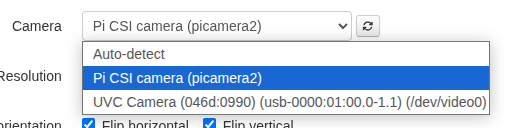
- Choose resolution.
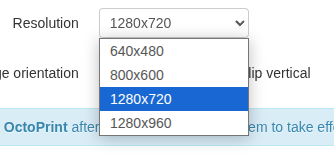
-
Save and restart OctoPrint.
-
Refresh the OctoPrint tab in your browser. A button labeled BitBang is available in the menu bar -- click it for the URL.
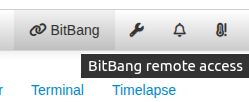
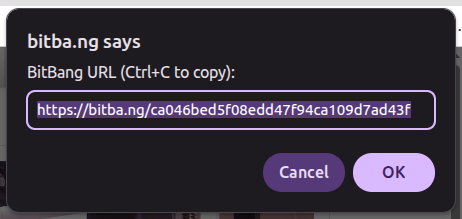
This URL allows remote access to your printer.
- Set
Snapshot Webcamin Settings → Webcam and Timelapse toBitBang Cameraif you want timelapse video/images of your prints.
Configuration
All settings live in Settings → BitBang:
| Setting | Effect |
|---|---|
| Enabled | Toggle BitBang remote access |
| PIN | Optional 4+ digit PIN prompt on the remote URL |
| Camera | Auto-detect, or select from dropdown list |
| Resolution | VGA → HD (depending on what selected camera supports) |
| Flip horizontal / vertical | Flip video if necessary |
All settings take effect on OctoPrint restart. Full-screen button and brightness slider are overlaid on the video window (Control tab) and update immediately.
How it works
- The
bitbang-pythonpackage handles WebRTC signaling, identity, and the ASGI interface. - This plugin wraps it with OctoPrint integration: settings UI,
WebcamProviderPluginhooks, camera auto-detect, CSRF-safe cookie handling, and a webcam-provider template that renders the H.264<video>in OctoPrint's Control tab. - The bitba.ng cloud acts purely as a signaling relay to broker a direct connection. If a direct connection isn't available, bitba.ng will use TURN instead.
Privacy
The BitBang plugin connects through the bitba.ng cloud signaling service to broker peer-to-peer connections. Here is what bitba.ng does and does not see:
- Signaling: When the plugin starts, it registers with
bitba.ngusing a public key derived from a locally-generated keypair (the private key never leaves your device).bitba.ngsees this public key, the derived UID that becomes part of your URL, and connection metadata (timestamps, IPs of peers attempting to connect). - Media path: Once a peer connects, video and HTTP traffic flow directly between the browser and your OctoPrint host over an encrypted WebRTC data channel (DTLS-SRTP).
bitba.ngdoes not see this traffic. - TURN fallback: If a direct connection cannot be established (strict NAT/firewall),
bitba.ngmay relay the encrypted WebRTC stream via TURN. Even in that case, the relay sees ciphertext only — it cannot decrypt your video, OctoPrint UI, or credentials. - No account, no tracking: The plugin does not create an account, send telemetry, or upload usage data.
- Access control: Anyone with your URL can reach your OctoPrint instance. Set a PIN in the plugin settings to require a passcode on the remote URL.
See the BitBang project page for the full signaling protocol and identity specifications.
Supported hardware
- Raspberry Pi 4 (32- or 64-bit OS) -- hardware H.264 via the V4L2 M2M encoder (
h264_v4l2m2m); tested with IMX477, IMX219 - Raspberry Pi 5 -- no hardware H.264 encoder; software H.264 (picamera2's
LibavH264Encoderfor CSI, aiortc for V4L2), which the A76 CPU handles at 720p@30 - CSI cameras -- via picamera2/libcamera where available, or the legacy mmal device (
/dev/video2) as a direct H.264 passthrough - USB webcams -- cams with onboard H.264 stream as a zero-encode passthrough; otherwise hardware-re-encoded on Pi 4 (
h264_v4l2m2m) or software-encoded elsewhere - Generic Linux PC/laptop/SBC with webcam -- software H.264 via aiortc
ffmpegis required for the hardware H.264 paths. The Pi CSI (legacy/mmal) passthrough and the USB hardware re-encode (h264_v4l2m2m) drive the systemffmpegbinary, which is present by default on OctoPi (the timelapse renderer depends on it). Ifffmpegis missing, BitBang automatically falls back to software encoding.
Installation Notes
Skip this if Installation worked.
The video stack is av (PyAV) + aiortc, pulled in as wheels, and needs Python 3.10+ — OctoPi 1.0.x (Bullseye / Python 3.9) has no usable av wheel, so upgrade the image to 1.1.0+. On 64-bit (aarch64 / x86_64) the PyPI wheels bundle their native libraries and work as-is; 32-bit (armv7l) needs the extra step in Installation above, because its piwheels wheels link newer system libraries than Bookworm ships.
Pi CSI camera not detected (falls back to USB)
The Pi CSI camera is driven through picamera2, a system package installed via apt -- it is not on PyPI. Your OctoPrint venv can only import it if the venv was created with access to system site-packages. If it can't, CSI auto-detect fails and the plugin silently falls back to a USB webcam (or no camera) -- the plugin still loads, so the only symptom is the wrong camera.
Check from inside your OctoPrint venv:
python -c "import picamera2" # ImportError -> the venv cannot see picamera2
If that errors, recreate the venv with system site-packages and reinstall OctoPrint and the plugin into it:
python3 -m venv --system-site-packages /path/to/oprint
USB webcams work in a plain venv -- this only affects the Pi CSI camera.
Diagnostic mode
If the video stack fails to import for any reason, the plugin still loads -- settings and navbar are visible, and octoprint.log shows a clear BitBang video stack unavailable: <reason> line. You can see the missing piece in OctoPrint instead of grepping logs.
License
MIT. See LICENSE.
Credits
Built on aiortc, picamera2, and the bitbang-python library. Plugin scaffold uses OctoPrint's plugin API.
Contributing
Issues and PRs are welcome.
Release history Release notifications | RSS feed


Download files
Download the file for your platform. If you're not sure which to choose, learn more about installing packages.
Source Distribution
Built Distribution
Filter files by name, interpreter, ABI, and platform.
If you're not sure about the file name format, learn more about wheel file names.
Copy a direct link to the current filters
File details
Details for the file octoprint_bitbang-0.2.6.tar.gz.
File metadata
- Download URL: octoprint_bitbang-0.2.6.tar.gz
- Upload date:
- Size: 13.1 MB
- Tags: Source
- Uploaded using Trusted Publishing? No
- Uploaded via: twine/6.1.0 CPython/3.13.12
File hashes
| Algorithm | Hash digest | |
|---|---|---|
| SHA256 |
e26fa61756d40cf9589db9ee6ab5df8c1b527e6426336aef16f1ad580097a9c4
|
|
| MD5 |
2993f3c34e3b0b2787503407d7a95655
|
|
| BLAKE2b-256 |
85136534399f31ea88aa8415eea62b76c7efba02a2d09ce54091502384dabd84
|
File details
Details for the file octoprint_bitbang-0.2.6-py3-none-any.whl.
File metadata
- Download URL: octoprint_bitbang-0.2.6-py3-none-any.whl
- Upload date:
- Size: 13.2 MB
- Tags: Python 3
- Uploaded using Trusted Publishing? No
- Uploaded via: twine/6.1.0 CPython/3.13.12
File hashes
| Algorithm | Hash digest | |
|---|---|---|
| SHA256 |
11f59a087291eb14b0fc3029e80fd8eef2fb649f5bb78ee5a9674d26c95f77f9
|
|
| MD5 |
bd3272a2329b2c1835242b0dd60013ec
|
|
| BLAKE2b-256 |
b4082d894d2d14ede7c00c1634eb3c6101c7e26ca036bea1e35a43027a663ceb
|






