
PyImageLabeling


- Documentation: Read the documentation.
- GitHub Repository: View codesource.
- PyPI: Install via pip.
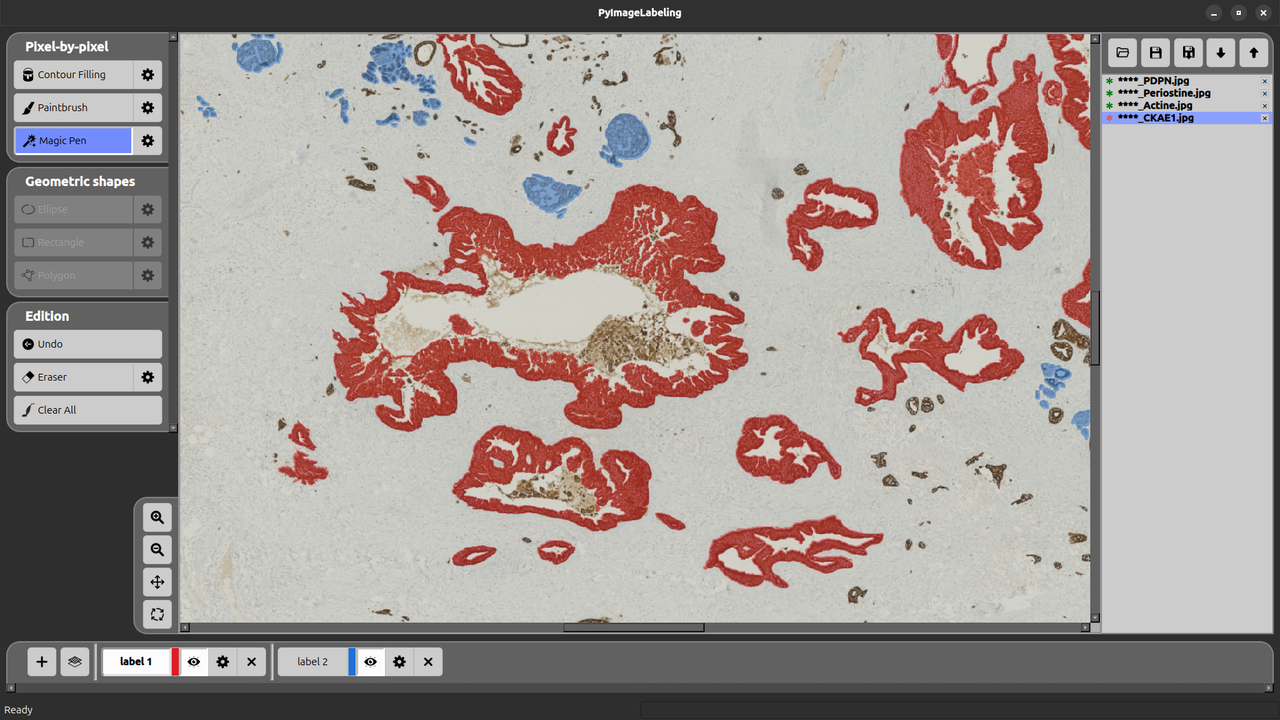
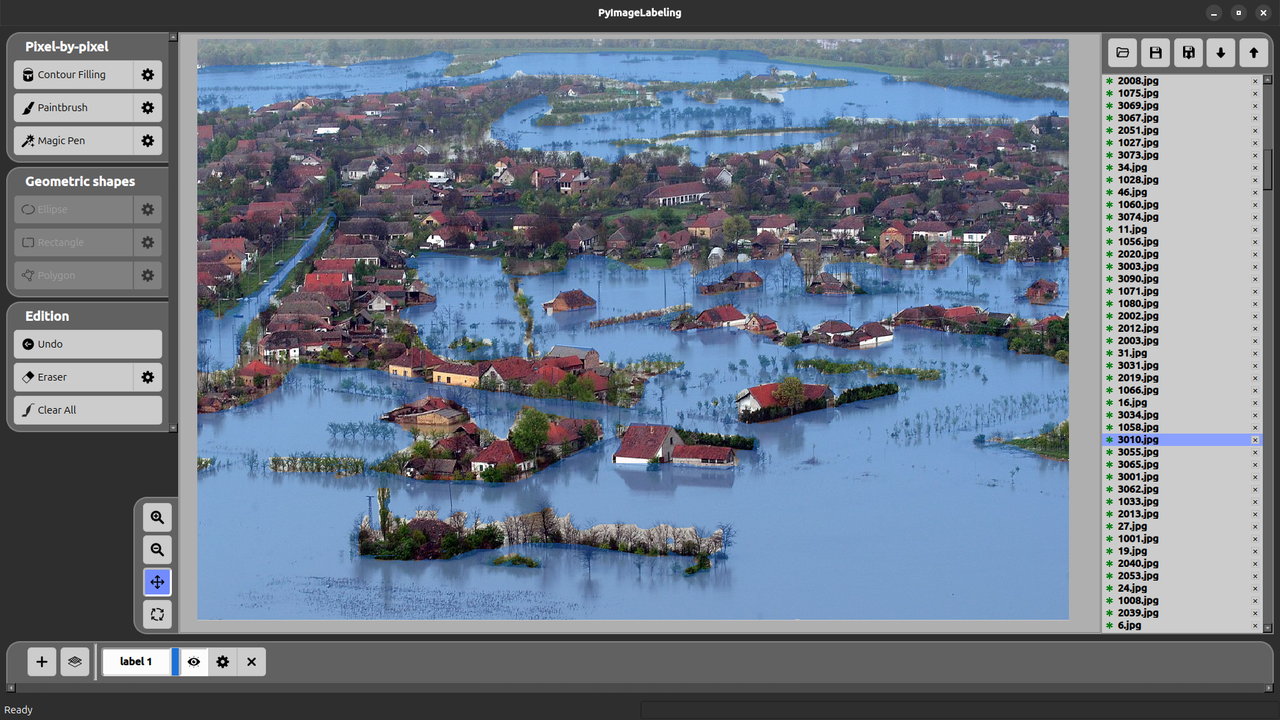
PyImageLabeling is a powerful tool with a user-friendly interface based on PyQT6 for creating image masks. These labeled images are used in the creation of machine learning models dedicated to computer vision tasks.
Two types of labeling are available:
- Pixel-by-Pixel: allows to use the pixel-level precision (paintbrush, magic pen, contour filling).
- Geometric shapes: allows to use different geometric shapes (polygon, rectangle, ellipse) for labeling.
Installation and Run
Note that you need first Python 3 (version 3.12, or later) to be installed. You can do it, for example, from Python.org.
PyPi installation (Windows, Mac and Linux)
Check whether you have the last version of PyPi:
python3 -m pip install -U pip
Install PyImageLabeling:
python3 -m pip install -U PyImageLabeling
To launch PyImageLabeling:
python3 -m PyImageLabeling
Executable ".exe" (Windows)
You can download the Windows executable. Just double-click on the executable file to launch PyImageLabeling.
Github Installation (Windows, Mac and Linux)
Here is an illustration for Linux. We assume that Python 3 is installed, and consequently ‘pip3’ is also installed. In a console, type:
git clone https://github.com/crillab/PyImageLabeling.git
You may need to update the environment variable ‘PYTHONPATH’, by typing for example:
export PYTHONPATH="${PYTHONPATH}:${PWD}/.."
Get the last version of pip:
python3 -m pip install --upgrade pip
Executes the pyproject.toml inside the PyImageLabeling directory and installs dependencies ("numpy", "pyqt6", "opencv-python", "pillow", "matplotlib").
python3 -m pip install -e .
To launch PyImageLabeling:
python3 -m PyImageLabeling
License
This project is licensed under the MIT License - see the LICENSE file for details.
Use Cases
- Computer Vision: Create training datasets for object detection and segmentation
- Medical Imaging: Annotate medical scans and diagnostic images
- Autonomous Vehicles: Label road scenes and traffic elements
- Agriculture: Mark crop areas and plant health indicators
- Quality Control: Identify defects and areas of interest in industrial applications
1 maintainer

Metadata
1 maintainer
Release files for PyImageLabeling 1.0.13
For a detailed explanation of source distributions (sdists) and built distributions (wheels), please see the package formats documentation.
Built distribution (wheel)
| File | Interpreter | ABI | Platform | Reset |
|---|---|---|---|---|
| pyimagelabeling-1.0.13-py3-none-any.whl | Python 3 | none | any | Details |
Release files / pyimagelabeling-1.0.13-py3-none-any.whl
| Download URL | pyimagelabeling-1.0.13-py3-none-any.whl |
|---|---|
| Size | 416.5 kB |
| Tags | Python 3 |
|
SHA-256 checksum How to use checksums |
fb00b00d12dab51c88231e62fc28632b36559337c593677ed6cdb708f7964ed2
|
|
BLAKE2b-256 checksum How to use checksums |
e668c181c2b8bc1f32ff0667ec36d2c1b69d61df17f2cd8978a60fa3a2935c70
|
| Upload date | |
|
Uploaded using Trusted Publishing? What is trusted publishing? |
No |
| Uploaded via |
twine/6.2.0 CPython/3.13.7
|














