
Tool to annotate images for machine learning

Reason this release was yanked:
Floating point image arrays still normalised.
Project description
SpeedyAnnotate 
An image viewer and annotation tool for development of machine learning models and image quality assessment (IQA).
SpeedyAnnotate is a straightforward and customisable annotation tool for images. It has three main modes:
-
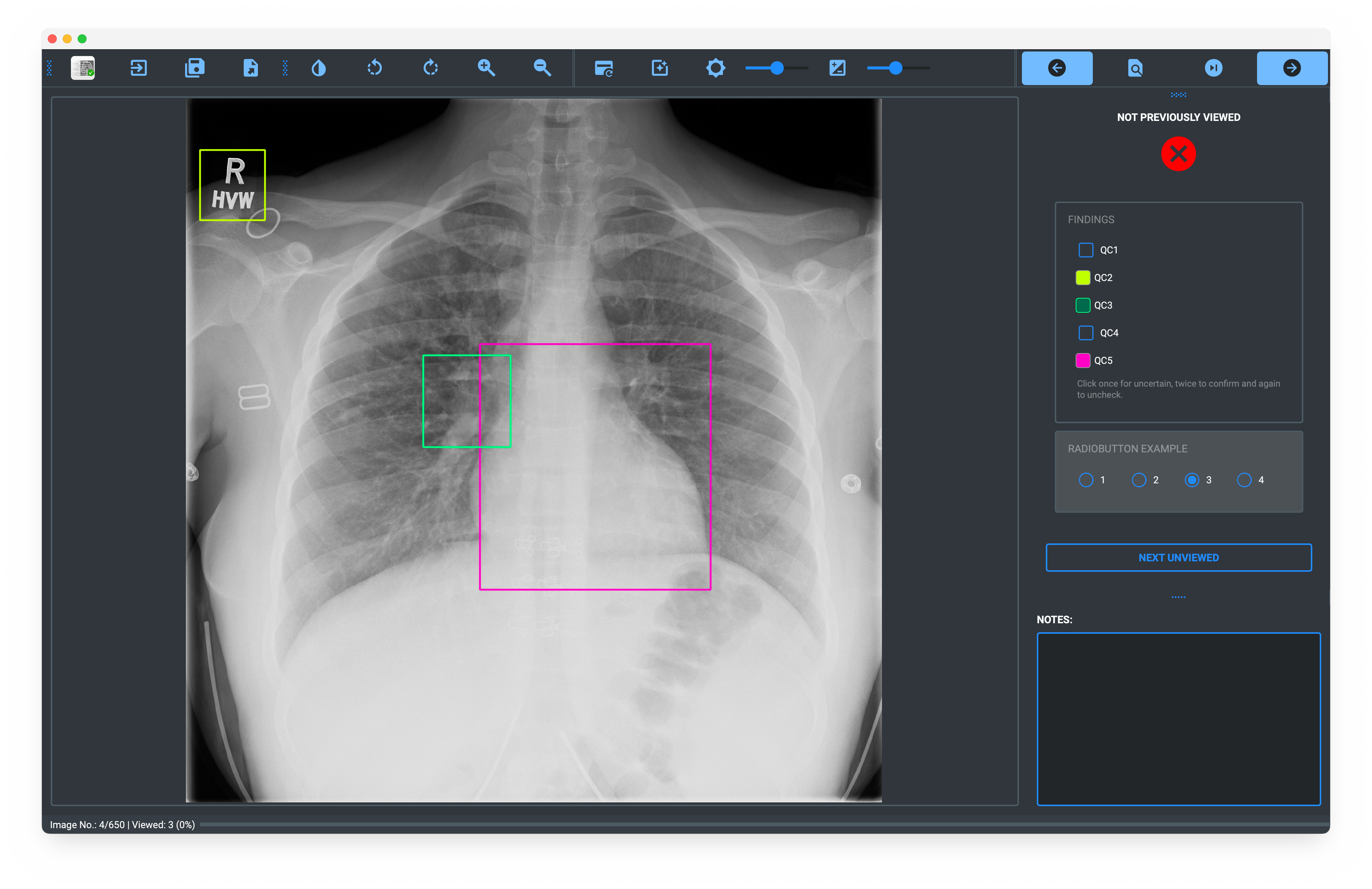
Data Labelling Mode: Annotate images with checkboxes and radiobuttons, with the option of adding bounding boxes.
-
Conflict Resolution Mode: Resolve conflicts between two annotators by viewing only the images where there is a disagreement. Displays the annotations of both annotators and allows you to choose which to keep.
-
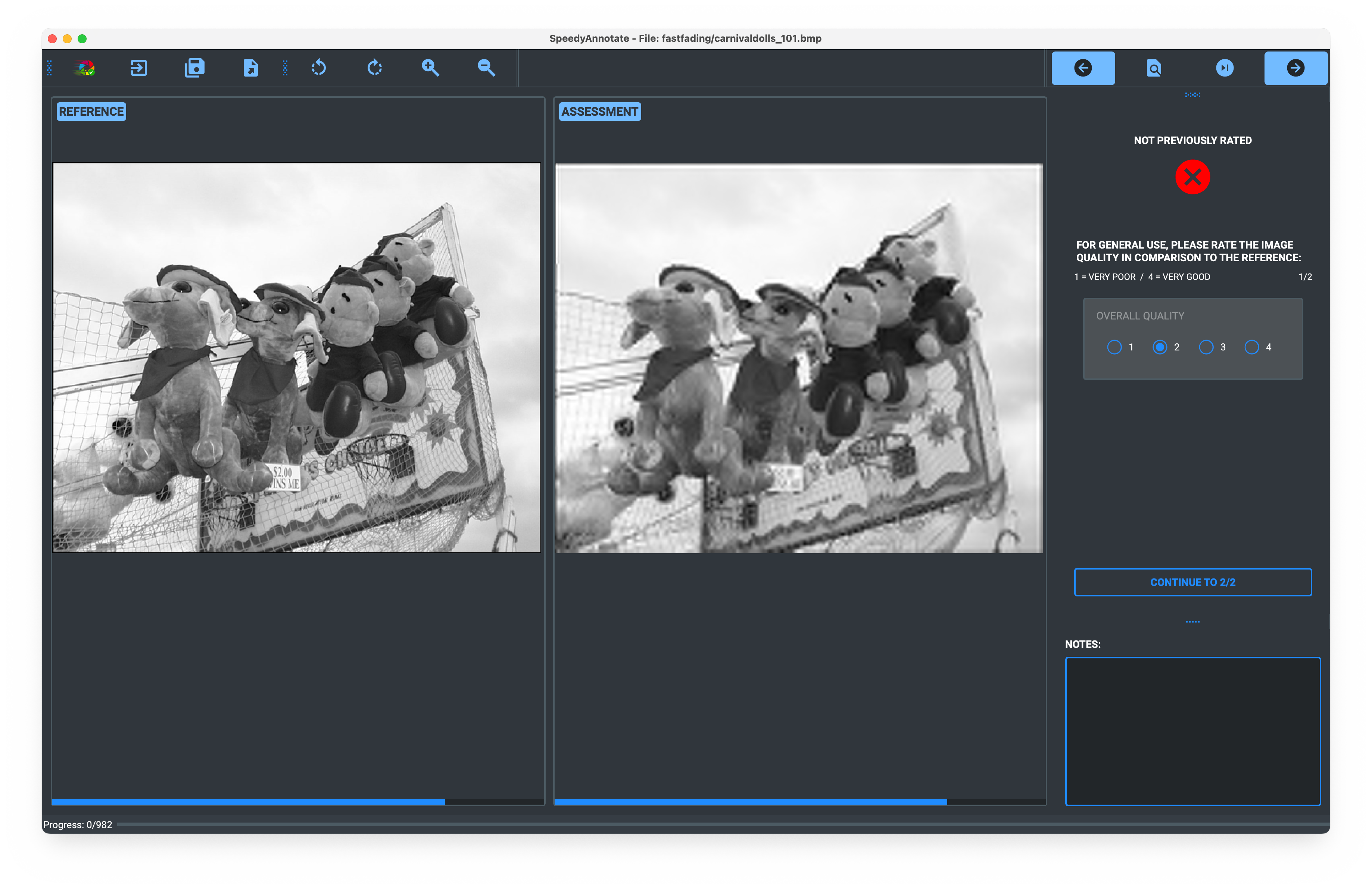
Image Quality Assessment (IQA): Helps you compare and evaluate image quality compared to a reference by showing the image to be assessed next to a reference image (i.e. full reference IQA). The criteria for assessment are customisable.
The program may be run from the command line or as an executable, which can be downloaded or created from the source code (instructions below).
Primarily developed for use on Mac OS X, but also compatible with Linux and Windows.
:warning: Warning: Please note that this application is still in development and there may be unresolved bugs and issues. Use at your own risk!
Table of Contents
- Installation
- Usage
- Data Labelling Mode
- Conflict Resolution Mode
- Image Quality Assessment (IQA)
- Customisation
- YAML Files
- Backup Files
Installation
It is highly recommended to install SpeedyAnnotate in a virtual environment to avoid dependency conflicts with your
system Python installation.
Using venv
-
Create and activate a virtual environment:
- Mac/Linux:
python3 -m venv speedy_env
source speedy_env/bin/activate
- Windows:
python -m venv speedy_env
speedy_env\Scripts\activate
- Mac/Linux:
-
Install the package:
pip install SpeedyAnnotate
Using conda
- Create and activate a virtual environment:
conda create -n speedy_env python==3.10
conda activate speedy_env
- Install the package:
pip install SpeedyAnnotate
It is recommended to install the package using Python 3.10 as this was used in development. However, other versions of Python 3 should still work.
Manual Installation
You can also clone the package from GitHub and install it manually. We recommend using poetry to manage the
dependencies:
git clone https://gitlab.developers.cam.ac.uk/maths/cia/covid-19-projects/speedyannotate
cd speedy_annotate
pip install poetry
poetry install
Usage
Run the following command in the command line (in your virtual environment if you created one):
speedy_annotate
Data Labelling Mode
Originally developed for image quality control (QC) of machine learning datasets, the application may be used to quickly check the quality of the images and/or to label them with ground truth. The viewer supports DICOM, PNG, JPEG and other common image formats. Bounding boxes may be added to demarcate the findings.
Inputs
Checkboxes
Checkboxes are stored as integers:
| Checkbox Value | Meaning |
|---|---|
| 0 | False / No |
| 1 | Uncertain |
| 2 | True / Yes |
Bounding Boxes
- Added to the image by clicking and dragging the mouse.
- Multiple boxes may be added to each image and for each finding.
- The box is labelled with the name of the last checked checkbox.
- Moved by clicking and dragging the box.
- Deleted by right-clicking on the box and selecting
Removefrom the menu.
Radiobuttons
Radiobuttons are stored as integers with the meaning of the integer corresponding to the order of the radiobuttons
inputted in the configuration wizard. For example, if the radiobuttons are ['Normal', 'Abnormal'], then the values
will be 0 for Normal and 1 for Abnormal.
Outputs
Progress is typically saved as a JSON file, but can be exported to a CSV file within the app.
Progress
Your progress through the folder of images is shown in the progress bar at the bottom of the window.
Keyboard Shortcuts
| Key | Action |
|---|---|
| ←, B, Back, ⌫, DEL | Previous image |
| →, ↵, N, Space | Next image |
| ⌘ /Ctrl→, ⌘ /CtrlN, ⌘/CtrlSpace | Next unviewed image |
| ⌘/CtrlF | Go to image |
| +, = | Zoom in |
| -, _ | Zoom out |
| I | Invert greyscale |
| ⌘/Ctrl + Scroll | Window width |
| ⇧ + Scroll | Window centre |
| W | Reset windowing |
| ⌘/CtrlW | Auto-windowing |
| R | Rotate images right |
| L | Rotate images left |
| 1, 2, 3, 4, etc | Select radiobutton |
| S | Save |
| ⌘/CtrlS | Save as |
| ⌘/CtrlE | Export to CSV |
| ⌘/CtrlQ | Quit |
| ⌘/CtrlT | Reset Theme |
Note: ⌘ + Scroll and ⇧ + Scroll are only currently available on Mac OS X.
Conflict Resolution Mode
SpeedyAnnotate can be used to resolve conflicts between 2 annotators, who have used the Data Labelling Mode to annotate the same images.
:warning: Warning: This mode is only available if the two annotators have used the same configuration settings. Any differences in the configuration settings will result in the program crashing.
To assist, there is the option to export the configuration settings to a
.ymlfile, which can be shared with the annotators and loaded when starting a new data labelling project.
:information_source: Important Info:
- You will only showed the images that exhibit at least one disagreement between the two annotators.
- You will not be able to modify the annotations of pathology that both annotators agree on.
- You will see all bounding boxes and notes of both annotators.
- You cannot draw new bounding boxes or make notes.
- Radiobuttons are currently ignored completely in conflict resolution.
- You are unable to export as a .csv, so results can only be saved as a json.
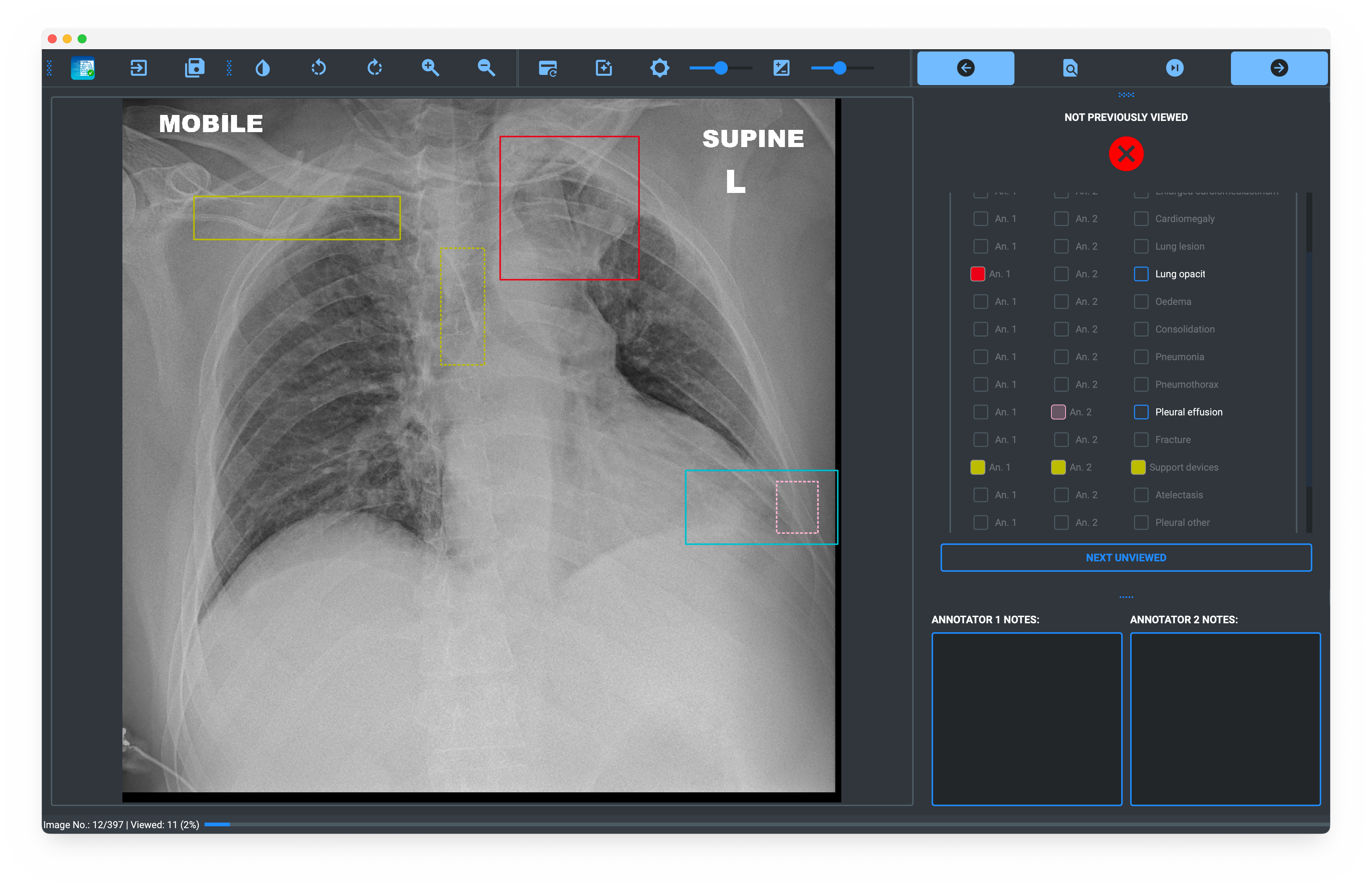
Image Quality Assessment (IQA)
Used for full-reference IQA, allowing for comparison images against a reference image.
Selecting the Image Folders and Filename Delimiter
On loading the app, the setup window will allow you to select the directory containing the images to be labelled and the directory containing the reference image.
You must specify the delimiter to go from the image name to the reference name. This is how the program matches the two
images up for comparison. For example, if the image name is image_1__preprocessed.png and the reference name is
image_1.png, then the delimiter would be __ (double underscore). The delimiter is used to find the reference image
for each image in the folder. If the reference image filenames are the same as the images to be labelled, then the
delimiter should be left blank.
Inputs
The radiobuttons can be selected using the keyboard (i.e. 1, 2, 3, 4) or by clicking on the buttons with the mouse. When inputting from the keyboard, the selected radiobutton group is highlighted. When a button is clicked, it automatically moves to the next group.
Outputs
Progress is typically saved as a JSON file, with radiobutton outputs are stored as integers in the output json file. However, the results can be exported to a CSV file within the app.
Progress
Your progress through the folder of images is shown in the progress bar at the bottom of the window.
Keyboard Shortcuts
| Key | Action |
|---|---|
| Enter / Return | Next page / unrated |
| ← / B / Delete / Backspace / Back | Previous image |
| → /N / Space | Next image |
| Cmd/Ctrl + →/N/Space | Next unrated image |
| 1, 2, 3, 4 | Select radiobutton |
| + / = | Zoom in |
| - / _ | Zoom out |
| R | Rotate images right |
| L | Rotate images left |
| S | Save |
| Cmd/Ctrl + Q | Quit |
Customisation
The program can be customised to suit the user's needs. The following options are available in the advanced settings during set-up:
- Change the maximum number of backups
- Backup frequency in minutes
- Change the backup directory
- Change the log directory
YAML Files
These configuration settings are stored in the config.yml file in the speedy_annotate directory. This
can be edited directly if desired or a new version can be created and loaded when starting a new annotation project.
When starting a new labelling project, the user can choose to load a preset configuration file. This will load the annotation settings/labelling fields from the file.
:information_source: Important Info:
In Data Labelling and IQA modes, the config file can be exported from the app and shared with other annotators, who can then load it when they set-up their labelling configuration. This will ensure that all annotators are using the same configuration settings and simplifies the set-up process.
However, an image directory (Data Labelling mode) or assessment and reference image directories (IQA mode) must be selected before the config is loaded. The paths to the files are NOT included in the config file, which only contains the settings for the labelling fields, backup settings, etc.
Backup Files
By default, work is automatically backed up every 5 minutes and the backups are stored in the user's home directory
(~) in the folder ~/speedy_annotate/backups and up to the latest ten backups are stored. The number of backups,
the backup interval and the backup directory can be customised in the advanced settings during set-up.
Release history Release notifications | RSS feed


Download files
Download the file for your platform. If you're not sure which to choose, learn more about installing packages.
Source Distribution
Built Distribution
Filter files by name, interpreter, ABI, and platform.
If you're not sure about the file name format, learn more about wheel file names.
Copy a direct link to the current filters
File details
Details for the file speedyannotate-1.0.8.tar.gz.
File metadata
- Download URL: speedyannotate-1.0.8.tar.gz
- Upload date:
- Size: 8.3 MB
- Tags: Source
- Uploaded using Trusted Publishing? No
- Uploaded via: twine/6.0.1 CPython/3.11.10
File hashes
| Algorithm | Hash digest | |
|---|---|---|
| SHA256 |
1063f5d727a3c3e1c348845052717748157e5d7edbe3e97cee3c3edde06e0920
|
|
| MD5 |
c8391e78696016359f82aceb57ea570b
|
|
| BLAKE2b-256 |
0cf8a04ab18d961bb01aa863f5b6cee90b4688e64c6eaf8ded85d9c41fd2f777
|
File details
Details for the file speedyannotate-1.0.8-py3-none-any.whl.
File metadata
- Download URL: speedyannotate-1.0.8-py3-none-any.whl
- Upload date:
- Size: 8.3 MB
- Tags: Python 3
- Uploaded using Trusted Publishing? No
- Uploaded via: twine/6.0.1 CPython/3.11.10
File hashes
| Algorithm | Hash digest | |
|---|---|---|
| SHA256 |
763fbde727992c9bb86a3b0bcc9495b4eb05027241bca20208a970d3c1c0e75e
|
|
| MD5 |
aa1d8980a544ff9f1bfd1ef5016f086c
|
|
| BLAKE2b-256 |
0ebd0b4af76579b8d6b1aeed1e9932b797a2bf933b51cca671f0124f716d0938
|






