
VideoTubeEditor - Join two local videos, and cut, speed, or boomerang an MP4


VideoTubeEditor keeps the VideoJoin architecture and adds the VideoSpeed edit steps. It concatenates two video files from the current directory using FFmpeg (stream copy first, then a fail-closed re-encode). It also cuts an MP4, changes its length, and can append a boomerang or a repeat. Intermediate files are published with shutil.move.
On a terminal with an X11 display (DISPLAY set, including ssh -X), starting it with no arguments opens a window. Edit and Join are two groups: one is on screen while the other is hidden. The labels join and edit sit on that group, sharing its left edge and width. The row for the group on screen is highlighted, and the highlight meets the top of the group. Each group splits left and right. The left side is the source or sources and the settings. The right side is the output. Edit plays an MP4, with the elapsed time on the left of the time bar as 00:00.00, and with Start, Pause, Stop, jump, Mark start, and Mark end. Percent stays 20–200. The tail choices are None, Boomerang, and Repeat, and None starts selected. The window’s top menu shows join, edit, system-log, language, self-management, and Exit. Button names and the other window labels follow the language chosen there. The clock 00:00.00, the folder path, and the About page stay in their current form. The edit right side also plays the generated file, with that elapsed time bar and with Play and Stop. When Run starts, that generated player is cleared and its controls are disabled. When the run finishes and the file is on disk, the player loads the file and the controls are enabled. Join has two Select file buttons, with Video 1 above Video 2. Each source has a player under its path, and the generated file has a third player on the right. Those three players show the elapsed time on the time bar and have Play and Stop. video-tube-editor tui opens the text menu and leaves that menu as it is. With no display, a bare start still opens the text menu. join is row 1. edit is row 2. Neither the window nor the menu starts a job by itself, and neither calls pip.
Features
- Text menu on a terminal: join (1), edit (2), system-log (3), language (4), self-management (8), and Exit (9)
- The first row shows the current folder and a local clock (
HH:MM:SS) when the row has room - Numbered rows line up. A rounded input box sits along the bottom, as wide as the terminal, with the name and version on the status line under the box
- system-log (3) opens view-log, clear-log, and log-folder. language (4) picks the menu language and the window labels. self-management (8) opens version, about, and the pip lifecycle rows
- Interactive pick of first and second video (same file cannot be chosen twice)
- Discovers
.mp4,.mov,.mkv,.avi,.m4vin the current working directory (sorted case-insensitively) - Stream-copy join first (
ffmpegconcat demuxer); re-encode fallback (libx264CRF 18, AAC 192k) - Fail-closed: no success message if both paths fail
- Unique temp list + media intermediates; cleanup on success and failure
- Publish intermediates with
shutil.move(same FS rename; cross-mount copy+delete) - FFmpeg on
PATHchecked before joining - Console scripts
video-tube-editor,video-join, andvideo-speed, and module entrypython -m VideoTubeEditor - Typed verbs:
help,version,about,hello,tui,join,list-videos,edit,list-mp4,self-install,version-check,self-update,self-uninstall,setup - X11 window when a bare start sees
DISPLAY. The window uses the host GTK 4 and GStreamer packages. They are not pip dependencies.aboutreports whether this Python can import them. On Windows, a missing library namesvideo-tube-editor tuiand the page does not install packages
Advantages
- Dual-mode interface. The menu asks for two indexes and an output name on join, and for a folder, a file, a cut, a length percent, and a tail of none, boomerang, or repeat on edit. A typed verb asks the same questions. The person does not write an FFmpeg graph. Join tries stream copy, then re-encodes if copy fails. Edit can also run from
--file,--start, and--end, and--jsonprints one object without opening the menu. With no arguments on a terminal, the text menu opens. With no terminal and no verb, the program prints help and returns 0. Directjoinwith no terminal exits non-zero. - Built-in languages. Row 4 lists thirteen languages: English, Simplified Chinese, Traditional Chinese, Spanish, Arabic, French, Portuguese, Russian, German, Japanese, Korean, Dutch, and Greek. The choice is saved for the next run.
- USB-safe staging. Intermediate files are written beside the output when that folder can be written, including on a removable drive. The finished file is published with
shutil.move. When that folder cannot be written, the stage uses the system temporary directory. - Lifecycle and diagnostics.
version-check,self-update,self-install, andself-uninstallare menu rows 84–87 and typed verbs.self-uninstallon the command line needs--force. They call pip and do not use root. system-log (3) views a log, clears a log, and shows the log folder. about (83) stays in English.
| Feature | Raw FFmpeg CLI | Typical Python wrappers (moviepy) | VideoTubeEditor |
|---|---|---|---|
| Learning curve | A concat or filter graph the person writes | A Python script | Text menu, or two file numbers and an output name, or edit flags |
| Non-interactive | Native command line | A custom script | Typed verbs. No terminal and no verb: help, return 0. Direct join with no terminal: non-zero. --json for an edit job or for help |
| Menu languages | None | None | Thirteen, kept for the next run |
| Temporary files | You choose the paths | Often the system temporary directory | Beside the output when that folder can be written. Otherwise the system temporary directory. Publish with shutil.move |
| Self-management | The system package manager | pip from outside the tool | Built-in version-check, self-update, self-install, and self-uninstall |
| Diagnostics and logs | The encode stream | A logging setup in the script | system-log (row 3) and about (83), in English |
Quick Installation
System requirement: FFmpeg must be installed and available as ffmpeg on your PATH. The package does not install FFmpeg via pip.
Python dependencies: ChronicleLogger>=1.3.1 and opencv-python-headless>=5.0.0.93 (both required). Pip installs them with VideoTubeEditor. Python 3.11 or newer.
PyPI (registry)
pip install VideoTubeEditor
This installs the console entries video-tube-editor, video-join, and video-speed, and the package VideoTubeEditor. Packaging name SSOT is pyproject.toml [project].name = VideoTubeEditor. This tree is 1.0.1. The source home is https://github.com/cloudgen/VideoTubeEditor. The PyPI badge above shows the live index.
Local install (checkout)
From a checkout (editable / unreleased work):
git clone git@github.com:cloudgen/VideoTubeEditor.git
# or: git clone https://github.com/cloudgen/VideoTubeEditor.git
cd VideoTubeEditor
python3 -m venv venv
source venv/bin/activate   # Windows: venv\Scripts\activate
pip install -e .
Main menu
After install, on a terminal, video-tube-editor with no arguments prints this screen. video-join and video-speed open the same screen. The verb is bold and the note after the colon is italic. 9 leaves. 0 on a submenu goes back. After a command finishes, the main menu is shown again. A number that is not on the list prints an error and lets you choose again.
Picture of the English menu. Current directory /tmp/clips. The rows are the text the menu paints. The frame is the 80-column box.
$ video-tube-editor
Path: /tmp/clips                                                       12:06:45

1. **join**           : *pick two videos in this folder and concatenate*
2. **edit**           : *cut, speed, and optional boomerang or repeat*
3. **system-log**     : *view, clear, and the log folder*
4. **language**       : *display language for this menu*
8. **self-management**: *version, about, and pip lifecycle*
9. **Exit**           : *leave*


╭─────────────────────────────────────────────────────────────────────────────╮
│ >                                                                           │
╰─────────────────────────────────────────────────────────────────────────────╯
  VideoTubeEditor 1.0.1  │  main menu  │  Up/Down  •  Enter
system-log (3):
Path: /tmp/clips                                                       12:06:45

31. **view-log**  : *list a log file and show it*
32. **clear-log** : *empty one log file*
33. **log-folder**: *show the log folder*
 0. **Back**      : *return to the main menu*


╭─────────────────────────────────────────────────────────────────────────────╮
│ >                                                                           │
╰─────────────────────────────────────────────────────────────────────────────╯
  VideoTubeEditor 1.0.1  │  system-log  │  Up/Down  •  Enter
language (4). The short on each language row is that language’s own name. Numbers 40 and 54–59 are not printed. 0 goes back and does not save.
Path: /tmp/clips                                                       12:06:46

41. **English**   : *use English for this menu*
42. **简体中文**      : *use 简体中文 for this menu*
43. **繁體中文**      : *use 繁體中文 for this menu*
44. **Español**   : *use Español for this menu*
45. **العربية**   : *use العربية for this menu*
46. **Français**  : *use Français for this menu*
47. **Português** : *use Português for this menu*
48. **Русский**   : *use Русский for this menu*
49. **Deutsch**   : *use Deutsch for this menu*
50. **日本語**       : *use 日本語 for this menu*
51. **한국어**       : *use 한국어 for this menu*
52. **Nederlands**: *use Nederlands for this menu*
53. **Ελληνικά**  : *use Ελληνικά for this menu*
 0. **Back**      : *return to the main menu*

╭─────────────────────────────────────────────────────────────────────────────╮
│ >                                                                           │
╰─────────────────────────────────────────────────────────────────────────────╯
  VideoTubeEditor 1.0.1  │  language  │  Up/Down  •  Enter
self-management (8):
Path: /tmp/clips                                                       14:05:09

82. **version**       : *show the installed version*
83. **about**         : *version, FFmpeg, and this computer*
84. **version-check** : *compare this install with pip*
85. **self-update**   : *upgrade this package with pip*
86. **self-uninstall**: *remove this package with pip*
87. **self-install**  : *install this package with pip*
 0. **Back**          : *return to the main menu*

╭─────────────────────────────────────────────────────────────────────────────╮
│ >                                                                           │
╰─────────────────────────────────────────────────────────────────────────────╯
  VideoTubeEditor 1.0.1  │  self-management  │  Up/Down  •  Enter
Choose a number, or type the command name in the box. The block caret appears in that box while it is focused.
Usage
video-tube-editor
# or
python -m VideoTubeEditor
# video-join and video-speed call the same entry
On a terminal with DISPLAY set, that opens the window. video-tube-editor tui opens the main menu above, including when DISPLAY is set. On a terminal with no DISPLAY, a bare start opens that menu. It does not ask for videos yet, and it does not call pip. With no terminal, the same command prints help and returns 0.
join (1), or video-tube-editor join on a terminal, stays on the screen and asks in the bottom box:
- First video number
- Second video number from the remaining list
- Output name (Enter uses
{stem1} + {stem2}.mp4)
Esc returns to the main menu and does not join. Fewer than two eligible videos fails closed: FFmpeg does not run. video-tube-editor join with no terminal exits non-zero and tells you to use a terminal. Join does not cut, speed, or boomerang.
edit (2), or video-tube-editor edit on a terminal, asks for a folder, then one MP4, then the start, the end, the length percent (Enter uses 100), and a tail. The tail is none (play once), boomerang (append the reverse), or repeat (append the clip so it plays twice). Enter uses none. A script can pass the whole job:
video-tube-editor edit --file clip.mp4 --start 1 --end 5 --percent 50 --boomerang
video-tube-editor edit --file clip.mp4 --start 1 --end 5 --percent 50 --repeat
video-tube-editor list-mp4
--boomerang and --repeat together fail closed. The window offers the same three choices. None is the default.
list-mp4 lists MP4 files and does not encode. --json prints one object and does not open the menu.
video-tube-editor help
video-tube-editor version
video-tube-editor about
video-tube-editor hello
video-tube-editor list-videos
video-tube-editor version-check
video-tube-editor self-update
video-tube-editor self-install
video-tube-editor self-uninstall --force
version prints VideoTubeEditor 1.0.1 and does not call pip. about shows one English page: the product identity, a host check of this computer, and a star box. It does not install FFmpeg and it does not call pip. hello prints a one-line greeting and does not draw the menu. list-videos lists eligible names and does not join. help prints usage.
version-check runs python -m pip index versions VideoTubeEditor. self-update runs python -m pip install --upgrade VideoTubeEditor. self-install runs python -m pip install VideoTubeEditor. self-uninstall runs python -m pip uninstall -y VideoTubeEditor and needs --force on the command line. Those pip verbs do not use sudo. Empty arguments do not install or update.
Exit codes: non-zero if join is started with no terminal, fewer than two videos, FFmpeg is missing, or the join fails. Menu Exit (9) returns 0.
Import for scripts (thin entry):
from VideoTubeEditor import main
# interactive session; a terminal opens the text menu
Screenshots
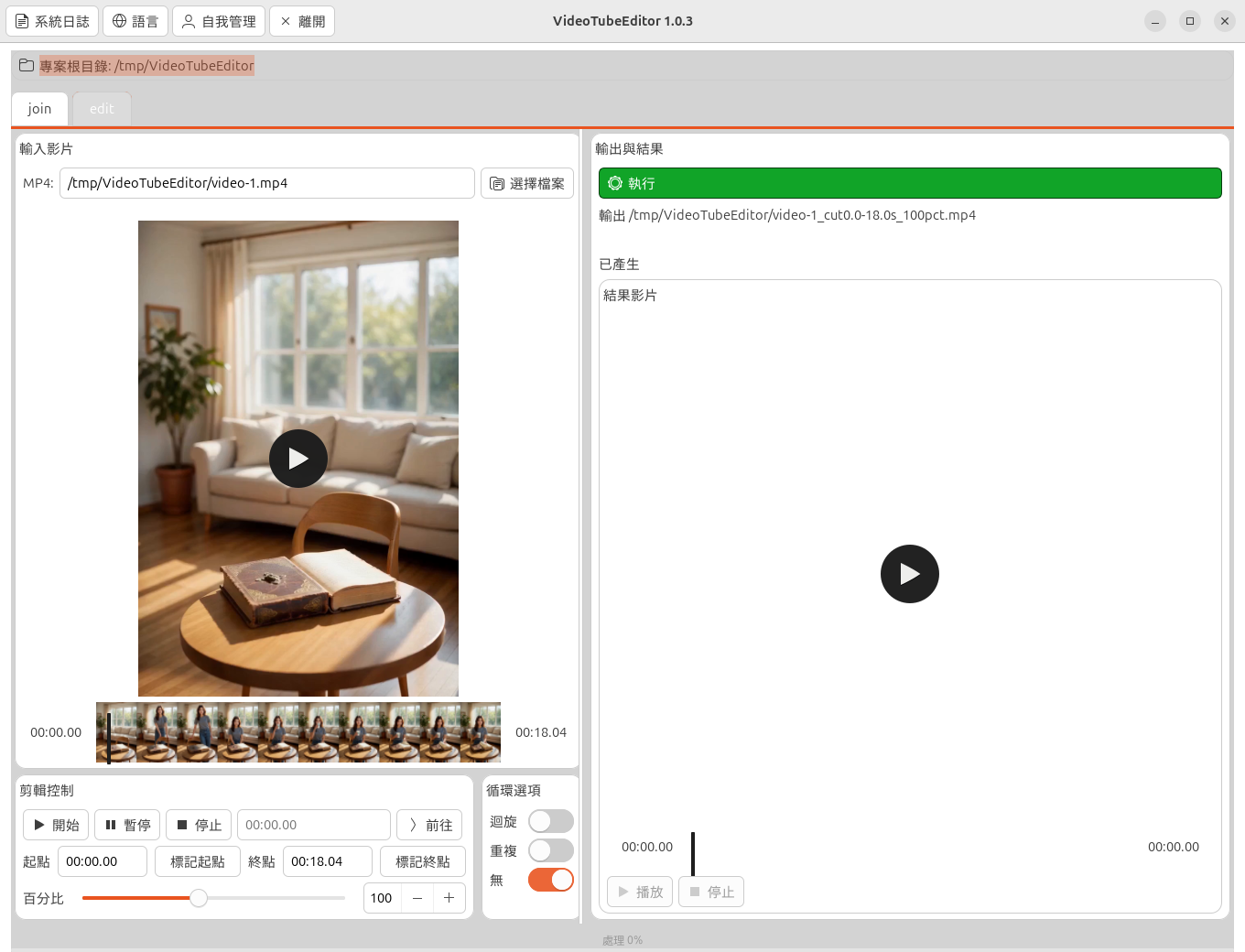
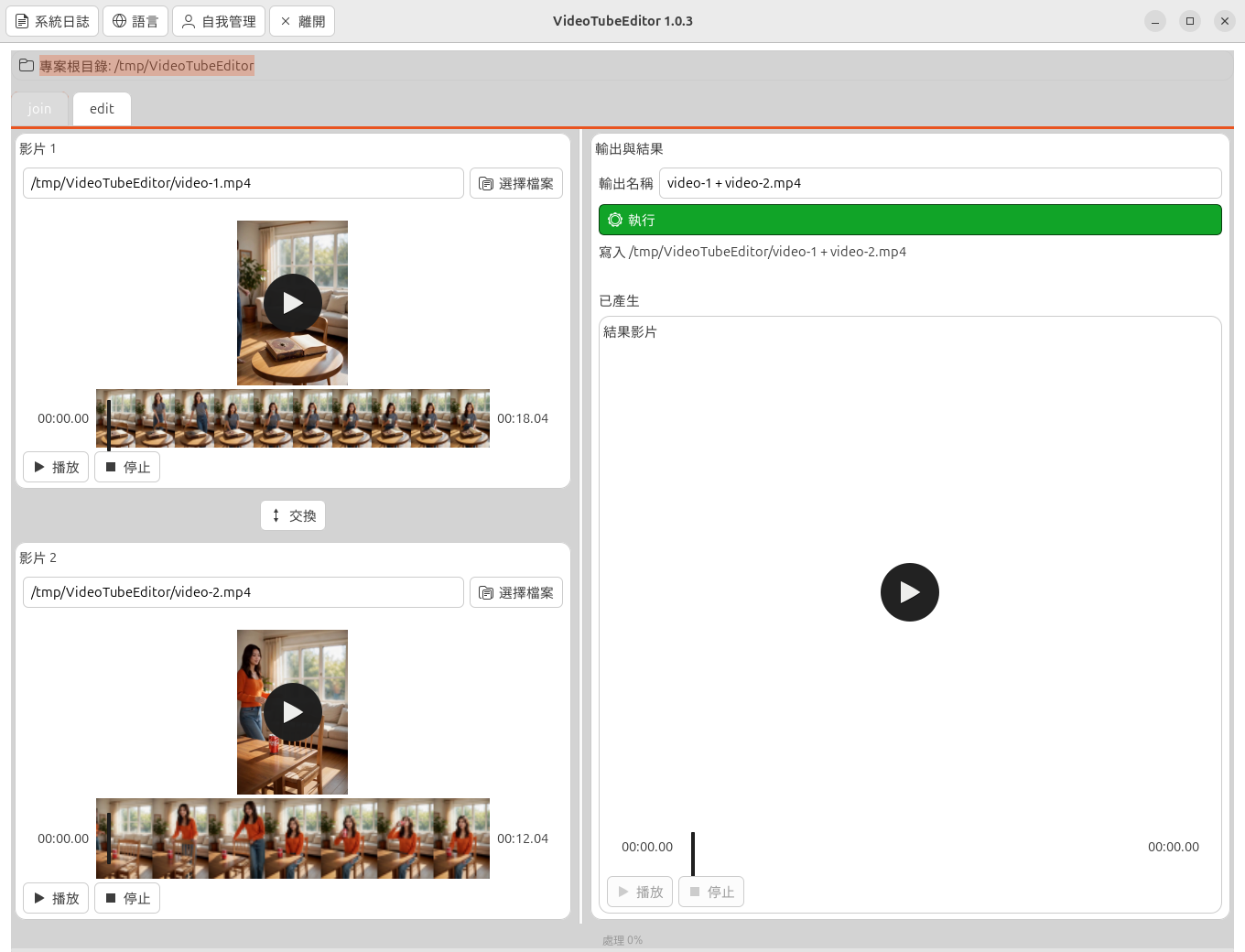
Each heading is the file name. The paragraph is what that picture shows. These four pictures are the X11 window for package 1.0.1. A bare video-tube-editor on a terminal with DISPLAY set opens this window. The header follows the saved menu language. On these captures that language is Traditional Chinese, so the header reads 系統日誌, 語言, 自我管理, and 離開. English labels for those buttons are system-log, language, self-management, and Exit. The title is VideoTubeEditor 1.0.1. The project-root line names the current directory and does not carry a clock. Each player clock reads 00:00.00. A loaded source player shows a thumbnail strip under the picture. The generated player stays empty, and its Play and Stop stay disabled, until a finished file is on disk. Play and Stop do not start or stop FFmpeg. Run has not been pressed, so the bottom bar reads 處理 0%.
gui-edit.png
Edit is the group on screen. The window title is VideoTubeEditor 1.0.1. The edit tab is highlighted and shares the group's left edge. A framed line under the header shows 專案根目錄 (Project Root) and the current directory. 輸入影片 (Input Video) holds one MP4, 選擇檔案 (Select file), and a player at 00:00.00 of 00:18.04. A thumbnail strip sits under that picture. 剪輯控制 (Edit Controls) has 開始 (Start), 暫停 (Pause), 停止 (Stop), a jump field showing 00:00.00, and 前往 (Go To). 起點 (Start) is 00:00.00 with 標記起點 (Mark start). 終點 (End) is 00:18.04 with 標記終點 (Mark end). 百分比 (Percent) is 100. 循環選項 (Looping Options) has 無 (None) on, and 迴旋 (Boomerang) and 重複 (Repeat) off. The output name is video-1_cut0.0-18.0s_100pct.mp4. 執行 (Run) has not been pressed. 輸出與結果 (Output & Result) shows that name. 已產生 (Generated) is empty. 結果影片 (Resulting Video) is empty, shows 00:00.00 of 00:00.00, and its 播放 (Play) and 停止 (Stop) are disabled. The bottom bar reads 處理 0% (Process 0%).
gui-join.png
Join is the group on screen. The join tab is highlighted and shares the group's left edge. The same header, project-root line, and 處理 0% bar are on screen. 影片 1 (Video 1) and 影片 2 (Video 2) are loaded. The first player shows 00:00.00 of 00:18.04. The second shows 00:00.00 of 00:12.04. A thumbnail strip sits under each source picture. Each source has 播放 (Play) and 停止 (Stop). 輸出名稱 (Output name) is video-1 + video-2.mp4. The write line names the current directory and that file. 執行 (Run) has not been pressed. 已產生 (Generated) is empty. 結果影片 (Resulting Video) is empty, shows 00:00.00 of 00:00.00, and its Play and Stop are disabled.
gui-language.png
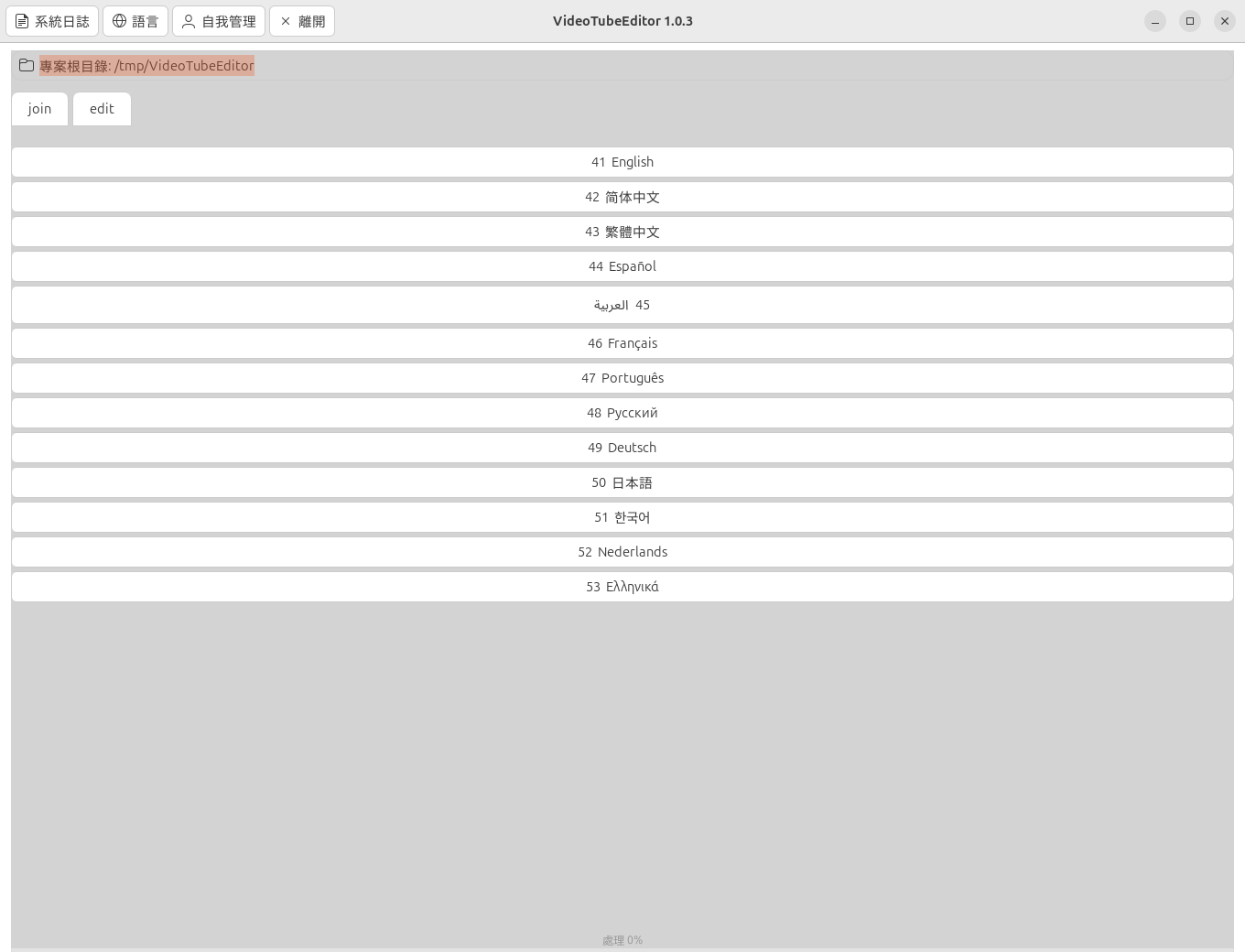
The language page lists the thirteen menu languages. The header stays in the saved language. join and edit stay above the list and neither is highlighted. The rows are 41 English, 42 简体中文, 43 繁體中文, 44 Español, 45 العربية, 46 Français, 47 Português, 48 Русский, 49 Deutsch, 50 日本語, 51 한국어, 52 Nederlands, and 53 Ελληνικά. The project-root line names the current directory. The bottom bar reads 處理 0% (Process 0%). Choosing a row saves that language for the next window and for the text menu.
gui-self-management.png
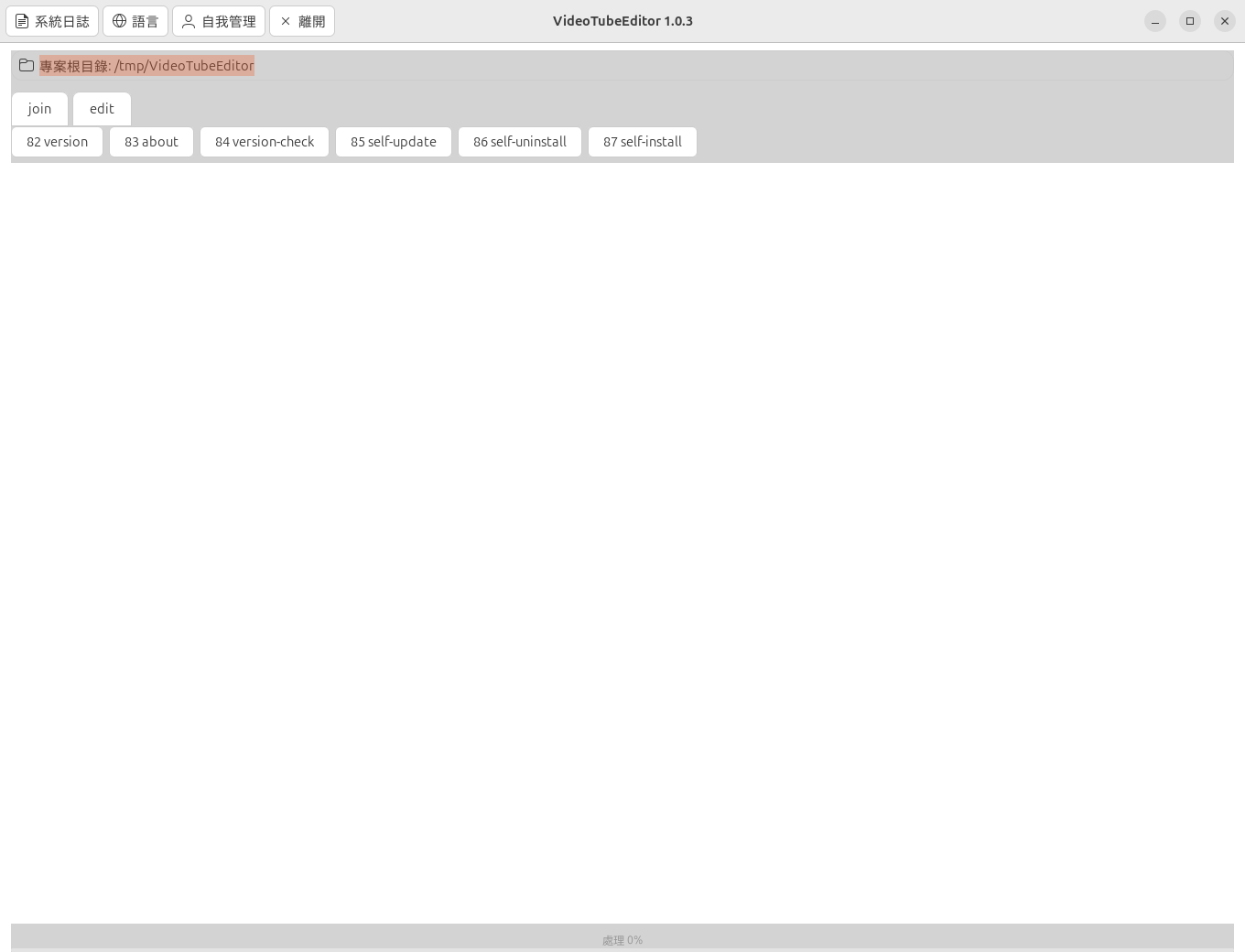
Self-management shows the numbered actions and no extra page under them. The buttons are 82 version, 83 about, 84 version-check, 85 self-update, 86 self-uninstall, and 87 self-install. The header stays in the saved language. join and edit stay above the buttons and neither is highlighted. The project-root line names the current directory. The bottom bar reads 處理 0% (Process 0%). 83 about opens the English about page. The pip rows call pip and do not use root. self-uninstall on the command line needs --force.
Examples
cd /path/to/folder/with/clips
video-tube-editor
video-tube-editor version
version prints VideoTubeEditor 1.0.1 and does not call pip. A run that is not the text menu can also print ChronicleLogger status lines above that. The text menu keeps those lines off the screen.
video-tube-editor join
video-tube-editor edit --file clip.mp4 --start 1 --end 5 --percent 100
The window pictures are in Screenshots. Join still prefers stream copy, then re-encode, and publishes the result with shutil.move.
Platform Compatibility
| Platform | Status |
|---|---|
| Linux | Primary; tested development path |
| macOS | Supported when Python + FFmpeg on PATH |
| Windows | CLI verbs run when Python is installed. video-tube-editor setup installs the declared pip libraries and, on Windows, tries curses and FFmpeg. The picture window still needs an X11 DISPLAY and the host GTK 4 and GStreamer packages |
| Architectures | Any with CPython + FFmpeg binary |
The text menu needs a terminal and the curses module. When this Python cannot import curses, about, version, help, and hello still run, and opening the text menu says the module is missing. video-tube-editor setup installs ChronicleLogger>=1.3.1 and opencv-python-headless>=5.0.0.93 for this Python. On Windows it also tries the curses module and FFmpeg. It does not install GTK 4 or GStreamer. With no terminal and no verb, the program prints help and returns 0. It does not wait.
Related Projects
- VideoJoin on GitHub — join architecture this package keeps
- VideoJoin on PyPI — the join product on PyPI
- AnimeDlp — command-line downloader for anime video sites
- ChronicleLogger — status logger this program depends on (
ChronicleLogger>=1.3.1) - VideoSpeed — edit steps this package also keeps
- CIAO — Caution, Intentional, Anti-fragile, Over-engineered
- CIAO-Lite — short agent contract
- safe-rm — guarded
rm
Contributing
- Keep product law under
docs/requirements/in sync when behavior changes. - Prefer small, CIAO-safe changes; do not remove Protection Zones in the join publish path (staging /
shutil.move) without explicit design. - Version dual SSOT: bump
pyproject.tomlandsrc/VideoTubeEditor/__init__.__version__together. - Open issues and pull requests on GitHub.
License
MIT — see LICENSE.md. Also declared in pyproject.toml.
Last Update
2026-10-12 — 1.0.1: The distribution name is VideoTubeEditor. The console script is video-tube-editor. The module is python -m VideoTubeEditor. Aliases video-join and video-speed stay. Public home is cloudgen/VideoTubeEditor. The four pictures are captures of this window. The title is VideoTubeEditor 1.0.1. Version badge matches pyproject.toml and __version__.
2026-10-12 — 1.0.0: The distribution name is VideoEditor. The console script is video-editor. The module is python -m VideoEditor. Public home is cloudgen/VideoEditor. The four pictures are captures of this window. The title is VideoEditor 1.0.0. Version badge matches pyproject.toml and __version__.
2026-10-11 — 2.0.0: The X11 window adds a project-root line, Input Video, Edit Controls, Looping Options, Output & Result, and Resulting Video. Looping Options is three switches and starts on None. A process bar reads Process 0% until a finished file is on disk. The four pictures are captures of that window. Version badge matches pyproject.toml and __version__.
2026-10-10 — 1.1.0: Public home is cloudgen/VideoEditor. The pictures are the X11 window: edit, join, language, and self-management. A bare start on a terminal with DISPLAY set opens that window. Console scripts are video-editor, video-join, and video-speed. Version badge matches pyproject.toml and __version__. ChronicleLogger>=1.3.1 and opencv-python-headless>=5.0.0.93 are required.
1 maintainer

Metadata
1 maintainer
Release files for VideoTubeEditor 1.0.1
For a detailed explanation of source distributions (sdists) and built distributions (wheels), please see the package formats documentation.
Source distribution (sdist)
| File | Size | Uploaded | Provenance | Actions |
|---|---|---|---|---|
| videotubeeditor-1.0.1.tar.gz | 119.6 kB | Without provenance | Details for videotubeeditor-1.0.1.tar.gz |
Built distribution (wheel)
| File | Interpreter | ABI | Platform | Actions Reset |
|---|---|---|---|---|
| videotubeeditor-1.0.1-py3-none-any.whl | Python 3 | none | any | Details for videotubeeditor-1.0.1-py3-none-any.whl |
Total release size: 216.6 kB
Release files / videotubeeditor-1.0.1.tar.gz
| Download URL | videotubeeditor-1.0.1.tar.gz |
|---|---|
| Size | 119.6 kB |
| Tags | Source |
|
SHA-256 checksum How to use checksums |
e95a11b2efe79ca23656286061a7fe072a371a47cea1e6b20768b270bbed4d84
|
|
BLAKE2b-256 checksum How to use checksums |
9f8ee6d844be996040dad1c00b42ab648ab026ba3c48139deb4c5ddb28f45f89
|
| Upload date | |
|
Uploaded using Trusted Publishing? What is trusted publishing? |
No |
| Uploaded via |
twine/7.0.0 CPython/3.12.11
|
Release files / videotubeeditor-1.0.1-py3-none-any.whl
| Download URL | videotubeeditor-1.0.1-py3-none-any.whl |
|---|---|
| Size | 96.9 kB |
| Tags | Python 3 |
|
SHA-256 checksum How to use checksums |
e6da9fd694a72b3033480d91d69544c18d4ddea40396b1518098225870cf6b81
|
|
BLAKE2b-256 checksum How to use checksums |
728a7b95f8f5bf1a8c42baf0baff3d3f406ace85b624b98905740b7b9f74ca2f
|
| Upload date | |
|
Uploaded using Trusted Publishing? What is trusted publishing? |
No |
| Uploaded via |
twine/7.0.0 CPython/3.12.11
|
Security for VideoTubeEditor 1.0.1
Provenance
Provenance describes where a file came from. On PyPI, provenance is shared via attestations, which provide a verifiable record of the build or publishing details. View details, limitations and caveats.
No provenance found
None of the files in this release were uploaded with provenance metadata.
A note on package security
PyPI is a repository for distributing packages, not a service for auditing them. While third-party security researchers and our staff do their best to detect and remove malicious packages, PyPI cannot guarantee the quality, security or suitability of any given package.
To learn more about protecting yourself from malicious actors, visit our package security documentation.













