
No project description provided

Project description
VocabMaster
Master new languages with this CLI tool, designed to help you record vocabulary and create Anki flashcards without the need to manually input translations or example sentences.
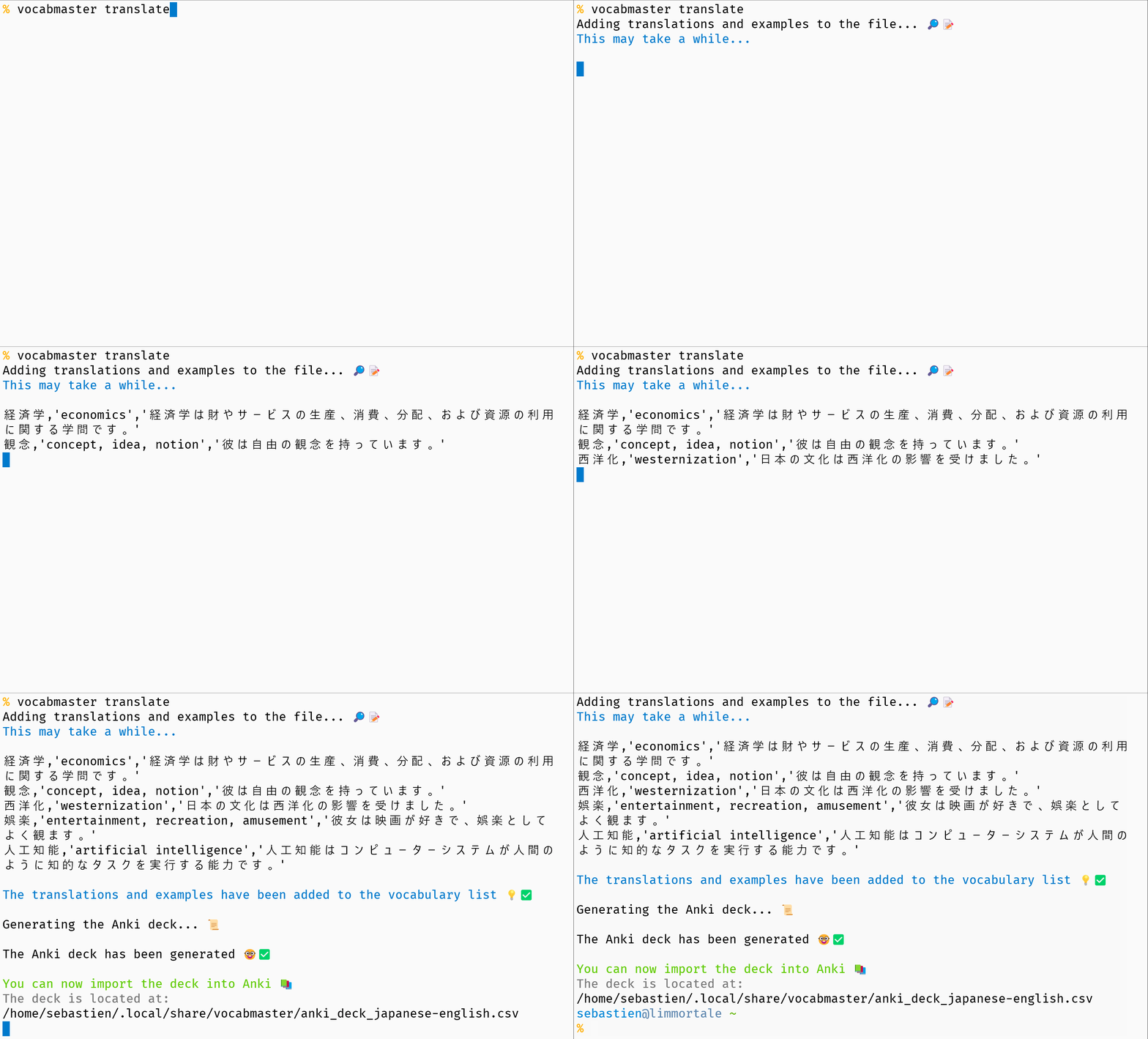
Table of Contents
Features
- Record vocabulary words with ease
- Automatic translation and usage examples via OpenAI GPT
- Anki integration for seamless language learning
- Supports multiple languages
Installation
Prerequisites
- Python 3.8 or higher
- Compatible with Windows, Linux, and macOS
Install via pip
You can install VocabMaster using pip. Simply run the following command:
python3 -m pip install vocabmaster
Install via pipx (recommended)
pipx is an alternative package manager for Python applications. It allows you to install and run Python applications in isolated environments, preventing conflicts between dependencies and ensuring that each application uses its own set of packages. I recommend using pipx to install VocabMaster.
First, install pipx if you haven't already:
-
On macOS and Linux:
python3 -m pip install --user pipx
pipx ensurepath
Alternatively, you can use your package manager (brew, apt, etc.).
-
On Windows:
py -m pip install --user pipx
py -m pipx ensurepath
Once pipx is installed, you can install VocabMaster using the following command:
pipx install vocabmaster
OpenAI API key
Vocabmaster requires an OpenAI API key to function. You can obtain a key by signing up for an account at OpenAI's website.
Once you have your API key, set it as an environment variable:
-
On macOS and Linux:
export OPENAI_API_KEY="your-api-key-here"
To avoid having to type it everyday, you can create a file with the key:
echo "your-api-key" > ~/.openai-api-key.txt
Note: Remember to replace
"your-api-key"with your actual API key.And then, you can add this to your shell configuration file (
.bashrc,.zshrc, etc.):export OPENAI_API_KEY="$(cat ~/.openai-api-key.txt)"
-
On Windows:
setx OPENAI_API_KEY your_key
Shell Completion
To enable shell completion for bash or zsh, source the completion file (see the completion folder) related to your shell by adding the following line to your .bashrc or .zshrc file:
For bash
source /path/to/vocabmaster/completion/_complete_vocabmaster.bash
For zsh
source /path/to/vocabmaster/completion/_complete_vocabmaster.zsh
Remember to replace /path/to/vocabmaster with the actual path where the completion file is located.
Usage
Before using VocabMaster, you need to set up the OpenAI API key, which is required for the translations and usage examples.
Follow the instructions provided within the CLI tool to configure the API key:
vocabmaster config key
Below is an example of common commands and their usage:
Set up a new language pair
vocabmaster setup

Add words to your vocabulary list
vocabmaster add la casa

Generate an Anki deck from your vocabulary list
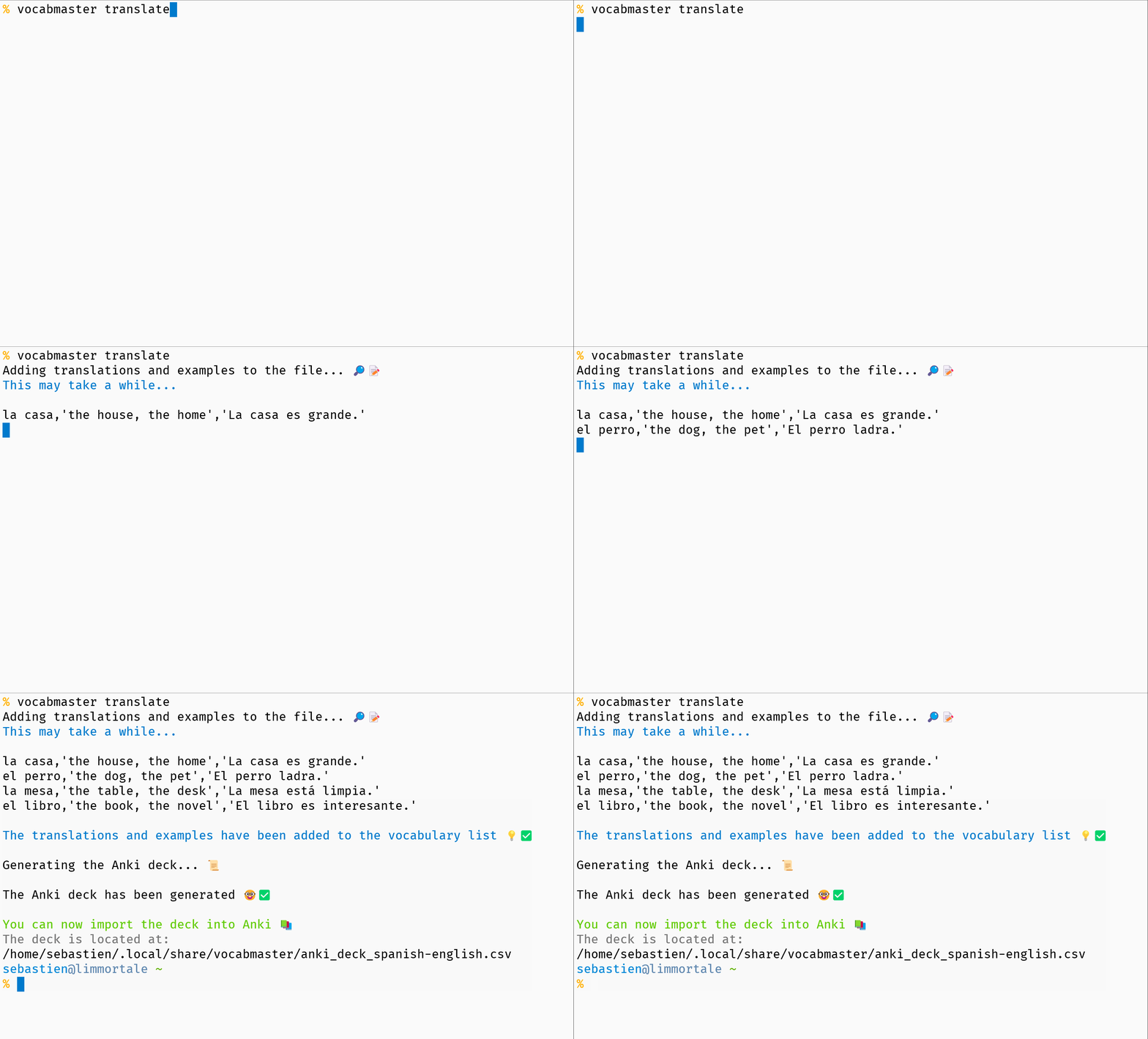
vocabmaster translate
For detailed help on each command, run
vocabmaster <command> --help
Importing into Anki
To import the vocabulary deck into Anki, follow the steps below:
- Launch Anki.
- Click on the
Import Filebutton. This will open a file picker dialog. - In the file picker, locate and select the
anki_deck_language1-language2.csvfile. - When prompted for the field separator, use "semicolon" (this should be set as the default in Anki).
- Ensure that the Allow HTML in fields option is selected. This allows the app to correctly interpret any HTML formatting in your card fields.
- In the import options, choose Basic (and reversed card) for the
Note typefield. - Select the name of your vocabulary deck in which you want the cards to be added.
- For the
Existing notesfield, choose Update. This will prevent the creation of duplicate cards if the same note already exists in your deck.
These instructions will ensure your imported cards appear correctly in your Anki deck.
Remember that the naming scheme anki_deck_language1-language2.csv is an example, replace language1 and language2 with the appropriate languages you're learning and the deck corresponds to.
Licence
VocabMaster is released under the Apache Licence version 2.
Release history Release notifications | RSS feed


Download files
Download the file for your platform. If you're not sure which to choose, learn more about installing packages.
Source Distribution
Built Distribution
Filter files by name, interpreter, ABI, and platform.
If you're not sure about the file name format, learn more about wheel file names.
Copy a direct link to the current filters
File details
Details for the file vocabmaster-0.1.19.tar.gz.
File metadata
- Download URL: vocabmaster-0.1.19.tar.gz
- Upload date:
- Size: 22.2 kB
- Tags: Source
- Uploaded using Trusted Publishing? No
- Uploaded via: twine/6.1.0 CPython/3.13.7
File hashes
| Algorithm | Hash digest | |
|---|---|---|
| SHA256 |
d9cd7382163d57700418894104cb2f994b725fb4dec319071f8edbce353c6cd5
|
|
| MD5 |
bd55971c801eb1825e760181899aec62
|
|
| BLAKE2b-256 |
82f2d97d4633ec5592d4c2971b1206a3d522a1cc6ac32dd9704149047648c384
|
File details
Details for the file vocabmaster-0.1.19-py3-none-any.whl.
File metadata
- Download URL: vocabmaster-0.1.19-py3-none-any.whl
- Upload date:
- Size: 22.2 kB
- Tags: Python 3
- Uploaded using Trusted Publishing? No
- Uploaded via: twine/6.1.0 CPython/3.13.7
File hashes
| Algorithm | Hash digest | |
|---|---|---|
| SHA256 |
84d86f6a8bfb09558f231dd2cd9fb11efb6a200bab0061586db46676de0dd15c
|
|
| MD5 |
edfdafd1cf0ca87223563e5c7206786f
|
|
| BLAKE2b-256 |
07818344c58d8119caeb8c3c75c4c1f752ef40ce4ace3aa9671b77a4b8da80d5
|






