
Alliance Auth module to post news from RSS feeds to your Discord
Verified details
These details have been verified by PyPIProject links
GitHub Statistics
Maintainers

Project description
Alliance Auth RSS to Discord














A simple app to post selected RSS feeds to your Discord.
Installation
Important: Please make sure you meet all preconditions before you proceed:
- Alliance Auth RSS to Discord is a plugin for Alliance Auth. If you don't have Alliance Auth running already, please install it first before proceeding. (see the official AA installation guide for details)
- Alliance Auth RSS to Discord needs AA-Discordbot to interact with your Discord server. Make sure it is installed and configured before installing this app.
Step 0.5: Install AA-Discordbot
In order for this app to work, you need to install and configure AA-Discordbot first. Read the instructions how to do so in the README of AA-Discordbot.
Step 1: Install the Package
Make sure you're in the virtual environment (venv) of your Alliance Auth installation Then install the latest release directly from PyPi.
pip install aa-rss-to-discord==2.6.0
Step 2: Configure Alliance Auth
This is fairly simple, just add the following to the INSTALLED_APPS of your local.py
Configure your AA settings (local.py) as follows:
- Add
"aa_rss_to_discord",toINSTALLED_APPS - Add the scheduled task
CELERYBEAT_SCHEDULE["aa_rss_to_discord_fetch_rss"] = {
    "task": "aa_rss_to_discord.tasks.fetch_rss",
    "schedule": crontab(minute="*/5"),
}
Step 3: Finalizing the Installation
Run migrations to finalize the installation
python manage.py migrate
Finally, restart your supervisor services for AA.
Step 4: Configure your RSS Feeds
First, you need to set up the Discord Server and Channels. For this, you go in your admin backend to the Discordbot settings and enter the needed information there.
When done, you can set up your RSS feeds. This can be done in the setting of this app, still in your admin backend. Create a new RSS Feed entry, enter the name, url and select the Discord channel it should be posted to. Once done, save it.
Discord Bot Commands
The following commands are available for the Discord bot to manage RSS/Atom feeds:
| Command | Options | What it does |
|---|---|---|
/rss add <rss_url> <rss_name> |
rss_url - The URL of the RSS/Atom feedrss_name - A Name for the RSS/Atom Feed |
Adding a RSS/Atom feed to the current channel |
/rss delete <rss_feed_id> |
rss_feed_id - The ID of the RSS/Atom feed you want to remove |
Remove a RSS/Atom feed from the current Discord channel |
/rss disable <rss_feed_id> |
rss_feed_id - The ID of the RSS/Atom feed you want to disable |
Disable an enabled RSS/Atom feed for the current Discord channel |
/rss enable <rss_feed_id> |
rss_feed_id - The ID of the RSS/Atom feed you want to enable |
Enable a disabled RSS/Atom feed for the current Discord channel |
/rss list |
None | List all RSS/Atom feeds for the current Discord channel |
Updating
To update your existing installation of Alliance Auth RSS to Discord, first enable your virtual environment (venv) of your Alliance Auth installation.
pip install aa-rss-to-discord==2.6.0

python manage.py migrate
Finally, restart your supervisor services for AA.
Changelog
See CHANGELOG.md
Translation Status
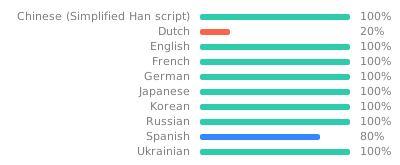
Do you want to help translate this app into your language or improve the existing translation? - Join our team of translators!
Contributing
Do you want to contribute to this project? That's cool!
Please make sure to read the Contribution Guidelines.
(I promise, it's not much, just some basics)
Project details
Verified details
These details have been verified by PyPIProject links
GitHub Statistics
Maintainers
Release history Release notifications | RSS feed


Download files
Download the file for your platform. If you're not sure which to choose, learn more about installing packages.
Source Distribution
Built Distribution
Filter files by name, interpreter, ABI, and platform.
If you're not sure about the file name format, learn more about wheel file names.
Copy a direct link to the current filters
File details
Details for the file aa_rss_to_discord-2.6.0.tar.gz.
File metadata
- Download URL: aa_rss_to_discord-2.6.0.tar.gz
- Upload date:
- Size: 42.5 kB
- Tags: Source
- Uploaded using Trusted Publishing? Yes
- Uploaded via: twine/6.1.0 CPython/3.13.12
File hashes
| Algorithm | Hash digest | |
|---|---|---|
| SHA256 |
f8cc4d4e5e3f305b16356b29ecada76ac4a0aca9e164aae036e46f6ef89d4db2
|
|
| MD5 |
c7da2d1f5057ac550fd140be979a30cc
|
|
| BLAKE2b-256 |
761cd030d340ac7c801d163710cc38a249b076f454db44adc51ce379a5f3f512
|
Provenance
The following attestation bundles were made for aa_rss_to_discord-2.6.0.tar.gz:
Publisher:
release.yml on ppfeufer/aa-rss-to-discord
-
Statement:
-
Statement type:
https://in-toto.io/Statement/v1 -
Predicate type:
https://docs.pypi.org/attestations/publish/v1 -
Subject name:
aa_rss_to_discord-2.6.0.tar.gz -
Subject digest:
f8cc4d4e5e3f305b16356b29ecada76ac4a0aca9e164aae036e46f6ef89d4db2 - Sigstore transparency entry: 1704281128
- Sigstore integration time:
-
Permalink:
ppfeufer/aa-rss-to-discord@57c274e08c52e73e30f248a6f74bd694880314c9 -
Branch / Tag:
refs/tags/v2.6.0 - Owner: https://github.com/ppfeufer
-
Access:
public
-
Token Issuer:
https://token.actions.githubusercontent.com -
Runner Environment:
github-hosted -
Publication workflow:
release.yml@57c274e08c52e73e30f248a6f74bd694880314c9 -
Trigger Event:
release
-
Statement type:
File details
Details for the file aa_rss_to_discord-2.6.0-py3-none-any.whl.
File metadata
- Download URL: aa_rss_to_discord-2.6.0-py3-none-any.whl
- Upload date:
- Size: 64.1 kB
- Tags: Python 3
- Uploaded using Trusted Publishing? Yes
- Uploaded via: twine/6.1.0 CPython/3.13.12
File hashes
| Algorithm | Hash digest | |
|---|---|---|
| SHA256 |
caf2363ec1d61d350891344099b6b00755a282c2196c430f3fe987d266ea3328
|
|
| MD5 |
c0bf7b2f5ce57c1aabc6b4d692680a0b
|
|
| BLAKE2b-256 |
a50e4993ca44b9d59fe8096cd5fd6421cb41e74a8533d9663d47081e7515c594
|
Provenance
The following attestation bundles were made for aa_rss_to_discord-2.6.0-py3-none-any.whl:
Publisher:
release.yml on ppfeufer/aa-rss-to-discord
-
Statement:
-
Statement type:
https://in-toto.io/Statement/v1 -
Predicate type:
https://docs.pypi.org/attestations/publish/v1 -
Subject name:
aa_rss_to_discord-2.6.0-py3-none-any.whl -
Subject digest:
caf2363ec1d61d350891344099b6b00755a282c2196c430f3fe987d266ea3328 - Sigstore transparency entry: 1704281139
- Sigstore integration time:
-
Permalink:
ppfeufer/aa-rss-to-discord@57c274e08c52e73e30f248a6f74bd694880314c9 -
Branch / Tag:
refs/tags/v2.6.0 - Owner: https://github.com/ppfeufer
-
Access:
public
-
Token Issuer:
https://token.actions.githubusercontent.com -
Runner Environment:
github-hosted -
Publication workflow:
release.yml@57c274e08c52e73e30f248a6f74bd694880314c9 -
Trigger Event:
release
-
Statement type:






