
Afterwatch
Turn your YouTube watching into a knowledge base. Afterwatch writes one structured note per video into your notes app, groups related notes into topic hubs that compare what different videos say, and can work through your whole watch history.
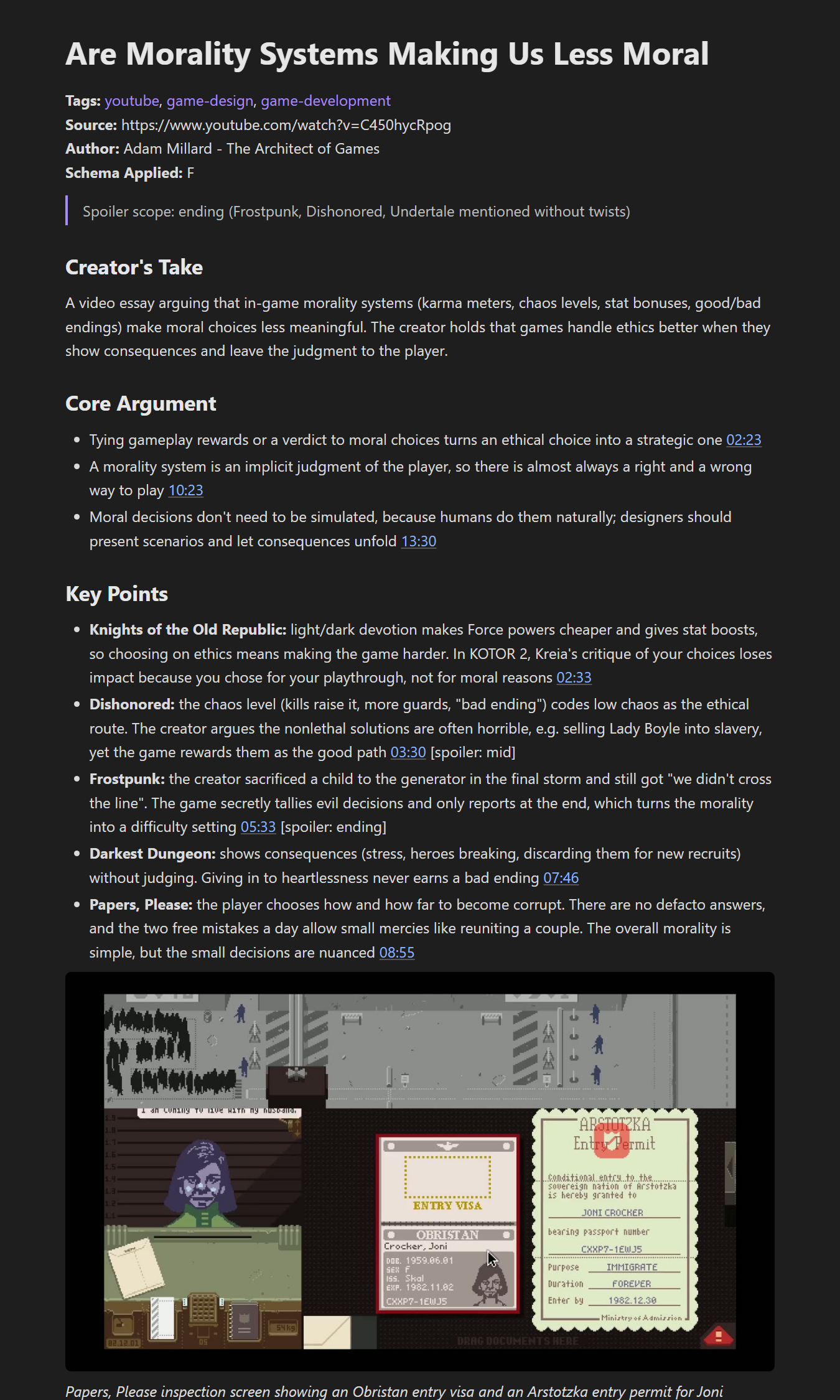
It works with any AI model that speaks the OpenAI chat API (OpenAI, Google Gemini, Anthropic, xAI Grok, DeepSeek, OpenRouter, a local Ollama) or with your own signed-in Claude Code CLI. Obsidian is the recommended home for the notes; plain Markdown, Word, text files and Notion work too.
What it does
One note per video, shaped by the video
The model reads the transcript and picks one of six layouts: a technical guide for tutorials, a conceptual map for explainers, a debate grid for podcasts and interviews, a narrative for history and documentaries, a recipe card for cooking, and a media analysis for reviews and video essays. Every point links back to its timestamp. Media analyses label each spoiler ([spoiler: ending], [spoiler: twist], ...) and state the deepest spoiler level at the top, so you can read a note about something you haven't finished.
Tags that reuse your vocabulary
Before writing, Afterwatch reads the tags already in your vault and tells the model to reuse them. New tags are listed at the bottom of the note and get a tag page.
Screenshots only where they help
A model looks at a contact sheet of the whole video and decides whether it shows anything worth keeping: slides, charts, code, diagrams. Candidate frames are then captured at full resolution and checked a second time; blurry frames and talking heads are thrown away. Most videos end up with none. Kept frames are saved as 1280 px JPGs.
Topic hubs that keep themselves current
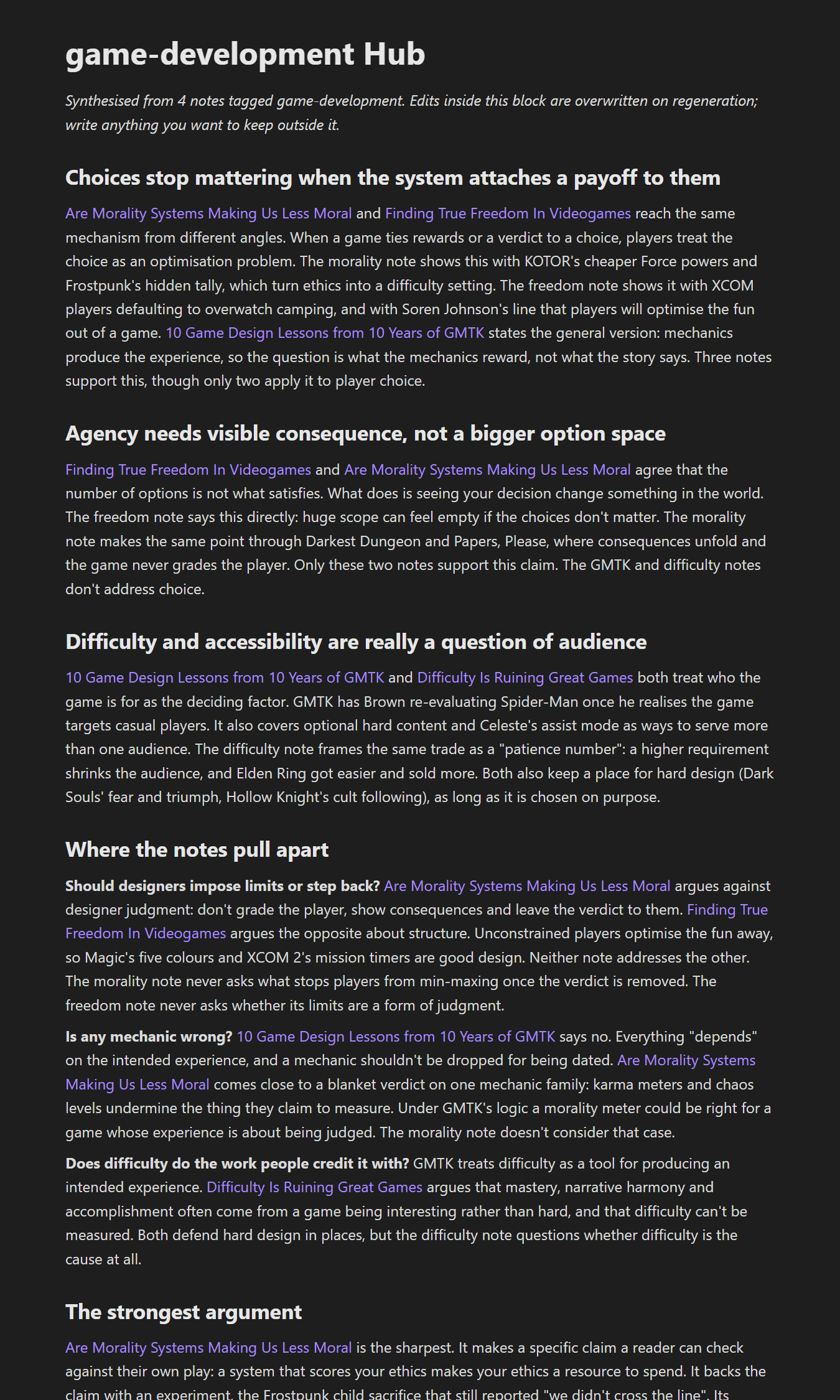
Each note gets one topic: its most specific tag that at least 5 notes share. A topic of up to 15 notes becomes one hub page; bigger topics are split into themes. A hub is organised by claim: what several videos agree on, where they disagree, which take is strongest, with links to the notes each claim came from. When new notes join, the hub is rewritten after 3 of them; when it grows past 15 it is split and the old page points to the new ones. Text you write outside the generated block is never touched.
A reading order
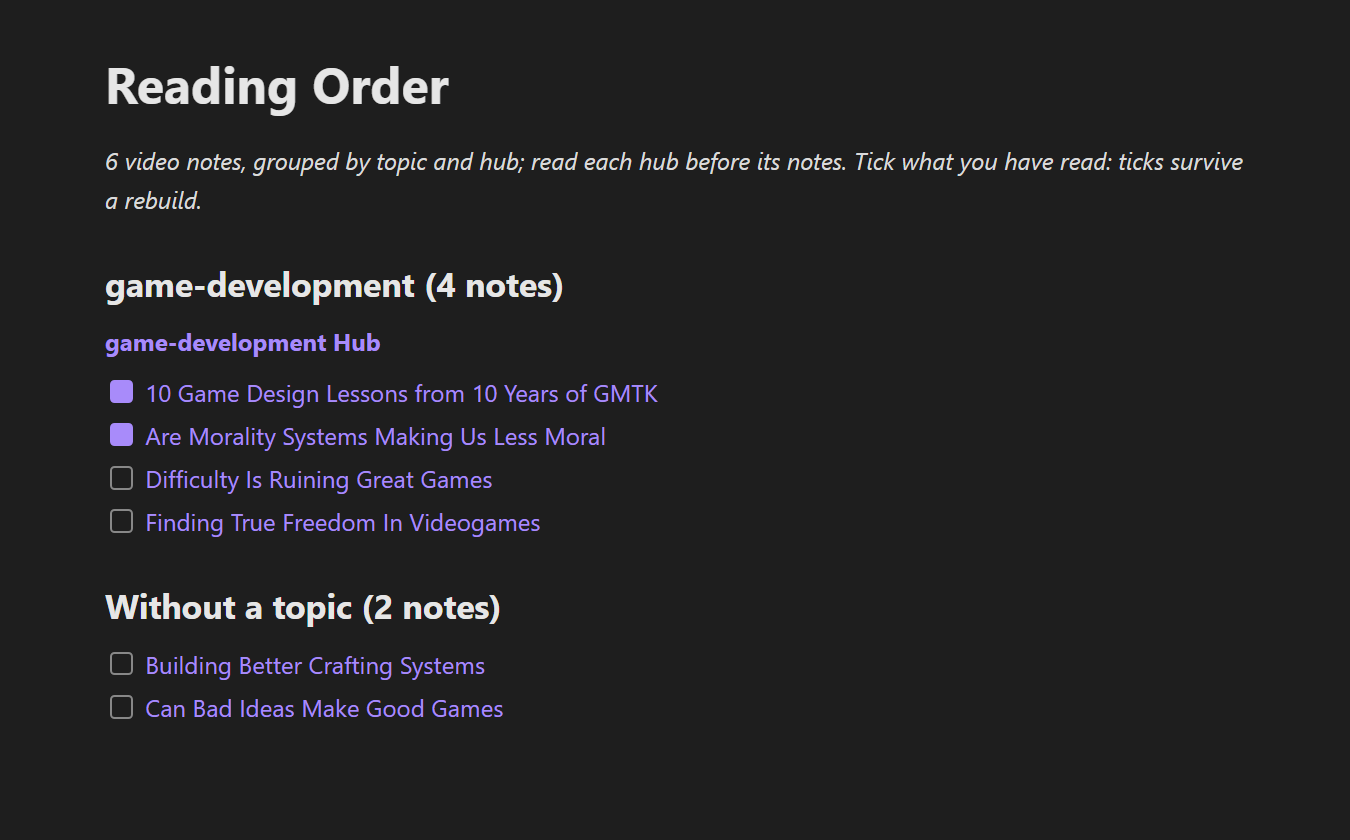
afterwatch reading-order writes one checklist note with every video note, grouped by topic and hub, with the hubs linked. Ticks you set survive the next rewrite.
Your whole watch history
afterwatch backfill reads a Google Takeout export of your YouTube history, drops what isn't worth a note (short videos, Shorts, music, channels you list, videos you already have), optionally lets a model judge the rest from title and description, shows you a sample of what it kept and cut, and then writes notes in resumable batches.
A settings page
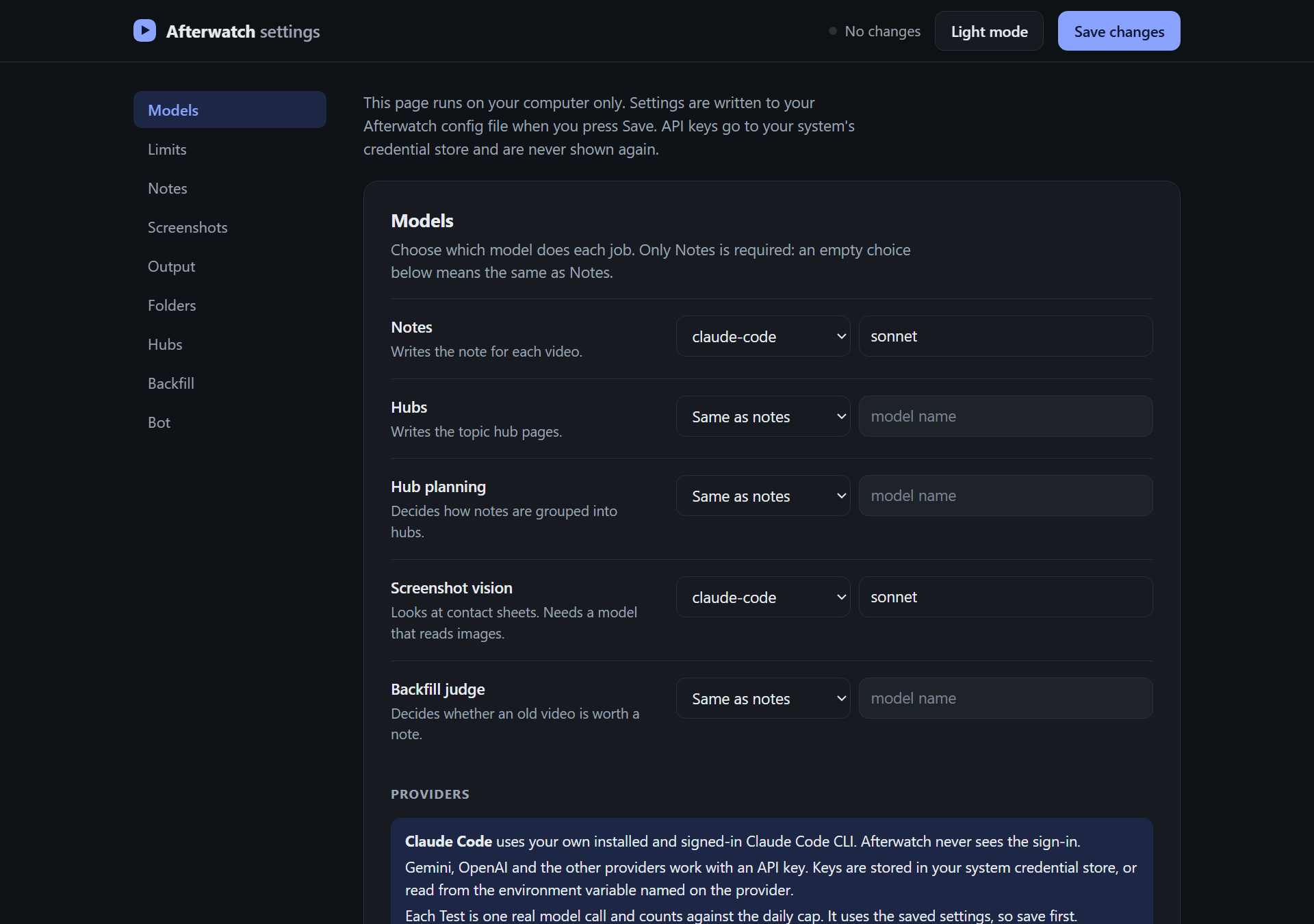
afterwatch settings opens every option in your browser: which model does which job, note length and style, language, screenshots, output, folders, hubs, backfill and the bot. It opens in dark mode; the Light mode button at the top switches it, and the choice is saved.
An optional Discord bot
Paste links into a channel and the bot replies with the result of each; once a week it updates the hubs and posts the ones it wrote.
Requirements
- Python 3.11 or newer
- ffmpeg on your PATH, for screenshots
- A JavaScript runtime for yt-dlp: Deno, Node.js or QuickJS. Afterwatch enables whichever is installed; without one, yt-dlp warns that some formats may be missing.
- An AI model: an API key for one of the providers above, a local Ollama, or the Claude Code CLI installed and signed in
- Videos need captions (manual or auto-generated). Videos without any are skipped and listed in the failure note.
Install
pipx install "git+https://github.com/Tobeiyyy/afterwatch"
Extras for Word output and the Discord bot:
pipx install "afterwatch[docx,discord] @ git+https://github.com/Tobeiyyy/afterwatch"
pip install into a virtual environment works the same way.
Set up
afterwatch settings
This opens the settings page. The minimum is:
- Models → Notes: pick a provider and type a model name (for example
geminiand a Gemini model, orclaude-codeandsonnet). - Models → Providers: paste that provider's API key (not needed for Claude Code or Ollama).
- Output: pick the target and the folder (your Obsidian vault, for example).
- Save.
Each provider has a Test button that sends one tiny request.
Use
afterwatch add https://www.youtube.com/watch?v=VIDEO_ID
afterwatch add links.txt
A links file has one URL per line; blank lines and # comments are ignored. afterwatch URL without add works too. Videos that already have a note are skipped. Failures are listed in Afterwatch - Failed videos.md.
Other commands:
| Command | What it does |
|---|---|
afterwatch hubs |
Bring the topic hubs up to date now (--max N limits how many are written). |
afterwatch hubs plan |
Decide which notes belong to which hub without writing any. |
afterwatch hubs media "Name" --links FILE |
One hub about a single film, series or game from a list of its videos. Prints it; add --write to save. |
afterwatch reading-order |
Write Reading Order.md at the top of your vault. |
afterwatch backfill import TAKEOUT |
Read a Takeout export (.zip, watch-history.html or watch-history.json). |
afterwatch backfill enrich |
Look up duration, category and description for each video. |
afterwatch backfill judge |
Let the model decide which remaining videos deserve a note. |
afterwatch backfill report |
Counts per stage and reason, plus a random sample to check. |
afterwatch backfill summarise |
Write the notes. --limit N, --part K/N to split the work across parallel runs, --until-done to keep going until every keeper has a note. |
afterwatch settings |
Open the settings page. |
afterwatch bot |
Run the Discord bot. |
--out PATH overrides the output folder for one run; --model NAME overrides the notes model.
Watch-history backfill, step by step
- At Google Takeout, click Deselect all, tick YouTube and YouTube Music, open All YouTube data included and keep only history. Optionally set History to JSON under Multiple formats (HTML works too). Then Next step → Create export; Takeout emails you a download link.
afterwatch backfill import takeout-....zipafterwatch backfill enrich. With a YouTube Data API key (settings page → Backfill, or theYOUTUBE_API_KEYenvironment variable) this asks the API in batches of 50. Without one, it reads each video's details through yt-dlp, one every 1.5 seconds.afterwatch backfill judge(optional, on by default in the settings; strictnessaggressive,balancedorlenient).afterwatch backfill report, and read the sample.summariserefuses to start until you have runreportonce.afterwatch backfill summarise --until-done
Every step can be stopped and rerun; it continues where it stopped. Videos with no transcript are remembered and skipped next time. If YouTube starts throttling, the run stops instead of marking videos as dead.
Keeping hubs current
On the Obsidian and Markdown targets, afterwatch add and afterwatch backfill summarise update the hubs on their own once 7 days have passed since the last update (both numbers are settings). To update on a schedule instead, run afterwatch hubs from your system's scheduler: Task Scheduler on Windows, cron or a launchd agent on macOS and Linux. The Discord bot does it weekly by itself.
Discord bot
- Create a bot in the Discord Developer Portal, enable the Message Content intent, and invite it to your server.
- In
afterwatch settings→ Bot, paste the bot token and the channel ID. afterwatch bot
The bot works through links posted in that channel, including messages from the last 14 days that it hasn't answered yet, and reacts with ✅, ♻️ (already a note) or ❌.
Settings
Everything lives in one TOML file. The settings page edits it; you can also edit it by hand.
| System | Config file |
|---|---|
| Windows | %APPDATA%\afterwatch\config.toml |
| macOS | ~/Library/Application Support/afterwatch/config.toml |
| Linux | ~/.config/afterwatch/config.toml |
Set AFTERWATCH_CONFIG to use a different file. Only values that differ from the defaults are written.
| Section | Settings |
|---|---|
| Models | A provider and model per job: notes, hubs, hub planning, screenshot vision, backfill judge. Empty means "same as notes". Providers: base URL, API key, whether its models can read images. Any OpenAI-compatible provider can be added. |
| Limits | Daily call cap across all jobs and providers (default 200). Retries count. Resets at local midnight. |
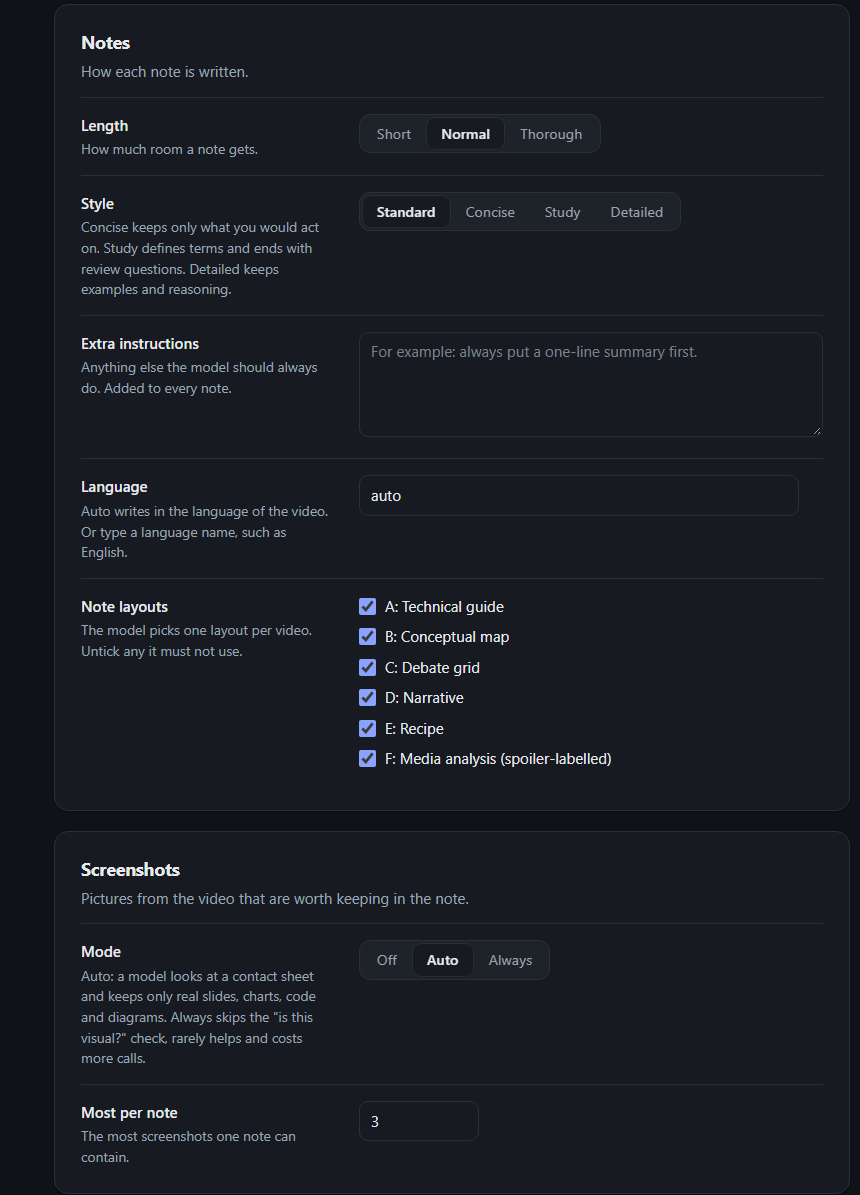
| Notes | Length: short, normal or thorough (scales the word target, which already follows how long the video is and how much is said). Style: standard, concise, study (defines terms, ends with review questions) or detailed. Extra instructions. Language: auto (the video's language) or any language name. Layouts the model must not use. |
| Screenshots | off, auto (described above) or always (skips the "is this video visual at all" check; rarely helps and costs more calls). Most per note (default 3). Screenshots switch off by themselves when the vision model can't read images. |
| Output | Target: obsidian, markdown, notion, docx or txt, and its folder. For Notion: the parent page and an integration token. |
| Folders | Names inside the vault: Videos, Tags, Hubs, Images and the failure note. |
| Hubs | On or off, minimum and maximum notes per hub (5 and 15), rewrite after N new notes (3), hubs written per run (10), days between automatic updates (7). |
| Backfill | Minimum length in minutes (5), channels to drop, model judge on or off, strictness. |
| Bot | Channel ID, the weekday and hour of the weekly hub post, bot token. |
Output targets
| Target | What you get |
|---|---|
obsidian (recommended) |
Notes, tag pages, screenshots, hubs and the reading order, with wikilinks and an embedded video player. |
markdown |
The same files as standard Markdown: images as  and a plain YouTube link instead of the embedded player. Wikilinks stay, so Logseq, Foam and similar tools resolve them. Hubs and the reading order work. |
docx |
One Word document per note (needs the docx extra). |
txt |
One plain text file per note. |
notion |
One page per note under a parent page you choose, screenshots uploaded. Create an integration at notion.so/my-integrations, share the parent page with it, and paste its token in the settings (or set NOTION_TOKEN). |
Hubs and the reading order need the notes as local Markdown, so they are only available on obsidian and markdown.
Models and costs
Afterwatch makes one to three calls per video: one for the note and, when screenshots are on, one vision call to decide whether the video is visual and a second to check the frames it captured. Hubs and backfill judging add a few calls per run. Every call, retries included, counts against the daily cap, so a run stops cleanly at the cap instead of spending without limit.
API keys are read from the provider's usual environment variable (OPENAI_API_KEY, GEMINI_API_KEY, ANTHROPIC_API_KEY, XAI_API_KEY, DEEPSEEK_API_KEY, OPENROUTER_API_KEY), from AFTERWATCH_<PROVIDER>_KEY, or from your system's credential store (Windows Credential Manager, macOS Keychain, Secret Service on Linux), which is where the settings page puts them.
Claude Code (claude-code provider) runs your installed claude CLI with claude -p. It uses your own Claude subscription; Afterwatch never sees or stores that sign-in, and it removes ANTHROPIC_API_KEY from the CLI's environment so the subscription, not an API key, is used. Subscription plans have usage limits meant for an individual's normal use: keep the daily cap modest, and use an API key for very large backfills.
Google Gemini and OpenAI work through API keys only. Signing in with a Google or ChatGPT account is not supported, because their terms don't allow third-party tools to use those sign-ins. Gemini's API has a free tier; Google may use free-tier prompts to improve its products.
DeepSeek processes requests on servers in China. Ollama runs on your own computer, so nothing leaves it.
Security and privacy
- API keys and tokens are never written to the config file or to logs. The settings page only shows whether a key is set; it can replace or remove a key but never displays it.
- The settings page listens on
127.0.0.1only, on a random port, and every request must carry a random token that is created for that session and printed with the URL. Requests with a foreignHostorOriginare refused, and the page loads nothing from the internet. - Afterwatch never asks for, stores or forwards a YouTube, Google, Claude or ChatGPT login and reads no browser cookies.
- Your transcripts and video details go to the AI provider you choose, and nowhere else. Notion output goes to your Notion workspace through your own integration token.
Terms of service and the law
Afterwatch downloads captions, a low-resolution copy for the contact sheet and two-second segments for screenshots with yt-dlp. YouTube's Terms of Service do not allow downloading or automated access except where YouTube permits it or applicable law allows it. Using Afterwatch is at your own risk. To keep that footprint small, Afterwatch uses no YouTube login, fetches only what a note needs, pauses between lookups when it reads video details without an API key, and stops when YouTube throttles it. It contains no code of its own to get around YouTube's protections.
The notes are summaries for your own use. Respect the creators: don't republish notes or screenshots as if they were your own work.
You are responsible for following the terms of the AI provider you use. Afterwatch is provided under the MIT licence, without warranty of any kind.
Status and known limitations
Version 1.0.0.
- Videos without captions can't be summarised (there is no speech-to-text).
- Notion receives notes only: no tag pages, hubs or reading order. If a Notion upload fails halfway, the half-filled page stays and a rerun creates a new one.
- Lists nested deeper than two levels are flattened to two levels on Notion.
- In docx and txt output, deleting a file makes Afterwatch write that video's note again.
- The backfill's "already has a note" check scans the notes folder for Markdown files; on docx, txt and Notion, duplicates are caught when the note is written instead.
- The Takeout HTML parser recognises ads by their English "From Google Ads" label.
Development
git clone https://github.com/Tobeiyyy/afterwatch
cd afterwatch
python -m venv .venv
.venv/bin/pip install -e ".[dev,docx,discord]"     # Windows: .venv\Scripts\pip
.venv/bin/python -m pytest
Licence
MIT. See LICENSE.
1 maintainer

Metadata
1 maintainer
Release files for afterwatch 1.0.0
For a detailed explanation of source distributions (sdists) and built distributions (wheels), please see the package formats documentation.
Source distribution (sdist)
| File | Size | Uploaded | Provenance | Actions |
|---|---|---|---|---|
| afterwatch-1.0.0.tar.gz | 140.2 kB | Without provenance | Details for afterwatch-1.0.0.tar.gz |
Built distribution (wheel)
| File | Interpreter | ABI | Platform | Actions Reset |
|---|---|---|---|---|
| afterwatch-1.0.0-py3-none-any.whl | Python 3 | none | any | Details for afterwatch-1.0.0-py3-none-any.whl |
Total release size: 243.3 kB
Release files / afterwatch-1.0.0.tar.gz
| Download URL | afterwatch-1.0.0.tar.gz |
|---|---|
| Size | 140.2 kB |
| Tags | Source |
|
SHA-256 checksum How to use checksums |
8096ad7823a6005cd5e76b2a583c304adbdf23d4911337ab0a3585c8ce84a7b9
|
|
BLAKE2b-256 checksum How to use checksums |
717f7b0b2ef09b8d3194a327a0fc8ac8ac4e3855eb6725cba1e4eef78502c4cb
|
| Upload date | |
|
Uploaded using Trusted Publishing? What is trusted publishing? |
No |
| Uploaded via |
twine/7.0.0 CPython/3.11.8
|
Release files / afterwatch-1.0.0-py3-none-any.whl
| Download URL | afterwatch-1.0.0-py3-none-any.whl |
|---|---|
| Size | 103.1 kB |
| Tags | Python 3 |
|
SHA-256 checksum How to use checksums |
0bcc8db95b704bebde8930634eb8b83c110a1ce896521a6fd25805e6268994ff
|
|
BLAKE2b-256 checksum How to use checksums |
d88aa9b7b215c14ace87a2a9dbe397d2e53b47fc894169c586a6018880658696
|
| Upload date | |
|
Uploaded using Trusted Publishing? What is trusted publishing? |
No |
| Uploaded via |
twine/7.0.0 CPython/3.11.8
|
Security for afterwatch 1.0.0
Provenance
Provenance describes where a file came from. On PyPI, provenance is shared via attestations, which provide a verifiable record of the build or publishing details. View details, limitations and caveats.
No provenance found
None of the files in this release were uploaded with provenance metadata.
A note on package security
PyPI is a repository for distributing packages, not a service for auditing them. While third-party security researchers and our staff do their best to detect and remove malicious packages, PyPI cannot guarantee the quality, security or suitability of any given package.
To learn more about protecting yourself from malicious actors, visit our package security documentation.













