
agent-fileview
Coding agents like Claude Code and Codex mention files all the time:
src/app.py:42, reports/summary.md, logs/run.log. When the agent runs
on a remote Linux box and you are reading its output on your phone, those
paths are dead text.
agent-fileview turns them into links. It is a small read-only web server on the box, reachable only over your Tailscale tailnet. A file's URL is the tailnet name plus the file's absolute path:
https://box.your-tailnet.ts.net:8780/home/you/project/src/app.py#L42
Tap it and the file opens on your phone. Markdown is rendered, code is
highlighted with numbered, linkable lines, and notebooks, CSV and logs get
their own views. You then add a short rule to CLAUDE.md or AGENTS.md,
and the agents start writing these links themselves.
Who this is for
You run coding agents such as Claude Code, Codex, OpenCode or Aider on a Linux box: a home server, a cloud VM or a GPU workstation. They work unattended or half-attended, often several at once. You watch and steer them from somewhere else. That might be Claude Code's remote control in the Claude mobile or web app, a tmux or screen session over SSH or mosh from a phone client such as Termius, Blink or JuiceSSH, or an orchestrator that runs agents in tmux panes.
Those views show the agent's text but not the files it names. Its reports,
plans, diffs, logs and notebooks stay on the box, and the paths in the
transcript are dead text. The Claude app even turns a file:line path into
a claude.ai link that does not open the file. agent-fileview serves those
files read-only over your tailnet, so each path can become a link that opens
on your phone. One rule in CLAUDE.md or AGENTS.md makes agents write
plain markdown links and never wrap them in backticks, so the mobile apps
make them tappable.
Quickstart
uv tool install agent-fileview          # or: pipx install agent-fileview
agent-fileview install                  # user service + tailscale serve
agent-fileview rule --write claude codex  # see "Teach your agents"
To try it without installing, uvx agent-fileview link . prints a URL. The
service needs a lasting install, because uvx environments live in a cache
that can be cleaned.
The package installs two commands: agent-fileview, and fileview as a
short alias. The examples below use the alias.
agent-fileview install does the following:
- writes
~/.config/fileview/config.toml(mode 0600) if it is missing; - writes (mode 0644), enables and restarts the systemd user unit
agent-fileview.service. An existingfileview.servicefrom an earlier install keeps its name; - runs
tailscale serve --bg --https=8780 unix:<socket>. If tailscale refuses on permissions, it asks before retrying withsudo. If the port already serves something else, it stops unless you pass--force; - prints the tailnet logins it can see and suggests
allowed_logins; - prints the agent rule.
If lingering is off, it prints the loginctl enable-linger command that
keeps the service running after you log out. To let tailscale serve run
without sudo, run sudo tailscale set --operator=$USER once.
To link a file yourself, run fileview link path/to/file --line 42.
fileview uninstall reverses install and keeps your config.
Teach your agents
Agents write links only when their instructions tell them to.
agent-fileview rule prints a rule built from your config. For a config
with host = "box.example.ts.net" and roots = ["/home/you"] it prints:
## Linking local files

The owner reads this machine's files on a phone through agent-fileview.
Whenever you mention a local file, give its fileview link so it opens with one
tap.

- A file's URL is https://box.example.ts.net:8780 followed by its absolute
  path, percent-encoded. Run `fileview link PATH` to print it.
- Write it as a markdown link, [name](url), e.g.
  [README.md](https://box.example.ts.net:8780/home/you/project/README.md).
- Link a line by appending #L<n>, e.g.
  [app.py#L42](https://box.example.ts.net:8780/home/you/project/app.py#L42)
  (`fileview link PATH --line 42`).
- Never write file:line references such as app.py:42; write the markdown link
  with #L42.
- Never wrap the link or its URL in backticks or a code block. A backticked
  link cannot be tapped.
- Only files under these roots open: /home/you.
- fileview refuses dot-paths (except /home/you/.claude/CLAUDE.md,
  /home/you/.claude/projects/*/memory/, /home/you/.codex/AGENTS.md),
  credential-looking names (*.pem, *.key, id_*, *secret*, *token*, *password*,
  ...), and binary data such as .parquet, .duckdb or .pkl. Do not link those.
Put it where each agent reads user-wide instructions:
| Agent | User-wide instructions | --write target |
|---|---|---|
| Claude Code | ~/.claude/CLAUDE.md |
claude |
| Codex CLI | ~/.codex/AGENTS.md, or $CODEX_HOME/AGENTS.md; a non-empty AGENTS.override.md there wins |
codex, or the override's path |
| OpenCode | ~/.config/opencode/AGENTS.md, else ~/.claude/CLAUDE.md |
opencode, or nothing if you use claude |
| Gemini CLI | ~/.gemini/GEMINI.md |
gemini |
| Aider | any file listed under read: in ~/.aider.conf.yml |
a path |
agent-fileview rule --write claude codex inserts the rule between
<!-- agent-fileview:begin --> and <!-- agent-fileview:end --> markers.
It leaves the rest of the file byte for byte, including CRLF line endings
and a missing final newline, creates the file if it is missing, and keeps
the file's mode. Markers inside fenced code blocks are ignored. It refuses
hard-linked and non-regular files, files that are not UTF-8, and files that
change while it writes. Run it again after changing the config and it
replaces the block in place. --remove deletes the block. A target can also
be a path, which must contain a /.
For Aider, write the rule to a file of its own and list that file in
~/.aider.conf.yml by its absolute path:
agent-fileview rule --write ~/.config/aider/fileview.md
read: [/home/you/.config/aider/fileview.md]
Notes:
- Agents read these files when a session starts. Restart running sessions
after you add the rule; Gemini CLI can also reload with
/memory reload. - While
~/.codex/AGENTS.override.mdis non-empty, Codex reads it instead ofAGENTS.md, so--write codexrefuses and names the override path to pass instead (--forcewritesAGENTS.mdanyway). - OpenCode reads
~/.claude/CLAUDE.mdonly while~/.config/opencode/AGENTS.mddoes not exist. If you have a CLAUDE.md,--write claudealready covers OpenCode, and creating OpenCode's own file would hide your CLAUDE.md from it.--write opencodetherefore refuses in that case unless you pass--force. WithOPENCODE_DISABLE_CLAUDE_CODEorOPENCODE_DISABLE_CLAUDE_CODE_PROMPTset to1ortrue, OpenCode skips CLAUDE.md, so the check does not apply. - A project-level file (
CLAUDE.md,AGENTS.mdorGEMINI.mdin the repo) works too, if you want links in one project only.
Why the rule reads the way it does:
- Markdown links. Chat apps such as the Claude mobile and web apps render a markdown link as something you can tap. In a terminal the full URL stays visible inside it.
- No backticks. Text in a code span is never turned into a link, so a backticked URL is dead on a phone.
- No
file:line. Some apps turnapp.py:42into a link to their own site, which does not open the file. A#L42link opens the line.
Commands
| Command | What it does |
|---|---|
fileview serve |
Runs the server on the unix socket. The unit runs this. --tcp PORT listens on 127.0.0.1 instead, for development. |
fileview install |
Installs, enables and restarts the user unit, checks linger and exposes the socket with tailscale serve. --yes uses sudo without asking. --no-tailscale skips tailscale. --force replaces another route on the port. |
fileview uninstall |
Removes the unit, and the tailscale serve route if it points at fileview (--force removes any route on the port). |
fileview link PATH... |
Prints each path's URL. --line N adds #LN (files only). It warns when the server would refuse a path, and exits 1 if any path is missing or would be refused. |
fileview rule |
Prints the agent rule for your config, listing only roots that pass the checks. --write TARGET... puts it into instruction files and --remove takes it out; see "Teach your agents". |
Configuration
~/.config/fileview/config.toml:
host = "box.your-tailnet.ts.net"   # default: Self.DNSName from `tailscale status --json`
port = 8780                        # HTTPS port tailscale serves on
roots = ["~"]                      # directories or globs to serve
allow = [                          # dot-paths exempt from the dot rule
    "~/.claude/CLAUDE.md",
    "~/.claude/projects/*/memory/",
    "~/.codex/AGENTS.md",
]
# socket = "/run/user/1000/fileview/fileview.sock"
# timezone = "Europe/London"       # listing times; default local
# allowed_logins = ["you@example.com"]   # see "Who can reach it"
Environment variables override the file: FILEVIEW_HOST,
FILEVIEW_PORT, FILEVIEW_ROOTS and FILEVIEW_SOCKET replace a value,
FILEVIEW_ALLOW appends to the allowlist, and FILEVIEW_TZ sets the
timezone. List values are colon-separated. FILEVIEW_CONFIG points at a
different file. Restart the service after editing:
systemctl --user restart fileview.
The config file must be owned by you and not group- or other-writable.
Roots, allow globs and the socket must be absolute after ~ and $VAR
expansion, and an unset variable is an error.
Allow entries exist only to exempt specific dot-paths, so each entry must follow these rules:
- It names at least one dot-directory literally, such as
.claude. - Every component down to the last literal dot-directory is literal.
- Below that, a wildcard component is either a bare
*or starts with a literal non-dot character, such asp*. - Something literal follows the last dot-directory, so the entry cannot cover a whole dot-directory.
~/.claude/CLAUDE.md, ~/.claude/projects/*/memory/ and
~/.config/systemd/user/ pass. ~/.claude/, ~/.claude/*, ~/*/,
~/?ssh/k/ and ~/[.]ssh/k/ are refused. The server also never lets a
wildcard match a dot name, so * in projects/*/memory/ cannot reach
projects/.hidden/memory/.
A root may be a glob such as /srv/data/*, and each match is vetted on its
own. A glob helps when a shared parent directory fails the ownership rule
below but your directories inside it pass.
Security model
agent-fileview shows files from a box that holds source code and credentials, so it refuses by default. Read the first two points before you install it.
- Who can reach it.
tailscale servedoes no per-user authentication. Every device that your tailnet ACLs let reach this machine on the port can read everything under the roots. Restrict it with tailnet ACLs, or setallowed_logins. With that list set, each request must carry aTailscale-User-Loginheader naming a listed login, or it gets 403. Tailscale sets that header for devices owned by a user. Tagged devices and local clients send none, so they are refused once the list is set. Logins compare case-insensitively. - Name rules are a heuristic. fileview denies dot-paths and names that
look like credentials, but a secret in
notes.mdorconfig.yamlunder a root is readable. Choose roots that hold only what you would show on a phone. - Socket. The server listens only on a unix socket at
$XDG_RUNTIME_DIR/fileview/fileview.sock, mode 0600, in a 0700 directory. Other local users cannot connect.tailscaledruns as root and proxies HTTPS to it. A process running as you can open the socket and send anyTailscale-User-Loginheader it likes. That grants nothing new, because such a process can already read your files. - Read-only. GET and HEAD only, and every other method gets 405. The
unit runs with
NoNewPrivileges,ProtectSystem=strictand a read-only view of/. - Checked opens. Every file is opened with
O_NOFOLLOW | O_NONBLOCK, and its real path is read back from/proc/self/fd. The requested path and the real path must both pass every rule, and bytes come only from that checked fd. Swapping in a symlink after the check does not redirect the read. Only regular files and directories are served. - Roots. Every request re-checks each root. A root must be a real directory (not a symlink), owned by you, with no group or other write bit, and with the inode it had when first accepted. A failing root is skipped with one log line, and the others keep working.
- No JavaScript. Every response carries
Content-Security-Policy: default-src 'none'; img-src 'self' data:; style-src 'unsafe-inline'; form-action 'none'; base-uri 'self'; frame-ancestors 'none', plusX-Content-Type-Options: nosniffandReferrer-Policy: no-referrer..htmlfiles are served as text. SVG is served raw under the same CSP, so scripts inside it do not run. - Escaping. File names, paths and contents are escaped everywhere. Raw HTML in markdown is escaped. Links in markdown keep only http, https, mailto and relative URLs, checked after decoding HTML entities.
- Bounded work. Markdown renders in a child process limited to 2 s of CPU, 1 GiB of memory and 3 s of wall time, and the child is killed if the client disconnects. Idle connections close after 30 s.
What it refuses
Every refusal is a plain 404, so a probe cannot tell "denied" from "missing".
- Paths outside the roots, and any
.or..segment. - Any path component starting with
.(.ssh,.aws,.env,.git, ...), except paths in the allowlist. Dot-components below an allowlisted directory are still refused. - These files, even inside the allowlist:
auth.json,.credentials.json,credentials*,hosts.yml,.netrc,.pgpass,history.jsonl,.docker/config.json,.kube/config,settings.jsonandsettings.local.jsonunder.claude/, and*.jsonlsession transcripts under.claude/projects/. - Directories named exactly
secret(s),token(s),credential(s)orpassword(s), case-insensitively.tokenizer/passes. - Files matching
*.pem,*.key,*.p12,*.pfx,id_*,*credential*,*secret*,*token*,*password*or*.kdbx, case-insensitively. - Extensions outside: md txt log json jsonl csv tsv py pyx js ts c h cpp toml yaml yml sql sh html service lock ipynb cfg ini example svg png jpg jpeg gif webp pdf. Databases, parquet, pickles and other binary data are never served.
- Extensionless files unless they start with
#!and are valid UTF-8. - Text over 20 MB and binaries over 50 MB.
What you see
| Type | View |
|---|---|
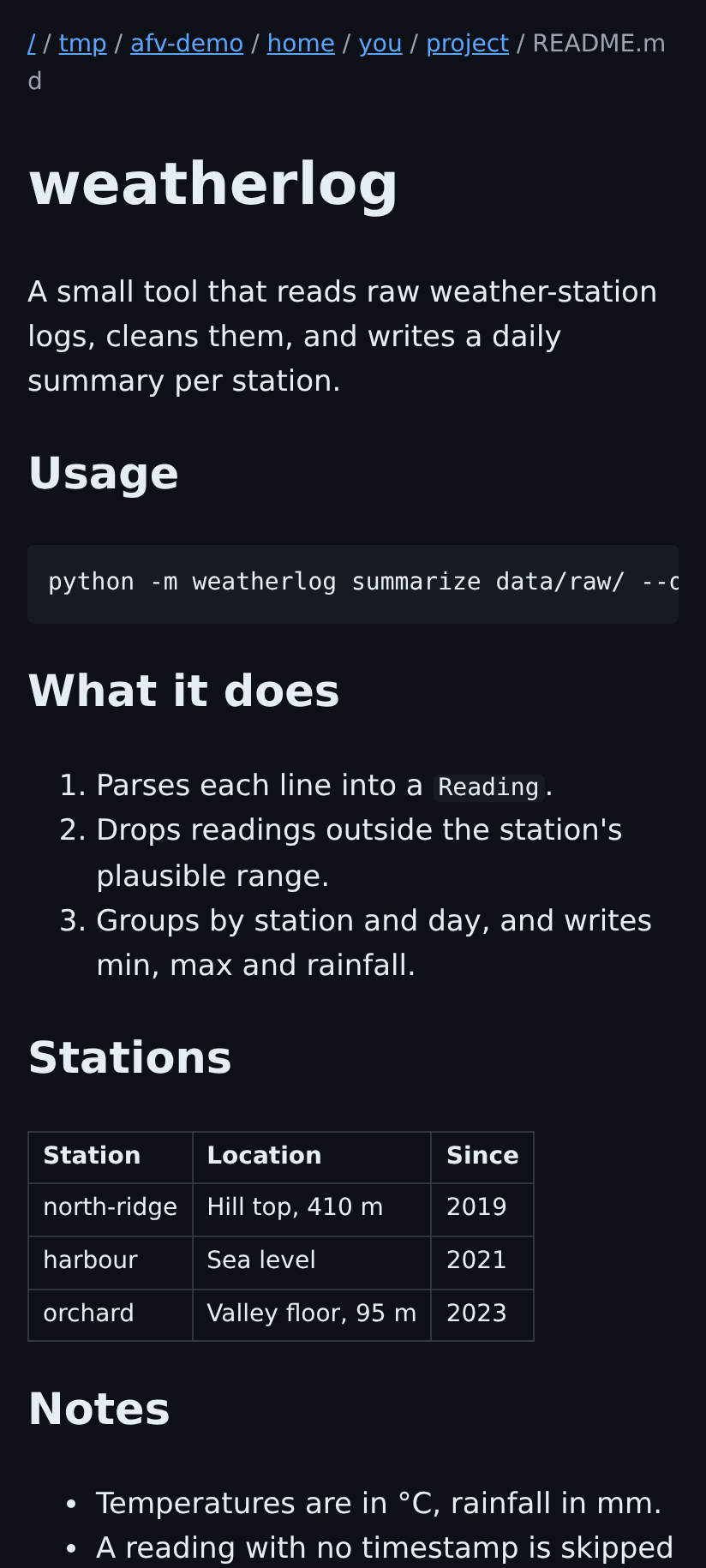
.md |
Rendered, up to 1 MiB. Relative links and images work. |
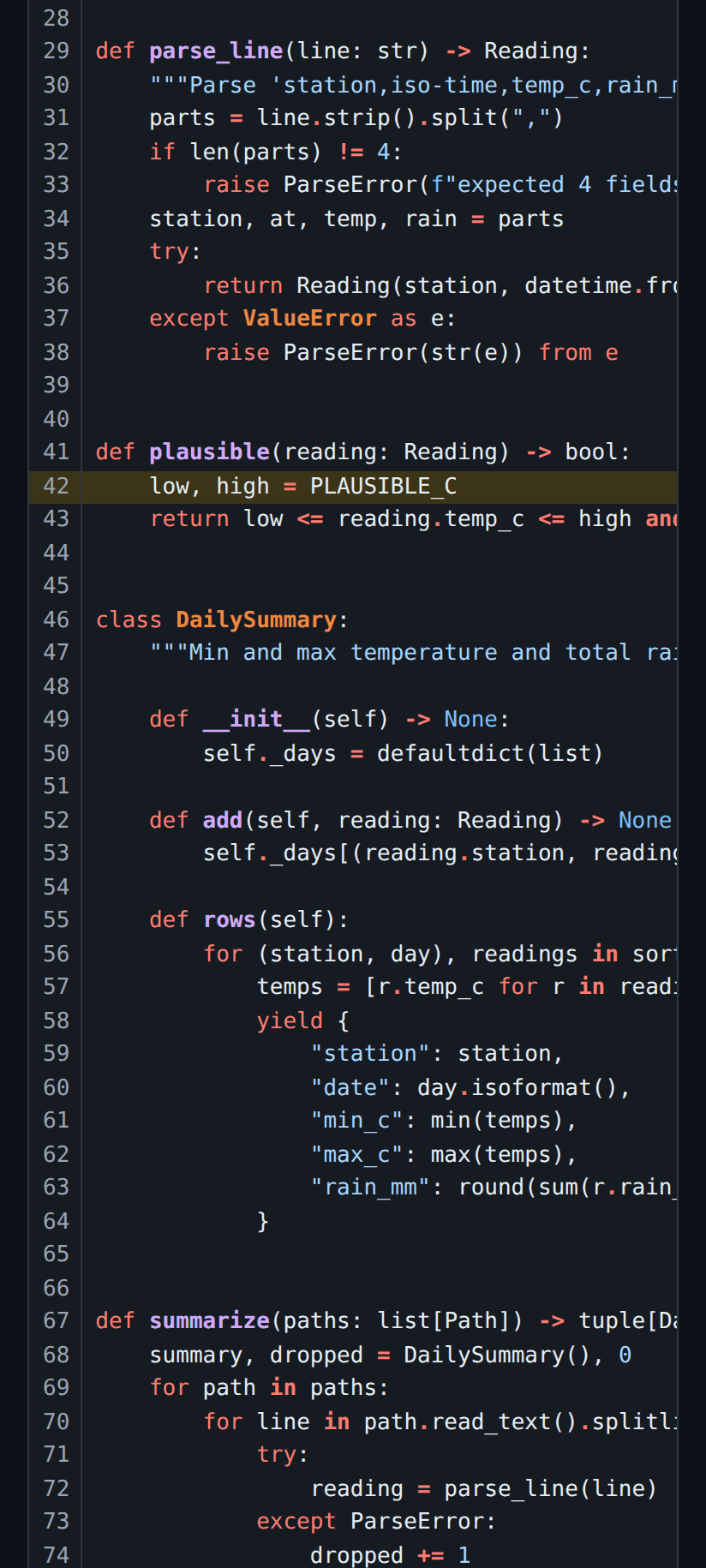
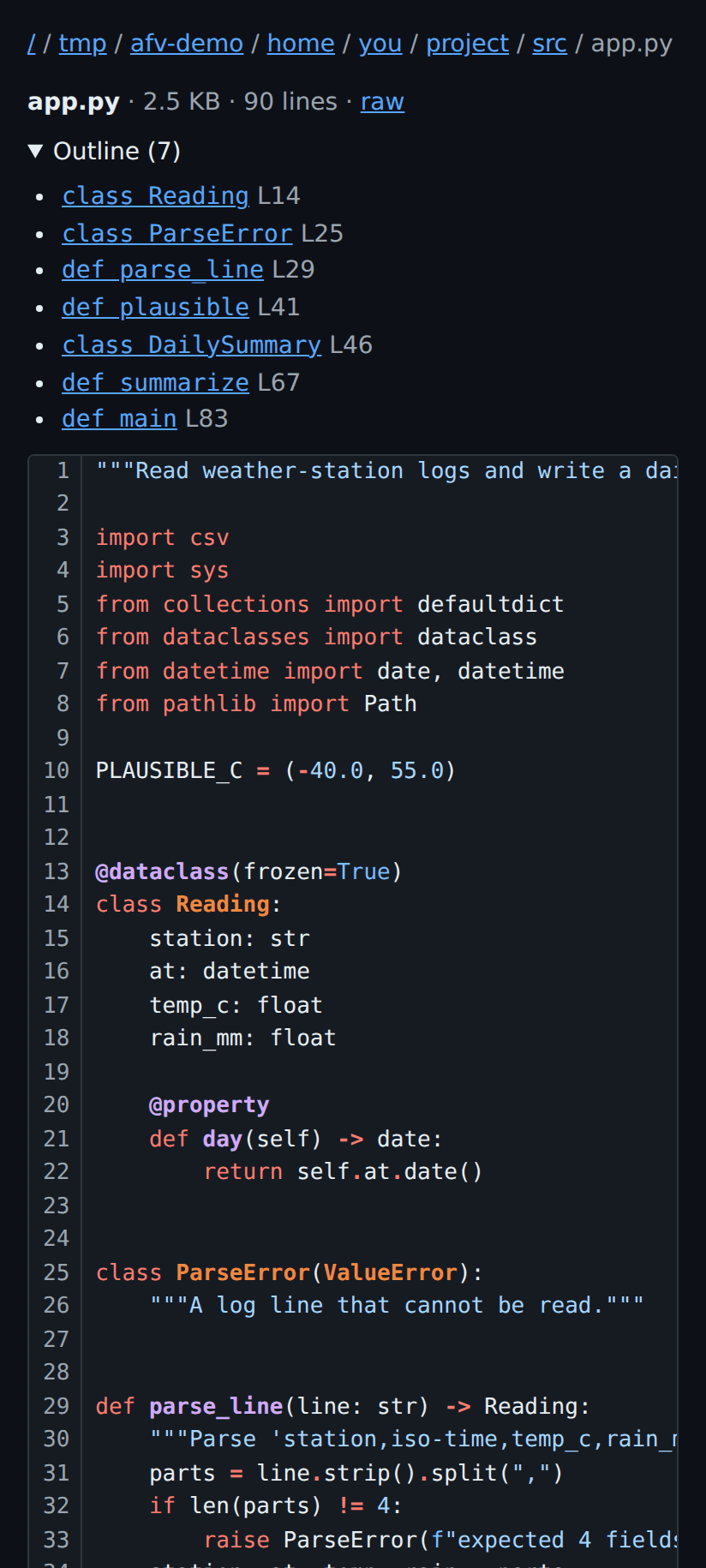
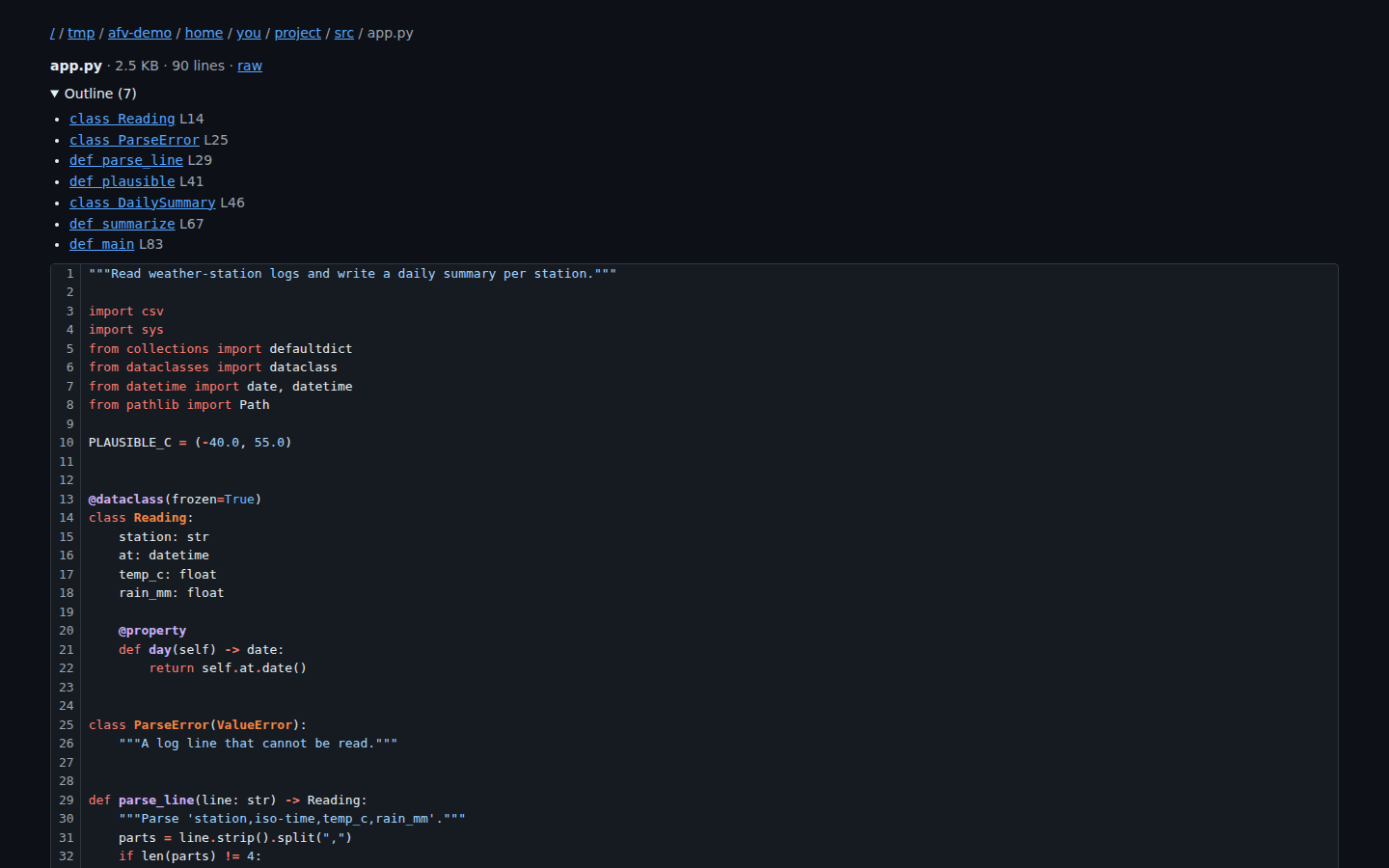
| Code and text | Highlighted with numbered lines. Each line has an #L<n> anchor, and the gutter is not copied with the code. .py files get an outline. Files over 2 MiB are not highlighted. |
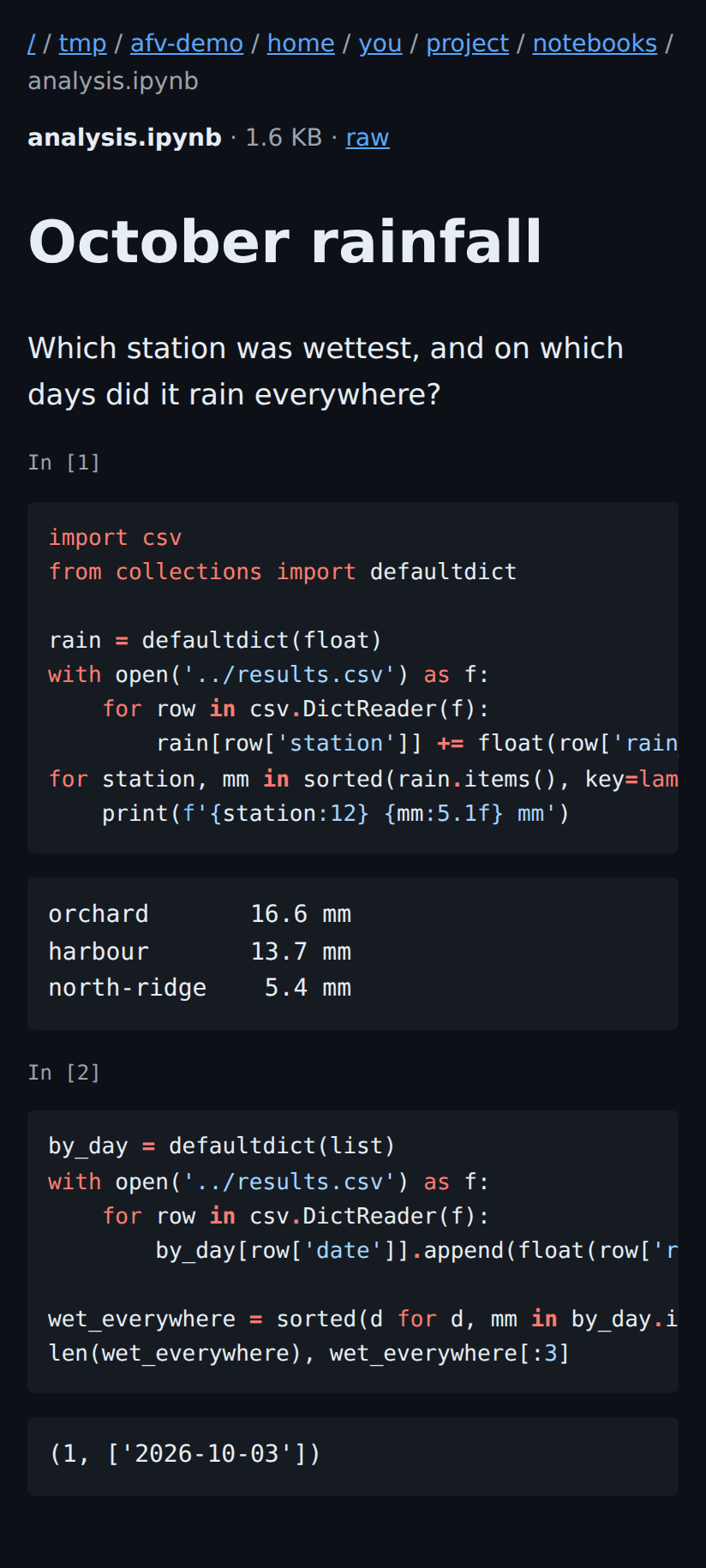
.ipynb |
Cells in order. Markdown is rendered, code highlighted, text outputs shown and image outputs omitted. |
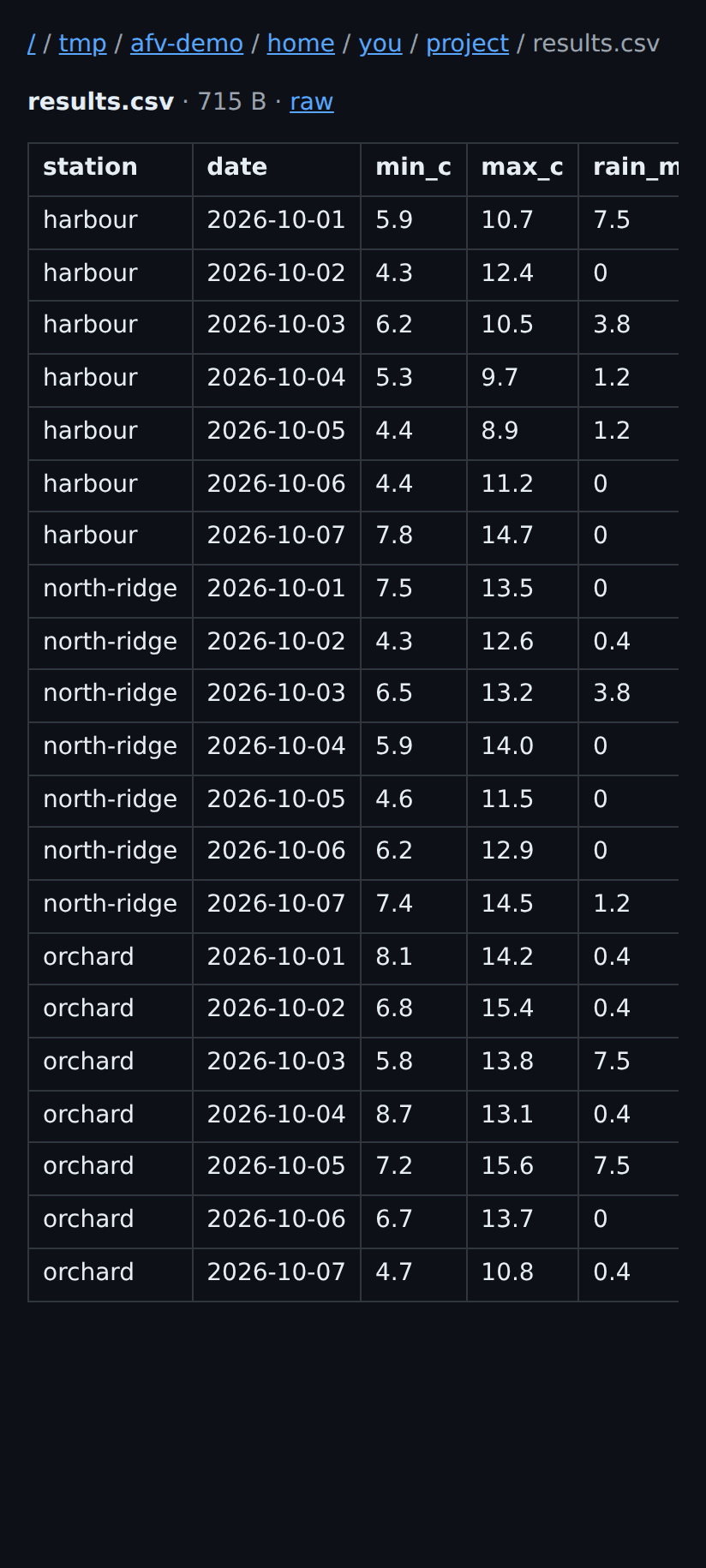
.csv, .tsv |
A table of the first 2,000 rows. |
.log |
The last 5,000 lines, numbered as in the file. |
| Images, SVG, PDF | Served raw. |
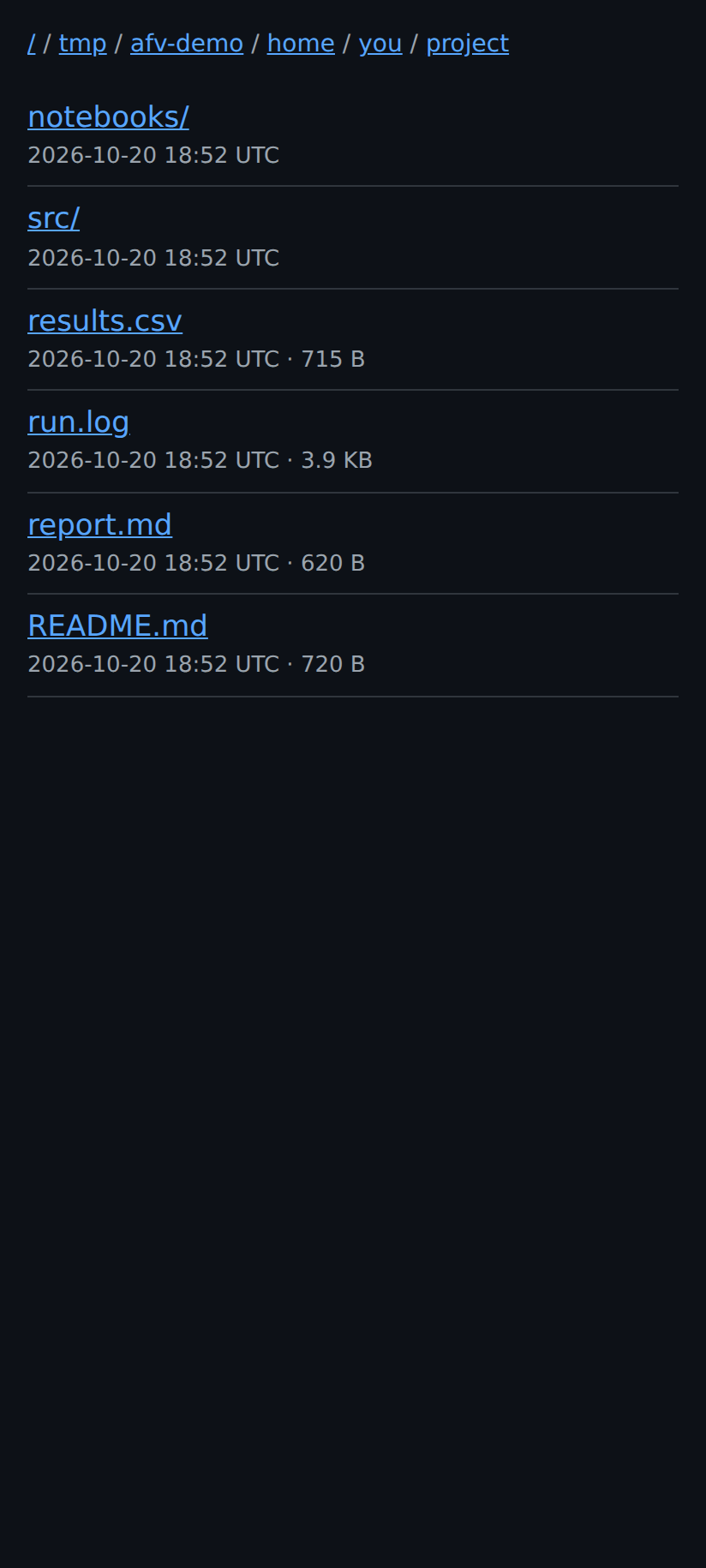
| Directories | Newest first, with sizes and times. |
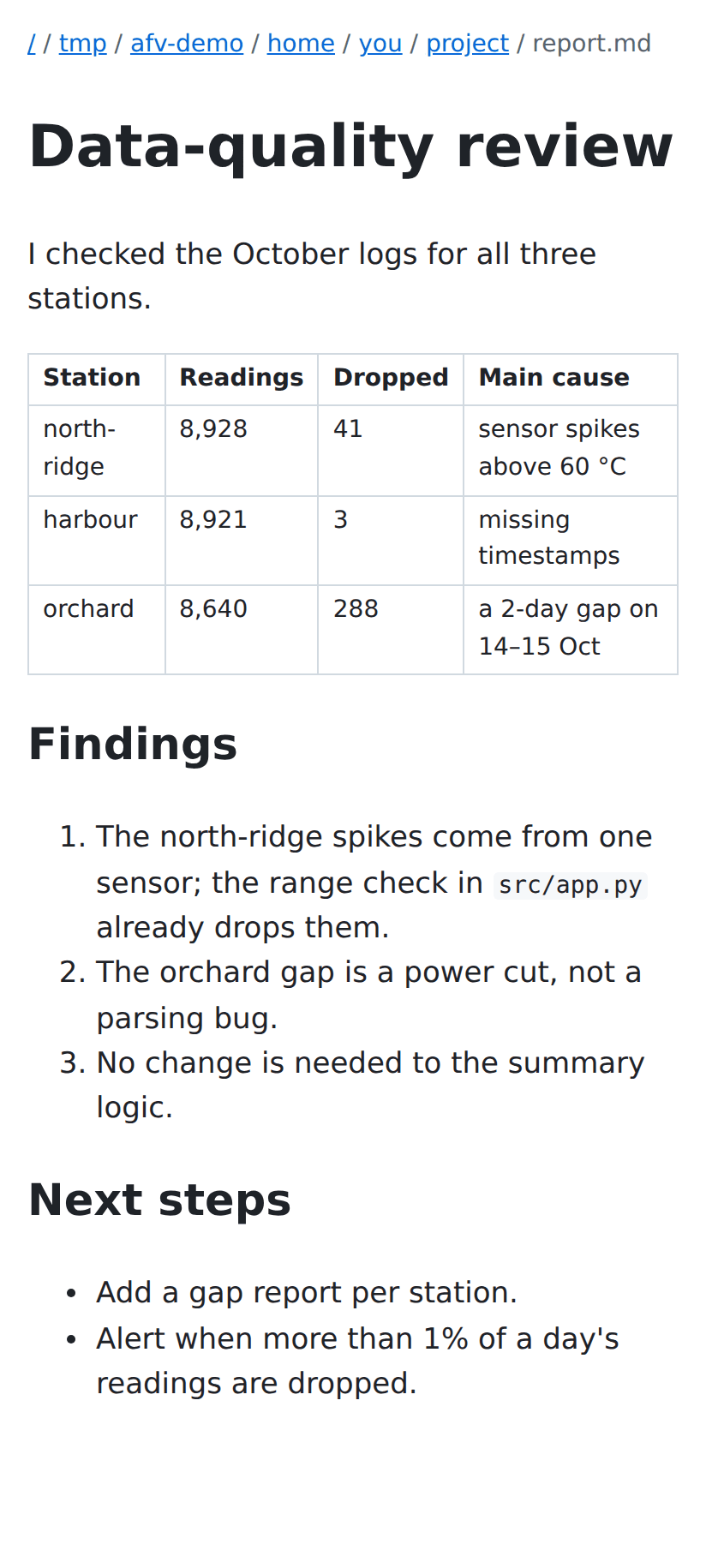
?raw=1 returns a text file as text/plain. Pages are dark, and
?theme=light switches one page to light. Range anchors such as #L10-L20
are not supported, because highlighting a range needs JavaScript.
Screenshots
Phone captures at 412×915 from a demo project. All pages are dark unless
?theme=light is set.
| Directory listing | Rendered markdown | Light theme |
|---|---|---|
 |
 |
 |
| Line link (#L42) | Python outline | Notebook |
|---|---|---|
 |
 |
 |
| CSV |
|---|
 |
On a desktop, code pages widen to 1400px:
Limits
- Linux only. It needs
/proc/self/fd, systemd user units and Tailscale withtailscale serve. - Python 3.11 or newer.
- One user per service. Each user who wants links runs their own instance on their own port.
- No search, no editing and no uploads, by design.
Development
uv sync
uv run ruff check
uv run pytest -q
uv run fileview serve --tcp 8141     # then open http://127.0.0.1:8141/
Releasing
Releases go to PyPI as agent-fileview through Trusted Publishing, so no
API token exists anywhere.
One-time setup:
- On PyPI, add a pending trusted publisher for project
agent-fileviewwith ownertbb300, repositoryagent-fileview, workflowrelease.ymland environmentpypi. - On GitHub, create the environment
pypiunder Settings → Environments. Add yourself as a required reviewer, so each release waits for approval.
For each release:
- Set
versioninpyproject.toml, the only version source, and add a CHANGELOG entry. - Check locally with
uv buildanduvx twine check --strict dist/*. - Commit, then tag and push:
git tag v0.1.1 && git push origin v0.1.1.
The Release workflow runs ruff and the tests, checks that the tag equals
v plus the pyproject version, builds, and runs twine check. A separate
publish job then uploads through OIDC. Only that job holds
id-token: write.
License
MIT. See LICENSE.
1 maintainer

Metadata
1 maintainer
Release files for agent-fileview 0.1.2
For a detailed explanation of source distributions (sdists) and built distributions (wheels), please see the package formats documentation.
Source distribution (sdist)
| File | Size | Uploaded | Provenance | Actions |
|---|---|---|---|---|
| agent_fileview-0.1.2.tar.gz | 55.6 kB | Without provenance | Details for agent_fileview-0.1.2.tar.gz |
Built distribution (wheel)
| File | Interpreter | ABI | Platform | Actions Reset |
|---|---|---|---|---|
| agent_fileview-0.1.2-py3-none-any.whl | Python 3 | none | any | Details for agent_fileview-0.1.2-py3-none-any.whl |
Total release size: 93.8 kB
Release files / agent_fileview-0.1.2.tar.gz
| Download URL | agent_fileview-0.1.2.tar.gz |
|---|---|
| Size | 55.6 kB |
| Tags | Source |
|
SHA-256 checksum How to use checksums |
f0c5d0d9871b51e5e6a79da6ce10afe686ae6fc409d9aec1d6f03bc4e29a3993
|
|
BLAKE2b-256 checksum How to use checksums |
d521c24150b03d83a3ece637ff813a64ab19a400eddc0a58b722fd2a4ab967d0
|
| Upload date | |
|
Uploaded using Trusted Publishing? What is trusted publishing? |
No |
| Uploaded via |
uv/0.6.14
|
Release files / agent_fileview-0.1.2-py3-none-any.whl
| Download URL | agent_fileview-0.1.2-py3-none-any.whl |
|---|---|
| Size | 38.1 kB |
| Tags | Python 3 |
|
SHA-256 checksum How to use checksums |
95684af415e35d0c4a1d4f44a5189bd8cda6221821dbfddab2a9dc8e34971548
|
|
BLAKE2b-256 checksum How to use checksums |
d2316b39eadb6548e5062089d61c21e0d53d801bf4b55332baff4c1a41509107
|
| Upload date | |
|
Uploaded using Trusted Publishing? What is trusted publishing? |
No |
| Uploaded via |
uv/0.6.14
|
Security for agent-fileview 0.1.2
Provenance
Provenance describes where a file came from. On PyPI, provenance is shared via attestations, which provide a verifiable record of the build or publishing details. View details, limitations and caveats.
No provenance found
None of the files in this release were uploaded with provenance metadata.
A note on package security
PyPI is a repository for distributing packages, not a service for auditing them. While third-party security researchers and our staff do their best to detect and remove malicious packages, PyPI cannot guarantee the quality, security or suitability of any given package.
To learn more about protecting yourself from malicious actors, visit our package security documentation.














