
airplay-mcp
An MCP server that turns your computer into an AirPlay receiver an AI agent can see through. The agent switches the receiver on, you mirror your iPhone or iPad to it, and the agent gets the phone screen frame by frame. It can look at the screen, wait for it to change, or save frames to disk for whatever processing it has been asked to do.
Works with any MCP client (Claude Code, Claude Desktop, Cursor, …). No external apps, no GStreamer: the AirPlay protocol is handled in-process by the pylibairplay library. UxPlay (an AirPlay receiver) and a GStreamer pipeline source (not AirPlay) are supported as opt-in alternatives (see below).
See it in action
 |
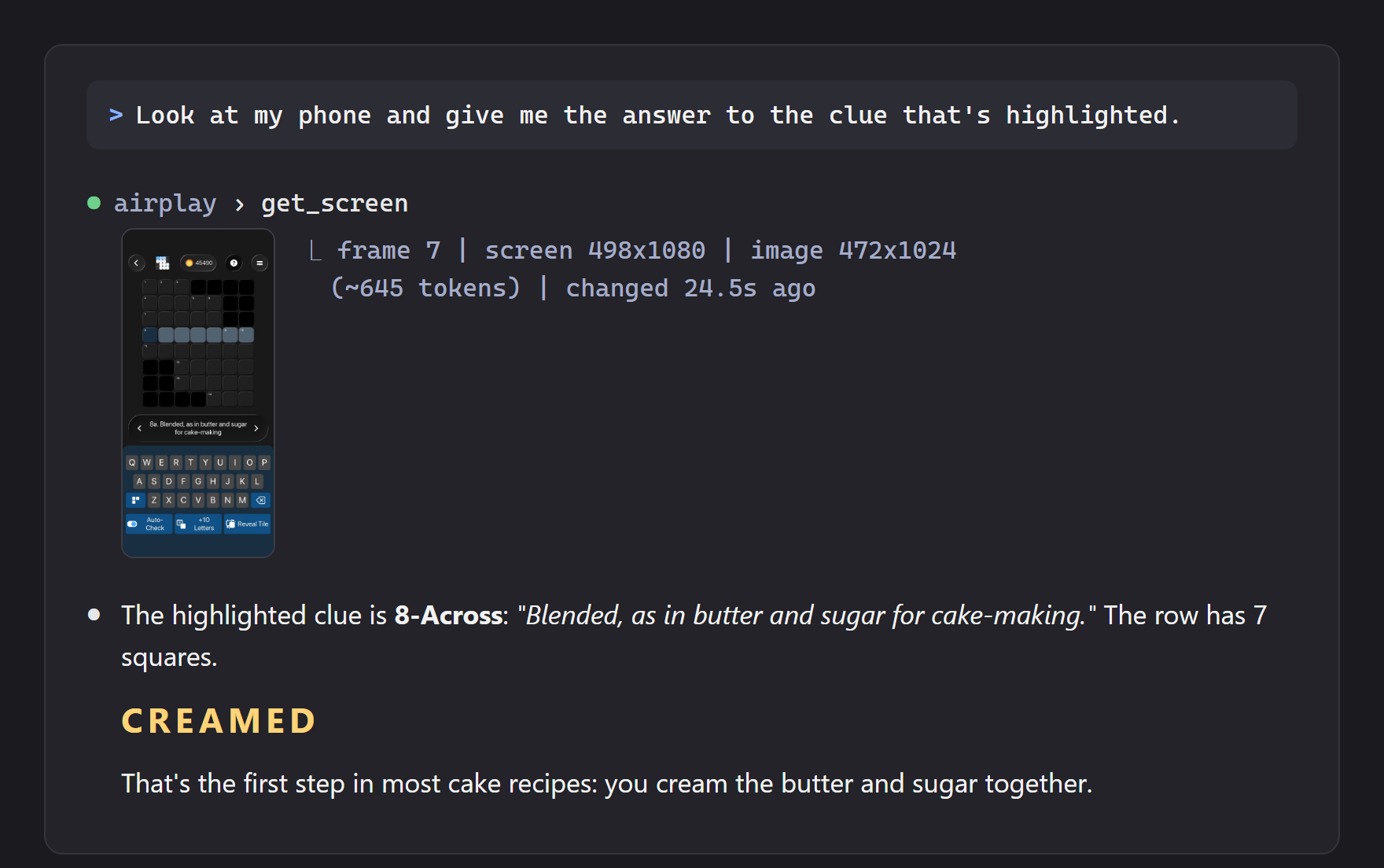 |
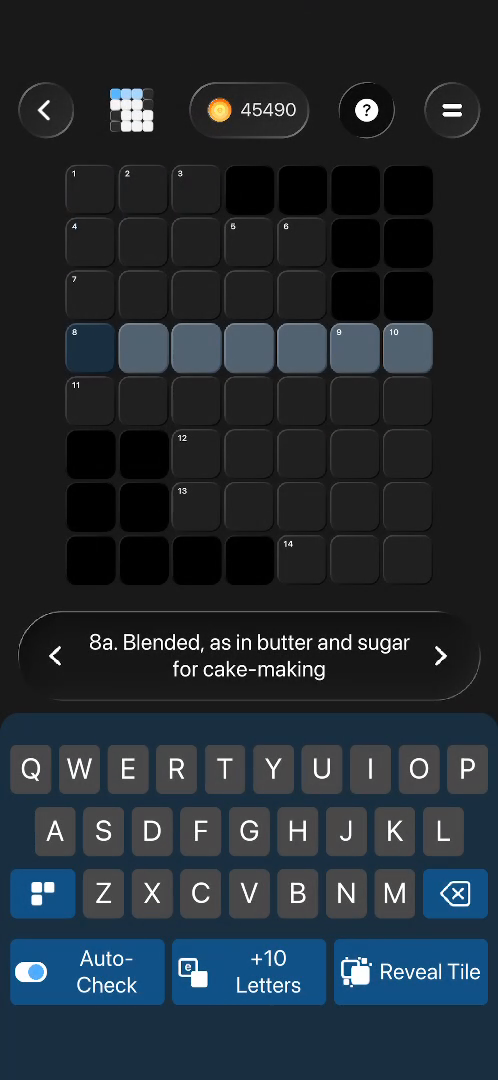
Left: a frame captured from an iPhone mirroring a crossword app. Right: an agent calling get_screen, reading the highlighted clue off that frame, and answering it.
Quick start
You need an iPhone or iPad, a computer (Windows, macOS or Linux) on the same Wi-Fi as the phone, and about 15 minutes plus a multi-GB firmware download for step 2. Allow the firewall prompt the first time it runs: the phone has to reach the receiver over TCP and mDNS (UDP 5353).
1. Install
First uv (skip if you have it):
# macOS / Linux
curl -LsSf https://astral.sh/uv/install.sh | sh
# Windows (PowerShell)
powershell -ExecutionPolicy ByPass -c "irm https://astral.sh/uv/install.ps1 | iex"
Open a new terminal, then install airplay-mcp from PyPI:
uv tool install "airplay-mcp[fairplay]"
airplay-mcp --help
If airplay-mcp isn't found, run uv tool update-shell and open a new terminal. Want the read_screen_text OCR tool too? Install "airplay-mcp[fairplay,ocr]" instead.
2. One-time: get the FairPlay files from your own firmware
Recent iOS refuses to send the screen until the receiver passes Apple's FairPlay check, and FairPlay can't be reimplemented from scratch. So airplay-mcp runs the FairPlay code from your own iPhone's firmware in a local emulator. The files are Apple's: they stay on your machine and are never shipped or uploaded. Skip this and the phone will find the receiver and pair, but no video will arrive.
Install ipsw, which downloads and unpacks Apple firmware. macOS: brew install blacktop/tap/ipsw. Windows or Linux: download a build from its releases page and put it on your PATH.
Find your phone's model identifier (for example iPhone17,3): Settings > General > About shows the model number, and ipsw device-list maps it to the identifier. Then, in a POSIX shell (Terminal, or Git Bash on Windows) and in a folder you will keep:
mkdir airplay-fp && cd airplay-fp
ipsw download ipsw --device iPhone17,3 --latest                  # fetch the firmware (several GB)
ipsw extract --dyld --dyld-arch arm64e iPhone17,3_*.ipsw -o fw   # pull the dyld shared cache
ipsw dyld extract fw/*/dyld_shared_cache_arm64e -o fpdir AirPlayReceiver AirPlaySupport CoreUtils AirPlaySender
Replace iPhone17,3 with your model. If the last command matches nothing, find the cache with ls fw/*. fpdir/ should now hold four files. You can delete fw/ and the .ipsw afterwards; keep fpdir/, and don't commit or share it.
3. Add it to your MCP client
Run this from inside the airplay-fp folder, so the path fills itself in.
Claude Code (macOS / Linux / Git Bash)
claude mcp add airplay -e AIRPLAY_FP_EMU_DIR="$PWD/fpdir" -- airplay-mcp
Claude Code (PowerShell)
claude mcp add airplay -e AIRPLAY_FP_EMU_DIR="$PWD\fpdir" -- airplay-mcp
Claude Desktop, Cursor and other JSON configs
{
  "mcpServers": {
    "airplay": {
      "command": "airplay-mcp",
      "env": {
        "AIRPLAY_FP_EMU_DIR": "/absolute/path/to/airplay-fp/fpdir"
      }
    }
  }
}
Use a real absolute path (on Windows, forward slashes or doubled backslashes). If your client can't find airplay-mcp, put the full path in "command" (which airplay-mcp on macOS/Linux, where airplay-mcp on Windows). Restart the client if it was already open.
4. Use it
Ask your agent something like: "Turn on the AirPlay screen, wait for my phone, and tell me the next move in this Sudoku."
The agent starts the receiver and tells you what to do. On the phone: Control Centre > Screen Mirroring > "AI Screen" (enter 3939 if it asks for a code). The first connection takes about 35 seconds while the emulator warms up. From then on the agent can look at the screen, wait for it to change, or save frames to disk. See How an agent uses it.
Troubleshooting
- The phone doesn't list "AI Screen": same network? VPNs and guest Wi-Fi often block mDNS. Check the firewall allowed Python.
- It pairs but the screen stays blank: FairPlay isn't active. Check
AIRPLAY_FP_EMU_DIRpoints at a folder holding all four files, that you installed with thefairplayextra (uv tool install "airplay-mcp[fairplay]"), and wait out the warm-up. - Check it outside your client:
airplay-mcp --fp-emu-dir "/absolute/path/to/fpdir" --autostart -vprints a log, including when the first frame arrives. - Test without a phone: see Testing without a phone.
Configuration
All settings are optional. Pass them as environment variables (the "env" block above, or -e NAME=value in claude mcp add) or as command-line flags. airplay-mcp --help lists everything.
| Env var | Flag | Default | Meaning |
|---|---|---|---|
AIRPLAY_NAME |
--name |
AI Screen |
Name the phone shows under Screen Mirroring |
AIRPLAY_PIN |
--pin |
3939 |
Pairing code, if the phone asks for one |
AIRPLAY_SAVE_DIR |
--save-dir |
~/airplay-mcp |
Where save_screen writes files given as relative paths |
AIRPLAY_AUTOSTART |
--autostart |
off | Start the receiver at launch, not when the agent calls start_receiver |
AIRPLAY_FP_EMU_DIR |
--fp-emu-dir |
— | Enables FairPlay (see below) |
AIRPLAY_FP_EMU_PYTHON |
--fp-emu-python |
this Python | Interpreter with unicorn/lief/capstone, if not using the fairplay extra |
AIRPLAY_MAX_DIM |
--max-dim |
1024 |
Default longest edge of images sent to the model |
AIRPLAY_TRANSPORT |
--transport |
stdio |
http serves streamable HTTP at http://HOST:PORT/mcp |
AIRPLAY_HOST / AIRPLAY_PORT |
--host / --port |
127.0.0.1 / 8765 |
HTTP bind address (no auth, so only expose it on trusted networks) |
The tuning options (--ignore-top, --min-changed-cells, --sample-fps, --quality) rarely need changing.
FairPlay
Setup is in Quick start, step 2. In short: iOS requires FairPlay, so pylibairplay runs the FairPlay code from your own device firmware under a local emulator. The firmware files are never shipped. AIRPLAY_FP_EMU_DIR must point at them, and the emulator takes about 35 seconds to warm up after start_receiver.
Alternative receivers (UxPlay, GStreamer pipeline)
The built-in pylibairplay receiver is the default and needs nothing else installed. Two alternatives are available, but only if you ask for them with --receiver (or AIRPLAY_RECEIVER). They are not used otherwise, and you can ignore this section if the steps above work for you.
Only
nativeanduxplaycan be mirrored to from an iPhone. GStreamer cannot receive AirPlay, so--receiver gstreamernever shows up in Screen Mirroring. It is for non-AirPlay video sources.
--receiver |
Appears in iPhone Screen Mirroring? | What it is | Needs |
|---|---|---|---|
native (default) |
Yes | pylibairplay, in-process | Your own firmware's FairPlay files (see Quick start) |
uxplay |
Yes | UxPlay, a separate AirPlay receiver program that is itself built on GStreamer | UxPlay installed |
gstreamer |
No | A gst-launch-1.0 pipeline you write, as a video source for something that is not AirPlay |
GStreamer installed, plus a pipeline |
external |
No | Accepts raw H.264 pushed to a local port (for testing) | Nothing |
If your goal is "mirror my iPhone and I'd rather not extract firmware", use uxplay (it uses GStreamer internally, and you install GStreamer as part of its build). Do not use gstreamer.
UxPlay
UxPlay (GPL-3, built on GStreamer) is a separate AirPlay receiver program that handles FairPlay itself, so no firmware extraction is needed. airplay-mcp runs it as a child process and takes the video from it.
- Install UxPlay 1.73 or later so
uxplayis on yourPATH:- macOS:
brew install uxplay - Debian/Ubuntu:
sudo apt install uxplay(if your distro's version is older than 1.73, build from source) - Windows: build it with MSYS2 (tested with UxPlay 1.74). Install MSYS2 with
winget install MSYS2.MSYS2, open the MSYS2 UCRT64 app from the Start menu, and paste:pacman -Syu --noconfirm # may close the window; reopen MSYS2 UCRT64 and run it again pacman -S --noconfirm --needed git mingw-w64-ucrt-x86_64-{toolchain,cmake,ninja,libplist,openssl,gstreamer,gst-plugins-base,gst-plugins-good,gst-plugins-bad,gst-plugins-ugly,gst-libav} git clone --depth 1 https://github.com/FDH2/UxPlay.git ~/UxPlay && cd ~/UxPlay cmake -S . -B build -G Ninja && cmake --build build
Then addC:\msys64\ucrt64\binto your WindowsPATH(uxplay needs the DLLs in it), setAIRPLAY_UXPLAY_PATHtoC:\msys64\home\<your user>\UxPlay\build\uxplay.exe, allowuxplay.exethrough the firewall, and set your Wi-Fi profile to Private.
- macOS:
- Install airplay-mcp (
uv tool install airplay-mcpis enough here; nofairplayextra needed) and add it to your client:
claude mcp add airplay -e AIRPLAY_RECEIVER=uxplay -- airplay-mcp
In a JSON config, use "env": { "AIRPLAY_RECEIVER": "uxplay" }. If uxplay isn't on PATH, add AIRPLAY_UXPLAY_PATH with the full path to it. Extra UxPlay flags go in --uxplay-arg (repeatable, written --uxplay-arg=-pin).
GStreamer pipeline source (not AirPlay)
This does not make an AirPlay target and your phone will not see it. To mirror an iPhone, use native or uxplay above.
--receiver gstreamer runs a gst-launch-1.0 pipeline that you supply and reads H.264 video from it. GStreamer can't receive AirPlay by itself, so this is for other video sources: an RTSP/UDP feed from a screen-capture bridge (scrcpy, Miracast), a capture card, or a test pattern. The pipeline must output Annex-B H.264 and end with tcpclientsink host=127.0.0.1 port={port}; airplay-mcp fills in {port}.
- Install GStreamer so
gst-launch-1.0is on yourPATH:- macOS:
brew install gstreamer - Debian/Ubuntu:
sudo apt install gstreamer1.0-tools gstreamer1.0-plugins-good gstreamer1.0-plugins-bad gstreamer1.0-plugins-ugly gstreamer1.0-libav - Windows: the easiest route is MSYS2 (the same install as the UxPlay steps above). In MSYS2 UCRT64 run
pacman -S --noconfirm --needed mingw-w64-ucrt-x86_64-{gstreamer,gst-plugins-base,gst-plugins-good,gst-plugins-bad,gst-plugins-ugly,gst-libav}, then addC:\msys64\ucrt64\binto your WindowsPATH. (The installer from gstreamer.freedesktop.org/download also works; itswingetpackage can fail silently if the admin prompt is declined.)
- macOS:
- Try it with a test pattern (no phone involved; you will see colour bars, not your phone):
claude mcp add airplay-gst -e AIRPLAY_RECEIVER=gstreamer \
  -e AIRPLAY_GST_PIPELINE="videotestsrc is-live=true pattern=smpte ! video/x-raw,width=640,height=360 ! x264enc tune=zerolatency ! h264parse config-interval=-1 ! video/x-h264,stream-format=byte-stream,alignment=au ! tcpclientsink host=127.0.0.1 port={port}" \
  -- airplay-mcp
Then ask the agent to call start_receiver and get_screen. Swap videotestsrc ... x264enc for your real source, for example rtspsrc location=rtsp://... ! rtph264depay if the feed is already H.264.
How an agent uses it
The server explains this flow to the model in its MCP instructions. A typical session:
start_receiver: the receiver starts advertising. The reply tells the agent what to say to the user: "Open Control Centre → Screen Mirroring and pick 'AI Screen'".wait_for_change: blocks until the first frame arrives, and afterwards until the screen next changes. Returns text only.get_screento look at the screen, orsave_screento write a full-resolution PNG/JPEG to disk for scripts and other tools.save_screenreturns only the file path, so it costs almost no tokens.- Repeat steps 2 and 3 as the user works on the phone.
stop_receiverwhen finished.
Example prompts: "Turn on the AirPlay screen, wait for my phone, and tell me the next move in this Sudoku." "Start AirPlay and save a screenshot to ./shots every time my screen changes, until I say stop."
Tools
| Tool | What it does |
|---|---|
start_receiver() / stop_receiver() |
Switch the AirPlay receiver on or off. Both are safe to repeat |
screen_status() |
Text only: receiver on/off, device connected, resolution, frame number, time since the last change |
wait_for_change(timeout_s, since_frame) |
Block until the first frame or the next real change (the status-bar clock is ignored) |
get_screen(mode, max_dim, region, since_frame, force, settle_ms, grid, format) |
The screen as an image, with a one-line header |
save_screen(path, region, max_dim) |
Write the screen to an image file |
read_screen_text(region) |
OCR text with positions (needs the ocr extra) |
resource airplay://screen/latest |
The latest frame as a JPEG, with update notifications |
Keeping token use down
get_screenalways returns the current frame (the last one received if the screen is static). Passsince_frame=12to getunchanged: still frame 12(about 15 tokens) instead of a repeat image.mode="changes"sends only the area that changed. A typed digit costs about 90 tokens instead of about 650.- Letterbox bars are cropped and the status bar is ignored for change detection.
region=[x,y,w,h]zooms in on detail,max_dim=512gives a quick glance, andgrid=[9,9]overlays labelled cells so the model can say "E5".- Captures wait for animations to settle, so the model isn't sent a blurred mid-transition frame.
Dedupe is tracked per client connection. Stateless HTTP clients get a new connection on every request, so they should pass since_frame explicitly.
Testing without a phone
--receiver external (or --external, AIRPLAY_EXTERNAL=1) skips AirPlay and accepts a raw Annex-B H.264 stream. start_receiver reports the port:
ffmpeg -re -i clip.mp4 -an -c:v libx264 -f h264 tcp://127.0.0.1:<port>
Development
git clone https://github.com/feedthedogs/airplay-mcp && cd airplay-mcp
uv sync --extra fairplay
uv run pytest
npx @modelcontextprotocol/inspector uv run airplay-mcp --external
iPhone --AirPlay--> pylibairplay receiver --Annex-B H.264 over local TCP--> PyAV decoder
                                                                          |
                                     MCP tools / resource  <--  FrameStore + change detection
The receiver is a pluggable interface (receivers/base.py; native.py, uxplay.py and gstreamer.py implement it). Android has no practical equivalent: Google certifies Cast receivers, so scrcpy (over ADB) or Miracast are the realistic routes.
1 maintainer

Metadata
1 maintainer
Release files for airplay-mcp 0.1.2
For a detailed explanation of source distributions (sdists) and built distributions (wheels), please see the package formats documentation.
Source distribution (sdist)
| File | Size | Uploaded | Provenance | Actions |
|---|---|---|---|---|
| airplay_mcp-0.1.2.tar.gz | 30.8 kB | With provenance | Details for airplay_mcp-0.1.2.tar.gz |
Built distribution (wheel)
| File | Interpreter | ABI | Platform | Actions Reset |
|---|---|---|---|---|
| airplay_mcp-0.1.2-py3-none-any.whl | Python 3 | none | any | Details for airplay_mcp-0.1.2-py3-none-any.whl |
Total release size: 66.9 kB
Release files / airplay_mcp-0.1.2.tar.gz
| Download URL | airplay_mcp-0.1.2.tar.gz |
|---|---|
| Size | 30.8 kB |
| Tags | Source |
|
SHA-256 checksum How to use checksums |
9327b7d29a3e55c7662d3d3e4cd412f02cd396a8b6a791f5bcc766b6bdcaf1ca
|
|
BLAKE2b-256 checksum How to use checksums |
58420529edbc5af8e8648950b13a0182f5f268324e36f2dffee4c4198ed79546
|
| Upload date | |
|
Uploaded using Trusted Publishing? What is trusted publishing? |
Yes |
| Uploaded via |
twine/7.0.0 CPython/3.13.16
|
Provenance
Provenance describes where a file came from. On PyPI, provenance is shared via attestations, which provide a verifiable record of the build or publishing details. View details, limitations and caveats.


PyPI Publish Attestation
PyPI verified that this artifact, at this checksum, originated from the publisher listed below.
Signed by GitHub Actions, verified by PyPI on Oct 28, 2026.
Transparency logRelease files / airplay_mcp-0.1.2-py3-none-any.whl
| Download URL | airplay_mcp-0.1.2-py3-none-any.whl |
|---|---|
| Size | 36.1 kB |
| Tags | Python 3 |
|
SHA-256 checksum How to use checksums |
7d2c31418369deb8113f8ad2f475e832d4fb49ad732dffb3a2baed88efc7c63d
|
|
BLAKE2b-256 checksum How to use checksums |
7c5bb145a44d563c5d24fd838cb97309af71f4c82edb3bab93dacd20cd6b90ac
|
| Upload date | |
|
Uploaded using Trusted Publishing? What is trusted publishing? |
Yes |
| Uploaded via |
twine/7.0.0 CPython/3.13.16
|
Provenance
Provenance describes where a file came from. On PyPI, provenance is shared via attestations, which provide a verifiable record of the build or publishing details. View details, limitations and caveats.
PyPI Publish Attestation
PyPI verified that this artifact, at this checksum, originated from the publisher listed below.
Signed by GitHub Actions, verified by PyPI on Oct 28, 2026.
Transparency logSecurity for airplay-mcp 0.1.2
Provenance
Provenance describes where a file came from. On PyPI, provenance is shared via attestations, which provide a verifiable record of the build or publishing details. View details, limitations and caveats.
Full provenance
All 2 files in this release have been uploaded with provenance metadata.
Attestation for airplay_mcp-0.1.2.tar.gz
PyPI Publish Attestation
PyPI verified that this artifact, at this checksum, originated from the publisher listed below.
Signed by GitHub Actions, verified by PyPI on Oct 28, 2026.
Transparency logA note on package security
PyPI is a repository for distributing packages, not a service for auditing them. While third-party security researchers and our staff do their best to detect and remove malicious packages, PyPI cannot guarantee the quality, security or suitability of any given package.
To learn more about protecting yourself from malicious actors, visit our package security documentation.














