
AI/ML system monitor with mixed-vendor GPU/NPU telemetry, AI-process intelligence, and Linux + experimental macOS support

Project description
AITop - AI-Focused System Monitor



Copyright © 2025 Alexander Warth. All rights reserved.
Current version: 0.16.10
Release highlights:
- Linux-first + experimental macOS coverage for mixed accelerator environments.
- Mixed-vendor GPU + NPU visibility in one workflow (including experimental AMD/Intel NPUs).
- Runtime header stays signal-focused without vendor/theme/release labels.
Key Capabilities
- Mixed-accelerator observability in one TUI: NVIDIA/AMD/Intel GPUs plus experimental AMD/Intel NPUs and experimental Apple GPUs on macOS.
- Real-time accelerator monitoring: GPU/NPU utilization, VRAM, thermals, power, and driver/framework versions.
- AI workload intelligence: detects 50+ ML/AI frameworks with per-process metrics, job grouping, distributed topology, and straggler hints.
- Fast operator workflow: Overview, AI, GPU, and conditional NPU tabs with interactive filtering (
/,Ctrl+F) and tree mode (t). - Safe process control: htop-style signal actions with safeguards for critical and distributed AI jobs.
- Snapshot + trend visibility: overview sparklines and JSON snapshot export (
Shift+S) for offline analysis. - Platform coverage: Linux-first production workflow plus experimental macOS Apple GPU inventory support.
- Rare mixed-vendor + NPU coverage: one workflow across NVIDIA/AMD/Intel GPUs and experimental AMD/Intel NPUs.
- Low overhead by design: adaptive scheduling, caching, and resilient telemetry fallbacks.
AITop is a command-line system monitor built for AI/ML workloads across mixed accelerator environments.
Beta Phase Notice: AITop is in advanced beta (v0.16.10) with active hardening, documentation updates, and expanded regression coverage.
Features & Enhancements
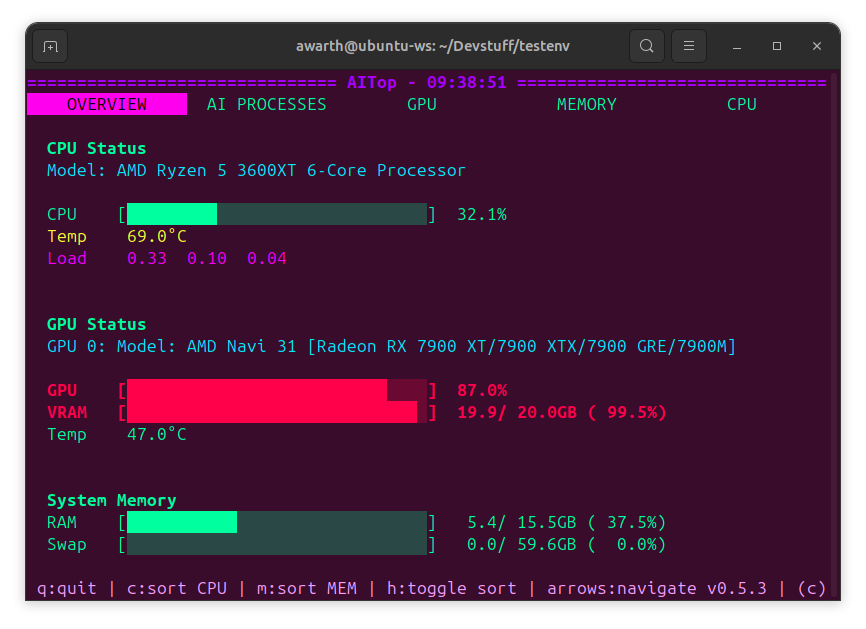
-
Real-time GPU Monitoring
- Utilization metrics (compute, memory)
- Memory usage and allocation
- Temperature and power consumption
- Framework version detection (CUDA, ROCm, driver versions)
- Cross-architecture CPU vendor/model extraction improvements for Linux (
/proc/cpuinfokey variants and ARM implementer mapping)
-
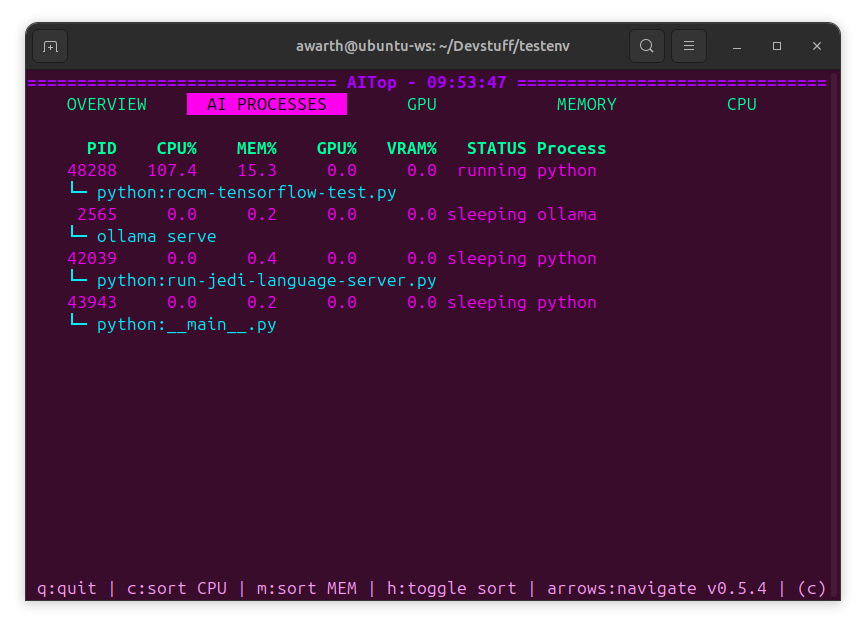
AI Workload Focus
- Detection of AI/ML processes via pattern matching
- Interactive filtering across AI, GPU, and conditional NPU tabs (
/orCtrl+F, Esc/Ctrl+L to clear) with field-aware queries (name:,pid:,user:,cmd:,status:,gpu:). - Tree-mode grouping of related AI processes (
ttoggles depth view) plus richer IO/NET metrics to help spot high-throughput jobs. - Job-topology inference groups related workers (
job_id, rank/world-size hints) and flags potential stragglers in distributed workloads. - Overview process table now surfaces per-task device placement (
CPU,GPUx,NPUx) with adaptive compacting (up to 3 devices on smaller systems, 2 on larger fleets, plus+Noverflow). - AI Processes now includes a grouped
By Devicesummary (process count + per-device utilization/memory footprint) for faster placement triage. - Recently sleeping AI processes are retained for a 120-second grace window to avoid transient disappearance during short telemetry gaps.
-
AI/ML framework pattern recognition (50+ frameworks)
-
Training job and distributed workload detection
-
Process classification and identification
-
Process Management
- htop-like process killing with signal selection
- Comprehensive safety checks (permissions, system-critical processes)
- AI-specific warnings for training jobs and distributed workloads
- Support for SIGTERM, SIGKILL, SIGHUP, SIGINT, SIGQUIT, SIGSTOP, SIGCONT
- Extra confirmation for dangerous signals (SIGKILL)
- Automatic privileged fallback: prompts for sudo password when normal kill lacks permission.
- Snapshot exports (
Shift+S) writing JSON reports for offline analysis and troubleshooting.
-
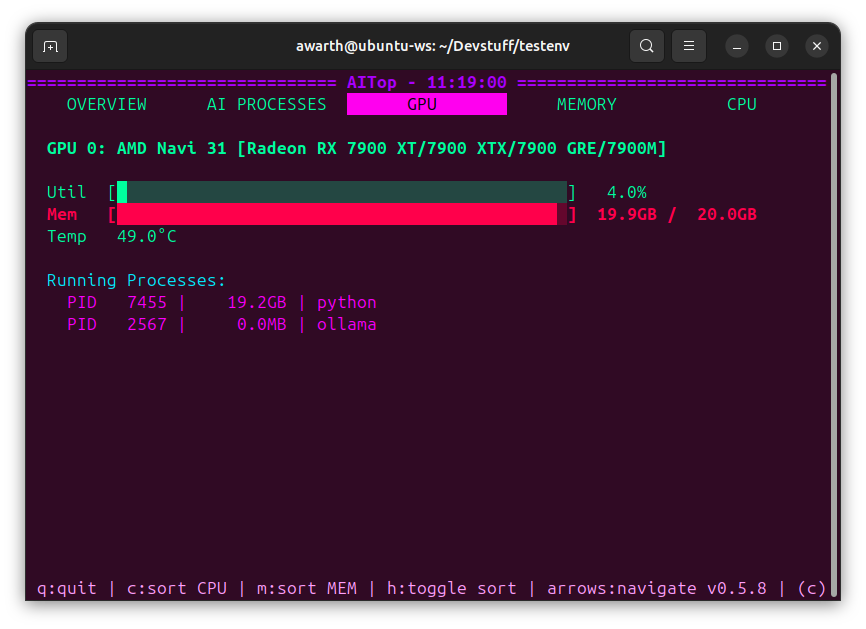
Multi-Vendor Support
- NVIDIA GPUs (via nvidia-smi with robust query fallbacks)
- AMD GPUs (via ROCm with rocm-smi preferred and amd-smi fallback)
- Intel GPUs (via intel_gpu_top JSON stream parsing with timeout-safe partial reads)
- Experimental macOS Apple GPUs (via
system_profilerinventory; live metrics are currently limited) - Experimental AMD NPUs (via
xrt-smiwith accel sysfs fallback) - Experimental Intel NPUs (via accel sysfs
ivputelemetry counters) - Overview accelerator cards now label NPU devices as
NPU(instead ofGPU) when NPU vendors are detected. - GPU/NPU process trees now include explicit globally unique per-class IDs (
GPUx/NPUx) across mixed vendors for clearer attribution.
-
Customizability
- Configure displayed metrics
- Customize refresh rates
- Choose different output views (compact, detailed, graphical)
-
Enhanced Interactive UI
- Dynamic, color-coded displays with advanced color management
- True color support for modern terminals with automatic detection
- Intelligent color fallback for 256-color and basic terminals
- Adaptive rendering for lower system impact
- Improved process-specific monitoring with AI detection
- Terminal-aware theme selection with manual override support
-
Performance Optimizations
- Efficient metric polling with minimal impact on GPU workloads
- Low CPU and memory overhead with adaptive scheduling
- Smart caching for optimal rendering performance
- Multi-threaded data collection with prioritized updates
- Error resilience with exponential backoff when needed
- Memory-efficient data structures with proper cleanup
- Compact sparkline history in the overview tab surfaces recent CPU/MEM/GPU trends for faster situational awareness.
Experimental Features
- ARM CPU vendor/model inference on Linux via
/proc/cpuinfokey variants and implementer mapping (best-effort; may showUnknown). - Intel GPU monitoring via
intel_gpu_topJSON stream sampling (driver/tool support varies; metrics may be partial). - Experimental macOS Apple GPU monitoring via
system_profiler SPDisplaysDataType -xmlinventory with conservative cached polling (best-effort; runtime utilization/process attribution is limited). - AMD/Intel NPU telemetry via vendor tools or accel sysfs (best-effort; counters and process attribution may be incomplete).
- AMD NPU monitoring via
xrt-smireports and accel sysfs counters (best-effort; metrics vary by driver/toolchain). - Intel NPU monitoring via accel sysfs counters (
npu_busy_time_us,npu_memory_utilization) withivpudriver metadata when present.
Installation
Quick Install (Recommended)
Install AITop directly from PyPI:
pip install aitop
For development features, install with extra dependencies:
pip install aitop[dev]
From Source
-
Clone the Repository
git clone https://gitlab.com/CochainComplex/aitop.git
cd aitop
-
Select Python with pyenv
This project uses
pyenv(notvenv) for local Python selection. Python 3.9+ is supported.pyenv install 3.9.20 pyenv local 3.9.20
-
Install Dependencies
pyenv exec pip install -e ".[dev]"
Dependency files are split by purpose:
requirements.txt(runtime)requirements-dev.txt(lint/test tooling)requirements-docs.txt(docs build)
Development Tooling
Use pyenv exec to run tools so they pick up the project-local Python.
pyenv exec python -m ruff format --check aitop tests setup.py scripts
pyenv exec python -m ruff check aitop tests setup.py scripts
pyenv exec python scripts/check_complexity.py
pyenv exec python -m mypy --strict aitop
pyenv exec pytest --cov=aitop --cov-branch --cov-config=pyproject.toml --cov-fail-under=40 -q
pyenv exec python -m pip_audit -r requirements.txt -r requirements-dev.txt -r requirements-docs.txt
pyenv exec python scripts/check_architecture.py
pyenv exec pre-commit run --all-files
Operational command set and troubleshooting notes live in RUNBOOK.md.
GPU Dependencies
No additional Python packages are required beyond psutil for GPU/NPU support.
NPU integration is handled via system drivers/tools and sysfs telemetry.
-
NVIDIA GPUs
Ensure NVIDIA drivers are installed and nvidia-smi is accessible. Supports NVIDIA driver 400+ with compatible nvidia-smi versions.
-
AMD GPUs
Install ROCm as per ROCm Installation Guide. Supports ROCm 4.x through 7.x with 6-method fallback chain for version detection. Uses
rocm-smiwhen available, withamd-smifallback whenrocm-smiis unavailable. -
Intel GPUs
Requires intel_gpu_top tool (part of intel-gpu-tools package). Uses non-interactive
intel_gpu_top -L/-Jprobes with stream-safe parsing. Intel GPU support provides utilization + process visibility where exposed by intel-gpu-tools. -
Apple GPUs on macOS (Experimental)
Requires
system_profiler(built into macOS) for GPU inventory. AITop usessystem_profiler SPDisplaysDataType -xmland normalizes detected VRAM/unified-memory strings (for exampleGB/MB/KBvariants) into internal MB units. Runtime utilization/process telemetry is currently limited on macOS without privileged tooling; AITop keeps this path conservative to avoid unstable probes. Optional live utilization can be enabled with:AITOP_ENABLE_MACOS_POWERMETRICS=1(requirespowermetrics; root/admin may be required). When enabled, utilization is derived frompowermetrics --samplers gpu_poweractive GPU residency percentages (best-effort, no per-process attribution). -
AMD NPUs (Experimental)
Requires AMD NPU-capable kernel driver support (
amdxdna) and typically the XRT toolchain exposingxrt-smi. Prefersxrt-smitelemetry reports and falls back to accel sysfs when available. Coverage is best-effort and depends onamdxdna/XRT versions. -
Intel NPUs (Experimental)
Requires Intel VPU kernel support (
ivpu) exposing/sys/class/accel. Uses accel sysfs telemetry (npu_busy_time_us,npu_memory_utilization, and frequency attributes when available). Coverage is best-effort and kernel-version dependent.
Quick Start
Launch AITop with the following command:
# Start AITop with default settings
aitop
# Enable debug logging
aitop --debug
# Customize performance parameters
aitop --update-interval 0.8 --process-interval 3.0 --gpu-interval 1.5
# Select a specific theme
aitop --theme nord
Usage
Command Line Options
AITop now features several command-line options to customize behavior:
# Get help on all options
aitop --help
# Basic Options
--debug Enable debug logging
--log-file FILE Path to log file (default: aitop.log)
# Performance Options
--update-interval N Base data update interval in seconds (default: 0.5)
--process-interval N Process collection interval in seconds (default: 2.0)
--gpu-interval N Full GPU info interval in seconds (default: 1.0)
--render-interval N UI render interval in seconds (default: 0.2)
--workers N Number of worker threads (default: 3)
# Display Options
--theme THEME Override theme selection (e.g., monokai_pro, nord)
--list-themes List available themes and exit
--no-adaptive-timing Disable adaptive timing based on system load
Interactive Controls
?: Show the full help overlay with key mappings and filter examples.Shift+S: Export the current snapshot (JSON) into the working directory./orCtrl+F: Enter the process filter prompt (name:,pid:,user:,cmd:,status:,gpu:terms supported), Esc/Ctrl+L clears the filter.t: Toggle tree-structured grouping for the AI Processes tab (useful for drilling into branches).
Privileged Kill Mode
When a process signal requires elevated privileges, AITop can retry with sudo:
aitop
AITop first attempts a normal kill. If permission is denied, it asks for sudo password in the TUI (hidden input) and uses it only for that single privileged kill action.
Theme Configuration
AITop includes an enhanced theme system that automatically adapts to your terminal environment:
-
Intelligent Detection: Automatically selects the optimal theme based on:
- Terminal capability hints (
TERM,COLORTERM) - Color support capabilities (true color, 256 colors, or basic)
- Curses palette-mutation support (
can_change_color()) with safe fallbacks
- Terminal capability hints (
-
Manual Override: Set preferred theme using environment variable:
# Enable 256-color support (required for some terminals) export TERM=xterm-256color # Set theme before running aitop export AITOP_THEME=default aitop
-
Available Themes:
default: Standard theme based on htop colorsgraphite_modern: Neutral graphite palette (default)monokai_pro: Modern dark theme with vibrant, carefully balanced colorsnord: Arctic-inspired color palette optimized for eye comfortsolarized_dark: Scientifically designed for optimal readabilitymaterial_ocean: Modern theme based on Material Design principlesstealth_steel: Sleek gray-based palette with subtle color accentsforest_sanctuary: Nature-inspired palette with rich greens and earthen tonescyberpunk_neon: Futuristic neon color scheme with vibrant accents
Each theme is carefully crafted for specific use cases:
monokai_pro: Features a vibrant yet balanced color scheme with distinctive progress bars (▰▱)nord: Offers a cool, arctic-inspired palette that reduces eye strain with elegant progress bars (━─)solarized_dark: Uses scientifically optimized colors for maximum readability with classic block indicators (■□)material_ocean: Implements Material Design principles with circular progress indicators (●○)stealth_steel: Provides a professional, minimalist look with half-block indicators (▀░)forest_sanctuary: Delivers a natural, calming experience with bold filled blocks (▮) and blank unfilled segments for clearer contrastgraphite_modern: Default theme with neutral graphite tones and the same high-contrast filled-block (▮) plus blank-unfilled bar stylecyberpunk_neon: Features a high-contrast neon palette with classic block indicators (█░)
Color Support
AITop now features advanced color management:
- Automatic detection of terminal color capabilities
- True color support (16 million colors) for modern terminals
- Intelligent fallback for terminals with limited color support
- Color caching for optimal performance
- Smooth color approximation when exact colors aren't available
Performance Features
AITop includes several advanced performance features:
- Adaptive Timing: Automatically adjusts update frequency based on system load
- Staggered Collection: Different metrics are collected at optimized intervals:
- Fast metrics (CPU, memory usage) are updated more frequently
- Expensive metrics (full GPU details, process scanning) are updated less frequently
- Smart Caching: Cache system with TTL (Time-To-Live) for efficient data retrieval
- Error Resilience: Exponential backoff on errors to prevent resource exhaustion
- Optimized Rendering: Differential screen updates to minimize CPU usage
Debug Mode
AITop supports an enhanced debug mode that can be enabled with the --debug flag. When enabled:
- Creates a detailed log file (default:
aitop.login the current directory) - Logs comprehensive debug information including:
- Application initialization and shutdown sequences
- Data collection events and timing
- UI rendering updates and performance metrics
- Detailed error traces with context
- System state changes and GPU detection
- Theme detection and color management
- Collection statistics for performance analysis
- Useful for troubleshooting issues or monitoring performance
AITop provides an interactive interface with the following controls:
-
Navigation
- Left/Right Arrow Keys: Switch between tabs
- Up/Down Arrow Keys: Navigate and select processes in AI Processes, GPU, and NPU tabs (when NPU is detected)
-
Process Management (AI Processes, GPU, and NPU tabs)
- 'k': Kill selected process (opens signal selection menu)
- Use Up/Down to select a process, then press 'k' to send a signal
- Choose from SIGTERM (graceful), SIGKILL (force), or other signals
- Safety checks prevent accidental system damage
- Works in AI Processes tab (full process list), GPU tab (GPU-using processes), and NPU tab (NPU-using processes when detected)
-
Process Sorting
- 'c': Sort by CPU usage
- 'm': Sort by memory usage
- 'h': Toggle sort order (ascending/descending)
-
General
- 'q': Quit application
- 'r': Force refresh display
Interface Tabs
- Overview: System-wide metrics including CPU, memory, overall GPU usage, and an AI Jobs summary (workers + stragglers per inferred job).
- AI Processes: Lists detected AI/ML processes with detailed metrics.
- GPU: Detailed GPU metrics per vendor, including utilization, temperature, and power consumption.
- NPU (conditional): Appears only when AMD/Intel NPU devices are detected; shows accelerator telemetry and process activity using the same interaction model as the GPU tab.
- Memory: System memory statistics and usage.
- CPU: CPU usage and performance statistics.
For detailed project structure and component documentation, see STRUCTURE.md.
Troubleshooting
Color Rendering Issues
Problem: Colors look strange, washed out, or theme changes don't work properly (especially on Pop OS Cosmic DE, Alacritty, or similar modern terminals).
Root Cause: Modern terminals support true color (COLORTERM=truecolor) but don't support curses palette modification (can_change_color() returns False). This causes hex-based themes to fall back to 256-color approximation, which may not match the intended colors.
Solutions:
-
Use a 256-color theme (Recommended):
export AITOP_THEME=solarized_dark aitop
Or:
aitop --theme solarized_dark
Available 256-color themes:
solarized_dark,material_ocean -
Use the default theme (8-color, most compatible):
export AITOP_THEME=default aitop
-
Force 256-color detection (prevents hex theme selection):
unset COLORTERM aitop
-
List all available themes:
aitop --list-themes
Debug color detection:
aitop --debug
# Check aitop.log for terminal capability detection:
# - TERM and COLORTERM values
# - max_colors detected
# - can_change_color value
# - Selected theme
Terminal Size Issues
Problem: AITop displays incorrectly or crashes on startup.
Solution: Ensure your terminal is at least 80x24 characters. Resize the terminal window or adjust font size.
GPU Not Detected
Problem: GPUs are not shown in the GPU tab.
Solutions:
-
NVIDIA: Ensure
nvidia-smiis accessible:nvidia-smi
-
AMD: Ensure
rocm-smiis installed and accessible (fallback:amd-smi):rocm-smi
-
Intel: Ensure
intel_gpu_topis installed:intel_gpu_top -l
Performance Issues
Problem: AITop uses too much CPU or updates too slowly.
Solutions:
-
Adjust update intervals:
aitop --update-interval 1.0 --process-interval 3.0 --render-interval 0.3
-
Reduce worker threads:
aitop --workers 2
-
Disable adaptive timing (if causing issues):
aitop --no-adaptive-timing
Theme Not Changing
Problem: Setting --theme or AITOP_THEME doesn't change colors.
Diagnostic:
aitop --list-themes # Verify theme name is correct
aitop --theme invalid_name # Should show error and suggestions
Solution:
- Theme names are case-sensitive
- Use exact names from
--list-themesoutput - Try clearing terminal and restarting AITop
- Check
aitop.logwith--debugfor theme loading errors
Development
Run the same quality gate locally as CI (Python 3.9 baseline):
pyenv install 3.9.20
pyenv local 3.9.20
pyenv exec pip install -e ".[dev]"
pyenv exec pre-commit install
pyenv exec python -m ruff format --check aitop tests setup.py scripts
pyenv exec python -m ruff check aitop tests setup.py scripts
pyenv exec python scripts/check_complexity.py
pyenv exec python -m mypy --strict aitop
pyenv exec pytest --cov=aitop --cov-branch --cov-config=pyproject.toml --cov-fail-under=40 -q
pyenv exec python -m pip_audit -r requirements.txt -r requirements-dev.txt -r requirements-docs.txt
pyenv exec python scripts/check_architecture.py
For failure triage and remediation commands, see RUNBOOK.md.
Requirements
- Python 3.9+
- NVIDIA Drivers (for NVIDIA GPU support)
- ROCm (for AMD GPU support)
- intel-gpu-tools (
intel_gpu_top) (for Intel GPU support)
Contributing
Contributions are welcome! Please follow these steps to contribute:
-
Fork the Repository
-
Create Your Feature Branch
git checkout -b feature/AmazingFeature
-
Commit Your Changes
git commit -m 'Add some AmazingFeature'
-
Push to the Branch
git push origin feature/AmazingFeature
-
Open a Pull Request
Discuss your changes and get feedback before merging.
License
This project is licensed under the MIT License - see the LICENSE file for details.
Author
Alexander Warth Professional Website
Legal Disclaimer
AITop is an independent project and is not affiliated with, endorsed by, or sponsored by NVIDIA Corporation, Advanced Micro Devices, Inc. (AMD), or Intel Corporation. All product names, logos, brands, trademarks, and registered trademarks mentioned in this project are the property of their respective owners.
- NVIDIA®, CUDA®, and NVML™ are trademarks and/or registered trademarks of NVIDIA Corporation.
- AMD® and ROCm™ are trademarks and/or registered trademarks of Advanced Micro Devices, Inc.
- Intel® is a trademark and/or registered trademark of Intel Corporation.
The use of these trademarks is for identification purposes only and does not imply any endorsement by the trademark holders. AITop provides monitoring capabilities for GPU hardware but makes no guarantees about the accuracy, reliability, or completeness of the information provided. Use at your own risk.
Acknowledgments
Special thanks to:
- The open-source community
- All contributors and users of AITop
Release history Release notifications | RSS feed


Download files
Download the file for your platform. If you're not sure which to choose, learn more about installing packages.
Source Distribution
Built Distribution
Filter files by name, interpreter, ABI, and platform.
If you're not sure about the file name format, learn more about wheel file names.
Copy a direct link to the current filters
File details
Details for the file aitop-0.16.10.tar.gz.
File metadata
- Download URL: aitop-0.16.10.tar.gz
- Upload date:
- Size: 201.8 kB
- Tags: Source
- Uploaded using Trusted Publishing? No
- Uploaded via: twine/6.2.0 CPython/3.10.16
File hashes
| Algorithm | Hash digest | |
|---|---|---|
| SHA256 |
4218d598161d65a8474caa00234a240ddd5ecfecbae5765735538a912a023dff
|
|
| MD5 |
49f527856ffeb9d24317d7ea3a30a834
|
|
| BLAKE2b-256 |
45cff0e41130609d4bdef94852e60e4cccee6304e38edb44d71571f230b4c4fb
|
File details
Details for the file aitop-0.16.10-py3-none-any.whl.
File metadata
- Download URL: aitop-0.16.10-py3-none-any.whl
- Upload date:
- Size: 165.7 kB
- Tags: Python 3
- Uploaded using Trusted Publishing? No
- Uploaded via: twine/6.2.0 CPython/3.10.16
File hashes
| Algorithm | Hash digest | |
|---|---|---|
| SHA256 |
b9a2d7ff31c1c8bb1b23f8ffd126edbbd6bdab2931ad8c031bbbac60f59e48de
|
|
| MD5 |
6dae7dcefa1888fdca114aa6c2764f5b
|
|
| BLAKE2b-256 |
5e4bba08dffa96f1c782f4c1952ecd8e3b7d02e2f681bee08cfff626b64cdb51
|






