
Alluvial diagrams
alluvial is a Python package for drawing alluvial diagrams
with matplotlib: diagrams of how the modules (communities) of a network change, split and merge across time
steps, layers or methods. Each diagram is made of ordinary matplotlib artists on your own axes, ready for a paper figure
as vector PDF or SVG.
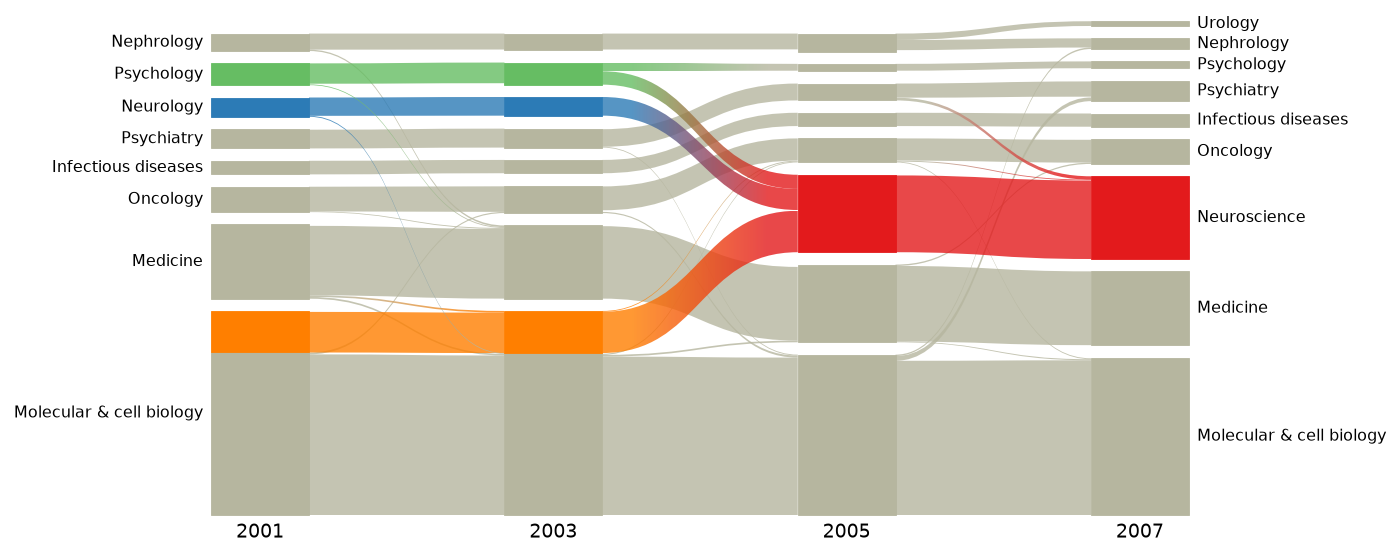
Documentation: https://mapequation.github.io/alluvial-py
- Native Infomap support. Pass the results of
infomap.run(orinfomap.Infomapobjects that have run), or Infomap's output files (.tree,.ftree,.stree,.clu,.json), and go from data to a paper figure in a few lines. Sub-modules, state, memory and multilayer networks work too. - Any partition. Plain dicts that map nodes to modules, and pandas DataFrames with one row per node, need no Infomap at all.
- The mapequation.org layout. The layout is a faithful port of the engine behind the
mapequation.org alluvial web app, so module order, sizes, margins,
streamlines and colors match it, and
alluvial.save_diagramwrites files the web app opens for editing by hand. - Made for papers. Font sizes in points from
rcParams, labels fitted to the axes, highlighted groups with a legend, custom module names and order, and the web app's color schemes.
See CHANGELOG.md for what changed in each release.
Install
pip install alluvial
Requires Python >= 3.11 and matplotlib >= 3.7. Results of infomap.run and infomap.Infomap objects work
whenever infomap >= 2.14 is installed; pip install "alluvial[infomap]" is only a shortcut that also installs a
compatible infomap. Files written by any infomap version (.tree, .ftree, .clu, *_states.*, .json) read
without it.
Quick start
Map each node to its module, one dict per network. Nodes are matched across networks by name, and modules are sized by their number of nodes:
import alluvial

# Who works in which team, two years running.
teams_2020 = {"Ann": 1, "Bo": 1, "Cy": 1, "Di": 1, "Ed": 2, "Flo": 2, "Gus": 2, "Hal": 3, "Ivy": 3}
teams_2021 = {"Ann": 1, "Bo": 1, "Cy": 1, "Di": 2, "Ed": 2, "Flo": 2, "Gus": 2, "Hal": 2, "Ivy": 3}

ax = alluvial.plot([teams_2020, teams_2021], names=["2020", "2021"])
ax.figure.savefig("alluvial.png", dpi=150)
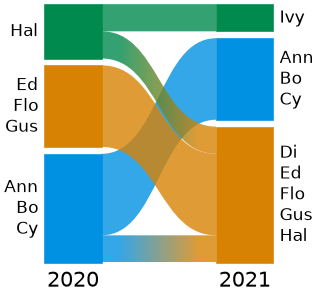
examples/quickstart.py makes the figure above. A module can also be a path in a module tree, such as "1:2"
(sub-module 2 of module 1). alluvial.partition(modules, flows) weights the nodes by flow, and a DataFrame with the
columns network, node, module and optionally flow is a whole diagram:
import pandas as pd

import alluvial

df = pd.DataFrame(
    {
        "network": ["2020", "2020", "2020", "2021", "2021", "2021"],
        "node": ["Ann", "Bo", "Cy", "Ann", "Bo", "Cy"],
        "module": [1, 1, 2, 1, 2, 2],
        "flow": [0.5, 0.3, 0.2, 0.5, 0.3, 0.2],
    }
)
ax = alluvial.plot(df)  # or alluvial.from_dataframe(df, network=..., node=..., module=..., flow=...)
nf = alluvial.partition({"Ann": 1, "Bo": 1, "Cy": "2:1"}, flows={"Ann": 3, "Bo": 2, "Cy": 1}, name="2022")
From Infomap
Pass the Result of infomap.run, or the files Infomap writes (an infomap.Infomap that has run works
too):
import infomap

import alluvial

links_2020 = [(1, 2), (1, 3), (2, 3), (3, 4), (4, 5), (4, 6), (5, 6)]
links_2021 = [(1, 2), (1, 3), (2, 3), (3, 5), (3, 6), (4, 5), (4, 6), (5, 6), (4, 7), (7, 8), (8, 4)]
results = [infomap.run(links, seed=1, two_level=True) for links in (links_2020, links_2021)]
ax = alluvial.plot(results, names=["2020", "2021"])

# Or Infomap's output files, here bundled with the tests (journals are matched by name):
science = [f"tests/data/science{year}_2y.stree" for year in (2001, 2003, 2005, 2007)]
ax = alluvial.plot(science, identifier="name", names=[2001, 2003, 2005, 2007])
Networks go from left to right, and each one can be:
- a path to an Infomap output file (
.tree,.ftree,.stree,.cluor-o json.json; the format comes from the suffix), - the
Resultofinfomap.run, or aninfomap.Infomapthat has run (state and memory networks give state nodes, labeled by physical names), - an Infomap JSON dict (
json.loadof a-o jsonfile), - a dict that maps nodes to modules (or
alluvial.partition(modules, flows)), or a DataFrame of several networks, - an
alluvial.NetworkFilefromalluvial.read(...).
docs/tutorial.ipynb walks through a complete analysis: seeded Infomap runs on a small
temporal network, the colorings, sub-modules, highlight groups with a legend, multilayer (state) networks, reading
Infomap files, a two-panel PDF figure and restyling single artists.
docs/capabilities.ipynb covers every feature, each with checks.
Capabilities
- Inputs: Infomap's
.tree,.ftree,.streeand.clufiles (also the*_states.*versions), Infomap JSON (a-o jsonfile or its dict), theResultofinfomap.runandinfomap.Infomapobjects (state, memory and multilayer networks, withsplit_layersfor one network per layer), a.zipor directory of network files (the web app's upload), plain{node: module}dicts andalluvial.partition, long-format pandas DataFrames (alluvial.from_dataframe), andalluvial.NetworkFiles fromalluvial.read. - Layout: the web app's layout options (
height,module_width,streamline_fraction,streamline_threshold,flow_threshold,margin_exponent,zero_margins,vertical_align,module_size,sort_modules_by), sub-modules (module_level,expand), custommodule_namesandmodule_order, and bipartite networks (show_bipartite_nodes). - Colors: by module id, by matching modules across networks (similarity), by node, by layer, by physical node or by the module hierarchy; the web app's 65 color schemes (with c3's tone and offset) or your own colors; highlight groups of nodes (a mapping or a function) with a legend.
- Drawing:
plot/drawon any matplotlib axes, with fonts fromrcParams, labels fitted at draw time, hierarchy shadows or outlines, palettes and colormaps, gradient streamlines, rasterizing, and every artist available for restyling (get_artists); vector PDF and SVG output. - Geometry:
layoutreturns frozen dataclasses (no matplotlib needed) withto_dict()for other renderers. - Save and load:
save_diagramwrites the web app's "Download diagram" files (a zip or loose Infomap-JSON files), which the web app opens for hand editing andread/layoutload back with options, colors, order and names restored.
docs/capabilities.ipynb is a tested tour of all of these: every step asserts what it
shows, and the test suite runs it.
Usage
The snippets below use the datasets bundled in tests/data of a source checkout; run them from its root.
Figures for papers
Pass your own axes and the diagram fills it. Shapes scale with the axes, while every font size, gap and margin is in
points, so text prints at exactly the size you ask for. Labels and limits are fitted again at each draw, which keeps
layout="constrained", bbox_inches="tight" and later resizing working. Labels never leave the axes. Long names are
truncated with an ellipsis, and where the labels of neighboring modules would collide, the smaller module's label
loses lines or is hidden.
import matplotlib.pyplot as plt

import alluvial

science = [f"tests/data/science{year}_2y.stree" for year in (2001, 2003, 2005, 2007)]
planted = [f"tests/data/planted_t{i}.ftree" for i in range(3)]

with plt.rc_context({"font.family": "serif", "font.size": 8, "pdf.fonttype": 42}):  # match the paper
    fig, (a, b) = plt.subplots(1, 2, figsize=(7, 2.6), width_ratios=[1.4, 1], layout="constrained")
    alluvial.plot(science, ax=a, names=[2001, 2003, 2005, 2007], max_label_lines=3)
    alluvial.plot(planted, ax=b, names=["$t_0$", "$t_1$", "$t_2$"], palette="tab10")
    a.set_title("(a)", loc="left")
    fig.savefig("figure.pdf")
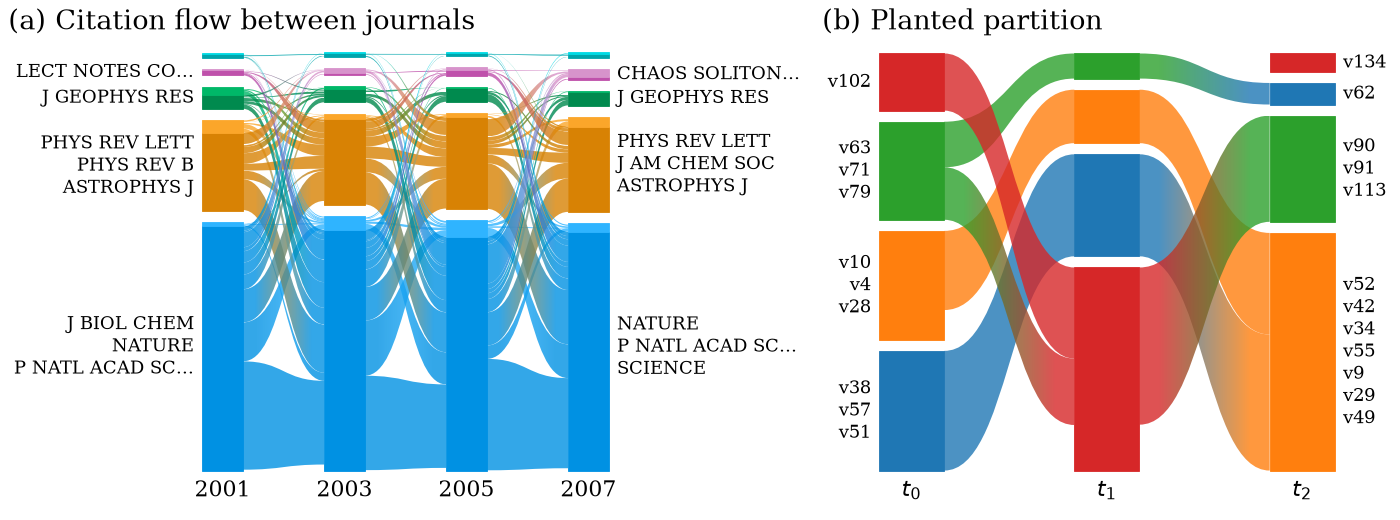
examples/paper_figure.py makes the figure above. The PDF stays vector: a two-color streamline is a 256 × 1 gradient strip
clipped to its outline (gradient=False makes them solid). For very large diagrams, rasterized=True rasterizes the
shapes and keeps the text as vector.
Sub-modules
Infomap finds hierarchies of modules. module_level=2 shows the sub-modules of every visible module that has them
(one value, or one per network), exactly as clicking modules in the web app does. expand=[(network, module_id), ...]
expands single modules first. Gray boxes offset behind the sub-modules mark their parent module, like the web app's
hierarchy shadows; hierarchy="outline" draws dotted boxes around them instead, and hierarchy=False nothing.
import alluvial

networks = [f"tests/data/multilevel_t{i}.tree" for i in range(3)]
ax = alluvial.plot(networks, module_level=2)
geom = alluvial.layout(networks, expand=[(1, "1"), (1, "1:1")])  # network index (or id), module path
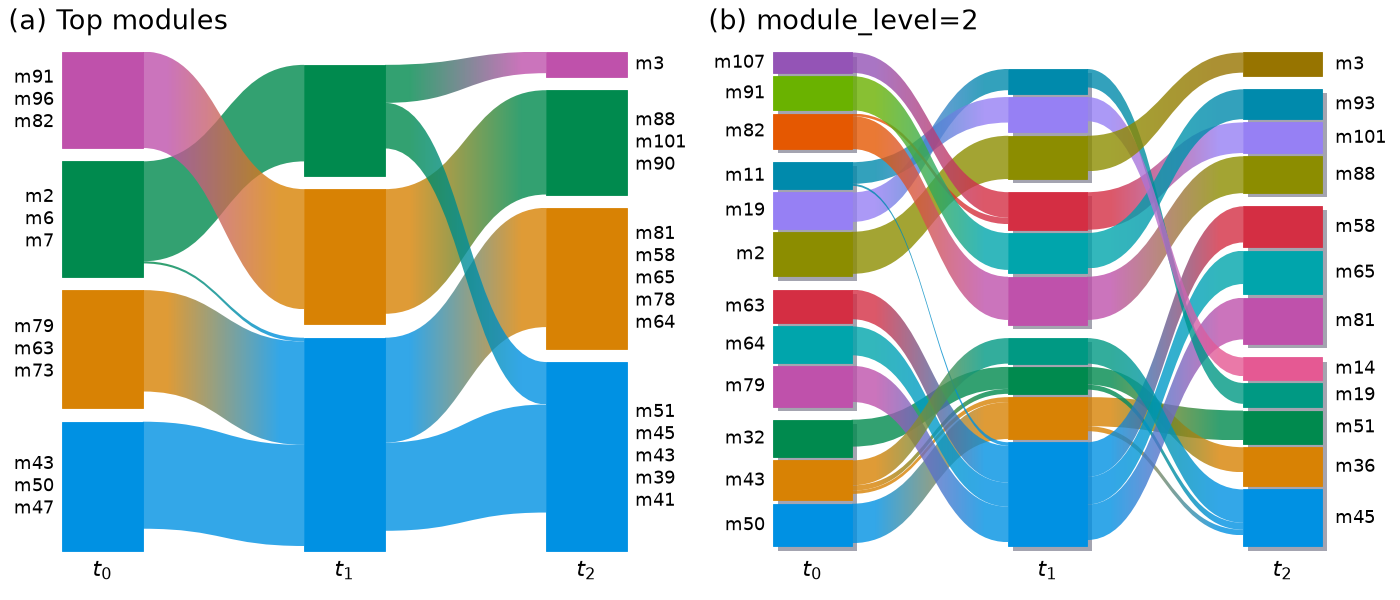
examples/hierarchy.py makes the figure above. Each ModuleGeometry has its level, and
NetworkGeometry.outlines holds the parent-module boxes.
Highlight groups
highlight colors chosen nodes wherever they go and leaves everything else gray. Pass {label: node identifiers}
or a function of an alluvial.NodeInfo that returns a label or None. legend=True (or alluvial.legend(ax)) adds
a legend above the diagram, and the label lines take the color of their node.
import matplotlib.pyplot as plt

import alluvial

science = [f"tests/data/science{year}_2y.stree" for year in (2001, 2003, 2005, 2007)]
fields = {
    "Biology": ["J BIOL CHEM", "CELL", "EMBO J", "GENE DEV", "MOL CELL BIOL", "P NATL ACAD SCI USA"],
    "Physics": ["PHYS REV LETT", "PHYS REV B", "ASTROPHYS J", "APPL PHYS LETT", "J CHEM PHYS"],
}
fig, ax = plt.subplots(figsize=(3.4, 2.8), layout="constrained")
alluvial.plot(
    science, ax=ax, identifier="name", highlight=fields, legend=True, names=[2001, 2003, 2005, 2007]
)

# A function of an alluvial.NodeInfo works too; it returns a label or None:
geom = alluvial.layout(
    science, identifier="name", highlight=lambda node: "J ..." if node.name.startswith("J ") else None
)
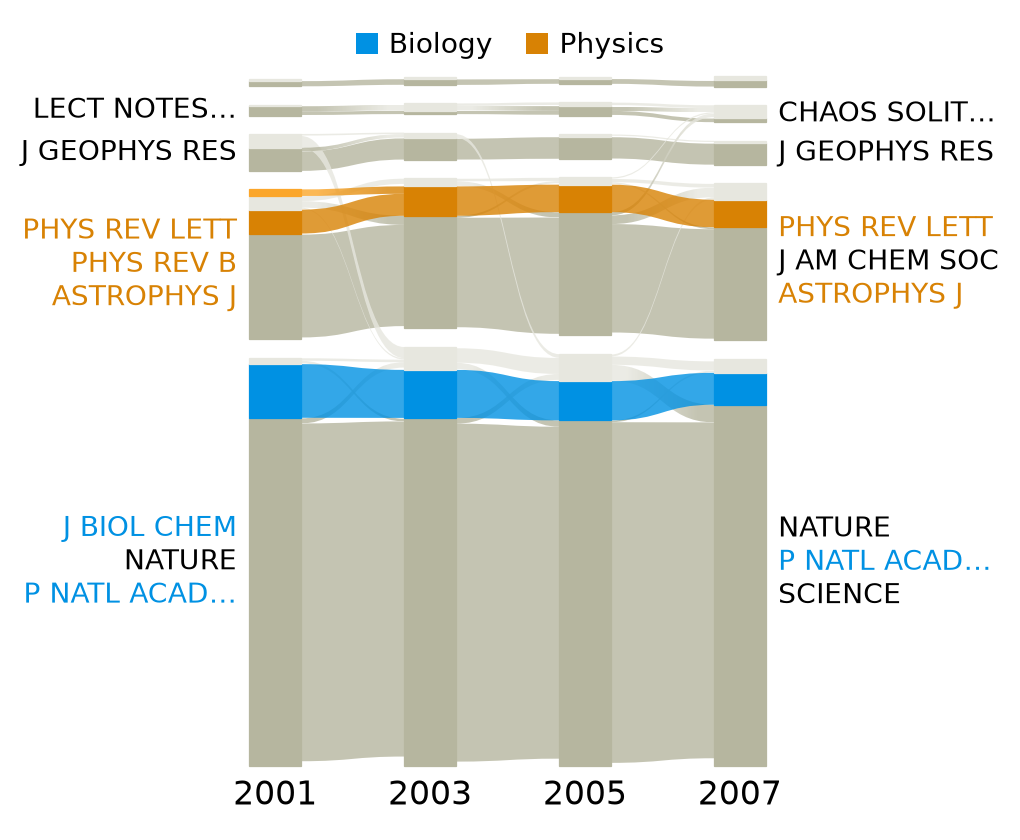
examples/highlight.py makes the figure above. Identifiers are matched like the networks' nodes (identifier=),
and numbers are allowed ({"a": [1, 2, 3]}). highlight_colors sets the colors (a list, or {label: color}).
highlight replaces colors. The coloring is the web app's own "color by metadata" operation, including one quirk:
in a network without hidden modules, the last module can miss its color; layout then warns.
Module names and order
module_names labels modules with names of your choice instead of their largest nodes, and module_order stacks
a network's modules in a given order. Both are web-app operations (the module name field and "move up/down"), so
the web app can show the same diagram.
import alluvial

science = [f"tests/data/science{year}_2y.stree" for year in (2001, 2003, 2005, 2007)]
geom = alluvial.layout(
    science,
    identifier="name",
    module_names={(0, "1"): "Life sciences", (0, "2"): "Physics", (3, "1"): "Life sciences"},
    module_order={0: ["2", ...], 3: ["2", "4", "3", "5", "1"]},  # bottom to top
)
# A function of an alluvial.ModuleInfo names every module; it returns a name or None:
geom = alluvial.layout(
    science,
    identifier="name",
    module_names=lambda m: "Physics" if "PHYS REV LETT" in m.node_names[:5] else None,
)
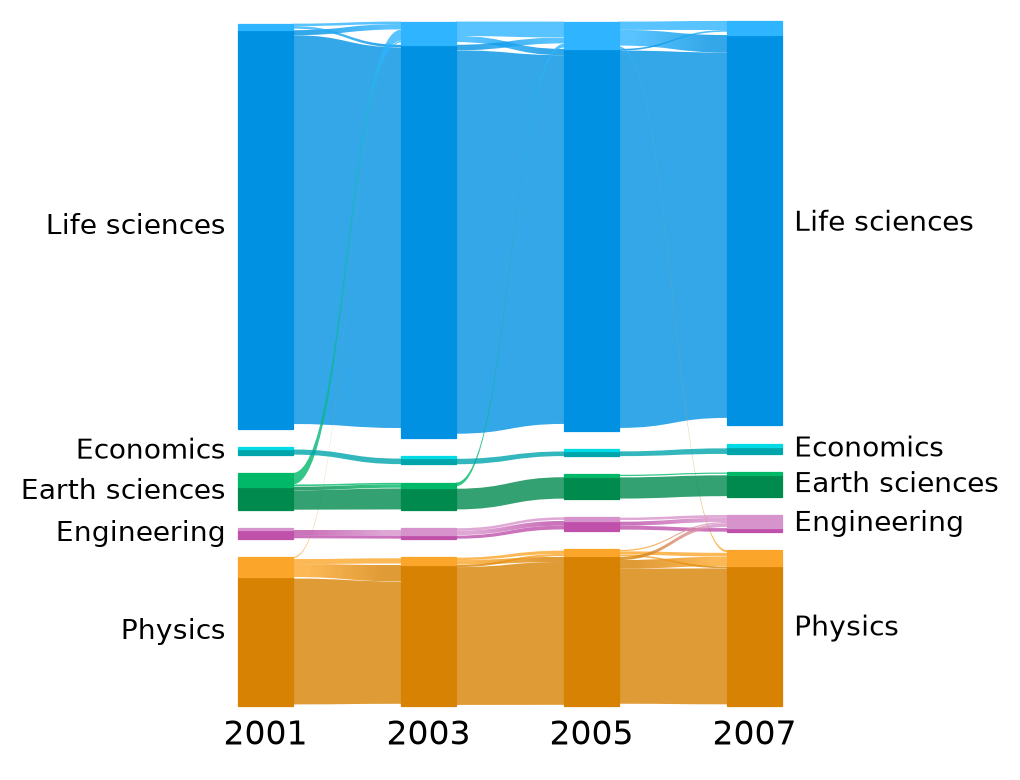
examples/names_order.py makes the figure above.
module_namestakes{(network, module_id): name}(network index, id, or a name given withnames=as a string; module ids as shown, e.g."1:2"aftermodule_level=2) or a function. As in the web app, names are drawn on the first and last network (ModuleGeometry.nameholds them for every network).module_ordertakes{network: [module_id, ...]}, bottom to top. The unlisted visible modules keep their relative order above the listed ones;...stands for them, so["2", ...]puts module 2 at the bottom,[..., "2"]at the top. Hidden modules (belowflow_threshold) cannot be placed. The order is applied aftercolors/highlight, sosort_modules_bysets the starting order.- Unknown networks or modules, a module listed twice and hidden modules raise a
ValueErrorthat names them.
Multilayer networks
split_layers=True draws a multilayer partition as one network per layer, matching nodes by their physical id, as
the web app does when it expands a multilayer file. Pass one flag per network to split only some.
import alluvial

ax = alluvial.plot(["tests/data/mlayer_states.tree"], split_layers=True)
layers = alluvial.read("tests/data/mlayer_states.tree", split_layers=True)  # one NetworkFile per layer
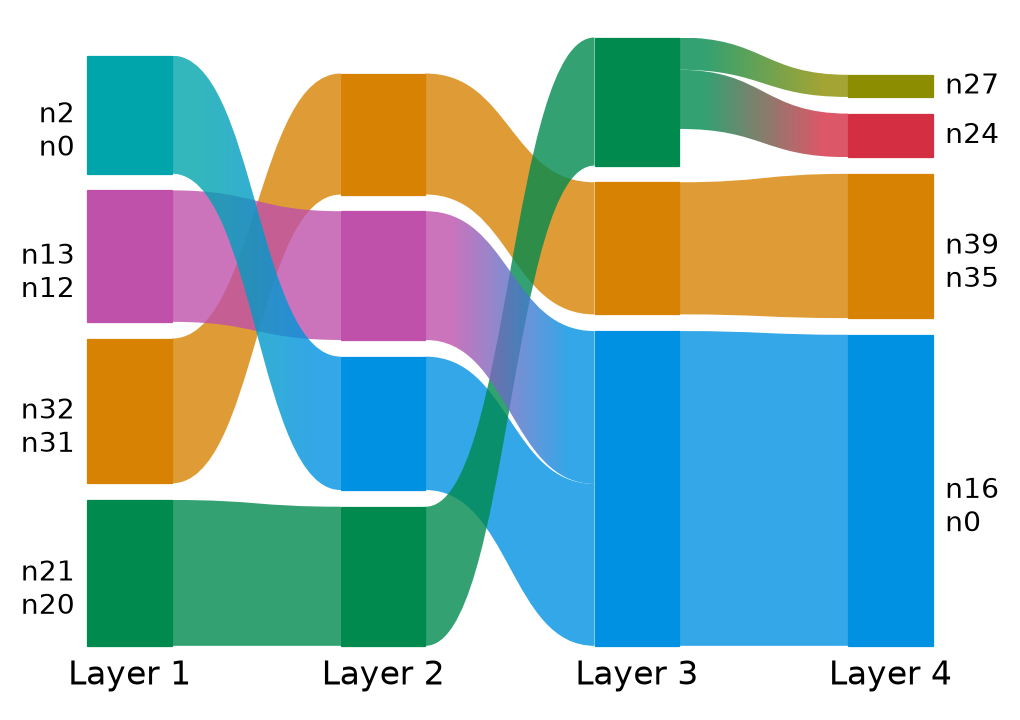
examples/multilayer.py makes the figure above from an Infomap run on a multilayer network. colors="layer" and
colors="physical_id" color multilayer and state networks by layer and by physical node.
Colors
colors chooses what gets a color ("module_id", the default, "similarity", "nodes", "layer",
"physical_id", "hierarchy" or None) and scheme the colors: one of the web app's 65 schemes by name (alluvial.SCHEMES) or a
list of colors. The C3 schemes ("C3 Oklch", the default, "C3 Sinebow", "C3 Turbo", "C3 Rainbow",
"C3 Viridis") are computed by c3-colors, the Python port of the web app's c3, and take a
tone and an offset.
import alluvial

networks = [f"tests/data/multilevel_t{i}.tree" for i in range(3)]
geom = alluvial.layout(networks, scheme="C3 Oklch", tone="pastel", offset=120)
geom = alluvial.layout(networks, colors="hierarchy", module_level=2, scheme="Viridis", tone="deep")
geom = alluvial.layout(
    networks, colors="nodes", color_network=2
)  # every node by its module in the last network
toneis one of c3's tones ("vivid", the default,"bright","strong","deep","dark","soft","pastel","muted").offsetturns the hue source by that many degrees (None: c3's default, 245 for"C3 Oklch"and 0 for the others). The other schemes are fixed lists, which tone and offset leave unchanged.colors="hierarchy"colors the modules by their place in the module hierarchy (c3'shierarchy()): sub-modules get colors close to their parent's, and the same module path gets the same color in every network. The C3 schemes and the interpolated schemes (diverging, sequential and cyclical, such as"Viridis"and"Spectral") are its hue source, with the tone and offset; any other scheme, a color list included, gives its seed colors and ignores the tone.save_diagramstores the scheme, tone and offset, andlayoutof the saved files restores them, as the web app does. Atoneoroffsetyou pass wins, and passing anotherschemedrops the saved offset.- Known difference: c3-colors colors a module with many sub-modules (about 40 or more) slightly differently
from the web app's c3 with
colors="hierarchy"(a few sibling colors swap). It waits for a c3-colors release; the reference fixtures and the differential fuzzer find no other color difference.
The web app: save and load
save_diagram lays out the networks like layout and saves the result for the
web app, where it can be fine-tuned by hand. It takes the networks and the
same keywords as layout, not an AlluvialGeometry: the geometry holds only shapes, while the saved file needs the
engine's networks (node paths, identifiers, expansion levels). The layout is deterministic, so the same arguments
give the same diagram.
import alluvial

networks = [f"tests/data/multilevel_t{i}.tree" for i in range(3)]
# The web app's "Download diagram" format (drop the zip on its "Load networks" dialog):
alluvial.save_diagram(networks, "diagram.zip", module_level=2, scheme="Paired")
files = alluvial.read("diagram.zip")  # one NetworkFile per saved network, in saved order
geom = alluvial.layout(files)  # the same diagram: colors, levels, options, order and names
save_diagramwrites "alluvial network files" (formatVersion 1), the format of the web app's "Download diagram": one Infomap-JSON file per network with the palette, each node's color and module level, and analluvialblock with the options, the color scheme with its c3 tone and offset, the module names and the custom module order. It writes a zip by default (loose=Truewrites the files to a directory).alluvial.readof the zip, of the directory or of a list of the files gives oneNetworkFileper file in saved order, andlayoutrestores the diagram from them (keywords you pass win over the stored values;restore_state=Falseignores the block). The files are also plain Infomap JSON.- The 2019 saved-diagram format (one JSON file with
networks, written by the web app before 2022) is no longer read:alluvial.readraises aValueError. alluvial 0.4 still reads it. - JSON input with a top-level
colorslist (orcolors: truewith per-nodecolor) is colored as in the web app, andlayoutthen keeps those colors unlesscolors=is given. Schemes, tones and offsets: see "Colors" above.
API
import alluvial

networks = [f"tests/data/planted_t{i}.ftree" for i in range(3)]
geom = alluvial.layout(
    networks,
    names=None,
    ids=None,
    identifier="id",
    split_layers=False,
    colors="module_id",  # "similarity", "nodes", "layer", "physical_id", "hierarchy" or None
    color_network=None,  # with colors="nodes": the network whose modules color the nodes; default the first
    module_level=1,
    expand=None,
    highlight=None,
    highlight_colors=None,
    scheme=None,  # a web-app scheme name, e.g. "Paired", or a list of colors; default "C3 Oklch"
    tone=None,  # a c3 tone of the C3 schemes and colors="hierarchy", e.g. "pastel"; default "vivid"
    offset=None,  # degrees around the c3 hue source of the first color; default c3's
    restore_state=True,  # restore what a saved diagram stores (options, scheme, tone, offset, orders, names)
    module_order=None,  # {network: [module_id, ...]}, bottom to top
    module_names=None,  # {(network, module_id): name} or a function of an alluvial.ModuleInfo
    height=600,
    module_width=80,
    streamline_fraction=2,
    streamline_threshold=1,
    flow_threshold=5e-3,
    margin_exponent=4,
    zero_margins=False,
    vertical_align="bottom",  # or "justify"
    module_size="flow",
    sort_modules_by="flow",
)
ax = alluvial.draw(
    geom,
    ax=None,
    palette=None,
    default_color=None,
    module_labels=True,
    network_labels=True,
    fontsize=None,
    network_fontsize=None,  # points or "small"/"medium"/...
    max_label_lines=None,
    max_label_width="auto",
    avoid_label_overlap=True,
    label_pad=3,
    streamline_alpha=0.8,
    gradient=True,
    edgecolor="face",
    linewidth=0.3,
    rasterized=False,
    hierarchy=True,  # "shadow", "outline" or False
    legend=False,
    label_colors="auto",
    module_kw=None,
    streamline_kw=None,
    hierarchy_kw=None,
    text_kw=None,
    label_kw=None,
    network_label_kw=None,
)
art = alluvial.get_artists(ax)  # .modules, .streamlines, .outlines, .module_labels, .network_labels, .legend
plot(networks, ax=None, **kwargs)passes each keyword todraworlayout, whichever takes it. An unknown keyword raisesTypeError.colors:"module_id"(default: the same module id gets the same color in every network),"similarity"(the web app's "paint all by similarity"),"nodes"(color nodes by their module in one network,color_network, by default the first),"layer","physical_id"(multilayer and state networks), orNone(the input colors: gray, except for JSON withcolors, whereNoneis the default).alluvial.save_diagram(networks, path, *, loose=False, **layout_kwargs)saves the diagram for the web app as a zip (or loose files; see above).identifier: match nodes across networks by"id"(state id if present, else node id) or by"name".- Network ids default to the file stem (or
net0,net1, ... for objects). Colliding ids are renamedout,out_2, ...;ids=[...]sets them. - The steps run in the web app's store in a fixed order: build,
expand,module_level, thencolorsorhighlight. Each step is the store's own operation, so the geometry is the web app's to the last bit. palette: a list of colors, or a matplotlib colormap or its name. It defaults to the web app's palette. A qualitative map ("tab10") is used as is, and a continuous one is sampled. For grayscale-safe prints, use a map whose lightness changes monotonically, such as"cividis"or"viridis". Unhighlighted modules takedefault_color, and insignificant groups are drawn brighter.- Font sizes follow
rcParams["font.size"]by default: module labels are"small"and network names"medium".text_kwstyles all text, whilelabel_kwandnetwork_label_kwstyle one kind only.module_kw,streamline_kwandhierarchy_kwgo to the shapes. Module labels are drawn literally, with no mathtext. Network names may use$...$. label_colors="auto"colors label lines by their node's highlight color only forhighlightdiagrams;Truealways does (as the web app),Falsenever.max_label_width="auto"caps each label column at a quarter of the axes width. Pass a number in points, orNoneto disable truncation.avoid_label_overlap=Falseandlinewidth=0reproduce the web app exactly.alluvial.legend(ax, other=None, **kwargs)adds (or replaces) the highlight legend;other="other"adds a gray entry, andloc=/bbox_to_anchor=place it like any matplotlib legend.- Every artist has a
gid, such asmodule:<network>:<module>:<group>,streamline:<id>oroutline:<network>:<path>, which SVG output keeps as the element id. - Without
ax=,drawmakes its own figure sized by content: taller with more modules, wider with more networks and longer labels. drawandplotnever callplt.show()and never change global state. They return the axes.- Common mistakes get a clear error or warning: an Infomap object that has not run, a missing file, passing networks
to
draw(useplot), state networks next to ordinary networks underidentifier="id"(state ids would be compared with node ids),highlightidentifiers that match no node, amodule_leveldeeper than a network's module tree, and networks whose node flows are all zero (an empty diagram). Warnings point at your own line, also throughplot.
See docs/dev/design.md for the binding design decisions.
Development
uv sync --extra dev   # .venv with the package (editable) and the dev tools, from uv.lock; any Python >= 3.11
.venv/bin/pytest -q
The dev extra installs pytest, infomap and ruff (.venv/bin/ruff check src tests). infomap 2.15.1 installs
from a cp314 wheel, so no --system-site-packages fallback is needed.
Layout:
src/alluvial/:layout.py(publiclayout,LayoutOptions,NodeInfo),geometry.py(frozen geometry contract),io/(readers,NetworkFile,split_layers),engine/(port of the TS engine; internal),mpl.py(draw,plot,legend,get_artists),_palette.py,tree_path.py,_jscompat.py(JS number formatting and arithmetic semantics).layout,geometry,ioandenginenever import matplotlib (enforced bytests/test_no_mpl_import.py).docs/dev/port-notes/: detailed porting specs for each part of the TS engine.
Test fixtures
tests/fixtures/*.json (205 scenarios, plus 77 in v3/ and 15 in v4/ with save/load round trips) are the
reference geometry, produced by running the real TypeScript engine headlessly in Node on the datasets in
tests/data/. Fixtures with a features list exercise v2 features. To regenerate or verify them (needs Node >= 22
and a checkout of the web app with node_modules; set ALLUVIAL_TS_ROOT if it is not at ../web/alluvial):
node tools/ts-fixtures/generate.mjs           # rewrite tests/fixtures
node tools/ts-fixtures/generate.mjs --check   # regenerate to a temp dir and byte-compare
See tools/ts-fixtures/README.md for the fixture format and the scenario list.
The port follows the TS engine at the commit in tests/fixtures/provenance.txt (ts_repo_head, now 60fa1bf). To
sync with a newer TS master, list the engine commits to port, port them, then regenerate and review:
git -C ../web/alluvial log <ts_repo_head>..master -- packages/alluvial-diagram/src
ALLUVIAL_TS_ROOT=../web/alluvial node tools/ts-fixtures/generate.mjs --check   # exit 0: nothing changed
ALLUVIAL_TS_ROOT=../web/alluvial node tools/ts-fixtures/generate.mjs           # regenerate, then review the diff
License
MIT. The layout algorithm is ported from the alluvial web app by Anton Holmgren (MIT); see LICENSE.
1 maintainer

Metadata
1 maintainer
Release files for alluvial 0.7.0
For a detailed explanation of source distributions (sdists) and built distributions (wheels), please see the package formats documentation.
Source distribution (sdist)
| File | Size | Uploaded | Provenance | |
|---|---|---|---|---|
| alluvial-0.7.0.tar.gz | 6.5 MB | With provenance | Details |
Built distribution (wheel)
| File | Interpreter | ABI | Platform | Reset |
|---|---|---|---|---|
| alluvial-0.7.0-py3-none-any.whl | Python 3 | none | any | Details |
Total release size: 6.7 MB
Release files / alluvial-0.7.0.tar.gz
| Download URL | alluvial-0.7.0.tar.gz |
|---|---|
| Size | 6.5 MB |
| Tags | Source |
|
SHA-256 checksum How to use checksums |
09d81f4336c2a0727ce251101519cc2c4e41fe839d1a67e53663c8fb0e083afe
|
|
BLAKE2b-256 checksum How to use checksums |
42d846992b66240ee6e47cf700eb345935787d8e54d7306f0710bfed2eb48cab
|
| Upload date | |
|
Uploaded using Trusted Publishing? What is trusted publishing? |
Yes |
| Uploaded via |
twine/7.0.0 CPython/3.13.16
|
Provenance
Provenance describes where a file came from. On PyPI, provenance is shared via attestations, which provide a verifiable record of the build or publishing details. View details, limitations and caveats.


PyPI Publish Attestation
PyPI verified that this artifact, at this checksum, originated from the publisher listed below.
Signed by GitHub Actions, verified by PyPI on Oct 23, 2026.
Transparency logRelease files / alluvial-0.7.0-py3-none-any.whl
| Download URL | alluvial-0.7.0-py3-none-any.whl |
|---|---|
| Size | 161.6 kB |
| Tags | Python 3 |
|
SHA-256 checksum How to use checksums |
8c3c2f7a910a55c88cdcfa7487f41e0968e8d10bbf1b6902ee43831d319d786f
|
|
BLAKE2b-256 checksum How to use checksums |
ecede247ee8a0f94aeb6b96786dde4de9c6cab27981a30d996cf55fd935ba38d
|
| Upload date | |
|
Uploaded using Trusted Publishing? What is trusted publishing? |
Yes |
| Uploaded via |
twine/7.0.0 CPython/3.13.16
|
Provenance
Provenance describes where a file came from. On PyPI, provenance is shared via attestations, which provide a verifiable record of the build or publishing details. View details, limitations and caveats.
PyPI Publish Attestation
PyPI verified that this artifact, at this checksum, originated from the publisher listed below.
Signed by GitHub Actions, verified by PyPI on Oct 23, 2026.
Transparency logSecurity for alluvial 0.7.0
Provenance
Provenance describes where a file came from. On PyPI, provenance is shared via attestations, which provide a verifiable record of the build or publishing details. View details, limitations and caveats.
Full provenance
All 2 files in this release have been uploaded with provenance metadata.
Attestation for alluvial-0.7.0.tar.gz
PyPI Publish Attestation
PyPI verified that this artifact, at this checksum, originated from the publisher listed below.
Signed by GitHub Actions, verified by PyPI on Oct 23, 2026.
Transparency logA note on package security
PyPI is a repository for distributing packages, not a service for auditing them. While third-party security researchers and our staff do their best to detect and remove malicious packages, PyPI cannot guarantee the quality, security or suitability of any given package.
To learn more about protecting yourself from malicious actors, visit our package security documentation.














