
ALPSS: A program for the automated analysis of photonic Doppler velocimetry spall signals

Jacob M. Diamond1,2*, K. T. Ramesh1,2




Overview
ALPSS (A naL ysis of P hotonic Doppler velocimetry S ignals of S pall) was developed to automate the processing of PDV spall signals. This readme is a simple quick-start guide. For comprehensive documentation please refer to the repository wiki, which includes tutorials and instructions on how to import your own data. Any questions, suggestions, or bugs can be reported to jdiamo15@jhu.edu.
Example Figure

Is ALPSS Right for You?
ALPSS may work well for your application if:
- Your signal is upshifted. This is a requirement.
- Your signal contains only a single velocity (like a typical spall shot).
- You already have a good idea of what the signal should look like and its expected frequency range.
- You expect to have a good signal-to-noise ratio.
- You have large amounts of relatively similar PDV signals.
ALPSS will not work well for your application if:
- Your signal is not upshifted. ALPSS will not work for a non-upshifted signal.
- Your signal contains multiple velocities (like a typical RMI shot).
- You are unsure of what the signal will look like and its expected frequency range.
- You expect to have poor or inconsistent signal-to-noise ratios.
If ALPSS is not suited for your application you can try SIRHEN, HiFiPDV, or QVPRO to name a few other programs.
What's New
See the CHANGELOG for a full list of changes in each release.
Citing ALPSS
For use in published works, ALPSS can be cited from its original paper Automated Analysis of Photonic Doppler Velocimetry Spall Signals. J. dynamic behavior mater. (2024). https://doi.org/10.1007/s40870-024-00427-9 or with the following bibtex
@article{Diamond_automated_2024,
  title = {Automated Analysis of Photonic Doppler Velocimetry Spall Signals},
  ISSN = {2199-7454},
  url = {http://dx.doi.org/10.1007/s40870-024-00427-9},
  DOI = {10.1007/s40870-024-00427-9},
  journal = {Journal of Dynamic Behavior of Materials},
  publisher = {Springer Science and Business Media LLC},
  author = {Diamond,  J. M. and Ramesh,  K. T.},
  year = {2024},
  month = jun
}
The repository for v1.2.4 can be cited using its DOI 10.5281/zenodo.11266560 or with the following bibtex.
@software{Diamond_ALPSS_2024,
  author = {Diamond, Jacob M. and Ramesh, K.T.},
  doi = {10.5281/zenodo.11266560},
  month = {05},
  title = {{ALPSS}},
  url = {https://github.com/Jake-Diamond-9/ALPSS},
  version = {1.2.4},
  year = {2024}
}
Installation
For users that are familiar with python you can simply clone the repo, create a virtual environment, and install the requirements in the file requirements.txt. I recommend using VS Code because the Jupyter extension allows for nice in-line plotting. If you use a different IDE the figures may not format correctly out of the box depending on your IDE settings. In that case, you may have to make adjustments to your IDE settings or the matplotlib backend.
For users who are not familiar with Python, you can follow the steps below.
Getting Started
-
If you do not already have Python installed, begin by installing Miniconda.
-
Install VS Code.
-
Install the Python and Jupyter extensions in VS Code. Installation instructions can be found here.
-
Clone the ALPSS repo to the directory of your choice using the link https://github.com/Jake-Diamond-9/ALPSS.git. Instructions on cloning a repo can be found here.
-
Create a virtual environment and install the packages in requirements.txt by copying the following line into the terminal. Instructions on creating a virtual environment can be found here.
pip install -r requirements.txt
Running ALPSS
Running a Single Signal
Open the file alpss_run.py. In the file there is a docstring that describes the input variables followed by the function alpss_main. No input parameters need to be changed from the original repository file to run the demo. The program will run the example file in the input_data folder.
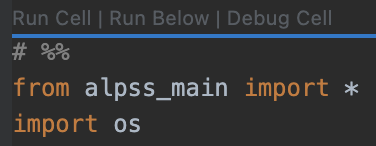
In the alpss_run file there is a section that reads
# %%
from alpss_main import *
import os
Just above these lines there should be small font options that read "Run Cell | Run Below | Debug Cell" (see image below). Click the "Run Cell" button and the program will execute in an interactive notebook window. Note that this "Run Cell" option is only available through VS Code with the Jupyter extension, which is the recommended method.
Additional example data files are available through the paper by DiMarco et al. and can be accessed here.
Instructions on how to run your own data can be found in the repository wiki here.
Running a Signal with Automatic File Detection
- Move example_file.csv out of the input_data directory and into some other temporary directory of your choosing. It does not matter where this temporary directory is located on your machine.
- Open the alpss_auto_run.py file and click "Run Cell", similar to the example above. This will open an interactive notebook and the program will execute. The program is now waiting for a file to be moved into the directory that it is monitoring, the input_data directory.
- Click and drag example_file.csv out of your temporary directory and into the input_data directory. The program will automatically detect that a file has been added and run it through the ALPSS program.
Copyright
GNU General Public License v3.0
Acknowledgements and Funding
The authors would like to acknowledge the following people for their many helpful conversations and advice, Chris DiMarco, Velat Killic, Debjoy Mallcik, Maggie Eminizer, David Elbert, Mark Foster, and Samuel Salander. Research was sponsored by the Army Research Laboratory and was accomplished under Cooperative Agreement Number W911NF-22-2-0014. The views and conclusions contained in this document are those of the authors and should not be interpreted as representing the official policies, either expressed or implied, of the Army Research Office or the U.S. Government. The U.S. Government is authorized to reproduce and distribute reprints for Government purposes notwithstanding any copyright notation herein.
2 maintainers


Metadata
2 maintainers
Release files for alpss 1.8.0
For a detailed explanation of source distributions (sdists) and built distributions (wheels), please see the package formats documentation.
Source distribution (sdist)
| File | Size | Uploaded | |
|---|---|---|---|
| alpss-1.8.0.tar.gz | 54.7 kB | Details |
Built distribution (wheel)
| File | Interpreter | ABI | Platform | Reset |
|---|---|---|---|---|
| alpss-1.8.0-py3-none-any.whl | Python 3 | none | any | Details |
Total release size: 117.7 kB
Release files / alpss-1.8.0.tar.gz
| Download URL | alpss-1.8.0.tar.gz |
|---|---|
| Size | 54.7 kB |
| Tags | Source |
|
SHA-256 checksum How to use checksums |
0f0fff40a55a079c572ee4a02b9af33fd84996e3b9e07a076a16e38314c041e3
|
|
BLAKE2b-256 checksum How to use checksums |
b8e4254b327dc6b6a577401ed7b6b5e18ca0de174cccd8627472f5cfd3ef2831
|
| Upload date | |
|
Uploaded using Trusted Publishing? What is trusted publishing? |
No |
| Uploaded via |
poetry/2.5.1 CPython/3.10.21 Linux/6.17.0-1022-azure
|
Release files / alpss-1.8.0-py3-none-any.whl
| Download URL | alpss-1.8.0-py3-none-any.whl |
|---|---|
| Size | 63.0 kB |
| Tags | Python 3 |
|
SHA-256 checksum How to use checksums |
6bd8c923f315af8ea94dc7a4d228de42544783af80e76676ee79375ec27e731f
|
|
BLAKE2b-256 checksum How to use checksums |
3ccf6a070ae11f6d5cf75ced50d47b7bf0e36757e6af09a9dc07ee5dad8d3935
|
| Upload date | |
|
Uploaded using Trusted Publishing? What is trusted publishing? |
No |
| Uploaded via |
poetry/2.5.1 CPython/3.10.21 Linux/6.17.0-1022-azure
|














