
Ship weather data from Ambient Weather API to APRS-IS/aprs.fi

Project description
Ambient-WDS (Weather Data Shipper)
A lightweight Python tool to query data from Ambient Weather's API, convert it, and upload it to APRS.fi. by Jake Barbieur, N9DMT

Overview
This project started as a proof of concept for W9PVR, a ham radio club that recently voted to install a weather station at our D-Star site. While Ambient Weather provides HTML widgets for displaying data on websites, some club members wanted the data sent to aprs.fi, which is widely used in the amateur radio community.
ambient-wds is designed to:
- Query data from the Ambient Weather API
- Format the data appropriately for APRS weather packets
- Upload the packets to APRS.fi
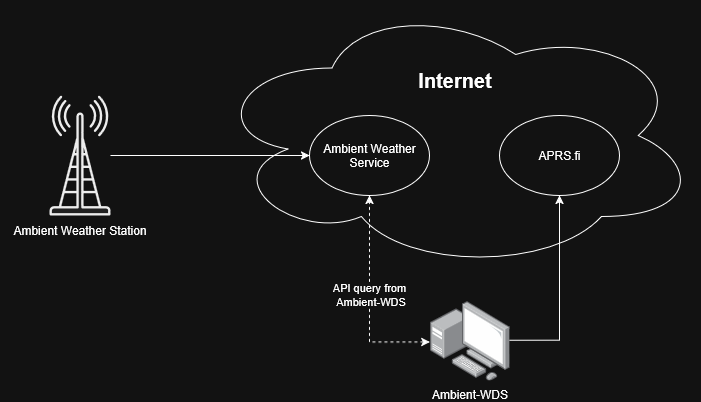
It's a simple, configurable, and lightweight tool, ideal for hams who want their station data online once the station is installed.
Setup
To get started with ambient-wds, make sure you have the following:
1. Ambient Weather Station
This tool has been tested with the WS-2902. Other Ambient Weather models may work but are untested.
Installation Requirements:
- Follow the Ambient Weather Network setup instructions to properly configure and register your station.
- Ensure your station is powered on and connected to the internet.
- Create an account on the Ambient Weather Network to access your station's data online.
- Set a location for your station. These instructions go through that process.
2. Python Environment
Ensure you have Python 3.10 or higher installed. You can download it from python.org.
3. Install ambient-wds
Install the package via pip:
pip install ambient-wds
Usage
Once you have installed ambient-wds and configured your station and keys, you can run the tool from the command line:
ambient-wds [parameters]
Interactive Setup (Recommended)
To generate a configuration file in your home directory (~/ambient-wds/config.yaml) and set up your keys and callsign:
ambient-wds --setup
-
The tool will prompt you for your Ambient Weather
APP_KEYandAPI_KEY, yourAPRS CALLSIGN,SSID,server, and other optional parameters. -
Press Enter to accept the default values for each prompt.
-
If a configuration file already exists, you will be prompted before overwriting it.
Obtaining an APRS Passcode
To obtain an APRS passcode, go to https://apps.magicbug.co.uk/passcode/, and enter your callsign.
Obtaining an App Key and API Key
To obtain your Ambient Weather App and API keys, log into your Ambient Weather account and navigate to https://ambientweather.net/account/keys. From there you can create both an API key and an APP key. They are both necessary.
Running ambient-wds
After setup, start polling your weather station and sending data to APRS:
ambient-wds
You can override any configuration value using command-line options:
ambient-wds --poll-seconds 400
Running Continuously
ambient-wds is designed to run continuously and poll your weather station at the interval you specify (default: every 300 seconds).
For uninterrupted operation, you can run it in a background terminal, or set it up using your operating system's method for persistent tasks (e.g., systemd, launchd, Task Scheduler). The tool is intended to be fully cross-platform.
Example systemd Service Setup
The following is an example of how to install Ambient-WDS as a systemd service in a Debian-based Linux distribution, such as Raspbian or Ubuntu.
- Install system dependencies:
sudo apt update
sudo apt install -y python3 python3-venv python3-pip
- Create the venv (replace
ownerwith your username):
sudo mkdir -p /opt/ambient-wds
sudo chown owner:owner /opt/ambient-wds

python3 -m venv /opt/ambient-wds
- Install Ambient-WDS in your venv:
/opt/ambient-wds/bin/pip install ambient-wds
- Create config file and copy it somewhere accessible by the user that your service runs as. You can use the
--setupcommand to generate a config file interactively or simply write one out (see the Configuration File section below for details). - Create the systemd service file. Replace
ownerwith your username and use the correct path to the config file you created above:
sudo nano /etc/systemd/system/ambient-wds.service
Example systemd service file:
[Unit]
Description=Ambient WDS Service
After=network.target

[Service]
ExecStart=/opt/ambient-wds/bin/ambient-wds --config-file /path/to/config_file/config.yaml
WorkingDirectory=/home/owner

User=owner
Group=owner

Restart=always
RestartSec=5

StandardOutput=journal
StandardError=journal

[Install]
WantedBy=multi-user.target
- Reload systemd:
sudo systemctl daemon-reload
- Enable at boot:
sudo systemctl enable ambient-wds.service
- Start the service:
sudo systemctl start ambient-wds.service
Configuration File
By default, ambient-wds reads a YAML configuration file at ~/ambient-wds/config.yaml.
All parameters in the file can be overridden via environment variables or command-line options.
Example config.yaml:
APP_KEY: your_app_key_here
API_KEY: your_api_key_here
CALLSIGN: N9DMT
SSID: 13
APRS_PASSCODE: 12345
APRS_SERVER: noam.aprs2.net
APRS_PORT: 14580
POLL_SECONDS: 300
Parameters
This tool supports configuration from four sources, checked in the following priority order:
- Command-line options — Passed with
--kebab-caseflags (e.g.,--app-key my_app_key). - Environment variables — Uppercase snake case (e.g.,
APP_KEY=my_app_key). - YAML config file (
config.yaml) — Keys in uppercase snake case (e.g.,APP_KEY: my_app_key). - Default value (see table)
If a parameter is provided in multiple places, the command-line option will override the environment variable, which will override the YAML config file.
| Parameter | CLI Option | Environment Variable | YAML Config Key | Default Value | Description |
|---|---|---|---|---|---|
| API_KEY | --api-key |
API_KEY |
API_KEY |
Your API key for accessing Ambient Weather's API. | |
| APP_KEY | --app-key |
APP_KEY |
APP_KEY |
Your application key for accessing Ambient Weather's API. | |
| APRS_PASSCODE | --aprs-passcode |
APRS_PASSCODE |
APRS_PASSCODE |
The APRS passcode for your callsign. | |
| APRS_SERVER | --aprs-server |
APRS_SERVER |
APRS_SERVER |
noam.aprs2.net |
The APRS server to connect to (e.g., noam.aprs2.net). |
| APRS_PORT | --aprs-port |
APRS_PORT |
APRS_PORT |
14580 |
The port number for the APRS server (e.g., 14580). |
| CALLSIGN | --callsign |
CALLSIGN |
CALLSIGN |
Your APRS callsign. | |
| SSID | --ssid |
SSID |
SSID |
13 |
The SSID (Secondary Station Identifier) for your APRS station. |
| POLL_SECONDS | --poll-seconds |
POLL_SECONDS |
POLL_SECONDS |
300 |
The interval (in seconds) for polling data from the API. |
| CONFIG_FILE | --config-file |
CONFIG_FILE |
N/A | config.yaml |
Path to the YAML config file. |
License
This project is licensed under the MIT License.


Download files
Download the file for your platform. If you're not sure which to choose, learn more about installing packages.
Source Distribution
Built Distribution
Filter files by name, interpreter, ABI, and platform.
If you're not sure about the file name format, learn more about wheel file names.
Copy a direct link to the current filters
File details
Details for the file ambient_wds-0.2.8.tar.gz.
File metadata
- Download URL: ambient_wds-0.2.8.tar.gz
- Upload date:
- Size: 7.5 kB
- Tags: Source
- Uploaded using Trusted Publishing? No
- Uploaded via: twine/6.2.0 CPython/3.14.4
File hashes
| Algorithm | Hash digest | |
|---|---|---|
| SHA256 |
b361d4a250f54de0cd8dcb0dab122c9434eafdba95b3d2e7579161de1177eb5b
|
|
| MD5 |
11d910cae0bb5479c1b4771d82abf977
|
|
| BLAKE2b-256 |
01de22e4fc5760d87aad10cb7f44480f2b453d8197d77aba9caf9c62d0257393
|
File details
Details for the file ambient_wds-0.2.8-py3-none-any.whl.
File metadata
- Download URL: ambient_wds-0.2.8-py3-none-any.whl
- Upload date:
- Size: 7.9 kB
- Tags: Python 3
- Uploaded using Trusted Publishing? No
- Uploaded via: twine/6.2.0 CPython/3.14.4
File hashes
| Algorithm | Hash digest | |
|---|---|---|
| SHA256 |
223b955761bdaa4ebafa102b3a260b1d0e2a35f060f3334d755ff51e88cc2c5f
|
|
| MD5 |
42cbd0255741196a8c21a810fe85721c
|
|
| BLAKE2b-256 |
b027c519c56646f92e30de02f837952ec65b910a1ff43cb332531287b8d132d4
|






