
Animated terminal fetch with video and audio support.

Project description

Anifetch - Neofetch but animated.
This is a small tool built with fastfetch/neofetch, ffmpeg and chafa. It allows you to use fastfetch or neofetch while having animations.
Installation
Installation for Linux
Recommended Python version: 3.11 and later. If you use NixOS refer to Installation for NixOS.
Run this in the terminal.
curl https://raw.githubusercontent.com/Notenlish/anifetch/refs/heads/main/install.sh | bash
After installation, run this to test if anifetch was installed correctly:
anifetch example.mp4
Please read our User guide for more info on how to use anifetch.
Installation for Windows (Winget or Scoop)
Check whether you have winget installed by running winget in the windows terminal. If you dont have it, install it here. If you want, you can use Scoop instead. Just replace the winget part with scoop.
Run this in the terminal after verifying winget works:
winget install chafa ffmpeg fastfetch
You can install neofetch too but it is deprecated and not recommended. Run this to install: winget install neofetch
You can then install anifetch via pip install anifetch-cli. You can install it via pipx too by doing: pipx install anifetch-cli
Installation for MacOS with Homebrew
Install homebrew if you haven't installed it already by following the guide here.
Run this in the terminal after verifying homebrew is installed:
brew install chafa ffmpeg fastfetch
You can then install anifetch via pip install anifetch-cli. You can install it via pipx too via pipx install anifetch-cli
Manual Installation
You need the following tools installed on your system:
-
chafa- Debian/Ubuntu:
sudo apt install chafa - Other distros – Download Instructions
- Debian/Ubuntu:
-
ffmpeg(for video/audio playback)- Debian/Ubuntu:
sudo apt install ffmpeg - Other systems – Download
- Debian/Ubuntu:
-
fastfetch / neofetch(Fastfetch is recommended)- Debian/Ubuntu:
sudo apt install fastfetch - Other systems - Instructions for Fastfetch
- Neofetch installation (Not recommended) can be found here
- Debian/Ubuntu:
🔧 Make sure pipx is installed:
sudo apt install pipx
pipx ensurepath
and then:
pipx install git+https://github.com/Notenlish/anifetch.git
This installs anifetch in an isolated environment, keeping your system Python clean.
You can then run the anifetch command directly in your terminal.
Since pipx installs packages in an isolated environment, you won't have to worry about dependency conflicts or polluting your global python environment. anifetch will behave just like a native cli tool. You can upgrade your installation with pipx upgrade anifetch
Installation for NixOS
❄️ As a flake:
Add the anifetch repo as a flake input:
{
    inputs = {
        anifetch = {
            url = "github:Notenlish/anifetch";
            inputs.nixpkgs.follows = "nixpkgs";
        };
    };
}
Remember to add:
specialArgs = {inherit inputs;};
to your nixos configuration, like I've done here on my system:
    nixosConfigurations = {
      Enlil = nixpkgs.lib.nixosSystem {
        specialArgs = {inherit inputs outputs;};
❄️ As a package:
Add anifetch to your packages list like so:
{inputs, pkgs, ...}: {
    environment.systemPackages = with pkgs; [
        inputs.anifetch.packages.${pkgs.system}.default
        fastfetch # Choose either fastfetch or neofetch to run anifetch with
        neofetch
    ];
}
❄️ As an overlay:
Add the overlay to nixpkgs overlays, then add the package to your package list as you would a package from the normal nixpkgs repo.
{inputs, pkgs, ...}: {
    nixpkgs = {
        overlays = [
            inputs.anifetch.overlays.anifetch
        ];
    };

    environment.systemPackages = with pkgs; [
        anifetch
        fastfetch # Choose either fastfetch or neofetch to run anifetch with
        neofetch
    ];
}
The Nix package contains all the dependencies in a wrapper script for the application aside from fastfetch or neofetch, so you should only need to add one of those to your package list as well.
After you've done these steps, rebuild your system.
Developer Installation (for contributors):
git clone https://github.com/Notenlish/anifetch.git
cd anifetch
python3 -m venv venv
source venv/bin/activate
pip install -e .
on windows do this to activate the venv instead:
venv\Scripts\activate. Also on windows you should usepyinstead ofpython3.
This installs anifetch in editable mode within a local virtual environment for development.
You can then run the program in two ways:
- As a CLI:
anifetch - Or as a module:
python3 -m anifetch(useful for debugging or internal testing)
Please avoid using
pip installoutside a virtual environment on Linux. This is restricted by PEP 668 to protect the system Python.
On Nix you can run:
nix develop
pip install -e .
inside the anifetch dir after cloning the repo. This creates a python venv you can re-enter by running nix develop inside the project dir.
User Guide
You don't need to configure anything for fastfetch or neofetch. If they already work on your machine, anifetch will detect and use them automatically. Please note that at least one of these must be installed, otherwise anifetch won't work. By default, anifetch will use fastfetch.
We dont recommend using neofetch as it is archived. To use neofetch, you must append
-nfto the anifetch command. For some distros you may need to append--forceto the command too since neofetch is deprecated.
Simply cd to the directory your video file is located in and do anifetch [path_to_video_file]. Both relative and absolute paths are supported. Anifetch is packaged with an example.mp4 video by default. You can use that to test anifetch.
Any video file you give to anifetch will be stored in ~/.local/share/anifetch/assets folder for linux and C:\\Users\\[Username]\\AppData\\Local\\anifetch\\anifetch\\assets folder for windows. After running anifetch with this video file once, next time you use anifetch, you will be able to use that same video file in any location by just using its filename, since the video file has been saved in assets.
Example usage:
anifetch video.mp4 -W 40 -H 20 -ca "--symbols wide --fg-only"
Note : by default, the video example.mp4 can directly be used as an example.
Optional arguments:
-s/--sound: Plays sound along with the video. If you provide a sound file, it will use it, otherwise will use ffmpg to extract audio from the video.-r/--framerate: Framerate to use when extracting frames from ffmpeg.-W/--width: video width-H/--height: video height (may be automatically fixed with the width)-ca/--chafa-arguments: extra arguments to pass tochafa. For an example, try adding this:-ca "--symbols wide --fg-only"this makes the output use Japanese characters.-C/--center: centers the terminal animation vertically--cleanup: Clears the screen on program exit.-nf/--neofetch: usesneofetchinstead offastfetch-fr/--force-render: Forcefully re-renders the animation while not caring about the cache. Useful if the cache is broken or the contents of the video file has changed.-i/--interval: Use this to make anifetch update the fetch information over time, sets fetch refresh interval in seconds. Default is -1(never).-b/--benchmark: For testing, prints how long it took to process in seconds.--force: Add this argument if you want to use neofetch even if it is deprecated on your system.--chroma: Add this argument to chromakey a hexadecimal color from the video using ffmpeg. Syntax: '--chroma <hex-color>:<similiarity>:<blend>'--quality: Changes the output quality of ffmpeg when extracting frames. This doesn't have much effect on the quality or speed from my testing, so you shouldn't need to change this. 2 highest quality, 10 lowest quality.--loop: Determines how many times the animation should loop. Default is -1(always loop).--no-key-exit: Don't exit anifetch when user presses a key.
Cached files:
Anifetch automatically caches rendered animations to speed up future runs. Each unique combination of video and render options generates a cache stored in ~/.local/share/anifetch/, organized by hash. This includes frames, output, and audio.
Cache-related commands:
anifetch --cache-list — View all cached configurations and orders them.
anifetch --cache-delete <number> — Delete a specific cache.
anifetch --clear — Delete all cached files.
Note that modifying the content of a video file but keeping the same name makes Anifetch still use the old cache. In that case, use --force-render or -fr to bypass the cache and generate a new version.
For full help:
anifetch --help
Auto start on terminal start.
Add this to the end of .bashrc:
anifetch [video_file] [other_args_if_needed]
Customizing Fastfetch/Neofetch output
For customizing fastfetch/neofetch output, you can check out these pages:
📊 Benchmarks
Here's the benchmark from running each cli 10 times. Tested on Windows 11 with Intel I5-12500H processor.
| CLI | Time Taken(total) | Time Taken (avg) |
|---|---|---|
| fastfetch | 0.27 seconds | 0.03 seconds |
| anifetch (nocache) (fastfetch) | 20.18 seconds | 2.02 seconds |
| anifetch (cached) (fastfetch) | 0.78 seconds | 0.08 seconds |
As it can be seen, Anifetch is quite fast if you cache the animations.
Troubleshooting
Make sure to install the dependencies listed on Prerequisites. If ffmpeg throws an error saying libxm12.so.16: cannot open shared object file: No such file or directory exists then you must install libxm12. Here's an comment showing how to install it for arch: https://github.com/Notenlish/anifetch/issues/24#issuecomment-2920189918
Notes
Anifetch attempts to cache the animation so that it doesn't need to render them again when you run it with the same file. However, if the name of the file is the same, but it's contents has changed, it won't re-render it. In that case, you will need to add --force-render as an argument to anifetch.py so that it re-renders it. You only have to do this only once when you change the file contents.
Also, ffmpeg can generate the the same image for 2 consecutive frames, which may make it appear like it's stuttering. Try changing the framerate if that happens. Or just increase the playback rate.
Currently only the symbols format of chafa is supported, formats like kitty, iterm etc. are not supported. If you try to tell chafa to use iterm, kitty etc. it will just override your format with symbols mode.
What's Next
-
Support different formats like iterm, kitty, sixel etc.
-
Allow the user to provide their own premade frames in a folder instead of an video.
-
Update the animated logo on the readme so that its resolution is smaller + each individual symbol is bigger.
Dev commands
Devs can use additional tools in the tools folder in order to test new features from Anifetch.
Credits
Neofetch: Neofetch
Fastfetch: Fastfetch
I got the inspiration for Anifetch from Pewdiepie's Linux video. Video
I dont remember where I got the example.mp4 video from, if you know the source or license please open an issue. If you are the license owner and want this video removed please open an issue and I will remove it.
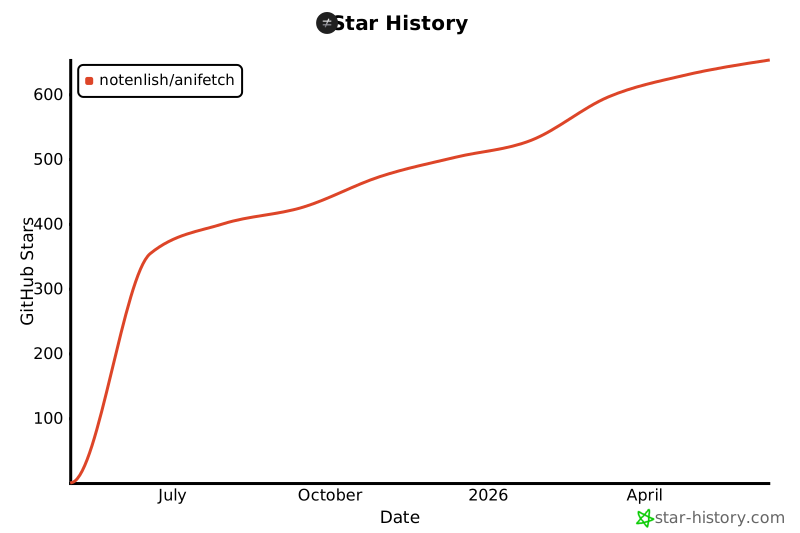
Star History


Download files
Download the file for your platform. If you're not sure which to choose, learn more about installing packages.
Source Distribution
Built Distribution
Filter files by name, interpreter, ABI, and platform.
If you're not sure about the file name format, learn more about wheel file names.
Copy a direct link to the current filters
File details
Details for the file anifetch_cli-1.0.0.tar.gz.
File metadata
- Download URL: anifetch_cli-1.0.0.tar.gz
- Upload date:
- Size: 13.1 MB
- Tags: Source
- Uploaded using Trusted Publishing? No
- Uploaded via: twine/6.2.0 CPython/3.13.9
File hashes
| Algorithm | Hash digest | |
|---|---|---|
| SHA256 |
f8b77fdb2aa658b7045da590a50fd2de8188b9c09900fad4ba9189b317bd8764
|
|
| MD5 |
4e051a9f3ad3f021401c5176a6a21343
|
|
| BLAKE2b-256 |
8706bb7cf5301b842b124c6e39656eb9ecb88803299a0476b940f9ac46d57b2a
|
File details
Details for the file anifetch_cli-1.0.0-py3-none-any.whl.
File metadata
- Download URL: anifetch_cli-1.0.0-py3-none-any.whl
- Upload date:
- Size: 13.1 MB
- Tags: Python 3
- Uploaded using Trusted Publishing? No
- Uploaded via: twine/6.2.0 CPython/3.13.9
File hashes
| Algorithm | Hash digest | |
|---|---|---|
| SHA256 |
3949e1c2c59a45d05a8ca23cf3e0604e8553b828bd19bb1a2caf69cfc1f8241b
|
|
| MD5 |
27a7dcdb2cc77970742c86d7b4cd49fb
|
|
| BLAKE2b-256 |
20fd03fb77cba2878f9db4b04dbed4e552ce752e256afcee1a7651d8f797c625
|






