
Monitoring and analytics for Python API frameworks.

Project description
API Analytics
A free and lightweight API analytics solution, complete with a dashboard.
Getting Started
1. Generate an API key
Head to apianalytics.dev/generate to generate your unique API key with a single click. This key is used to monitor your specific API and should be stored privately. It's also required in order to access your API analytics dashboard and data.
2. Add middleware to your API
Add our lightweight middleware to your API. Almost all processing is handled by our servers so there is minimal impact on the performance of your API.
FastAPI

pip install api-analytics[fastapi]
import uvicorn
from fastapi import FastAPI
from api_analytics.fastapi import Analytics

app = FastAPI()
app.add_middleware(Analytics, api_key=<API-KEY>)  # Add middleware

@app.get('/')
async def root():
    return {'message': 'Hello World!'}

if __name__ == "__main__":
    uvicorn.run("app:app", reload=True)
Flask
pip install api-analytics[flask]
from flask import Flask
from api_analytics.flask import add_middleware

app = Flask(__name__)
add_middleware(app, <API-KEY>)  # Add middleware

@app.get('/')
def root():
    return {'message': 'Hello World!'}

if __name__ == "__main__":
    app.run()
Django
pip install api-analytics[django]
Assign your API key to ANALYTICS_API_KEY in settings.py and add the Analytics middleware to the top of your middleware stack.
ANALYTICS_API_KEY = <API-KEY>

MIDDLEWARE = [
    'api_analytics.django.Analytics',  # Add middleware
    ...
]
Tornado
pip install api-analytics[tornado]
Modify your handler to inherit from Analytics. Create a __init__() method, passing along the application and response along with your unique API key.
import asyncio
from tornado.web import Application
from api_analytics.tornado import Analytics

# Inherit from the Analytics middleware class
class MainHandler(Analytics):
    def __init__(self, app, res):
        super().__init__(app, res, <API-KEY>)  # Provide api key

    def get(self):
        self.write({'message': 'Hello World!'})

def make_app():
    return Application([
        (r"/", MainHandler),
    ])

if __name__ == "__main__":
    app = make_app()
    app.listen(8080)
    IOLoop.instance().start()
3. View your analytics
Your API will now log and store incoming request data on all routes. Your logged data can be viewed using two methods:
- Through visualizations and statistics on the dashboard
- Accessed directly via the data API
You can use the same API key across multiple APIs, but all of your data will appear in the same dashboard. We recommend generating a new API key for each additional API server you want analytics for.
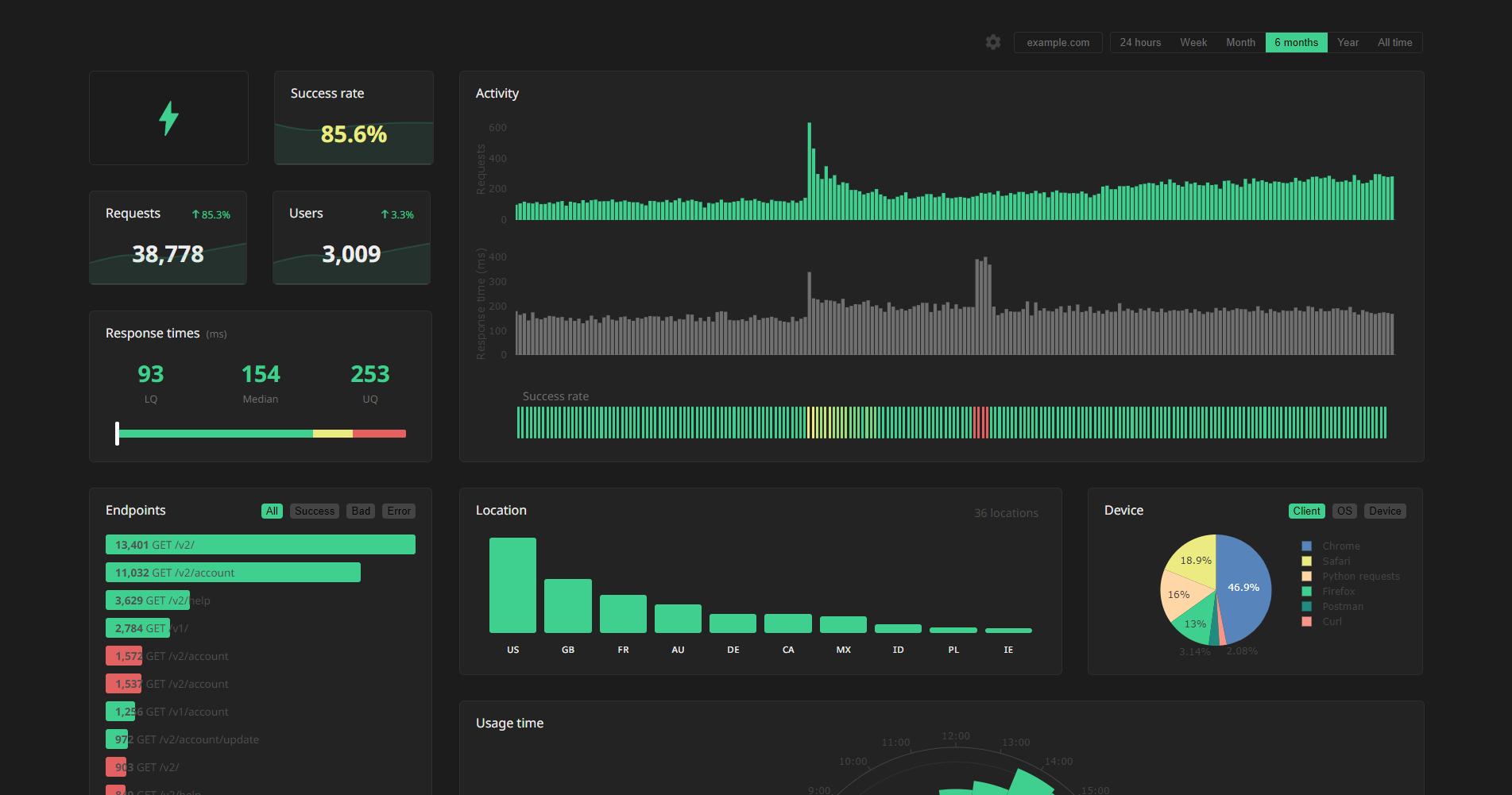
Dashboard
Head to apianalytics.dev/dashboard and paste in your API key to access your dashboard.
Demo: apianalytics.dev/dashboard/demo
Data API
Logged data for all requests can be accessed via our REST API. Simply send a GET request to https://apianalytics-server.com/api/data with your API key set as X-AUTH-TOKEN in the headers.
Python
import requests

headers = {
 "X-AUTH-TOKEN": <API-KEY>
}

response = requests.get("https://apianalytics-server.com/api/data", headers=headers)
print(response.json())
Node.js
fetch("https://apianalytics-server.com/api/data", {
  headers: { "X-AUTH-TOKEN": <API-KEY> },
})
  .then((response) => {
    return response.json();
  })
  .then((data) => {
    console.log(data);
  });
cURL
curl --header "X-AUTH-TOKEN: <API-KEY>" https://apianalytics-server.com/api/data
Parameters
You can filter your data by providing URL parameters in your request.
page- the page number, with a max page size of 50,000 (defaults to 1)date- the exact day the requests occurred on (YYYY-MM-DD)dateFrom- a lower bound of a date range the requests occurred in (YYYY-MM-DD)dateTo- a upper bound of a date range the requests occurred in (YYYY-MM-DD)hostname- the hostname of your serviceipAddress- the IP address of the clientstatus- the status code of the responselocation- a two-character location code of the clientuser_id- a custom user identifier (only relevant if aget_user_idmapper function has been set)
Example:
curl --header "X-AUTH-TOKEN: <API-KEY>" https://apianalytics-server.com/api/data?page=3&dateFrom=2022-01-01&hostname=apianalytics.dev&status=200&user_id=b56cbd92-1168-4d7b-8d94-0418da207908
Customisation
Custom mapping functions can be assigned to override the default behaviour and define how values are extracted from each incoming request to better suit your specific API.
FastAPI
from fastapi import FastAPI
from api_analytics.fastapi import Analytics, Config

config = Config()
config.get_ip_address = lambda request: request.headers.get('X-Forwarded-For', request.client.host)
config.get_user_agent = lambda request: request.headers.get('User-Agent', '')

app = FastAPI()
app.add_middleware(Analytics, api_key=<API-KEY>, config=config)  # Add middleware
Flask
from flask import Flask
from api_analytics.flask import add_middleware, Config

app = Flask(__name__)
config = Config()
config.get_ip_address = lambda request: request.headers['X-Forwarded-For']
config.get_user_agent = lambda request: request.headers['User-Agent']
add_middleware(app, <API-KEY>, config)  # Add middleware
Django
Assign your config to ANALYTICS_CONFIG in settings.py.
from api_analytics.django import Config

config = Config()
config.get_ip_address = lambda request: request.headers['X-Forwarded-For']
config.get_user_agent = lambda request: request.headers['User-Agent']
ANALYTICS_CONFIG = config
Tornado
from api_analytics.tornado import Analytics, Config

class MainHandler(Analytics):
    def __init__(self, app, res):
        config = Config()
        config.get_ip_address = lambda request: request.headers['X-Forwarded-For']
        config.get_user_agent = lambda request: request.headers['User-Agent']
        super().__init__(app, res, <API-KEY>, config)  # Provide api key
Client ID and Privacy
By default, API Analytics logs and stores the client IP address of all incoming requests made to your API and infers a location (country) from each IP address if possible. The IP address is used as a form of client identification in the dashboard to estimate the number of users accessing your service.
This behaviour can be controlled through a privacy level defined in the configuration of the API middleware. There are three privacy levels to choose from 0 (default) to a maximum of 2. A privacy level of 1 will disable IP address storing, and a value of 2 will also disable location inference.
Privacy Levels:
0- The client IP address is used to infer a location and then stored for user identification. (default)1- The client IP address is used to infer a location and then discarded.2- The client IP address is never accessed and location is never inferred.
config = Config()
config.privacy_level = 2  # Disable IP storing and location inference
With any of these privacy levels, there is the option to define a custom user ID as a function of a request by providing a mapper function in the API middleware configuration. For example, your service may require an API key sent in the X-AUTH-TOKEN header field that can be used to identify a user. In the dashboard, this custom user ID will identify the user in conjunction with the IP address or as an alternative.
config = Config()
config.get_user_id = lambda request: request.headers.get('X-AUTH-TOKEN', '')
Data and Security
All data is stored securely in compliance with The EU General Data Protection Regulation (GDPR).
For any given request to your API, data recorded is limited to:
- Path requested by client
- Client IP address (optional)
- Client operating system
- Client browser
- Request method (GET, POST, PUT, etc.)
- Time of request
- Status code
- Response time
- API hostname
- API framework (FastAPI, Flask, Django, Tornado)
Data collected is only ever used to populate your analytics dashboard. All stored data is pseudo-anonymous, with the API key the only link between you and your logged request data. Should you lose your API key, you will have no method to access your API analytics.
Data Deletion
At any time you can delete all stored data associated with your API key by going to apianalytics.dev/delete and entering your API key.
API keys and their associated logged request data are scheduled to be deleted after 6 months of inactivity.
Monitoring
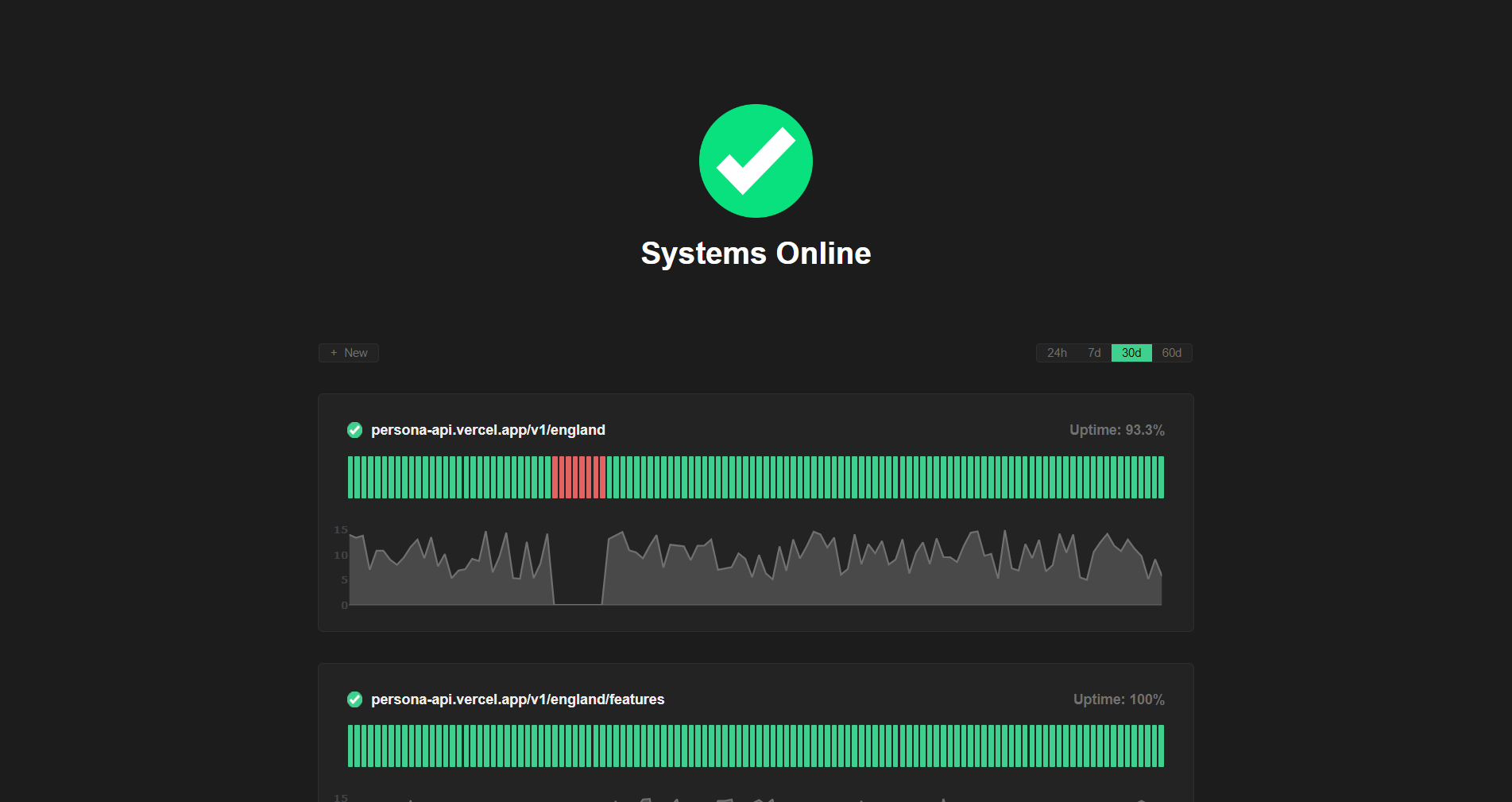
Active API monitoring can be set up by heading to apianalytics.dev/monitoring to enter your API key. Our servers will regularly ping chosen API endpoints to monitor uptime and response time.
Contributions
Contributions, issues and feature requests are welcome.
- Fork it (https://github.com/tom-draper/api-analytics)
- Create your feature branch (
git checkout -b my-new-feature) - Commit your changes (
git commit -am 'Add some feature') - Push to the branch (
git push origin my-new-feature) - Create a new Pull Request
If you find value in my work consider supporting me.
Buy Me a Coffee: https://www.buymeacoffee.com/tomdraper
PayPal: https://www.paypal.com/paypalme/tomdraper
Release history Release notifications | RSS feed


Download files
Download the file for your platform. If you're not sure which to choose, learn more about installing packages.
Source Distribution
Built Distribution
Filter files by name, interpreter, ABI, and platform.
If you're not sure about the file name format, learn more about wheel file names.
Copy a direct link to the current filters
File details
Details for the file api_analytics-1.2.7.tar.gz.
File metadata
- Download URL: api_analytics-1.2.7.tar.gz
- Upload date:
- Size: 14.4 kB
- Tags: Source
- Uploaded using Trusted Publishing? No
- Uploaded via: twine/6.1.0 CPython/3.10.11
File hashes
| Algorithm | Hash digest | |
|---|---|---|
| SHA256 |
e885aaf819b052fe2dc41f256f23e671f4696c7b23af6b3c5c3acdc7b81821ea
|
|
| MD5 |
5d26135ccc8c9e5d65113f346c5ab3f4
|
|
| BLAKE2b-256 |
bfa2f8705c0dc526f83c4e2bf62e4579afcec97685a0c37730d384b47fc7bacb
|
File details
Details for the file api_analytics-1.2.7-py3-none-any.whl.
File metadata
- Download URL: api_analytics-1.2.7-py3-none-any.whl
- Upload date:
- Size: 13.9 kB
- Tags: Python 3
- Uploaded using Trusted Publishing? No
- Uploaded via: twine/6.1.0 CPython/3.10.11
File hashes
| Algorithm | Hash digest | |
|---|---|---|
| SHA256 |
eaff6c5d20457dec7fb95c54a0c45bbc7e0d7fdabfb5300e0ffce61a49808755
|
|
| MD5 |
13332c4e6ab707a725f77c0f67f251eb
|
|
| BLAKE2b-256 |
aa766099c5aefae407a24898d16b3aebc5f08c95c6b1bcf7fb840d01799f6982
|






