
AppPreviewGenerator
app-preview is a CLI that turns raw app screenshots into App Store and Google Play
screenshots that pass store validation. It is built for developers and AI agents
alike: every command has --json output and predictable exit codes.
Install
pipx install app-preview                 # or: uv tool install app-preview
uvx app-preview --help                   # run without installing
pipx install "app-preview[mcp]"          # with the MCP server for AI agents
- Homebrew:
brew install pipx && pipx install app-preview. A tap formula is prepared inpackaging/homebrew. - From source:
pipx install git+https://github.com/Dev101911/AppPreviewGenerator. - Requirements: Python 3.10+. Video features need
ffmpeg; capture needs Xcode (iOS) or adb (Android).
GitHub Action
Validate or build store assets in CI:
- uses: Dev101911/AppPreviewGenerator@v0
  with:
    args: build --layout fastlane      # any app-preview command line
    # install-ffmpeg: true             # for app preview videos
The step fails when validation fails. Outputs: ok (true/false) and result
(path to the JSON result). A summary is added to the job page.
Quickstart
# What can I target?
app-preview targets                      # all Apple and Google targets
app-preview targets apple.iphone-6.9     # full spec for one target

# Are my screenshots compliant?
app-preview validate shots/*.png --target apple.iphone-6.9

# Make them compliant for several stores at once
app-preview generate shots/*.png \
  -t apple.iphone-6.9 -t apple.ipad-13 -t google.phone \
  --out store-assets --background auto

# Which targets does an image already fit?
app-preview identify shot.png

# Styled marketing screenshot with a caption
app-preview generate shot.png -t apple.iphone-6.9 --template dark --caption "Plan your week"
generate writes OUT/<target-id>/NN_<name>.png and re-validates every file it writes.
| Option | Meaning |
|---|---|
--mode fit (default) |
Scale to fit, letterbox with --background |
--mode fill |
Scale to cover, center-crop |
--mode stretch |
Scale to exact size, distorting if needed |
--background |
Color name, #RRGGBB, or auto (average edge color). Also used to flatten transparency. |
--format |
png (default) or jpeg |
--size WxH |
Force a specific accepted size, e.g. 1290x2796 |
--dry-run |
Show what would be written |
--template |
Place screenshots on a styled template (see below) |
--caption, --subtitle |
Text per image, in input order (implies the clean template) |
--badge |
Badge per image, in input order, e.g. PRO to mark a paid feature |
--caption-width |
Max text width as a fraction of the canvas width, e.g. 0.7 |
--caption-weight |
Caption font weight: thin … regular, medium, semibold, bold … black, or 100–900 |
App preview videos
App Store app previews are 15–30 second videos with strict encoding rules. app-preview
checks and converts them with ffmpeg, which must be installed (brew install ffmpeg or
apt install ffmpeg). Preview targets end in -preview, e.g. apple.iphone-6.9-preview
(app-preview targets --store apple).
app-preview validate demo.mov -t apple.iphone-6.9-preview
app-preview generate demo.mov -t apple.iphone-6.9-preview -t apple.ipad-13-preview --start 3
app-preview generate demo.mov -t apple.iphone-6.9-preview --template dark --frame phone --caption "See it in action"
app-preview slideshow shots/*.png -t apple.iphone-6.9-preview --template clean --caption A --caption B --caption C
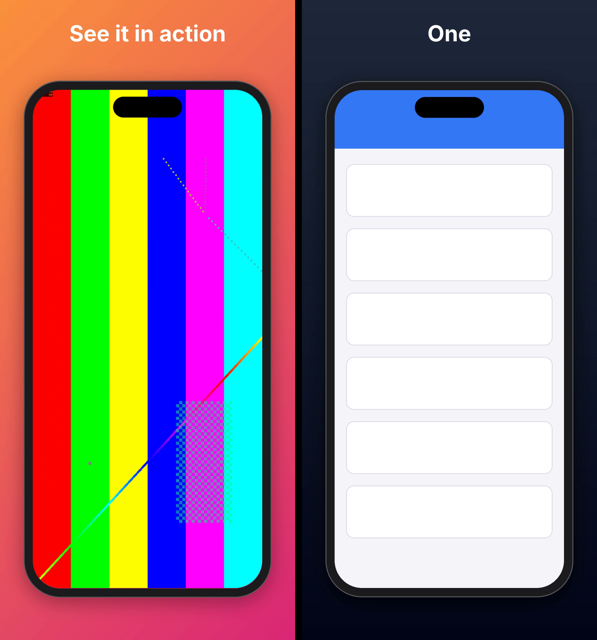
generatewith a recording scales to the accepted size (886×1920 for most iPhones, 1200×1600 for iPads) and caps the frame rate at 30 fps.- Length. Recordings longer than 30 s are trimmed; pick the segment with
--start. Clips shorter than 15 s are refused unless you pass--extend, which holds the last frame. - Encoding. Output is H.264 High@4.0 at about 11 Mbps with stereo 256 kbps AAC; a
silent track is added if the recording has none. Vision Pro previews (3840×2160) exceed
what H.264 Level 4.0 allows, so they are encoded as ProRes 422 HQ
.mov. - Templates and frames work as for screenshots: the video plays inside the device frame, under the caption.
slideshowturns screenshots into a preview with crossfades, fitting the total into 15–30 s automatically (or set--secondsper slide).- In
app-preview.yaml, give a screen a videosourceand add a-previewtarget. Video sources go to preview targets and images to screenshot targets. Screens can setstartandextend. - Upload layout. With
--layout fastlane, previews go tofastlane/app_previews/<locale>/with the App Store Connect preview type (IPHONE_67_...) in the file name, as deliver expects. The poster frame defaults to 5 s; change it with deliver'spreview_frame_time_code.
Google Play's promo video is a YouTube URL in Play Console, not an uploaded file, so it isn't handled here.
Capturing screenshots
Take screenshots straight from a booted iOS Simulator (macOS with Xcode) or an Android emulator or device (adb). The status bar is cleaned up first: 9:41, full battery and signal, no notifications.
app-preview capture simulators                       # which simulator fits which Apple target
app-preview capture ios -o shots/en-US/home.png      # --device "iPhone 17 Pro Max" if several are booted
app-preview capture android -o shots/en-US/home.png  # --device emulator-5554 if several are connected
Each capture reports which targets it already fits. Modern Android phones are taller than
Google Play's 2:1 limit, so run Android captures through generate or a template.
The status bar overrides stay on for consistent follow-up shots. Reset them with
xcrun simctl status_bar booted clear or
adb shell am broadcast -a com.android.systemui.demo -e command exit.
Templates
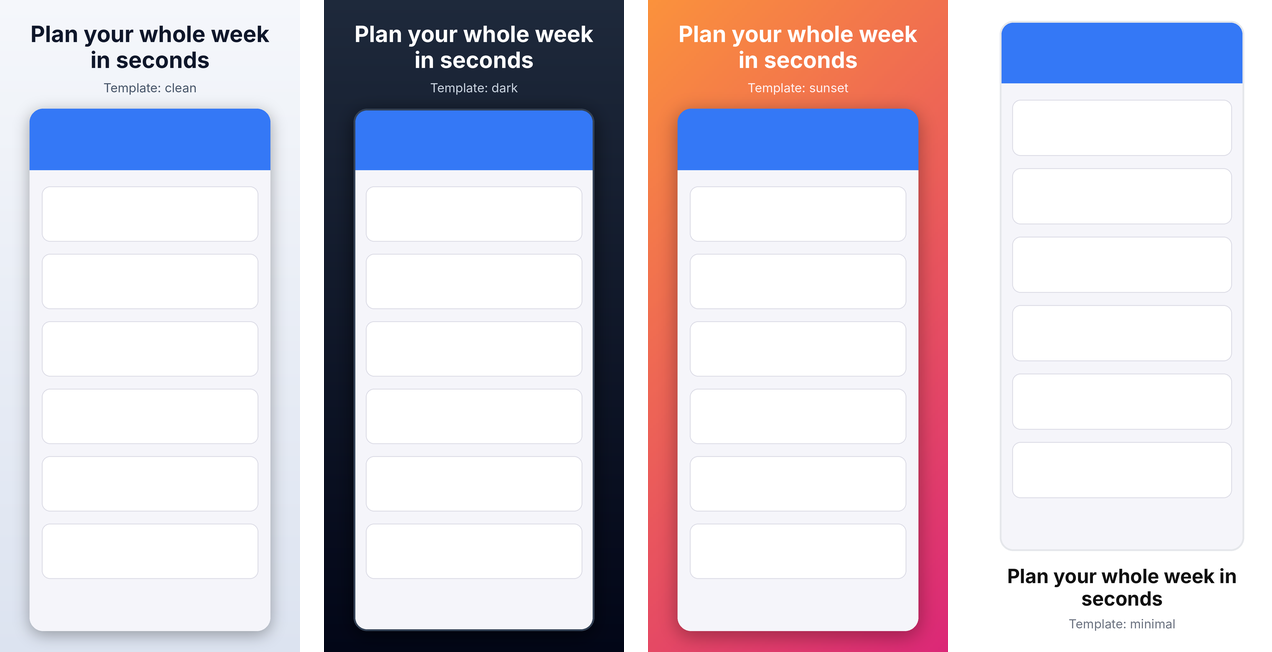
Templates put your screenshot on a styled canvas with a caption and optional subtitle. All sizes are proportional to the canvas, so one template works for every device and orientation. Captions shrink to fit and wrap automatically.
app-preview templates            # built-in: clean, dark, sunset, minimal
app-preview templates dark       # show every setting
app-preview schema template      # JSON Schema for writing your own
Write your own template as YAML, starting from a built-in one:
# brand.yaml
extends: dark
background:
  gradient: {from: "#4F46E5", to: "#0EA5E9", angle: 135}   # or {color: ...} or {image: bg.png}
caption: {color: "#FFFFFF", font: fonts/Brand-Bold.ttf, size: 0.08, max_width: 0.75}
subtitle: {color: "#E0E7FF", weight: light}
caption_position: top            # or bottom
badge: {position: above, background: "#FACC15", color: "#111111"}   # or below
screenshot: {max_width: 0.8, corner_radius: 0.05, shadow: {blur: 0.03}}
max_widthnarrows the caption or subtitle column (a fraction of the canvas width); the column followsalign.weightisthin,extralight,light,regular,medium,semibold,bold,extrabold,blackor a number from 100 to 900. It applies to the bundled font and to variable fonts with a weight axis; a static font file keeps its own weight.badgestyles the optional pill shown above or below the caption, e.g. to mark paid features. Set its text per screenshot with--badgeorbadge:in the config. Settings:position,background,color,font,weight,size,padding,radius,gapanduppercase.
The bundled default font is Inter (variable, SIL Open Font License). Templates are rejected for targets where stores forbid added text or backgrounds (Wear OS, Android Automotive, the Play app icon).
Device frames
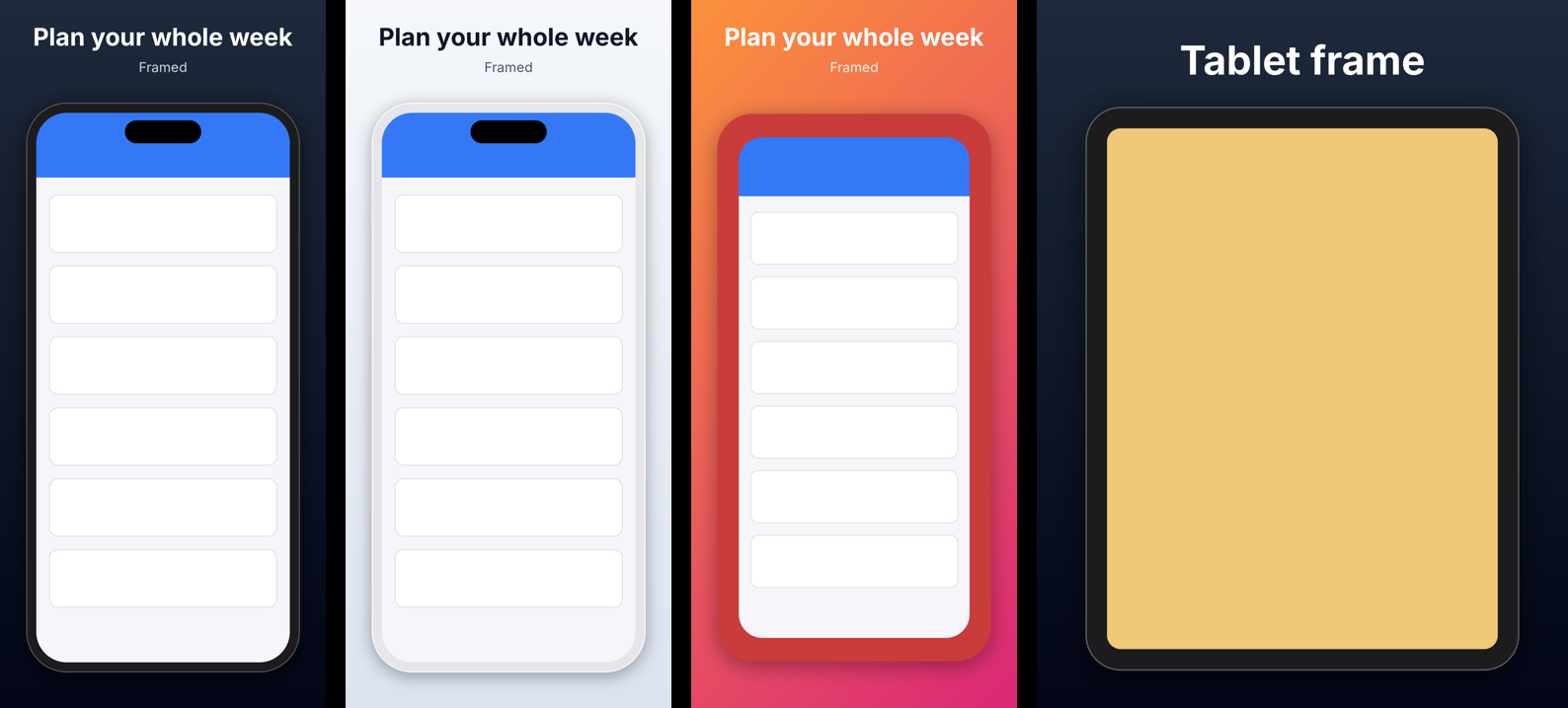
Put screenshots inside a device with --frame or screenshot.frame in a template:
app-preview frames                                   # auto, phone, tablet
app-preview generate shot.png -t apple.iphone-6.9 --frame phone --caption "Plan your week"
screenshot:
  frame: phone                       # or auto / tablet / path to your own frame
  # frame: {name: phone, color: "#E5E5EA", island: false}
Built-in frames are drawn to fit each screenshot exactly, in portrait or landscape. To
use real device artwork, such as the product bezels from Apple Design Resources
(subject to Apple's terms), point frame at a PNG whose screen area is transparent. The
screen is found automatically. If that doesn't work for your image, use a manifest:
# iphone-frame.yaml
image: my-phone-frame.png
screen: [72, 69, 1206, 2622]          # x, y, width, height of the screen in the PNG (example values)
Frames are rejected for Wear OS and Android Automotive, where Google forbids them.
Project config: app-preview build
For a full store listing, describe every screen, target and locale in app-preview.yaml:
app-preview init        # writes a commented starter app-preview.yaml
app-preview build       # renders everything, then validates each set
app-preview build -t apple.iphone-6.9 -l de-DE --dry-run
version: 1
out: store-screenshots
targets: [apple.iphone-6.9, apple.ipad-13, google.phone]
locales: [en-US, de-DE]
template: clean                     # name, path, or inline {extends: ..., ...}
screens:
  - id: home
    source: shots/{locale}/home.png  # {locale}, {target}, {screen} are substituted
    caption: {en: "Plan your week", de: "Plane deine Woche"}
  - id: detail
    source:                          # per-target sources; globs allowed
      apple.ipad-*: shots/{locale}/ipad/detail.png
      default: shots/{locale}/detail.png
    caption: {default: "Every detail, one tap away"}
    badge: {default: Pro, de: Profi}       # optional, e.g. for paid features
    template: {caption_position: bottom}   # per-screen overrides
Output goes to out/<locale>/<target>/NN_<screen>.png. Captions fall back from
de-DE to de to default. All missing source files are reported at once, before
anything is rendered. Run app-preview schema config for the JSON Schema.
Upload layouts: fastlane and Gradle Play Publisher
Write output straight into the folder structure your upload tool reads:
app-preview build --layout fastlane   # deliver (Apple) + supply (Google)
app-preview build --layout gpp        # Gradle Play Publisher (Google) + deliver (Apple)
or set layout: fastlane in app-preview.yaml. generate and graphic take --layout too.
| Layout | Apple | |
|---|---|---|
default |
out/<locale>/<target>/ |
out/<locale>/<target>/ |
fastlane |
out/fastlane/screenshots/<locale>/ |
out/fastlane/metadata/android/<locale>/images/phoneScreenshots/, featureGraphic.png, ... |
gpp |
same as fastlane | out/play/listings/<locale>/graphics/phone-screenshots/, feature-graphic/, ... |
- Locale folders. Folders use each store's own codes:
ja-JPin your config becomesjafor Apple andja-JPfor Google;hebecomesiw-ILfor Google. - Apple devices. deliver tells devices apart by pixel size. iPad Pro 12.9" (2nd gen)
files get the
APP_IPAD_PRO_129marker so they don't land in the 13" slot. Targets that share a size (Apple TV and Vision Pro) produce a warning; build them separately. - Unsupported targets. Targets an upload tool has no folder for (Chromebook, XR,
Automotive,
apple.icon) are skipped with a warning.
Point fastlane at the output, e.g. deliver(screenshots_path: "out/fastlane/screenshots"),
or copy out/play into your app module's src/main/play.
Localization
-
Captions per locale. Captions and titles take a mapping of locale to text. A missing locale falls back to its language, then to
default. -
Fonts per locale. The bundled Inter font covers Latin, Greek and Cyrillic. For other scripts, set a font in
locale_overrides; any template setting can be overridden by locale or language:locale_overrides: ja: {caption: {font: fonts/NotoSansJP-Bold.otf}, subtitle: {font: fonts/NotoSansJP-Regular.otf}} ar: {caption: {font: fonts/NotoSansArabic-Bold.ttf}}
Noto fonts cover almost every language. If a caption has characters the font can't draw, the output gets a warning instead of silently showing boxes.
-
Right-to-left and complex scripts. Arabic, Hebrew, Persian and Urdu are shaped and laid out right to left, with the template's left/right alignment mirrored (needs libraqm, which Pillow's wheels bundle). CJK text, which has no spaces, wraps between characters.
-
Store locale codes. The stores spell locales differently (
javsja-JP,hevsiw-IL,zh-Hansvszh-CN).buildwarns about locales a store doesn't support, andapp-preview locales ja-JPshows each store's code. One-off commands take--locale.

Store graphics and icons
Render the Google Play feature graphic (1024×500) and Android TV banner (1280×720) from your app name, an optional tagline, and your icon, styled by any template:
app-preview graphic -t google.feature-graphic --title "Weekly Planner" \
  --subtitle "Plan your whole week in seconds" --icon icon.png --template sunset
app-preview graphic -t google.tv-banner --title "Weekly Planner" --icon icon.png -o banner.png
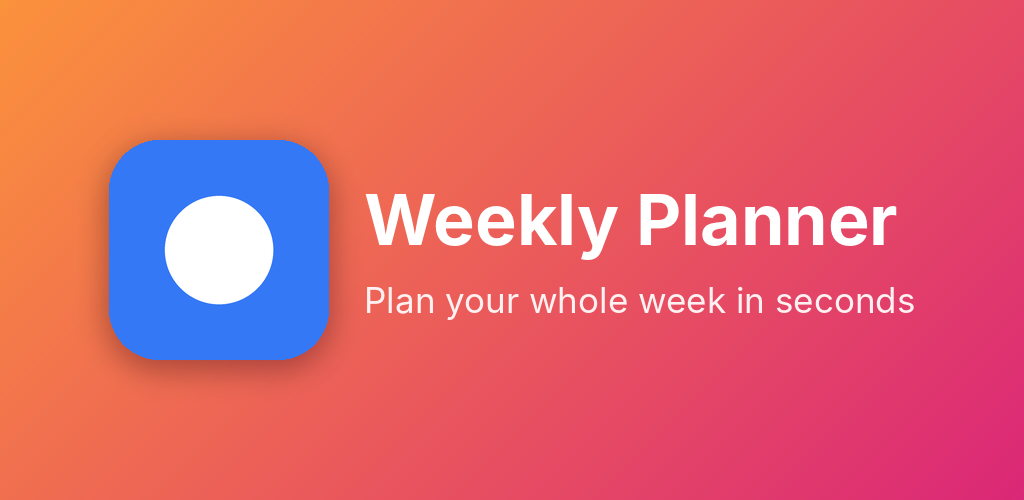
Content stays inside the central 80% because Google crops feature graphics in some
placements. In app-preview.yaml, add them under graphics: with localized text:
graphics:
  - target: google.feature-graphic
    title: Weekly Planner
    subtitle: {en: "Plan your whole week in seconds", de: "Plane deine Woche in Sekunden"}
    icon: assets/icon.png
    template: {extends: sunset}      # optional overrides of the config's template
App icons are plain resizes: app-preview generate icon.png -t google.icon -t apple.icon
gives a 512×512 Play icon (transparency kept) and a 1024×1024 opaque App Store icon.
What gets checked
For app preview videos: container, codec and H.264 profile/level, exact resolution, 15–30 s length, at most 30 fps, stereo AAC/PCM audio at 44.1/48 kHz, and the 500 MB limit.
For images:
- Exact pixel sizes (Apple) or size, aspect-ratio rules (Google)
- Format (detected from content, not extension): PNG/JPEG
- No alpha channel / transparency (except Play app icon)
- RGB color mode
- File size limits
- Number of screenshots per set; uniform size for Apple Watch
- Google Play promotion recommendations (as warnings)
Exit codes
| Code | Meaning |
|---|---|
| 0 | Success / all images valid |
| 1 | Validation failed |
| 2 | Usage or input error (unknown target, unreadable file, bad option) |
Targets
Apple: iPhone (Duo, 6.9", 6.5", 6.3", 6.1", 5.5", 4.7", 4", 3.5"), iPad (13", 12.9", 11", 10.5", 9.7"), Mac, Apple TV, Vision Pro, Apple Watch.
Google: phone, 7" and 10" tablets, Chromebook, Wear OS, Android TV, Android XR, Automotive, feature graphic, TV banner, app icon.
Apple also has an apple.icon target (1024×1024, opaque PNG).
Specs live in src/apppreview/data/ with their source URL and the
date they were last verified. Run app-preview targets --json for the full data. A weekly workflow
compares them with the stores' published pages and opens an issue when something
changes; see CONTRIBUTING.md.
Using from Python
The package installs as app-preview and is imported as apppreview:
from apppreview import generate, validate_images

report = validate_images(["shot.png"], "apple.iphone-6.9")
print(report.ok, report.to_dict())

result = generate(["shot.png"], ["apple.iphone-6.9", "google.phone"], out_dir="out")
For AI agents
Agents can run the CLI with --json (see AGENTS.md) or use the built-in
MCP server, which exposes the same features as tools: list_targets, get_target,
validate, identify, generate, build, graphic, slideshow, list_templates,
schema, init_config, locales and capture.
pip install "app-preview[mcp]"
claude mcp add app-preview -- app-preview mcp          # Claude Code
Other MCP clients (e.g. Claude Desktop's claude_desktop_config.json):
{
  "mcpServers": {
    "app-preview": {"command": "uvx", "args": ["--from", "app-preview[mcp]", "app-preview", "mcp"]}
  }
}
Tools return the same JSON as --json; errors come back as
{"ok": false, "error": {"code", "message"}}. Relative paths resolve against the
server's working directory, so start it from your project folder.
Roadmap
See docs/PLAN.md and the GitHub issues.
Development
uv venv && uv pip install -e ".[dev]"
.venv/bin/pytest
.venv/bin/ruff check . && .venv/bin/ruff format --check .
1 maintainer

Metadata
1 maintainer
Release files for app-preview 0.2.0
For a detailed explanation of source distributions (sdists) and built distributions (wheels), please see the package formats documentation.
Source distribution (sdist)
| File | Size | Uploaded | |
|---|---|---|---|
| app_preview-0.2.0.tar.gz | 545.1 kB | Details |
Built distribution (wheel)
| File | Interpreter | ABI | Platform | Reset |
|---|---|---|---|---|
| app_preview-0.2.0-py3-none-any.whl | Python 3 | none | any | Details |
Total release size: 1.1 MB
Release files / app_preview-0.2.0.tar.gz
| Download URL | app_preview-0.2.0.tar.gz |
|---|---|
| Size | 545.1 kB |
| Tags | Source |
|
SHA-256 checksum How to use checksums |
17fa0fcf5de2d17bbec37864fd92c96ca6d21ac8d918f0e96769bd2c62b5c626
|
|
BLAKE2b-256 checksum How to use checksums |
cfb9fb899b892d1ea39c7941fe1364bec53d779a2736989c23447477aa85fa08
|
| Upload date | |
|
Uploaded using Trusted Publishing? What is trusted publishing? |
Yes |
| Uploaded via |
twine/7.0.0 CPython/3.13.14
|
Provenance
Provenance describes where a file came from. On PyPI, provenance is shared via attestations, which provide a verifiable record of the build or publishing details. View details, limitations and caveats.


PyPI Publish Attestation
PyPI verified that this artifact, at this checksum, originated from the publisher listed below.
Signed by GitHub Actions, verified by PyPI on Oct 13, 2026.
Transparency logRelease files / app_preview-0.2.0-py3-none-any.whl
| Download URL | app_preview-0.2.0-py3-none-any.whl |
|---|---|
| Size | 537.9 kB |
| Tags | Python 3 |
|
SHA-256 checksum How to use checksums |
775c50525e30d0033ddbbfdfd2b3e7053cfb250ad5789143eca7a1f2a11075f0
|
|
BLAKE2b-256 checksum How to use checksums |
5f3f187f4115a99031fd8a3adf664c6c6a5b635bd810c928da26cdd3a2e08b65
|
| Upload date | |
|
Uploaded using Trusted Publishing? What is trusted publishing? |
Yes |
| Uploaded via |
twine/7.0.0 CPython/3.13.14
|
Provenance
Provenance describes where a file came from. On PyPI, provenance is shared via attestations, which provide a verifiable record of the build or publishing details. View details, limitations and caveats.
PyPI Publish Attestation
PyPI verified that this artifact, at this checksum, originated from the publisher listed below.
Signed by GitHub Actions, verified by PyPI on Oct 13, 2026.
Transparency log













