
appmem
Find out which apps are eating your RAM and swap. Live, in the terminal, one row per app.
The laptop starts swapping, the fan spins up, and htop shows forty processes called chrome, thirty called node and something called Isolated Web Co.
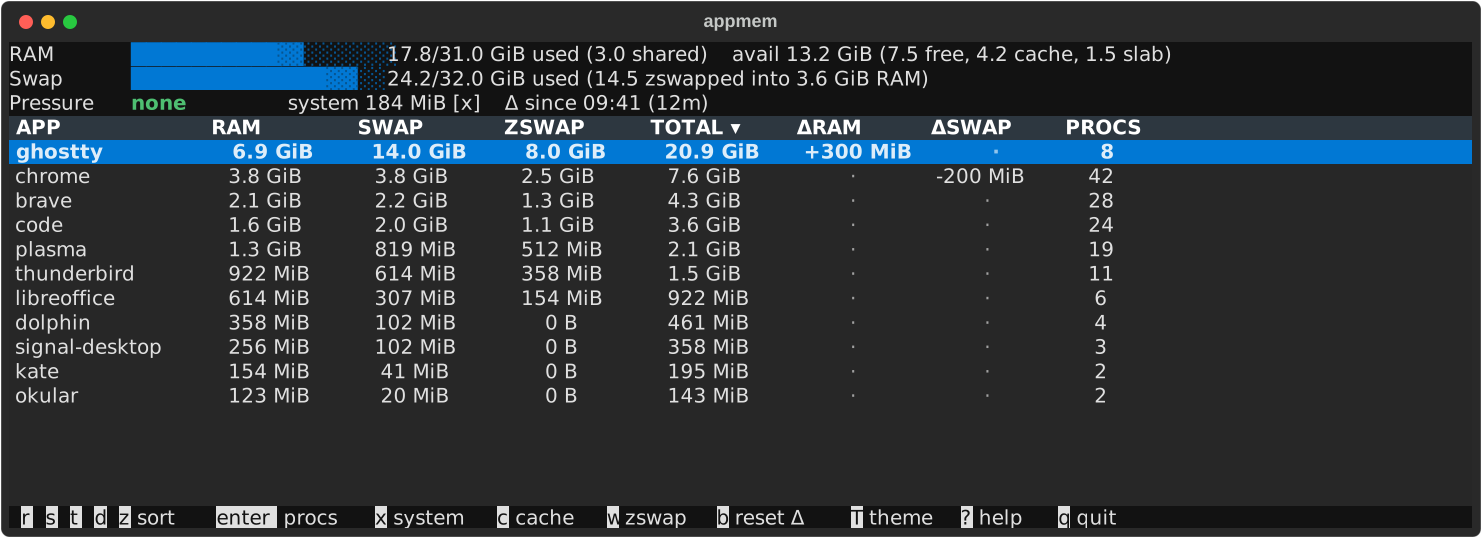
appmem shows the same memory as the apps you actually opened: Chrome, Firefox, VS Code, your terminal, each with its RAM, its swap and how much it grew since you started looking.
The header tells you whether the swapping is a problem at all, and one key opens the processes behind any row.
You can also skip the reading and hand the job to an AI agent. Paste this into Claude Code, Codex or any agent that runs shell commands:
Install appmem (uv tool install appmem), read
https://raw.githubusercontent.com/DamianPala/appmem/main/skills/appmem/SKILL.md
and tell me what is eating my memory and what to close.
It installs appmem, reads the numbers the way the skill file describes and tells you what to close. What the agent gets is in For agents.
Reach for it when:
- the machine got slow and you want the culprit, not a process list;
- swap is full and you want to know whether that matters right now;
- a "terminal" holds 17 GiB and you want to know what is really running inside it;
- you want to watch one app grow while you use it.
Install
uv tool install appmem
appmem
No root, no config file.
From a checkout, uv run appmem.
You need Linux with systemd and a desktop that starts apps as systemd units (KDE Plasma and GNOME do), on cgroup v2, which current distributions use by default. Python 3.12 or newer; uv fetches it for you. Kernel 5.10 or newer; the zswap figures need 5.19 and the Pressure line needs pressure tracking (PSI) switched on in the kernel, without them those parts stay off and the rest works.
Using it
The main view sorts by TOTAL (RAM + swap).
Press the first letter of a column (r, s, t) or click a header to sort by something else.
The Pressure figure in the header tells you whether memory is a problem right now: none with a full swap only means idle pages were moved out of the way, some or high means programs are waiting for memory.
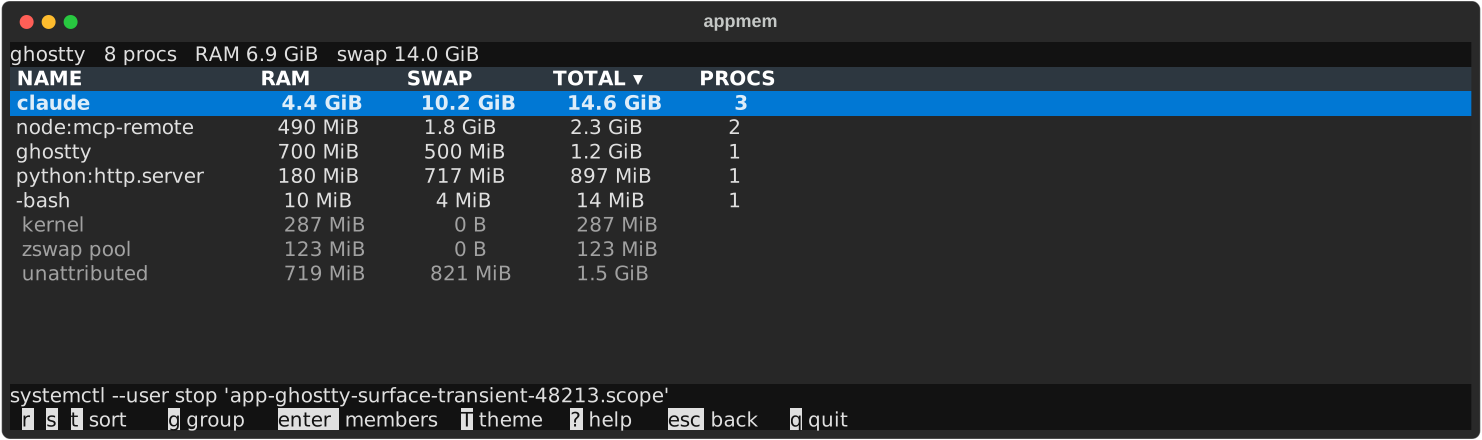
Enter on an app shows its processes, their age and the systemd unit each one lives in.
The bottom line has the command ready for the selected row, for example systemctl --user stop 'app-firefox.service' or kill 41233.
Everything you start from a terminal counts as the terminal.
Press g in the process view to group by command.
That is how a "terminal holding 17 GiB" turns out to be eighteen claude processes plus the terminal itself, running for 86 days with 3.4 GiB in swap.
ΔSWAP and ΔRAM show how each app grew or shrank since you started appmem (b resets the baseline).
x adds system services, c shows the CACHE column.
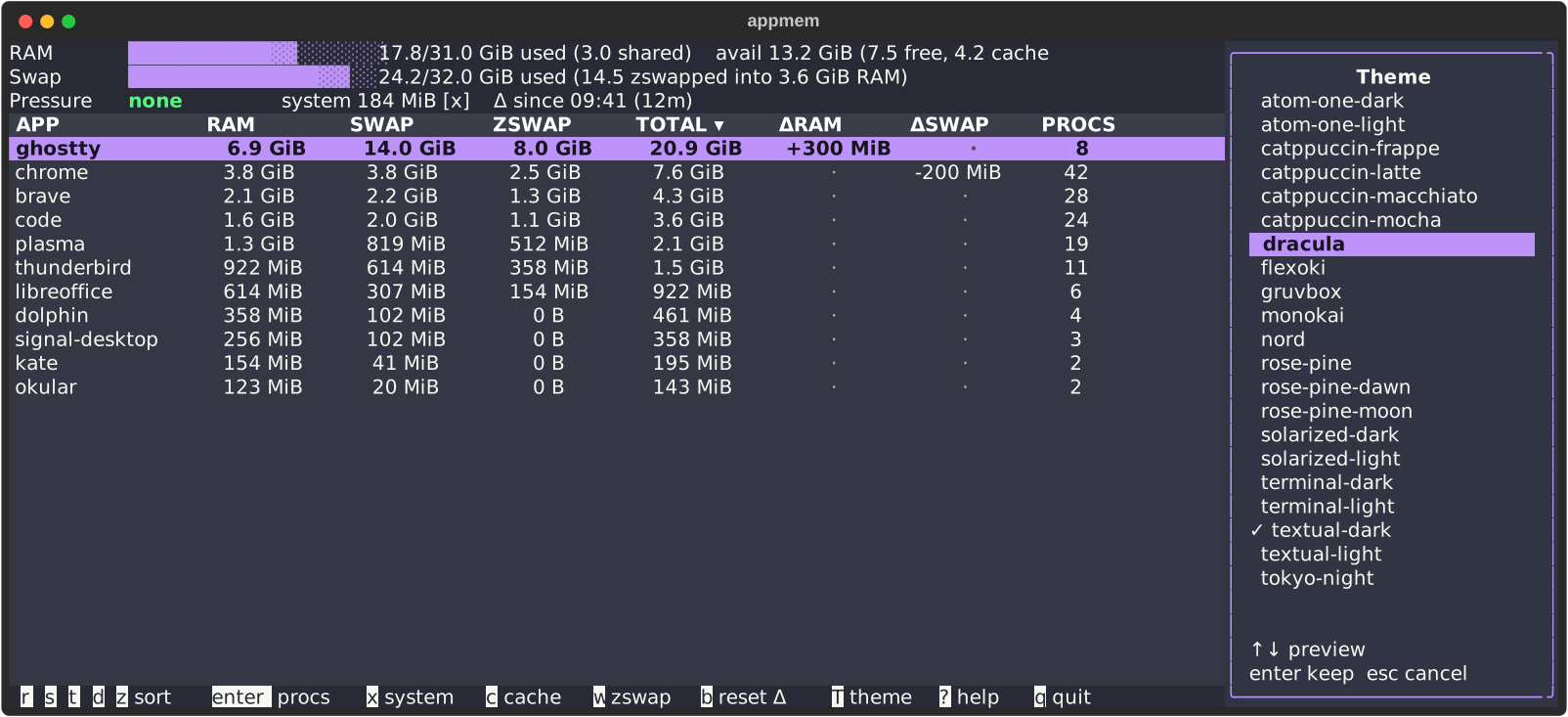
T opens a theme panel with a live preview: Textual's built-in themes plus terminal-dark and terminal-light, which use your terminal's own colours.
The theme you keep is saved to ~/.config/appmem/config.toml; appmem --theme NAME or APPMEM_THEME override it for one run.
? inside the app explains every number and lists the keys; appmem --help has the same list plus the options.
How to read the numbers
RAM is what the app is using right now.
SWAP is what the system moved out of RAM to make room: onto the disk or, with zswap, into a compressed corner of RAM.
TOTAL is RAM + SWAP, one number to sort by.
Closing the app gives you back less than that: memory shared with other apps stays, and freed swap is mostly space on the disk, not RAM.
CACHE (press c) is file data the kernel keeps around because something read or wrote it recently.
It is not part of RAM or TOTAL: the kernel can drop it when it needs the space, and an app that just read a big file would otherwise look like a memory hog.
The rows don't add up to the header, because system services, virtual machines, containers and other users hold the rest.
For agents
appmem is made to be driven by an AI agent as much as by you; the prompt at the top is all it needs. The agent gets the same data as the TUI as JSON, and skills/appmem/SKILL.md tells it how to read it: pressure against swap, what hides inside a terminal, what to recommend.
appmem snapshot [--system] [--limit N] [--json]
appmem app NAME [--scope user|system] [--limit N] [--json]
appmem schema [COMMAND]
snapshot covers the machine and every app, app NAME one app's units, processes and commands.
Both print text on a terminal and JSON when piped; --json forces JSON.
appmem schema describes the commands, flags, output fields and exit codes as JSON.
Every error is one JSON object on the last line of stderr with a stable kind such as not_found; exit code 1 is a runtime failure, 2 an invalid call.
Bare appmem without a terminal exits 1 and points to appmem snapshot.
Cost
Reading the counters once a second takes about 1 % of one CPU core.
The live view takes 4 to 12 % of one core on a busy desktop, more with a tall terminal and many apps.
Refreshing every two seconds instead of every second (appmem -i 2) cuts that in half.
Development
uv run ruff check && uv run ruff format --check && uv run pyright && uv run pytest
The screenshots come from fixture data, never a real machine; regenerate them with uv run python scripts/screenshots.py.
License
MIT
1 maintainer

Release files for appmem 0.1.0
For a detailed explanation of source distributions (sdists) and built distributions (wheels), please see the package formats documentation.
Source distribution (sdist)
| File | Size | Uploaded | |
|---|---|---|---|
| appmem-0.1.0.tar.gz | 92.9 kB | Details |
Built distribution (wheel)
| File | Interpreter | ABI | Platform | Reset |
|---|---|---|---|---|
| appmem-0.1.0-py3-none-any.whl | Python 3 | none | any | Details |
Total release size: 199.2 kB
Release files / appmem-0.1.0.tar.gz
| Download URL | appmem-0.1.0.tar.gz |
|---|---|
| Size | 92.9 kB |
| Tags | Source |
|
SHA-256 checksum How to use checksums |
6b51b908dd6e432eb4e04f5e2f1248a93a7d38638d9b04b09a7d326465f3ecc5
|
|
BLAKE2b-256 checksum How to use checksums |
06d898bfcc3af3599ab67c09b0ea5d52cfdaa663336b6c190e861e4be8ce0b4d
|
| Upload date | |
|
Uploaded using Trusted Publishing? What is trusted publishing? |
Yes |
| Uploaded via |
uv/0.12.19 {"installer":{"name":"uv","version":"0.12.19","subcommand":["publish"]},"python":null,"implementation":{"name":null,"version":null},"distro":{"name":"Ubuntu","version":"24.04","id":"noble","libc":null},"system":{"name":null,"release":null},"cpu":null,"openssl_version":null,"setuptools_version":null,"rustc_version":null,"ci":true}
|
Release files / appmem-0.1.0-py3-none-any.whl
| Download URL | appmem-0.1.0-py3-none-any.whl |
|---|---|
| Size | 106.3 kB |
| Tags | Python 3 |
|
SHA-256 checksum How to use checksums |
c95865528159c1e225df9f206a78b925b4ee57c9ecb9b1245c5f8852920a8d96
|
|
BLAKE2b-256 checksum How to use checksums |
9aa63f4bd9f50cd527e6f17895c110c28aeed85b1ddd6857d4cfa23e8f5adab4
|
| Upload date | |
|
Uploaded using Trusted Publishing? What is trusted publishing? |
Yes |
| Uploaded via |
uv/0.12.19 {"installer":{"name":"uv","version":"0.12.19","subcommand":["publish"]},"python":null,"implementation":{"name":null,"version":null},"distro":{"name":"Ubuntu","version":"24.04","id":"noble","libc":null},"system":{"name":null,"release":null},"cpu":null,"openssl_version":null,"setuptools_version":null,"rustc_version":null,"ci":true}
|













