
AppTrail



Open-source app visibility tracking across the App Store, Google Play, and AI search.
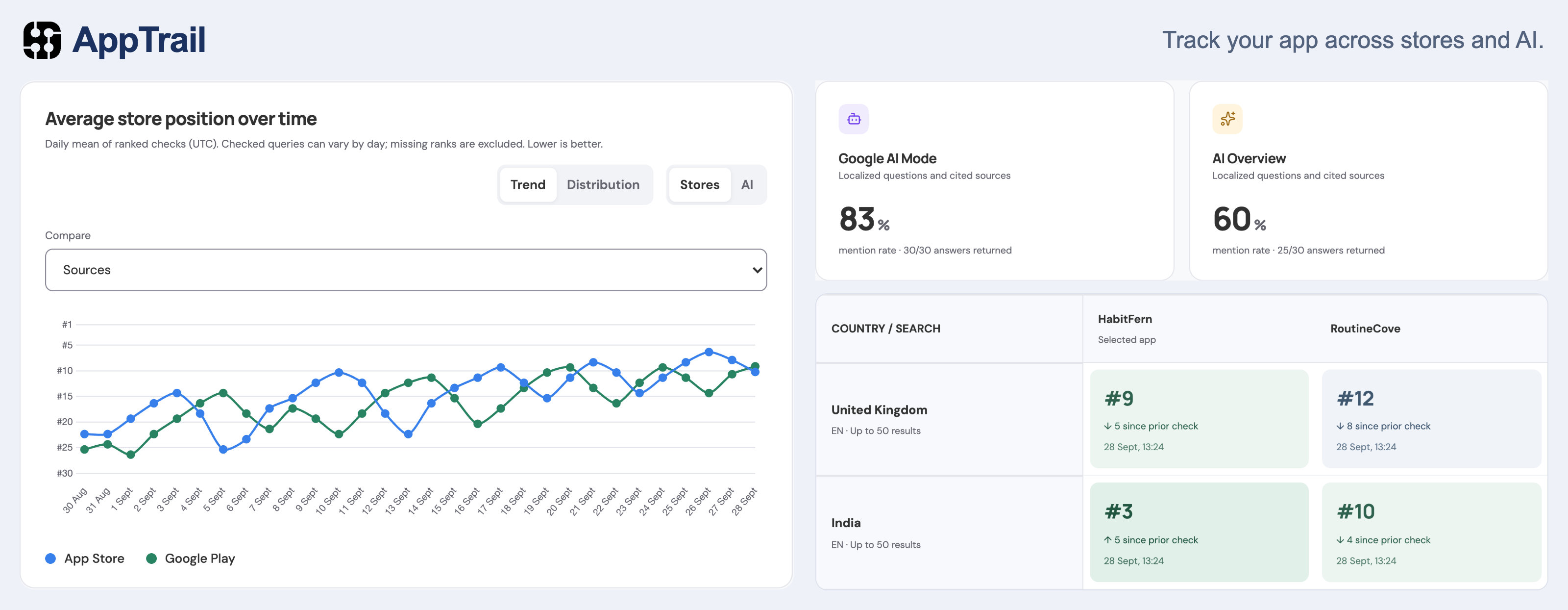
Your next user might search the App Store, browse Google Play, or ask an AI which app to use. AppTrail follows those searches and keeps a history of where your app appears.
Connect your SerpApi account, choose your app, and add the keywords and questions you want to follow. Open any check to see the saved results and the evidence behind a match.
What you can track
- Store rankings. Follow your app's position for the keywords people use in the App Store and Google Play. See which searches bring your app near the top and how those positions change over time.
- Competitor comparisons. Track competing apps alongside your own for the same keywords and AI questions. See where you lead, where competitors appear ahead of you, and how the gap changes.
- Countries and regions. Follow store rankings and Google AI visibility in the countries you care about. Compare the same keyword or question across markets to see where your app is easier to find.
- AI mentions and citations. See whether Google AI Mode, Google AI Overviews, and Bing Copilot mention your app when answering questions. Read the saved answers and check whether they link to your store listing or website.
- Listing history. Keep a timeline of changes to your app's or a competitor's store listing. Compare titles, descriptions, pricing, icons, and screenshots to see what changed between checks.
- Ranking alerts. Get in-app notifications when your app loses ground after ranking in the top 10. See which keyword and country changed, then open the saved results.
- Scheduled or manual checks. Run checks on demand, or schedule them daily, weekly, every two weeks, or monthly. Review expected credit usage before starting and see your remaining SerpApi balance in Settings.
- Your history to keep. Export results as CSV files for your own analysis and download backups of your workspace, including saved history.
Run AppTrail
You need Python 3.11 or newer and a SerpApi API key. Enter the key in the setup wizard. Docker includes Python.
Run apptrail with uvx, or install it with pip.
uvx
uvx apptrail
pip
pip install apptrail
apptrail
Both commands open the web interface on a free localhost port. On first launch, use the setup code printed in the terminal to create your owner account. Sign in before connecting SerpApi or accessing the dashboard. Your account and database stay in a shared user data directory across restarts and package upgrades.
Docker
Run the image from Docker Hub:
docker run -d --name apptrail \
  -p 80:80 \
  -v apptrail-data:/data \
  --restart unless-stopped \
  --stop-timeout 360 \
  serpapi/apptrail:latest
Run docker logs apptrail to find the one-time setup code, then open localhost, or http://SERVER_IP for a remote server, and create your owner account. Connect SerpApi after signing in. The named volume preserves your account and data when the container is replaced.
The image supports Intel/AMD and ARM Linux. If port 80 is already in use, change the mapping to -p 8080:80 and open http://localhost:8080. See self-hosting for CapRover, Coolify, Docker Compose, building from source, HTTPS, and backups.
Get Started
Set up tracking
- Create your AppTrail owner account using the server’s setup code, then connect SerpApi and verify your key.
- Search for your iOS or Android app, or paste its store URL. Select at least one listing; AppTrail verifies and saves its identifier.
- Add store keywords such as “habit tracker” and AI questions such as “Which is the best iOS app for building a daily routine?”
- Choose one or more countries, a language, and a refresh frequency. Review the usage estimate and start tracking.
The first checks run immediately. Keep the AppTrail process or Docker container running for automatic checks; the browser can be closed. If the process stops, your history remains saved and overdue checks resume when it starts again. Missed historical results cannot be reconstructed.
Skipped queries during setup? The Finish setting up checklist on Overview links directly to store keywords and AI questions. Each step is optional, and the checklist closes when every step is completed or skipped. Reopen it from Settings → Setup checklist.
To compare countries, open the Overview chart and choose Compare → Countries. Choose a store or AI source, narrow to a keyword or question, and select the countries to show. Bing Copilot has global results and is available in the Sources view.
Compare competitors
Choose Add competitors beneath any search in Overview, Store rankings, or AI visibility. The Apps & competitors panel shows each app’s position or AI mentions and citations from the same saved check. Select apps from your workspace, or use Find a competitor to verify a new app’s store listing.
Adding an existing app to a search reuses saved results and shares future checks, so it does not use extra tracking searches. Discovering a new app, verifying its listings, and manual store-detail refreshes can use separate credits. Store comparisons require a verified listing on the matching platform.
Explore changes
Open Apps & competitors → Open query matrix beneath a query to compare saved results across its countries. Each cell includes its check time and opens the underlying evidence. Different languages, devices, and search depths stay separate.
On Overview, switch the history panel from Trend to Distribution to see counts and percentages for positions 1–3, 4–10, 11–50, 51+, and results where the app was not found. Click a group to inspect its queries. Changes compare the latest check for each app/query combination with the preceding equal-length period. Only combinations checked successfully in both periods contribute to the change counts; failed checks and featured-only placements are shown separately.
The notification bell reports a drop of at least five positions from a previous top-10 rank, an exit from the top 10, or disappearance from a sufficiently deep checked result set. Two successful checks must confirm a loss. An intervening failed check resets confirmation, and continuing losses do not produce duplicate alerts until the ranking recovers. Notifications, matrices, and distributions use saved search data and consume no extra SerpApi credits.
Track listing history
Open Listing history → Track a listing. Collection is off by default. Select an app, store, country, and frequency; Google Play also supports a language choice. The credit estimate appears before you enable tracking. Each scheduled check uses one SerpApi product request, with an initial baseline check when tracking starts. Manual checks and retries can consume additional credits.
The timeline highlights changes to the fields returned by the store, including titles, descriptions, versions, pricing, and images. Text comparisons highlight additions and removals. Screenshots can be compared in order, with added and moved images labeled. Supported images are archived locally in the database and included in backups. If an image cannot be archived, the comparison shows an unavailable-image placeholder. AppTrail never substitutes the live image for a missing historical image.
Use Manage to change frequency, pause or resume collection, or request a manual check. Pausing preserves history. Unchanged checks are hidden until you select Show unchanged checks. Collection requires the AppTrail process to remain running, and begins when you enable it; earlier listing versions cannot be reconstructed.
Account access
AppTrail requires login for the dashboard and every workspace API, including searches, exports, and backups. First-time setup requires a code from the server terminal, and registration closes after the owner account is created. New server runs require a fresh login. Change your password in Settings, or recover access from the server terminal with apptrail --reset-password.
See the self-hosting guide for optional HTTPS proxy configuration and authentication details.
A few useful details
AppTrail uses your own SerpApi account to fetch data. Discovery, product verification, and tracking requests can consume credits. Identical tracked searches are shared across apps. Settings shows an estimate of monthly usage and your account-wide remaining balance.
Development
To contribute or customize AppTrail, start with the development guide. It covers local setup with uv, the project layout, running tests, and building packages.
Self-hosting
Keep AppTrail running on your own server with persistent storage for your workspace. The self-hosting guide walks through Docker, Docker Compose, CapRover, and Coolify, with instructions for HTTPS, backups, and updates.
Release files for apptrail 0.4.1
For a detailed explanation of source distributions (sdists) and built distributions (wheels), please see the package formats documentation.
Source distribution (sdist)
| File | Size | Uploaded | |
|---|---|---|---|
| apptrail-0.4.1.tar.gz | 692.2 kB | Details |
Built distribution (wheel)
| File | Interpreter | ABI | Platform | Reset |
|---|---|---|---|---|
| apptrail-0.4.1-py3-none-any.whl | Python 3 | none | any | Details |
Total release size: 895.4 kB
Release files / apptrail-0.4.1.tar.gz
| Download URL | apptrail-0.4.1.tar.gz |
|---|---|
| Size | 692.2 kB |
| Tags | Source |
|
SHA-256 checksum How to use checksums |
49c65a7925b1451e7feb55e63d212e8a948d071c034752ce986f363e16116cca
|
|
BLAKE2b-256 checksum How to use checksums |
dda38292203a6a7d8cf503d18c33d0d1c642ea31a5c5cfd840594dcbd8858c21
|
| Upload date | |
|
Uploaded using Trusted Publishing? What is trusted publishing? |
Yes |
| Uploaded via |
uv/0.12.19 {"installer":{"name":"uv","version":"0.12.19","subcommand":["publish"]},"python":null,"implementation":{"name":null,"version":null},"distro":{"name":"Ubuntu","version":"24.04","id":"noble","libc":null},"system":{"name":null,"release":null},"cpu":null,"openssl_version":null,"setuptools_version":null,"rustc_version":null,"ci":true}
|
Release files / apptrail-0.4.1-py3-none-any.whl
| Download URL | apptrail-0.4.1-py3-none-any.whl |
|---|---|
| Size | 203.2 kB |
| Tags | Python 3 |
|
SHA-256 checksum How to use checksums |
1ee634eda433abf56aec3f798a17f4009d9f8d2715ed3ffe1ad72798ebee1d33
|
|
BLAKE2b-256 checksum How to use checksums |
ab65a3c514ee8feda6cef37ffe513acb218c8d5b86aa7013ba375f8beb78ea46
|
| Upload date | |
|
Uploaded using Trusted Publishing? What is trusted publishing? |
Yes |
| Uploaded via |
uv/0.12.19 {"installer":{"name":"uv","version":"0.12.19","subcommand":["publish"]},"python":null,"implementation":{"name":null,"version":null},"distro":{"name":"Ubuntu","version":"24.04","id":"noble","libc":null},"system":{"name":null,"release":null},"cpu":null,"openssl_version":null,"setuptools_version":null,"rustc_version":null,"ci":true}
|














