
SPA — Aseprite Automation for AI Agents
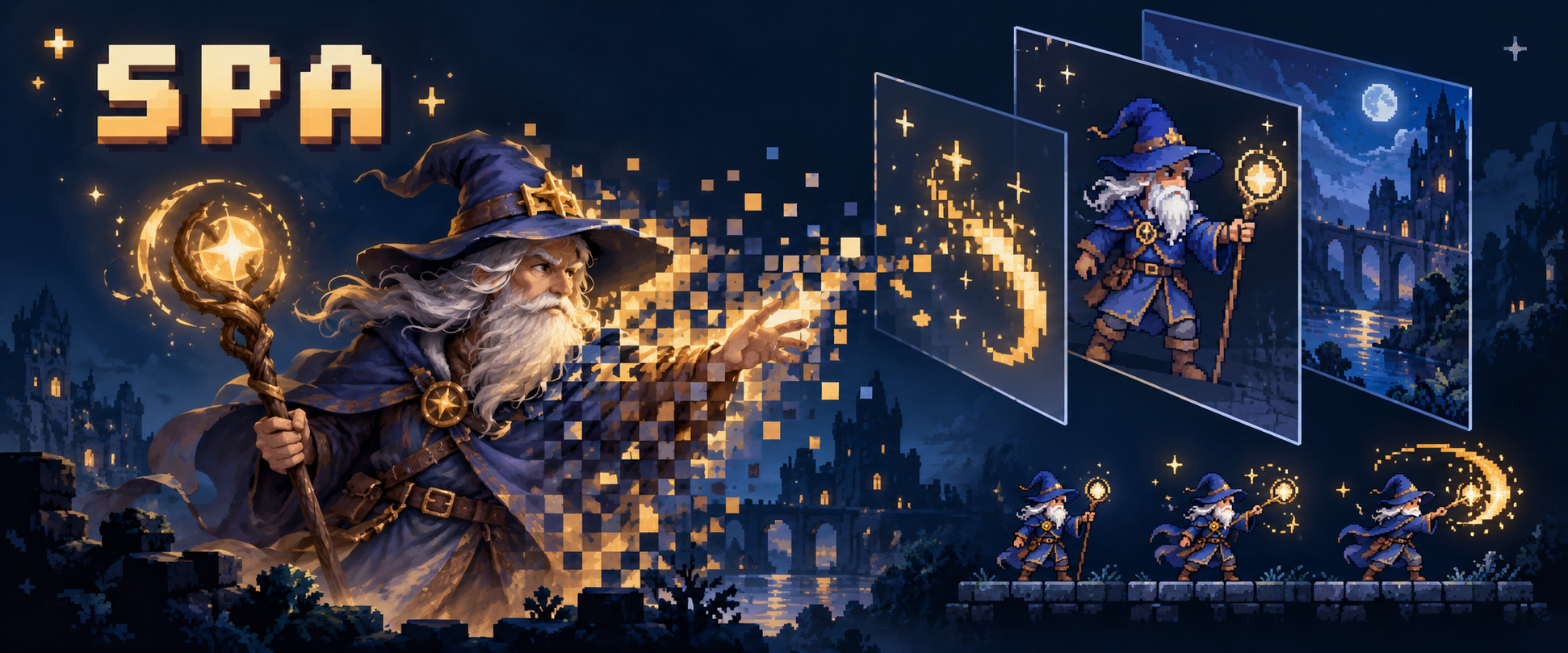
Create, edit, validate, and export pixel art and sprite animations with AI agents.
SPA brings Aseprite to your agent workflows through a CLI, Agent Skill, or MCP server.
Keep editable .aseprite sources and deliver PNGs, GIFs, sprite sheets, and tile assets.


Quick start · Usage guide · Examples · MCP setup
TL;DR
Tell your AI agent:
Read the SPA Skill, check my installed SPA and Aseprite, and create a small pixel art animation. Keep the editable
.asepritesource, validate its frames and timing, export a sprite sheet, and show me the result before calling it done.
New to SPA? Follow Installation, then install the Skill for your agent. The same work can also use the CLI directly or an MCP client.
Contents
- Why SPA?
- What can you build?
- Installation
- Quick start
- Choose your integration
- Examples
- Documentation and support
- Contributing
Why SPA?
- Keep your assets editable. Work with native Aseprite layers, frames, cels, and tags. Retain the source for later revisions alongside exports for your game.
- Control the animation. Set frame timing, position, opacity, and motion on existing cels. Use explicit requests to make repeatable workflow steps.
- Bring your own artwork. Prepare external PNGs with palette, transparency, size, and anchor choices, then import compatible images for animation.
- Check what changed. Inspect saved assets, validate expected facts, compare frames, and preview results. Structured results help agents handle failures.
- Choose your agent connection. Use shell commands, reusable Skill guidance, or an Aseprite MCP server with the same underlying operations.
SPA runs Aseprite in batch mode. You do not need to drive the editor UI for supported operations. Art direction, visual review, and downstream game integration remain part of your workflow.
What can you build?
| Your goal | SPA can help with | Start with |
|---|---|---|
| Create reusable pixel art assets | Sprites, layers, frames, cels, tags, slices, and editable native files | sprite, layer, frame, cel, tag, slice |
| Prepare and edit artwork | PNG preparation and import, image transforms, selections, native paint and filters | raster, image, selection, paint, filter |
| Animate and inspect motion | Frame timing, cel placement, motion curves, animation checks, frame comparison, previews | motion, animation, frame, cel |
| Work with colors and tiles | Palettes, color modes and profiles, keyed tiles, tilesets, and tilemap regions | palette, sprite, tileset, tilemap |
| Deliver assets to a game | PNG images, GIFs, PNG sequences, sprite sheets with JSON, and tileset/map exports | export |
| Automate a sequence of edits | Supported edits to one sprite, checked before one final save | plan check, plan run |
This overview describes the development version. Use spa --help and each command's
--schema for your installation. spa info checks your Aseprite runtime;
spa schema also reports unavailable native capabilities.
Installation
You need Python 3.13+, uv, and a separate Aseprite installation. SPA does not bundle the Aseprite executable.
The upcoming PyPI package is aseprite-automation; the command is spa.
The first PyPI publication
is pending. For the current development version, use the source install below.
Install the current development version
Install Git LFS, then run:
git clone --branch dev https://github.com/aigengame/aseprite-automation.git
cd aseprite-automation
git lfs install
git lfs pull
uv tool install --python 3.13 .
spa version
You can also install a wheel from a
GitHub Release with
uv tool install /absolute/path/to/the-wheel.whl. Published releases may provide
fewer capabilities than the current development version.
The repository is currently private, so cloning requires access. Git LFS retrieves
the native probe fixtures and example assets. If spa is not on PATH, run
uv tool update-shell and open a new shell.
PyPI installation after the first publication
uv tool install aseprite-automation
spa version
uv tool upgrade aseprite-automation
For MCP, install the optional extra: uv tool install 'aseprite-automation[mcp]'.
For source development, use uv sync and uv run spa; see the
usage guide.
Quick start
Point SPA at your Aseprite executable. On macOS, use the binary inside
Aseprite.app/Contents/MacOS/, rather than the .app directory.
export SPA_ASEPRITE_EXECUTABLE="/absolute/path/to/aseprite"
spa info
Use a new working directory for these commands. They create a 32×32 sprite, draw a purple disk on a transparent layer, export a PNG, and check the saved dimensions. Existing destinations are refused.
1. Create an editable source.
spa sprite create --input-json '{
  "target_sprite_file":"canvas.aseprite","overwrite":false,
  "width":32,"height":32,"color_mode":"rgb",
  "initial_layer":{"kind":"transparent"}
}'
2. Draw on the first layer and frame.
spa paint ellipse --input-json '{
  "source_sprite_file":"canvas.aseprite","target_sprite_file":"orb.aseprite",
  "in_place":false,"overwrite":false,
  "target":{"layer":{"layer_path":[1]},"frame_number":1},
  "coordinate_space":"image-pixel",
  "bounds":{"x":8,"y":8,"width":16,"height":16},"style":"filled",
  "brush":{"kind":"circle","size":1},
  "color":{"kind":"rgba","red":166,"green":104,"blue":255,"alpha":255},
  "ink":"simple","opacity":255
}'
3. Export the image.
spa export image --input-json '{
  "source_sprite_file":"orb.aseprite",
  "destination":{"path":"orb.png","if_exists":"fail"},"frame_number":1,
  "export_image_area":{"kind":"canvas"},"layer_composition":{"mode":"visible"},
  "composition_color_mode":"rgb","color_mode":"preserve",
  "color_profile":"preserve","transparency":"preserve"
}'
4. Check the saved source and view orb.png.
spa sprite validate --input-json '{
  "sprite_file":"orb.aseprite",
  "expected":{"width":32,"height":32,"color_mode":"rgb","frame_count":1}
}'
Commands return JSON by default; add --human for readable output. For validation,
check valid, checks, and findings: status: success means the check ran.
Visual quality still needs a look at the exported image.
Continue with the usage guide
for animation, import, paint, color, tile, and export recipes. Use --help and
--schema to discover fields without guessing.
Choose your integration
| Access path | Best for | Entry point |
|---|---|---|
| CLI | Agents that run shell commands, scripts, and asset pipelines | spa --help |
| Agent Skill | Agents that need reusable guidance for the create–verify–export loop | SPA Skill |
| MCP | Clients that discover and call tools, with exported PNGs shown as image content | MCP setup |
Agent Skill
From your consuming project, install the Skill with the Skills CLI. Node/npm is required. For the current development version, point it at your SPA checkout:
npx skills add /absolute/path/to/aseprite-automation --skill spa
Once the Skill is on the repository's default branch, the equivalent source is:
npx skills add aigengame/aseprite-automation --skill spa
The Skills CLI manages installation and updates. The Skill reads the installed SPA help and schemas. It does not install SPA or Aseprite and does not add a separate compatibility or version manager.
MCP
From the current source checkout, install with uv sync --extra mcp, then configure
your client to launch that checkout's .venv/bin/spa-mcp. Follow
MCP setup for the stdio configuration.
Normal CLI use does not need the MCP extra. The MCP server uses the same operations and results; it does not keep an active sprite between calls.
Examples

Moonlit Spell Practice v2: imagegen artwork, Python motion assembly, and SPA animation and export. This preview uses exported PNG frames; the example also includes a playable Godot project.
Both wizard examples keep editable Aseprite sources and exported components. Their Godot projects use those assets for a spell-timing game: cast at a moving target, complete a round, and replay.
| Example | Workflow | What to inspect |
|---|---|---|
| Wizard v1 | Procedural pixel and pose sampling → SPA → Godot | A 128×96 scene, a 32-frame loop, reusable components, and a playable consumer |
| Wizard v2 | imagegen concepts and key poses → preparation and motion assembly → SPA → Godot | A 384×288 scene, seven editable .aseprite assets, exported PNG components, and a playable consumer |
SPA authors and exports the animation; imagegen supplies v2's initial artwork. gda handles Godot verification. Each example records its preparation choices, validation evidence, and dogfooding feedback.
You can inspect the committed assets or open the Godot project without rebuilding all assets. Full rebuilds are optional local checks; see each example's instructions and testing guide.
Documentation and support
- Usage guide — recipes, runtime configuration, output handling, and current limits.
- Sprite sheet export — layouts, trimming, colors, and metadata.
- MCP setup — installation and client configuration.
- Issues — report a problem or request a capability.
- Milestones — planned work and delivery progress.
- Aseprite documentation — the editor, file formats, and native behavior.
When reporting a problem, include spa version, spa info, a minimal request,
and the returned error. Attach a small reproducible asset when you can share it.
Repository documentation and media require access while the repository is private.
Contributing
Start with testing, architecture, and the domain model. The authority matrix routes product and implementation decisions.
SPA-owned code and documentation use the MIT license. Bundled third-party resources have their own notices. Aseprite is a separate product with its own license.
1 maintainer

Metadata
1 maintainer
Release files for aseprite-automation 0.4.0
For a detailed explanation of source distributions (sdists) and built distributions (wheels), please see the package formats documentation.
Source distribution (sdist)
| File | Size | Uploaded | |
|---|---|---|---|
| aseprite_automation-0.4.0.tar.gz | 349.7 kB | Details |
Built distribution (wheel)
| File | Interpreter | ABI | Platform | Reset |
|---|---|---|---|---|
| aseprite_automation-0.4.0-py3-none-any.whl | Python 3 | none | any | Details |
Total release size: 859.9 kB
Release files / aseprite_automation-0.4.0.tar.gz
| Download URL | aseprite_automation-0.4.0.tar.gz |
|---|---|
| Size | 349.7 kB |
| Tags | Source |
|
SHA-256 checksum How to use checksums |
0381349cbac615cfb912fbc382801239f8bc2b872361e1dd769869e1a22a3303
|
|
BLAKE2b-256 checksum How to use checksums |
b7b8bd0dd0105326cd9997a76b0518de7cc1fb3be0213b83ca14667e577c04ec
|
| Upload date | |
|
Uploaded using Trusted Publishing? What is trusted publishing? |
Yes |
| Uploaded via |
twine/7.0.0 CPython/3.13.14
|
Provenance
Provenance describes where a file came from. On PyPI, provenance is shared via attestations, which provide a verifiable record of the build or publishing details. View details, limitations and caveats.


PyPI Publish Attestation
PyPI verified that this artifact, at this checksum, originated from the publisher listed below.
Signed by GitHub Actions, verified by PyPI on Oct 10, 2026.
Transparency logRelease files / aseprite_automation-0.4.0-py3-none-any.whl
| Download URL | aseprite_automation-0.4.0-py3-none-any.whl |
|---|---|
| Size | 510.2 kB |
| Tags | Python 3 |
|
SHA-256 checksum How to use checksums |
6d39078927f690c4db3843d54a955c093405fab149945ad804a30db59174b97d
|
|
BLAKE2b-256 checksum How to use checksums |
8058e2fef15aeee5c25a97526edb0b481210c27c15b682e7043d3f62054f12f4
|
| Upload date | |
|
Uploaded using Trusted Publishing? What is trusted publishing? |
Yes |
| Uploaded via |
twine/7.0.0 CPython/3.13.14
|
Provenance
Provenance describes where a file came from. On PyPI, provenance is shared via attestations, which provide a verifiable record of the build or publishing details. View details, limitations and caveats.
PyPI Publish Attestation
PyPI verified that this artifact, at this checksum, originated from the publisher listed below.
Signed by GitHub Actions, verified by PyPI on Oct 10, 2026.
Transparency log












