
AutoSubSync: Automatic / Manual Subtitle Synchronization Tool 







AutoSubSync is a user-friendly tool that automatically synchronizes your subtitles with your videos or audio files using powerful tools such as ffsubsync, autosubsync, alass and lapse. It also lets you manually adjust the subtitle timings. Just drag and drop your files, and let AutoSubSync do the rest, making subtitle alignment both simple and efficient.
How to install?
Windows
- Download the latest AutoSubSync-windows-amd64.zip.
- Extract the ZIP file.
- Double-click
AutoSubSync.exeto run.
Linux
- Download the latest AutoSubSync-linux-amd64.AppImage.
- Double-click
AutoSubSync-linux-amd64.AppImageto run.
If you see any permission issues, you may need to make the AppImage executable:
chmod +x AutoSubSync-linux-amd64.AppImage
Debian, Ubuntu, and Linux Mint
Download the latest AutoSubSync-linux-amd64.deb and double-click it to install it with your software installer.
The package installs the application under /opt/autosubsync, adds the autosubsync command, and creates a desktop launcher.
Arch Linux
You can also download AutoSubSync from AUR in Arch Linux using the following command:
yay -S autosubsync-bin
macOS
- Download the appropriate ZIP for your Mac:
- Apple Silicon (M1/M2/M3): AutoSubSync-macos-arm64.zip
- Intel: AutoSubSync-macos-amd64.zip
- Extract the ZIP file.
- Double-click
AutoSubSyncto run.
PyPI (All Platforms)

You can install AutoSubSync using either pip or uv (a fast Python package manager) on any platform with Python 3.10 - 3.14:
pip install assy
With uv (click to expand)
uv tool install assy
Then run:
assy
If your system Python is not compatible (e.g., macOS with older Python):
If your system Python version is below 3.10 or above 3.14, the recommended solution is to use uv to install and run AutoSubSync with a compatible Python version automatically.
First, install uv by following the instructions at astral.sh/uv.
Then, simply run:
uv tool install assy
# Then run with:
assy
This will ensure you have a compatible Python version and the latest AutoSubSync installed, regardless of your system Python.
You can install uv from astral.sh/uv.
Docker Guide
Thanks to @IlmariKu in PR #61, you can run AutoSubSync in a Docker container. This makes it easier to deploy and run AutoSubSync in different environments without worrying about dependencies.
# Navigate to the AutoSubSync directory
cd AutoSubSync

# Create input and output directories
mkdir -p input output desktop

# Build and run the container
docker-compose up --build -d
To access the GUI, open your web browser and go to: http://localhost:6080
How to use?
Automatic Synchronization
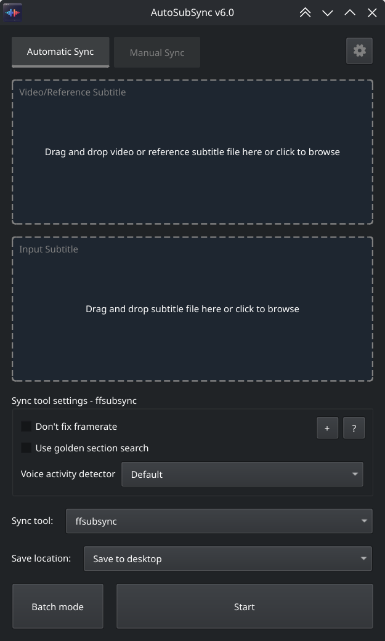
- Drag a video, audio file, or reference subtitle into the
Video/Reference Subtitlefield - Drag a subtitle file into the
Subtitlefield - Select a sync tool (ffsubsync, autosubsync, alass, or lapse)
- Click
Start
Batch Mode
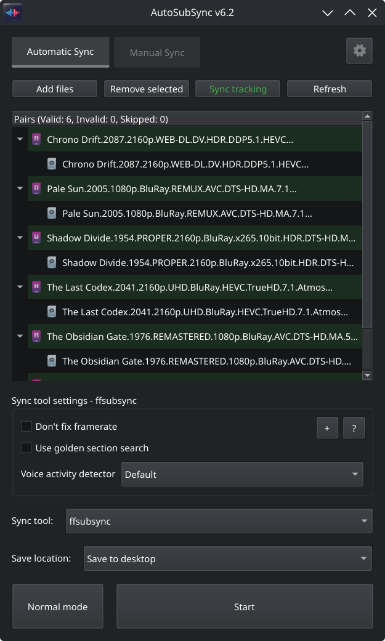
- Enable Batch Mode
- Drag files or folders into the batch area
- Use Auto-Pairing if needed
- Click
Start
Manual Adjustment
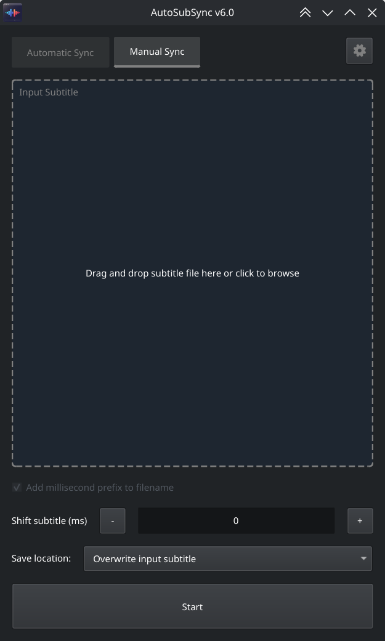
- Go to the Manual tab
- Load a subtitle file
- Enter the time shift in milliseconds
- Select output location
- Click
Start
Command-line interface (assy-cli)
For autonomous pipelines, CI/CD, scheduled jobs, and Docker, AutoSubSync ships a fully-featured CLI that never starts a Qt event loop or requires a display.
# Auto-sync one subtitle (machine-readable output)
assy-cli sync video.mkv subs.srt -o synced.srt --json
# {"ok": true, "input": "subs.srt", "output": "synced.srt", "tool": "ffsubsync", ...}

# Use an audio file as the sync reference
assy-cli sync audio.mp3 subs.srt -o synced.srt

# Prefer a matching embedded subtitle stream as the sync reference
assy-cli sync video.mkv subs.srt --embedded-subtitles

# Shift a subtitle by 1.5 seconds
assy-cli shift subs.srt 1500 -o shifted.srt

# Batch sync a folder of pairs and continue past failures
assy-cli batch --folder ./episodes --continue-on-error --json

# Two-folder pairing with explicit output dir
assy-cli batch --video-dir ./videos --subtitle-dir ./subs -o ./out --json

# Enable embedded-subtitle references for every video in a batch
assy-cli batch --folder ./episodes --embedded-subtitles

# Pick a sync engine per call
assy-cli sync video.mkv subs.srt -t alass

# Add a custom suffix to the output filename
assy-cli sync video.mkv subs.srt --suffix "_custom"

# Inspect or persist user config
assy-cli config path
assy-cli config get sync_tool
assy-cli config set sync_tool alass
| Subcommand | Purpose |
|---|---|
sync |
Auto-sync one subtitle to a video, audio file, or reference subtitle |
shift |
Shift subtitle timing by milliseconds |
batch |
Process many pairs from --folder, --video-dir+--subtitle-dir, or repeated --pair |
config |
get / set / unset / list / path for the user config JSON |
version |
Print version |
The sync and batch commands accept --embedded-subtitles and
--no-embedded-subtitles. These flags override the selected tool's saved
setting for that invocation. Without either flag, the saved setting and tool
default are used.
Exit codes: 0 success · 1 at least one sync failed · 2 usage or config error · 130 SIGINT.
Needs review: LAPSE results marked as unsure or nothing, and autosubsync results with a low-quality warning, are reported with needs_review: true in JSON output and as warnings in human-readable logs.
JSON mode (--json) writes structured results to stdout (one object per sync; for batch, NDJSON plus a final {"summary": ...} line) while human-readable logs go to stderr. Pipe straight into jq:
assy-cli sync video.mkv subs.srt --json | jq -r '.output'
Run from Docker with no display:
docker build -f Dockerfile.cli -t autosubsync-cli .
docker run --rm -v "$PWD:/data" autosubsync-cli sync /data/video.mkv /data/subs.srt -o /data/out.srt
Or via compose: docker compose --profile cli run --rm assy-cli sync /data/video.mkv /data/subs.srt.
Features
Automatic Synchronization
Synchronize subtitles with video or audio files using one of four available synchronization tools. Each tool uses a different approach, so if one doesn't produce satisfactory results, you can try another.
- ffsubsync – Analyzes the audio track of the video and aligns subtitles to match the speech. Works well for most content.
- autosubsync – Uses machine learning to detect speech patterns and synchronize subtitles accordingly.
- alass – Can align subtitles using either audio analysis or a reference subtitle file. Generally faster than other tools, and most of the time produces accurate results.
- lapse – Language-Agnostic Playback Synchronization Engine. A fast C++ engine built on FFmpeg, libfvad/Silero VAD, and FFTW3. Supports video, audio, and subtitle references, linear drift correction, and split mode for cuts. AutoSubSync keeps LAPSE updated automatically and stores downloaded updates in your user data folder.
In addition to video files, you can use an audio file or a correctly-timed reference subtitle file as the source. Audio references are converted to a temporary MP4 automatically; enable Keep converted audio files in Settings to keep the converted file. Supported audio references include MP3, M4A, AAC, FLAC, OGG/OGA, OPUS, WAV, WMA, AIFF/AIF, APE, and MKA. Reference subtitles are useful when you have subtitles in one language that are already synchronized and want to sync subtitles in another language to match.
Results that a tool is unsure about, or low-quality matches from autosubsync, are marked Needs review in orange instead of being reported as successful.
Sync Tool Settings
Each sync tool has its own settings on the Automatic tab. Use Other options for advanced tool-specific settings, and Additional arguments for custom command-line flags. Additional arguments take priority over the app's settings, so you won't pass the same option twice. Use Restore to defaults to reset the selected tool to its defaults while keeping your Additional arguments.
Advanced settings include ffsubsync quality and offset limits, segmented sampling, audio-track selection, strict mode, and maximum duration; ALASS negative timestamps, alignment interval, and subtitle framerate; and LAPSE confidence, snapping, audio-track, and minimum-shift controls.
Manual Synchronization
Shift all subtitle timings by a specified number of milliseconds. Use positive values to delay subtitles (make them appear later) or negative values to advance them (make them appear earlier).
This is useful for fine-tuning results after automatic synchronization, or when you know the exact offset needed. The interface provides increment and decrement buttons for small adjustments, or you can enter a specific value directly.
You can choose to save the adjusted subtitle to your desktop as a new file, or replace the original subtitle file.
Batch Processing
Process many subtitles against their video, audio, or reference subtitle sources in a single operation. Enable batch mode to access the batch list and additional file management options.
Adding files to the batch list:
| Option | Description |
|---|---|
Add pair |
Manually select a video, audio file, or reference subtitle and a subtitle file to add as a pair. |
Add pair (continuously) |
Keep adding reference-subtitle pairs until you cancel. |
Add folder |
Select a folder to scan for video, audio, and subtitle files, including all subfolders. (Files with matching filenames will be paired automatically.) |
Add multiple files |
Select multiple files at once to add to the list. (Files with matching filenames will be paired automatically.) |
Auto-Pairing with Season/Episode |
Automatically match videos with subtitles based on episode patterns (see Auto-Pairing with Season/Episode). |
Pair multiple subtitles with single source |
Pair multiple subtitle files with one video, audio file, or reference subtitle (see Pair multiple subtitles with single source). |
You can also right-click a subtitle item and choose
Add video/reference to this itemto pair it with a video, audio file, or reference subtitle.
You can also drag and drop files or folders directly onto the batch list.
Sync Tracking
AutoSubSync maintains a database of reference files (videos or audio files) that have been synchronized previously. When you add references to the batch list, any references that have been previously processed are automatically identified and marked to be skipped. This feature is designed for reference files only; subtitle files are not tracked.
References are identified by their content using a hash, not by their filename or location. This means you can rename, move, or reorganize your references and AutoSubSync will still recognize them as already processed.
In the batch list, previously processed references appear greyed out with a Status: Skipped tooltip.
Right-click on items in the batch list to access the following options:
| Option | Description |
|---|---|
Force process selected video(s) |
Force-process the selected videos again even though they were previously processed. |
Skip processing selected video(s) |
Mark the selected videos to be skipped without adding them to the database. |
Add selected video(s) to processed items database |
Mark the selected videos as processed without actually syncing them. |
Remove selected video(s) from processed items database |
Remove selected videos from the processed items database so they can be processed again without forcing. |
Sync tracking menu options:
| Option | Description |
|---|---|
Enable/Disable sync tracking |
Toggle the sync tracking system on or off. When disabled, no videos will be automatically skipped, newly synced videos will not be added to the database, and sync-related options will not appear in Batch Mode. |
Clear processed items database |
Remove all entries from the database. All videos will be treated as unprocessed. Please be careful with this action, as it cannot be undone, if you have not backed up your database. |
Backup processed items database |
Export your database to a file for safekeeping or transfer to another computer. |
Import processed items database |
Import entries from a backup file. Duplicate entries are automatically ignored. |
Manage library folders |
Open the Library Manager to add or remove saved folders. |
Load library |
Load all videos, audio files, and subtitles from your saved library folders into the batch list. |
Location: Settings → Sync tracking, or the Sync tracking button in Batch Mode
You can locate your processed items database file
(processed_items.db)usingOpen config file directoryin theSettingsmenu.
Library Manager
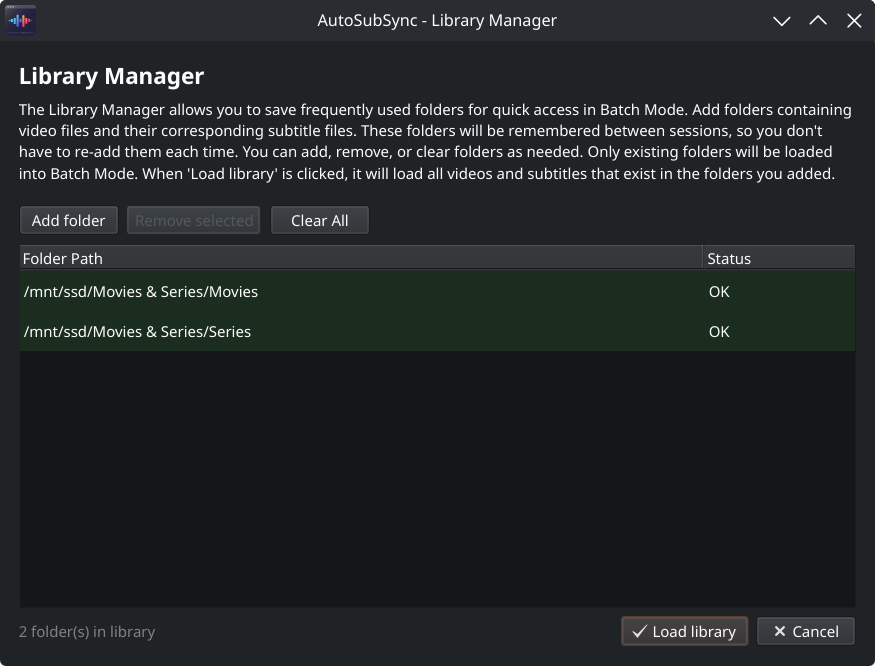
Save folders containing your media files for quick access. The Library Manager stores your folder list in a database that persists between sessions.
Add folders that contain video or audio files and their corresponding subtitle files. When you click Load library, all video, audio, and subtitle files from your saved folders are loaded into the batch list. This is useful if you regularly work with the same media collection and want to quickly check for new content to process.
You can add new folders, remove individual folders, or clear the entire list.
Location: Settings → Sync tracking → Manage library folders, or Batch Mode → Sync tracking → Manage library folders
You can locate your library database file
(library_folders.db)fromOpen config file directoryin theSettingsmenu.
Auto-Pairing with Season/Episode
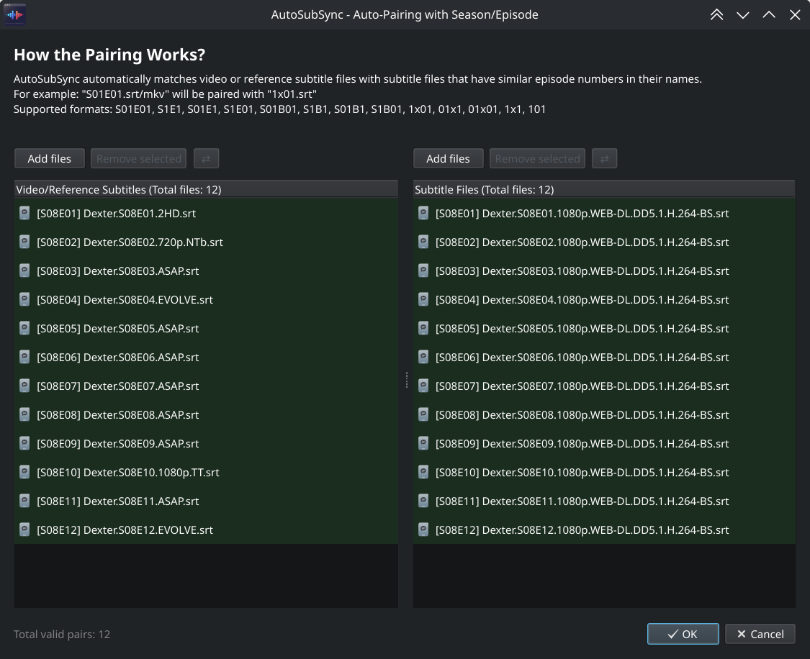
When working with TV series or other episodic content, AutoSubSync can automatically match video or audio files with their corresponding subtitle files based on season and episode information in the filenames.
Supported naming patterns include:
S01E01,s01e01,S01E156– Standard season/episode format, including longer episode numbersE01,EP01,Episode 1,Episode.1,Ep 01,bölüm 3– Episode-only formats (assume season 1)1x01,01x01– Alternative format with 'x' separatorPart 2,Pt2– Part-based numbering (assumes season 1)E001and other longer episode numbers
Years, video resolutions, and codec names are not treated as episode numbers.
This feature is particularly useful when you have a folder of video or audio files and a separate folder of subtitle files that need to be paired up.
Location: Enable Batch Mode, then click input box to open the batch add menu, and select Auto-Pairing with Season/Episode.
Pair Multiple Subtitles with Single Source
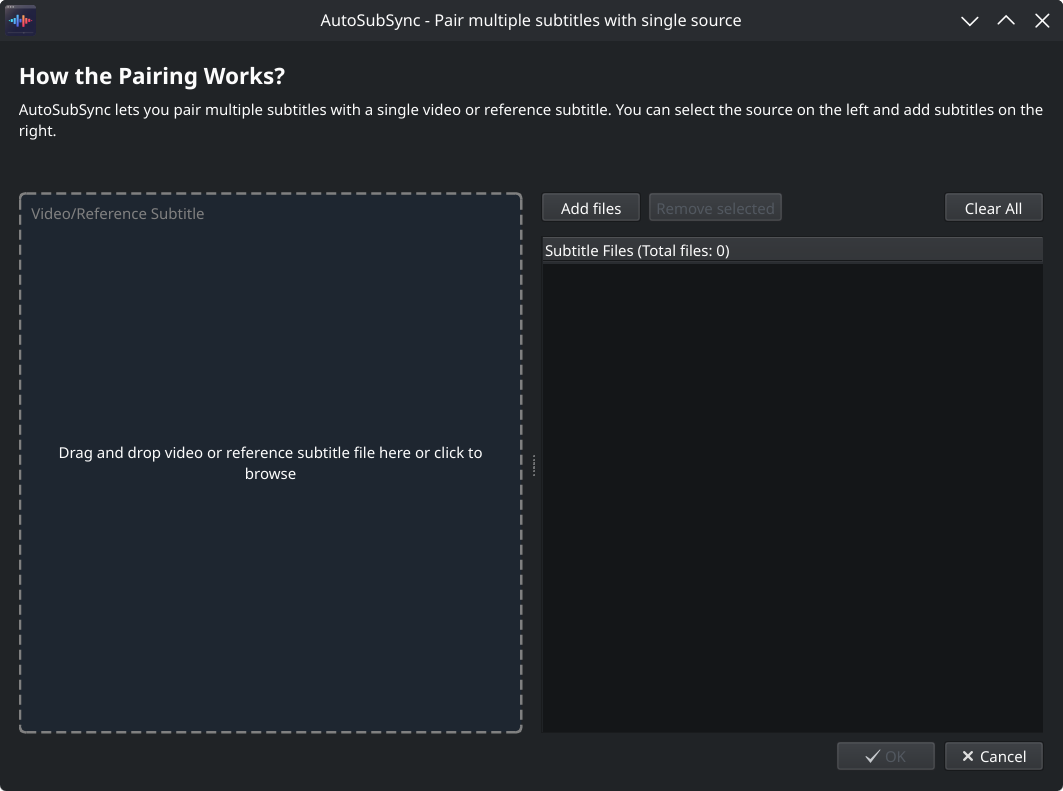
In Batch Mode, you can pair multiple subtitle files with a single video, audio file, or reference subtitle. This allows you to synchronize subtitles in several languages against the same source in one batch operation.
For example, if you have a video or audio file and subtitle files in English, Spanish, and French, you can sync all three subtitle files against the same source simultaneously.
Location: Enable Batch Mode, then click input box to open the batch add menu, and select Pair multiple subtitles with single source.
Supported Input Subtitle Formats
AutoSubSync supports the following subtitle formats:
| Format | Extension |
|---|---|
| SubRip | .srt |
| WebVTT | .vtt |
| SubViewer | .sbv |
| MicroDVD | .sub |
| Advanced SubStation Alpha | .ass |
| SubStation Alpha | .ssa |
| Distribution Format Exchange Profile | .dfxp |
| Timed Text Markup Language | .ttml |
| iTunes Timed Text | .itt |
| SAMI | .smi |
| Spruce STL | .stl |
Subtitles can be converted between formats during the synchronization process if needed.
LAPSE also reads VobSub
.idxfiles together with their matching.subfile. AutoSubSync copies the.subfile alongside the synced.idxoutput.
Drag and Drop
The interface supports drag and drop for all file inputs. You can drag:
- Individual video, audio, or subtitle files onto their respective input fields
- Multiple files onto the batch list
- Entire folders onto the batch list (AutoSubSync will scan for video, audio, and subtitle files)
- A mix of files and folders
This eliminates the need to navigate through file browser dialogs for most operations.
Interface Languages
The application interface is available in 23 languages:
English, Español, Deutsch, Français, Italiano, Polski, Português, Türkçe, Tiếng Việt, Bahasa Indonesia, Bahasa Melayu, ไทย, Українська, Русский, 中文, 繁體中文, 日本語, 한국어, हिन्दी, বাংলা, العربية, فارسی, اردو
Change the language from Settings → Language. The interface will update after restarting the application.
Special thanks to @bayramhayri for translations.
Settings
Access settings via the gear icon in the top right corner.
| Setting | Description |
|---|---|
| Language | Choose from 23 interface languages. The application will restart to apply the new language. |
| Theme | Select the visual theme: System (follows OS setting), Dark, or Light. |
| Change output subtitle encoding | Force the output subtitle to use a specific encoding such as UTF-8, UTF-16, ISO-8859-1, or keep the same encoding as the input file. |
| Sync tracking | Access sync tracking options: toggle tracking on/off, manage the processed items database, backup/import database, and manage library folders. |
| Backup subtitles before overwriting | When enabled, creates a backup copy of the original subtitle file before replacing it with the synchronized version. |
| Auto-rename files if needed | When enabled (and alass is selected), AutoSubSync will automatically rename any file or folder path components that contain [ or ] (replacing them with ( and )) to fix an error where alass cannot work with paths containing these characters. When disabled, AutoSubSync will display a 30-second prompt asking whether to rename the affected paths; if the prompt times out, the rename will be skipped. |
| Keep extracted subtitles | When synchronizing against embedded video subtitles, keep the extracted subtitle files instead of deleting them after processing. |
| Keep converted subtitles | When subtitle format conversion is required, keep the converted file instead of deleting it after processing. |
| Keep converted audio files | When an audio reference is converted to MP4, keep the converted file instead of deleting it after processing. |
| Add "tool_" prefix to subtitles | Add the name of the sync tool (e.g., ffsubsync_, alass_) to the beginning of the output subtitle filename. |
| Add custom suffix for subtitles | Add a custom suffix to the end of the output subtitle filename (ignored in "Overwrite input subtitle" mode). |
| Open config file directory | Open the folder where configuration files and databases (processed_items.db, library_folders.db) are stored. |
| Open logs directory | Open the folder where application log files are stored for troubleshooting. |
| Keep log records | When enabled, saves detailed logs of synchronization operations for debugging purposes. |
| Clear all logs | Delete all log files from the logs directory to free up space. |
| Remember the changes | When enabled, saves your current settings and restores them when AutoSubSync is reopened. |
| Check for updates at startup | Automatically check for new versions of AutoSubSync and LAPSE when AutoSubSync starts. |
| Reset to default settings | Restore all application settings to their original default values. |
| About | Display application version, credits, and links to the project repository. |
Contributing
I welcome contributions! If you have ideas for new features, improvements, or bug fixes, please fork the repository and submit a pull request.
For developers and contributors
If you'd like to modify the code and contribute to development, you can download the repository, extract it and run the following commands to install the package:
# Go to the directory where you extracted the repository and run:
pip install -e .[dev]     # Installs the package in editable mode with dev dependencies
assy                    # Opens the GUI
assy-cli                # Alternative CLI command
python build.py           # Builds standalone executables (AppImage/.deb/Windows/macOS)
python build_pypi.py      # Builds PyPI package to dist/pypi folder
Requires Python 3.10 or higher. Feel free to explore the code and make any changes you like.
Credits
Thanks to creators of ffsubsync, autosubsync, alass, lapse, ffmpeg and others. Automatic subtitle synchronization is possible because of these tools. This is just a GUI application that makes the process a bit easier.
How to uninstall?
Before uninstalling, you may want to cleanup your settings and logs. Open AutoSubSync and go to:
Settings→Open config file directoryto locate your configuration files and databases. (You may want to back up these files if you plan to reinstall AutoSubSync later.)Settings→Open logs directoryto delete log files.
Then, follow the appropriate method below based on how you installed AutoSubSync:
If installed with pip
pip uninstall assy
If installed with uv
uv tool uninstall assy
If installed from AUR (yay)
yay -R autosubsync-bin
If installed from a .deb package
sudo apt remove autosubsync
If using AppImage or standalone binary
- Linux: Delete the
AppImagefile from your system. - macOS: Delete the
.appfile from your Applications or wherever you placed it. - Windows: Delete the folder that contains the extracted files (including the
.exe).
If you created a virtual environment
Simply remove the virtual environment directory you created for AutoSubSync.
Tags: automatic subtitle synchronization, autosubsync, automatic sub sync, subtitle synchronization, resync subtitles, re-sync subtitles, subtitle shifter, subtitle adjuster, subtitle tools, subtitle utilities, synchronize subtitles, adjust subtitle timing, subtitle management, Python subtitle tool, subtitle manipulation, subtitle synchronization script, subtitle sync fixing, subtitle sync fix, fix subtitle sync.
1 maintainer

Metadata
1 maintainer
Release files for assy 6.6
For a detailed explanation of source distributions (sdists) and built distributions (wheels), please see the package formats documentation.
Source distribution (sdist)
| File | Size | Uploaded | Provenance | Actions |
|---|---|---|---|---|
| assy-6.6.tar.gz | 3.4 MB | With provenance | Details for assy-6.6.tar.gz |
Built distribution (wheel)
| File | Interpreter | ABI | Platform | Actions Reset |
|---|---|---|---|---|
| assy-6.6-py3-none-any.whl | Python 3 | none | any | Details for assy-6.6-py3-none-any.whl |
Total release size: 6.8 MB
Release files / assy-6.6.tar.gz
| Download URL | assy-6.6.tar.gz |
|---|---|
| Size | 3.4 MB |
| Tags | Source |
|
SHA-256 checksum How to use checksums |
eb5bfd09b8d7e0287d5aa322e67c3b4ef3652197a5b46d1eaee245f31f6cefa0
|
|
BLAKE2b-256 checksum How to use checksums |
8692b722e511eaccb2fcf2a1439e891451901942e66f585f74613a70327e1272
|
| Upload date | |
|
Uploaded using Trusted Publishing? What is trusted publishing? |
Yes |
| Uploaded via |
twine/7.0.0 CPython/3.13.16
|
Provenance
Provenance describes where a file came from. On PyPI, provenance is shared via attestations, which provide a verifiable record of the build or publishing details. View details, limitations and caveats.


PyPI Publish Attestation
PyPI verified that this artifact, at this checksum, originated from the publisher listed below.
Signed by GitHub Actions, verified by PyPI on Nov 12, 2026.
Transparency logRelease files / assy-6.6-py3-none-any.whl
| Download URL | assy-6.6-py3-none-any.whl |
|---|---|
| Size | 3.4 MB |
| Tags | Python 3 |
|
SHA-256 checksum How to use checksums |
284d95a5bcc0fc0bd6156fccad169de9b7f991769bb7a32554155b3ffa540249
|
|
BLAKE2b-256 checksum How to use checksums |
2334d046b228ea89fde3b909b67604ded0b758320933c504af5949e8c0a23bce
|
| Upload date | |
|
Uploaded using Trusted Publishing? What is trusted publishing? |
Yes |
| Uploaded via |
twine/7.0.0 CPython/3.13.16
|
Provenance
Provenance describes where a file came from. On PyPI, provenance is shared via attestations, which provide a verifiable record of the build or publishing details. View details, limitations and caveats.
PyPI Publish Attestation
PyPI verified that this artifact, at this checksum, originated from the publisher listed below.
Signed by GitHub Actions, verified by PyPI on Nov 12, 2026.
Transparency logSecurity for assy 6.6
Provenance
Provenance describes where a file came from. On PyPI, provenance is shared via attestations, which provide a verifiable record of the build or publishing details. View details, limitations and caveats.
Full provenance
Both files in this release have been uploaded with provenance metadata.
Attestation for assy-6.6.tar.gz
PyPI Publish Attestation
PyPI verified that this artifact, at this checksum, originated from the publisher listed below.
Signed by GitHub Actions, verified by PyPI on Nov 12, 2026.
Transparency logA note on package security
PyPI is a repository for distributing packages, not a service for auditing them. While third-party security researchers and our staff do their best to detect and remove malicious packages, PyPI cannot guarantee the quality, security or suitability of any given package.
To learn more about protecting yourself from malicious actors, visit our package security documentation.














