
Lumi
Terminal-based conditions database explorer for ATLAS/LHC. Built with Textual and CHAI.
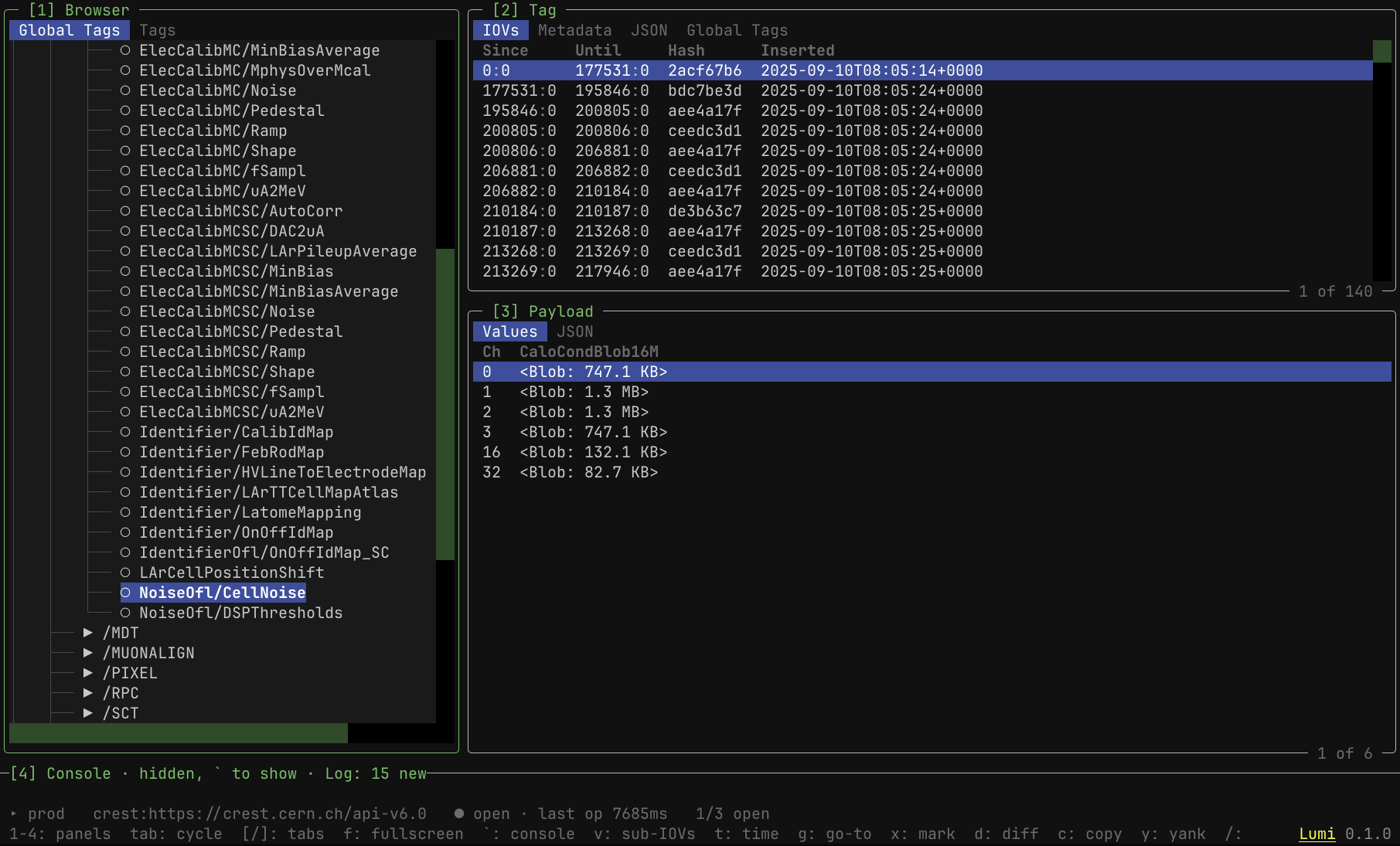
Browse global tags, inspect IOVs and payloads, diff across backends, and copy data between databases — all from the terminal with an embedded Python shell.
Installation
Lumi is published on PyPI as atlas-lumi and needs Python 3.12 or newer. It depends on atlas-chai, CHAI's Python bindings, which PyPI provides for Linux x86_64 only (see Other platforms).
Install the app
pipx installs Lumi into its own environment and puts the lumi command on your PATH:
pipx install atlas-lumi
lumi
pipx upgrade atlas-lumi updates it later.
On lxplus the system Python is 3.9, so let pipx fetch a standalone Python 3.12:
pipx install --python 3.12 --fetch-missing-python atlas-lumi
If pipx is not installed, install it for your user first, then run the command above as python3 -m pipx:
python3 -m pip install --user pipx
python3 -m pipx ensurepath   # adds ~/.local/bin, where pipx puts lumi, to PATH
With uv instead of pipx, one command does the same, fetching Python 3.12 if needed:
uv tool install --python 3.12 atlas-lumi
Use CHAI from Python
To import chai in your own scripts, install atlas-chai into a virtual environment. A pipx environment holds the app only and is not meant to be imported from.
python3.12 -m venv ~/chai-env
~/chai-env/bin/pip install atlas-chai
~/chai-env/bin/python -c "import chai"
Lumi and CHAI in one environment
Installing atlas-lumi into a virtual environment pulls in atlas-chai, so the same environment runs lumi and imports chai:
python3.12 -m venv ~/lumi-env
~/lumi-env/bin/pip install atlas-lumi
~/lumi-env/bin/lumi
Lumi's embedded Python shell runs in the environment Lumi is installed in. To use another package there, such as numpy for a [shell] auto_import, install it into that environment: ~/lumi-env/bin/pip install numpy, or pipx inject atlas-lumi numpy for a pipx install.
Other platforms
PyPI has atlas-chai wheels for Linux x86_64 only, and no source distribution, so on any other platform pip stops with "no matching distribution" for atlas-chai. On macOS, build an atlas-chai wheel locally (Build a Wheel Locally in the CHAI repository) and install it into your environment first. Installing Lumi then finds the dependency already satisfied.
Cross-platform lockers such as uv lock and poetry lock resolve for every platform and fail on atlas-chai. Restrict them to Linux, for example with [tool.uv] environments = ["sys_platform == 'linux'"].
Quick start
lumi # or: python -m lumi
On first run, if ~/.config/lumi/config.toml doesn't exist, Lumi creates it with a default cern connection (crest:https://crest.cern.ch/api-v6.0) and connects automatically, so no configuration is needed to start browsing.
Configuring connections
Use the in-app connection manager (C) to add, edit, save, connect, or delete connections. The first connection you save becomes the default.
Every URI starts with a CHAI scheme (crest:, crest_fs:, coolr:); the
add/edit form offers the schemes whose plugins it finds in $CHAI_PLUGIN_PATH
(or the chai package's plugins/ directory) as a dropdown beside the address.
To configure connections by hand instead, create or edit
~/.config/lumi/config.toml:
[connections.local]
uri = "crest_fs:/tmp/crest_data"
default = true

[connections.prod]
uri = "crest:https://crest.cern.ch/api-v6.0"
color = "sage"  # chip colour: a palette name or "#RRGGBB" (default: by position)

[connections.cool]
uri = "coolr:https://coolr-host:8080/coolrapi?db=CONDBR2&schema=COOLOFL_TILE"

[ui]
theme = "tokyo-night"
# collapsible_vectors = true  # tree view for vector payloads (default: flat table)
# nerd_font = true            # round the connection chips (needs a Nerd Font)

[shell]
auto_import = ["import numpy as np"]
The settings popup (,) edits the same file without leaving Lumi. Its Settings
pane lists the themes (highlight to preview, Enter to pick) and every [ui] and
[shell] setting, and each change is written as you make it, as in the
connection manager. Its config.toml pane (Ctrl+T) edits the raw text, which
is written when you leave the pane or close the popup. Anything that fails
validation is refused with the reason, and comments elsewhere in the file are
kept. Written changes apply at once: edited connections reconnect as they would
from the connection manager, and new auto-import statements run in the shell.
Every configured connection appears as its own root node in the Browser tree
— open as many at once as you like, there's no single "active connection".
The source for any operation (diff, copy, shell db) is derived from where
your cursor sits in the tree.
Each connection is labelled by a coloured chip wherever it appears (browser
roots, the Tags tab, the connection manager), next to its state: ● connected,
○ disconnected, ✗ failed. Every list shows the default connection first, then the
rest in config order. Colours come from a palette chosen to stay
distinguishable with red-green colour blindness, in the order connections
appear in the config; set color on a connection, or press c in the manager,
to pick one. . connects or disconnects the connection under the cursor from
anywhere.
Usage
Keyboard shortcuts
| Key | Action |
|---|---|
q |
Quit (main screen only) |
Esc |
Go back / cancel / clear the mark |
1-4 |
Jump to panel (Ctrl+1-4 works from any input) |
Tab / Shift+Tab |
Cycle panels |
[ / ] |
Switch tabs within panel |
f |
Fullscreen the focused panel |
` |
Hide / show the console (4 also shows it) |
Up/Down |
Navigate |
Enter / Space |
Select / expand |
/ |
Filter / search the focused panel's active tab |
v |
View sub-IOVs of a multi-IOV block |
t / g |
Read payload at time / jump to tag + time |
x |
Mark a tag or IOV (◆) — d/c then act on it |
d |
Diff payloads (vs the mark, if one is set) |
c |
Copy tag (into/onto the mark's target, if one is set) |
y |
Yank selection to clipboard |
r |
Refresh the current source, a failed root, or the tag search |
C |
Manage connections |
, |
Settings (theme, options, raw config.toml) |
? |
Help overlay |
Contextual bindings that only apply inside a specific panel or view (not
shown in the footer, all listed in the in-app help overlay via ?):
| Key | Where | Action |
|---|---|---|
h |
Multi-IOV sub-IOV viewer | Cycle delta display: off → highlight → deltas-only |
n / N |
A JSON tab with an active search | Jump to next / previous match |
e |
Connection manager | Edit a connection's name or URI |
c |
Connection manager | Cycle a connection's chip colour |
. |
Anywhere but a text input | Connect/disconnect the connection under the cursor (else the source) |
D |
Connection manager | Delete a connection |
Ctrl+L |
Console panel | Clear the active tab (REPL output or Log) |
Diff mode
| Key | Action |
|---|---|
f |
Toggle filter (changes only) |
c |
Copy a row from the diff |
e |
Export diff to file |
y |
Yank focused row |
Esc |
Back |
Panels
| # | Panel | Tabs | Description |
|---|---|---|---|
| [1] | Browser | Global Tags, Tags | Every configured connection as a tree root; expand into global tags / subsystems / tags. Tags searches tag names directly |
| [2] | Tag | IOVs, Metadata, JSON, Global Tags | IOV table + tag metadata + tag JSON + GT mappings |
| [3] | Payload | Values, JSON | Payload data (adapts to container type) |
| [4] | Console | Python, Log | Interactive REPL + backend operation log |
A source bar above the footer shows the current source's name, URI,
connection state, last operation latency, and open-connection count. A mark
line appears above it once x sets a mark.
` collapses the console to its title row, giving its space to the panels above. The REPL keeps its variables and history, and the collapsed title counts log entries (and errors) added since, so a failed operation doesn't go unnoticed. `, 4, Ctrl+4 or a click on the title row brings it back. Inside the REPL input ` is typed as text, so press Esc first. Lumi remembers the choice in $XDG_STATE_HOME/lumi/layout.toml (default ~/.local/state/lumi/layout.toml), separate from config.toml; delete that file to reset the layout.
Every r leaves a reload stamp in the source bar, such as ⟳ 14:32:05 prod: when the reload ran and which connections it covered. It shows in the accent colour for a moment, then dims. A reload that failed shows ⟳ failed 14:32:05 prod in the theme's error colour.
Finding a tag
The Browser panel has two tabs. Global Tags, the default, is the tree of connections, their global tags and the tags each one maps. Tags searches tag names directly, which is how you reach a tag that no global tag maps yet. [ and ] switch between them.
Type a tag name or a regex. Matching is case-insensitive, the same as / elsewhere, and names that start with the match come first. Picking a result with Enter, Tab or a click loads it just as picking a tag in the tree does, and x, d, c and y act on it the same way.
The search covers the connections ticked in the list under the input (Shift+Tab to reach it, Space to tick). Only open connections are listed, and with just one open the list gives way to a searching: <name> line. Each connection's tag names are fetched once, the first time the Tags tab needs them, and r on the Tags tab fetches them again. The UI pauses while a fetch runs: about 0.2 s for prod CREST.
? lists the search keys.
Development
Clone the repository and install Lumi in editable mode with the development tools. On macOS, install a locally built atlas-chai wheel into the venv first (see Other platforms).
git clone https://gitlab.cern.ch/crest-db/lumi.git
cd lumi
python3.12 -m venv venv
source venv/bin/activate
pip install -e ".[dev]"
The test suite does not need CHAI: tests stub the chai module, and CI runs them without atlas-chai installed.
# Run tests
pytest

# Run tests with coverage
pytest --cov=lumi --cov-report=term-missing

# Lint
ruff check src/ tests/

# Type check
mypy src/
Releasing
- Bump
__version__insrc/lumi/__init__.py. It is the only place the version is set, andpyproject.tomlreads it from there. - Merge to
master. - Tag the merge commit
X.Y.Z(novprefix, as in CHAI) and push the tag. - In the tag pipeline,
buildchecks that the tag matches__version__and that the wheel and sdist contain only the expected files. Run the manualpublish_testpypijob.verify_testpypithen installs the release from TestPyPI and smoke-tests it. If it passes, run the manualpublish_pypijob, which uploads the same files to PyPI.
A version cannot be uploaded twice to either index. If anything is wrong after the TestPyPI upload, fix it and release the next patch version.
Project structure
src/lumi/
    app.py              # Textual App, global bindings, CLI entry point
    config.py           # TOML config loading, validation, and settings write-back
    layout_state.py     # Remembered layout (console collapsed) in the XDG state dir
    chai_plugins.py     # Installed CHAI schemes (plugin scan) + URI scheme split
    errors.py           # Toast-sized error summaries (connect failures)
    connection_state.py # Connection states and their ●/○/✗ glyphs
    connection_labels.py  # Per-connection colour palette and chips
    keybindings.py      # Canonical footer/help keybinding registry
    mark.py             # Mark & act decision table (chai-free)
    browser_nodes.py    # Pure tree-node helpers (labels, glyphs, node walks)
    table_filter.py     # Shared regex row-filter + JSON search helpers
    themes.py           # Color themes (Tokyo Night, Catppuccin, etc.)
    styles/app.tcss     # Layout and theming CSS
    screens/
        main.py         # 4-panel browser layout + source bar + mark/act wiring
        connections.py  # Connection manager modal (add/edit/save/delete/open/close)
        diff.py         # Diff mode (target selection, result view, export)
        copy.py         # Copy mode (dry-run preview, execution, full-tag scan)
        multi_iov.py    # Multi-IOV (DCS) sub-IOV viewer, delta cycle
        time_query.py   # Time-addressed query screens
        help.py         # Keybindings help overlay (built from keybindings.py)
        config.py       # Settings popup (settings list with themes, raw config.toml)
        fullscreen.py   # Fullscreen panel wrapper
    widgets/
        browser.py      # [1] Connection tree roots / global tags / tags
        iovs.py         # [2] IOV table + metadata + tag JSON + global tags
        payload.py      # [3] Payload values + JSON (Container + VectorContainer)
        container_view.py  # Shared Values/JSON render surface
        shell.py        # [4] Collapsible console: Python REPL + backend log
        source_bar.py   # Source name/URI/state/latency bar
        filter_bar.py   # Shared `/` filter/search input bar
    services/
        database.py     # CHAI database wrapper + ConnectionRegistry
        copy.py         # Copy plan/dry-run/execute service
        differ.py       # Diff result types
        time_query.py   # Time-addressed query resolution
License
Apache-2.0
1 maintainer

Metadata
1 maintainer
Release files for atlas-lumi 0.1.0
For a detailed explanation of source distributions (sdists) and built distributions (wheels), please see the package formats documentation.
Source distribution (sdist)
| File | Size | Uploaded | Provenance | Actions |
|---|---|---|---|---|
| atlas_lumi-0.1.0.tar.gz | 122.9 kB | Without provenance | Details for atlas_lumi-0.1.0.tar.gz |
Built distribution (wheel)
| File | Interpreter | ABI | Platform | Actions Reset |
|---|---|---|---|---|
| atlas_lumi-0.1.0-py3-none-any.whl | Python 3 | none | any | Details for atlas_lumi-0.1.0-py3-none-any.whl |
Total release size: 264.7 kB
Release files / atlas_lumi-0.1.0.tar.gz
| Download URL | atlas_lumi-0.1.0.tar.gz |
|---|---|
| Size | 122.9 kB |
| Tags | Source |
|
SHA-256 checksum How to use checksums |
f91ca0b9fcf64cce83ffd2db81ae9567f4d3ab766f0adcaf69abb7a9f4ac9c9f
|
|
BLAKE2b-256 checksum How to use checksums |
d7ac325b4cf295228ab2e63e1b8023b065d001dc404c9242da95e8a5e920b363
|
| Upload date | |
|
Uploaded using Trusted Publishing? What is trusted publishing? |
No |
| Uploaded via |
twine/7.0.0 CPython/3.12.16
|
Release files / atlas_lumi-0.1.0-py3-none-any.whl
| Download URL | atlas_lumi-0.1.0-py3-none-any.whl |
|---|---|
| Size | 141.8 kB |
| Tags | Python 3 |
|
SHA-256 checksum How to use checksums |
cbadd3dff9b356062ae3852d6033ddfddf223b82da0042eca37c5ae3651ae647
|
|
BLAKE2b-256 checksum How to use checksums |
7b00d1c8b8bcd536c4d44ae3760688552ac3f8db8a5051f13bf8845d4b1a3690
|
| Upload date | |
|
Uploaded using Trusted Publishing? What is trusted publishing? |
No |
| Uploaded via |
twine/7.0.0 CPython/3.12.16
|
Security for atlas-lumi 0.1.0
Provenance
Provenance describes where a file came from. On PyPI, provenance is shared via attestations, which provide a verifiable record of the build or publishing details. View details, limitations and caveats.
No provenance found
None of the files in this release were uploaded with provenance metadata.
A note on package security
PyPI is a repository for distributing packages, not a service for auditing them. While third-party security researchers and our staff do their best to detect and remove malicious packages, PyPI cannot guarantee the quality, security or suitability of any given package.
To learn more about protecting yourself from malicious actors, visit our package security documentation.













